
Table of Contents
Some links on The Justifiable are affiliate links, meaning we may earn a small commission at no extra cost to you. Read full disclaimer.
An e commerce payment system is the heart of any online business—it’s what turns browsing into buying. Without it, your store is just a digital catalog. But how do you actually set one up fast and get money flowing smoothly from your customers to your bank?
In this guide, you’ll discover exactly how e commerce payment systems work, the key steps to configure them correctly, and which tools can help you launch without unnecessary tech headaches.
Understanding How an E Commerce Payment System Works
An e commerce payment system is what allows money to move safely between your customer and your business during an online transaction.
Understanding how it functions will help you make better choices about platforms, setup, and security later.
How Online Transactions Flow From Customer to Merchant
When a customer buys something online, their payment doesn’t go directly to your bank—it follows a secure multi-step journey:
- Customer Checkout: A shopper enters their card details or selects a wallet like PayPal or Apple Pay.
- Data Encryption: The information is instantly encrypted (scrambled) to prevent theft.
- Authorization: The payment gateway (like Stripe or Square) sends the transaction to the payment processor, which contacts the customer’s bank for approval.
- Verification: The issuing bank confirms whether the customer has sufficient funds.
- Settlement: Once approved, the money is transferred to your merchant account, and later to your main business bank account.
I believe understanding this chain makes troubleshooting far easier—you’ll know where a payment might have failed or why it’s delayed.
Key Players Involved in a Payment System
An e commerce payment system has several key participants:
- Customer: Initiates the transaction.
- Merchant (You): The business selling products or services.
- Payment Gateway: A service that encrypts and securely transmits payment data.
- Payment Processor: The intermediary that communicates between banks and gateways.
- Acquiring Bank: The bank that holds your merchant account and receives funds.
- Issuing Bank: The customer’s bank, which approves or declines the payment.
Think of this like a relay race—the baton (money) passes through multiple runners before reaching the finish line (your account).
The Role of Payment Gateways, Processors, and Acquirers
Each part plays a distinct role:
- Payment Gateway: Acts as the bridge between your website and the processor. It captures card data and ensures security. Example: Braintree.
- Processor: Moves information between the gateway, banks, and card networks (like Visa or Mastercard).
- Acquirer (Merchant Bank): Receives the final funds and deposits them into your account.
In short, the gateway ensures safety, the processor ensures communication, and the acquirer ensures you get paid.
Why Security Protocols Like SSL and PCI Compliance Matter
Without strong protection, your store could leak sensitive financial information. Two essential standards keep this from happening:
- SSL (Secure Socket Layer): Encrypts data between your website and the user’s browser. You’ll recognize it by the “https://” in a URL.
- PCI DSS (Payment Card Industry Data Security Standard): A global security standard all merchants must follow when storing, processing, or transmitting card data.
I strongly advise ensuring your site has a valid SSL certificate and that your gateway provider is PCI compliant. It’s not just best practice—it’s a legal safeguard.
Choosing the Right E Commerce Payment Platform
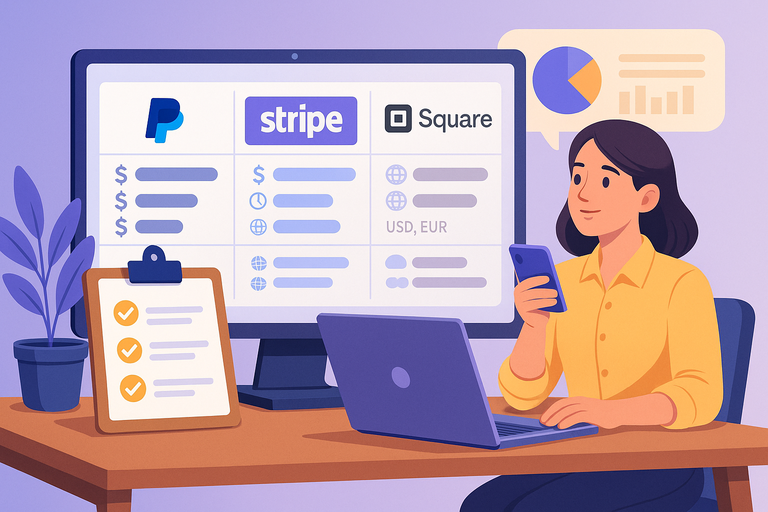
Your payment platform is the foundation of your e commerce operation. It determines how customers pay, how quickly you get paid, and how easily you can expand globally.
How to Match Payment Solutions With Your Business Model
The best payment solution depends on your setup:
- Small Shops or Startups: All-in-one solutions like PayPal or Square are fast to integrate and don’t require a merchant account.
- Growing Brands: Stripe or Braintree offer more flexibility, API access, and international support.
- Subscription Services: Use platforms with recurring billing features like Stripe Billing or Recurly.
If you run a WooCommerce or Shopify store, both platforms integrate directly with these gateways via simple dashboard options (e.g., WooCommerce → Settings → Payments).
Comparing Popular Platforms: Stripe, PayPal, and Square
Here’s a quick comparison of the three most-used platforms:
| Platform | Setup Speed | Transaction Fees | Payout Time | Best For |
| Stripe | Fast | ~2.9% + $0.30 | 2–3 days | Developers, global businesses |
| PayPal | Instant | ~3.49% + fixed fee | Instant (PayPal balance) | Small shops, freelancers |
| Square | Simple | 2.9% + $0.30 | 1–2 days | Brick-and-click stores |
I personally recommend Stripe if you want scalability and customization—it supports dozens of payment methods, from cards to wallets to Buy Now Pay Later options.
Evaluating Fees, Payout Speed, and Currency Support
Always check:
- Transaction fees (flat rate + percentage per sale).
- Currency support for global sales.
- Payout schedule—some platforms release funds faster than others.
For example, Stripe supports 135+ currencies, while Square mainly serves US-based merchants. Choosing based on your market saves both time and money.
When to Consider a Dedicated Merchant Account
If your business processes high volume (over $50,000/month), a dedicated merchant account may save money long-term. It allows more control over rates and chargeback handling but requires underwriting and extra documentation.
I suggest starting with an integrated provider (like Stripe or PayPal) and moving to a dedicated account once your sales stabilize.
Essential Steps to Set Up an E Commerce Payment System
Setting up your e commerce payment system doesn’t have to be intimidating. You can do it in five clear steps.
Step 1: Create and Verify a Merchant Account
A merchant account is where payments land before they move to your main bank account. Most platforms guide you through this automatically.
Example: In Stripe Dashboard → Settings → Account Details → Verify Identity.
You’ll need business details, tax ID, and a linked bank account. Verification may take 1–3 business days.
Step 2: Integrate a Secure Payment Gateway Into Your Website
Once verified, connect your payment gateway:
- Shopify: Go to Settings → Payments → Choose Provider (e.g., Stripe).
- WooCommerce: Go to Plugins → Add New → Search “Stripe” → Activate.
I advise testing sandbox mode first (a test environment) to simulate transactions before launching.
Step 3: Configure Payment Methods (Credit Cards, Wallets, BNPL)
Offer multiple payment methods to appeal to different shoppers:
- Credit/debit cards
- Digital wallets (Apple Pay, Google Pay, PayPal)
- BNPL (Buy Now, Pay Later) options like Klarna or Afterpay
Diverse options build trust and can lift conversion rates by 10–20%.
Step 4: Set Up Order Confirmation and Transaction Notifications
Once payments work, configure notifications:
- Customer emails: Confirm order, amount, and payment method.
- Merchant alerts: Notify you of each new payment or refund.
Most platforms offer built-in email templates or webhook notifications that integrate with your CRM or inventory system.
Step 5: Test Your Payment Workflow Before Going Live
Testing ensures that real payments won’t fail when customers arrive. Use sandbox environments offered by providers.
Run through these:
- Successful payment
- Declined card
- Refund scenario
- Mobile checkout
I recommend testing across multiple browsers and devices—especially mobile, since over 70% of online checkouts happen there today.
Expert Tip: Start simple. Use one reliable payment provider and a clean checkout design before adding extra options. Every new feature adds complexity, and simplicity often converts better.
Optimizing Checkout Experience for Higher Conversions
Your checkout experience is where sales are won—or lost. A slow, confusing, or cluttered payment process can make even the most loyal customers give up.
Let’s look at how to create a checkout flow that feels smooth, secure, and effortless.
How a Streamlined Checkout Increases Completed Sales
Every additional step you add to checkout is a chance for a customer to hesitate. A streamlined process eliminates friction and speeds up decision-making.
According to Baymard Institute research, nearly 70% of online shopping carts are abandoned, and a large portion of that comes from overly complicated checkouts.
Simplify to Sell More:
- Remove unnecessary fields—stick to name, address, email, and payment info.
- Use a single-page checkout where possible. Platforms like Shopify offer this by default (Settings → Checkout → One-Page Checkout).
- Offer clear visual feedback, like progress bars, to reassure users how close they are to completion.
I’ve found that even small design tweaks—like making the “Place Order” button larger or highlighting secure badges—can increase completed purchases by 10–15%.
Best Practices for Designing a Simple, Trustworthy Payment Page
Trust and clarity drive conversion. If your checkout page feels sketchy, customers won’t enter their card details.
Key design principles:
- Keep branding consistent. The payment page should look like the rest of your store to avoid confusion.
- Display trust signals. Add SSL badges, card logos (Visa, Mastercard), and security messages like “Secure Checkout.”
- Use inline validation. Highlight errors in real-time (e.g., “Invalid card number”) instead of forcing users to reload the page.
- Avoid distractions. Remove unnecessary navigation links that could take users away from completing their purchase.
From my experience, showing familiar payment icons instantly boosts user confidence—especially on mobile.
Reducing Cart Abandonment With Guest Checkout and Autofill
Forcing users to create an account is a top reason people abandon carts. Guest checkout solves this instantly.
Here’s what I suggest:
- Enable guest checkout under your platform settings.
- For instance, in WooCommerce: Settings → Accounts & Privacy → Allow guest checkout.
- Use autofill fields (browser or saved payment data) to speed up entry.
- Offer account creation after purchase, not before—this feels optional and less intrusive.
I’ve seen stores cut abandonment by nearly 30% after adding guest checkout. It’s one of the simplest yet most powerful optimizations you can make.
Offering Multiple Payment Options for Customer Convenience
People have preferences. Some use cards, others prefer PayPal, and an increasing number opt for digital wallets or Buy Now, Pay Later (BNPL) services.
Offer variety but avoid clutter:
- Credit/debit cards (Visa, Mastercard, Amex)
- Digital wallets (Apple Pay, Google Pay, PayPal)
- BNPL options (Afterpay, Klarna, Affirm)
- Local options where relevant (e.g., iDEAL in the Netherlands)
Platforms like Stripe or Shopify Payments let you toggle payment options easily from your dashboard.
I recommend enabling at least three: a card processor, a wallet, and a BNPL service. This gives flexibility without overwhelming the user.
Securing Your E Commerce Payment System
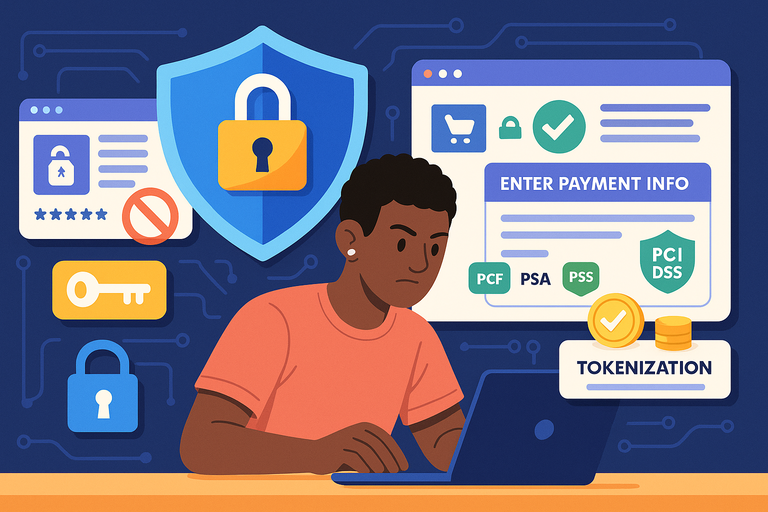
Security isn’t just a back-end concern—it’s a customer trust factor.
Shoppers look for visual signs of protection before they click “Pay Now.” Let’s cover how to secure every part of your e commerce payment system.
How to Protect Customer Data With Encryption and Tokenization
Data encryption scrambles sensitive information during transmission, while tokenization replaces card details with random digital tokens. Together, they make customer data unreadable to hackers.
For instance, when a buyer enters their card number, the payment gateway encrypts it instantly before sending it to the processor. Even if intercepted, the data is useless.
Most gateways (like Stripe and PayPal) handle this automatically, but you should:
- Enable HTTPS using SSL certificates.
- Use gateways that offer end-to-end encryption (E2EE).
- Avoid storing raw card data on your servers.
I suggest running a quarterly security audit using tools like Qualys SSL Labs to ensure your encryption is still up to modern standards.
Steps to Maintain PCI DSS Compliance
PCI DSS compliance ensures that your business meets strict data security standards for handling card information.
Key steps to maintain compliance:
- Use a PCI-compliant payment gateway.
- Never store customer card data locally.
- Keep firewalls and antivirus software updated.
- Regularly scan your systems for vulnerabilities.
- Train staff to recognize phishing or fraud attempts.
Even small e commerce sites must comply. Most platforms like Shopify, WooCommerce, and BigCommerce already meet these standards, but I always advise confirming this with your provider.
Identifying and Preventing Fraudulent Transactions
Online fraud can drain profits fast. The trick is to filter suspicious activity before it becomes a chargeback.
Watch for red flags:
- Unusually large orders from new customers.
- Mismatched billing and shipping addresses.
- Multiple orders from the same IP in a short time.
You can use tools like Stripe Radar or Signifyd to automatically detect and block high-risk transactions.
I once worked with a retailer who reduced fraudulent orders by over 60% simply by activating Stripe’s built-in fraud filters.
Tools and Plugins That Add Extra Layers of Security
There are excellent plugins and tools that strengthen your e commerce security:
- Wordfence for WordPress: Blocks brute-force login attempts.
- Sucuri Security: Offers malware scanning and firewall protection.
- ReCAPTCHA v3: Prevents bots from testing stolen cards.
- Cloudflare: Adds DDoS protection and SSL management.
I recommend reviewing your security setup every quarter and enabling 2FA (two-factor authentication) for admin logins. It’s one of the simplest yet most effective defenses.
Integrating Mobile Payments and Digital Wallets
Mobile payments are now mainstream, and digital wallets are leading checkout innovation. If your e commerce site isn’t mobile-friendly, you’re losing sales—plain and simple.
Benefits of Adding Apple Pay, Google Pay, and PayPal One Touch
Adding mobile wallets like Apple Pay and Google Pay can dramatically improve checkout speed. According to Statista, over 50% of all e commerce payments are made via mobile devices.
Here’s why wallets win:
- No typing required—just Face ID or fingerprint verification.
- Higher trust due to built-in security layers.
- Faster checkout = fewer abandoned carts.
For setup, most gateways (like Stripe or Square) let you enable these with a simple toggle: Stripe Dashboard → Payments → Payment Methods → Enable Wallets.
I suggest activating at least Apple Pay and PayPal One Touch—they cover both iOS and Android users.
How Mobile Optimization Impacts Conversion Rates
Mobile optimization doesn’t just mean a responsive site—it’s about designing for touch, not clicks.
Small improvements that matter:
- Large, tappable buttons.
- Autofill for shipping and payment details.
- Sticky checkout buttons that remain visible as users scroll.
- Minimal pop-ups or redirects.
When I optimized a client’s mobile checkout by simplifying form fields and enlarging CTA buttons, conversions jumped by 18% in less than a week.
Setting Up Mobile Payment Gateways for Seamless Checkout
Setting up mobile payments usually follows three quick steps:
- Enable mobile wallets through your payment gateway settings.
- Test device compatibility using your phone’s browser or a tool like BrowserStack.
- Check sandbox mode to simulate wallet payments before going live.
For example, in Shopify: Settings → Payments → Manage → Enable Apple Pay.
Make sure your checkout page supports touch authentication (e.g., Face ID, fingerprint). It gives users that sleek, one-tap experience that today’s shoppers expect.
Pro Tip: The best e commerce payment system is one that feels invisible. Customers shouldn’t notice how easy your checkout is—they should just remember how quickly they completed their order. Keep testing, refining, and simplifying. Every second you save your customer brings you closer to another sale.
Troubleshooting Common Payment System Issues
Even the best e commerce payment system can hit the occasional snag. The key is to catch issues early, handle them quickly, and keep your customers confident throughout.
How to Fix Declined or Failed Transactions
Declined payments can happen for many reasons—insufficient funds, incorrect card info, or a gateway timeout. The challenge is identifying which one and fixing it efficiently.
Here’s how I approach it:
- Check your payment logs. Most gateways like Stripe or PayPal show error codes (e.g., “card_declined” or “insufficient_funds”). These help you pinpoint the issue fast.
- Verify customer data. Sometimes, a simple typo in the billing address or CVV causes failure.
- Monitor bank response codes. If the error repeats, it might be due to bank filters or fraud prevention settings.
- Test on multiple gateways. If all transactions fail, the problem might be on your end (plugin update, expired API key).
I recommend always having a backup payment option enabled. If your primary gateway goes down, customers can still complete orders through an alternate route.
Handling Refunds, Chargebacks, and Disputes Smoothly
Refunds and chargebacks can be stressful, but a structured approach protects both your revenue and your reputation.
Best practices I’ve learned:
- Automate refunds in your dashboard. For example, in Stripe: Payments → Select Transaction → Refund.
- Respond quickly to chargebacks—most processors give you 7–14 days.
- Provide detailed proof (shipping confirmation, order receipt, customer correspondence).
- Use clear return policies visible at checkout and on product pages.
A transparent refund process not only resolves disputes faster but also builds long-term customer trust. In my experience, clear communication prevents 80% of chargebacks before they start.
Monitoring System Errors and Gateway Downtime
Downtime is inevitable, but unnoticed downtime is dangerous. It can silently cost hundreds of sales in a few hours.
How to stay alert:
- Set up uptime monitoring with tools like UptimeRobot.
- Subscribe to your gateway’s status page (e.g., status.stripe.com).
- Create automated alerts for failed transaction spikes in your dashboard.
I advise testing your checkout system weekly—even just one test transaction—to make sure integrations are still firing correctly. One small check can prevent a weekend’s worth of lost sales.
Tracking and Analyzing Payment Performance
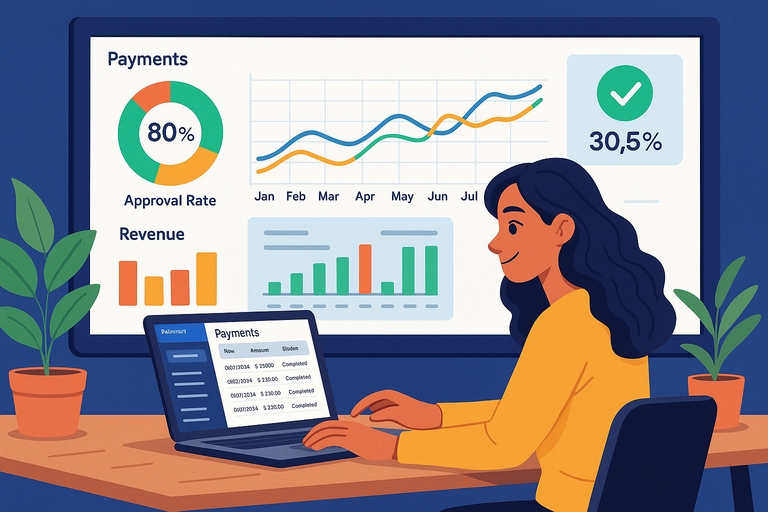
Understanding how your payments perform gives you a major advantage. You can spot issues, optimize checkout flow, and uncover hidden revenue leaks before they grow.
Using Payment Analytics to Identify Trends and Bottlenecks
Payment analytics reveal what’s working and what’s not in your transaction flow. Look for patterns like high abandonment during checkout or frequent declines in specific countries.
Metrics worth watching:
- Approval rate (percentage of successful transactions).
- Chargeback rate (should be under 1%).
- Average transaction value (ATV).
- Abandonment rate on the payment page.
For example, if you see that 30% of failed payments come from mobile users, that’s a signal to optimize your mobile checkout experience. I recommend reviewing analytics weekly—just like checking your store’s inventory.
How to Integrate Analytics Tools Like Google Analytics 4
You can connect your e commerce payment system to Google Analytics 4 (GA4) or similar tools for deeper insights.
Quick setup example for GA4:
- Go to Admin → Data Streams → Web → Enhanced Measurement → Enable E-commerce Events.
- Add event tracking for begin_checkout, purchase, and refund.
- Use your payment gateway’s webhooks to send event data to GA4 in real-time.
This integration lets you visualize checkout funnels—showing exactly where users drop off.
I often suggest tagging all payment-related events with UTM parameters so you can see which channels drive the highest-value buyers.
Interpreting Key Metrics: Approval Rates, Revenue, and Abandonment
Numbers tell a story—if you know how to read them.
- Approval rate: Anything below 90% signals a technical issue or fraud-blocking problem.
- Revenue per transaction: Helps identify upsell or cross-sell opportunities.
- Abandonment rate: Aim for under 20% on payment pages; higher means UX friction.
I suggest building a simple dashboard (in Looker Studio) that updates these stats daily. It keeps performance visible to both your marketing and technical teams, aligning them on growth goals.
Scaling Your E Commerce Payment System as You Grow
As your store grows, your payment system must keep up—handling more transactions, new currencies, and multiple regions without lag.
How to Support Global Currencies and International Payments
Expanding globally starts with accepting local currencies and methods. Customers prefer to pay in their home currency—it reduces friction and boosts trust.
Here’s how to do it right:
- Enable multi-currency support in your gateway (e.g., Stripe → Settings → Payments → Currencies).
- Display prices based on IP geolocation using tools like GeoIP or Shopify Markets.
- Offer region-specific payment options (e.g., iDEAL, Sofort, Alipay).
I’ve seen stores boost international conversions by 25% simply by showing localized pricing. It’s a small detail with a big impact.
Upgrading Infrastructure for Higher Transaction Volumes
A surge in traffic during holidays or campaigns can overwhelm smaller gateways. To prevent delays or failed payments:
- Choose gateways with scalable APIs (Stripe, Adyen, Braintree).
- Enable load balancing so traffic distributes across multiple servers.
- Use queue systems to retry payments automatically during heavy loads.
If you process more than 100,000 transactions monthly, consider moving to an enterprise-level solution like Adyen or Cybersource for dedicated support and uptime guarantees.
Choosing Scalable Payment APIs for Future Flexibility
Your payment API should grow with you—supporting new payment methods, integrations, and geographies.
Look for APIs that offer:
- Modular design (so you can add wallets, BNPL, etc., later).
- Strong documentation and sandbox environments.
- Support for automation via webhooks.
Stripe’s API is one of my favorites—it’s flexible, developer-friendly, and widely supported. I always advise future-proofing by choosing platforms that regularly release new features rather than static legacy systems.
Expert Tips for Setting Up a Payment System Fast
Speed matters, especially if you’re launching a store or migrating platforms. The trick is balancing fast setup with long-term reliability.
Automate Setup With Pre-Integrated E Commerce Platforms
Platforms like Shopify, BigCommerce, and Wix already include pre-built payment integrations. You can be up and running in less than an hour.
Example: In Shopify, go to Settings → Payments → Choose Provider → Activate Stripe or PayPal.
I recommend starting here if you’re new—it eliminates most manual setup tasks and ensures PCI compliance from day one.
Use Sandbox Testing Before Launch to Avoid Payment Delays
Sandbox environments let you test transactions without using real money. They help catch bugs before launch.
For instance, in Stripe: Developers → API Keys → View Test Data.
Run transactions like:
- Successful payment
- Failed card
- Refund scenario
From my experience, skipping this step often leads to failed payments on day one—something that instantly erodes customer trust.
Keep Documentation Ready for Quick Merchant Verification
Verification delays can slow you down. To get verified fast, prepare:
- Business registration documents
- Tax identification number
- Bank account details
- Proof of identity for account owners
Upload them promptly when requested. I advise keeping digital copies handy, so if your provider needs updates later, you can respond within minutes instead of days.
Leverage Payment Plugins for Shopify, WooCommerce, and BigCommerce
If you’re using a content management system, plugins save hours of coding.
- WooCommerce Stripe Payment Gateway Plugin – great for global payments.
- Shopify Payments – native integration for fast setup.
- BigCommerce PayPal Checkout – optimized for mobile and one-click payments.
Install, activate, test—and you’re ready. These tools make payment setup nearly plug-and-play.
Pro Tip: The fastest way to build trust in your e commerce payment system is consistency. Keep your checkout fast, your transactions secure, and your communication transparent. Customers rarely notice perfect systems—but they always remember the broken ones.

I’m Juxhin, the voice behind The Justifiable.
I’ve spent 6+ years building blogs, managing affiliate campaigns, and testing the messy world of online business. Here, I cut the fluff and share the strategies that actually move the needle — so you can build income that’s sustainable, not speculative.
Related posts:
 Best Online Payment Processor for Fast, Low-Fee Transactions
 How to Make Money Dropshipping: 7 Secrets to a $10K/Month
 How To Start A Dropshipping Business With No Money
 Dropshipping Business Model Success: Tips for Long-Term Growth
 Viral Launch Chrome Extension: The Ultimate Tool for Sellers
 How to Use Dsers Shopify for Seamless Dropshipping