
Table of Contents
Some links on The Justifiable are affiliate links, meaning we may earn a small commission at no extra cost to you. Read full disclaimer.
Getting started with a Hostinger domain is easier than most people think, but the real challenge is knowing how to secure the right name quickly.
Have you ever wondered how to pick a domain that actually stands out, whether Hostinger is a good place to register it, or how long it really takes to make your website live?
This guide answers all of that step by step, showing you how to secure your name in minutes without unnecessary confusion.
Why Choose Hostinger for Your Domain Registration
If you’re on the hunt for a domain name, chances are you’ve stumbled across dozens of registrars promising the “easiest” or “cheapest” option.
The reason I lean toward a Hostinger domain is simple: it bundles affordability, ease of use, and strong support in one place. Let’s break it down.
Competitive Pricing and Free Domain Options
One of the first things I noticed with Hostinger is how much lighter it feels on the wallet compared to some of the bigger names like GoDaddy or Namecheap. Domain prices usually start around $9–$12 a year for common extensions like .com, and you can often grab seasonal discounts that dip lower.
Here’s the kicker: if you buy one of Hostinger’s hosting packages (like Premium Web Hosting), they’ll throw in a domain name for free for the first year. For anyone starting fresh, that’s a double win — you get both your hosting and your domain bundled together without juggling two different companies.
I always recommend this if you’re just launching your first site. Why? It saves you from that “Where do I manage my DNS again?” headache.
Seamless Integration With Hosting Plans
This is where Hostinger really shines. After you’ve purchased your domain, you can connect it to your hosting in just a couple of clicks. No copying and pasting name servers, no digging around in advanced settings.
From your Hostinger dashboard:
- Go to Domains.
- Select your new domain.
- Choose “Assign to Website.”
- Pick your hosting plan from the dropdown.
That’s it. The domain automatically points to your hosting — no tech gymnastics needed. I’ve seen beginners waste hours trying to connect third-party domains, but with Hostinger the whole thing takes under 2 minutes.
User-Friendly Domain Management Dashboard
A lot of registrars bury essential settings like DNS records, domain forwarding, or privacy toggles behind clunky menus. Hostinger keeps everything in one clean interface.
From the dashboard, you can:
- Update DNS records without confusion.
- Enable domain privacy (WHOIS protection) with one toggle.
- Renew your domain or set auto-renew in seconds.
I find the “DNS Zone Editor” particularly helpful. It’s visual and straightforward, so even if you’re not a technical person, you can handle things like pointing your domain to a third-party service.
Reliable Customer Support for Domain Setup
Even with a good dashboard, sometimes you hit a wall. Maybe your email isn’t working after connecting your domain or you’re struggling with SSL activation.
Hostinger’s support team is available 24/7 through live chat, and I’ve personally had them walk me through step-by-step fixes within minutes.
The biggest difference? They don’t just send you to a generic help article. If you’re stuck, they’ll actually guide you through your own dashboard until it works. For beginners, that’s priceless.
Step-By-Step Process to Register a Hostinger Domain
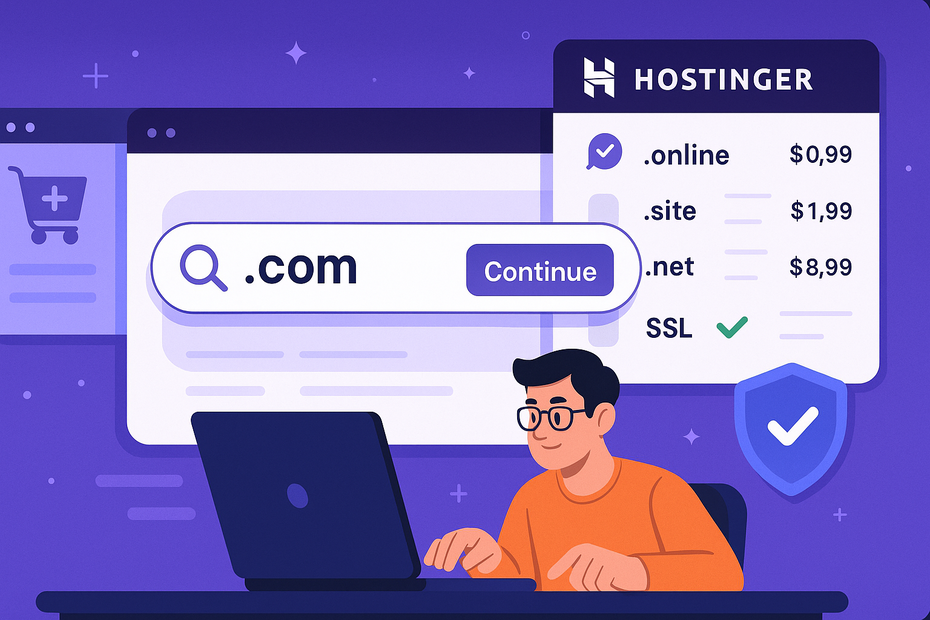
Registering a Hostinger domain only takes a few minutes. The trick is knowing exactly where to click and what to double-check along the way.
Let me walk you through it like I would if we were sitting side by side.
How to Search for Your Perfect Domain Name
From Hostinger’s homepage, click Domains in the top menu. You’ll see a big search bar where you can type in your desired name. Type something simple and memorable — for example, “greenbakehouse” if you’re opening a bakery.
Hostinger instantly shows you whether it’s available and gives alternatives if it’s not. I like that it suggests newer extensions like .online or .store, which can be handy if the .com is already gone.
Pro tip: Don’t overthink this step. If your first choice isn’t available, pick something close and register it before it’s gone. Domains get snapped up fast.
Adding Your Domain to Cart and Completing Checkout
Once you’ve found the right domain, click Add to Cart. You’ll see a panel asking how many years you want to register for — 1, 2, or more. I usually suggest at least 2 years so you don’t risk losing it if you forget to renew.
Next, you’ll be prompted to add WHOIS Privacy. Turn this on if you don’t want your personal details (name, address, email) showing up in public databases. It’s worth the extra dollar or two per year.
Checkout is straightforward:
- Log into your Hostinger account (or create one).
- Add your payment details.
- Hit Pay Now.
Congratulations — the domain is yours.
Connecting the Domain to Your Hosting Account
Here’s where Hostinger makes life easy. If you bought hosting with your domain, they’ll already be linked. If you bought hosting later, just go to:
- Dashboard > Domains.
- Click Manage next to your new domain.
- Select “Assign to Website.”
Choose the hosting account you want to connect it to, and Hostinger does the rest. No messing with name servers, no complicated DNS copy-paste.
Activating SSL and Security Features After Registration
Your domain might technically be live now, but it’s not secure until you activate SSL (that little padlock icon in browsers). Search engines like Google also give preference to HTTPS sites, so this step is crucial.
From your Hostinger dashboard:
- Go to Hosting > Manage.
- Scroll down to Security.
- Find SSL Certificates.
- Click Activate.
It’s free with most hosting plans, and it usually takes less than 10 minutes to go live. I recommend checking your site in a private browser window to confirm that “https://” is showing before you share it with anyone.
Once you’re confident with the basics, you’ll be able to handle things like custom DNS setups, redirects, or even domain transfers without breaking a sweat.
Pro tip to: Don’t let the simplicity fool you. Hostinger domains aren’t just easy to set up — they’re also flexible enough for more advanced needs later.
How to Pick the Best Domain Name for Long-Term Success
Your domain name is the front door of your online identity. Once you put it out there, it’s not just a label — it’s a brand. I always suggest treating it as something you’ll be proud to stick with for years, not just a quick placeholder.
Keeping Your Domain Short, Clear, and Easy to Remember
Think about the last time you recommended a website to a friend. If the name was long or confusing, chances are you spelled it out more than once. That’s what you want to avoid.
A good rule of thumb is to keep your domain under 15 characters if possible. For example, “hostingershop.com” is easier to recall than “bestdealsonhostingerwebhosting.com.”
Short and clear domains stick in people’s memory, look better on business cards, and reduce typos. I advise you to test your domain out loud. If you can say it once and the other person can type it without asking “Wait, how do you spell that?” — you’ve nailed it.
Using Keywords Without Making It Look Forced
Adding a keyword to your domain can help with search rankings and clarity. If you’re running a bakery in Austin, something like “austinbakes.com” tells both people and search engines what you do and where you are.
But don’t overstuff. Domains like “bestcheapqualityaustinbakery.com” scream spam and make you look less professional. I suggest weaving the keyword naturally, like seasoning in food — just enough to bring flavor without overpowering the dish.
Avoiding Numbers, Hyphens, and Common Mistakes
Numbers and hyphens almost always lead to confusion. Let’s say your domain is “cakes-4-u.com.” Now imagine telling someone verbally — they’ll ask: “Is it cakes for you? Cakes number four you? Cakes hyphen four you?” Too messy.
Stick with letters only. And if the name you love isn’t available, resist the temptation to add a random “123” or hyphen. Instead, consider an alternate extension (like .store or .shop) or add one extra relevant word (like “austinbakeshop.com”).
Checking Availability Across Social Media Platforms
Here’s where most people trip up. They register a domain but forget to check if the same name is free on Instagram, Facebook, or TikTok. You don’t want a domain like “brightcandles.com” if @brightcandles is already taken on every platform.
A quick trick: Use free tools like Namecheck (or just manually check the big platforms). Aim for a consistent name across your website and socials. It makes branding much smoother and helps people find you without confusion.
Hostinger Domain Extensions: Which One Should You Choose
The extension — the part after the dot — carries more weight than most people think. It signals trust, relevance, and sometimes even creativity.
With Hostinger, you’ve got a wide buffet of choices, but picking the right one depends on your goals.
Popular Options Like .com, .net, and .org Explained
The gold standard is still .com. It’s what people default to when they type a web address, and it carries a sense of trust. If your preferred .com is available, I’d grab it immediately.
- .com → Best for businesses, personal brands, or anyone serious about credibility.
- .net → Originally meant for tech companies, but now often used as a backup if .com isn’t available.
- .org → Great for nonprofits, communities, and educational groups.
If you can only get one, go with .com. But if you’re protecting your brand, I’d suggest registering the .net and .org versions too, just to keep competitors from grabbing them.
Country-Specific Extensions for Local Businesses
If you’re targeting a specific country, a local extension can work wonders. For example:
- .co.uk for the United Kingdom
- .ca for Canada
- .in for India
- .com.au for Australia
Google often ranks local domains higher in country-specific searches, so “austinbakes.in” might rank better in India than a generic .com. If your business is rooted in one country, a country code extension is worth considering.
New and Creative Extensions Like .tech and .online
One of the things I like about Hostinger is how easy they make it to explore newer extensions. These can be a lifesaver when the .com version of your name is already gone.
Some creative examples:
- .tech for startups, developers, or software companies.
- .store for eCommerce businesses.
- .online for almost anything — versatile and modern.
- .site for personal blogs or portfolios.
I’ve seen startups choose .tech domains and actually stand out because of it. It gives a modern, innovative vibe.
How to Decide Between Multiple Domain Variations
Here’s the decision-making shortcut I recommend:
- Always check if the .com is available. If yes, grab it.
- If not, look at relevant creative extensions that align with your niche (like .store for eCommerce).
- If you’re a local business, secure your country code extension too.
- Protect your brand by grabbing at least 2–3 versions of your domain if your budget allows.
For example, if you’re launching “GreenBakehouse,” you might buy:
- greenbakehouse.com
- greenbakehouse.store
- greenbakehouse.co.uk (if you’re UK-based)
This not only builds trust but also prevents competitors from squatting on your name.
Pro tip: I believe choosing a domain is half strategy, half gut feeling. The strategic part is checking availability, SEO, and consistency. The gut part is this — if the name feels good to say and you’d proudly put it on a business card, it’s probably the right choice.
Securing Your Domain With Extra Protection Features
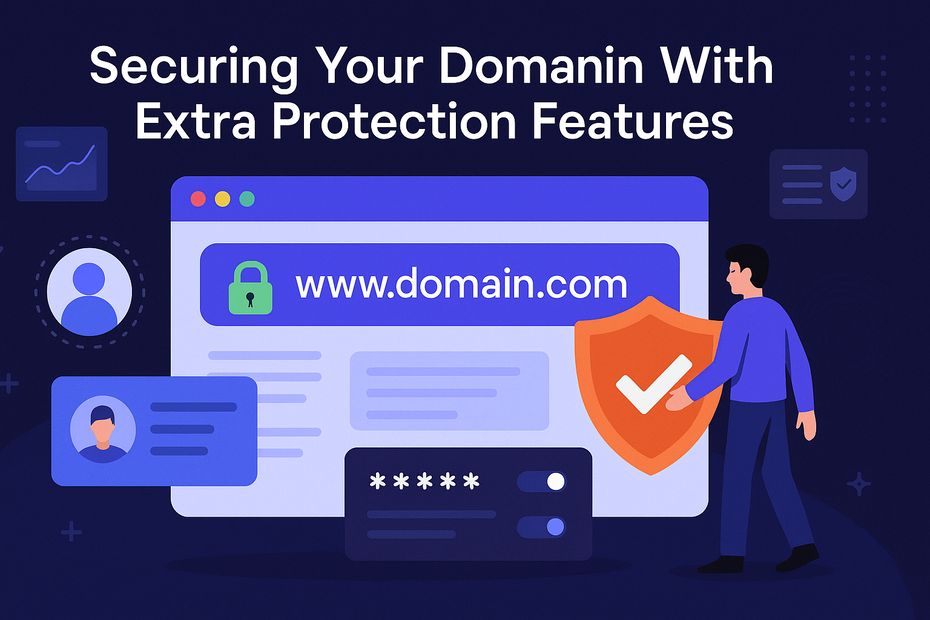
Buying a domain is just the beginning. If you don’t secure it properly, you risk losing control of it — and trust me, that’s not a headache you want.
Hostinger makes it easy to add layers of protection that keep your domain safe.
Enabling WHOIS Privacy Protection
When you register a domain, your personal details (name, phone number, email, address) get stored in a public database called WHOIS. Without protection, spammers and even scammers can scrape this info.
With Hostinger, enabling WHOIS Privacy is as simple as:
- Log into your Hostinger dashboard.
- Go to Domains > Manage next to your domain.
- Toggle on WHOIS Privacy.
That’s it. Your personal data is swapped with Hostinger’s proxy info, keeping you anonymous. I always turn this on immediately — it costs little but saves you from endless spam emails and potential phishing attacks.
Setting Up Two-Factor Authentication in Your Account
Securing your account is just as important as the domain itself. If someone hacks your Hostinger login, they can transfer or redirect your domain without you even knowing.
Here’s how I recommend doing it:
- From your Hostinger account, go to Profile > Security.
- Enable Two-Factor Authentication (2FA).
- Choose an authenticator app like Google Authenticator or Authy.
Now, even if someone steals your password, they won’t be able to log in without your phone-generated code. It adds 10 seconds to your login process but massively reduces risk.
Renewing Domains on Auto-Renew to Avoid Expiry
Domains aren’t a one-time purchase. If you forget to renew, your site can go offline, and someone else might snatch up your domain the second it’s released.
From the dashboard:
- Go to Domains > Billing.
- Switch “Auto-Renew” to ON.
I’ve seen people lose their business name because they forgot a renewal email. I suggest setting auto-renew and linking it to a reliable payment method. It’s like insurance for your brand.
Locking Your Domain to Prevent Unauthorized Transfers
Domain hijacking is rare, but it happens. Hackers sometimes attempt to transfer your domain to another registrar without permission. The simplest way to block this is by locking your domain.
Hostinger gives you this option directly:
- Domains > Manage > Lock Domain.
When locked, no transfer can occur until you manually unlock it. I keep mine locked at all times unless I’m intentionally moving a domain.
Linking Your Hostinger Domain With Website Builders
Once your domain is secured, the next step is to actually connect it to your site. Hostinger has built-in tools for WordPress and their own website builder, but you can also link it to outside platforms.
Connecting to WordPress in a Few Clicks
If you’ve installed WordPress through Hostinger’s one-click installer, linking your domain is almost automatic.
From your dashboard:
- Go to Hosting > Manage.
- Under WordPress, click “Manage Site.”
- Choose the domain you registered.
WordPress will immediately start using your Hostinger domain as the site address. No DNS copy-paste, no waiting around.
Using Hostinger’s Website Builder for Fast Setup
Hostinger’s own Website Builder is surprisingly solid if you want drag-and-drop simplicity. Once you’ve registered your domain, connecting it is instant:
- In the builder dashboard, click “Publish.”
- Choose “Use Existing Domain.”
- Select your Hostinger domain from the dropdown.
That’s it. You can go from blank screen to live website in under an hour. I’ve tested this, and it’s hands-down one of the fastest ways to launch a personal site or small business page.
Pointing Your Domain to Third-Party Platforms
If you’re using Shopify, Squarespace, or Wix, you’ll need to point your Hostinger domain to their servers. That means updating DNS records.
Here’s how:
- Go to Domains > Manage > DNS Zone Editor.
- Update the A Record or CNAME provided by your platform.
- Save changes.
It usually takes a few hours for DNS changes to fully update worldwide, so don’t panic if your site doesn’t load immediately.
Troubleshooting Common Connection Issues
Sometimes you’ll hit snags — maybe your site doesn’t load, or you get a “DNS_PROBE_FINISHED_NXDOMAIN” error.
Quick fixes:
- Double-check you saved DNS records correctly.
- Clear your browser cache.
- Use a DNS checker tool to see if records have propagated.
- If stuck, Hostinger’s live chat team is great at walking you through fixes.
Transferring an Existing Domain to Hostinger
Already have a domain registered somewhere else? You can move it to Hostinger and manage everything in one place. It’s not hard, but you do need to prep properly.
When You Should Consider a Domain Transfer
I usually recommend transferring if:
- You want hosting and domain management in one dashboard.
- Your current registrar charges high renewal fees.
- You need simpler DNS management and better support.
If your current setup works fine and costs are low, you might not need to transfer. But if you’re tired of juggling logins, moving to Hostinger makes life simpler.
Preparing Your Domain Before Starting the Transfer
Before you initiate the transfer, check these boxes with your current registrar:
- Unlock your domain (registrars often keep it locked).
- Get your EPP/Auth code (a unique transfer password).
- Disable WHOIS Privacy temporarily (Hostinger needs to verify ownership).
- Make sure your email contact info is correct (you’ll get transfer confirmation emails).
If even one of these steps is missed, the transfer fails. I’ve learned that the hard way.
Steps to Transfer Domains Into Hostinger
Once you’re ready:
- Log into Hostinger and go to Domains > Transfer.
- Enter the domain name you want to move.
- Enter the EPP/Auth code from your current registrar.
- Confirm payment (transfers usually cost the same as a yearly renewal).
- Approve the confirmation email sent to your domain’s registered contact email.
Most transfers finish within 5–7 days. During that time, your website will stay online — so there’s no downtime.
Common Problems During Transfer and How to Fix Them
- Wrong EPP code → Double-check with your current registrar.
- Domain locked → Unlock it in your current registrar’s panel.
- Privacy still enabled → Turn off WHOIS Privacy until the transfer finishes.
- Expired domain → You can’t transfer expired domains; renew first.
If all else fails, Hostinger’s support team will check what’s blocking the transfer. I’ve had them catch mistakes in my setup more than once.
Pro tip: Once your domain is safely inside Hostinger, turn WHOIS Privacy back on, lock the domain, and enable auto-renew. That way, you never risk losing it again.
Tips to Maintain and Grow Your Domain’s Value

Owning a domain isn’t just about keeping it active — it’s about turning it into an asset. Whether you’re protecting your brand or even planning to sell domains someday, a few simple habits can keep your Hostinger domain growing in value.
Keeping Your Contact Information Updated
Every domain is tied to a registered email and contact address. If these details are outdated, you risk missing renewal notices or important verification emails.
Inside your Hostinger dashboard:
- Go to Domains > Manage.
- Check the “Contact Information” tab.
- Make sure your primary email is one you check often.
I suggest using a professional email (like yourname@domain.com) instead of a personal Gmail account. It looks more trustworthy if you ever sell the domain and helps you avoid missing critical notices.
Tracking Domain Authority and SEO Performance
A domain’s value grows when it builds authority. Even if you’re not selling, higher authority means better search rankings and more organic traffic.
Here’s what I usually track:
- Domain Authority (DA): Tools like Moz or Ahrefs can give you a score.
- Backlinks: Who’s linking to your site? More quality links = more value.
- Traffic Growth: Even a parked domain with traffic can be valuable.
Think of your domain like digital real estate. The more attention and trust it earns, the more it’s worth.
Investing in Multiple Domains for Brand Protection
I’ve seen too many businesses lose traffic because someone bought a variation of their name and redirected it elsewhere. If your main domain is “greenbakehouse.com,” consider also buying:
- greenbakehouse.net
- greenbakehouse.store
- greenbakehouseonline.com
This stops competitors or opportunists from riding your brand’s wave. Hostinger makes it affordable to register multiple domains, and managing them all in one dashboard keeps things simple.
Selling or Flipping Domains as a Side Income
Domains can actually become digital investments. Some people buy and hold catchy names, then flip them for profit. For example, short names with strong keywords (like “bestloans.com” or “fitlife.com”) can sell for thousands.
If you go down this path, I suggest:
- Focus on short, brandable names.
- Track demand — tech, finance, health, and eCommerce domains often resell well.
- Use marketplaces like Sedo or Flippa to list them.
It’s not instant money, but if you pick wisely, your domain portfolio could turn into a valuable side income.
Common Questions About Hostinger Domain Setup
I’ve heard the same questions pop up over and over again about domains, so let’s clear the air.
How Long Does It Take for a Domain to Go Live
Once you register a Hostinger domain, it’s technically yours instantly. But DNS propagation — the process of spreading your domain details across the internet — can take a few hours to 24 hours. In my experience, most domains go live within 2–6 hours.
So if you don’t see your site immediately, don’t panic. Give it a bit of time, and it usually resolves on its own.
Can You Register Multiple Domains at Once
Yes — and honestly, I recommend it. Inside Hostinger’s domain search tool, you can add multiple domains to your cart at once. This is handy if you’re securing brand variations or brainstorming.
I usually grab at least two or three related domains for each project, just to keep options open. It’s easier to do it upfront than regret it later when someone else has taken the variation you wanted.
Is It Possible to Get a Free Domain With Hostinger
Absolutely. If you sign up for Hostinger’s Premium or Business hosting plans, you get a free domain for the first year. This is especially good if you’re just starting a new site and want everything bundled together.
The free domain usually covers common extensions like .com, .net, or .org. Just remember that after the first year, you’ll pay regular renewal fees.
What Happens If You Forget to Renew Your Domain
This is where it gets tricky. If you forget to renew, your domain goes into a “grace period” — usually about 30 days — where you can still renew it (sometimes with a late fee). After that, it goes into an auction or back into the public pool.
I’ve seen people lose years of branding because they missed a renewal notice. My strong advice? Always set domains to auto-renew and link them to a card that won’t expire soon.
Expert Tips to Secure Your Domain Name Fast
The domain market moves fast. Good names don’t sit around for long, so you need a strategy to secure yours before someone else does.
Using a Domain Name Generator for Fresh Ideas
If you’re stuck, Hostinger has a built-in domain name generator. Type in a keyword (like “fitness”), and it’ll suggest variations like:
- fitclub.com
- fitnesszone.store
- getfitonline.net
I like using generators not to copy suggestions exactly, but to spark new ideas I wouldn’t have thought of.
Registering Your Domain Before Building the Site
Here’s something I’ve learned: don’t wait until your website is perfect to grab the domain. Register it as soon as you have an idea. Domains are cheap — losing your perfect name isn’t.
Even if it takes you three months to launch, at least you know the name is locked in under your account.
Buying Extra Variations to Protect Your Brand
Think of your brand like a castle. Your main domain is the gate, but variations are the walls around it. If you only buy one domain, you leave gaps where competitors or spammers can sneak in.
I advise picking up:
- The .com version (always first choice).
- At least one creative extension (like .store if you sell products).
- Local extensions if you serve a specific country.
That way, no one else can mislead your audience with a similar name.
Acting Quickly Before Someone Else Claims It
Domains are registered on a first-come, first-serve basis. There’s no reservation system. If you find a name you like, grab it immediately. I’ve personally lost domains by waiting just one day — and when I checked back, they were gone.
Pro tip: If you’re really unsure, register it anyway. Worst case, you let it expire next year. Best case, you’ve secured the perfect name for your project.
To wrap this up: securing, protecting, and growing a Hostinger domain isn’t complicated, but it does take a mix of strategy and action. Treat your domain like your digital identity — once you own it, you’ll want to protect it, build on it, and maybe even profit from it down the line.

I’m Juxhin, the voice behind The Justifiable.
I’ve spent 6+ years building blogs, managing affiliate campaigns, and testing the messy world of online business. Here, I cut the fluff and share the strategies that actually move the needle — so you can build income that’s sustainable, not speculative.
Related posts:
 Hostinger WordPress Setup Guide: Launch a Blog in 10 Min
 How Much Does Bluehost Cost? (Full 2025 Pricing Breakdown)
 How To Migrate An Existing Website To Bluehost?
 WPEngine Cost: Why It’s More Expensive Than Other Hosts
 Bluehost Cost Explained: What You’ll Really Pay 2025
 InMotion Hosting cPanel Guide for Easy Site Management