
Table of Contents
Some links on The Justifiable are affiliate links, meaning we may earn a small commission at no extra cost to you. Read full disclaimer.
If you’ve ever logged into your InMotion Hosting cPanel and wondered, “Where do I even start?”—you’re not alone. cPanel is packed with tools for managing your website, email, domains, and security, but knowing how to navigate it can save you hours of frustration.
The real question is: How do you use InMotion Hosting cPanel to make site management easier instead of overwhelming? That’s exactly what we’ll explore in this guide.
How to Log Into InMotion Hosting cPanel
Getting into your InMotion Hosting cPanel is the very first step to managing your site. Once you’re inside, you’ll have access to all the tools for domains, email, files, and security.
Let’s break down the easiest ways to log in and what to do if you forget your password.
Finding Your cPanel Login URL From Your Account Dashboard
The simplest way to reach your cPanel is through the InMotion Hosting Account Management Panel (AMP). Think of AMP as the front door and cPanel as the control room.
Here’s how you get there:
- Log into your InMotion Hosting AMP account.
- From the dashboard, look for the section labeled “cPanel.”
- Click the button that says “cPanel.”
No need to remember long URLs. This method is perfect if you’re just starting out or don’t want to mess around with direct login addresses.
Pro tip: Bookmark your AMP login page. That way, you’ll always have a quick route into cPanel without typing anything fancy.
Accessing cPanel Directly With a Custom Domain Login
If you’d rather skip AMP and go straight into cPanel, you can log in directly using your domain. It’s quicker once you memorize the format:
- Type your domain in the browser, then add “/cpanel” at the end. Example: yourdomain.com/cpanel
- Enter your cPanel username and password.
Alternatively, you can use the server IP address if your domain isn’t pointed to InMotion yet:
- http://your-server-ip:2082 for an unsecured login.
- https://your-server-ip:2083 for a secure login.
I like this method when I’m on the go. If you’re the type who hates logging into multiple dashboards, this is the shortcut you’ll want to memorize.
Resetting or Recovering Your cPanel Password
Forgetting your cPanel password happens more often than most people admit. Luckily, resetting it is painless.
- Log into AMP.
- Go to your cPanel section.
- Click “Change Password.”
Enter your new password, confirm it, and you’re set. From what I’ve seen, this is the fastest fix when you’re locked out. Just remember: passwords are case-sensitive, and it’s smart to use a strong one with a mix of letters, numbers, and symbols.
I suggest keeping your cPanel password different from your AMP password. That way, if one gets compromised, your entire hosting account won’t be at risk.
Managing Domains in InMotion Hosting cPanel
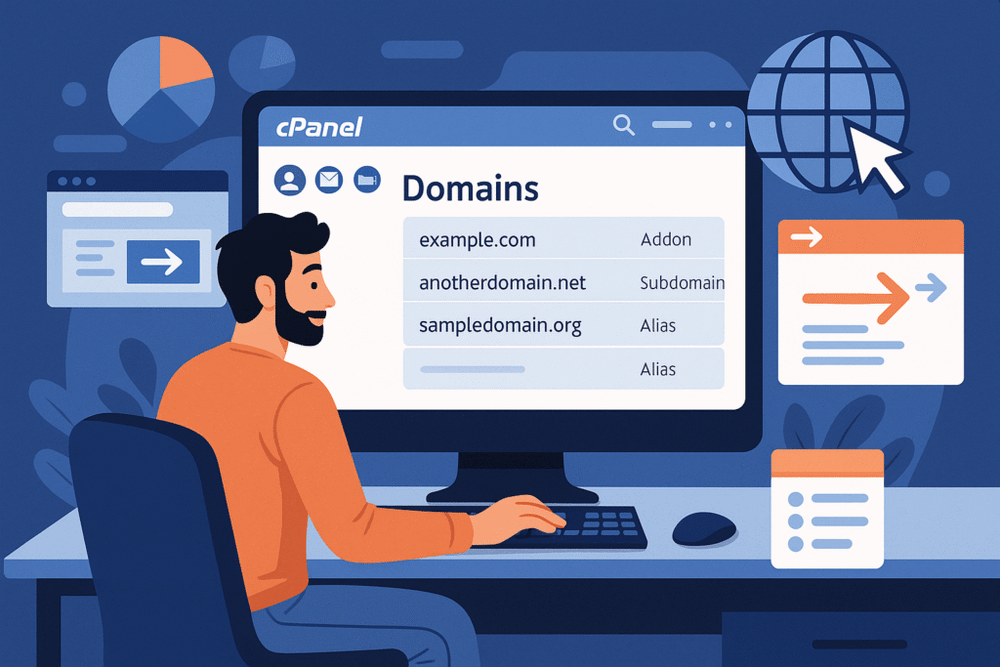
Once you’re comfortable logging in, the next big step is domain management.
Whether you’re hosting multiple sites or just tweaking your setup, cPanel gives you straightforward tools to add, redirect, or manage domains.
Adding and Configuring Addon Domains
Addon domains let you host multiple websites under a single hosting plan. It’s like renting one apartment but adding extra rooms for different projects.
Here’s how to set one up:
- From cPanel, go to the “Domains” section and click “Addon Domains.”
- Enter the new domain name.
- Choose a directory where the site’s files will live.
- Create an FTP account if you want separate access for that domain.
Example: If you run myportfolio.com but want a separate site for your blog at myblog.com, an addon domain makes that possible without buying a new hosting plan.
What I like about this setup is how neatly it organizes files. Each addon domain gets its own folder in your root directory, so you won’t accidentally mix website files.
Setting Up and Redirecting Subdomains
Subdomains are like mini-sites branching off your main domain. You’ve seen them before—things like blog.yourdomain.com or shop.yourdomain.com.
To create one:
- In cPanel, click “Subdomains” under the Domains section.
- Enter the prefix (like “blog”).
- Choose the domain you want it attached to.
- Assign the folder where content will live.
You can also redirect subdomains if you want them pointing elsewhere. For example, if shop.yourdomain.com should forward visitors to an Etsy store, you can set up a redirect in the same menu.
In practice, subdomains are handy for separating projects—like a support portal, a members-only area, or even staging versions of your site.
Using Aliases to Point Domains Easily
Domain aliases (sometimes called parked domains) let you point multiple domain names to the same website. Imagine you own both mybusiness.com and mybusiness.net—aliases make sure both bring visitors to the same site.
To set one up:
- Open the “Aliases” option in cPanel.
- Enter the domain you want to point.
- Make sure it’s registered and pointed to InMotion’s nameservers.
I recommend this if you want to protect your brand. Owning common variations of your domain and pointing them back to your main site ensures you don’t lose traffic to competitors or typos.
Creating and Managing Email Accounts in cPanel
Email is one of those things that seems small until you really need it. Having professional email addresses linked to your domain makes your business look trustworthy and keeps everything organized.
InMotion Hosting cPanel makes creating and managing email simple once you know where to click.
Setting Up New Email Accounts for Your Domain
Here’s how you can create a new email in a few clicks:
- From the cPanel dashboard, scroll to the Email section.
- Click Email Accounts.
- Hit the Create button.
- Choose the domain you want the email linked to from the dropdown.
- Type in the username (e.g., “support” if you want support@yourdomain.com).
- Set a strong password or use the password generator.
- Select storage space for the inbox.
I recommend creating role-based emails like info@yourdomain.com, support@yourdomain.com, or sales@yourdomain.com. It makes your business appear more professional than using a personal Gmail address.
From my own use, one trick I’ve found handy is setting a reasonable inbox quota. If you give unlimited storage, you’ll never clean it out. Setting 1–2 GB forces regular maintenance and keeps your hosting account lean.
Accessing Webmail and Forwarding Messages
Once your email account is set, you’ll need a way to check it. InMotion Hosting gives you two straightforward options:
- Webmail Access:
- From cPanel, open Email Accounts.
- Next to the account, click Check Email.
- Choose your preferred webmail client (Roundcube is the most user-friendly).
You can also go straight to yourdomain.com/webmail and log in with your email address and password.
- Forwarding Messages:
If you don’t want to log into multiple inboxes, set up email forwarding.- In cPanel, open Forwarders.
- Add the address you want to forward from and where you want messages delivered.
For example, you could forward all mail from support@yourdomain.com to your personal Gmail so you don’t miss anything.
Personally, I advise using forwarders sparingly. It’s convenient, but if you reply from Gmail, the recipient might see your personal email instead of your professional one unless you configure Gmail’s “Send As” feature.
Configuring Spam Filters and Email Security
Nobody likes spam—especially when it floods your work inbox. InMotion Hosting cPanel includes built-in tools to help manage it.
- Go to the Spam Filters section in cPanel.
- Enable Apache SpamAssassin. This tool assigns scores to incoming emails and blocks suspicious ones.
- Adjust sensitivity. A lower number means stricter filtering, but if you set it too low, real emails might get caught.
I suggest starting with the default score of 5 and tweaking it based on what you receive.
On top of that, enable DKIM and SPF records (you’ll find them under Email Deliverability). These help prove that your emails are legitimate and reduce the chance of them landing in someone’s spam folder.
From my experience, setting up DKIM and SPF early saves headaches. Without them, important emails like invoices or client communication might never reach their inbox.
File Management Tools in InMotion Hosting cPanel
If cPanel email is about communication, file management is about control. Whether you’re uploading a website, editing code, or reorganizing folders, InMotion’s File Manager puts everything at your fingertips without needing FTP software.
Using the File Manager for Quick Edits Without FTP
The File Manager is like Windows Explorer or Mac Finder, but for your hosting account.
Here’s how to use it:
- In cPanel, click File Manager under the Files section.
- Navigate through folders—your main site files live in public_html.
- Use the toolbar at the top to upload, create new files, or edit existing ones.
One of my favorite features is the Edit button. If you just need to tweak a line of code in a PHP or HTML file, you can edit directly inside File Manager without opening an external editor or using FTP.
I’ll be honest: this is a lifesaver when you need to fix something small, like correcting a broken link in index.html. No extra software, no fuss.
Uploading, Organizing, and Deleting Files Efficiently
Uploading is straightforward:
- Click Upload from the top menu, select your files, and they’ll land in the current folder.
For organization, I recommend:
- Keeping each project in its own folder.
- Avoiding random files floating around public_html.
- Naming files clearly so you don’t mix them up later.
Deleting is just as simple:
- Select the file, click Delete, and confirm.
- Deleted files move to the trash unless you permanently remove them, so you have a safety net.
From experience, I advise not to bulk-delete unless you’re 100% sure. One wrong click could wipe out a site. When in doubt, back it up first.
Understanding Permissions to Secure Files and Folders
File permissions control who can read, write, or execute files. In cPanel’s File Manager, you’ll see numbers like 644 or 755—these represent permission settings.
- 644 usually means: owner can read/write, everyone else can read.
- 755 means: owner can read/write/execute, others can only read/execute.
You can change permissions by:
- Right-clicking the file.
- Selecting Change Permissions.
- Adjusting the checkboxes or typing the numeric code.
Here’s why it matters:
- If permissions are too loose (like 777), hackers could exploit your files.
- If they’re too strict, your website might break because scripts can’t run.
I suggest leaving most files at default settings unless you know what you’re changing. If you upload custom scripts, double-check their permissions.
Databases and phpMyAdmin Made Simple
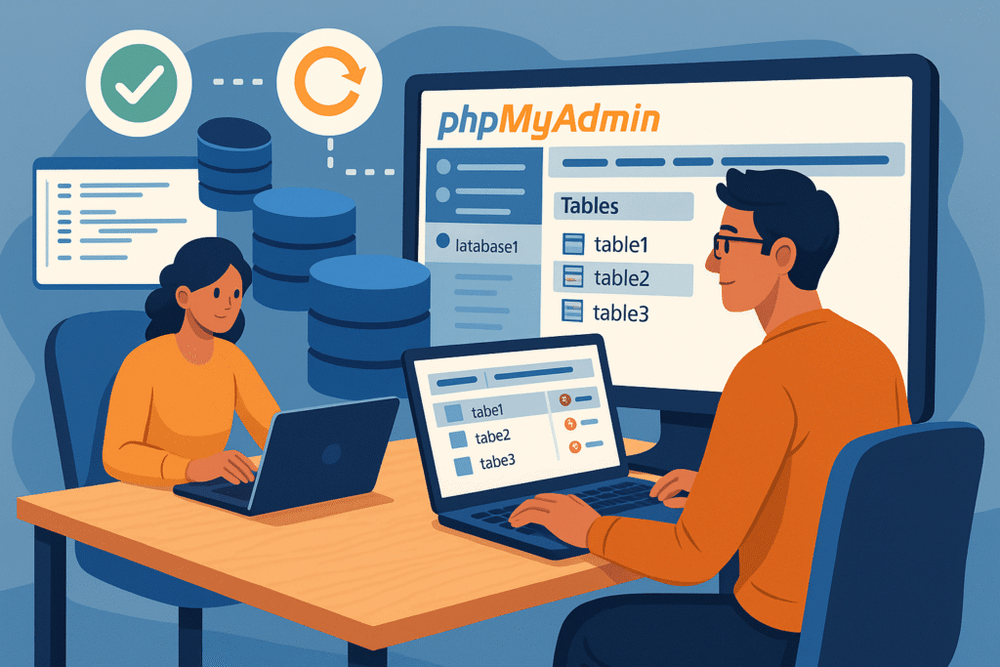
If your website runs on WordPress, Joomla, or any other CMS, a database is quietly working behind the scenes. Think of it as the memory bank storing posts, settings, and user information.
InMotion Hosting cPanel gives you two main tools to manage it all: MySQL Databases for setup and phpMyAdmin for fine-tuning.
Creating and Connecting MySQL Databases to Your Website
Every CMS or app you install needs a database to store its data. Here’s how to create one in cPanel:
- From the cPanel dashboard, scroll to the Databases section.
- Click MySQL Databases.
- Enter a name for your new database and hit Create Database.
- Scroll down to create a new MySQL User with a strong password.
- Add that user to the database and give it All Privileges.
Now, when you install WordPress or another app, you’ll use these credentials (database name, username, and password) to connect the site to its database.
I suggest writing these details down before running the installation—nothing’s worse than forgetting which username you created when the installer asks for it.
Managing Tables and Data in phpMyAdmin
phpMyAdmin is like a control panel for your database. It looks intimidating at first, but it’s incredibly powerful.
Here’s what you can do inside phpMyAdmin:
- View and browse your tables (like wp_posts or wp_users for WordPress).
- Run queries to search or update information.
- Delete spam comments or stuck user accounts directly.
- Repair or optimize tables if your site feels sluggish.
Example: Let’s say you changed your WordPress site URL and suddenly can’t log in. You can go into phpMyAdmin, open the wp_options table, and manually update the siteurl and home values to fix it instantly.
My advice is to tread carefully here. One wrong edit can break your site. If you’re making changes, always back up the database first.
Backing Up and Restoring Databases Safely
Databases are fragile creatures. A single corrupted table can take your site offline. That’s why backups aren’t optional—they’re essential.
To back up a database:
- Open phpMyAdmin from cPanel.
- Select your database from the left-hand panel.
- Click Export.
- Choose “Quick” export and download the .sql file.
To restore a backup:
- Select the database in phpMyAdmin.
- Click Import.
- Upload the saved .sql file.
I recommend making regular backups before plugin updates or major changes. I’ve had cases where a bad plugin update corrupted tables, and a quick restore saved hours of frustration.
Installing Applications With Softaculous App Installer
Softaculous is one of the biggest time-savers in cPanel. Instead of manually downloading software, uploading files, and configuring databases, you can install apps like WordPress in a couple of clicks.
One-Click WordPress Installation and Setup
WordPress is by far the most popular CMS, and InMotion Hosting makes installing it effortless.
Steps to install with Softaculous:
- In cPanel, find the Softaculous Apps Installer section.
- Click the WordPress icon.
- Hit Install Now.
- Choose the domain where you want WordPress installed.
- Fill in details like site name, admin username, and password.
- Select plugins or themes if offered.
- Click Install.
Within minutes, you’ll have a fully functional WordPress site ready to go.
One personal tip: change the admin username from the default “admin.” Hackers target that. Something unique, even just myname_admin, adds a layer of protection.
Exploring Other Popular CMS Options Like Joomla and Drupal
WordPress may be the king, but Softaculous also supports other CMS platforms like Joomla and Drupal.
- Joomla: A bit more structured than WordPress, great for complex websites with lots of content.
- Drupal: Highly customizable and developer-friendly, but with a steeper learning curve.
The process is nearly identical to WordPress: pick the app in Softaculous, fill in the setup details, and let the installer handle the database creation and configuration for you.
If you’re experimenting, I suggest installing Joomla or Drupal on a subdomain like test.yourdomain.com to play around without affecting your main site.
Managing Installed Apps and Automating Updates
Softaculous doesn’t just install apps—it also helps you manage them.
- From the Softaculous dashboard, you’ll see all your installed apps listed.
- You can update WordPress, Joomla, or plugins directly from there.
- You can also clone a site to another domain or create staging versions for testing.
I really like the staging feature. For example, before updating a theme on your live site, you can test it in staging to make sure nothing breaks. Once it looks good, you push changes live with a single click.
To keep your sites secure, enable automatic updates inside Softaculous. From what I’ve seen, most hacked WordPress sites come from outdated plugins or themes. Automating updates removes that risk without adding extra work.
Managing Backups and Restores in InMotion Hosting cPanel
Backups are like insurance: you hope you never need them, but when disaster strikes, they can save your site. InMotion Hosting cPanel gives you control to create, download, and restore backups so you’re never left scrambling.
Creating Full Backups of Your Website Files
To create a full backup, you don’t need any third-party tools—it’s built right into cPanel.
- In cPanel, scroll down to the Files section.
- Click Backup Wizard.
- Select Backup.
- Choose Full Backup for everything (website files, emails, and databases).
- Download the backup file to your computer.
I recommend keeping at least two backups: one recent, and one older. That way, if a problem sneaks in unnoticed (like malware), you won’t accidentally restore a corrupted version.
A little tip I use: Save backups in cloud storage like Google Drive or Dropbox. That way, even if your local computer crashes, your files are safe.
Restoring Files and Databases After Issues
If your site breaks after an update or hack, restoring a backup can feel like hitting the “undo” button.
- For files: Use the Backup Wizard again, select Restore, and upload your saved file.
- For databases: Go into phpMyAdmin, click Import, and upload the .sql file.
One time I restored a client’s WordPress site in less than 15 minutes after a plugin update caused chaos. The key is knowing where your backups are stored and having a clean version ready.
My advice: Test your restores on a staging site when possible. That way, you confirm the backup is working before pushing it live.
Scheduling Automated Backups for Peace of Mind
Manually creating backups works, but automating the process gives real peace of mind.
Inside cPanel, you can set up cron jobs (scheduled tasks) or use third-party plugins for WordPress like UpdraftPlus. These tools can automatically back up files and databases daily or weekly.
Here’s a routine I believe works best:
- Daily incremental backups (just the changes).
- Weekly full backups.
- Monthly archives stored offsite.
It might sound like overkill, but I’d rather be over-prepared than panic when something goes wrong.
Security Tools Built Into cPanel
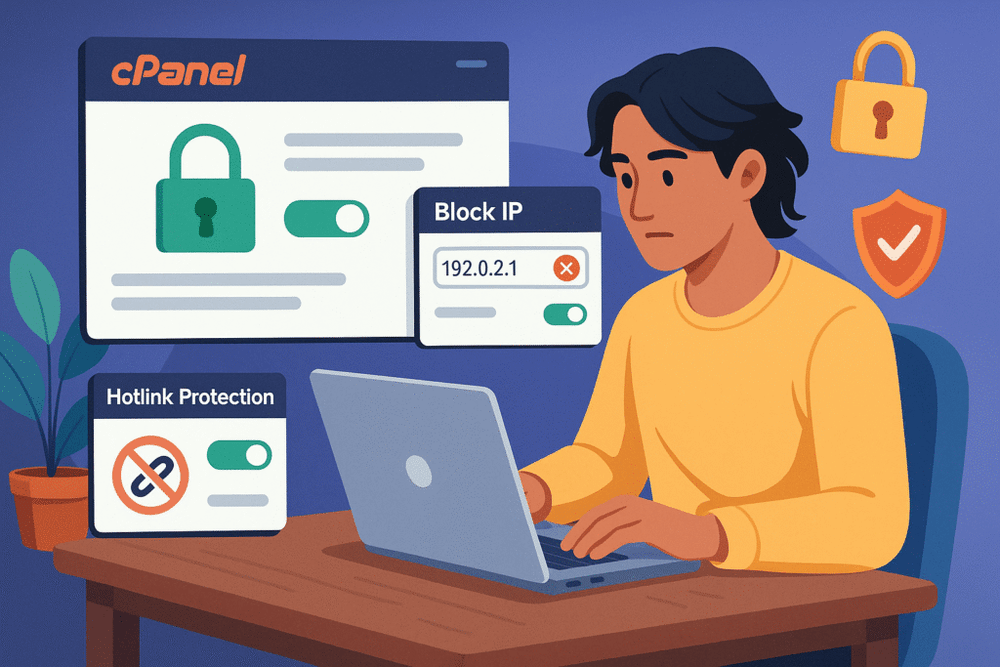
A secure site isn’t just about protecting yourself—it’s about keeping visitors safe too. InMotion Hosting cPanel has several built-in security tools that can help shield your website without needing advanced tech skills.
Enabling SSL Certificates for Your Domains
An SSL certificate encrypts data between your site and visitors. Without it, browsers display a “Not Secure” warning.
To enable SSL in cPanel:
- Go to the SSL/TLS Status section.
- Look for the domain you want to secure.
- If AutoSSL is available, click Run AutoSSL.
In most cases, Let’s Encrypt provides free SSL certificates through InMotion Hosting. Once installed, your site will load over https://.
I suggest forcing HTTPS sitewide by updating your .htaccess file or using WordPress plugins like Really Simple SSL. That way, you avoid visitors accidentally hitting the insecure version.
Using Hotlink Protection to Prevent Bandwidth Theft
Hotlinking happens when someone embeds your images or files on their site, stealing your bandwidth. It’s like paying for someone else’s dinner.
Here’s how to stop it:
- In cPanel, open Hotlink Protection.
- Enable protection.
- Add your own domain(s) to the list of allowed URLs.
- Optionally, set up a custom message or image to display when someone tries hotlinking.
I once replaced hotlinked images with a cheeky “Please host your own files” graphic. It got the point across without wasting server resources.
Setting Up IP Blocker to Keep Out Unwanted Traffic
Sometimes you’ll see suspicious traffic or repeated login attempts from the same IP address. The IP Blocker tool lets you shut the door on them.
Steps:
- In cPanel, click IP Blocker.
- Enter the IP address (or range) you want to block.
- Save the rule.
It’s not a replacement for a firewall, but it’s a quick way to deal with obvious offenders. I suggest checking your site logs for repeated attackers and blocking them before they cause problems.
Optimizing Website Performance With cPanel Tools
A slow site can drive visitors away before they even see your content. The good news is, InMotion Hosting cPanel includes performance tools that help you speed things up without hiring a developer.
Checking Resource Usage With Metrics Tools
Inside cPanel, you’ll find Metrics and Resource Usage. These tools show you:
- CPU and memory usage.
- Bandwidth consumption.
- Number of processes running.
If your site keeps crashing or loading slowly, this is the first place I check. It tells you if you’re maxing out your hosting plan’s resources.
From experience, I’d say keep an eye on spikes. If traffic grows and your CPU consistently hits 100%, it might be time to upgrade your plan or use a caching solution.
Leveraging Caching Options for Faster Load Times
Caching stores copies of your website so it doesn’t reload everything from scratch each time.
In cPanel, you can enable OPcache for PHP applications. For WordPress sites, pair this with a plugin like W3 Total Cache.
Here’s what I suggest:
- Enable OPcache in cPanel (under Software > Select PHP Version).
- Use a WordPress caching plugin to handle page caching and browser caching.
- Combine this with a CDN (Content Delivery Network) for global speed.
One of my clients saw their site speed improve by nearly 40% just by enabling OPcache and adding a CDN. Visitors noticed immediately.
Managing Error Pages to Improve User Experience
Error pages are unavoidable, but you can control how they look. Nobody likes the plain “404 Not Found” message.
To customize error pages in cPanel:
- Go to the Advanced section.
- Click Error Pages.
- Select the domain and choose which error page (404, 500, etc.) you want to edit.
- Add a custom design or helpful links.
For example, instead of a dead-end 404, I like to add a friendly message like: “This page wandered off. Head back to our homepage or check out our blog.” That way, users don’t just leave—they stay engaged.
Advanced Features for Developers in InMotion Hosting cPanel
cPanel isn’t just for beginners—it has plenty of advanced tools for developers too. If you like automating tasks, working with secure connections, or tweaking your environment, these features will feel like hidden treasures.
Managing Cron Jobs for Automated Tasks
Cron jobs let you automate repetitive tasks, like scheduling backups or clearing out temporary files. Think of them as timers that run commands at specific intervals.
To create one in cPanel:
- Go to the Advanced section.
- Click Cron Jobs.
- Add your email so cPanel notifies you when the cron runs.
- Enter the command you want executed (like a PHP script).
- Set the timing (every minute, daily, weekly, etc.).
For example, if you run a membership site, you could use a cron job to automatically delete expired sessions every night. I advise testing new cron jobs with a longer interval (like weekly) before running them daily, just to avoid flooding your logs or overwhelming your server.
Accessing and Using SSH for Secure File Transfers
SSH (Secure Shell) is like having a backdoor into your server where you can run commands directly. It’s faster and more powerful than FTP, especially when transferring lots of files.
Here’s how to enable and connect:
- In cPanel, open SSH Access.
- Generate or upload SSH keys.
- Use an SSH client like Terminal (Mac/Linux) or PuTTY (Windows).
- Connect with: ssh username@yourdomain.com -p 22
From here, you can move files, run scripts, or even install software. I suggest using SSH if you ever need to migrate a site or pull down a full directory—it’s way quicker than dragging and dropping with FTP.
Customizing PHP Settings for Web Applications
Different apps have different PHP requirements. Maybe your WordPress site needs more memory for heavy plugins, or your script requires a specific PHP version.
To adjust settings:
- In cPanel, open Select PHP Version.
- Pick the PHP version (e.g., PHP 8.1).
- Click Options to adjust values like memory_limit, upload_max_filesize, or max_execution_time.
For instance, I often increase upload_max_filesize when clients want to upload large media files. Just be careful—cranking up limits too high can strain your server. I believe small, precise tweaks are better than overloading settings “just in case.”
Common Issues and How to Troubleshoot Them
Even with a smooth hosting environment, things sometimes break. The good news is most common cPanel issues have simple fixes if you know where to look.
Fixing Login Errors or Access Problems
If you can’t log into cPanel, it usually comes down to:
- Wrong username or password.
- Cache issues in your browser.
- Incorrect URL (use yourdomain.com/cpanel).
Quick fixes:
- Reset your cPanel password through AMP.
- Clear browser cache or try incognito mode.
- Use the server IP with port :2083 if your domain isn’t pointing yet.
I’ve been locked out before and wasted time thinking the server was down. Nine times out of ten, it’s just a mistyped password or wrong login link.
Resolving Database Connection Issues
You’ve probably seen the dreaded “Error establishing a database connection.” This usually means the site can’t talk to its database.
Check these first:
- Open your site’s config file (wp-config.php for WordPress).
- Make sure the database name, username, and password match what’s in cPanel.
- Ensure the database user has all privileges.
If everything looks correct, try repairing the database in phpMyAdmin. I suggest enabling error logs too—it often points directly to the problem.
Handling Email Sending and Receiving Failures
Email issues can be frustrating, but they usually boil down to configuration.
- If you can’t send emails, check:
- Your SMTP settings.
- Whether SPF/DKIM records are enabled in Email Deliverability.
- If you can’t receive emails, check:
- Inbox quotas.
- Spam filters catching valid messages.
- MX records pointing to the correct mail server.
One trick I use: Send a test email to an external account (like Gmail). If it doesn’t arrive, check the headers to see if it failed due to missing authentication. That usually points back to SPF or DKIM issues.
Expert Tips to Get the Most Out of InMotion Hosting cPanel
cPanel has a ton of features, but little tricks can make your daily workflow smoother. These are habits I’ve picked up that save clicks and reduce clutter.
Bookmarking Shortcuts for Faster Navigation
Instead of logging into AMP every time, I recommend bookmarking direct cPanel login URLs. You can even bookmark specific sections like:
- yourdomain.com:2083 → cPanel login.
- yourdomain.com/webmail → email access.
This saves me at least a couple of minutes every day, and over time, that really adds up.
Using Favorites to Access Key Tools Instantly
Inside cPanel, you can “star” the tools you use most often. For me, that’s File Manager, Email Accounts, and phpMyAdmin.
- Hover over a tool in the dashboard.
- Click the star icon to add it to Favorites.
Next time you log in, those tools appear right at the top. It feels like decluttering your desk—you don’t waste time searching for what you need.
Keeping Your cPanel Organized and Clutter-Free
With so many icons, cPanel can feel overwhelming.
Here’s how I keep things tidy:
- Collapse sections you don’t use often (like Advanced).
- Reorder sections so your most-used tools are at the top.
- Remove unnecessary email accounts or databases you’re not using.
I believe a clean cPanel leads to fewer mistakes. It’s like walking into a messy room—chaos leads to missed details. A quick tidy-up keeps you efficient and focused.

I’m Juxhin, the voice behind The Justifiable.
I’ve spent 6+ years building blogs, managing affiliate campaigns, and testing the messy world of online business. Here, I cut the fluff and share the strategies that actually move the needle — so you can build income that’s sustainable, not speculative.
Related posts:
 How to Navigate HostGator cPanel Like a Pro
 Does Bluehost Offer Email Hosting?
 Webhostingpad: Everything You Need to Know
 The Ultimate Guide to UltraWebHosting: Features, Benefits, and Pricing
 How to Host a Website: A Step-by-Step Guide for Beginners
 HostGator VPS Pricing: Pros, Cons & Cost Breakdown