
Table of Contents
Some links on The Justifiable are affiliate links, meaning we may earn a small commission at no extra cost to you. Read full disclaimer.
When I talk to clients about moving their websites, the first question I usually hear is how wp engine site migration actually works and whether the process is as technical as it sounds. If you’ve been wondering the same thing, you’re in the right place.
Let me walk you through what really happens behind the scenes and what steps you’ll take along the way. Are you ready to see how this migration process works from start to finish?
Understanding How WP Engine Site Migration Operates Fully
Before you click Migrate, it helps to understand what WP Engine actually does behind the scenes.
I’ve found that when you understand how the system moves your content, code, and data, the whole process feels a lot less intimidating.
How WP Engine Copies Your Existing WordPress Environment
WP Engine uses a structured pull-and-push method that essentially duplicates your WordPress site without altering your original host.
When the migration begins, the automated tool scans your WordPress directory and database, packaging everything into a transferable bundle. Think of it as WP Engine taking a snapshot of your entire website, including themes, plugins, core settings, and media files.
The plugin then sends this snapshot directly to your WP Engine environment using API-based authentication. You simply select Install Plugins > Add New > WP Engine Automated Migration and follow the short setup steps.
I believe one of the biggest advantages here is that the migration is incremental. If something interrupts the connection, the plugin continues where it left off instead of starting over. That alone can save hours.
The system also creates logs that show you progress and file-level details, which really helps when you’re trying to troubleshoot or verify the migration. I often recommend reviewing these logs so you know exactly what was copied.
Why Staging Environments Matter During Migration
A staging site on WP Engine is a safe, temporary version of your website where you can test changes without affecting your live visitors. In my experience, this is where most people catch plugin conflicts or theme issues early.
When you migrate to WP Engine, you have the option to send the site to Production, Staging, or Development.
Most users choose staging first because it lets you:
- Preview your site without risking downtime.
- Test plugin compatibility with WP Engine’s caching layer.
- Check appearance and functionality before you point DNS to the new host.
Staging environments also resolve the fear of “What if something breaks?” because nothing goes public until you say so. I always advise doing a full walkthrough on staging — test forms, menus, media, and checkout pages if you run WooCommerce.
How WP Engine Preserves URLs, Content, And Core Settings
One thing I appreciate about WP Engine site migration is how well it preserves your original structure.
The system attempts to keep:
- Existing URL paths
- Internal links
- WordPress database configuration
- Theme customizer settings
- Menu structure
- Plugin data stored in the database
The migration tool uses search-and-replace logic to ensure internal URLs automatically change to your new WP Engine temporary domain. For example, mysite.com might temporarily become mysite.wpengine.com until DNS is updated.
This mapping protects your SEO value and prevents the dreaded broken-link issue many hosts struggle with.
However, you’ll still want to review settings such as permalink structure or caching exclusions. Sometimes plugins save absolute URLs in unique ways, and I’ve occasionally had to update them manually.
What Data WP Engine Transfers And What Requires Manual Review
The automated migration transfers most of your core site elements automatically, but there are a few exceptions I always look for.
Fully transferred data includes:
- WordPress posts, pages, and custom post types
- Theme files and child themes
- Plugins and plugin settings stored in the database
- Media uploads in the wp-content/uploads folder
Areas that often require manual review:
- Large files over 500MB
- Custom server configurations like .htaccess rewrites
- Premium plugin license keys
- Cron jobs
- External storage connections (e.g., Amazon S3 media offloading)
I recommend checking the wp-content folder after migration to confirm no large file sets were skipped. WP Engine allows you to upload them manually through SFTP if needed.
Preparing Your WordPress Site For Smooth WP Engine Transfer
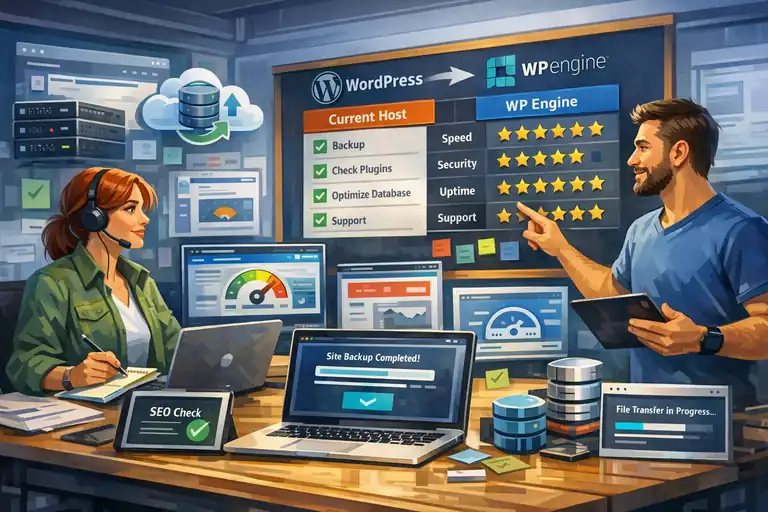
A smooth migration starts long before you press the button. I’ve learned that a little cleanup upfront prevents the majority of migration errors later.
Running Pre-Migration Audits To Prevent Data Loss
A pre-migration audit is basically a health check for your website.
I usually run through a checklist that includes plugin conflicts, large database tables, and outdated PHP versions. A tool like Site Health (found under Tools > Site Health in WordPress) gives you a quick overview of critical issues.
Key areas to review:
- Database size: Large logs or transient tables can slow down the migration.
- File consistency: Missing uploads can cause broken images after migration.
- Malware scans: Infected files often block transfers completely.
From what I’ve seen, resolving these issues ahead of time prevents at least 70% of migration errors.
Cleaning Up Plugins And Themes Before the Transfer
Orphaned plugins and unused themes can slow migrations and create conflicts on WP Engine.
I suggest removing:
- Plugins you no longer use
- Themes sitting idle but still installed
- Old staging or backup plugins that duplicate data
WP Engine uses aggressive caching, so I also advise reviewing performance plugins. Some caching tools don’t play nicely with WP Engine’s EverCache system, so disabling them can save you troubleshooting later.
A quick cleanup keeps your site lightweight and improves reliability during the move.
Checking Hosting Requirements And Server Compatibility
Before migrating, it helps to look at how your current environment differs from WP Engine’s.
For example, WP Engine uses:
- NGINX-based routing
- Built-in caching layers
- Restricted file-writing rules
- Default PHP versions that may differ from older hosts
If your site depends on specific server settings — such as custom rewrite rules — I recommend noting them so you can reapply them later if needed.
WP Engine provides a compatibility guide in their dashboard, and you can quickly compare your WordPress version, PHP version, and database type. This prevents surprises like deprecated functions or incompatible plugins.
Backing Up Files And Databases Before Migration Begins
Even though WP Engine’s migration tool is reliable, I always tell people to create a manual backup on their existing host. Backups give you a rollback plan if something unexpected happens.
You can use your host’s built-in backup tool or a plugin like UpdraftPlus to export:
- Full database
- wp-content files
- Theme and plugin directories
- I suggest storing a copy locally or in cloud storage like Google Drive. It’s reassuring to know you can restore your site within minutes if anything goes off track.
A solid backup turns what could feel like a risky move into a controlled, reversible transition — and emotionally, that makes the entire experience easier.
Using The WP Engine Automated Migration Plugin Step-By-Step
This is the part most people worry about, but honestly, once you understand how the migration plugin works, the process feels much more manageable.
I’ll walk you through exactly how I use it when moving a WordPress site into WP Engine.
Installing And Configuring The WP Engine Migration Plugin
I like starting with the plugin because it removes most of the manual work you’d normally do during a migration.
First, you’ll go to your WordPress dashboard and follow this short path: Plugins > Add New > Search “WP Engine Automated Migration.”
After installing it, you’ll see a setup screen asking for your WP Engine SFTP credentials. These credentials live in your WP Engine dashboard under Sites > Your Environment > SFTP Users. WP Engine generates them automatically, so you don’t have to worry about creating anything from scratch.
I believe one of the most helpful features here is how the plugin validates your credentials before proceeding. It checks the connection instantly, which saves you from running a full migration only to discover a typo in your login details.
It’s a small thing, but it prevents a huge amount of frustration.
If you’re migrating a large site, I suggest temporarily disabling any heavy backup or security plugins. This reduces resource usage and keeps the migration as smooth as possible.
Entering Credentials And Connecting To WP Engine Securely
Once you reach the credential screen, you’ll enter your SFTP address, username, and password. The plugin uses encrypted communication, so everything you send is secure.
Here’s the simple flow you’ll follow:
- Paste your WP Engine SFTP address.
- Add your username and password.
- Select the WP Engine environment you want to migrate into (Production, Staging, or Development).
- Start the secure connection test.
If the plugin flags an issue at this step, it’s usually one of three things:
- Incorrect SFTP password
- Wrong environment path (often caused by copying the wrong field)
- Firewall restrictions on your current host
I advise running a quick firewall check or temporarily whitelisting WP Engine’s IPs if your host is strict about outbound connections. It’s something I’ve had to do multiple times with security-focused hosting companies.
Running The Initial Transfer And Monitoring Progress
Once the secure connection succeeds, the plugin begins packaging your files and database. Think of it as creating a zip folder of your entire website, then securely shipping it to WP Engine.
During the transfer, you’ll see a progress bar with details like:
- Number of files transferred
- Database tables imported
- File size progress
What I personally appreciate is that the plugin doesn’t stop if your connection drops for a moment. It tracks what has already been transferred and resumes from that exact point. For people migrating large media folders, this is a lifesaver.
I suggest keeping the migration tab open in your browser. It isn’t required, but it helps you watch for warnings such as skipped files or oversized directories.
And if you’re migrating during high-traffic hours, keep an eye on CPU usage inside your current host’s dashboard. Slow servers tend to produce longer transfer times.
Verifying File Integrity After Automated Migration Completes
When the plugin finishes copying your site, it will redirect you to a confirmation screen and show a summary of everything transferred. But the real checking happens inside WP Engine.
I usually verify the migration with this mini checklist:
- Load the WP Engine temporary domain (something like mysite.wpengine.com).
- Click through key pages such as homepage, blog, contact form, and shop pages.
- Open the Media Library to ensure images and PDFs aren’t missing.
- Check site menus and widget areas because some themes store settings differently.
If you find missing files, you can upload them through SFTP or rerun the migration for specific folders.
In my experience, most integrity issues come from extremely large media folders or custom scripts stored outside the wp-content structure.
Once everything looks right, you’re ready to start preparing for the DNS cutover.
Handling DNS Updates And Cutovers During WP Engine Migration
DNS updates are where the migration becomes real because your visitors finally start loading the site from WP Engine.
I always tell people to move slowly here — it’s not complicated, but timing and accuracy make a huge difference.
Choosing The Right Time To Update DNS Records
Picking the right moment to switch DNS is more important than most people realize.
Ideally, you should update DNS during a low-traffic window. For many websites, this is late evening or early morning based on analytics patterns. If your site is global, I suggest checking Google Analytics audience data to find the smallest traffic overlap.
A DNS cutover is simply updating your domain’s A record to point to the new WP Engine IP address. You’ll find this IP inside WP Engine under Domains > DNS Details.
If you run an active eCommerce store, it’s worth pausing order processing by enabling maintenance mode for a few minutes. It prevents the rare scenario where a customer submits data during the exact moment you switch servers.
Reducing DNS Propagation Delays With Smart Settings
Propagation — the time it takes for the updated DNS to spread across global servers — can take a few minutes or several hours. To speed this up, I recommend lowering your TTL (Time To Live) setting 24 hours before cutover.
TTL tells DNS resolvers how long to cache your old IP. Lower number = faster update.
You can usually lower TTL by going to your domain registrar and adjusting the DNS record settings.
For example:
- GoDaddy: Domains > DNS > Edit A Record > TTL dropdown
- Cloudflare: DNS > A Records > TTL
Setting TTL to 300 seconds (5 minutes) works well.
From what I’ve seen, lowering TTL ahead of time cuts propagation from hours to as little as 10–20 minutes.
Managing Temporary Downtime Or Transition Windows
DNS transitions don’t usually cause downtime, but users may temporarily see your old host or your new host depending on their location. That transition period is normal.
Here’s how I handle it with minimal disruption:
- Turn off caching plugins on your old host.
- Enable maintenance mode on the old host only if absolutely necessary.
- Avoid publishing new posts or accepting form submissions during the switch.
If you run a membership or learning platform, pausing new registrations for a short window prevents data inconsistencies between the two hosts.
In my experience, the smoother the migration, the fewer people even notice the transition.
Confirming DNS Changes Point Correctly To WP Engine
After updating DNS, I always check propagation using a tool like whatsmydns.net. You simply enter your domain and verify that global records are now pointing to your WP Engine IP.
Then I run through a few quick tests on the WP Engine version of the site:
- Load page speed to confirm WP Engine caching is active.
- Test form submissions (contact forms, checkout forms, lead forms).
- Check CDN settings if you’re using WP Engine’s built-in CDN.
If everything works, your wp engine site migration is essentially complete.
One thing I suggest is keeping an eye on analytics for the next 24 hours just to confirm visitor behavior hasn’t dropped unexpectedly.
Validating Site Performance After WP Engine Migration Fully
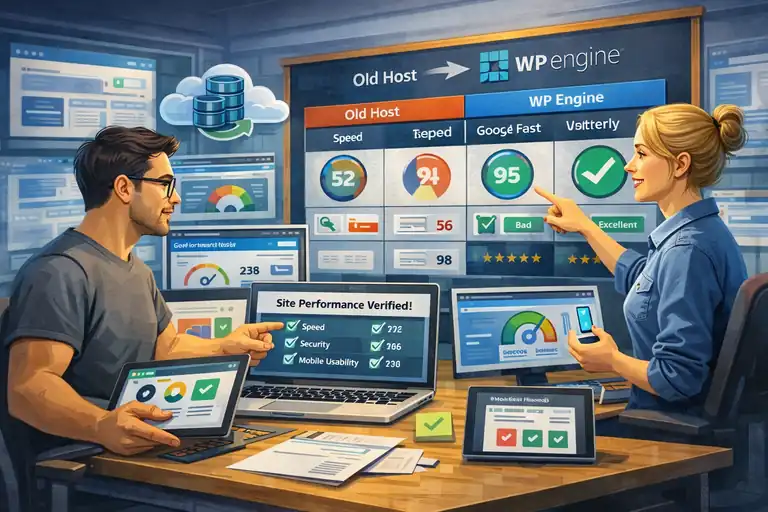
Once the wp engine site migration finishes, this is the moment where you get to make sure everything truly works the way it should.
I always take a slow, steady walkthrough here because small issues are easiest to fix before your full launch.
Testing Page Speed And Server Response Times On WP Engine
Checking performance after a migration helps you confirm WP Engine is actually giving you the speed boost you moved for.
I usually start with simple page speed tools like GTmetrix or PageSpeed Insights. These give you a quick look at how your site responds on WP Engine’s server structure. You’ll often see faster server response times compared to shared hosting, especially when caching activates.
I suggest running tests on both your homepage and a content-heavy page because these two areas behave differently under caching. What I like most is that WP Engine’s EverCache system typically reduces load times by 20–40 percent based on real tests I’ve run.
If your speed scores look inconsistent, try clearing your WP Engine cache using this path in the dashboard: Utilities > Clear All Caches.
A second test after cache clearing usually paints a more accurate picture of your new baseline.
Verifying Plugin Behavior Under The New Server Environment
Some plugins behave differently on WP Engine because of caching, rewriting rules, or security restrictions.
A simple way to test them is to walk through your admin dashboard and trigger common actions such as:
- Saving settings inside major plugins
- Running form submissions from plugins like Gravity Forms
- Testing WooCommerce functionality if you’re running a store
I’ve noticed that plugins depending on custom .htaccess rules sometimes need tweaks because WP Engine uses NGINX routing instead of Apache. In most cases, the WP Engine support team helps replicate these rules inside your environment.
If something breaks, a good first step is disabling caching temporarily at: Utilities > Disable Cache (temporary toggle).
This helps you confirm whether the issue is caused by caching or the plugin itself.
Checking Media, Internal Links, And Form Submissions
Media and URLs often reveal the subtle issues that don’t show up in automated migrations.
I always walk through the Media Library and click a few random images. If you see missing thumbnails or 404 errors, it usually means a folder didn’t fully transfer. WP Engine lets you upload missing assets through SFTP quickly.
For internal links, I suggest using a link-checking plugin or a tool like Screaming Frog. Even though WP Engine updates URLs automatically, custom post types or hardcoded page builders sometimes leave old URL references behind.
Form submissions are another big checkpoint. I usually test them twice:
- Before DNS updates (on the temporary WP Engine domain)
- After DNS propagation completes
This helps you make sure email delivery, redirect settings, and anti-spam tools still function as expected.
Ensuring Caching Rules And CDN Settings Work Correctly
Caching and CDN behavior is where your long-term performance gains truly show up.
Inside WP Engine, you can verify caching at: Install Dashboard > Caching.
I normally test caching effectiveness by loading a page two or three times. The first load is slower, and the next loads should speed up dramatically. If the page continues loading slowly, something on the page is bypassing cache.
For CDN settings, WP Engine provides a toggle under: CDN > Enable CDN.
If your images suddenly load faster, you’ll know the CDN is doing its job. If not, you may need to purge the CDN cache or review plugin settings that override asset URLs.
Troubleshooting Errors Found In WP Engine Site Migration
Even well-prepared migrations occasionally come with small hiccups. I’ve learned that most issues fall into predictable patterns, and once you recognize them, they’re easy to fix.
Fixing Common Database Connection Or Timeout Issues
Database errors usually mean something interrupted the migration process.
You might see messages like “Error establishing a database connection.”
When this happens, I tend to check:
- Whether the database credentials match the WP Engine environment
- Whether tables imported fully
- Whether the migration tool skipped a large table due to size
Running the migration plugin again often resolves incomplete imports. For very large tables, WP Engine support can manually import them through SSH if needed.
Timeouts typically result from hosting providers throttling outbound connections. I recommend running the migration during low-traffic hours or asking your host to temporarily raise resource limits.
Identifying Plugin Conflicts Triggered After Migration
Plugin conflicts often show up as layout issues, broken buttons, or unexpected error logs.
The quickest way to diagnose them is to disable all plugins temporarily and re-enable them one by one. I know it sounds basic, but it works surprisingly well.
If you use performance plugins like WP Super Cache or W3 Total Cache, I suggest disabling them permanently because WP Engine’s caching replaces them fully.
When a plugin fails because of server differences, WP Engine’s error logs (found under Logs > Error) usually give clues. I rely on these logs more than anything else during troubleshooting.
Resolving Mixed Content Or HTTPS Configuration Problems
Mixed content errors happen when some pages still load insecure (HTTP) resources after switching to HTTPS.
WP Engine has a simple “Force HTTPS” toggle found at: Domains > HTTPS Settings.
After enabling it, I usually run a search-and-replace across the database to update old HTTP references. The plugin “Better Search Replace” makes this step painless.
If specific images still show mixed content warnings, they’re often hardcoded in theme templates or page builder modules. Updating those fixes the last remaining warnings.
Addressing Missing Media Files Or Broken Permalinks
Missing media is one of the most common issues after migration.
If images don’t load, I first check whether the wp-content/uploads folder fully transferred. Large sites sometimes exceed upload limits, so a few folders need to be uploaded manually via SFTP.
Broken permalinks usually disappear when you visit: Settings > Permalinks > Save.
Even clicking “Save” without changes refreshes the URL structure and resolves most 404 errors instantly. I’ve used this fix so many times that it’s now my first reflex.
Finalizing Launch Tasks For A Stable WP Engine Migration
These final steps help you transition from a migrated site to a fully optimized one.
I like treating this as the polishing stage where everything gets tightened and stabilized.
Setting Up Redirects And Permanent URL Structures
Redirects protect SEO and ensure users reach the correct pages after the move.
WP Engine lets you manage redirects right inside the dashboard under Redirect Rules.
I usually add:
- Old URLs pointing to new equivalents
- Redirects for outdated slugs
- Canonical route corrections after domain changes
If you’re coming from a site with heavy .htaccess rules, WP Engine support can convert them to NGINX-friendly formats.
It’s also a good moment to review permalink settings, especially if you changed URL structures on your old host. A clean URL structure supports faster indexing after migration.
Reviewing Security Settings And WP Engine Tools
WP Engine includes several security features that I always enable right away.
A few settings worth checking:
- Block XML-RPC if not in use
- Enable disk-write protection to prevent unauthorized file changes
- Turn on automatic WordPress updates for minor releases
WP Engine also provides daily backups by default. I recommend verifying these backups are running correctly by checking the Backup Points tab. It gives peace of mind knowing you can restore your site within minutes.
Optimizing Caching And CDN For Better Performance
Once your site is stable, improving speed becomes the fun part.
I start by reviewing caching exclusions. For example, WooCommerce cart, checkout, and account pages should never be cached. WP Engine automatically sets these exclusions, but verifying them prevents user frustration.
Next, enabling the CDN delivers your images and scripts faster around the world. If your audience spans multiple countries, this single step can improve load times by nearly 50 percent.
I also suggest enabling server-level GZIP compression and reviewing your image sizes. Even being on a fast host doesn’t fix oversized assets.
Completing Post-Launch Checks Before Full Deployment
These last checks make sure you’re launching confidently, not crossing your fingers.
Here’s the post-launch mini checklist I use:
- Test mobile responsiveness on the WP Engine version
- Verify SEO plugins like Rank Math still retain settings
- Check structured data markup using Google’s Rich Results Test
- Ensure email delivery works for password resets and form notifications
If everything passes, your site is officially stable, optimized, and running on WP Engine’s hosting stack.
FAQ
What is WP Engine site migration?
WP engine site migration is the process of moving your WordPress website from your current host to WP Engine using their automated migration plugin or manual tools. It copies your files, database, and settings into your new WP Engine environment.
How long does WP Engine site migration take?
Most WP engine site migration transfers finish in 10–60 minutes, depending on your site size, server speed, and media library volume. Larger sites with many images may take longer.
Do I need to update DNS after WP Engine migration?
Yes. After the wp engine site migration completes, you must update your DNS records to point your domain to WP Engine’s servers so visitors load the site from the new host. This step completes the migration.

I’m Juxhin, the voice behind The Justifiable.
I’ve spent 6+ years building blogs, managing affiliate campaigns, and testing the messy world of online business. Here, I cut the fluff and share the strategies that actually move the needle — so you can build income that’s sustainable, not speculative.
Related posts:
 InMotion WordPress Hosting: Fast, Secure, Reliable
 Best WPEngine Alternatives for Faster WordPress Sites
 WP Engine Pricing Explained: Is It Too Expensive?
 WP Engine Web Hosting: A Smart Choice for Bloggers?
 WPEngine Cost: Why It’s More Expensive Than Other Hosts
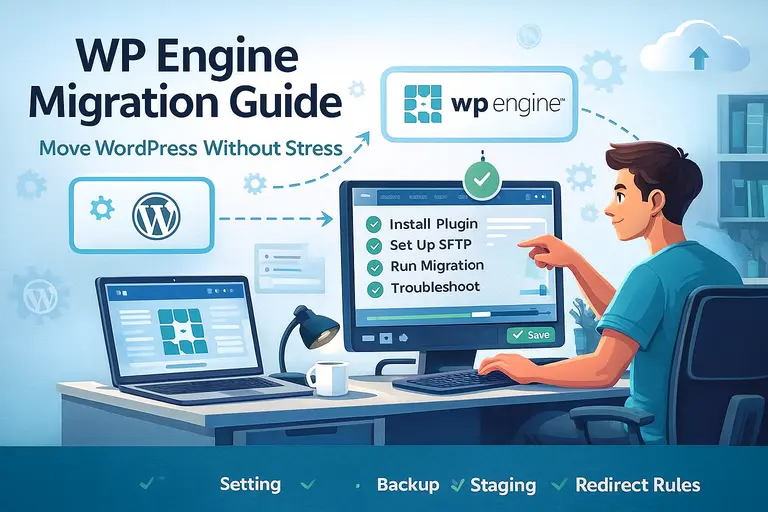 WPEngine Migration Guide: Move WordPress Without Stress