
Table of Contents
Some links on The Justifiable are affiliate links, meaning we may earn a small commission at no extra cost to you. Read full disclaimer.
If you’re looking for a real hostgator wordpress performance optimization strategy, the good news is you usually do not need to rebuild your whole site. In most cases, you need a cleaner stack, better caching, lighter media, and fewer front-end bottlenecks.
I’ve seen slow HostGator WordPress sites drop their load time dramatically just by fixing a handful of issues in the right order.
This guide walks you through that process from baseline testing to advanced tuning, so you can make your site feel faster for real visitors, not just score better in a speed tool.
What This Strategy Actually Fixes
A fast site is rarely the result of one magic setting. On HostGator, performance is usually won by reducing server work, browser work, and network weight at the same time.
Why Most HostGator WordPress Sites Feel Slow
A lot of WordPress sites on shared or starter hosting are not truly “slow hosting” problems. They are “too much stuff happening at once” problems. Your server has to generate the page, your theme has to load scripts, your plugins may call extra CSS and JavaScript, and then the browser still has to render everything.
Here is the pattern I see most often. The homepage loads a giant hero image, five plugins inject assets sitewide, fonts come from multiple sources, and the cache either is not configured well or is fighting with another plugin. The result is a site that feels heavier than it should.
On HostGator, that matters even more because many sites are running on standard WordPress hosting setups where efficiency matters. You cannot afford wasted requests, bloated images, or plugins that execute on every page for no reason.
A better way to think about performance is this: Every unnecessary request, every oversized image, and every duplicate optimization layer is a small tax. One tax does not kill speed. Ten of them absolutely can.
That is why this guide focuses on a full system. We will trim the page, stabilize caching, reduce asset bloat, optimize media, and monitor the results so you know what changed.
The Core Metrics You Should Watch First
Before changing anything, you need a simple scorecard. I suggest tracking four numbers first because they tell you whether your optimization work is helping actual users.
| Metric | What It Means In Plain English | Good Target |
|---|---|---|
| Largest Contentful Paint (LCP) | How quickly the main visible content appears | Under 2.5 seconds |
| Interaction To Next Paint (INP) | How responsive the page feels when someone clicks or taps | Under 200 ms |
| Cumulative Layout Shift (CLS) | How much the layout jumps around while loading | Under 0.1 |
| Full Page Weight | Total size of all files on the page | As low as practical, often under 2 MB for content pages |
Use PageSpeed Insights for Core Web Vitals direction and GTmetrix for a more visual waterfall report. I like using both because one shows user-experience-oriented performance signals, while the other helps you see exactly which files are causing the delay.
Do not obsess over perfect scores. I believe that is where many site owners waste time. A site that loads quickly, stays stable, and responds fast is the real goal. A pretty 100 score with a clunky real-world experience is not a win.
I’d rather have a site that feels instant to visitors than one that simply looks impressive inside a testing dashboard.
Start With A Clean Baseline On HostGator
You cannot optimize what you have not measured. This stage is about getting a clean before picture and making sure your setup is not fighting itself.
Benchmark The Site Before You Touch Anything
Run your homepage, one blog post, and one high-conversion page through PageSpeed Insights and GTmetrix. That gives you three page types, which matters because many WordPress sites are only “fast” on the homepage and much slower everywhere else.
When you test, record these details in a sheet or note:
- LCP: Your starting load speed for the main content.
- INP: Whether interactivity is getting delayed by scripts.
- CLS: Whether images, ads, or widgets are causing layout jumps.
- Requests: How many separate files are loading.
- Page Size: How heavy the page is overall.
This step sounds basic, but it protects you from fake improvement. For example, maybe your homepage improves after caching, but your blog posts get worse because a social-sharing plugin loads extra scripts there. Without a baseline, you miss that.
I also recommend testing once while logged out and in an incognito window. Logged-in WordPress admins often see different behavior because cache is bypassed or admin assets are loaded.
A realistic scenario: Imagine your blog post starts at 4.8 seconds LCP, 2.9 MB page size, and 126 requests. Cutting that to 2.3 seconds, 1.5 MB, and 68 requests is absolutely possible if the slowdown is caused by common issues like images, fonts, third-party scripts, and duplicate plugins.
Check Whether HostGator Features Are Already Doing Part Of The Work
One mistake I see often is stacking plugin-based optimization on top of features your host is already handling. That can lead to conflicts, inconsistent cache purges, and weird behavior after updates.
Your first job is to confirm what your HostGator plan already includes. Depending on the setup, you may already have CDN support, SSL, WordPress-specific hosting features, backups, and built-in security layers. If your plan already handles part of the delivery or caching path, your plugin choices should complement that, not duplicate it.
Look through your hosting dashboard and note:
- Caching behavior: Is there any host-level cache enabled already?
- CDN availability: Is a CDN already connected or offered?
- PHP version: Older PHP versions can quietly drag performance down.
- Backup setup: You need rollback protection before major changes.
- Resource usage: High CPU or memory use may point to plugin inefficiency.
This is where I suggest staying disciplined. Do not install three optimization plugins because a blog post said to. Start by understanding what the server is already doing, then fill the gaps.
If your site is on a standard hosting plan and not a tuned managed environment, that simply means your WordPress optimization choices matter more. It does not mean you are stuck with a slow site.
Fix The Biggest Front-End Bottlenecks First
This is usually where the biggest visible gains happen. You are reducing the amount of work the browser has to do before the page feels usable.
Compress And Modernize Images Before Anything Else
Images are still the easiest speed win on most WordPress sites. I would go so far as to say they are the first thing I check unless the site is clearly being wrecked by scripts.
You want every image doing a job. If an image is decorative, keep it small. If it is a hero image, make sure it is properly sized for the space it fills. Uploading a 3000-pixel file for a 900-pixel display area is a very common mistake.
A practical workflow looks like this:
- Resize before upload: Match the image to the maximum display size you actually need.
- Use modern formats: WebP is usually the easiest upgrade path.
- Compress consistently: Aim for the smallest file that still looks clean.
- Lazy-load lower content: Let below-the-fold images wait until needed.
If you want a plugin-based workflow, Imagify and ShortPixel are both relevant options for WordPress image compression. The key is not the brand by itself. The key is using one system consistently and not mixing multiple image optimizers at once.
For many content-heavy sites, image optimization alone can shave hundreds of kilobytes or even multiple megabytes off the page. That is often the difference between “this site feels sluggish” and “this is loading fine on mobile.”
Remove Plugin And Theme Asset Bloat
This is where many WordPress sites quietly lose performance. A plugin may only add one small feature, but it can still inject CSS, JavaScript, fonts, icons, and database queries on every page.
The fix is not “use fewer plugins” as a vague rule. The fix is “use fewer heavy plugins that load everywhere without restraint.” You can absolutely run a fast site with a healthy plugin stack if those plugins are lean and purposeful.
Start by auditing every active plugin and asking:
- Does this plugin solve a real business need?
- Does it load assets on every page or only where needed?
- Can one plugin replace two or three smaller overlapping tools?
- Is my theme adding effects, sliders, or builders I do not need?
I suggest paying special attention to page builders, popup plugins, chat widgets, social feeds, and analytics add-ons. These are often the biggest front-end offenders.
A simple scenario: a local services website may use one builder, one popup plugin, one testimonial carousel, one review widget, and one social feed. The owner thinks each feature is small. Together, they turn a simple homepage into a script-heavy mess.
If you want to cut load time in half, reducing theme and plugin bloat is not optional. It is one of the main levers.
Clean Up Fonts, Video Embeds, And Third-Party Scripts
This category gets ignored because it feels less obvious than images. But third-party resources can crush performance, especially on content sites that layer in too many marketing tools.
Here is what I typically review:
- Fonts: Keep font families, weights, and variants minimal.
- YouTube embeds: Use a lightweight preview or click-to-load approach.
- Tracking scripts: Remove anything you are not actively using.
- Chat tools and widgets: Load them only if they justify the speed cost.
- Social embeds: Replace heavy live embeds with screenshots or simple links where possible.
Fonts are a classic trap. You may think you are loading one font, but in reality you are loading four weights, italic versions, and multiple fallback requests. That adds up quickly.
Video embeds are similar. A single YouTube embed can load a surprising amount of extra code. If the page goal is reading, not immediate video consumption, defer that cost.
I recommend being ruthless here. If a script does not increase revenue, leads, or real user value, it should not get a permanent seat on your pages.
Build The Right Caching And Delivery Stack
Once the page is lighter, you can make delivery much more efficient. This is where your HostGator WordPress performance optimization strategy starts compounding.
Pick One Primary Cache Layer And Configure It Properly
Caching means your site does not have to build every page from scratch for every visitor. That reduces server work and improves delivery speed. But bad caching setups are common, especially when site owners install multiple plugins that overlap.
Your goal is one primary caching system that handles page cache cleanly. After that, you can add focused extras if needed.
Popular WordPress options include WP Rocket, LiteSpeed Cache, and Autoptimize. They do not all serve the same role in the exact same way, so do not treat them as interchangeable checkboxes.
My practical advice is simple: choose one main optimization path and stick to it. Do not stack a full cache plugin with another full optimization suite unless you know exactly which features are disabled where.
A clean cache setup usually includes:
- Page cache: Stores prebuilt versions of pages.
- Browser cache rules: Helps repeat visitors load assets faster.
- Cache preloading: Warms key pages after clearing cache.
- Minification with care: Helpful, but only if it does not break the site.
- Deferred or delayed JavaScript: Useful when scripts are blocking paint.
Test after every major toggle. I have seen one “optimize JavaScript delivery” setting improve one site and break another. That is normal. Performance tuning is part science, part testing discipline.
Add A CDN The Right Way Instead Of Blindly Turning It On
A CDN stores copies of your static assets closer to visitors, which reduces geographic delivery distance. For sites with traffic outside one local region, this is often a very smart move.
Because HostGator already integrates with Cloudflare CDN in relevant setups, you should first check whether that path is available and whether it makes more sense than adding a second unrelated CDN layer. If you prefer more control, BunnyCDN can be worth evaluating for static asset delivery.
What matters most is not the CDN brand by itself. It is the implementation quality.
Here is a sensible rollout process:
- Enable the CDN on a staging mindset: Start with static asset delivery first.
- Purge all caches: Clear host cache, plugin cache, and CDN cache together.
- Retest key pages: Compare before and after from multiple regions if possible.
- Check for mixed content or broken assets: CDN changes sometimes expose path issues.
For a U.S.-based audience close to HostGator infrastructure, the CDN gain may be modest. For broader traffic, the difference can be much more noticeable. That is why I suggest testing based on your audience, not generic advice.
A CDN is a force multiplier, not a substitute for a clean site. It helps deliver files faster, but it does not fix bloated pages.
Use Object And Database Efficiency As Your Quiet Advantage
This part gets less attention because it is not as visual, but database and object efficiency can materially improve how WordPress behaves under load.
WordPress pages often rely on repeated queries, dynamic widgets, and plugin-generated calls. If your site has WooCommerce, heavy filtering, membership features, or dynamic homepages, database efficiency matters even more.
Start with the basics:
- Delete unused plugins and themes: Inactive clutter can still create maintenance overhead.
- Clean post revisions and transients: Too much database junk adds friction.
- Reduce plugin overlap: Two plugins doing similar work create extra overhead.
- Audit slow admin behavior: A laggy dashboard can signal deeper inefficiency.
For some sites, a strong page cache hides database inefficiency on the front end. But when cache is bypassed, such as for logged-in users, carts, or dynamic pages, those problems come roaring back.
This is also why not every speed fix shows up immediately on a homepage test. Some improvements are about stability during traffic spikes, admin responsiveness, and reducing CPU strain over time.
If your site still feels inconsistent after front-end optimization, the database and query layer deserve a serious look.
Optimize WordPress Settings That Quietly Affect Speed
These are the less glamorous changes, but together they tighten the whole environment.
Update PHP, Theme Stack, And Core Components
Old software can make an otherwise decent site feel heavier than it should. Performance improvements in PHP, WordPress core, and modern themes are often real, even if they are not flashy.
Inside your hosting and WordPress environment, review:
- PHP version: Stay on a supported, modern version your plugins can handle.
- WordPress core: Update regularly, but test after major releases.
- Theme framework: Some older themes carry years of baggage.
- Plugin quality: Replace abandoned or bloated plugins when possible.
I recommend treating your theme as infrastructure, not decoration. A theme that looks nice but ships extra builders, animations, and style frameworks can cost more than people realize.
A realistic example: Two sites with the same hosting and same content can perform very differently because one uses a lightweight theme and the other uses a feature-stuffed multipurpose theme with effects everywhere.
This does not mean you need the barest possible design. It means your design should earn its weight. If a feature adds visual polish but costs half a second on mobile, it needs to justify itself.
Reduce Homepage Complexity Instead Of Just “Optimizing” It
Many people try to optimize a homepage that fundamentally has too much going on. At some point, compression and caching stop being enough. The page needs to be simpler.
Ask yourself whether your homepage truly needs:
- A huge autoplay hero
- Multiple sliders
- Live social feeds
- Review widgets
- Popups on first visit
- Six different calls to action
- Long blocks of duplicated layout sections
I have seen sites improve more from removing one homepage slider than from three rounds of plugin tuning. That is not because sliders are always evil. It is because they often add scripts, images, layout shifts, and user distraction all at once.
A homepage should guide action, not perform every marketing trick available. In most cases, a cleaner page with clearer hierarchy converts better and loads faster.
That is one of my strongest opinions on performance work: simpler pages are often not just faster, but more persuasive.
Fix Mobile Performance Separately From Desktop
A site can feel fine on desktop and still be frustrating on mobile. This matters because mobile visitors often deal with slower networks, smaller CPUs, and less patience.
When optimizing for mobile, I focus on:
- Hero image weight
- Font loading
- Sticky elements
- Popup behavior
- Third-party scripts
- Tap responsiveness
It is worth remembering that mobile optimization is not only about shrinking layout width. It is about reducing computational burden. A page with too much JavaScript may still “look okay” on a phone while feeling sticky and slow when tapped.
That is why INP matters. If visitors tap a menu or button and the page hesitates, the site feels broken even if the visuals are loaded.
I suggest testing your highest-value mobile pages first: homepage, service pages, product pages, and lead forms. Those are the pages where speed improvements tend to create the clearest business payoff.
Use The Right Tools Without Creating More Bloat
Tools help when they solve a precise problem. They hurt when they overlap, duplicate, or add unnecessary complexity.
A Practical Tool Stack For HostGator WordPress Sites
You do not need ten optimization tools. You need a stack that covers the main jobs with minimal overlap.
| Job | Sensible Option | Best Use Case |
|---|---|---|
| Performance testing | GTmetrix | Waterfall analysis and request-level debugging |
| Core Web Vitals review | PageSpeed Insights | User-experience-oriented diagnostics |
| Caching | WP Rocket or LiteSpeed Cache | Page cache and front-end delivery tuning |
| Asset optimization | Autoptimize | Supplemental CSS and JavaScript optimization |
| Image compression | Imagify or ShortPixel | Media library compression and WebP workflows |
| All-in-one performance layer | NitroPack | For site owners who want aggressive automation |
I would not install all of these together. Think in layers, not accumulation.
A conservative stack might be one cache plugin, one image optimizer, and two testing tools. That is enough for many sites.
An aggressive stack might use a more automated performance platform, but that only makes sense if you understand the tradeoff between convenience, cost, and control.
When To Use Plugins And When To Leave The Site Alone
There is a point where extra optimization becomes counterproductive. I have seen site owners spend hours chasing tiny benchmark gains that make the site harder to maintain.
Use a plugin when:
- It solves a recurring performance problem cleanly
- It replaces manual work you would otherwise neglect
- It does not overlap with existing systems
- It improves both speed and stability
Leave the site alone when:
- The page already loads fast enough for users
- A new plugin only improves lab scores slightly
- The plugin adds complexity you do not fully understand
- The risk of breakage outweighs the benefit
This matters on HostGator because stability is part of performance. A fast site that breaks after cache purges, plugin conflicts, or updates is not actually optimized.
I suggest choosing a setup you can maintain confidently. The best performance strategy is the one you can keep working six months from now.
Troubleshoot The Problems That Keep Coming Back
Optimization is not a one-time event. Some issues return after updates, plugin installs, content changes, or design experiments.
Why Speed Drops Again After You “Fixed” It
This happens all the time. The site gets faster, then two months later it feels slow again. Usually the cause is not mysterious. It is process drift.
Common reasons include:
- New plugins were added casually
- Images started getting uploaded at full size again
- Marketing scripts pilled up
- Cache settings reset after updates
- A redesign introduced heavy layouts
That is why I recommend creating a simple internal rule set for anyone who touches the site. For example: all images must be compressed before upload, no plugin gets installed without a purpose, and all new scripts must justify their business value.
Speed maintenance is really operational discipline. Once your site is tuned, the next goal is protecting it from creeping bloat.
What To Check When Cache Or Minification Breaks Pages
Caching and minification can sometimes cause broken layouts, missing styles, or odd JavaScript behavior. That does not mean optimization is a bad idea. It means the settings need a more careful approach.
When something breaks, test in this order:
- Disable JavaScript delay or defer features temporarily.
- Turn off CSS combination or minification if layout issues appear.
- Purge every cache layer, not just one.
- Retest logged out and on mobile.
- Re-enable features one at a time.
This method matters because many site owners panic and disable everything at once. Then they never learn which setting was actually responsible.
In my experience, JavaScript-related settings are the most common source of visual or functional breakage, especially on builder-heavy pages, dynamic forms, and cart flows.
The fix is usually not abandoning optimization. It is being more selective.
Know When The Hosting Plan Is The Limiting Factor
Sometimes the site really has outgrown the current environment. You can optimize a lot on HostGator, but every platform has practical limits depending on traffic, plugin load, and dynamic complexity.
Signs the hosting layer may be the bottleneck:
- Performance is inconsistent even after cleanup
- CPU or resource issues return during traffic spikes
- Dynamic pages slow down despite caching
- Admin area stays sluggish even after plugin reduction
- Large WooCommerce or membership behavior strains the stack
This does not mean you should jump hosts at the first sign of trouble. I think that advice is often too lazy. First, earn your answer by optimizing the site properly. If the stack is clean and performance is still unstable, then hosting capacity becomes a fair discussion.
That is a much smarter path than blaming the server before fixing obvious page-level waste.
Scale The Strategy Once The Basics Are Working
Once you have a faster baseline, your next job is keeping it fast while the site grows.
Create A Repeatable Performance Workflow
The real win is not one fast week. It is having a system that keeps your site lean as content, products, or traffic increase.
A simple repeatable workflow looks like this:
- Before publishing: Compress images and check page structure.
- After plugin changes: Run a quick homepage and template test.
- Monthly: Review scripts, asset count, and key page metrics.
- Quarterly: Audit your theme, plugin stack, and top landing pages.
This is especially useful for teams. If multiple people upload content, design pages, or add marketing tools, performance can decay fast without basic guardrails.
I recommend making page speed part of publishing quality, not a rescue project for later. That single mindset shift prevents a lot of future cleanup.
Prioritize Revenue Pages Over Vanity Scores
Not every page deserves the same level of obsession. If you are limited on time, optimize the pages that affect money first.
Usually that means:
- Homepage
- Top service pages
- Product pages
- Sales pages
- Lead generation pages
- High-traffic blog posts that feed conversions
For many of us, this is the most practical way to get ROI from performance work. A one-second improvement on a neglected archive page is nice. A one-second improvement on your quote-request page is business-relevant.
I suggest matching speed work to funnel value. That is how performance becomes a growth lever, not just a technical hobby.
The Fastest Path To Cutting Load Time In Half
If I had to simplify this whole hostgator wordpress performance optimization strategy into one practical sequence, it would be this:
- Benchmark the homepage, a post, and a money page.
- Optimize images and reduce page weight first.
- Remove plugin, theme, and script bloat.
- Configure one primary caching layer correctly.
- Add CDN delivery only after the site is already lean.
- Retest, compare, and protect the gains with a workflow.
That sequence works because it fixes the most common causes of slowness in the right order. Too many people start with advanced settings before reducing the obvious weight.
If your current site is bloated, this strategy can absolutely cut load time in half. Not every site will hit that exact number, of course. But many can come surprisingly close when the major bottlenecks are addressed together instead of one by one in isolation.
Verdict: The Best HostGator WordPress Performance Strategy Is A Leaner Stack, Not More Tricks
The strongest HostGator speed improvements usually come from simplification. A lean theme, fewer heavy plugins, compressed images, disciplined caching, and a sensible CDN setup will outperform a messy site loaded with “optimization” tools every time.
That is why my advice is to treat performance like systems design. Make the page lighter. Make delivery smarter. Make ongoing maintenance easier. Then test based on user experience, not ego.
If you are building or rebuilding your WordPress setup on HostGator, start with the baseline audit and fix the biggest bottlenecks first. That is the path that gives you the highest odds of cutting load time dramatically without creating a fragile site in the process.

I’m Juxhin, the voice behind The Justifiable.
I’ve spent 6+ years building blogs, managing affiliate campaigns, and testing the messy world of online business. Here, I cut the fluff and share the strategies that actually move the needle — so you can build income that’s sustainable, not speculative.
Related posts:
 LiteSpeed Cache Plugin Review: Real WordPress Speed Gains
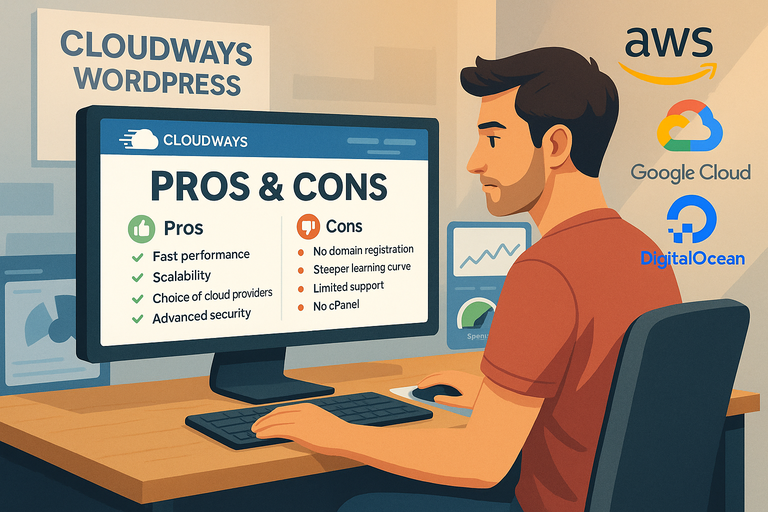 Cloudways WordPress Pros & Cons: What You Need to Know
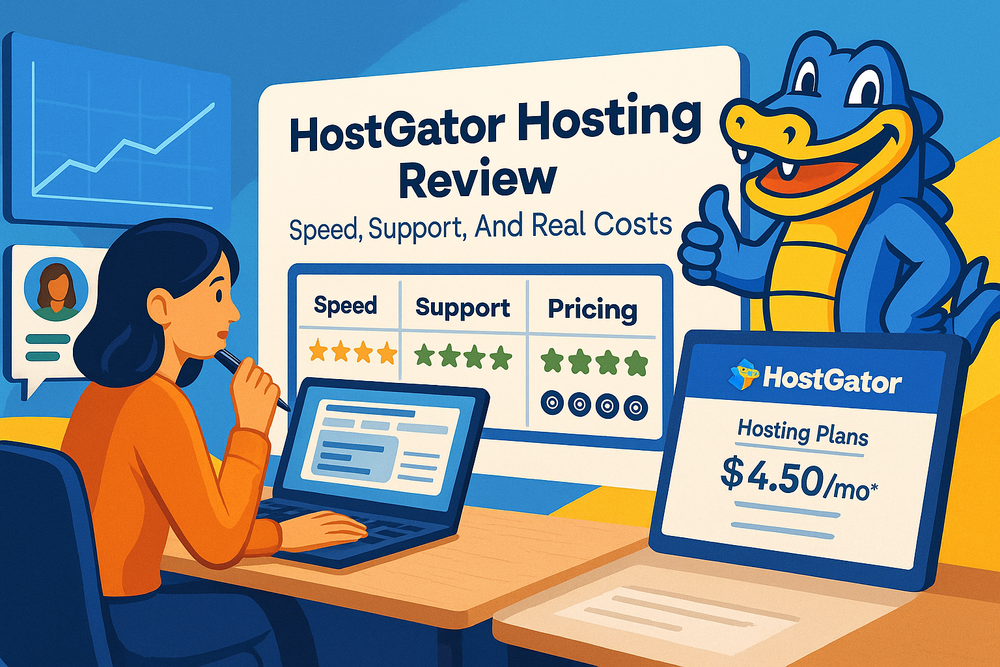 HostGator Hosting Review: Speed, Support, And Real Costs
 WP Engine Growth Plan Review for Business Scaling
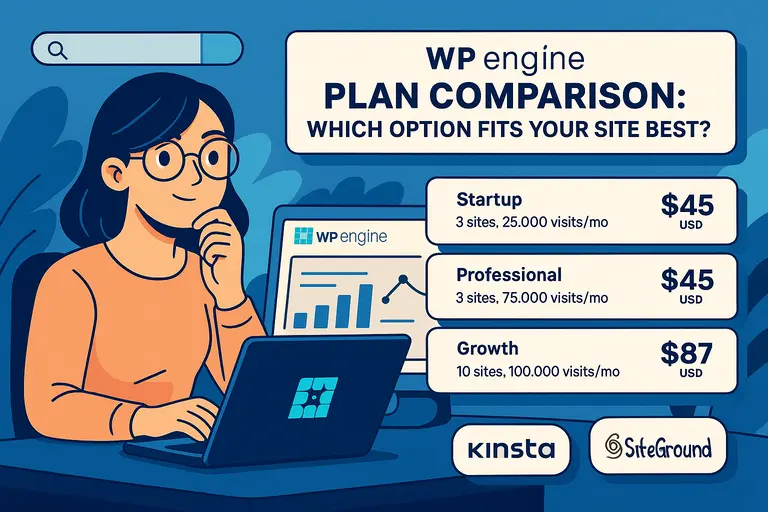 WPengine Plan Comparison: Which Option Fits Your Site Best?
 How WP Engine Data Centers Improve Your Site Load Time