Table of Contents
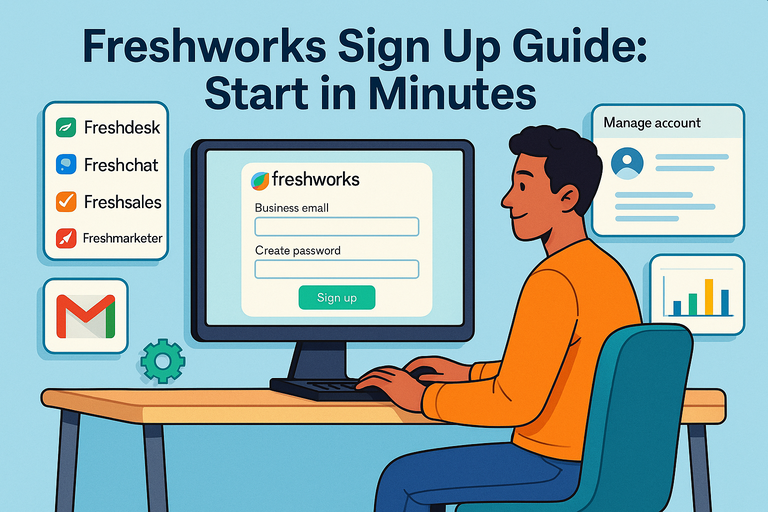
Starting your Freshworks sign up journey shouldn’t feel like learning a new language—it should be fast, simple, and effortless.
Whether you’re setting up for CRM, marketing automation, or customer support, Freshworks makes it easy to get started in just a few minutes.
But what exactly happens after you sign up? How do you make sure you’re setting things up right from the beginning?
Let’s walk through the complete, step-by-step process to create your Freshworks account and get it running smoothly.
How To Complete The Freshworks Sign Up Process
Getting started with your Freshworks sign up only takes a few minutes, and once you’re in, you’ll be surprised how quickly the platform starts feeling intuitive.
Let’s go step by step through the sign-up process so you can start using Freshworks without delay.
Step 1: Visit The Freshworks Official Website
Head over to freshworks.com. You’ll notice that the homepage gives you quick access to each product—like Freshdesk (for customer support), Freshsales (for CRM), or Freshmarketer (for marketing automation).
I recommend starting with the one that aligns with your immediate business goal. For example, if your main focus is tracking customer conversations, choose Freshdesk.
Example UI Path:
- Go to freshworks.com
- Click “Products” from the top menu
- Choose your desired product (e.g., Freshsales, Freshservice, or Freshdesk)
- Click “Start Free Trial”
That’s your entry point to the Freshworks ecosystem.
Step 2: Choose The Product You Want To Start With
Freshworks operates as a unified suite, so you can pick one product and expand later. I usually suggest starting with just one to keep setup simple.
Each product has its own landing page that outlines what it does, key features, and pricing tiers. Once you click “Sign Up” or “Start Free Trial,” you’ll be prompted to create an account.
Pro Tip: You can use the same login credentials across all Freshworks products once your main account is created. That saves you from managing multiple sign-ins.
Step 3: Enter Your Business Email And Create A Password
When the sign-up form appears, type in your business email address—not your personal one. This helps Freshworks recognize your company domain later for team setup.
Next, create a strong password using at least:
- 8+ characters
- One uppercase letter
- One number or symbol
If you prefer a quicker route, you can click “Sign up with Google” to use your company Gmail credentials.
I personally like using the manual email option because it gives you more control over managing login access later on.
Step 4: Verify Your Email To Activate The Account
After you’ve entered your details, Freshworks will send a verification email to confirm your identity.
Here’s what to do:
- Open your inbox and look for the “Verify your Freshworks account” email.
- Click the “Verify Email” button.
If it doesn’t show up within a few minutes, check your spam or promotions folder. Occasionally, corporate firewalls may delay external emails.
Without this step, your account remains inactive, so it’s crucial to complete it right away.
Step 5: Set Up Your Basic Business Information
Once verified, you’ll be directed to a short setup screen asking for business details like:
- Company name
- Number of employees
- Industry type
- Country or time zone
This helps Freshworks tailor your default settings. For example, support hours in Freshdesk automatically match your time zone, and CRM data defaults to your regional currency.
If you’re unsure about certain details, don’t worry—you can always update them later in Admin Settings → Company Profile.
Exploring The Freshworks Dashboard After Sign Up
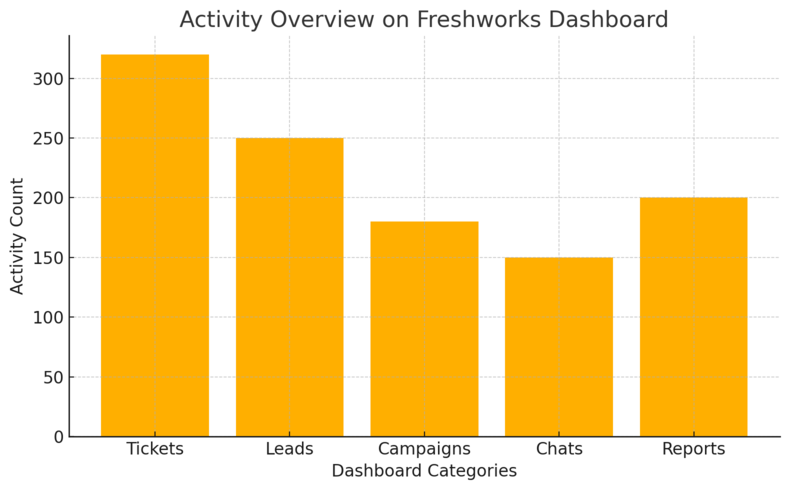
Once your account is live, the Freshworks dashboard becomes your central hub. It’s clean, well-organized, and easy to navigate—even for first-timers.
Understanding The User Interface And Navigation
The dashboard layout follows a familiar structure:
- Left Panel: Your navigation menu (Tickets, Contacts, Reports, etc.)
- Top Bar: Access to account settings, notifications, and search
- Main Workspace: Where all your real-time data and tools appear
I suggest hovering over each icon for a second—Freshworks tooltips will explain what each section does. This small feature really speeds up onboarding.
Freshworks also uses consistent navigation across products, so once you know your way around one tool (like Freshdesk), others like Freshsales will feel instantly familiar.
How To Access Multiple Freshworks Products From One Account
One of Freshworks’ smartest features is the Unified Login System. Once you’re logged in to any product, you can switch between others without re-entering credentials.
Quick Example: If you signed up for Freshsales, you can later click your profile icon → “Switch to another product” → select Freshmarketer or Freshdesk.
All your data stays under the same organizational umbrella, which means your CRM, marketing, and support teams can sync effortlessly.
This multi-product access is one of the reasons I often recommend Freshworks to growing startups—it scales with you.
Customizing The Dashboard For Your Business Needs
After exploring, it’s time to personalize. You can rearrange widgets, rename sections, and set your preferred homepage view.
Here’s a quick personalization path:
- Click your profile icon → “Personal Settings”
- Choose “Dashboard Preferences”
- Drag and drop widgets like Tickets Summary, Leads Overview, or Campaign Performance
This level of customization ensures you see the data that actually matters to your role.
For instance, a sales manager might prioritize lead progress, while a marketer may focus on campaign metrics.
Setting Up Your Profile And Team Preferences
With the basics complete, the next step is to configure your profile and invite your team. Collaboration is where Freshworks really shines.
How To Add And Manage Team Members
To add teammates, navigate to: Admin Settings → Users → Add User
Enter their name, email, and role. They’ll receive an invitation to join your workspace.
You can manage user access anytime under Team Management, where you’ll see each person’s status (Active, Pending, or Disabled).
I advise adding team members one by one initially. It gives you a better sense of how permissions affect workflow visibility.
Assigning User Roles And Permissions
Each role in Freshworks—like Agent, Admin, Manager, or Collaborator—comes with distinct permissions.
For example:
- Agent: Can respond to tickets or leads.
- Manager: Can view reports and manage team performance.
- Admin: Has full control, including billing and integrations.
You can fine-tune these settings in: Admin Settings → Roles & Permissions
I recommend creating custom roles once your team grows beyond five members. It helps maintain clear boundaries while keeping operations smooth.
Updating Company Details And Branding Settings
Personalizing your workspace with branding builds trust and makes internal tools feel cohesive.
To update branding:
- Go to Admin Settings → Company Profile
- Upload your logo (PNG format works best)
- Set brand colors to match your website palette
This also reflects in customer-facing assets like helpdesk emails or CRM links.
If you want to make your Freshworks tools look truly native, use the same brand favicon and color codes your website uses. It’s a small touch that elevates professionalism instantly.
Pro Tip: Once your setup is done, spend 10–15 minutes exploring the Freshworks Academy tutorials. They’re short, visual, and guide you through deeper features like automation rules and custom reports. It’s the fastest way to move from basic setup to expert-level use.
Connecting Tools And Integrations To Freshworks
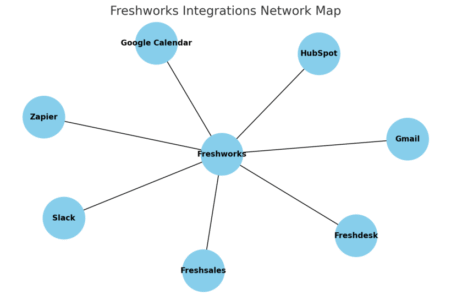
Once your Freshworks sign up is complete and your dashboard feels familiar, the next logical step is connecting your existing tools.
Freshworks plays nicely with most business apps, so integrations help you centralize workflows instead of hopping between platforms.
How To Integrate Freshworks With Email And Chat Platforms
Email and chat integrations are often the first ones people set up because they keep customer communication seamless.
To connect your email:
- Go to Admin Settings → Channels → Email.
- Add your business email address (like support@yourdomain.com).
- Choose whether to use Freshworks’ built-in email server or your own (e.g., Gmail, Outlook).
- Verify your email to activate the channel.
Once verified, every incoming email turns into a ticket or lead depending on the product you’re using. Replies sent from within Freshworks automatically sync back to your email inbox.
For chat integration: If you use live chat tools such as Freshchat, WhatsApp Business, or Messenger, connect them under Admin Settings → Channels → Chat. This allows your team to handle conversations from multiple sources in one unified view.
I personally recommend setting up at least one chat channel early—it gives you real-time visibility into customer questions, and it’s much faster than email for first-response support.
Linking CRM, Helpdesk, And Marketing Tools Seamlessly
Freshworks is designed to unify your sales, marketing, and support data. Linking tools like Freshsales (CRM), Freshdesk (helpdesk), and Freshmarketer (marketing automation) makes this possible.
Here’s how they work together:
- When a lead is captured in Freshsales, their details automatically sync with Freshmarketer for nurturing campaigns.
- When a customer raises a ticket in Freshdesk, their CRM record updates instantly.
- Sales reps can view open tickets without switching tabs, ensuring they don’t pitch to unhappy customers.
You can connect these products by going to Admin Settings → Integrations → Freshworks Apps and enabling the ones you need.
In my experience, the Freshsales + Freshdesk combination is the most powerful duo for small teams. It bridges sales and support perfectly, helping you deliver both efficiency and empathy.
Using Freshworks Marketplace To Find Compatible Apps
The Freshworks Marketplace is your go-to destination for discovering ready-made integrations. It includes 1,100+ apps spanning categories like CRM, accounting, communication, and analytics.
To access it:
- Click your profile icon → Marketplace.
- Use the search bar to find specific tools like Slack, Google Calendar, or QuickBooks.
- Click Install, grant necessary permissions, and configure settings.
A small but useful feature here: Freshworks automatically suggests apps based on your usage. So, if you’re heavily using Freshsales, you’ll see CRM-related recommendations at the top.
I suggest exploring automation apps such as Zapier and Make (formerly Integromat). They connect Freshworks with thousands of external platforms—perfect for advanced users who love building custom workflows.
Personalizing Your Freshworks Workspace For Efficiency
Your Freshworks setup isn’t just about functionality—it’s about tailoring it to fit how you work.
Personalization makes your workspace cleaner, faster, and more intuitive for your daily flow.
Setting Up Workflows And Automations
Workflows are the backbone of efficiency in Freshworks. They automate repetitive tasks so you can focus on strategy.
Here’s how you can set one up:
- Navigate to Admin Settings → Automations → Workflows.
- Choose a trigger (like ticket creation or deal stage change).
- Add conditions (e.g., if ticket priority = high).
- Define an action (e.g., assign to a specific team or send an alert).
Example: You can automate assigning high-priority tickets from enterprise clients directly to your senior support staff.
I believe setting up 3–5 smart workflows right after signing up can save you hours every week.
For instance, in Freshsales, I automate lead assignments based on region—so U.S. leads go to one rep, while Asia-based leads go to another.
Customizing Dashboards And Data Views
A well-organized dashboard can make or break your daily productivity. In Freshworks, dashboards are modular—you can customize what data you want to see first.
To personalize yours:
- Go to Reports → Dashboards → Customize.
- Add widgets like Sales Pipeline Summary, Ticket Resolution Time, or Marketing Campaign ROI.
- Drag and drop them to reorder based on your priorities.
You can even create role-based dashboards so your marketing, sales, and support teams each see their own KPIs.
In my setup, I keep a minimalistic dashboard: one view for open deals, one for high-value tickets, and one for upcoming campaigns. Keeping it simple reduces information fatigue.
Enabling Notifications And Task Reminders
Notifications in Freshworks ensure you never miss updates that matter. You can enable real-time alerts through desktop pop-ups, email, or mobile push notifications.
To adjust settings:
- Go to your profile → Preferences → Notifications.
- Select your preferred channels (Email, In-App, or Mobile).
- Set alert frequency for different actions—like when a ticket is reassigned or a lead status changes.
You can also enable task reminders under Tasks → Settings → Reminders, so you’re alerted before key deadlines.
Personally, I like using mobile push notifications for urgent tickets and email summaries for daily insights. It keeps me informed but not overwhelmed.
Exploring The Free Trial And Subscription Options
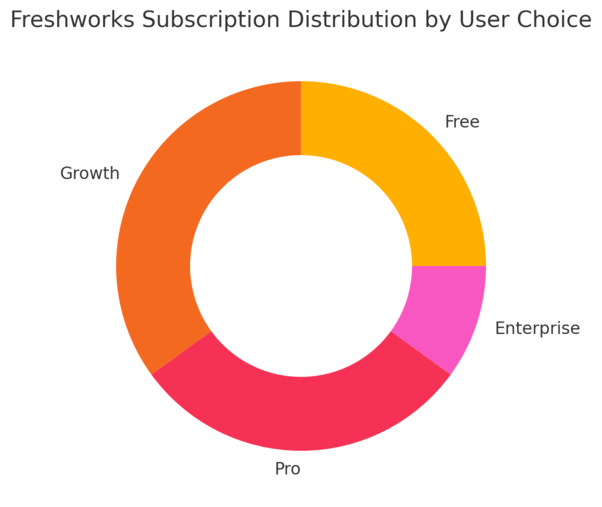
Once you’ve explored the basics, it’s time to understand your subscription options. Freshworks makes it easy to test features before committing financially.
How To Activate The Freshworks Free Trial
Every Freshworks product offers a 21-day free trial. To activate it, simply:
- Visit the product page (e.g., freshsales.com or freshdesk.com).
- Click Start Free Trial.
- Enter your business email and company name.
- Verify your email address, and your trial begins instantly.
During the trial, you get full access to premium features, so it’s the perfect time to explore advanced automations, analytics, and integrations.
I always advise using your real business data during the trial—it gives you a realistic feel for how Freshworks would function once you go live.
Understanding The Different Pricing Plans
Freshworks pricing is flexible, depending on which product you’re using. Typically, plans fall under these tiers:
- Free Plan: Basic tools for startups or testing.
- Growth Plan: Adds automation, integrations, and analytics.
- Pro Plan: Includes advanced workflows and multi-language support.
- Enterprise Plan: Tailored for large organizations with complex needs.
Each plan scales by the number of users and features. You can view a full comparison inside your Freshworks account under Billing → Plans & Pricing.
If you’re unsure which to pick, I suggest starting with the Growth Plan—it hits the sweet spot between affordability and capability.
Upgrading Or Downgrading Your Plan When Needed
You can change your subscription anytime from the Billing & Subscriptions section.
To upgrade or downgrade:
- Click your profile icon → Admin Settings → Billing & Subscriptions.
- Review current usage (users, features, integrations).
- Choose your new plan and confirm payment details.
Upgrading gives you instant access to higher-tier features without data loss. If you downgrade, Freshworks stores your premium data safely but restricts certain functionalities.
A neat little tip: Schedule your upgrade close to a new billing cycle. That way, you maximize your trial or lower-tier usage before switching plans.
Troubleshooting Common Freshworks Sign Up Issues
Even with a smooth Freshworks sign up process, small technical hiccups can happen.
Don’t worry—most issues are quick to fix once you know where to look. Here’s how to handle the most common ones.
What To Do If You Don’t Receive The Verification Email
Not getting your verification email is surprisingly common, and it’s usually a simple fix.
First, check the basics:
- Look in your Spam or Promotions folders.
- Add noreply@freshworks.com to your contacts and resend the verification.
- If you’re using a company email, ask your IT team to whitelist Freshworks’ domain—firewalls sometimes block automated messages.
Resend the verification email:
- Go to the Freshworks login page.
- Enter your registered email.
- Click “Resend Verification Email”.
If it still doesn’t arrive, you can temporarily use a personal email for registration, complete setup, and later update your Admin Settings → Company Profile → Primary Email.
I’ve noticed that company domains with strict filtering (especially Outlook and Exchange) often delay emails by up to 10 minutes, so giving it a short wait sometimes solves it too.
Fixing Login Or Password Reset Problems
If you can’t log in or reset your password, it’s usually a cache, cookie, or link-expiry issue.
Here’s what to do:
- Try accessing Freshworks in an incognito browser window.
- Clear cookies and cached data, then reload freshworks.com/login.
- If you’ve requested a password reset, make sure to use the most recent link—they expire after 30 minutes.
To reset manually:
- Click “Forgot Password” on the login page.
- Enter your registered email.
- Follow the reset link sent to your inbox.
If nothing works, open a support ticket via support@freshworks.com. Mention the exact product (like Freshdesk or Freshsales) and include a screenshot of the error message—it speeds up their response time significantly.
Contacting Freshworks Support For Quick Assistance
Freshworks has one of the most responsive support teams in SaaS. You can reach them through multiple channels depending on urgency.
Options include:
- In-App Chat: Found at the bottom-right corner of your dashboard.
- Email: support@freshworks.com
- Help Center: Access through freshworks.com/support for articles, FAQs, and video tutorials.
If it’s an urgent sign-up issue preventing access, the chat option is usually fastest—I’ve seen replies within 5 minutes during business hours.
My advice is to keep your account details (email, product name, and region) handy. It saves a few back-and-forth messages and gets your issue resolved quickly.
Expert Tips To Maximize Freshworks Right After Sign Up
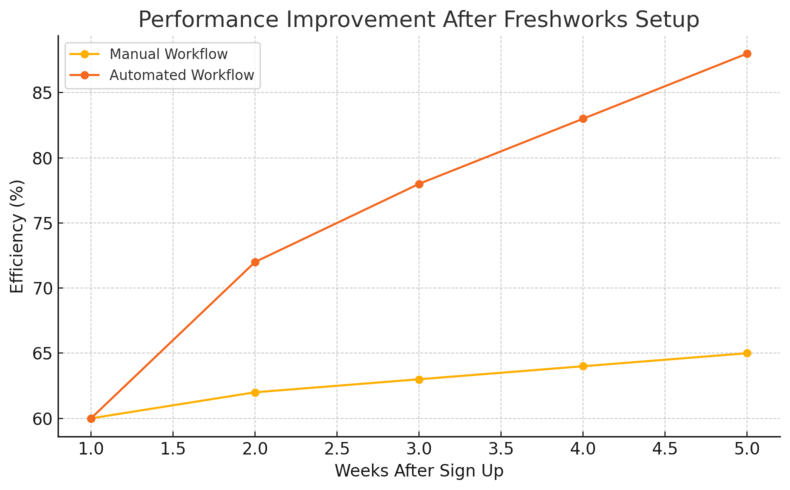
Once you’ve completed your Freshworks sign up, it’s tempting to start using it right away—but a few smart moves early on can make your experience smoother and more rewarding.
How To Use Product Tutorials And Onboarding Resources
Freshworks includes built-in product walkthroughs for every new account. You’ll notice small guided pop-ups after logging in for the first time—don’t skip them. They’re short and context-specific.
To revisit these guides later:
- Click your profile icon → Help & Resources.
- Choose Product Tours or Freshworks Academy.
I recommend watching the “Getting Started with Freshsales” or “Automating Support with Freshdesk” courses—they take less than 30 minutes and cover real-world use cases.
One of my clients once saved days of trial and error by following the Academy’s CRM customization tutorial before adding users. It’s worth the time investment.
Setting Up Reports And Analytics Early On
Reports are the heartbeat of Freshworks. Setting them up early helps you make data-driven decisions from day one.
Quick setup path:
- Go to Reports → New Report.
- Choose your data source (e.g., Tickets, Contacts, Deals).
- Select metrics you care about most—response time, lead conversion, or email engagement.
You can even schedule reports to be automatically emailed daily or weekly.
I suggest creating one “Executive Summary” report for leadership visibility and another “Daily Operations” report for your team. That way, everyone gets the insights they actually need.
Best Practices To Ensure Smooth Team Adoption
A powerful tool like Freshworks only delivers full value when your team actually uses it.
Here’s what I’ve found works best:
- Start small: Train your team on one core feature before introducing the next.
- Use internal champions: Assign one person from each department to test and share findings.
- Gather feedback early: Ask users which workflows feel intuitive and which need simplification.
For example, when I implemented Freshdesk for a 20-person support team, we began with ticketing automation before moving into reporting and analytics. The gradual rollout helped everyone adapt without feeling overwhelmed.
Security And Privacy Settings To Configure Immediately
Freshworks takes data security seriously, but you still need to personalize your own safety measures. Setting these up early ensures peace of mind for you and your customers.
Setting Up Two-Factor Authentication For Safety
Two-factor authentication (2FA) adds an extra layer of security beyond just passwords.
To enable it:
- Go to Admin Settings → Security Settings → Two-Factor Authentication.
- Choose your method—SMS or Authenticator App.
- Follow on-screen steps to verify your device.
Once enabled, every login requires both your password and a code from your chosen method.
I strongly suggest using an authenticator app (like Google Authenticator) rather than SMS—it’s faster and less vulnerable to SIM-swap attacks.
Managing Data Access And Privacy Preferences
Proper access control ensures only the right people see sensitive data.
In Admin Settings → Roles & Permissions, you can:
- Restrict certain users from viewing financial data or customer contacts.
- Limit who can delete or export data.
- Set approval workflows for data changes.
You can also review Privacy Settings under your company profile, where you can manage consent checkboxes for GDPR or regional compliance.
In my experience, setting permissions from day one avoids future confusion when your team grows.
Regularly Reviewing Security Logs And Permissions
Security isn’t a one-time setup. Freshworks provides detailed audit logs that record every major account activity—like new user additions or integrations.
To review them:
- Go to Admin Settings → Audit Logs.
- Filter by user or time period.
- Download logs monthly for record-keeping.
A quick monthly check helps catch any suspicious or accidental actions early. I once spotted a duplicate API key created unintentionally by a teammate—it could’ve caused a serious data sync issue if left unchecked.
Final Steps To Launch Your Freshworks Account Successfully
You’re nearly ready to go live. Before that, let’s make sure your setup is clean, your team is ready, and everything runs smoothly once you hit launch.
Testing Your Setup Before Going Live
Testing ensures every automation, email, and workflow works as intended.
Checklist before launch:
- Send test emails or tickets to see if they route correctly.
- Test automation rules with sample data.
- Review dashboard widgets for accuracy.
I like creating a few dummy leads or support tickets labeled “Test.” It’s a safe way to confirm that your triggers and reports behave exactly as expected.
Inviting Key Stakeholders To Review Configurations
Before rolling out to your entire organization, get input from team leaders. Invite them to a short walkthrough of your Freshworks setup.
Ask them to review:
- Access permissions
- Workflow logic
- Dashboard layouts
Their perspective often highlights things you might miss. A quick 20-minute review at this stage can prevent hours of reconfiguration later.
Planning Your First Week Of Operations With Freshworks
The first week after launch is about monitoring and fine-tuning.
Here’s a simple approach I use:
- Day 1–2: Observe user behavior. Note what’s confusing or repetitive.
- Day 3–4: Adjust automation rules and dashboard filters based on feedback.
- Day 5: Hold a short team sync to celebrate small wins and gather final tweaks.
By the end of week one, your Freshworks account should feel stable, personalized, and perfectly aligned with your daily workflow.