
Table of Contents
Some links on The Justifiable are affiliate links, meaning we may earn a small commission at no extra cost to you. Read full disclaimer.
Transferring your InMotion Hosting domain might sound complicated, but it doesn’t have to be. If you’ve ever asked yourself, “How do I move my domain without losing my website or email access?” this checklist will walk you through every step.
By the end, you’ll know exactly what to do to complete your domain transfer smoothly and with confidence.
Prepare Your InMotion Hosting Domain for Transfer
Before you can transfer your InMotion Hosting domain, you need to get it ready. Think of this step as packing your bags before moving houses — if you don’t prepare properly, the journey will be messy.
Here’s how to make sure your domain is set up for a smooth transition.
Unlock Your Domain Settings in InMotion Hosting
By default, domains registered with InMotion Hosting are locked for security. This prevents unauthorized transfers. To start your move, you’ll need to unlock it.
Here’s how you do it:
- Log into your InMotion Account Management Panel (AMP).
- Go to Domains > Manage Domains.
- Find the domain you want to transfer and click Edit Domain Locking.
- Toggle the setting from Locked to Unlocked.
Once unlocked, your domain is free to move. Keep in mind: unlocking doesn’t affect your website’s operation. Your site and email will still run normally while you prep the transfer.
I always suggest leaving the domain unlocked only for as long as necessary. After the transfer completes, you can re-enable domain locking at your new registrar for extra protection.
Verify and Update Your Contact Information
ICANN (the Internet Corporation for Assigned Names and Numbers) requires up-to-date contact info on every domain. Why?
Because all transfer-related emails go to the admin email address listed on your domain. If it’s outdated, you’ll never see the confirmation emails needed to approve the move.
To check this:
- Go to Domains > Manage Domains in your AMP.
- Click on Edit Contact Information.
- Double-check the Admin Email address. This must be one you actively monitor.
- Update any outdated phone numbers or addresses while you’re there.
I recommend using a personal email you’ll keep long-term, rather than a company email tied to the domain (like info@yourdomain.com). If your email goes down during the transfer, you’ll miss critical messages.
Retrieve Your EPP/Auth Code From InMotion Hosting
The EPP code (sometimes called an authorization code or transfer key) is like the password that proves you own your domain. Without it, you can’t transfer.
Here’s how to get it:
- Inside the AMP, go to Domains > Manage Domains.
- Select the domain you want to transfer.
- Look for Request Authorization Code.
- The code will be emailed to your domain’s admin contact email.
This code is usually a mix of letters and numbers. Treat it like sensitive information — don’t share it with anyone besides the new registrar you’re transferring to.
Pro tip: Copy and paste the code into a secure document and double-check it for typos when you paste it during the transfer. One wrong character can delay the whole process.
Confirm Domain Transfer Eligibility Requirements
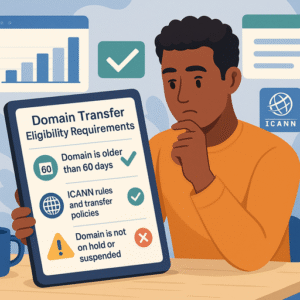
Not every domain is eligible for transfer right away. Before you hit “go,” you’ll want to confirm a few rules.
Think of this step like checking your passport before an international trip — if it’s expired or doesn’t meet the rules, you’re not going anywhere.
Check If Your Domain Is Older Than 60 Days
There’s a global rule set by ICANN that says domains less than 60 days old can’t be transferred. This includes:
- Domains registered in the past 60 days.
- Domains transferred from another registrar within the past 60 days.
So, if you just bought your InMotion Hosting domain last week, you’ll need to wait until the 61st day. I’ve seen people get tripped up on this timing, so always check your domain’s registration date before starting. You can look it up in your AMP under Domain Details, or run a WHOIS lookup to confirm.
Review ICANN Rules and Domain Transfer Policies
ICANN has a few rules that protect both you and the domain system as a whole. Beyond the 60-day restriction, some other key points include:
- The domain must not be locked (which you already handled in Step 1).
- The contact information on the domain must be valid and verifiable.
- You must approve the transfer via an email sent to the admin contact.
InMotion Hosting follows these rules closely, and so will your new registrar. Skipping any of these checks will cause your transfer request to be denied.
I advise reading your new registrar’s transfer policies as well. Some registrars offer free DNS hosting or add privacy protection during the move, while others charge extra. It’s good to know upfront so you’re not surprised.
Make Sure Your Domain Is Not on Hold or Suspended
If your domain is on hold or suspended, you won’t be able to transfer it. This usually happens if:
- Your domain expired and you haven’t renewed it yet.
- There’s an unresolved billing issue.
- ICANN flagged your domain due to inaccurate WHOIS contact info.
Here’s how to check:
- Log into your InMotion AMP.
- Go to Domains > Manage Domains.
- Look at the status of your domain. If it shows Active, you’re good. If it shows Expired or Suspended, resolve that first.
From what I’ve seen, expired domains can sometimes be recovered, but you’ll have to renew them with InMotion before transferring. If your domain is suspended due to WHOIS inaccuracies, just update your contact info and confirm the verification email from ICANN.
Backup Your Website and Email Before Transfer
Moving your domain doesn’t automatically move your website or emails. To avoid losing data, you’ll want to create backups before starting the transfer.
Think of this as making a safety copy of your digital home — if anything goes wrong, you’ve got a restore point.
Create a Full Website Backup in cPanel
InMotion Hosting makes website backups pretty straightforward with cPanel.
Here’s how you can create one:
- Log into your cPanel through the InMotion AMP.
- Scroll down to the Files section and click on Backup Wizard.
- Choose Backup > Full Backup.
- Select the destination for your backup. Most people choose Home Directory, but I suggest downloading it directly to your computer for safer storage.
- Click Generate Backup.
Once completed, you’ll get a downloadable file of your entire site — files, databases, and configurations. I recommend keeping at least two copies: one on your computer and another on a secure cloud service.
If your website is WordPress-based, you can also use plugins like UpdraftPlus or All-in-One WP Migration for an easier one-click solution. These let you quickly restore if something breaks during the domain transfer.
Export and Secure Your Email Accounts and Data
Email is often overlooked during domain transfers, but losing old emails or account setups can be a nightmare.
Here’s how to protect them:
- Export from cPanel: In the Email Accounts section of cPanel, you can download mailbox data directly.
- Use IMAP Sync Tools: Apps like imapsync allow you to copy emails from your InMotion server to your new host’s server without downtime.
- Local Backup: If you use Outlook, Thunderbird, or Apple Mail, set up an archive file (PST or MBOX). This ensures you’ve got a personal copy no matter what happens.
From my experience, the safest bet is to run both a server-level export and a local archive. That way, even if DNS settings get tangled mid-transfer, you won’t lose your communication history.
Store Backups Safely in Cloud or Local Storage
Backups are only useful if you can actually access them later. I suggest using a layered approach:
- Local storage: Keep one copy on an external hard drive or your computer.
- Cloud storage: Use Google Drive, Dropbox, or Amazon S3 for redundancy.
- Versioned copies: If possible, save multiple versions (e.g., one from last week, one from today).
I’ve seen cases where people thought one backup was enough, but the file ended up corrupt or incomplete. Having two or three stored in different places gives you real peace of mind.
Treat backups like insurance — you hope you don’t need them, but you’ll be glad they’re there if things go sideways.
Choose Your New Registrar and Compare Options
With your InMotion Hosting domain prepped and backed up, the next step is choosing where to move it. This is more than just picking the cheapest registrar.
The right choice can make managing your domain simpler, more secure, and even cheaper in the long run.
Compare Pricing, Features, and Renewal Rates
It’s easy to get lured in by a low first-year price, but the real cost shows up at renewal. I always recommend checking three numbers before deciding:
- Initial transfer fee (usually includes one year of registration).
- Yearly renewal fee (this is where registrars make money).
- Add-on costs (WHOIS privacy, DNS management, email forwarding).
For example, some registrars like Namecheap or Google Domains include WHOIS privacy for free, while others charge $10–15 per year for it. Over five years, that adds up.
Make a quick comparison chart for the registrars you’re considering. It’ll help you see where the hidden costs are.
Look at DNS Management and Security Options
DNS (Domain Name System) is how the internet finds your website. Good registrars make DNS management easy with clear dashboards and advanced features.
Look for:
- Free DNS hosting: Some registrars include this, others don’t.
- DNSSEC support: Adds an extra layer of protection against DNS spoofing.
- Easy record updates: You want to be able to edit A, MX, and TXT records without digging through confusing menus.
I also advise checking if your new registrar has two-factor authentication (2FA) and account alerts. These features are small but critical for protecting your domain from hijacking attempts.
Review Customer Support and Transfer Assistance
When things go wrong, you want responsive support. Domain transfers can sometimes hit snags, so it’s worth picking a registrar with:
- 24/7 live chat or phone support.
- Step-by-step transfer guides on their website.
- Clear SLAs (Service Level Agreements) for resolution times.
In my experience, smaller registrars sometimes struggle here, while larger ones like GoDaddy have more resources. But don’t assume bigger is always better — some mid-sized providers give more personal, responsive support.
If you’re unsure, test them before committing. Send a quick support question about transfers and see how long they take to respond. That small test can reveal a lot about what to expect down the road.
Initiate the Transfer Process With Your New Registrar
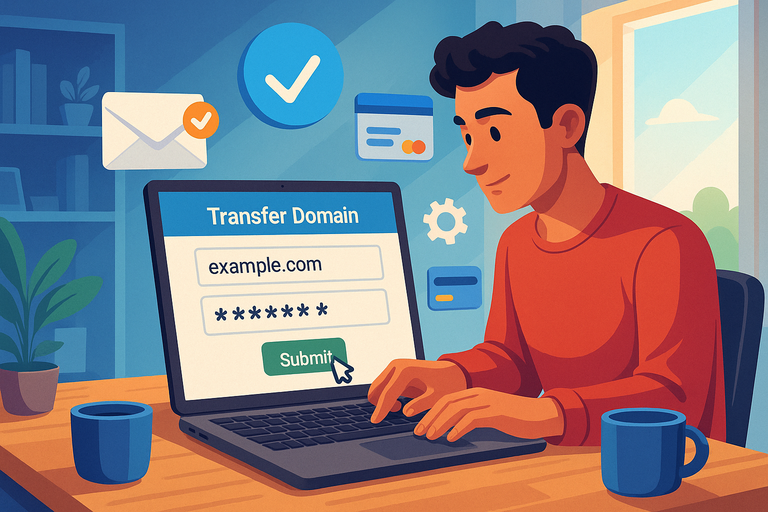
Once your InMotion Hosting domain is prepped and you’ve chosen your new registrar, it’s time to kick off the transfer itself.
This is where the pieces you’ve gathered — your unlocked domain, updated contact info, and EPP code — come into play.
Enter Your Domain and Authorization Code
Most registrars make this step pretty straightforward. On your new registrar’s website, you’ll usually find a section labeled Transfer a Domain.
Here’s the typical flow:
- Enter your domain name (for example, mywebsite.com).
- The system will check if your domain is eligible for transfer.
- Paste in your EPP/Auth code that you retrieved from InMotion Hosting.
Think of the EPP code as your passport. Without it, your registrar can’t prove you own the domain. I always recommend copying and pasting directly to avoid typos — even a missing dash can cause delays.
Pro tip: Some registrars allow you to import multiple domains at once. If you’re moving several domains away from InMotion Hosting, batch transfers can save you time.
Confirm Transfer Settings and Payment Details
Once your domain is accepted, you’ll be asked to review the details. This is the point to double-check everything:
- Domain name spelling: Sounds obvious, but mistakes happen.
- Contact information: Make sure your admin email matches what you set earlier in InMotion Hosting.
- Transfer fee: This usually covers one year of domain renewal.
I suggest looking carefully at any add-ons during checkout. Many registrars pre-check extras like “domain privacy” or “email hosting.” Decide if you really need them now, or uncheck them and add later.
Payment is usually immediate, and once confirmed, your transfer request officially starts.
Approve Transfer Emails Sent to Your Admin Contact
The last step in the initiation phase is email approval. ICANN requires registrars to send confirmation emails to the admin contact listed on your domain.
Here’s what to expect:
- You’ll receive an email with a subject like Domain Transfer Request.
- Inside, you’ll find a link or button to approve the transfer.
- Once you click “Approve,” the countdown begins.
Transfers typically take 5–7 days, though some registrars let you expedite the process once both sides approve.
I recommend checking your spam folder if you don’t see the email within a few hours. I’ve seen transfers stall for days because someone missed this step.
Update DNS and Name Servers After Transfer Completes
After your domain transfer is finished, your job isn’t done yet. To make sure your website and emails keep working, you’ll need to update your DNS and name servers.
This step is like forwarding your mail after moving houses — without it, things won’t arrive where they should.
Point Your Domain to the Correct Name Servers
Your new registrar won’t automatically know where your website is hosted. That’s why you’ll need to set your domain’s name servers to point to your hosting provider.
Here’s the process:
- Log into your new registrar’s dashboard.
- Find your domain management section.
- Locate DNS Settings or Name Servers.
- Replace the default values with the name servers from your web host.
For example, if you’re still hosting your site with InMotion, the name servers often look like:
- ns1.inmotionhosting.com
- ns2.inmotionhosting.com
If you’ve switched hosting providers too, use the name servers provided by the new host.
Verify DNS Records for Website and Email Functionality
Name servers are like the address of your domain, but the details inside — DNS records — are what make sure your site and email work properly.
You’ll want to check:
- A record: Points your domain to your web server’s IP address.
- MX records: Direct email to the correct mail server.
- TXT records: Handle things like SPF, DKIM, and domain verification.
I suggest opening your old DNS settings in InMotion Hosting and comparing them with your new registrar’s DNS dashboard. Manually copy over any custom records to avoid downtime.
Here’s a scenario I’ve seen: someone forgets to copy MX records, and suddenly their emails stop flowing. Double-checking now saves that headache later.
Allow Time for DNS Propagation Across Networks
Once you update your name servers and DNS records, the changes won’t be instant. DNS needs time to propagate across the internet. Typically, this takes anywhere from a few hours to 48 hours.
During this time:
- Your site might load intermittently from the old host or the new one.
- Emails may bounce until MX records are fully updated.
To monitor progress, use tools like WhatsMyDNS.net to see where your domain is pointing worldwide. If you’re still seeing the old records after 48 hours, clear your browser cache or flush your local DNS cache.
I usually advise planning transfers during low-traffic periods for your site. That way, if there’s any disruption, fewer visitors are affected.
Test Your Domain and Website for Full Functionality
After your transfer is complete and DNS changes have propagated, it’s time to test everything. This step is crucial — don’t assume things are working just because your homepage loads. A thorough check now saves you from painful surprises later.
Check Website Accessibility Across Devices
Start by opening your site on multiple devices:
- Desktop (Chrome, Firefox, Safari).
- Mobile (iOS, Android).
- Tablet if available.
Load a few different pages, not just the homepage. If you use an SSL certificate, make sure https:// loads properly without security warnings.
I always suggest asking a friend in another location to check too. Sometimes your own browser cache hides issues, while others might see errors like “site not found” if DNS hasn’t fully updated. Tools like Pingdom or GTMetrix can also confirm your site is loading globally.
A quick personal story: I once thought my site was fine because it worked on my laptop, but on my phone, images weren’t loading due to missing CDN records. A simple double-check saved me hours of debugging later.
Test Email Deliverability and MX Records
If your domain handles email, testing deliverability is just as important as testing the website.
Here’s what to do:
- Send test emails to and from your domain email address (example@yourdomain.com).
- Test with external providers like Gmail, Outlook, and Yahoo to confirm delivery.
- Check if messages land in spam folders — missing SPF or DKIM records can cause this.
Inside your new registrar’s DNS dashboard, confirm that your MX records match what your email host requires. Without this, emails might bounce or disappear altogether.
I also advise checking forwarders and aliases if you had them set up with InMotion. They don’t always transfer automatically.
Monitor Uptime and Performance After Transfer
For at least a week after your domain transfer, keep a close eye on uptime and performance. Some things you can do:
- Use free uptime monitoring tools like UptimeRobot to get alerts if your site goes offline.
- Check your hosting logs for any spikes in downtime.
- Track load speeds — sometimes DNS misconfigurations can slow things down.
I recommend running a daily check during this period. Think of it like babysitting your site until you’re confident it’s stable in its new home.
Troubleshoot Common InMotion Hosting Domain Issues
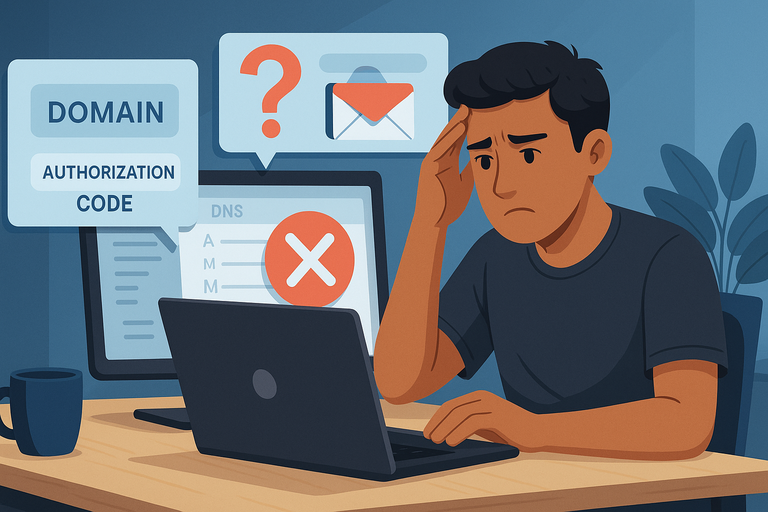
Even if you follow all the steps, hiccups can still happen. The good news is most transfer problems are common and solvable if you know what to look for.
Handle Delays in Domain Transfer Approval
Transfers usually take 5–7 days, but sometimes they drag on.
Common causes include:
- Missed approval emails (check your spam folder).
- Lock still active on the domain.
- Admin email not updated in WHOIS records.
If the transfer stalls, log into your new registrar and look for a “pending transfers” section. Often, you can resend the approval email or re-submit the request.
I once had a domain transfer hang for 10 days simply because the old registrar hadn’t released it. A quick call to support fixed it within hours. Don’t hesitate to nudge them.
Fix Problems With Invalid Authorization Codes
If your EPP/Auth code is rejected, it usually means one of two things:
- The code expired (some codes are only valid for a set period).
- The code was mistyped.
To fix this, log back into your InMotion AMP and request a new authorization code. It will be emailed to your admin contact again. Copy and paste directly — avoid typing it manually.
I suggest storing the code in a plain text file to prevent formatting issues. Sometimes copying from email directly into a form can add hidden characters.
Resolve DNS Errors or Email Disruptions
If your site won’t load after transfer, or if emails bounce, the culprit is usually DNS.
Things to check:
- Are the name servers pointing to the right host?
- Did you copy all A, MX, and TXT records correctly?
- Are there duplicate or conflicting records in your DNS settings?
A practical way to test: run a WHOIS or DNS lookup to confirm what servers your domain is actually pointing to. If it’s still showing InMotion’s servers after 48 hours, the update didn’t save at your new registrar.
For emails, missing MX records are the most common culprit. Re-enter the exact values your email provider gives you, and propagation should fix the issue within a few hours.
Maintain Security and Renewal After Transfer
Congratulations — your InMotion Hosting domain has been successfully transferred! Now the focus shifts to long-term stability.
Keeping your domain secure and ensuring it doesn’t accidentally expire is just as important as the transfer itself.
Enable Domain Privacy and WHOIS Protection
When you register a domain, your contact details (name, phone, email, address) are listed in the public WHOIS database unless you enable privacy protection. Without it, spammers and scammers can easily scrape your data.
Most modern registrars include domain privacy for free, but some still charge a yearly fee. I always suggest enabling it right away. It hides your personal details and replaces them with generic contact information provided by the registrar.
It’s a simple step that goes a long way in protecting your inbox from junk.
Set Up Auto-Renew to Avoid Domain Expiration
The number one mistake I’ve seen people make is forgetting to renew their domain. When that happens, you risk downtime, higher redemption fees, or worse — losing the domain altogether.
Here’s what I recommend:
- Turn on auto-renew in your registrar’s dashboard.
- Use a reliable payment method that won’t expire soon (like a credit card rather than a prepaid card).
- Add a backup payment option if your registrar allows it.
Personally, I like to renew my domains for multiple years at a time when possible. It’s less hassle and often comes with discounts.
Monitor Domain Activity for Unauthorized Changes
Domain hijacking is rare but real. A bad actor could try to transfer your domain without permission if they gain access to your account.
To protect against this:
- Enable two-factor authentication (2FA) for your registrar account.
- Turn on transfer locks once your domain is safely moved.
- Sign up for domain change alerts if your registrar offers them.
I also make it a habit to check my domain dashboard once a month. It only takes a minute, and it gives me peace of mind knowing everything is in order.

I’m Juxhin, the voice behind The Justifiable.
I’ve spent 6+ years building blogs, managing affiliate campaigns, and testing the messy world of online business. Here, I cut the fluff and share the strategies that actually move the needle — so you can build income that’s sustainable, not speculative.
Related posts:
 The Ultimate Guide to Namecheap: A Complete Review and Guide to their Products and Services
 Why InMotion Hosting WordPress Sites Run So Smooth
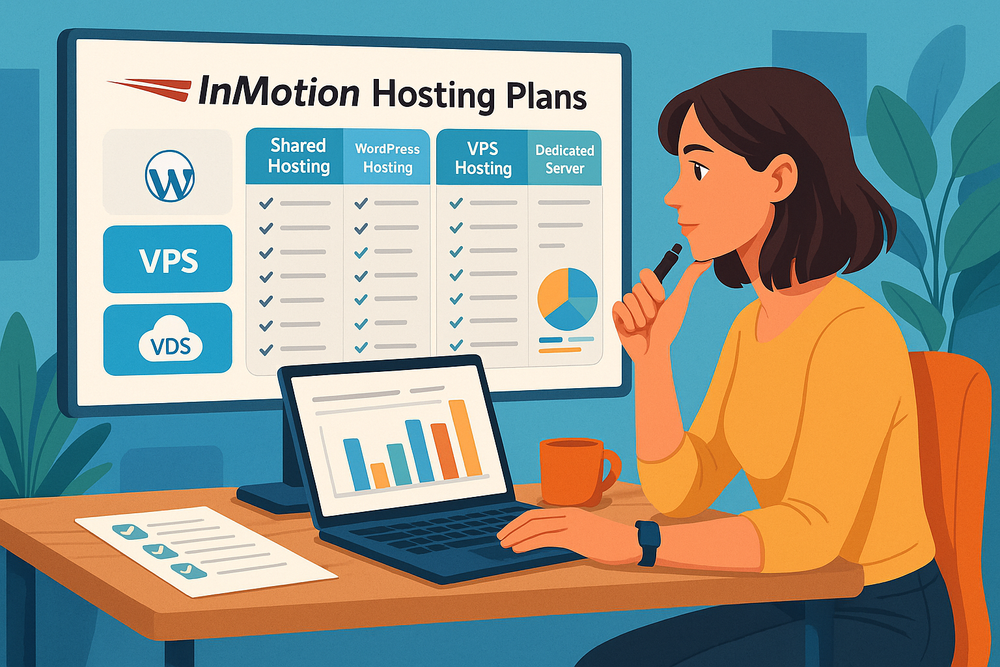 Comparing All InMotion Hosting Plans (With Features)
 How to Start with InMotion Hosting Reseller Plans
 How To Migrate An Existing Website To Bluehost?
 Bluehost Reviews You Can Trust Before Signing Up