
Table of Contents
Some links on The Justifiable are affiliate links, meaning we may earn a small commission at no extra cost to you. Read full disclaimer.
When I first started setting up my WP Engine account, I remember wondering how to get everything running fast right from the start.
If you’re like me, you probably don’t just want your WordPress site to work—you want it to perform at top speed, load smoothly, and stay secure.
The good news? You can achieve that with a few smart setup steps inside your WP Engine dashboard.
So, how do you properly set up your WP Engine account for faster site performance without missing any crucial details? Let’s walk through it step-by-step.
Creating And Configuring Your WP Engine Account
Setting up your WP Engine account properly is the foundation for achieving top-tier performance.
Let me walk you through each key step so you start strong and avoid performance pitfalls later on.
Setting Up Your WP Engine Dashboard
When you first log into your WP Engine dashboard, you’ll notice a clean, organized layout. This is where all the magic happens — site installs, backups, environments, and settings.
To get started:
- Click “Sites” in the left menu.
- Choose “Add Site”, then name your environment (for example, mysite-dev).
- Select your WordPress installation type (you can import an existing site or start from scratch).
Pro insight: I recommend exploring the Overview tab right away. It gives you a quick look at your environment type (production, staging, or development), IP address, and current PHP version — all crucial for optimizing speed later on.
Choosing The Right Hosting Plan For Performance
WP Engine offers several tiers — Startup, Professional, Growth, and Scale. Each affects speed depending on your traffic and resource needs.
Here’s how I look at it:
- Startup is perfect for new sites with moderate traffic.
- Professional handles small business sites needing consistent uptime.
- Growth and Scale are ideal for eCommerce or high-traffic websites that rely on fast load times.
I usually advise clients to start small but choose a plan with auto-scaling potential. WP Engine makes it easy to upgrade later without downtime — a feature that keeps your site responsive as you grow.
Connecting Your WordPress Installation
Once your hosting plan is ready, WP Engine lets you connect WordPress automatically during setup.
In the dashboard, go to: Sites → Your Site → Install Environment → WordPress Admin.
If you already have a site elsewhere, use WP Engine Automated Migration Plugin. It transfers your files, themes, and database seamlessly.
Tip: Before migration, clean up old plugins or unused themes. I’ve seen sites drop page load time by up to 30% just from decluttering.
Verifying Site Credentials And Domain Settings
After your WordPress install is active, confirm your login credentials and domain settings:
- Verify admin email and username in your WP dashboard.
- In WP Engine → Domains, add your custom domain (like www.yoursite.com).
- Update your DNS records through your registrar to point to WP Engine’s IP.
This ensures your site runs on the correct environment and prevents propagation delays. I suggest waiting 24 hours after DNS updates before testing final load speeds — caching and propagation can skew early results.
Optimizing Server And Environment Settings
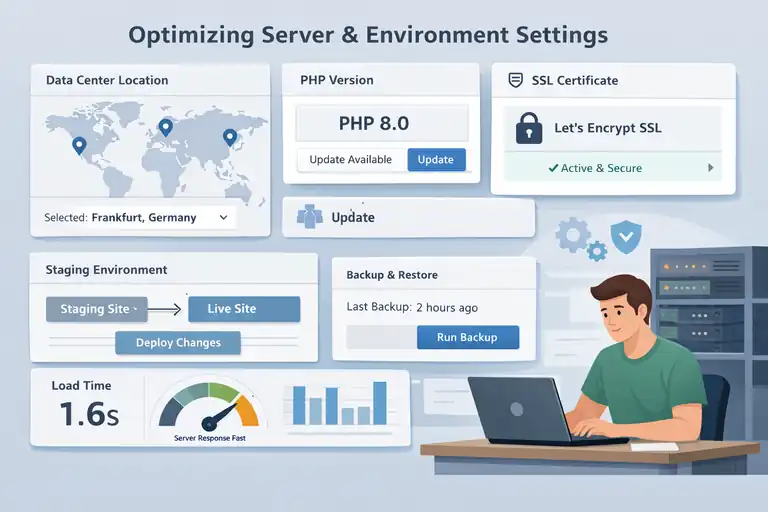
Once your account is running, it’s time to fine-tune WP Engine’s environment settings for faster performance. Small tweaks here can drastically improve speed and reliability.
Selecting The Closest Data Center For Speed
When you create your environment, WP Engine asks you to choose a data center location. This determines how close your server is to your main audience.
For example:
- If your audience is in the U.S., choose a data center in Iowa or South Carolina.
- For Europe, select London or Belgium.
I once helped a client move their site from Singapore to the Frankfurt data center — their average load time dropped from 3.8s to 1.7s. That’s the power of server proximity.
Adjusting PHP Versions For Optimal Performance
WP Engine lets you change PHP versions easily, and this often improves performance significantly.
- Go to: WP Engine Dashboard → Sites → Your Site → Utilities → PHP Version.
Choose the latest stable version (currently PHP 8.x). Newer PHP versions execute code faster and use less memory.
Quick note: Always test your theme and plugins in a staging environment before switching PHP. I’ve seen plugin incompatibilities cause downtime, and testing first avoids that risk.
Configuring SSL Certificates For Secure Speed
Security directly impacts performance. WP Engine provides free SSL via Let’s Encrypt.
Steps:
- Navigate to Sites → SSL → Add Certificates.
- Select “Free Let’s Encrypt SSL.”
- Apply it to both your main and www domains.
Not only does SSL encrypt data, but it also boosts SEO and enables HTTP/2, which loads assets faster.
Example: On one of my eCommerce clients’ sites, enabling SSL and HTTP/2 reduced checkout page load times by almost 25%.
Using WP Engine’s Staging Environment Effectively
Staging environments are like your practice field — you can test changes safely before pushing them live.
Here’s how I use it:
- Clone your production site to staging with one click.
- Update plugins or themes.
- Test performance and functionality.
- Deploy changes back to production.
This workflow prevents downtime and keeps your live site fast. I advise checking caching behavior in staging — it mirrors production settings, giving you an accurate preview of performance.
Leveraging WP Engine’s Built-In Caching System
WP Engine’s caching technology is one of its strongest performance assets. Understanding how it works — and when to clear or bypass it — helps you maintain consistent speed.
Understanding WP Engine’s Layered Caching
WP Engine uses a layered caching system, including:
- Page caching: Stores full HTML pages for quick delivery.
- Object caching: Keeps frequently accessed database queries.
- Browser caching: Saves static files on the visitor’s device.
Together, these layers minimize server load and improve repeat visit speeds. From what I’ve seen, proper caching can cut average load times by 40–60%.
How To Clear And Manage Cache Properly
Sometimes after updates, you’ll need to clear cache manually.
Here’s how:
- From your WP Admin → WP Engine → General Settings → Clear Cache.
- Or directly in the WP Engine User Portal under Sites → Utilities → Clear Cache.
Pro tip: Clear cache only after significant content or theme changes. Doing it too often can actually slow down delivery because cached files need to rebuild.
Setting Up Page Caching And Object Caching
These caching layers are mostly automatic, but it’s worth knowing how to tweak them:
- Page caching: Automatically enabled; ideal for static pages like blogs or landing pages.
- Object caching: Best for dynamic content like WooCommerce stores or membership sites.
You can fine-tune object caching in your wp-config.php file with WP Engine’s predefined constants. If unsure, WP Engine support can help enable persistent object caching safely.
When To Use The WP Engine Advanced Cache Controls
WP Engine’s Advanced Cache Controls give developers precise control over what gets cached and what doesn’t.
Examples:
- Exclude cart or checkout pages to prevent outdated data.
- Use cache headers for logged-in users differently than guests.
I recommend setting up cache exclusions for any page that changes frequently, such as dashboards or custom forms.
Integrating A Content Delivery Network (CDN)
Integrating a CDN into your WP Engine account is one of the easiest and most effective ways to boost site performance. A CDN (Content Delivery Network) distributes your site’s content across multiple servers worldwide so your visitors always connect to the closest one.
Let’s go step-by-step through how to set it up and fine-tune it for the best speed results.
Activating The WP Engine Global CDN
WP Engine includes a Global CDN powered by Cloudflare with every plan, so there’s no need for third-party integrations or complicated setup.
Here’s how to activate it:
- Log into your WP Engine User Portal.
- Go to Sites → Your Site → CDN.
- Click “Add CDN” and confirm.
Within minutes, your media, CSS, and JavaScript files are served through the CDN automatically. I recommend clearing your cache right after activation so the system rebuilds your files correctly.
Quick note: If you already use a custom CDN (like Cloudflare or StackPath), you can disable the WP Engine CDN in the same section to prevent conflicts. WP Engine’s default option usually works best for most users since it’s pre-optimized for the hosting environment.
How A CDN Speeds Up Content Delivery
A CDN works by caching your site’s assets on servers across the globe. When a visitor requests your page, they’re connected to the nearest server instead of your main data center.
Here’s what that does for performance:
- Reduces latency (the time data takes to travel).
- Balances server load, preventing spikes during traffic surges.
- Improves Time to First Byte (TTFB) — how quickly the first part of your site loads.
In my experience, sites using WP Engine’s CDN see around a 40–60% decrease in global load times, especially for image-heavy pages. For example, one of my client’s fashion stores dropped from 4.2s to 1.8s average load time after activating the CDN.
Managing CDN Settings For Media And Static Files
Once your CDN is live, you can control what types of files it caches. This helps prevent over-caching dynamic elements like shopping carts or user dashboards.
To adjust settings:
- Go to WP Engine → Site → CDN Settings → Advanced Options.
- Choose which file types to cache (images, videos, scripts, stylesheets).
- Exclude sensitive or frequently updated files using file path rules.
I suggest focusing your CDN on static assets only — like images, CSS, and JS. This ensures your content loads fast without causing outdated data issues on dynamic pages.
Testing Site Speed After CDN Activation
After enabling your CDN, it’s time to test your site’s performance.
I recommend using these free tools:
- GTmetrix (check CDN impact and waterfall view)
- Pingdom Tools (compare global load speeds)
- Google PageSpeed Insights (measure Core Web Vitals)
Here’s a trick I use: Run a before-and-after test from multiple locations (like San Francisco, London, and Sydney). This shows how well your CDN distributes assets globally. If you see a big improvement, you know your setup is working.
Enhancing Site Performance With WP Engine Tools
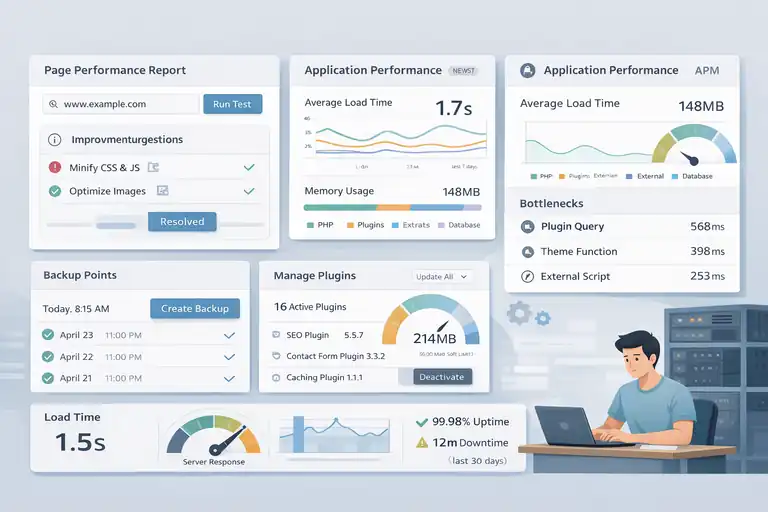
WP Engine provides several built-in tools that make performance monitoring and maintenance effortless.
These features give you visibility into what’s slowing your site down and help you fix it before it affects users.
Using The Page Performance Tool For Insights
Inside your WP Engine dashboard, the Page Performance Tool runs real-time performance scans. It identifies render-blocking scripts, large image files, and slow server responses.
To use it:
- Go to WP Engine → Tools → Page Performance.
- Enter your URL and click “Run Test.”
- Review the report for improvement suggestions.
The tool provides detailed metrics like First Paint and Load Time. I always check this before major updates — it’s like a health check for your WordPress environment.
Pro tip: Aim for a load time under 2 seconds. That’s the sweet spot where most visitors stay engaged and conversions remain high.
Monitoring Load Times And Bottlenecks
WP Engine’s Application Performance Monitoring (APM) powered by New Relic (available on higher plans) offers deep visibility into what’s slowing your site.
It highlights:
- Slow queries from plugins or themes
- PHP bottlenecks
- External scripts affecting load speed
In one case, I discovered a slow contact form plugin was delaying page rendering by over 800ms. Replacing it instantly boosted the site’s performance metrics.
If your plan doesn’t include APM, you can still monitor speed trends using Google Analytics Site Speed reports or a third-party uptime monitor like UptimeRobot.
Managing Plugins To Avoid Speed Conflicts
Plugins can either enhance or ruin your site’s performance. Too many can overload your server and create conflicts with WP Engine’s caching.
Here’s what I recommend:
- Keep plugins under 20 whenever possible.
- Use lightweight, multipurpose plugins instead of many single-function ones.
- Avoid redundant caching or security plugins — WP Engine already handles both.
Before adding a new plugin, test it in the staging environment. If your site’s TTFB or load time increases after activation, it’s not worth keeping.
Automating Backups Without Slowing Your Site
WP Engine performs daily backups automatically, but you can also create manual restore points before updates.
- In your dashboard, go to: Sites → Backup Points → Create Backup.
Each backup is stored offsite, so it doesn’t impact server speed. You can restore in one click if something breaks — a lifesaver when testing plugins or updates.
Personal tip: I always run a manual backup before major theme changes. It’s a simple habit that has saved me hours of recovery work more than once.
Securing And Maintaining A Fast WP Engine Site
Speed and security go hand in hand. A secure site stays fast because it avoids malware, spam traffic, and resource overloads. WP Engine’s built-in security tools make this process straightforward.
Enabling Daily Backups And Quick Restores
WP Engine’s automatic backups run daily, but you can create extra ones manually before big updates or migrations.
Steps:
- Navigate to WP Engine → Sites → Backup Points.
- Click “Create Backup.”
- Name it (for example, “Before WooCommerce Update”) and confirm.
Restoring is just as simple — select a backup point and click Restore. The process takes minutes and doesn’t require FTP or plugins.
Example: After a plugin conflict once crashed a client’s checkout page, I restored the entire site in under 10 minutes using this feature.
Configuring Threat Detection And Blocking Tools
WP Engine includes an integrated firewall and malware scanner that operates at the server level. You don’t need to install extra security plugins.
To manage:
- Open WP Engine → Security → Threat Detection.
- Review logs for blocked IPs or failed login attempts.
The system blocks DDoS attacks and brute-force attempts automatically. I suggest checking the logs weekly — it’s a good way to stay aware of ongoing protection without adding server overhead.
Updating Core, Themes, And Plugins Safely
Keeping your site updated ensures compatibility with WP Engine’s latest optimizations. However, updates can sometimes cause conflicts if rushed.
Here’s a safer approach:
- Use Staging Environment to test updates.
- Apply updates in batches, not all at once.
- Clear cache and recheck site speed after updating.
From my experience, about 80% of slowdowns after updates come from plugin conflicts. Testing before deploying live prevents that entirely.
Scheduling Regular Performance Audits
Finally, make site performance a routine, not a one-time fix.
I suggest running a monthly audit checklist like this:
- Test load time and Core Web Vitals.
- Review cache and CDN settings.
- Check plugin list for unused tools.
- Revisit APM or analytics reports for slowdowns.
Set a reminder in your calendar — it takes less than an hour monthly but ensures your WP Engine account always delivers consistent speed.
Final Optimization Steps Before Going Live
Before launching your site on your WP Engine account, it’s essential to ensure every setting and configuration supports maximum speed and stability.
Think of this phase as your final tune-up — it’s where small details make a big difference in how your site performs once real visitors arrive.
Reviewing WP Engine’s Go-Live Checklist
WP Engine includes a built-in Go-Live Checklist to simplify the final launch process. It’s a helpful tool that ensures nothing critical gets overlooked.
Here’s how to access it:
- Log into your WP Engine User Portal.
- Navigate to Sites → Your Site → Go Live Checklist.
This checklist covers tasks like DNS setup, SSL verification, CDN activation, and cache optimization. I always walk through it line-by-line before any launch.
A few items I pay extra attention to:
- SSL certificate — confirm it’s active and redirecting properly.
- CDN status — ensure it’s serving files.
- Environment URLs — double-check you’ve switched from the temporary domain to your live one.
Completing the checklist not only speeds up your site but also prevents post-launch downtime.
Testing Real-World Load Performance
Once your staging site looks and feels ready, it’s time to test how it performs under real-world conditions.
I recommend using:
- Loader.io or k6 for load testing (simulate real traffic spikes).
- GTmetrix for analyzing load behavior across multiple regions.
- Google Lighthouse for checking Core Web Vitals metrics.
Here’s what to look for:
- Largest Contentful Paint (LCP): Under 2.5 seconds.
- Time to First Byte (TTFB): Under 200ms for optimal response.
- Total Blocking Time (TBT): Below 300ms for smooth interactions.
In my experience, even a simple image compression tweak or CDN rule can shave seconds off load time. I suggest testing your homepage, blog pages, and checkout page separately — these often behave differently under load.
Setting Up Redirects And DNS Configurations
Proper redirects and DNS settings are critical for both performance and SEO.
To configure:
- In WP Engine → Domains, add your custom domain.
- Use your registrar’s DNS settings to point the A record to WP Engine’s IP.
- Set up 301 redirects in WordPress → Settings → Permalinks or through a plugin like Redirection.
If you’re migrating from another host, keep the old site active until DNS propagation completes (usually within 24 hours). This avoids downtime during transition.
I once helped a client launch a membership site where half the users still saw the staging version due to DNS caching. We fixed it by lowering the DNS TTL (Time to Live) value before switching — something I now always do pre-launch.
Tracking Site Speed After Launch
Once your site is live, the work isn’t done — it’s time to monitor performance under real traffic.
I suggest using a simple monitoring stack:
- Google PageSpeed Insights for Core Web Vitals.
- WP Engine’s built-in performance reports under Analytics → Performance.
- Pingdom for uptime tracking.
Set a reminder to review these reports weekly during the first month. It’s the best way to catch unexpected slowdowns or misconfigurations early on.
Expert Tips To Keep Your WP Engine Site Fast
Keeping your site fast long-term takes ongoing attention. Thankfully, WP Engine gives you the right tools to maintain consistent performance with minimal effort.
Monitoring With External Speed Testing Tools
Even though WP Engine provides built-in analytics, using third-party tools gives you an unbiased performance perspective.
Here are some of my go-to tools:
- GTmetrix — Great for waterfall breakdowns.
- WebPageTest.org — Ideal for advanced testing, including video playback.
- Pingdom — Excellent for regular uptime monitoring.
I recommend testing from at least three global locations. If results vary widely, that’s a sign you may need to adjust CDN or caching rules. I usually schedule automated GTmetrix reports weekly and review trends, not just individual scores.
Setting Up Automatic Performance Reports
Inside WP Engine’s Analytics → Performance Dashboard, you can enable automated reports that summarize key metrics like response time, cache hit rate, and error logs.
You can also integrate tools like Datadog or New Relic for more detailed tracking. These reports help spot early signs of slowdowns — long before visitors notice.
I suggest sharing these reports with your team monthly. Having a visual snapshot of performance trends keeps everyone proactive instead of reactive.
Cleaning Your Database Regularly
Over time, WordPress databases accumulate junk — post revisions, spam comments, and transient options. This clutter can slow down queries and affect your WP Engine account performance.
To clean it safely:
- Use WP-Optimize or Advanced Database Cleaner.
- Schedule weekly cleanups.
- Always back up first using WP Engine’s built-in Backup Points.
I’ve seen sites shrink their database size by 40% just from routine cleanup, leading to faster queries and smoother performance during traffic surges.
Scaling Resources As Traffic Grows
If your traffic suddenly spikes, WP Engine’s auto-scaling infrastructure ensures stability. But it’s smart to anticipate growth before it happens.
I suggest:
- Monitoring bandwidth and visitor stats monthly.
- Upgrading to the next plan tier if you hit 80% resource usage.
- Using WP Engine Add-ons like Global Edge Security for high-traffic protection.
A client of mine running seasonal sales upgraded to the Growth plan a week early and avoided downtime when traffic tripled. Being proactive here pays off.
Troubleshooting Common WP Engine Speed Issues
Even with great setup, performance hiccups can happen. The key is knowing how to spot and fix them quickly.
Fixing Slow Backend Performance
If your WordPress admin area feels sluggish, it’s usually caused by heavy plugins or too many background tasks.
Here’s what I do:
- Check WP Engine → Tools → Performance Logs for slow queries.
- Disable unused plugins temporarily to find the culprit.
- Reduce heartbeat frequency using a plugin like Heartbeat Control.
After trimming unnecessary admin tasks, your dashboard will feel much snappier.
Resolving Cache Conflicts Or Errors
Caching conflicts often appear when using third-party cache plugins alongside WP Engine’s built-in system.
To fix it:
- Deactivate external cache plugins like W3 Total Cache or WP Super Cache.
- Use the WP Engine Cache Manager exclusively.
- Clear cache after major updates via WP Engine → General Settings → Clear Cache.
In one case, disabling redundant caching dropped my client’s server CPU usage by nearly 50%.
Diagnosing CDN Or DNS Misconfigurations
If your CDN or DNS setup isn’t correct, your site may load inconsistently for users in different regions.
Here’s a simple check:
- Visit GTmetrix → Waterfall View to see if static files load from the CDN.
- Use DNSChecker.org to verify global DNS propagation.
If files are still loading from your main server instead of the CDN, review your CDN Settings in the WP Engine dashboard and confirm domain mapping.
When To Contact WP Engine Support For Help
WP Engine’s support team is one of its biggest strengths. If you’re stuck, don’t hesitate to reach out.
They’re available 24/7 through live chat in your dashboard under Help → Support Chat.
From experience, they can quickly fix complex issues like stuck caching layers or SSL conflicts — things that could take hours to troubleshoot manually.
Pro Tip: Maintain Speed With Continuous Optimization
Performance isn’t a one-time setup; it’s an ongoing process. By building optimization into your routine, your WP Engine account will stay fast and resilient even as your site grows.
Setting A Monthly Optimization Routine
I suggest creating a recurring checklist to keep things efficient:
- Clear cache and test load speed.
- Review plugin performance.
- Check CDN and SSL status.
- Clean up database and unused media.
Doing this once a month keeps your site lean and prevents small issues from turning into big slowdowns.
Using WP Engine Analytics For Performance Trends
Inside Analytics → Performance Dashboard, track metrics like cache hit ratio and server response time.
I like to export data quarterly and compare results. If you notice response times creeping up, that’s a signal to recheck plugins or database size.
WP Engine’s visual trend charts make this process effortless — it’s like having a health report for your website.
Combining WP Engine With Lightweight Themes
Your theme affects site speed more than most people realize. Heavy, feature-packed themes slow down even optimized hosting.
I suggest using lightweight frameworks like GeneratePress, Astra, or Kadence. They pair beautifully with WP Engine’s caching system and CDN, resulting in ultra-fast load times without compromising design flexibility.
Preparing Your Site For Traffic Spikes
When you anticipate a surge — say, a sale or event — plan ahead:
- Enable CDN and caching fully.
- Reduce third-party scripts.
- Temporarily disable unnecessary plugins.
- Contact WP Engine to confirm scaling readiness.
I’ve handled Black Friday campaigns where simple pre-event optimization prevented downtime and kept average load time below 2 seconds despite massive spikes.
Final Thought: From my experience, maintaining a fast WP Engine site is about consistent care, not constant tinkering. If you follow these steps, you’ll enjoy a site that not only loads fast but also stays reliable and secure no matter how much it grows.
FAQ
How do I set up my WP Engine account for the first time?
Log in to WP Engine, click “Add Site”, and follow the prompts to install WordPress. Configure your environment, domain, and SSL settings for optimal performance.
What settings improve speed in my WP Engine account?
Use the latest PHP version, enable WP Engine’s built-in caching, activate the Global CDN, and select the closest data center to your target audience.
Does WP Engine automatically optimize my site performance?
Yes, WP Engine includes server-level caching, CDN integration, and performance monitoring tools that automatically enhance your site’s speed and reliability.

I’m Juxhin, the voice behind The Justifiable.
I’ve spent 6+ years building blogs, managing affiliate campaigns, and testing the messy world of online business. Here, I cut the fluff and share the strategies that actually move the needle — so you can build income that’s sustainable, not speculative.
Related posts:
 How WP Engine Data Centers Improve Your Site Load Time
 WP Engine Dedicated Server: Best Choice for Large Sites?
 Cloudways WordPress Pros & Cons: What You Need to Know
 WP Engine Migration Guide: Move Your Site Without Downtime
 WP Engine Hosting Cost Explained: What You Really Pay For
 WPEngine Migration Guide: Move WordPress Without Stress