
Table of Contents
Some links on The Justifiable are affiliate links, meaning we may earn a small commission at no extra cost to you. Read full disclaimer.
An Omnisend popup can be the difference between a visitor who bounces and one who becomes a loyal subscriber.
But how do you design a popup that captures attention without being annoying? The secret lies in blending timing, psychology, and design into one seamless experience.
In this guide, you’ll learn how to use Omnisend popups strategically to grow your email list and convert more visitors—without sacrificing user experience.
Understanding How Omnisend Popups Drive Conversions
Omnisend popups are more than digital interruptions—they’re powerful engagement tools when used with strategy and empathy.
Let’s explore how they capture attention, leverage psychology, and use smart targeting to turn visitors into subscribers.
How Omnisend Popups Capture Visitor Attention
The first challenge for any marketer is simple: Getting noticed without being annoying. Omnisend popups do this through smart timing and contextual relevance.
When you create a popup in Omnisend, you can set it to appear based on visitor behavior—like scrolling 50% down a page, spending 10 seconds browsing, or moving the mouse toward the close button (known as exit intent).
For example:
- Scroll trigger: Ideal for blog readers who are already engaged.
- Time delay: Works well for first-time visitors still exploring your brand.
- Exit intent: A gentle reminder before someone leaves your site empty-handed.
In my experience, popups that appear right after a visitor has shown interest (rather than immediately on page load) tend to perform up to 40% better.
Omnisend’s built-in analytics dashboard lets you test these timings easily under Forms → Popup → Display rules.
The Psychology Behind High-Converting Popups
Popups work because they engage psychological triggers: curiosity, scarcity, and reward. A well-timed offer—say, “Get 10% off your first order today!”—taps into instant gratification and loss aversion.
There’s also the commitment principle. When someone enters their email for a small reward, they’re more likely to make a purchase later. You’re inviting a micro-commitment, not forcing one.
I suggest using friendly, conversational copy like:
- “Hey, before you go—want to save 10%?”
- “Join 20,000 others who get our best deals first.”
The key is to sound human, not robotic. Omnisend’s predesigned templates already use psychological best practices, so it’s easy to tweak tone and visuals without starting from scratch.
Why Omnisend’s Targeting Options Make a Difference
What makes Omnisend stand out is its advanced segmentation and targeting engine. You can control exactly who sees your popup, when, and why.
Inside Omnisend’s popup builder, you’ll find targeting options such as:
- Device targeting: Show different popups for mobile vs desktop users.
- Behavior-based targeting: Display forms to repeat visitors or customers who added items to the cart.
- URL or campaign targeting: Customize popups for visitors from specific ads or landing pages.
For instance, I once ran a campaign where new visitors saw a “Welcome discount,” while returning users got a “Loyalty offer.” The result? A 27% increase in signups over two weeks.
Omnisend lets you segment subscribers immediately after signup, meaning you can trigger personalized welcome emails right after they opt in—no manual sorting required.
Setting Up Your First Omnisend Popup Step-By-Step
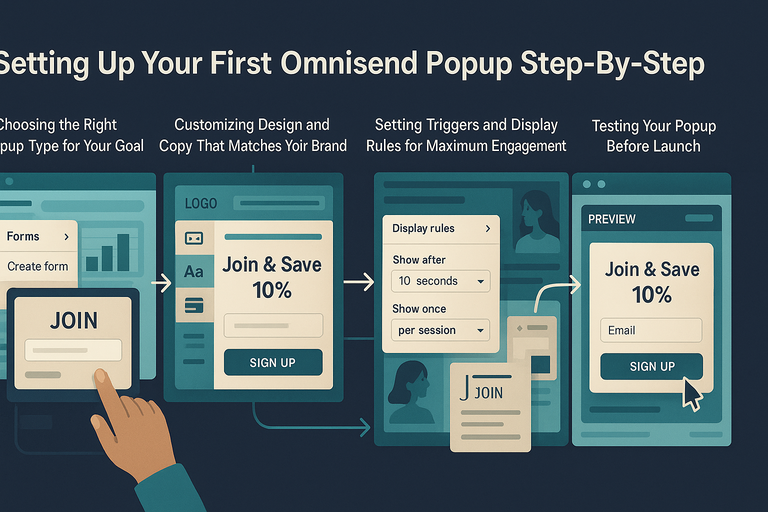
Creating your first Omnisend popup is surprisingly simple once you understand the flow.
You’ll go from template to live form in under 15 minutes if you follow these steps.
Choosing the Right Popup Type for Your Goal
Omnisend offers several types of popups—each with a specific purpose.
I usually recommend starting with one of these:
- Standard popups: Best for general list-building or offers.
- Exit-intent popups: Capture users about to leave.
- Signup boxes or slide-ins: Subtle prompts that don’t interrupt the experience.
Here’s how you access them: Forms → Create form → Choose popup type.
If your goal is to build your list, go with a standard popup. If you want to prevent cart abandonment, choose exit-intent. Match the form style to your intent—this alignment is where many marketers miss the mark.
Customizing Design and Copy That Matches Your Brand
An effective popup should feel like part of your website—not an alien invasion. In Omnisend’s design editor, you can easily:
- Upload your logo.
- Change colors and fonts to match brand identity.
- Add persuasive headlines and calls-to-action.
I believe simple designs work best. A headline like “Join & Save 10%” paired with a single field form outperforms complex designs with multiple steps.
Keep the copy personal and conversational—use “you” and “your” to make the offer relatable.
Pro tip: Always test mobile responsiveness in the preview window before publishing.
Setting Triggers and Display Rules for Maximum Engagement
Timing is everything. Inside Omnisend’s settings, you’ll find Display rules. This is where you decide when and to whom your popup appears.
I recommend:
- Delay by 8–12 seconds after page load.
- Show only once per session to avoid fatigue.
- Hide after signup so users don’t see it again.
For example, if someone lands on your homepage, let them browse a bit first. Once they’ve scrolled halfway down, trigger your popup offering an incentive.
That combination consistently improves conversions.
Testing Your Popup Before Launch
Before you publish, test everything. Inside Omnisend’s Preview Mode, check for:
- Proper text alignment on mobile and desktop.
- Working form submission and redirect links.
- Accurate triggering and closing behavior.
From what I’ve seen, even small errors—like an unreadable font on mobile—can cost you conversions.
After launch, monitor analytics under Forms → Reports. Watch metrics like conversion rate, views, and CTR (click-through rate) for early signs of performance.
Proven Omnisend Popup Strategies That Boost Signups
Once you’ve mastered the basics, it’s time to optimize.
These proven strategies use Omnisend’s tools to get more signups from the same traffic—without making your visitors roll their eyes.
Using Exit-Intent Popups to Recover Abandoning Visitors
Exit-intent popups trigger when a user’s mouse moves toward the browser’s close button or back arrow. It’s your last chance to re-engage them.
I like to use friendly copy such as “Leaving already? Here’s 10% off your next order.” You can set this up by selecting Trigger → Exit intent in Omnisend’s form builder.
To make it more effective:
- Offer a quick, low-friction incentive (discount or free resource).
- Add urgency like “Today only” to encourage action.
- Keep the form simple—just one field, ideally an email.
Exit-intent forms often convert 15–25% of abandoning users if executed well.
Timing Your Popups to Match Visitor Behavior
A popup shown too soon feels intrusive; one shown too late misses the moment.
I recommend experimenting with behavior triggers:
- After 10 seconds on the page for new visitors.
- After 60% scroll depth for blog readers.
- On page exit for product pages.
Omnisend’s Display settings → When to show popup allows fine-tuning these parameters. Use analytics after launch to compare conversion rates for each trigger.
Offering Exclusive Incentives Without Undervaluing Your Brand
Discounts work—but overdoing them can train customers to wait for deals. Instead, offer something that feels valuable yet sustainable, such as:
- Early access to new products.
- Exclusive guides or checklists.
- Points toward loyalty rewards.
Omnisend makes this easy with conditional follow-ups.
For instance, when a user subscribes via your popup, you can automatically send them a personalized “VIP Welcome” email instead of a discount code.
Using Personalized Messages to Increase Conversions
Personalization is the secret sauce. Omnisend lets you dynamically insert variables like {first_name} or target based on browsing behavior.
Imagine this scenario:
A returning visitor who viewed your “Winter Collection” page gets a popup saying, “Still thinking about winter styles? Here’s 10% off.”
That’s how personalization builds trust and nudges action. According to Omnisend’s internal data, popups with personalized messages can increase conversion rates by over 30%.
Design Tips to Make Your Omnisend Popup Stand Out
A good Omnisend popup should feel natural—like a friendly wave, not a flashing billboard. Design plays a huge role in how your visitors react.
Let’s walk through how to design a popup that grabs attention, fits your brand, and converts without annoying your audience.
Choosing Minimalist Layouts That Don’t Disrupt UX
Simplicity always wins. Popups work best when they blend into the overall design of your site instead of hijacking it.
I always recommend using Omnisend’s “Minimal” or “Simple” templates to start with.
You can find these by navigating to Forms → Create Form → Popup → Template Library.
Here’s why minimalist layouts perform better:
- They reduce visual clutter, so the message stands out.
- They load faster, especially on mobile.
- They create a seamless experience that feels trustworthy.
For example, a clean popup with one image, one headline, and one button typically converts 20–30% better than overly designed alternatives.
I suggest using plenty of white space and avoiding long forms—one or two fields max.
Think of your popup as a whisper in a quiet room, not a megaphone in a crowd.
Writing Compelling Headlines That Convert
Your headline is your hook. It’s the first thing your visitor sees, so it has to immediately communicate value.
In Omnisend, you can edit your headline text directly in the popup builder, which makes it easy to experiment.
Here are a few headline examples that tend to work well:
- “Join the Club & Get 10% Off Instantly”
- “Wait! Your Exclusive Offer Awaits”
- “Want Insider Perks? Let’s Stay in Touch.”
I believe every good headline does three things:
- Promises value: Explain why they should care.
- Creates curiosity: Make them want to learn more.
- Feels personal: Use friendly, conversational language.
Avoid generic headlines like “Subscribe to Our Newsletter.” That doesn’t tell anyone what they’ll actually get. Instead, make the benefit clear and emotional.
Selecting the Right Images and Colors to Draw the Eye
Your visuals should support your message, not distract from it. Omnisend lets you upload images directly or use pre-designed templates that feature product images, backgrounds, or illustrations.
Here’s how I approach visuals:
- Use brand-consistent colors. Keep the same palette as your site for familiarity.
- Highlight contrast. Your call-to-action (CTA) button should stand out but still match your theme.
- Avoid busy backgrounds. Simple, light backgrounds work best for readability.
Example: If your brand uses calm tones like blue and white, a bright orange “Subscribe” button creates just the right visual pop.
Images should feel relevant—like showing the product you’re promoting or a happy customer. According to Omnisend’s internal studies, popups with contextual images can increase conversion rates by up to 25%.
Optimizing for Mobile Users on Every Device
More than 60% of visitors interact with popups on mobile, so ignoring mobile design is a big mistake. Luckily, Omnisend’s popup editor includes a “Mobile Preview” option that lets you adjust layouts specifically for smaller screens.
I suggest these mobile design tweaks:
- Use vertical layouts instead of horizontal ones.
- Keep forms short (name + email at most).
- Increase button size for easier tapping.
- Ensure text remains legible on small screens.
You can adjust this by clicking Mobile → Customize Layout in the Omnisend editor.
In my experience, a well-optimized mobile popup can perform just as well as desktop—sometimes even better—when it’s built with simplicity and usability in mind.
Advanced Targeting and Segmentation for Omnisend Popups
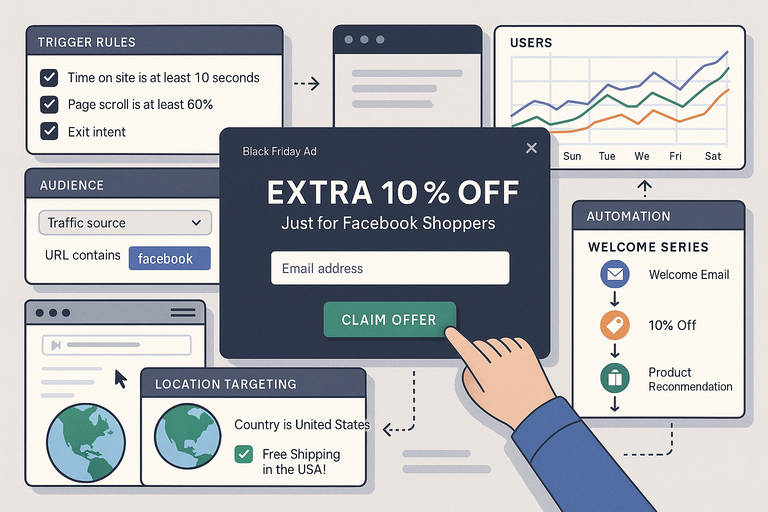
The real power of Omnisend lies in its targeting and segmentation. Once your popup looks good, you can decide who sees it, when, and why.
This ensures your message feels timely and personal, not random.
Setting Conditions Based on User Behavior
Omnisend allows you to trigger popups based on specific actions—like time on site, page scroll depth, or exit intent. These are called behavioral triggers, and they make your popups feel intelligent.
Here’s what I usually set up:
- Show after 10 seconds for new visitors.
- Trigger on scroll (60% down) for blog readers.
- Display exit-intent popup for abandoning users.
You can do this by going to Display Settings → Trigger Rules.
These conditions ensure you’re not showing the same popup to everyone at random. In fact, popups triggered by behavior tend to convert twice as well as time-based ones.
Targeting Based on Traffic Source or Campaign
This is one of Omnisend’s most underrated features. You can target popups to appear only for visitors from certain sources—like Facebook ads, Google campaigns, or email links.
For example, if someone clicks your “Black Friday Ad” from Facebook, show them a popup offering “Extra 10% off—Just for Facebook Shoppers.”
To set this up, go to Audience Rules → Traffic Source → URL Contains [source name].
I recommend running 2–3 variations of these popups per campaign to see which performs best. It’s a simple way to tailor your message and make it feel more personal.
Using Geolocation to Offer Relevant Incentives
Geolocation targeting lets you personalize offers by location. Maybe visitors from the US get free shipping, while UK visitors get a discount instead.
Omnisend allows this through Audience → Location Targeting.
You can use this for:
- Regional promotions (e.g., “Free shipping in Canada!”).
- Seasonal deals based on hemisphere.
- Local language personalization.
From what I’ve seen, location-based popups feel instantly relevant—and relevancy is what drives action.
Combining Popups with Omnisend Automations for Seamless Flow
This is where things get powerful. Omnisend doesn’t just collect emails—it can automatically nurture those leads through automations.
Here’s an example workflow I’ve used:
- A visitor signs up via a popup for a 10% discount.
- Omnisend automatically sends a Welcome Email with the discount code.
- Two days later, an automation sends a Product Recommendation Email based on browsing behavior.
You can set this up under Automation → Create Workflow → Welcome Series.
When your popups and automations work together, they feel like one continuous conversation rather than separate messages.
A/B Testing Your Omnisend Popup for Better Results
Even the best-designed popup can be improved. A/B testing helps you compare two versions and see which one performs better.
Omnisend makes this process incredibly simple through its built-in testing tools.
How to Set Up Split Tests in Omnisend
You can create an A/B test by duplicating your existing popup and changing one element—like the headline, color, or offer.
Here’s the quick path: Forms → Select Popup → Duplicate → Enable A/B Test.
Test only one variable at a time to get clear results. For example:
- Version A: “Get 10% Off”
- Version B: “Save $10 on Your First Order”
After running the test for about a week (or 1,000+ views), check which version has the higher conversion rate.
I’ve personally found that changing button text from “Submit” to “Get My Discount” can improve conversion by 15–20%. Small tweaks often have big impacts.
Metrics to Track for Popup Performance
Omnisend provides real-time analytics to measure how well your popups perform.
The key metrics to track are:
- View rate: How often your popup is displayed.
- Conversion rate: How many users subscribe or take action.
- CTR (Click-through rate): The number of clicks on your call-to-action.
- Bounce rate: If visitors close your popup immediately, it may be too intrusive.
You can access these insights under Forms → Reports → Performance Overview.
I always suggest reviewing your data weekly to spot trends. If engagement drops, it’s a signal to adjust timing, design, or message.
Learning from Data to Improve Future Campaigns
The beauty of testing is that it’s never wasted effort. Each experiment teaches you something about your audience’s preferences.
For example, if your data shows mobile users convert higher, you might prioritize mobile-first popups next time. Or if a certain incentive performs better, make it your default offer.
Use this simple framework for iteration:
- Test one variable.
- Measure results after at least 7 days.
- Apply what worked to future campaigns.
In my experience, brands that continuously test and refine their popups often see 30–50% higher overall conversion rates than those that set it and forget it.
Common Omnisend Popup Mistakes to Avoid
Even the best tools can backfire if misused. I’ve seen brands spend hours designing beautiful Omnisend popups, only to see low conversions because of a few small but costly mistakes.
Let’s go over the most common ones—and how you can easily fix them.
Overusing Popups and Hurting User Experience
One of the biggest mistakes is showing too many popups, too often. Visitors get frustrated if they’re bombarded the moment they land on your site.
I always remind clients: just because you can show a popup doesn’t mean you should.
Here’s what I suggest:
- Limit frequency. Use Omnisend’s Display Settings → Frequency option to show each popup once per session or once every few days.
- Space them out. If you use multiple popups (welcome, cart reminder, etc.), make sure they trigger at different stages.
- Respect user choices. If someone closes your popup, don’t show it again during the same visit.
In short, popups should feel like a natural part of the browsing journey, not a roadblock. Think of them as gentle nudges, not interruptions.
Poor Copy That Fails to Communicate Value
Even a well-designed popup fails if the message doesn’t resonate.
I’ve reviewed dozens of Omnisend popups where the headline reads something bland like “Subscribe for Updates.” That doesn’t tell me why I should care.
To fix this, focus on clear, benefit-driven copy. Try phrases like:
- “Get 15% off your first order today.”
- “Be the first to know about exclusive launches.”
- “Join 10,000 happy subscribers for insider perks.”
Avoid jargon, keep sentences short, and write as if you’re talking to a friend. I believe honesty and simplicity always convert better than hype.
Ignoring Mobile Optimization and Timing Rules
Roughly 60–70% of traffic now comes from mobile. If your popup doesn’t display correctly on smaller screens, you’re losing conversions—and trust.
In Omnisend’s Popup Builder, switch to Mobile View and make sure:
- Text and buttons are easy to tap.
- The close button is clearly visible.
- The popup doesn’t block essential page elements.
Timing also matters. I suggest setting popups to appear after 8–12 seconds on desktop and slightly longer on mobile. Visitors need time to settle before being prompted.
A popup that respects a visitor’s space performs better—both in engagement and long-term loyalty.
Forgetting to Test Before Publishing
You’d be surprised how often this one happens. Small details—like a broken form field, unreadable text, or misaligned button—can kill conversions instantly.
Before publishing, always:
- Preview your popup on multiple devices.
- Check links, triggers, and automation connections.
- Test the signup flow (make sure you actually receive the email in your Omnisend dashboard).
Testing takes five minutes and can save you hours of frustration later. I’ve learned that even a single typo or misfire can cost dozens of potential subscribers.
Integrating Omnisend Popups With Your Marketing Funnel
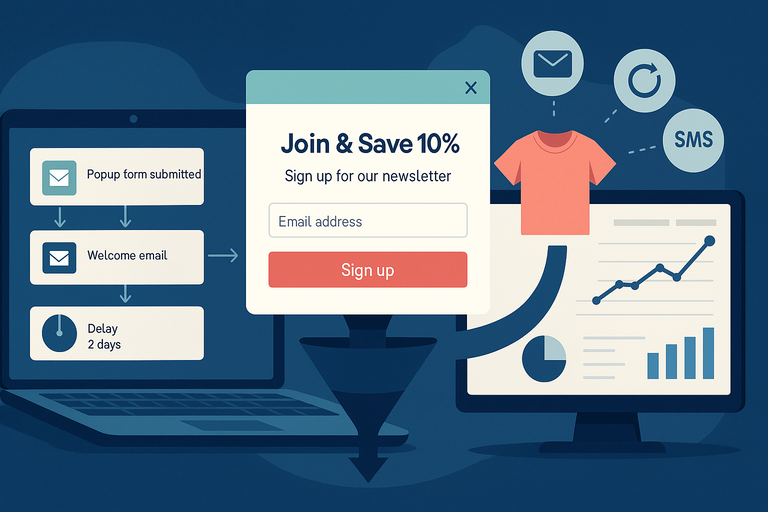
Your Omnisend popup isn’t an island—it’s the front door to your marketing ecosystem.
Integrating it with your workflows, tools, and analytics ensures every signup becomes a meaningful customer journey.
Connecting Popups to Automated Email Workflows
When someone subscribes through your Omnisend popup, you can instantly trigger an automated email sequence—no manual work needed.
Here’s how you set it up: Automation → Create Workflow → Choose “Welcome Series.”
A strong workflow usually includes:
- Welcome email: Thank them for subscribing and deliver their incentive.
- Follow-up email: Share your story or bestsellers.
- Engagement email: Offer helpful tips or guides related to their interests.
This automation helps turn a casual visitor into an engaged subscriber who’s more likely to buy later. I always say: The popup gets the email, but the workflow earns the relationship.
Syncing Subscribers With Other CRM or Ecommerce Tools
If you’re using platforms like Shopify, WooCommerce, or HubSpot, Omnisend integrates with them natively. You can sync new subscribers automatically so they appear in your CRM or customer list.
Example path: Integrations → Shopify → Sync Contacts → Enable Auto-Sync.
This ensures your popups feed directly into your sales and customer data, making retargeting and segmentation far easier.
I recommend verifying sync once a week, especially during large campaigns.
Tracking Conversions Across Channels for Better Insights
Popups are just one touchpoint. The magic happens when you connect them to other marketing channels—like email, SMS, and retargeting ads.
Use Omnisend’s Reports → Conversion Tracking to see:
- Which popup brought in the most signups.
- How many subscribers made a purchase after signing up.
- The average order value per popup campaign.
From there, you can refine your funnel—investing more in what works and adjusting what doesn’t. It’s all about seeing the bigger picture, not just the initial signup.
Measuring Success: How to Analyze Omnisend Popup Data
Data turns guesswork into strategy. Omnisend’s built-in analytics make it easy to track what’s working and what’s not.
Let’s break down the key metrics and how to use them.
Understanding Key Metrics Like Conversion Rate and Bounce Rate
In your Omnisend dashboard, go to Forms → Reports. You’ll see two crucial numbers:
- Conversion Rate: The percentage of viewers who submitted your form.
- Bounce Rate: The percentage who closed it immediately.
A healthy conversion rate usually ranges from 5–10%, while a high bounce rate (over 70%) suggests your popup might be too intrusive or poorly timed.
I always recommend testing one variable at a time—timing, design, or copy—to understand what’s causing performance shifts.
Identifying Which Offers Perform Best
Not all incentives are equal. Compare popups offering discounts versus those promoting exclusive content or giveaways.
For instance, one client of mine ran two popups:
- Offer A: 10% discount.
- Offer B: Free shipping on first order.
Offer B won with a 22% higher signup rate. Sometimes, small tweaks make big differences.
You can track this directly under Forms → Performance → Conversion Comparison.
Using Insights to Refine Your Subscriber Growth Strategy
Once you’ve analyzed performance, use your insights to evolve. If you notice one type of popup consistently drives higher conversions, scale that approach across other pages.
Ask yourself:
- Are mobile users responding differently than desktop ones?
- Does timing affect performance?
- Which visuals or messages create the strongest engagement?
The more you analyze, the smarter your strategy becomes. Omnisend’s real-time analytics help you spot trends early—so you’re always improving.
Expert Tips to Maximize Omnisend Popup Conversions
After running hundreds of popup campaigns, I’ve learned that consistent small optimizations outperform big, one-time overhauls.
Here’s how to keep improving your Omnisend popups over time.
Keep Testing and Iterating Based on Real Data
A/B testing isn’t a one-time thing—it’s an ongoing habit. I suggest running one test per week on different elements:
- Headline text
- Button color
- Timing delay
You’ll be amazed at how much small adjustments matter. I’ve seen conversion rates jump from 6% to 12% just by rewriting a headline.
Keep your tests simple and track progress in Reports → Form Analytics → Compare Versions.
Use Seasonal Campaigns to Boost Engagement
Seasonal popups are easy wins. Shoppers expect fresh deals around holidays, so tailor your offers accordingly.
Examples:
- “Black Friday Early Access—Sign Up to Unlock Deals.”
- “Spring Refresh: Get 15% Off New Arrivals.”
You can schedule these ahead of time in Omnisend by using Display Settings → Schedule → Select Date Range.
It’s a great way to stay relevant without overwhelming your audience.
Combine Popups With Other Lead Magnets for Higher Value
Instead of relying solely on discounts, experiment with other incentives. For example:
- Downloadable guides
- Exclusive webinars
- Early product access
Omnisend allows you to send these automatically via Automation → Deliver File/Code.
I believe the best popups feel like an invitation, not a transaction—and lead magnets make that possible.
Focus on Long-Term Relationship Building, Not Just Signups
Finally, remember that collecting an email is just the first step. What matters most is how you nurture that relationship afterward.
Use your Omnisend automations to:
- Send welcome emails that tell your brand story.
- Share value-driven content, not just promotions.
- Reward loyal subscribers with exclusive perks.
This approach turns subscribers into lifelong customers—and that’s the real goal of every popup campaign.

I’m Juxhin, the voice behind The Justifiable.
I’ve spent 6+ years building blogs, managing affiliate campaigns, and testing the messy world of online business. Here, I cut the fluff and share the strategies that actually move the needle — so you can build income that’s sustainable, not speculative.
Related posts:
 5 Must-Have Email Signup Forms to Grow Your List Effortlessly
 Omnisend Forms: How to Capture More Leads Instantly
 Best Tips To Write Cold Emails
 How to Integrate Aweber with ClickFunnels
 10 Secrets to Generating Leads Online & Skyrocketing Sales
 How to Create an Aweber Landing Page That Converts Today