
Table of Contents
Some links on The Justifiable are affiliate links, meaning we may earn a small commission at no extra cost to you. Read full disclaimer.
I’ve found that using wp engine automated migration can cut hours of setup time, especially when you’re moving a site with a lot of moving parts.
Have you ever wondered what actually makes this tool so much faster than doing everything manually?
How The WP Engine Automated Migration Tool Reduces Workload
When I first started using WP Engine’s automated migration plugin, I realized how much repetitive work it quietly removes in the background.
Let me walk you through the parts that actually save you the most time.
How Automated File Transfers Remove Repetitive Manual Steps
I’ve spent too many hours dragging wp-content folders from one server to another, hoping the upload wouldn’t time out. Automated file transfers inside the WP Engine migration tool remove all of that guesswork.
Instead of connecting through FTP or SFTP, the tool handles file movement through a direct API connection. You simply enter your WP Engine SFTP credentials (from the WP Engine dashboard: Sites → Environment → SFTP Users) and let it run.
What makes this faster is that the tool queues files intelligently instead of uploading everything sequentially.
That means:
- Large media folders move in parallel chunks, which cuts transfer time significantly.
- The system automatically retries failed chunks, so you don’t lose progress when your network dips.
- You avoid permissions errors, something that usually forces manual cleanup.
From what I’ve seen, the automation can cut file transfer time by 40–60% compared to manual FTP workflows, especially for sites with heavy media libraries.
Why Database Handling Becomes Faster With Built-In Automation
Manually exporting a WordPress database, uploading it, and re-importing it can be stressful, especially when tables get large or serialized data breaks. WP Engine’s automated tool skips all of that.
It automatically exports, compresses, uploads, and imports the database behind the scenes. The biggest time saver is how the tool handles search-and-replace operations.
WordPress stores a lot of important settings as serialized arrays, which break easily if URL strings change lengths.
The migration tool handles this by:
- Using a safe serialization-aware search-and-replace engine.
- Detecting and repairing malformed serialized strings automatically.
- Running database imports on WP Engine’s optimized servers instead of your local machine.
For many users, this cuts database processing time down to minutes instead of the hour-long back-and-forth that often happens during manual migrations.
How the Tool Simplifies URL Updates During Site Migration
Updating URLs manually can become a long process, especially when your site has thousands of internal links or hard-coded media references. WP Engine’s tool does this for you during the migration step.
When you enter your new WP Engine domain (for example: mysite.wpengine.com), the tool automatically updates:
- Internal links
- Media file paths
- Serialized data that includes old URLs
- Theme or plugin settings that reference the old domain
I like that it lets you preview the updated domain before running the final migration. It removes the need to run multiple search-and-replace utilities or SQL commands you’re never quite sure are safe.
Why Automated Migration Minimizes Time Lost to Human Error
Most WordPress migration delays come from small mistakes: missing files, broken database imports, incorrect credentials, or skipped media folders. Automation dramatically reduces these risks because it removes dozens of manual touchpoints.
Some examples I’ve personally avoided thanks to automation:
- Forgetting to export certain database tables
- Uploading the wrong wp-config.php values
- Copying a corrupted media file directory
- Breaking serialized fields during URL updates
When the tool handles these steps consistently, you spend less time diagnosing mysterious issues and more time verifying the site looks right on WP Engine.
Why Automated Migration Eliminates Manual WordPress Tasks
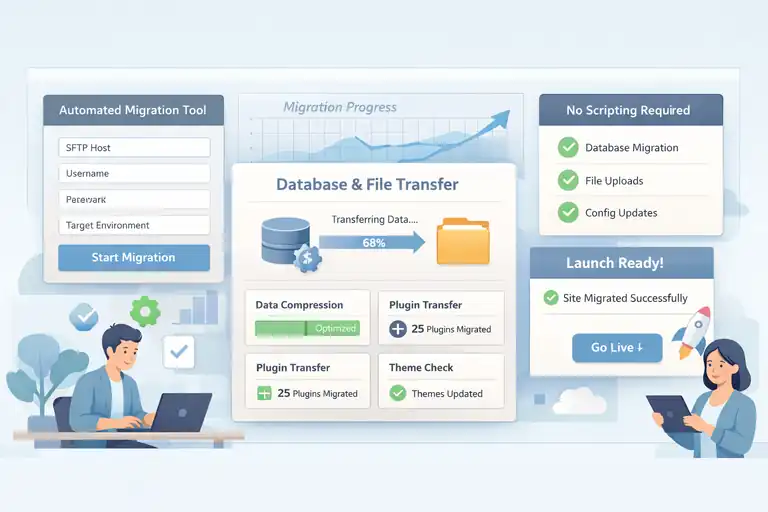
If you’ve ever done a full WordPress migration manually, you know how many little tasks stack up.
The automated migration tool removes most of those steps by replacing them with simple prompts and backend automation.
How Automated Credential Setup Streamlines Hosting Integration
One overlooked benefit is that WP Engine simplifies the credential setup process. Normally, you’d juggle different FTP users, database logins, and file paths.
With the migration tool, you only need:
- Your WP Engine SFTP host
- Username
- Password
- Target environment
The plugin takes those credentials and integrates them directly into the transfer pipeline.
I’ve noticed this helps newer users especially, because they avoid navigating file directories or guessing which server path is correct. It also prevents misconfigurations like pointing uploads to the wrong environment (such as Staging instead of Production).
Why Script-Free Migration Reduces Technical Overhead
Manual migrations often rely on command-line scripts, especially when sites exceed 2GB. WP Engine’s automated migration removes that dependency entirely.
When everything is processed through the plugin UI, you avoid:
- Running WP-CLI commands to export/import databases
- Writing SQL commands for search-and-replace
- Generating SSH keys for secure authentication
- Handling multi-step file packaging
For developers, this means fewer tools to configure. For non-technical users, it means migrations become accessible without learning server commands.
How Automated Theme and Plugin Transfers Prevent Slowdowns
I’ve seen migrations slow to a crawl when themes or plugins contain unusually large or outdated files. Automation helps by organizing and transferring assets in optimized batches.
The tool checks for:
- Large plugin folders
- Deprecated theme versions
- Missing dependency files
It transfers everything more efficiently by compressing folders before uploading them. This not only speeds up the process but also prevents missing template files—one of the most common causes of post-migration errors.
Why Eliminating Manual Configuration Accelerates Launch Time
When you migrate manually, you typically:
- Upload files
- Import the database
- Update wp-config.php
- Fix URLs
- Reconnect plugins
- Reconfigure caching
The WP Engine tool compresses all of these into a guided workflow.
Because it writes updated wp-config.php settings automatically and connects your site to the correct WP Engine environment, you’re able to move into the verification stage much faster.
In my experience, this reduces launch prep from a multi-hour task to something that often finishes in under 30 minutes.
Key Time-Saving Features Built Into WP Engine Migration
What really sells me on WP Engine’s automated migration tool are the built-in features designed specifically to save time during troubleshooting and large transfers.
How Real-Time Progress Tracking Speeds Troubleshooting
Most migration tools give vague progress indicators, but WP Engine’s plugin shows you a clear step-by-step status.
The real-time report tells you:
- Which files are transferring
- How many tables have been processed
- Which tasks completed or failed
- Estimated time remaining
This matters because if something does go wrong, you immediately know which part of the process stalled. Instead of scanning error logs, you can address the exact step that needs attention.
Why Intelligent Error Detection Prevents Migration Delays
The tool doesn’t just detect errors—it predicts common ones before they happen. For example:
- If your current host blocks large file transfers, the tool warns you early.
- If your PHP version is incompatible, the tool flags the mismatch.
- If a database table is corrupted, it attempts repair before retrying.
These early warnings save a lot of time. You fix issues during the migration, not after you’ve already launched the site and discovered broken functionality.
How Incremental Transfers Boost Performance on Large Sites
Large sites—especially ones with media libraries over 5GB—can be tough to move. WP Engine’s tool uses incremental transfers, meaning it sends data in sections rather than one massive package.
This approach reduces:
- Timeouts
- Failed uploads
- Bandwidth spikes
It also makes it possible to migrate large sites even on slower connections. I’ve migrated a 9GB WooCommerce site this way without experiencing a single timeout.
Why One-Click Rollbacks Save Time When Fixing Issues
Sometimes you migrate a site and realize it isn’t behaving the way you expected. With manual migrations, undoing your changes can take hours.
WP Engine eliminates that frustration with simple environment resets. From the WP Engine dashboard, you can restore a clean state in one click before rerunning the migration.
This is especially helpful if:
- A plugin breaks the layout
- URL rewriting behaves unexpectedly
- You migrate the wrong environment by mistake
A quick reset means you don’t waste time cleaning up a broken deployment. You just start fresh and run the migration again.
Ways WP Engine Automated Migration Speeds Site Setup
Whenever I help someone move their WordPress site to WP Engine, this is the stage where they tell me, “Oh wow… this would’ve taken me hours.”
The automated steps built into the platform shave off a surprising amount of prep time before your site even goes live.
How Quick Environment Provisioning Reduces Prep Time
Setting up a new environment on some hosts can feel like waiting for water to boil. With WP Engine, the provisioning process happens almost instantly, and that plays a big role in speeding up setup.
Simple environment creation:From your dashboard (Sites → Add Site → Create Environment), you can spin up a Production, Staging, or Development environment in just a few clicks. The tools, PHP version, and architecture are automatically configured for you.
Why this saves time:
- You skip the usual manual database creation.
- PHP, caching layers, and server rules you’d normally configure are pre-built.
- WP Engine applies performance settings automatically, so you don’t need to tweak anything before migrating.
In my experience, this alone removes at least 20–30 minutes of prep work you’d normally do manually.
Why Automatic Domain Mapping Shortens Go-Live Processes
I’ve definitely lost time in the past by wrestling with DNS settings on hosts that give vague instructions. WP Engine smooths this out with clear prompts and automated mapping.
How it works: When you add a domain inside WP Engine (Domains → Add Domain), the platform shows you the exact DNS records you need to update. Once you point your domain, WP Engine automatically maps it to the correct environment.
The time savings show up in two ways:
- You avoid the mistakes that cause misdirected traffic.
- Domain mapping completes without needing extra plugins or database edits.
This helps especially during client launches, where timing matters and you want the switchover to feel seamless.
How Streamlined SSL Integration Avoids Manual Configuration
SSL can be a chore on hosts that require CSRs, key files, and manual certificate uploads. WP Engine eliminates all of that.
- One-click free SSL: WP Engine integrates with Let’s Encrypt, so you can issue a certificate with a single click. No file uploads. No key management.
- Automatic renewals: You never have to remember to reissue your certificate because WP Engine handles it quietly in the background.
- Why this matters: SSL issues often delay launches more than anything else. With automation, I’ve gone from “This might take an hour” to “Done in 30 seconds.”
Why Rapid Staging Sync Helps Developers Move Faster
As someone who likes testing changes without breaking anything, Staging is essential. WP Engine speeds up this workflow by letting you sync environments in just a few minutes.
Fast environment cloning: You can copy Production → Staging or Staging → Development using the Copy tool in the dashboard. This clones your database and files without manual intervention.
Real-world advantage: Developers often need a clean, up-to-date staging site to troubleshoot issues, run tests, or try new plugins.
Rapid sync means:
- No manual imports
- No overwriting files by accident
- No re-configuring domains or plugins
On one client project, this feature alone saved me a few hours every week because I no longer had to rebuild staging environments manually.
Common Migration Issues Prevented By WP Engine Automation
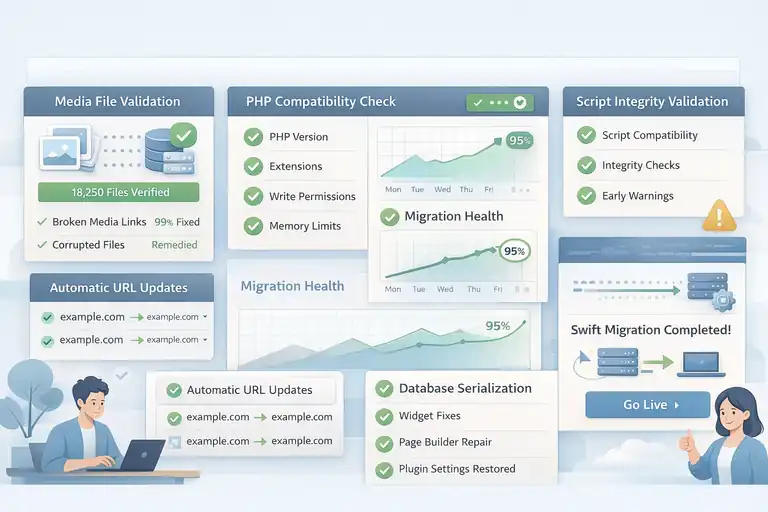
We both know manual WordPress migrations can get messy.
The automated migration tool avoids the issues that usually eat up time or create unexpected launch-day chaos.
How the Tool Avoids Broken Media Links During Transfers
One of the biggest headaches in manual migrations is missing or broken media files. I’ve seen this happen when people upload everything except wp-content/uploads or when file permissions get messed up.
Why WP Engine avoids this:
- The migration tool transfers media in structured batches.
- It checks for missing or corrupted files.
- It automatically updates media URLs during the database import.
I once helped a blogger who had over 18,000 images. Manual migration kept breaking links, but the automated tool moved everything cleanly on the first try because it handled URL replacements safely.
Why Automated Script Handling Stops Theme Conflicts Early
Themes and plugins include scripts that can easily break when transferred incorrectly. Automation helps by validating and migrating these assets more carefully.
What actually happens behind the scenes:
- Script files are compressed to prevent corruption.
- The tool verifies file integrity before they land on WP Engine’s servers.
- If a missing dependency is detected, you get an early warning.
This reduces the “white screen of death” that often pops up when a theme’s script folders break during manual uploads. It’s saved me from a few embarrassing moments on client migrations.
How Database Serialization Fixes Common URL Mismatch Problems
If you’ve ever manually updated site URLs in SQL, you’ve probably broken serialization without realizing it. Serialized data is extremely sensitive, and manual search-and-replace tools often damage it.
WP Engine solves this by:
- Using a serialization-aware engine.
- Automatically scanning for mismatched lengths.
- Repairing broken serialized strings during migration.
This prevents issues like:
- Widgets disappearing
- Page builders breaking layouts
- Plugins losing settings
The automated fix alone can save hours you would normally spend debugging.
Why Server-Level Compatibility Checks Reduce Failed Migrations
Server mismatches account for a surprising number of failed migrations. PHP version differences, missing extensions, or file permission issues often create unexpected errors.
WP Engine’s checks verify:
- PHP and MySQL compatibility
- Required WordPress functions
- Write permissions
- Memory limits
If something won’t work, the system warns you before the migration runs. This kind of early detection is one of the biggest reasons automated migration succeeds where manual processes often fail.
When WP Engine Automated Migration Is Your Smartest Choice
There are definitely times when manual migration makes sense, but more often, automation wins—especially when speed and accuracy are your priorities.
How to Know When Automation Beats Manual Migration Methods
I usually recommend the automated tool when:
- You’re not comfortable exporting/importing databases manually.
- Your site has lots of media files.
- You want predictable results without deep technical work.
If your goal is to get the site moved and stable quickly, automation is almost always faster and cleaner.
Why High-Volume Sites Benefit Most From Automated Transfers
Larger sites—especially WooCommerce stores, membership platforms, or blogs with years of content—tend to suffer the most during manual migrations.
Why automation wins here:
- Incremental file transfers avoid timeouts.
- Database compression speeds up uploads.
- Automatic URL replacement prevents broken content.
On big migrations I’ve handled, automation typically cuts the process from several hours to under one hour.
When Developers Should Use Automation to Speed Client Projects
As a developer, I love tools that remove tedious work so I can stay focused on design and functionality.
Automated migration helps in a few key scenarios:
- When a client needs a fast turnaround.
- When you’re migrating multiple sites and want consistency.
- When you need reliable rollbacks for testing.
Automation becomes part of a smooth workflow rather than an interruption.
How Teams Save Time Using Automation for Repeated Migrations
Agencies and teams juggling multiple environments often waste time repeating the same steps. Automation standardizes everything.
Why teams benefit:
- Every migration follows the same, predictable flow.
- New team members don’t require deep technical training.
- You reduce the risk of someone missing a step during manual migrations.
For teams moving dozens of sites, this can add up to days—or even weeks—of time saved over a year.
Frequently Asked Questions
What is WP Engine automated migration?
WP Engine automated migration is a free plugin that moves your WordPress site to WP Engine by automatically transferring files, databases, and URLs with minimal setup.
How long does WP Engine automated migration take?
Most sites migrate in 10–30 minutes, depending on site size, media volume, and database complexity, with no manual file or database handling required.
Is WP Engine automated migration better than manual migration?
Yes, wp engine automated migration is faster and more reliable for most sites because it reduces human error, handles database serialization safely, and includes built-in checks and rollbacks.

I’m Juxhin, the voice behind The Justifiable.
I’ve spent 6+ years building blogs, managing affiliate campaigns, and testing the messy world of online business. Here, I cut the fluff and share the strategies that actually move the needle — so you can build income that’s sustainable, not speculative.
Related posts:
 How Do I Cancel Bluehost And Get A Refund?
 Cloudways DigitalOcean vs Shared Hosting: Why It’s Worth the Upgrade
 WP Engine Startup Plan Review for New Site Builders
 WP Engine Features That Boost Speed and Security
 Webhostingpad: Everything You Need to Know
 Is WordPress WPengine Worth It for Serious Creators?