
Table of Contents
Some links on The Justifiable are affiliate links, meaning we may earn a small commission at no extra cost to you. Read full disclaimer.
How to migrate website to WP Engine hosting safely is one of those searches people make when they want better speed and fewer hosting headaches, but do not want to break a live site in the process. I get it. A migration can feel simple right up until you picture lost orders, broken images, or SEO traffic dropping for no obvious reason.
The good news is that WP Engine’s current migration workflow gives you a staging-first path, backup options, SFTP access, database tools, and a go-live checklist that make the move much more controlled than an old-school “copy files and hope” migration.
Understand What A Safe WP Engine Migration Really Means
A safe migration is not just “moving the site.” It is moving the site in a way that protects traffic, conversions, SEO signals, and your sanity.
What You Are Actually Migrating
When most people say “website migration,” they usually mean three separate things: your WordPress files, your database, and your domain traffic.
On WP Engine, the automated migration flow is designed to copy the WordPress site first so you can review it before changing DNS, which is exactly what reduces risk.
That matters because your content may appear complete while hidden issues still exist in menus, serialized data, media paths, or plugin behavior.
I suggest thinking of the move in layers. Layer one is the site copy itself. Layer two is functionality testing. Layer three is launch, which usually means updating DNS so visitors start hitting WP Engine instead of your old host.
If you skip straight to layer three, you are turning a controlled migration into a live experiment. That is where avoidable mistakes happen.
In my experience, the safest mindset is this: You are not “switching hosts” in one step. You are building a verified clone on WP Engine, checking it thoroughly, and only then sending real traffic there.
WP Engine’s use of separate environments also supports that workflow because production, staging, and development are independent, which helps you test without touching the live setup.
Why WP Engine Changes The Migration Workflow
WP Engine is not a generic cPanel host where you just dump files anywhere and hope permissions work out. Its platform is organized around environments, the User Portal, backups, SFTP access, phpMyAdmin access, and guided launch steps. That changes how you should plan the move.
The upside is real. You get a more structured process and better controls around testing and rollback. The tradeoff is that you should not assume every old-host habit carries over.
A plugin that looked fine on your previous server may behave differently once cache rules, SSL, PHP versions, or file handling change. That does not mean WP Engine is difficult. It means the best migration plan is one that respects the platform instead of fighting it.
A practical example: Imagine you run a small WooCommerce store with 300 products and a few active promo plugins. On a rushed migration, you might move the files, point DNS, and only then notice missing transactional emails or mixed content warnings.
On a safer WP Engine migration, you copy the site first, review checkout flows, confirm SSL and DNS steps, and only then cut over. Same destination, very different stress level.
Prepare Your Site Before You Move Anything
This is the part people rush, and it is usually the part that decides whether launch day feels calm or chaotic.
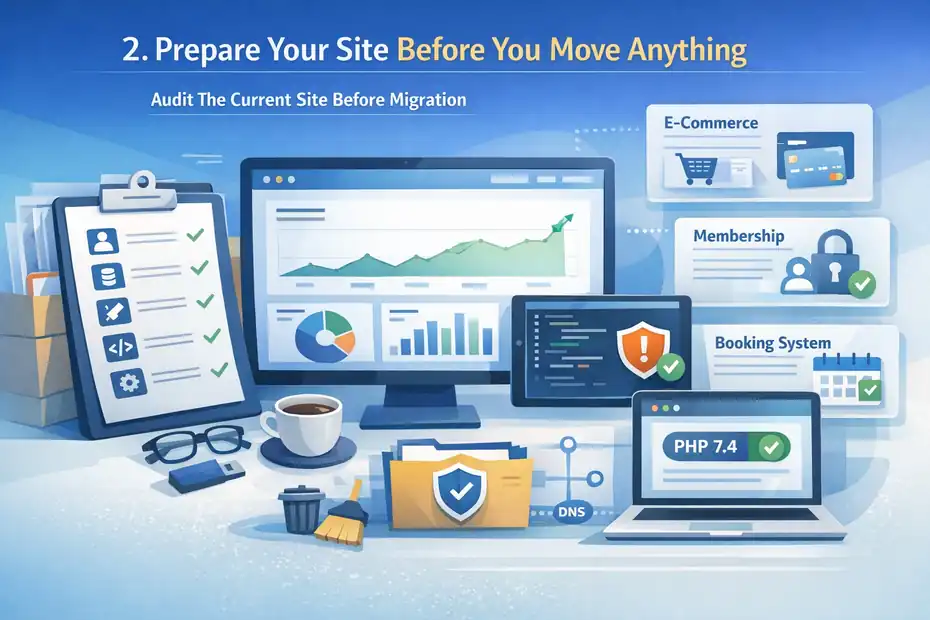
Audit The Current Site Before Migration
Before you touch WP Engine, get clear on what your current site actually includes.
I recommend listing the essentials: active theme, active plugins, custom code snippets, forms, tracking scripts, payment gateways, CDN or DNS provider, email routing, redirects, and any third-party services tied to your current domain.
This is boring work, but it saves you from the classic “why is this missing?” scramble later.
Also note anything domain-based. WP Engine points out that staging and development typically use different domains, and some premium services license by domain. In plain English, a plugin or SaaS integration that works on your live domain may need a staging license or special mode to work in testing.
I believe this is also the right moment to flag fragile areas of the site. For example, if your site depends on booking forms, gated content, paid memberships, or dynamic product filters, write those down as priority test cases. Those features are where hidden migration issues usually show up first.
A simple pre-migration checklist helps:
- Current host login details and backups saved
- WordPress admin access confirmed
- Domain registrar and DNS access confirmed
- Critical plugins and integrations documented
- Forms, checkout, search, login, and redirects marked for testing
Clean Up The Site So You Do Not Migrate Problems
A migration is a great chance to leave junk behind. Update what should be updated, remove plugins you no longer use, delete old themes you do not need, and clear obvious clutter from the media library if it is out of control.
I am not saying you need a perfection project before moving. I am saying there is no reason to transfer years of neglect if you can avoid it.
This matters even more on managed hosting. WP Engine gives you tools for backups, testing, and plugin management, but none of that changes the fact that a messy WordPress install is still a messy WordPress install.
Smart Plugin Manager, for example, is built to help manage plugin and theme updates safely after migration, but it is not a substitute for pre-migration cleanup and review.
One practical example: if you have five redirect plugins, two disabled page builders, and a forgotten security plugin from 2021, I would clean that up before migrating. Every extra moving part creates another place for conflicts to hide.
I also suggest checking your PHP compatibility and plugin health before launch. Even if the site “works,” old code can become unstable when hosting conditions change. You want the destination environment to reveal fewer surprises, not more.
Set Up The Destination Environment In WP Engine Properly
Do not start by dragging files around. Start by creating a destination that is organized and easy to test.
Create And Review Your WP Engine Environment
WP Engine’s User Portal is the control center for sites, environments, SFTP details, database access, domains, and migration tools. Once you create or select the destination site, review which environment you are using and make sure you are migrating into the correct one.
WP Engine groups sites with up to three environments: Production, Staging, and Development, and those environments operate independently. That independence is a big safety feature because testing in one does not automatically affect another.
For most people, the best move is to migrate into the intended production environment, test there using the temporary WP Engine domain, and only point the real domain once everything is validated. Some teams also copy or test further in staging after the initial migration.
The right structure depends on your workflow, but the principle is the same: keep public traffic off the new environment until you trust it.
Take a moment to identify where WP Engine shows the SFTP credentials and phpMyAdmin access. Even if you plan to use the automated plugin, it is smart to know where these are in case you need manual fixes. WP Engine’s portal makes both available, which is especially useful for troubleshooting uploads, database changes, or manual cleanup.
Prepare Backups And Access Before The Copy Starts
I always recommend having two safety nets: one backup from the old host and one rollback path on WP Engine. WP Engine maintains backup checkpoints and allows restore workflows, which is helpful after the site lands there.
But I would still export or secure a copy from your current host before you begin. Redundancy is not paranoia during migrations. It is professionalism.
You also want to confirm access before starting:
- WP Engine User Portal access
- WordPress admin access on the source site
- SFTP credentials if manual intervention becomes necessary
- DNS provider access for go-live
- Database access if you need to import or inspect tables manually
This sounds simple, but it prevents the worst kind of migration delay: the one where everything is ready except the person who controls DNS is on vacation and nobody can switch traffic.
A quick note on teamwork: if an agency, developer, and business owner are all involved, decide who owns each step. One person should own the content freeze, one should own the migration, and one should own DNS. Ambiguity causes more launch mistakes than technology does.
Choose The Right Migration Method For Your Site
This is where most migrations split into two paths: automated or manual. WP Engine supports both, and the safest choice depends on your site setup.
Use The WP Engine Automated Migration Plugin For Standard WordPress Sites
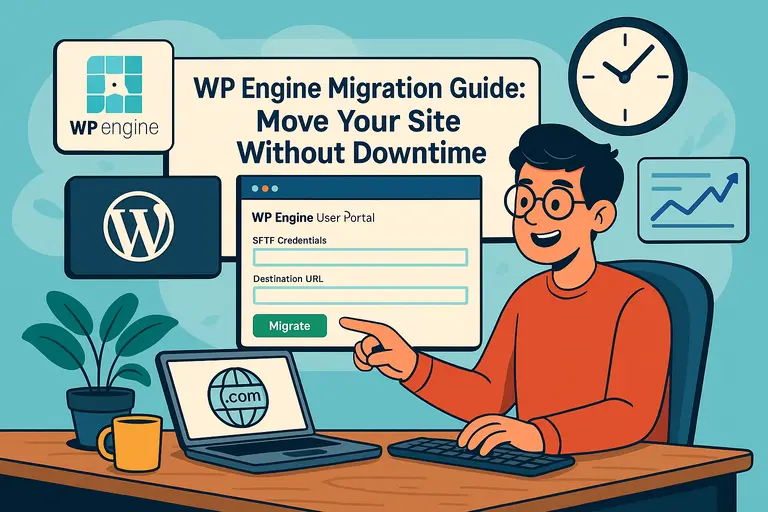
WP Engine’s current site migration flow is designed around an automated migration plugin for many standard WordPress moves. In the portal, you prepare the destination environment, install or download the migration plugin details, then use the plugin on the source WordPress site to connect and begin the transfer.
WP Engine describes the workflow in three main stages: prepare the WP Engine site, install the migration plugin on the source site, and enter the migration details to start the migration. The plugin makes a copy of the site so you can verify it before you change DNS.
For a normal brochure site, blog, or many service business websites, this is usually the cleanest path. It reduces manual exporting, file transfer friction, and database replacement mistakes. That last point matters more than people realize. Manual search-and-replace errors can break image URLs, internal links, or serialized data inside WordPress options.
I generally recommend the automated route when the source site is healthy, the WordPress admin is accessible, and there are no unusual infrastructure constraints. It is especially attractive when you want the fastest path to a reviewable clone on WP Engine.
Still, “automated” does not mean “ignore it.” You should watch the migration status, review any warnings, and test the copied site carefully. Automation reduces labor. It does not remove responsibility.
Use Manual Migration When The Site Is Complex Or The Plugin Fails
Manual migration is the better option when the automated plugin is blocked, incomplete, or inappropriate for the site.
WP Engine’s manual migration support process includes a guided checklist in the User Portal, and their documentation specifically frames it as the right path when you cannot use the automated tool or prefer more control.
This often applies to larger sites, custom setups, broken legacy installs, or situations where you need to handle files and database content with precision.
A manual migration typically means exporting the database, uploading the wp-content directory via SFTP, importing the database into WP Engine through phpMyAdmin, and then handling URL replacements and cleanup.
WP Engine documents each of those building blocks separately, including database import and wp-content transfer.
I would also choose manual when I want to inspect what I am moving. For example, if a site has years of custom code, odd table bloat, or orphaned assets, manual migration gives you more visibility.
A helpful rule is this: If the site is ordinary, start automated. If the site is fragile, highly customized, or already acting weird, manual is often safer because you can control every piece.
Migrate The Site Step By Step Without Creating Downtime
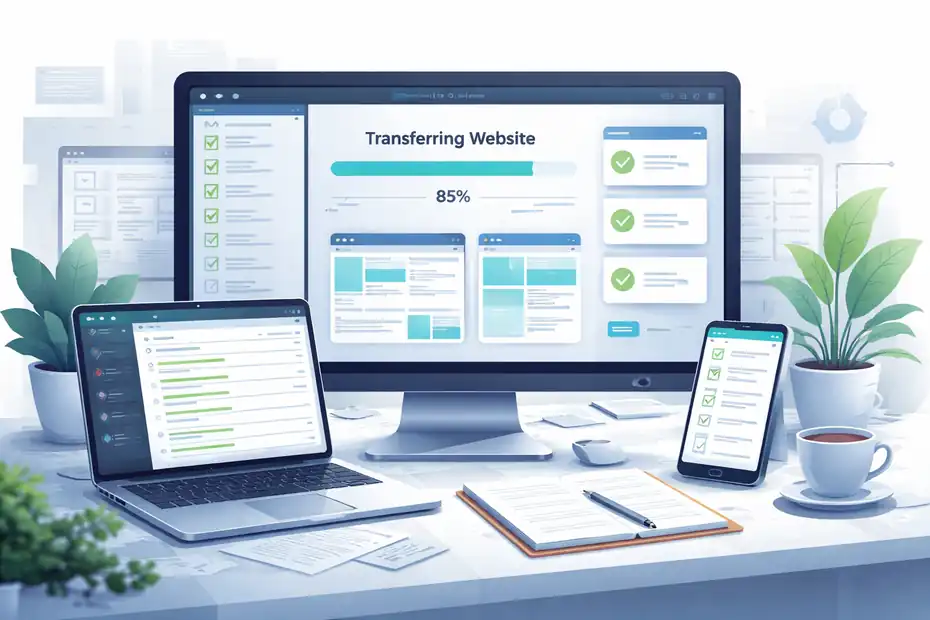
This is the execution stage. The goal is not speed for its own sake. The goal is a complete copy that you can test before launch.
Run The Migration And Verify The Copy
With the automated method, you prepare the destination in WP Engine, install the plugin on the source site, enter the migration details, and let the transfer run.
With the manual method, you move the wp-content files, import the database, and complete the required URL and configuration adjustments. Either way, your first goal is not a public launch. It is a working private copy on WP Engine.
Once the copy is complete, start with obvious checks:
- Homepage loads correctly
- Navigation and internal links work
- Images and downloads load
- Forms submit properly
- Login and logout behave normally
- Search and filtering features work
- Checkout or payment paths work if applicable
I also suggest opening a few older blog posts and key landing pages. Sometimes the homepage looks fine while deep content reveals broken media paths or formatting issues. This is especially true if the old site used unusual upload structures or hard-coded URLs.
A realistic scenario: Imagine you manage a content-heavy site with 500 articles. You do not need to click every page. But you should sample by template type: homepage, category page, product or service page, blog post, contact page, and one or two pages with embedded media.
Handle Database, Media, And URL Issues Early
Most migration problems boil down to one of three things: the database did not come across cleanly, uploaded media paths are wrong, or URLs still reference the old environment in hidden places.
WP Engine’s support materials for importing databases and accessing phpMyAdmin are useful here because they give you a direct path to inspect tables if something is off.
This is where I advise patience. A half-working site is not ready for DNS. If images fail, inspect uploads. If links redirect strangely, check site URL settings and hard-coded references. If forms fail, review any SMTP or API-based plugin settings. If a premium plugin behaves oddly, confirm whether the license is domain-restricted.
In many cases, the fastest fix is not a complete remigration. It is a targeted correction. For instance, a media issue may only require re-syncing wp-content/uploads, while a login loop may be tied to a plugin or cached redirect setting.
Do not chase ten variables at once. Test one function, find the break, fix that layer, and move on. Migration chaos usually grows when people make random changes instead of following a sequence.
Test The New Site Like Someone Who Pays The Bills
Testing should feel a little obsessive. That is a good thing. You are protecting revenue, leads, and trust.
Use Staging Logic And Structured QA
WP Engine’s environment model exists for a reason. Production, staging, and development are independent, and that supports a much safer QA workflow than editing a live site directly.
Even if your initial migration lands in the target production environment on a temporary URL, think like a staging team: test changes away from live visitors and use copies when needed to troubleshoot.
I like to separate testing into four buckets:
- Content integrity: Pages, posts, media, menus, widgets.
- Functional behavior: Forms, search, login, checkout, memberships.
- Technical health: SSL, redirects, canonical behavior, robots, analytics.
- Experience quality: Mobile layout, page speed feel, browser compatibility.
That structure keeps testing practical. It also prevents the all-too-common problem where a team only checks visuals and forgets lead forms or event tracking.
A simple QA pass might include opening the site on mobile, submitting a test form, reviewing one transaction or checkout, checking whether analytics tags fire, and confirming that your main conversion pages look correct. If your site earns money, test the exact actions that generate that money.
Check SEO, Redirects, SSL, And Tracking Before Launch
This part matters more than many site owners realize. A migration can preserve rankings beautifully or create silent SEO damage. The biggest risks are broken redirects, missing SSL, mixed content warnings, noindex accidents, and lost analytics tracking.
WP Engine documents SSL setup and domain go-live steps separately, which is useful because those are often the final blockers before launch. Their go-live checklist is also built to guide both mandatory and recommended steps before the domain goes live.
Before launch, review:
- Primary redirects still work
- Canonical tags point correctly
- XML sitemap loads
- Robots settings are correct
- Google Analytics or other tracking is firing
- Search Console verification remains accessible
- HTTPS loads without warnings
I strongly suggest crawling a sample of key pages or at least manually checking your top revenue and traffic URLs. If you are moving a site with meaningful organic traffic, preserving URL structure and redirect logic is not optional.
It is the difference between a smooth hosting upgrade and a traffic drop that takes months to recover from.
Point DNS And Launch Without Losing Traffic
This is the moment everyone fixates on, but the launch should feel almost anticlimactic if the prep and testing were solid.
Add The Domain And Complete The Go-Live Steps
WP Engine’s current approach includes domain management in the User Portal, domain verification states, DNS pointing guidance, and a built-in go-live checklist.
They also support an automatic DNS configuration option through Entri Connect for supported DNS providers, which can reduce manual errors when pointing a domain.
I recommend adding the domain in WP Engine before launch day and reviewing the domain status in the portal. That gives you a clearer path when it is time to switch traffic.
If your DNS provider is supported, the automatic option may simplify things. If not, manual DNS updates are still manageable, but they require more attention.
The best launch timing is usually a lower-traffic period for your business, not 9:00 a.m. Monday when customers are already active. For a local service business, that might be late evening.
For an eCommerce store, it might be a lower-sales weekday window. I would avoid launching right before a promotion, campaign, or major content push.
Watch The First Few Hours After Cutover
DNS changes are not magic. They are propagation-based updates, and different users may hit different destinations for a period depending on cache and resolver behavior.
That is normal. What matters is that the new WP Engine environment remains stable and the core paths work once traffic starts arriving.
In the first hours after launch, monitor:
- Homepage response
- Contact forms or lead flow
- Orders or checkout completions
- Error reports from users
- SSL padlock and redirect behavior
- Analytics real-time traffic
This is where a calm team beats a clever team. Do not make cosmetic tweaks right after DNS cutover unless they fix a real issue. Launch windows should be for observation, validation, and only necessary corrections.
A practical example: If one user reports a stale page while ten others are browsing fine, that may be local DNS or cache behavior, not a broken migration. Verify before making changes. Reacting too quickly to one symptom can create brand-new problems.
Fix Common Migration Problems Before They Turn Into Bigger Ones
Even careful migrations hit snags. The trick is spotting which problems are normal and which ones signal a deeper issue.
Common Problems After Moving To WP Engine
The most common issues after migration are usually not dramatic disasters. They are smaller failures that still matter: missing images, plugin conflicts, mixed content warnings, weird redirects, broken forms, or login problems.
WP Engine’s support resources around backups, database access, SSL, environment management, and manual migration are useful precisely because these issues often require targeted fixes rather than a full restart.
Here is how I usually interpret common symptoms:
- Missing images: Often a
wp-content/uploadsissue or an old URL reference. - Mixed content warnings: Usually HTTP assets still loading after HTTPS is enabled.
- Login loops: Often plugin, cookie, or URL mismatch behavior.
- Broken forms: Usually SMTP, API keys, or firewall-related settings need review.
- Plugin errors: Often licensing, outdated code, or environment-specific assumptions.
The good news is that most of these are fixable without moving the whole site again. The bad news is that people often panic and start changing too many settings at once.
My rule is simple: Isolate, test, document. Make one fix, retest, and record what changed. That gives you a reliable rollback path if the “fix” makes things worse.
When To Restore, Remigrate, Or Escalate
This is where judgment matters. If the site is mostly sound and only one area is broken, fix the area. If the migration copy is incomplete or corrupted in multiple places, a clean remigration may actually be faster.
And if you have a confirmed working checkpoint on WP Engine, restoring from backup can be the smartest move. WP Engine’s backup and restore workflow exists for exactly this reason.
I would consider restoring or remigrating when:
- Core pages are missing or corrupted
- Database content is clearly incomplete
- Media is broadly broken across the site
- User flows fail in multiple unrelated places
- A rushed troubleshooting cycle has made the environment unreliable
I would escalate for support when the issue is clearly tied to platform behavior, domain validation, SSL issuance, or environment configuration you cannot verify on your own.
WP Engine’s documentation repeatedly points users back to the portal and support during go-live, which tells you something important: safe migrations are a partnership between your prep work and the platform’s support structure.
Optimize The Site After Migration So The Move Pays Off
A migration is not just about landing safely. It should leave you in a better operational position than before.
Improve Performance, Maintenance, And Workflow
Once the site is stable on WP Engine, use the platform advantages instead of treating it like your old host. The environment model supports cleaner development workflows. Backups make change management safer.
The User Portal centralizes access. Smart Plugin Manager can help automate plugin and theme updates while checking for visual issues, which is especially helpful for teams that have been inconsistent with maintenance.
In practical terms, this means you can move from reactive site care to planned site care. Create a habit of testing updates on staging, using backups intentionally, and tracking which changes actually improve the site. That is how hosting upgrades turn into better operations, not just higher monthly bills.
For many of us, the biggest win after migration is confidence. You stop fearing every plugin update because you have structure. You stop editing production blindly because you have separate environments. And you stop guessing where to find credentials because the portal centralizes them.
Build A Smarter Long-Term Migration And Launch Process
If you manage multiple sites, document this migration while the lessons are fresh.
WP Engine itself highlights large-scale migration capabilities and case studies involving major site moves, which reinforces something I have seen repeatedly: a repeatable process matters more than individual heroics.
Your long-term process might look like this:
- Pre-migration audit and cleanup
- Environment prep and backup validation
- Automated or manual transfer decision
- Structured QA by page type and business function
- DNS cutover with low-risk timing
- Post-launch monitoring and optimization
That process works for a single brochure site, a content-heavy blog, or an online store. The specific tests change, but the framework holds.
I believe this is the real payoff of learning how to migrate website to WP Engine hosting safely. You are not just moving one site. You are learning a calmer, more professional way to manage WordPress infrastructure going forward.
Quick Comparison: Automated Vs Manual Migration
This section gives you a simple decision framework when you are stuck between methods.
| Migration Method | Best For | Main Advantage | Main Risk | My Take |
|---|---|---|---|---|
| Automated WP Engine Migration Plugin | Standard WordPress sites with normal admin access | Faster setup and fewer manual replacement errors | People assume “automated” means “no testing needed” | Best default choice for many sites |
| Manual Migration | Complex, fragile, or highly customized sites | Maximum control over files and database | More room for human error during transfer and URL cleanup | Better for advanced cases |
| Hybrid Approach | Sites that migrate mostly well but need manual cleanup | Flexible and practical | Can become messy without documentation | Often the real-world winner |
WP Engine officially supports both the automated plugin workflow and a manual migration checklist inside the User Portal, so you are not choosing between “right” and “wrong.” You are choosing the tool that matches your site’s complexity.
Conclusion
If you want the cleanest answer, here it is: the safest way to migrate to WP Engine is to treat the project as a staged launch, not a one-click switch. Prepare the site, build the destination correctly, choose the right migration method, test like revenue depends on it, then point DNS only after the copy is proven.
WP Engine gives you the pieces to do this well, including environments, backups, SFTP, database access, SSL guidance, domain controls, and a go-live checklist.
In my experience, migrations go wrong when people rush the launch and skip verification. They go right when you slow down at the beginning, not the end.
FAQ
How do I migrate a website to WP Engine hosting safely?
A safe migration involves creating a full copy of your site on WP Engine, testing it thoroughly on a temporary domain, and only updating DNS after verification. This process prevents downtime, protects SEO rankings, and ensures all features work before visitors access the new environment.
Does WP Engine offer an automated migration tool?
Yes, WP Engine provides an automated migration plugin that transfers your WordPress site, including files and database. It simplifies the process for standard websites and reduces manual errors, but you should still test the migrated site carefully before making it live.
Will migrating to WP Engine affect my SEO rankings?
Migration does not harm SEO if handled correctly. Maintaining the same URL structure, preserving redirects, ensuring SSL works properly, and verifying indexing settings are key steps. Testing before DNS changes helps avoid traffic drops or indexing issues.
How long does it take to migrate a website to WP Engine?
Most migrations take between one hour to several hours depending on site size, server speed, and method used. Larger or complex websites may take longer, especially if manual migration or detailed testing is required before going live.
What should I check before pointing my domain to WP Engine?
Before updating DNS, confirm that all pages load correctly, forms work, images display properly, SSL is active, and tracking tools function. Testing key user actions ensures your site is fully operational and ready to handle real visitors without issues.

I’m Juxhin, the voice behind The Justifiable.
I’ve spent 6+ years building blogs, managing affiliate campaigns, and testing the messy world of online business. Here, I cut the fluff and share the strategies that actually move the needle — so you can build income that’s sustainable, not speculative.
Related posts:
 How Do I Cancel Bluehost And Get A Refund?
 How WP Engine Automated Migration Saves You Time
 WP Engine Migration Guide: Move Your Site Without Downtime
 WP Engine Competitors Compared: Speed, Price, and Support
 Is WordPress WPengine Worth It for Serious Creators?
 WP Engine Features That Boost Speed and Security