
Table of Contents
Some links on The Justifiable are affiliate links, meaning we may earn a small commission at no extra cost to you. Read full disclaimer.
If you’re planning a WP Engine migration, you might be wondering how to move your website without a single minute of downtime.
I’ve been there too — that nerve-wracking moment when you’re ready to switch hosts but terrified of breaking your site in the process.
The good news is, with the right steps and a solid plan, you can migrate to WP Engine seamlessly and keep everything running smoothly. So how do you do it without losing visitors or data? Let’s break it down in this complete step-by-step guide.
Understand The WP Engine Migration Process
Before diving into the technical steps, it helps to clearly understand how WP Engine migration actually works and what makes it unique compared to other hosting providers.
What Makes WP Engine Different From Other Hosts
From my experience, WP Engine isn’t just another WordPress host—it’s a fully managed environment built specifically for performance, security, and scalability.
Unlike generic shared hosting platforms, WP Engine optimizes every layer of your website infrastructure so you don’t have to worry about caching, server-side tuning, or constant plugin updates.
Here’s what sets WP Engine apart:
- Managed Performance: WP Engine automatically configures caching (through EverCache) and offers a built-in CDN to deliver your site fast worldwide.
- Advanced Security: Daily backups, automatic malware scans, and proactive threat blocking keep your site secure with zero effort from you.
- Staging Environments: You can test site changes safely before going live—something most basic hosts don’t offer natively.
If you’ve ever dealt with plugin conflicts, downtime after updates, or slow page loads, you’ll immediately appreciate WP Engine’s infrastructure. It’s built to handle these pain points quietly in the background while you focus on running your site.
Key Benefits Of Using WP Engine’s Automated Migration Plugin
WP Engine’s Automated Migration Plugin is one of the easiest and safest ways to move your WordPress site. You don’t need to manually export databases or upload files via FTP. The plugin handles everything—from copying your site files to rewriting URLs and verifying data integrity.
Here’s why I recommend it:
- Simple Setup: Once installed, you only need to enter your WP Engine SFTP credentials and destination information.
- Zero Technical Skills Required: The plugin automates all backend steps—no manual import/export or database edits.
- No Downtime: Your existing site remains live during the process until you switch your DNS.
- Error Tracking: If anything goes wrong, WP Engine sends detailed error logs with recommendations.
For example, in your WordPress dashboard, go to Plugins > Add New > Search “WP Engine Automated Migration” > Install > Activate. Once connected to your WP Engine environment, it takes care of the rest.
Common Challenges Site Owners Face During Migration
Even though the process is smooth, I’ve noticed a few recurring challenges site owners often face:
- Large Media Libraries: If your site contains thousands of images or videos, the migration might take longer or timeout. In such cases, WP Engine recommends excluding the “uploads” folder during the initial migration, then transferring it separately via SFTP.
- Incompatible Plugins: Some caching or security plugins may conflict with WP Engine’s built-in systems. It’s smart to deactivate these before migrating.
- Missing Redirects: After migration, your site structure might slightly change. Always double-check redirects in your .htaccess or WP Engine’s redirect manager.
Understanding these potential issues upfront helps you avoid frustration later—and ensures your WP Engine migration goes off without a hitch.
Prepare Your Website For WP Engine Migration
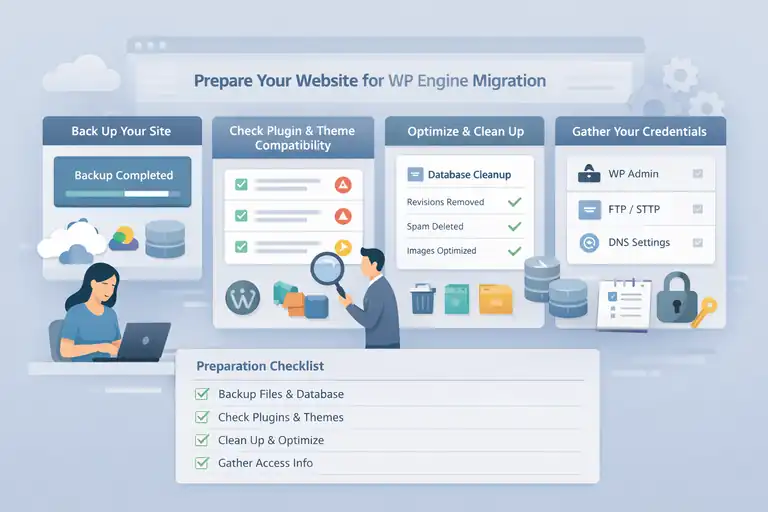
Before pressing the “migrate” button, preparation is everything.
Think of this as cleaning your house before moving—you want to make sure everything is organized, backed up, and compatible with your new host.
Back Up Your Entire WordPress Site First
I can’t stress this enough—back up everything before starting. While WP Engine’s plugin is reliable, it’s always safer to have your own copy of your files and database.
You can use tools like:
- UpdraftPlus: Creates cloud backups to Google Drive or Dropbox.
- All-in-One WP Migration: Exports both files and databases in one click.
Once backed up, store it somewhere safe. That way, if anything unexpected happens during migration, you can restore your site in minutes.
Check Plugin And Theme Compatibility Before Moving
WP Engine maintains a list of disallowed plugins that either duplicate built-in features (like caching) or can cause server issues. Visit WP Engine’s disallowed plugin list before migrating.
Here’s what I suggest:
- Deactivate any caching or backup plugin that overlaps WP Engine’s systems.
- Update all active plugins and themes to their latest versions to prevent compatibility errors.
- Check for premium plugins that require license reactivation after migration.
This step ensures a clean, conflict-free transfer.
Clean Up Unused Files And Optimize Your Database
Migrating unnecessary files wastes time and bandwidth. Before moving, use optimization plugins like WP-Optimize or Advanced Database Cleaner to:
- Delete old post revisions, spam comments, and unused drafts.
- Remove orphaned metadata or transient options.
- Compress large images using Smush.
A leaner site not only migrates faster but also performs better once it’s live on WP Engine.
Gather Access Credentials (DNS, FTP, WP Admin)
You’ll need a few credentials handy during migration:
- WP Admin login: To install and configure the plugin.
- SFTP credentials: Provided in your WP Engine User Portal under Sites > Environment > SFTP Users.
- DNS login: For updating domain settings once migration is done.
I recommend storing all these in a secure password manager like 1Password or Bitwarden so you can access them quickly when needed.
Install The WP Engine Automated Migration Plugin
Once you’ve prepared your site, it’s time to install and connect the migration tool that makes this process nearly hands-free.
How To Find And Install The Official WP Engine Plugin
Here’s how to set it up:
- Log in to your WordPress dashboard.
- Go to Plugins > Add New.
- Search for “WP Engine Automated Migration.”
- Click Install Now, then Activate.
Once activated, you’ll see a new menu item under Tools > Site Migration.
This plugin was developed by BlogVault, a trusted migration partner, and directly integrates with WP Engine’s infrastructure. It’s lightweight, safe, and doesn’t require server-side adjustments.
Connecting Your WordPress Site To WP Engine Safely
When you open the plugin, it will ask for your WP Engine SFTP details. You can find these in your WP Engine dashboard:
- Log into your WP Engine account.
- Navigate to Sites > Select Environment > SFTP Users.
- Copy the SFTP Address, Username, and Password.
Paste these credentials into the plugin fields. Once verified, the migration will start automatically and copy your entire site to WP Engine’s temporary environment.
A key tip: Always leave your browser tab open during migration. Closing it won’t cancel the process, but it’s best to keep it visible so you can monitor progress.
What To Do If The Plugin Installation Fails
Occasionally, the plugin might fail to connect or complete the transfer. If this happens:
- Check File Permissions: Ensure your /wp-content folder has write permissions (typically 755).
- Increase PHP Memory Limit: In your wp-config.php, add define(‘WP_MEMORY_LIMIT’, ‘512M’);.
- Contact WP Engine Support: Their live chat team can run a manual import from their side.
If your site is large (over 2GB), you can exclude your media folder temporarily and upload it later through SFTP. I’ve done this a few times—it speeds up the migration drastically.
Run The Migration Process Step By Step
Once everything is prepared, this is where the real action begins—actually running your WP Engine migration.
The process is straightforward, but a few best practices can save you hours of troubleshooting later.
How To Start The Migration Using WP Engine’s Tool
If you’ve already installed and connected the WP Engine Automated Migration Plugin, you’re just a few clicks away from moving your entire site.
Here’s the simple sequence I recommend following:
- Go to Tools > Site Migration in your WordPress dashboard.
- Enter your WP Engine SFTP credentials (you’ll find these in your WP Engine User Portal under Sites > Environment > SFTP Users).
- Paste your Destination URL—this is the temporary WP Engine domain that looks like yoursite.wpengine.com.
- Click Migrate.
The plugin immediately begins cloning your site—files, database, and all—and transferring them to your new WP Engine environment.
During this process, your original site stays fully online, which means no downtime or disruption for visitors. I personally find that reassuring, especially when handling e-commerce or high-traffic sites.
A quick pro tip: Leave the tab open and your computer awake while migration is in progress. Even though the plugin runs server-side, staying active ensures you can respond quickly if any errors pop up.
Monitoring Progress And Avoiding Timeouts
Depending on your site size and your previous host’s server speed, migration can take anywhere from 15 minutes to a few hours. You’ll see a progress bar showing the percentage complete and estimated time remaining.
Here’s how to make sure it runs smoothly:
- Avoid Server Sleep Mode: If your current host uses aggressive timeouts (common with budget shared hosting), the process can pause. Keep the migration window open to prevent idle connection drops.
- Disable Unnecessary Plugins: Deactivate high-resource plugins like backups or security scans during migration—they can slow or interrupt data transfer.
- Monitor From WP Engine: You can log in to your WP Engine dashboard under Sites > Environment > Overview to see real-time updates as files populate.
If you see a timeout or partial transfer error, don’t panic. It often just means a network hiccup occurred. Simply restart the migration from where it left off—it resumes automatically without duplicating data.
How To Handle Large Sites With Media Files Or Custom Data
If your website is particularly large (for instance, 5GB+ with thousands of images), it’s often more efficient to handle media separately.
Here’s a method I’ve used many times for clients:
- Exclude the “uploads” folder during initial migration. You can do this inside the plugin by selecting Advanced Options > Exclude Folders.
- Once the core migration completes, upload your wp-content/uploads folder manually via SFTP to WP Engine.
- Use a plugin like Regenerate Thumbnails to rebuild image metadata if needed.
For sites with complex custom post types or WooCommerce data, double-check your database tables after migration. WP Engine’s support team can help verify data integrity or run a manual database sync if something doesn’t look right.
I’ve found this extra care makes a big difference, especially when dealing with memberships, user-generated content, or multilingual setups.
Test Your Site On WP Engine’s Temporary Domain
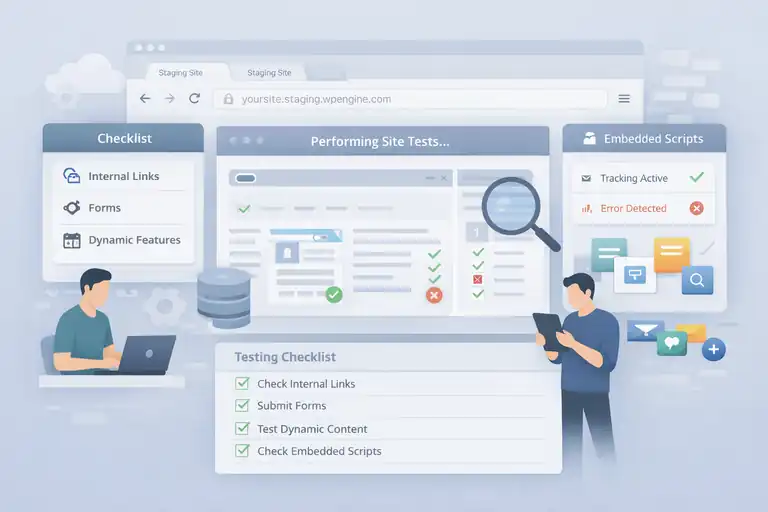
Before going live, it’s crucial to test your migrated site on WP Engine’s temporary domain.
Think of this as your rehearsal before the grand opening—it ensures everything works perfectly before visitors see it.
How To Use WP Engine’s Staging Environment
WP Engine gives you a staging environment, which is a private copy of your site where you can safely test without affecting the live version.
Here’s how to access it:
- Log in to your WP Engine dashboard.
- Select your migrated site.
- Under Environments, click Staging.
- Click Visit Site to open your staging domain.
You’ll see your full site on a domain like yoursite.staging.wpengine.com.
This is where you can click through every page, form, and menu to ensure everything looks and functions exactly as it did before migration. I always suggest testing contact forms, checkout pages, and embedded scripts—these are the most common trouble spots.
Checking Links, Forms, And Dynamic Elements After Migration
Here’s my quick testing checklist after every WP Engine migration:
- Internal Links: Use a tool like Screaming Frog or Broken Link Checker to scan for 404s or outdated internal URLs.
- Forms: Submit all key forms (contact, newsletter, order forms) to confirm they deliver properly.
- Dynamic Features: Test sliders, pop-ups, or login portals—especially if they rely on JavaScript.
- Third-Party Integrations: Reconnect APIs for email marketing, CRMs, or payment gateways if necessary.
If you’re short on time, WP Engine’s staging environment is also ideal for testing plugin updates or performance tweaks later—it’s not just for migration testing.
Fixing Broken URLs Or Redirect Issues Quickly
Sometimes links might still point to your old domain. The good news? It’s an easy fix.
You can use the Better Search Replace plugin to update all URLs in your database from oldsite.com to newsite.com. Just make sure to do a “dry run” first to preview changes.
If you changed site structure or permalink settings, you can also add 301 redirects directly in WP Engine:
- Go to your WP Engine dashboard.
- Select your environment.
- Navigate to Redirect Rules > Add Redirect.
This ensures your SEO rankings stay intact and visitors seamlessly reach the right pages.
Update DNS Settings Without Causing Downtime
Now comes the final step—pointing your domain to your new WP Engine environment. This is where many people get nervous about downtime, but if done right, it’s completely seamless.
When And How To Change Your DNS Records
Once you’ve verified that everything on your staging site works correctly, it’s time to update DNS.
Here’s how:
- Log into your domain registrar (for example, GoDaddy, Namecheap, or Cloudflare).
- Find your DNS settings section.
- Update your A Record to point to the WP Engine IP address found under WP Engine > Domains > Add Domain.
If you’re using a CNAME record for www, point it to your WP Engine domain (like yourenvironment.wpengine.com).
A small but important tip: keep your TTL (Time To Live) low—around 300 seconds (5 minutes)—for faster propagation.
Understanding DNS Propagation And How To Minimize Delays
After updating your DNS records, the changes need to propagate across the internet. This usually takes between a few minutes to 24 hours depending on your registrar and ISP.
To minimize this waiting time:
- Lower your TTL value a few hours before the switch.
- Avoid making DNS changes during peak business hours.
- Test propagation using tools like whatsmydns.net.
During this window, some users might see the old site, while others see the new one. That’s perfectly normal and temporary.
Using The WP Engine “Go Live Checklist” For Final Validation
WP Engine provides a built-in Go Live Checklist inside your user portal—it’s one of my favorite finishing touches. It walks you through final verifications step by step:
- Ensures your SSL certificate is active.
- Confirms redirects and canonical URLs are correct.
- Checks your caching and CDN settings.
- Validates DNS is pointing correctly.
Once all items are checked off, you can safely mark the migration complete and enjoy your new WP Engine-powered site.
I always like to visit the site one more time in an incognito browser and run a quick speed test using GTmetrix. That final reassurance that everything is live, fast, and stable feels great.
Optimize Your Site’s Performance After Migration
Once your WP Engine migration is complete and your site is live, the next step is fine-tuning performance.
WP Engine already gives you a speed advantage, but a few quick tweaks can make your site feel noticeably faster and more stable.
Enable WP Engine’s Built-In Caching And CDN
WP Engine includes its own caching system called EverCache—and it’s one of the biggest reasons sites load quickly on their platform. It automatically stores static versions of your pages and serves them instantly to users, reducing load on the server.
You don’t need any caching plugins (in fact, they can cause conflicts). To confirm EverCache is active:
- Log in to your WP Engine dashboard.
- Select your site’s environment.
- Go to Utilities > Clear Cache.
From here, you can manually purge cache if you’ve made design or code changes.
WP Engine also integrates with a Content Delivery Network (CDN) powered by Cloudflare. This distributes your content across multiple servers worldwide so that users load your site from the nearest location.
To enable the CDN:
- Go to WP Engine Dashboard > CDN > Enable CDN.
- Check “Serve static assets via CDN.”
I always suggest enabling CDN immediately—it can improve global load times by up to 50%, especially if you have international traffic.
Test Page Speed With Tools Like GTmetrix And PageSpeed Insights
Once caching and CDN are active, it’s time to test your site’s speed. I like using two tools in combination:
- GTmetrix – Provides detailed insights on page load time, largest contentful paint (LCP), and waterfall charts.
- Google PageSpeed Insights – Analyzes real-world user experience metrics (Core Web Vitals).
Run your tests using your domain (not the temporary WP Engine domain).
Aim for:
- Page Load Time: Under 3 seconds.
- LCP (Largest Contentful Paint): Under 2.5 seconds.
- Total Page Size: Below 2MB if possible.
If you’re slightly above these numbers, don’t worry. WP Engine’s caching and CDN handle most of the heavy lifting, but you can still compress images further with TinyPNG or optimize scripts using Autoptimize.
Remove Old Cache Or Unnecessary Redirects
Sometimes old cache files or outdated redirects can slow down your site after migration. WP Engine gives you built-in tools to clean these safely:
- Clear Cache: From your WP Engine dashboard under Utilities > Clear All Caches.
- Redirect Rules: Go to Redirects > Manage Redirects and remove outdated or duplicate redirects.
You can also flush object cache by navigating to Utilities > Flush Object Cache.
I always suggest doing this once right after migration and again a few days later, once everything settles. It helps eliminate lingering redirects or cached references to your old domain.
Troubleshoot Common WP Engine Migration Issues
Even with the best planning, small hiccups can happen during or after migration. The good news? WP Engine’s support and tools make troubleshooting simple.
How To Fix Timeout Or File Permission Errors
If you see errors like “Timeout while fetching files” or “Permission denied,” it usually means your old host or WordPress installation is limiting access during the migration.
Here’s how to fix it:
- Adjust File Permissions: In your SFTP client, ensure folders are set to 755 and files to 644.
- Disable Plugins Temporarily: Security or firewall plugins (like Wordfence) can block access. Deactivate them before retrying migration.
- Retry Migration: The WP Engine Automated Migration Plugin can resume automatically where it left off.
If the issue persists, WP Engine support can import your site manually from a backup. I’ve used this route once, and it was completed in under an hour.
Resolving SSL Certificate Problems After Migration
Sometimes, your SSL certificate doesn’t immediately sync with WP Engine after migration, resulting in “Not Secure” warnings.
To fix this:
- Log in to your WP Engine dashboard.
- Navigate to SSL > Add Certificates.
- Choose Let’s Encrypt Free SSL and click Add Certificate.
If you previously had a custom SSL, you can import it manually in the same section.
After activation, test your domain using https:// to confirm the green padlock appears. I also recommend forcing HTTPS via WP Engine by going to Redirect Rules > Force HTTPS Redirects.
What To Do If Emails Or Forms Stop Working
This one’s more common than you might think. After migration, forms sometimes fail to send because WP Engine doesn’t use the PHP mail() function for outgoing emails.
To fix it:
- Install a plugin like WP Mail SMTP.
- Configure it with a reliable service (Gmail, SendGrid, or WP Engine’s recommended SMTP provider).
- Send a test email from the plugin’s settings page.
That’s it—your forms will deliver again instantly.
I recommend doing this step even if your forms work fine initially, just to ensure consistency over time.
Verify SEO Settings Post-Migration
After a WP Engine migration, your site might look perfect—but if SEO settings aren’t verified, rankings can dip temporarily. Let’s make sure that doesn’t happen.
Double-Check Canonical Tags And Sitemap URLs
Search engines need to know your preferred version of every page, especially if your domain or structure changed.
Here’s what to check:
- Canonical Tags: View page source and confirm canonical URLs point to your live domain (not the temporary WP Engine one).
- Sitemap URLs: Go to yourdomain.com/sitemap.xml to ensure it loads correctly.
If you’re using an SEO plugin like Yoast or Rank Math, go to SEO > General > Tools and click Recreate Sitemap. Then, resubmit it to Google Search Console.
Reconnect Google Analytics And Search Console
Sometimes, tracking codes don’t migrate correctly. Always verify your analytics setup:
- Log into Google Analytics.
- Go to Admin > Property > Data Streams > Web.
- Copy your tracking ID and paste it back into your WordPress SEO plugin settings.
Then, open Google Search Console and add your new domain property if needed. This ensures Google continues tracking performance under your new hosting environment.
I also suggest using Bing Webmaster Tools—it’s often overlooked but adds visibility on Microsoft’s network.
How To Maintain Rankings During A Host Switch
Your goal during any migration is to keep your SEO momentum intact. From what I’ve seen, these small habits make all the difference:
- Keep your robots.txt file consistent between old and new hosts.
- Use 301 redirects for any changed URLs.
- Check crawl stats in Search Console after one week.
- Maintain uptime monitoring for at least a month post-migration.
A smooth WP Engine migration typically doesn’t cause ranking loss. In fact, faster performance can slightly boost SEO over time.
Expert Tips For A Zero-Downtime WP Engine Migration
This final step is all about refining your process. Whether you’re migrating one site or several, these are the lessons I’ve learned that make every migration stress-free.
Schedule The Migration During Low-Traffic Hours
Always choose a window when your visitors are least active—usually late at night or early morning in your main time zone. This gives you breathing room for testing before heavy traffic resumes.
If you’re unsure, use Google Analytics to check your Hourly Users Report under Audience > Overview.
Always Use WP Engine’s Staging Area For Testing
WP Engine’s staging environment is one of its biggest strengths. Use it not just for testing post-migration but for any major updates going forward.
In my experience, it’s saved countless hours of debugging by catching plugin conflicts before they reach the live site.
Keep Your Old Host Active Until DNS Fully Propagates
Never cancel your old hosting plan immediately after migration. DNS propagation can take up to 48 hours globally, and some users might still see the old version during that time.
Once you’re sure all visitors are reaching WP Engine, then safely cancel your old host.
Pro Tip: Set Up Automatic Backups Before Going Live
This one’s simple but powerful. WP Engine automatically backs up your site daily, but you can also trigger a manual backup before any major change.
To do it:
- Go to your WP Engine dashboard.
- Select your environment.
- Click Backups > Create Manual Backup.
I like to create one right before switching DNS and another right after confirming the live site. It’s peace of mind you’ll be glad you have.
FAQ
How do I perform a WP Engine migration without downtime?
You can migrate your site without downtime using the WP Engine Automated Migration Plugin. It safely transfers your files and database while your existing site stays live until DNS updates are complete.
Do I need technical skills to complete a WP Engine migration?
No, WP Engine migration doesn’t require coding or server knowledge. The plugin automates the process—just enter your WP Engine SFTP details and destination URL to start.
What should I do after completing my WP Engine migration?
After migration, test your site on the WP Engine temporary domain, verify links and forms, then update DNS settings. Finally, clear cache and enable the CDN for best performance.

I’m Juxhin, the voice behind The Justifiable.
I’ve spent 6+ years building blogs, managing affiliate campaigns, and testing the messy world of online business. Here, I cut the fluff and share the strategies that actually move the needle — so you can build income that’s sustainable, not speculative.
Related posts:
 WP Engine Dedicated Server: Best Choice for Large Sites?
 WPEngine Migration Guide: Move WordPress Without Stress
 WP Engine WordPress Review: Pros, Cons, Real Benchmarks
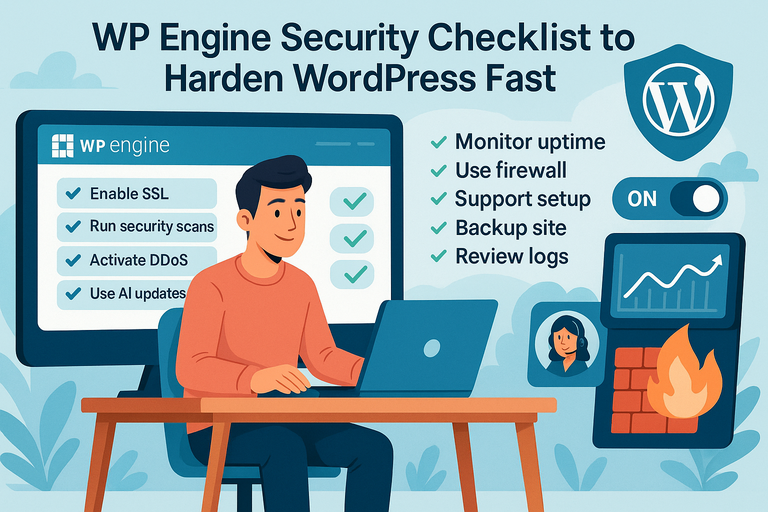 WPEngine Security Checklist to Harden WordPress Fast
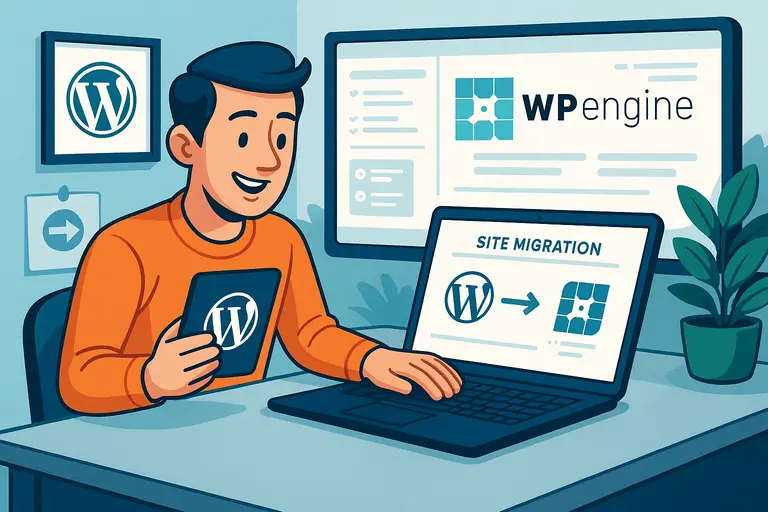 How WP Engine Site Migration Works for WordPress Users
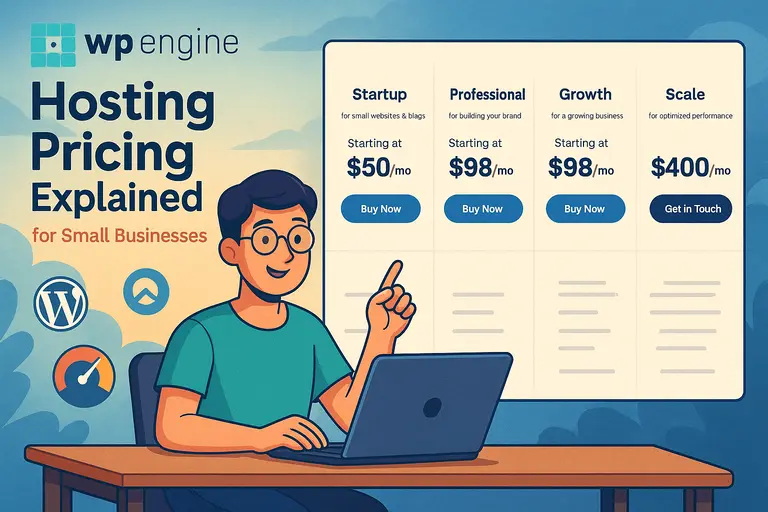 WPEngine Hosting Pricing Explained for Small Businesses