
Table of Contents
Some links on The Justifiable are affiliate links, meaning we may earn a small commission at no extra cost to you. Read full disclaimer.
If you want to learn how to use WP Rocket for scaling niche sites, the real goal is not just getting one WordPress site faster.
It is building a repeatable speed system you can roll out across multiple sites without creating a maintenance mess. That is where WP Rocket can help.
It handles page caching, preload, file optimization, media lazy loading, and CDN integrations in one performance workflow, which matters a lot when you are managing a growing portfolio instead of a single hobby blog.
Understand What “Scaling Niche Sites” Actually Demands
Scaling niche sites is not just about publishing more articles.
It means keeping performance stable while you add themes, plugins, ads, affiliate widgets, tracking scripts, images, templates, and more pages.
What WP Rocket Is Really Solving At Scale
When people first install WP Rocket, they usually think of it as “a caching plugin.” That is true, but it is too small a definition for what you are trying to do with a portfolio of niche sites.
WP Rocket creates cached static HTML pages, automates preload behavior, offers CSS and JavaScript optimization, supports media lazy loading, and can work with a CDN setup. In practice, that means fewer moving parts than stacking several separate optimization plugins on every site.
For scaling, that matters more than most people realize. Every extra plugin you install across 10, 20, or 50 niche sites adds support overhead. More settings means more room for inconsistent configurations. More overlap means more troubleshooting when one plugin conflicts with another.
I believe that is the real value of WP Rocket for portfolio builders. It is less about chasing a perfect PageSpeed score and more about reducing operational chaos.
Imagine you run eight niche sites in different verticals: pets, home office, camping, coffee, skincare, gardening, local travel, and software reviews. If each site has a different performance stack, every update becomes a gamble.
If they share one core optimization framework, you can diagnose faster, train writers or assistants faster, and spot issues before rankings or RPMs take a hit.
Why Site Speed Matters More Once You Add Revenue Layers
A small niche site with twenty articles and no monetization often feels fast enough. Then you scale. You add ad scripts, affiliate comparison tables, analytics tools, email popups, social embeds, related posts modules, and maybe a page builder. That is usually where the site slows down.
Google’s Core Web Vitals still focus on loading performance, interactivity, and visual stability, with LCP, INP, and CLS as the key metrics. Google explicitly says site owners should achieve good Core Web Vitals for success in Search and for better user experience overall.
The “good” thresholds commonly referenced are LCP within 2.5 seconds, INP within 200 milliseconds, and CLS within 0.1.
That becomes especially important on niche sites because monetization layers often hurt the exact metrics Google and users care about most. Ads and widgets can increase CLS. Heavy JavaScript can hurt INP. Large hero images and bloated CSS can hurt LCP.
From what I have seen, the sites that scale cleanly are usually not the ones with the fanciest design. They are the ones with disciplined performance habits. WP Rocket gives you a system for that, but only if you use it strategically rather than just clicking every checkbox.
Set Up WP Rocket The Right Way Before You Touch Advanced Features
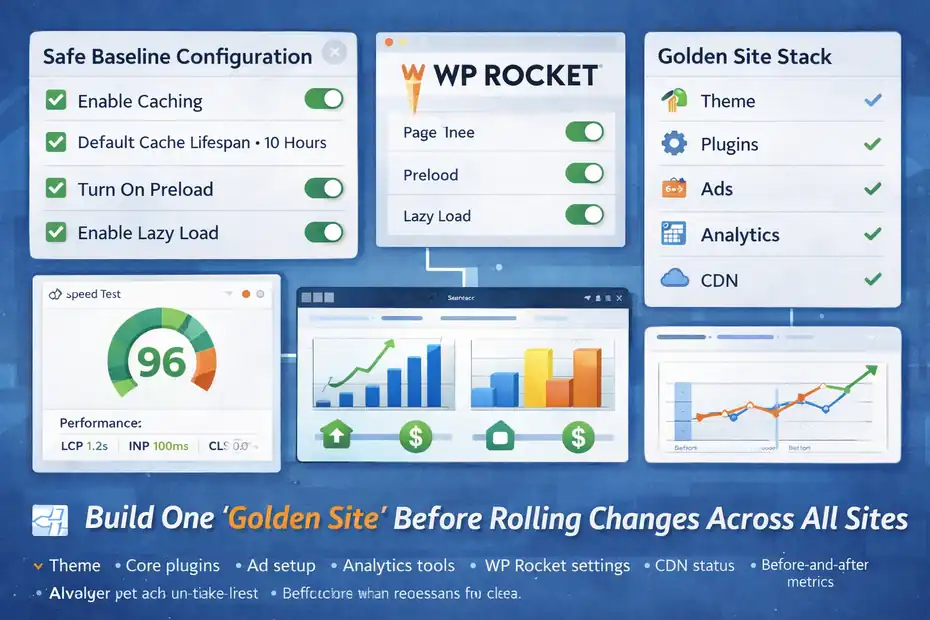
Before you start optimizing aggressively, you need a clean baseline. This is where many niche site owners make avoidable mistakes.
Start With A Safe Baseline Configuration
WP Rocket applies page caching automatically and is designed to improve speed with minimal setup right after activation. That is useful, but when you are scaling niche sites, I recommend treating the first setup as a template-building exercise, not a one-off tweak.
Your baseline goal is simple: make the site faster without risking breakage.
Start with these priorities:
- Enable Caching: This is your foundation because WP Rocket generates static cached versions of pages for faster delivery.
- Keep Default Cache Lifespan Initially: WP Rocket’s default cache lifespan is 10 hours, and that default exists partly to avoid issues with WordPress nonces on cached pages.
- Turn On Preload: WP Rocket’s preload can regenerate optimizations and cache files proactively, which is very useful for sites where fresh content matters.
- Delay Media Loading Carefully: Lazy loading can reduce initial page weight, especially for image-heavy affiliate and informational content.
At this stage, do not immediately combine every CSS and JavaScript option with aggressive exclusions. I suggest getting one stable, documented baseline first. Then you can layer optimization.
A good internal rule is this: if you cannot explain why a setting is on, do not turn it on yet.
Build One “Golden Site” Before Rolling Changes Across All Sites
This is the shortcut I recommend most. Pick one representative niche site and treat it as your staging model. Do not start with your highest-earning property. Start with a site that is big enough to be realistic but safe enough to experiment on.
Your golden site should include the stuff that usually causes performance strain: featured images, display ads, affiliate tables, email forms, maybe a video embed or two, and a few category pages. That gives you a meaningful testing environment.
Then document your stack:
- Theme
- Core plugins
- Ad setup
- Analytics tools
- WP Rocket settings
- CDN status
- Before-and-after metrics
This sounds boring, but it saves a huge amount of time later. Once you know which WP Rocket settings work on a realistic site, you can copy that model across the portfolio with minor adjustments instead of reinventing your setup every time.
For many of us, scaling problems are really standardization problems in disguise.
Use Caching And Preload As Your Core Speed Layer
After the baseline setup, caching and preload become your main infrastructure. This is the part that should feel boring, stable, and repeatable.
Why Page Caching Is The First Lever That Actually Scales
WP Rocket’s main caching behavior is simple: it serves cached static HTML instead of forcing WordPress and PHP to build the page from scratch for every visitor. That reduces processing overhead and usually improves response time, especially on content-heavy sites with shared hosting or modest cloud setups.
For a single blog, that is helpful. For a portfolio of niche sites, it is essential.
Here is the practical reason. When traffic grows across multiple sites, you do not just get more pageviews. You also get more simultaneous background strain from bots, crawlers, internal link crawls, plugin tasks, and content updates. A cached site absorbs that load far better than a dynamic one.
I have seen site owners obsess over image compression while ignoring server-level stress caused by uncached page generation. That is backwards. Caching should come first because it creates the breathing room needed for everything else.
A realistic scenario: Say one of your informational articles suddenly starts ranking and picks up 15,000 sessions a month. Without proper caching, your server load rises with every fresh render. With caching in place, the spike is far easier to handle. That does not eliminate all speed issues, but it gives you a stable foundation.
For scaling niche sites, that kind of resilience matters more than a tiny Lighthouse score gain.
Use Preload To Avoid “Fast After The First Visitor” Problems
A lot of site owners forget that cache only helps once it exists. WP Rocket’s preload feature helps solve that by proactively generating cache and also triggering related optimizations in several cases.
WP Rocket’s documentation specifically notes preload remains useful even when page caching is disabled because it can still trigger other optimizations such as minifying CSS, Remove Unused CSS, and Delay JavaScript Execution.
That matters because a common portfolio problem is uneven freshness. You publish new content, update a money page, or refresh comparison tables, and then the first real visitor after the update experiences the “cold” version while the cache rebuilds.
Preload reduces that issue.
I suggest thinking of preload as an insurance policy for traffic bursts and publishing consistency. On niche sites, especially those built around SEO, you often update content in batches. Maybe you refresh twenty buyer guides in one week.
Preload helps those pages become optimized faster after updates rather than waiting for organic visitors to warm the cache.
One caution, though: Preload is useful, but it is not magic. On weak hosting, very aggressive preload across a large site can add server work. That is why your hosting environment still matters. WP Rocket can reduce waste, but it cannot fully compensate for a hosting setup that is already struggling.
Optimize CSS And JavaScript Without Breaking Revenue Pages
This is the section where people either get their best gains or create their worst headaches.
Use Remove Unused CSS Strategically, Not Emotionally
WP Rocket’s Remove Unused CSS feature keeps the CSS needed for a page while removing styles not used on that page. It is enabled under File Optimization and is specifically designed to improve CSS delivery. WP Rocket also recommends pairing it with preload because the two features support each other.
For niche sites, this can be a big win because many themes and plugins load bloated stylesheets across the entire site, even when only a fraction of that CSS is needed on a given page.
This is especially useful if your sites use:
- Multipurpose themes
- Page builders
- Table plugins
- Form plugins
- WooCommerce components on non-store pages
- Design-heavy review templates
But here is the honest part: CSS optimization is where visual regressions can appear. Buttons lose styling. tabs break. hidden sections show up incorrectly. comparison modules shift.
That is why I recommend a page-type testing method instead of random spot checks. Test:
- Homepage
- Single post
- Category archive
- Affiliate roundup page
- Comparison page
- Contact or lead form page
In my experience, this catches most CSS problems early. If Remove Unused CSS works cleanly across those page types, you probably have a setup you can trust.
Delay JavaScript Execution To Protect INP And Perceived Speed
WP Rocket describes Delay JavaScript Execution as its most powerful JavaScript optimization because it delays script execution to prioritize rendering. It also documents exclusions and troubleshooting steps because some scripts should not be delayed in every setup.
That fits niche sites perfectly because many of them become slow not from WordPress itself, but from everything layered on top of it. Think ad networks, analytics, A/B testing tags, social sharing scripts, chat widgets, comparison table enhancements, cookie tools, and affiliate link event tracking.
Delaying JavaScript can improve the feeling of speed because the browser can render useful content before all those background scripts fire. It can also help with audits related to unused or heavy JavaScript. WP Rocket’s own documentation links delayed execution and deferred loading to reducing JavaScript execution burdens.
Still, this is not a “turn it on and walk away” feature.
Use a testing flow like this:
- Enable Delay JavaScript Execution.
- Check navigation menus, mobile menus, search, forms, tables, and ad placements.
- Look for console or interaction issues.
- Add exclusions only when something important breaks.
That last part is important. Many site owners over-exclude scripts too quickly and erase most of the performance gain. WP Rocket even warns that excluding too many scripts may reduce the effectiveness of the feature.
Control Media Weight So More Content Does Not Mean Slower Pages

As niche sites grow, media usually becomes the silent performance killer. Not because one image is huge, but because hundreds of posts each carry a little extra weight.
Lazy Load Images, Iframes, And Videos With Intent
WP Rocket supports lazy loading for images, iframes, videos, and background images in different contexts, and its documentation explains that iframe and video lazy loading delays those assets until users reach the section where they are actually needed.
That is especially useful on mobile and slower connections.
This is a major benefit for niche sites that rely on:
- YouTube embeds in tutorials
- Pinterest or social embeds
- Long-form posts with many images
- Affiliate content with product graphics
- Ad-heavy layouts below the fold
The reason it helps scaling is simple. You are not just optimizing one page. You are reducing the average initial payload across hundreds or thousands of URLs.
But lazy loading should be selective around above-the-fold content. If your hero image is the main LCP element, blindly lazy loading it can work against your performance goals. WP Rocket provides ways to exclude specific images and iframes from lazy loading when necessary.
I suggest treating the first visible image as special. If it is central to the page experience, review whether it should load immediately.
Think In Templates, Not Individual Images
When people optimize niche sites manually, they often think page by page. That does not scale. The better mindset is template by template.
Ask yourself:
- What does a standard blog post template load?
- What does a review page load?
- What does a comparison page load?
- What does a category page load?
Once you know that, you can optimize the media behavior at the template level instead of reacting to isolated posts.
For example, a regular informational post may tolerate aggressive lazy loading everywhere below the intro. But a product roundup page may need more careful exclusions because top comparison visuals or trust badges influence conversions.
That is where many people lose the balance. They optimize purely for test scores and forget the page still has a job to do. A page that loads faster but converts worse is not really optimized.
Configure Cache Lifespan, Exclusions, And Rules For Portfolio Stability
This is the operations layer. It is not glamorous, but it is what keeps a portfolio from becoming fragile.
Set Cache Lifespan Around Content Freshness And Nonce Safety
WP Rocket’s default cache lifespan is 10 hours, and its documentation explains that this default helps avoid issues with WordPress nonces. It also notes that nonces on cached pages may require a cache lifespan below 12 hours, with 10 hours as a starting point.
For niche sites, this usually means the default is sensible unless you have a very specific reason to change it.
Here is the practical framework I use:
- Mostly static informational sites: keep the default unless testing shows a clear reason to change it.
- Sites with frequent updates: consider whether a shorter lifespan better reflects how often you refresh important pages.
- Sites with dynamic elements, forms, memberships, or custom interactions: test more carefully before extending lifespan.
I would not chase long cache durations just because it sounds “more optimized.” Stability matters more than theoretical efficiency.
Also remember that WP Rocket clears related cache when you publish or update content, and older files are removed according to the configured lifespan through scheduled checks.
That means you are not manually managing every cache refresh. The real job is setting a sensible policy that matches how the site behaves.
Use Advanced Rules To Protect Sensitive Or Dynamic Pages
Not every page on a niche site should be treated the same way. Portfolio owners often forget this once they get excited about automation.
Certain URLs may need different handling, such as:
- Checkout or cart pages
- Login pages
- Lead form sequences
- Search result pages
- Dynamic comparison tools
- Personalized member content
WP Rocket includes advanced rules for exclusions, query strings, cookies, and purge behaviors. Even if your niche site is mostly content-focused, these rules become important once the site adds more interactive or monetized experiences.
A simple example: Maybe you run a lead-gen site in a local niche. Your blog content should be aggressively cached, but your quote request funnel may need more careful exclusions if form states or dynamic scripts behave oddly.
That is why I advise segmenting pages into two buckets: revenue-critical and content-standard. Optimize both, but give the first bucket more testing and more conservative rules.
Pair WP Rocket With A CDN Only When Geography Or Scale Justifies It
A CDN can be helpful, but not every niche site needs one immediately.
When A CDN Actually Makes Sense For Niche Sites
WP Rocket supports pull CDNs through its CDN configuration and also offers RocketCDN as an optional paid service. Its documentation explains that a CDN helps improve load times for visitors far from your origin server by distributing static assets closer to them.
That is the key question: where is your traffic coming from?
If most of your niche site traffic is concentrated in one country and your hosting is close to that audience, a CDN may deliver modest gains. If your traffic is global, or if you run multiple sites serving readers across regions, the benefit is easier to justify.
I would look at geography before adding complexity. Many site owners install a CDN because it sounds advanced, not because their audience truly needs it.
Here is a simple table to think through it:
| Scenario | CDN Priority | Why |
|---|---|---|
| Single-country informational niche site | Medium | Helpful, but not always urgent |
| Global affiliate site | High | Visitors are likely far from origin server |
| Portfolio with mixed geographies | High | Standardizes asset delivery across markets |
| Tiny early-stage site with low traffic | Low | Focus on caching, media, and script control first |
The real scaling advantage of a CDN is not just raw speed. It is consistency. A portfolio with international traffic becomes easier to stabilize when static assets are distributed closer to users.
Do Not Use CDN Setup As A Substitute For Fixing Heavy Pages
This is worth saying clearly. A CDN is not a cure for bloated pages.
If your niche site is slow because of too many third-party scripts, oversized images, ad bloat, layout shifts, or badly optimized CSS and JavaScript, a CDN will not solve the root problem. It may reduce transfer distance, but it will not make a messy page architecture clean.
I recommend adding a CDN only after your on-page optimization is already disciplined. Otherwise you risk paying for distribution while still carrying unnecessary weight everywhere.
Build A Repeatable Testing Workflow For Every New Site You Launch
At scale, speed wins do not come from clever tricks. They come from repeatable QA.
Use A Standard Rollout Checklist For New Sites
Once you have a working WP Rocket setup, create a checklist and reuse it for every site launch or redesign.
A simple version could look like this:
- Install WP Rocket.
- Confirm caching is active.
- Enable preload.
- Configure media lazy loading.
- Test Remove Unused CSS.
- Test Delay JavaScript Execution.
- Review mobile menu, forms, ads, and comparison tables.
- Set or confirm cache lifespan.
- Add exclusions where needed.
- Check live metrics after launch.
This kind of checklist sounds basic, but it prevents the classic scaling mistake: assuming one fast site means every similar site will behave the same way.
Even small differences in theme components, ad placement logic, or plugin scripts can change outcomes. A repeatable test flow catches those differences early.
WP Rocket also provides documentation on verifying caching and optimization behavior, which is useful when confirming that your settings are actually active rather than just enabled in the dashboard.
Measure Performance Based On Business Pages, Not Just Random URLs
One mistake I see often is testing whatever page happens to be open. That gives noisy data.
For niche sites, I suggest building a fixed measurement set:
- Homepage
- Top informational post
- Top affiliate post
- Highest-traffic category page
- Lead-gen page
- One ad-heavy article
- One mobile-first test page
Then compare before and after changes against that same group.
This matters because optimization should support business outcomes, not just technical neatness. Your highest-earning pages deserve the deepest scrutiny. If an ad-heavy affiliate page gets faster but loses a table interaction or call-to-action behavior, that is not a success.
In most cases, the right setup is the one that improves speed while preserving function and conversions, even if it is not the most aggressive possible configuration.
Troubleshoot The Problems That Usually Appear On Scaled Niche Portfolios
As you grow, the same performance problems show up again and again. That is good news because it means you can prepare for them.
Common Breakpoints After Enabling Aggressive Optimization
The two biggest trouble areas in WP Rocket setups are usually delayed JavaScript and aggressive CSS delivery changes. WP Rocket’s documentation includes advanced troubleshooting for Delay JavaScript Execution because interaction issues can happen depending on the scripts involved.
Watch for these breakpoints:
- Mobile menu stops opening
- Accordion or tab sections fail
- Affiliate table sorting breaks
- Form validation fails
- Video embeds do not load correctly
- Ad scripts render late or oddly
- Layout shifts increase after CSS changes
When this happens, do not panic and disable everything. Work backward. Change one setting at a time, retest, and isolate the offender.
I recommend keeping a small troubleshooting log with three columns: setting changed, issue created, fix applied. When you manage many sites, these notes become a private knowledge base. The second or third time you hit the same problem, you will solve it much faster.
Know When The Bottleneck Is Not WP Rocket
This is where experience saves time. Sometimes WP Rocket gets blamed for issues it did not create.
If your site is still slow after a sensible WP Rocket setup, the real bottleneck might be:
- Weak hosting
- Heavy ad density
- Bloated theme architecture
- Overbuilt page builders
- Massive DOM size
- Third-party tag overload
- Poor database hygiene
- Unoptimized image generation workflow
WP Rocket can improve delivery, caching, and render path issues, but it cannot rewrite a bad theme or remove expensive scripts you still choose to load. That is why I see it as a multiplier, not a miracle.
Used well, it makes a good site architecture perform better. Used on a messy stack, it can still help, but only up to a point.
Use WP Rocket As A System, Not A Plugin, When You Scale Past A Few Sites
This is the shift that separates “I installed a speed plugin” from “I built a portfolio that stays fast.”
Turn Your Best Configuration Into An Operating Procedure
Once you find a stable WP Rocket setup, stop thinking of it as dashboard tinkering. Turn it into documentation.
Create a small internal SOP covering:
- Default settings to enable
- Settings to test before rollout
- Known exclusions by theme or plugin type
- Pages that always need manual QA
- CDN decision rules
- Cache lifespan policy
- What to do after theme or plugin updates
That lets you delegate. It also protects you from yourself six months later when you forget why a certain exclusion was added.
For scaling niche sites, this is where the real leverage appears. The best portfolio operators do not optimize one site brilliantly. They make acceptable, stable performance repeatable across all their sites.
The Long-Term Play Is Operational Simplicity
WP Rocket’s biggest advantage for niche site scaling is not just that it can improve performance. It is that it can consolidate several speed-focused tasks into one managed workflow: caching, preload, CSS and JavaScript optimization, lazy loading, and CDN support.
That means fewer plugins, fewer overlapping settings, and fewer random surprises across your portfolio.
If I were building or rebuilding a niche site stack today, I would focus on three outcomes:
- Stable Core Web Vitals on important templates
- A repeatable WP Rocket configuration
- Minimal plugin overlap
That is the path that usually scales best.
You do not need every niche site to be perfect. You need them to stay fast enough, stable enough, and easy enough to manage that growth does not create technical drag.
And that, in my experience, is the real answer to how to use WP Rocket for scaling niche sites without slowing down.
FAQ
What is WP Rocket and how does it help scale niche sites?
WP Rocket is a WordPress performance plugin that improves site speed through caching, file optimization, and lazy loading. When scaling niche sites, it reduces server load and improves page speed consistency, helping multiple sites handle more traffic without slowing down or breaking under pressure.
How do I set up WP Rocket for multiple niche sites efficiently?
Start by creating a baseline configuration on one site, including caching, preload, and media optimization. Once tested, replicate the same setup across all sites. This ensures consistency, reduces troubleshooting time, and allows you to manage performance more efficiently at scale.
Does WP Rocket improve Core Web Vitals for niche sites?
Yes, WP Rocket can help improve Core Web Vitals by optimizing loading speed, reducing render-blocking resources, and delaying JavaScript. These improvements can positively impact metrics like LCP, INP, and CLS, which are important for both user experience and search rankings.
Should I use all WP Rocket features on every niche site?
Not necessarily. While many features are helpful, using all of them without testing can cause issues. It is better to enable features gradually, test performance and functionality, and adjust settings based on your site’s design, plugins, and monetization setup.
Can WP Rocket handle high traffic across multiple niche sites?
WP Rocket helps manage high traffic by serving cached pages instead of loading content dynamically. This reduces server strain and improves load times during traffic spikes. However, it should be combined with reliable hosting for the best performance results.

I’m Juxhin, the voice behind The Justifiable.
I’ve spent 6+ years building blogs, managing affiliate campaigns, and testing the messy world of online business. Here, I cut the fluff and share the strategies that actually move the needle — so you can build income that’s sustainable, not speculative.
Related posts:
 WP Engine WordPress Review: Pros, Cons, Real Benchmarks
 How Cloudways Hosting Boosts Site Speed by 300%
 LiteSpeed Cache Review For WordPress: Is It The Fastest Plugin?
 Is WP Rocket Worth It For Bloggers Or Just Another Plugin?
 Does WP Rocket Improve SEO Rankings For Blogs Or Just Speed?
 WP Rocket Review For Bloggers Making Money Online: Worth It Or Hype?