
Table of Contents
Some links on The Justifiable are affiliate links, meaning we may earn a small commission at no extra cost to you. Read full disclaimer.
If you’ve ever experienced your WordPress site slowing down during traffic spikes, you’ve probably wondered whether it’s time to upgrade your hosting.
That’s where the WPengine dedicated server comes in. It’s designed for businesses and creators who need consistent speed, security, and scalability—no matter how much traffic hits their site.
But what exactly makes WPengine’s dedicated servers different from other hosting plans, and how do you know if it’s the right move for your site?
Let’s break it down in this detailed guide.
Understanding WPengine Dedicated Server Hosting
If you’re running a high-traffic WordPress site, understanding how a WPengine dedicated server works is crucial. This type of hosting gives your site its own private environment, ensuring faster performance, stronger security, and complete control over resources.
Let’s go step by step through what sets it apart and why it might be the smartest move for your business.
What Makes WPengine’s Dedicated Servers Different
WPengine’s dedicated servers aren’t just “bigger” shared plans—they’re fully isolated environments built for demanding WordPress setups.
You don’t share CPU, RAM, or bandwidth with anyone else. That means no performance dips when another site on the same network gets a sudden spike in visitors.
What really differentiates WPengine’s dedicated setup is its managed approach. You get enterprise-level power, but WPengine handles updates, security patches, and server tuning for you. I like to think of it as a high-performance car that comes with its own pit crew.
Here’s what stands out:
- Full Resource Isolation: Your site uses 100% of the server’s memory and processing power.
- Custom Configuration: WPengine tailors caching, PHP workers, and server rules to your site’s structure.
- Expert Support: Access to WordPress-trained engineers 24/7 who specialize in dedicated environments.
It’s perfect for businesses that don’t want to manage servers but still need raw performance.
Key Benefits of Using a Dedicated Server for WordPress
When you move to a WPengine dedicated server, you immediately feel the difference in how your site responds. The benefits aren’t theoretical—they’re measurable.
Some standout advantages include:
- Consistent Speed: No shared load means faster page loads, especially during peak traffic.
- Enhanced Uptime: Dedicated environments minimize downtime from neighboring sites.
- Scalability: You can easily add resources or upgrade configurations as traffic grows.
- Compliance and Control: Dedicated servers allow stricter security settings, ideal for eCommerce or membership sites.
From my experience, clients with global audiences or active content-driven businesses see massive gains in both reliability and SEO performance once they switch.
How WPengine Balances Performance, Security, and Support
WPengine’s biggest strength is that it blends three key pillars—performance, security, and managed support—into a single hosting experience.
- Performance: Through EverCache (their proprietary caching system) and built-in CDN integration, pages load in milliseconds.
- Security: The dedicated firewall, automatic daily backups, and real-time threat detection keep sites safe from malware or bot attacks.
- Support: WPengine’s team proactively monitors servers and helps optimize queries, caching layers, and even theme configurations.
What I appreciate most is how these elements work together. You don’t need to trade speed for safety, or control for convenience—it’s all balanced.
When Shared or VPS Hosting No Longer Works
You’ll know it’s time to move to a dedicated environment when your site’s growth outpaces your current hosting.
Here are some red flags:
- Your pages load slowly even after plugin and cache optimizations.
- You experience frequent downtime during sales, campaigns, or product launches.
- Analytics show thousands of concurrent users at peak hours.
- You need advanced staging or multi-site management features.
A shared or VPS plan can’t guarantee consistent performance once you cross a certain threshold—especially if you’re running heavy plugins, complex eCommerce setups, or custom databases. That’s when WPengine’s dedicated solution becomes a necessity, not a luxury.
Why High-Traffic WordPress Sites Need Dedicated Resources
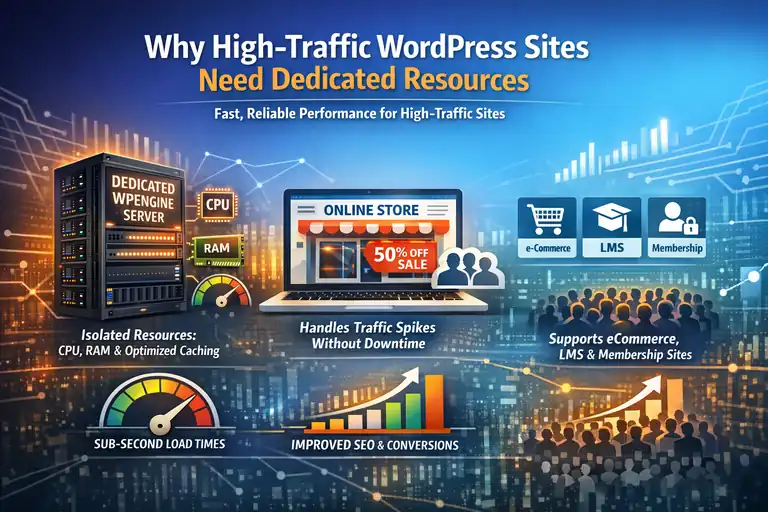
Once your site reaches a certain scale, hosting isn’t just about “keeping it online”—it’s about optimizing every second of user experience.
Dedicated resources ensure your visitors always get a fast, reliable connection, even when thousands hit your pages simultaneously.
The Impact of Server Isolation on Website Speed
Server isolation is the cornerstone of performance. When your WordPress site runs on a dedicated WPengine server, its resources aren’t divided among other users.
- No Resource Contention: CPU and RAM are fully reserved for your site.
- Faster PHP Execution: Your WordPress scripts process faster since they aren’t queued behind others.
- Optimized Caching: Each site’s cache is custom-tuned for its traffic patterns.
The result? Sub-second load times and better Core Web Vitals scores, which directly influence SEO rankings and conversions.
Handling Traffic Surges Without Downtime or Throttling
If you’ve ever had a site crash during a viral post or sale event, you know how costly downtime can be. Dedicated WPengine servers handle sudden spikes gracefully.
WPengine’s infrastructure automatically allocates additional processing power when needed. There’s no “throttling” or forced slowdown—your visitors experience smooth performance even under pressure.
A good example: A fashion eCommerce brand I worked with went from 1,000 to 50,000 concurrent users during a Black Friday sale. On shared hosting, that would’ve been chaos. On WPengine’s dedicated plan, the site stayed stable and fast the entire time.
How Dedicated Servers Support Complex WordPress Sites
High-traffic sites often rely on dynamic content—personalized feeds, membership logins, or heavy plugins like WooCommerce or LearnDash. These tasks demand consistent server power.
Dedicated WPengine environments can be fine-tuned for:
- WooCommerce stores processing thousands of transactions.
- LMS platforms streaming course content to large audiences.
- Membership communities with user dashboards and private areas.
The architecture allows database queries, AJAX calls, and API requests to process faster, ensuring your complex setup doesn’t slow down your front end.
Real-World Scenarios Where Dedicated Hosting Becomes Essential
Dedicated hosting isn’t just for “big companies.” It’s for anyone who:
- Runs a high-traffic content site, news portal, or online magazine.
- Operates a subscription or eCommerce business where uptime equals revenue.
- Manages multiple client sites under a single WPengine account.
- Needs guaranteed performance during predictable traffic peaks (like product launches).
From what I’ve seen, once traffic consistently crosses 100K monthly visitors—or when downtime costs more than the upgrade—a dedicated WPengine plan pays for itself.
WPengine Dedicated Server Features That Drive Performance
WPengine’s dedicated servers are loaded with advanced technologies that keep WordPress running at top speed.
The key is that most of this performance tuning happens automatically—you get enterprise-grade optimization without the manual setup.
Advanced Caching Systems and Global CDN Integration
Caching and CDNs (Content Delivery Networks) are your site’s best friends when it comes to speed. WPengine integrates both at the server level.
- EverCache: Automatically caches static and dynamic content intelligently.
- Global CDN: Delivers your site’s assets from the nearest location to each visitor.
- Cache Exclusion Rules: Lets you control which pages or content bypass cache (like cart pages or user dashboards).
You can manage these settings directly from the WPengine dashboard under Performance → Caching.
I’ve found tweaking cache rules here can cut load times by 40–60%.
Proprietary EverCache Technology Explained
EverCache is WPengine’s custom-built caching layer designed specifically for WordPress. Unlike plugin-based caching tools, EverCache operates at the server level.
Here’s how it works:
- Static resources (like CSS, JS, and images) are served instantly from cache.
- Dynamic pages are intelligently pre-cached and refreshed as needed.
- Requests are processed in parallel, minimizing server load.
The result is a seamless browsing experience—even for visitors hitting dynamic or personalized pages. In my experience, EverCache eliminates the need for third-party caching plugins altogether.
Built-In Performance Monitoring and Optimization Tools
WPengine includes tools like Page Performance and Application Performance Monitoring (APM) to help you track how your site performs in real-time.
- Page Performance: Offers insight into slow-loading pages and bottlenecks.
- APM: Identifies slow database queries, scripts, and plugins.
- Error Logs: Help developers pinpoint performance issues quickly.
You can access these in your WPengine dashboard under Monitoring → APM.
I recommend checking this weekly—it’s like a health checkup for your site’s performance.
PHP Versions, SSD Storage, and Server-Level Configurations
WPengine dedicated servers run on the latest PHP versions, optimized for WordPress execution. They also use SSD (Solid State Drive) storage, which drastically reduces data access times.
A few key configurations worth noting:
- Latest PHP 8.x: Improves query speed and memory efficiency.
- SSD-based storage: Ensures faster read/write operations than HDDs.
- Nginx + Apache Hybrid Stack: Balances flexibility and performance.
Together, these configurations create an environment that supports both raw power and fine-tuned stability.
Security Layers Included With WPengine Dedicated Hosting
When you host your site on a WPengine dedicated server, security isn’t an afterthought—it’s woven into every layer of the infrastructure.
WPengine handles the hard parts of server protection, so you can focus on running your business instead of worrying about threats or hacks.
How WPengine Protects Against DDoS and Malware Attacks
Security starts with protection against the most common web threats: DDoS (Distributed Denial of Service) and malware.
WPengine uses enterprise-grade systems that detect and block suspicious traffic before it even reaches your site.
Here’s how they do it:
- DDoS Mitigation: WPengine partners with leading network security providers to filter malicious requests in real time. This keeps your site online even during large-scale attacks.
- Automatic Malware Scanning: Their system scans every file uploaded to your server and immediately quarantines anything suspicious.
- Geo-Blocking and IP Filtering: You can block entire regions or IP ranges that frequently attempt attacks.
From my experience, the biggest relief is knowing that these defenses run automatically.
I’ve had clients who previously dealt with malware injections on cheaper hosts, and once they moved to WPengine, those problems stopped completely.
Managed Backups, Firewalls, and SSL Certificates
WPengine’s managed hosting doesn’t just stop at prevention—it adds powerful layers of protection that keep your data safe and recoverable.
Let’s break it down:
- Daily Backups: Your entire WordPress site (files, databases, configurations) is backed up daily and stored securely offsite. If anything breaks, you can restore your site in one click.
- Web Application Firewall (WAF): This firewall filters every incoming request, blocking malicious bots and bad actors before they access your site.
- Free SSL Certificates: Every WPengine plan includes Let’s Encrypt SSL certificates that automatically renew, encrypting data between your visitors and your server.
To view or manage these, you can log into your WPengine dashboard → Security → SSL Certificates.
I recommend enabling HTTPS site-wide, especially for eCommerce and membership sites—it builds trust and protects customer information.
Real-Time Threat Detection and Automatic Patching
One of WPengine’s biggest strengths is its proactive approach. Instead of waiting for a problem to occur, they monitor, detect, and fix issues instantly.
- Automatic Core Patching: WPengine updates your WordPress core files as soon as stable versions are released, ensuring you’re never vulnerable to known exploits.
- Real-Time Monitoring: Their systems continuously track file integrity, resource usage, and unauthorized changes.
- Custom Rule Updates: The firewall receives new rule sets daily based on emerging threat intelligence.
In practical terms, this means you don’t have to hire a security expert or constantly check for vulnerabilities.
I always suggest enabling email alerts in your WPengine dashboard under Notifications → Security Events—it keeps you in the loop if something unusual happens.
Why Dedicated Environments Reduce Security Risks
Dedicated hosting is naturally more secure because you’re not sharing resources with anyone else. Unlike shared or VPS environments, no other site can introduce vulnerabilities into your server.
Some added advantages include:
- Private Network Isolation: Your server runs in its own environment with isolated IP addresses and hardware.
- Custom Security Policies: You can enforce your own SSH keys, SFTP access rules, or two-factor authentication for developers.
- Compliance-Ready Infrastructure: This setup supports PCI, GDPR, and HIPAA compliance more easily than shared plans.
From what I’ve seen, agencies and online stores handling customer data benefit the most from this isolation—it’s like having your own digital fortress.
Scalability Options for Growing WordPress Websites
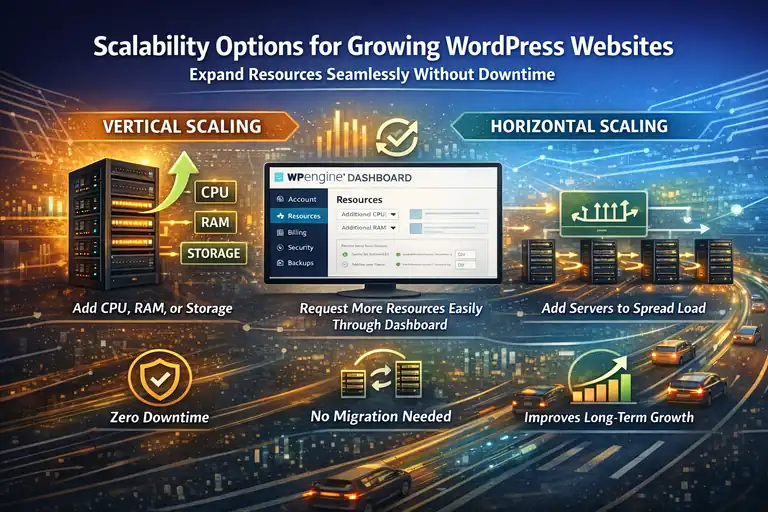
As your site traffic grows, scalability becomes just as important as speed and security.
WPengine’s dedicated servers are built to scale smoothly, allowing you to expand resources without downtime or migration headaches.
Vertical vs. Horizontal Scaling on WPengine
There are two main types of scaling: vertical and horizontal. WPengine supports both, depending on your site’s needs.
- Vertical Scaling: This means increasing your server’s power—adding more CPU, RAM, or storage. It’s like upgrading your car’s engine for more horsepower.
- Horizontal Scaling: This adds multiple servers to distribute traffic evenly. Think of it as opening new lanes on a highway so traffic flows faster.
If your site experiences steady growth, vertical scaling is often enough.
But if you’re running an enterprise site with heavy global traffic, WPengine can help implement horizontal scaling for multi-server setups. Their support team guides you through it—step by step.
Adding Resources Without Downtime or Migration
One of the best parts of WPengine’s dedicated environment is that scaling doesn’t interrupt your operations. You can request additional resources through the WPengine dashboard → Account Settings → Server Resources.
The process usually involves:
- Requesting an upgrade.
- WPengine provisioning additional resources on your existing infrastructure.
- Your site automatically adapting without needing manual reconfiguration.
This is ideal for businesses preparing for high-traffic events—like holiday sales or major product launches.
I’ve helped clients double their allocated resources a week before a big campaign, and their sites stayed smooth the entire time.
Load Balancing and Traffic Distribution Benefits
Load balancing ensures that no single server or process gets overwhelmed. WPengine uses built-in load balancers to evenly distribute traffic across your dedicated environment.
Here’s why it matters:
- Improved Reliability: If one process spikes, another handles the load.
- Consistent Speed: Visitors around the world get the same fast experience.
- Better Resource Management: Your server stays efficient, reducing downtime risks.
You can monitor this in the WPengine Analytics → Traffic dashboard. I suggest keeping an eye on concurrent sessions—if you see spikes during campaigns, load balancing might already be quietly saving your uptime.
Planning for Long-Term Growth With a Dedicated Setup
Scalability isn’t just about handling today’s traffic—it’s about building for tomorrow. WPengine lets you plan for growth through flexible infrastructure and transparent resource metrics.
Here’s how I recommend planning ahead:
- Review Monthly Reports: Check your Bandwidth and Storage Usage under WPengine Analytics.
- Project Seasonal Growth: Prepare upgrades before peak seasons.
- Coordinate With Support: WPengine’s dedicated engineers can forecast and recommend scaling paths based on your traffic trends.
In short, think of scaling like fitness training—steady, strategic growth prevents stress later. WPengine gives you the tools and the flexibility to grow safely.
Comparing WPengine Dedicated Server vs Other Hosting Types
Before investing in a dedicated server, it helps to understand how it stacks up against other common hosting types. Each has its place, but for high-traffic, business-critical sites, WPengine’s dedicated option delivers the most balanced performance.
Dedicated vs VPS vs Cloud Hosting for WordPress
Here’s a quick comparison to help you see the differences clearly:
| Hosting Type | Resource Control | Performance | Scalability | Ideal For |
| Shared Hosting | Shared with others | Unpredictable | Limited | Small blogs or startups |
| VPS Hosting | Partial isolation | Moderate | Somewhat flexible | Mid-size sites |
| Cloud Hosting | Virtualized servers | High | Very scalable | Tech-savvy teams |
| WPengine Dedicated | Full isolation | Exceptional | Easily scalable | High-traffic WordPress sites |
In simple terms, a dedicated WPengine environment gives you all the control and power of cloud hosting—without the maintenance headaches. It’s like renting your own data center, but fully managed.
Why Managed Hosting Simplifies Maintenance and Support
I often tell clients this: the best hosting isn’t just about hardware—it’s about who’s managing it.
WPengine’s managed hosting means they take care of:
- Automatic WordPress updates and plugin compatibility checks.
- Daily backups and easy one-click restores.
- 24/7 expert support from WordPress-trained technicians.
This saves hours every month and prevents expensive downtime. If you’re not a server admin (and most business owners aren’t), managed hosting removes the guesswork so you can focus on content, not code.
Cost-Benefit Analysis for High-Traffic Sites
Yes, WPengine’s dedicated plans are pricier than shared hosting—but the returns are tangible.
Let’s put it in perspective:
- Shared Hosting: $10–$30/month, but limited capacity and downtime risk.
- VPS: $50–$150/month, requires manual tuning and maintenance.
- WPengine Dedicated: $400–$1500/month (depending on configuration), but includes enterprise-level speed, security, and support.
For businesses generating thousands in monthly revenue, a few hundred dollars for guaranteed uptime and performance is a solid investment. I’ve seen eCommerce stores boost conversion rates by 20–30% after upgrading.
How WPengine’s Managed Services Justify the Investment
What makes WPengine worth the cost isn’t just raw performance—it’s peace of mind. You’re paying for a full management layer:
- Proactive performance optimization from their internal team.
- Automated site backups, staging environments, and SSL setup.
- Global CDN and caching built directly into your hosting plan.
- Security management and malware removal included.
From my perspective, it’s like having a 24/7 IT department for your WordPress site—without hiring anyone. For mission-critical websites, that kind of reliability isn’t optional; it’s essential.
Step-By-Step Setup Process for WPengine Dedicated Servers
Setting up a WPengine dedicated server might sound technical, but WPengine makes it surprisingly smooth. The platform handles most of the heavy lifting, leaving you to focus on what really matters—running your website.
I’ll walk you through each step of the setup process and share a few personal tips to make the transition effortless.
How to Choose the Right Dedicated Plan
Choosing the right plan starts with understanding your site’s actual resource demands. WPengine offers several dedicated configurations that differ in CPU, RAM, and storage capacity.
Here’s what I usually advise clients to check first:
- Monthly traffic volume: If your site receives over 100K visitors per month or has heavy concurrent users, a dedicated plan is ideal.
- Site complexity: eCommerce, LMS, and media-heavy sites need higher resource allocation.
- Expected growth: Always choose a plan that gives at least 25–30% headroom beyond your current usage.
You can explore these options inside your WPengine dashboard → Plans → Dedicated Hosting. Each plan clearly lists server specs. I suggest speaking with a WPengine solutions consultant—they’ll assess your site and recommend the most cost-effective setup.
Migrating Your WordPress Site Without Downtime
Migration can be stressful, but WPengine’s Automated Migration Plugin simplifies it. It transfers your entire WordPress installation—from themes to databases—without taking your live site offline.
Here’s the path I usually follow:
- Log into WPengine and create a new environment for your dedicated server.
- Install the WPengine Automated Migration plugin on your existing site.
- Enter your new WPengine SFTP and database credentials.
- Start the migration process and let the tool handle the rest.
Once completed, you can test the migrated version in WPengine’s staging environment before making it live.
I recommend verifying your permalink structure, SSL, and redirects before flipping DNS. It’s the safest way to ensure zero downtime.
Configuring Server Settings for Maximum Speed
After migration, fine-tuning your server settings makes a huge difference in performance. WPengine’s dedicated dashboard gives you control over PHP versions, caching, and CDN settings.
A quick setup checklist:
- Upgrade to the latest PHP version (currently PHP 8.x) for faster processing.
- Enable Global CDN under Performance → CDN Settings for global delivery.
- Activate EverCache for optimized caching of dynamic and static files.
- Adjust memory limits if your site uses heavy plugins like WooCommerce.
I recommend testing each adjustment using Google PageSpeed Insights or GTmetrix to confirm measurable improvements. Small tweaks here can shave seconds off load times.
Testing, Monitoring, and Going Live Smoothly
Before going live, run a few final tests to ensure everything works as expected. WPengine includes a dedicated Go Live Checklist in your dashboard that guides you step-by-step.
Here’s what I suggest verifying:
- All links, redirects, and SSL certificates function properly.
- Staging and production environments are properly separated.
- Site analytics and caching perform as expected under simulated traffic.
Once confirmed, update your DNS records to point your domain to the new dedicated environment. Within a few hours, your site will run entirely on WPengine’s infrastructure—faster, safer, and ready for scale.
Performance Optimization Tips for WPengine Dedicated Users
Even though WPengine’s dedicated environment is already optimized, a few small tweaks can push your site’s performance even further.
Think of these as the finishing touches that make your setup truly exceptional.
Fine-Tuning Caching and CDN for Faster Load Times
Caching is your site’s best speed booster. WPengine’s EverCache system automates most of it, but you can still customize it for better control.
Here’s what I often do for clients:
- Exclude dynamic pages like carts or login areas from cache.
- Set longer cache durations for static assets like images or scripts.
- Use WPengine’s built-in CDN (found under Performance → CDN) to serve files globally.
For example, one client running an online magazine saw their TTFB (time to first byte) drop by 35% after enabling CDN caching for images and JavaScript files.
Using WPengine Tools to Track Performance Metrics
WPengine provides built-in performance tools so you don’t need third-party monitoring plugins.
Two of the most useful are:
- Page Performance Tool: Analyzes your site’s front-end loading times and highlights bottlenecks.
- Application Performance Monitoring (APM): Tracks slow database queries and backend performance issues.
You can access both from your WPengine dashboard → Monitoring → Performance Tools. I advise checking these at least once a week to spot small slowdowns before they grow into major issues.
Plugin and Theme Optimization Strategies
Heavy or outdated plugins can slow down even the best servers. Here’s what I recommend for maintaining a lean and fast setup:
- Deactivate and remove plugins that duplicate functionality.
- Keep only one caching plugin (if you use any at all—EverCache usually replaces them).
- Use lightweight, well-coded themes optimized for WordPress 6.x and PHP 8.x.
- Test plugins in your staging environment before pushing them live.
I once helped a WooCommerce client drop their load time from 4.5s to 1.8s just by replacing two bloated page builders with one lightweight alternative.
How to Maintain Speed During Plugin or Content Updates
Content and plugin updates can temporarily affect performance if not managed correctly.
Here’s how to keep your site stable:
- Use the staging environment for testing all updates first.
- Schedule updates during low-traffic hours to minimize impact.
- Clear cache manually after major changes to ensure updates appear instantly.
- Monitor CPU usage post-update to catch any resource spikes early.
I suggest setting up automatic alerts in your WPengine dashboard for performance dips—this helps you catch issues in real time.
Troubleshooting Common WPengine Dedicated Server Issues
Even with a strong host like WPengine, small hiccups can happen. The good news? Most can be fixed quickly once you know where to look.
Diagnosing Resource Usage and Memory Limits
When your site feels sluggish, the first step is checking resource usage. In your WPengine dashboard, go to Analytics → Resource Usage.
Here’s what to look for:
- CPU or memory spikes during peak hours.
- Excessive database queries or cron jobs.
- Plugins consuming large amounts of resources.
If you spot consistent high usage, it might be time to upgrade your server specs or optimize your code. WPengine’s support team can analyze your logs and suggest improvements.
Fixing Slow Load Times After Migration
Sometimes, sites feel slower after migrating to a dedicated environment—usually due to caching resets or DNS propagation.
Here’s what you can do:
- Flush your DNS cache.
- Re-enable CDN and caching under Performance Settings.
- Optimize large images or videos that weren’t previously compressed.
- Run a speed test using GTmetrix to pinpoint problem areas.
If performance doesn’t improve, WPengine’s engineers can recheck your migration logs and fine-tune configurations at the server level.
Handling Plugin Conflicts on Dedicated Environments
Conflicts between plugins are among the most common issues I see. They often occur when two plugins perform similar functions or access the same database tables.
To resolve them:
- Deactivate all plugins and reactivate them one by one.
- Use WPengine’s staging site for troubleshooting.
- Contact plugin developers for compatibility updates.
WPengine’s support team can also help identify conflicting scripts via APM (Application Performance Monitoring). It’s faster than manual testing.
Contacting WPengine Support for Advanced Assistance
When all else fails, WPengine’s 24/7 dedicated support team is your best ally. You can reach them directly through your dashboard → Support → Chat or Ticket.
What I like most is that their engineers specialize in WordPress, not generic hosting. They’ll review your specific setup, analyze logs, and even provide actionable optimization tips. From my experience, most tickets are resolved within a few hours.
Expert Tips to Maximize ROI From a WPengine Dedicated Server
Once your site is stable and fast, it’s time to get the most value from your WPengine dedicated setup. With the right strategies, you can boost performance, improve uptime, and extend the life of your investment.
How to Combine Managed Hosting With a CDN Strategy
Even though WPengine includes a CDN, combining it with external solutions like Cloudflare or Akamai can give you extra speed and redundancy.
Here’s what I recommend:
- Use WPengine’s built-in CDN for static content.
- Layer Cloudflare for DNS-level caching and DDoS protection.
- Enable image optimization via Cloudflare Polish or WPengine’s Image Optimizer.
This dual-CDN approach can cut global latency by up to 40%, especially for international traffic.
Monitoring Server Health and Uptime Proactively
Prevention is always better than fixing. WPengine already tracks uptime, but I suggest adding an external monitor like UptimeRobot or Pingdom for redundancy.
Focus on these metrics:
- Uptime percentage (target 99.9% or higher).
- Average response time (keep it under 500ms).
- Error rates or timeouts during peak traffic.
By monitoring regularly, you can spot small issues—like sudden response delays—before they affect real users.
Leveraging WPengine’s Dev, Stage, and Prod Environments
WPengine’s tri-environment setup (Development, Staging, Production) is one of its most underrated features. It lets you test everything before making it live.
Here’s how I use it:
- Dev: Experiment with code changes or new plugins.
- Stage: Preview updates in a live-like environment.
- Prod: Push final changes safely.
I can’t stress this enough—always use staging before going live. It prevents downtime and ensures smooth user experience after every update.
When to Upgrade or Reconfigure Your Dedicated Setup
Your WPengine dedicated server is built to grow with you, but there comes a time when upgrading makes sense.
You should consider upgrading if:
- Your monthly traffic has doubled in the past six months.
- CPU usage frequently hits 80% or higher.
- Your business expands into new regions needing faster delivery.
WPengine’s team can run a performance audit and recommend an optimized setup—whether that’s more RAM, storage, or a multi-server configuration. It’s an easy way to future-proof your site.
FAQ
What is a WPengine dedicated server?
A WPengine dedicated server is a fully isolated hosting environment designed for high-traffic WordPress sites. It offers exclusive resources, faster speeds, and advanced security managed by WPengine’s expert team.
Who should use WPengine dedicated hosting?
WPengine dedicated hosting is ideal for businesses, eCommerce stores, or publishers that handle large traffic volumes and need guaranteed uptime, stability, and performance.
How does WPengine dedicated hosting improve site performance?
WPengine dedicated hosting boosts performance through resource isolation, EverCache technology, built-in CDN, and optimized server configurations tailored specifically for WordPress.

I’m Juxhin, the voice behind The Justifiable.
I’ve spent 6+ years building blogs, managing affiliate campaigns, and testing the messy world of online business. Here, I cut the fluff and share the strategies that actually move the needle — so you can build income that’s sustainable, not speculative.
Related posts:
 WPEngine Cost: Why It’s More Expensive Than Other Hosts
 WP Engine Competitors Compared: Features, Speed, Cost
 InMotion WordPress Hosting: Fast, Secure, Reliable
 HostGator Reviews: Why Some Users Are Disappointed
 HostGator Hosting Review: Speed, Support, And Real Costs
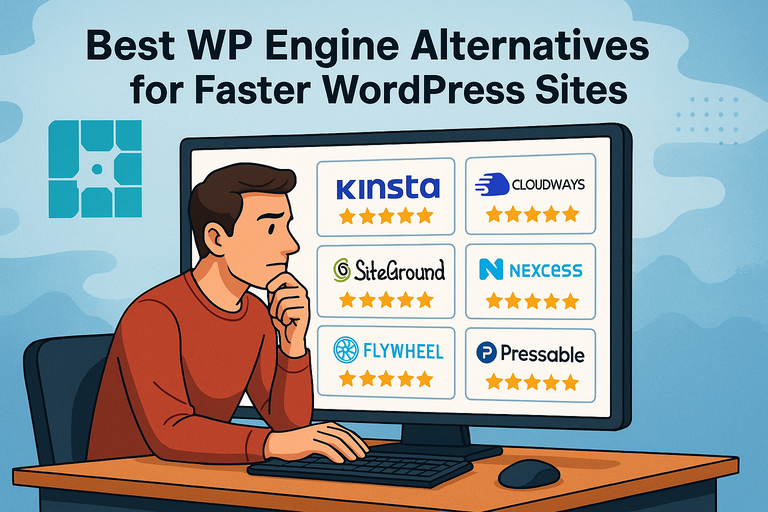 Best WPEngine Alternatives for Faster WordPress Sites