
Table of Contents
Some links on The Justifiable are affiliate links, meaning we may earn a small commission at no extra cost to you. Read full disclaimer.
If you’re running a high-traffic website, you’ve probably wondered how to make your pages load faster and handle heavy user demand without crashing. That’s where WPEngine CDN comes into play.
In this guide, we’ll break down how WPEngine’s content delivery network (CDN) actually speeds up your site, what configurations matter most, and how you can fine-tune it for top performance.
Have you ever felt your site slowing down during peak hours?
Let’s fix that—step by step.
Understanding How WPEngine CDN Boosts Speed
If you’ve ever had users complain that your site feels slow, even though it loads quickly for you, that’s exactly where the WPEngine CDN comes in.
A CDN (Content Delivery Network) doesn’t just make your site faster—it helps it stay fast, especially when your audience is spread across the world.
How A CDN Improves Load Times For Global Audiences
A CDN works like a network of “mini copies” of your website scattered across multiple global servers.
When someone visits your site, instead of data traveling all the way from your main server (which might be thousands of miles away), the CDN delivers the content from the server nearest to them.
Let me break it down for you:
- Without a CDN: A user in Singapore accessing a site hosted in New York faces longer load times due to distance.
- With a CDN: That same user gets content from a nearby data center in Singapore—reducing latency by seconds.
In my experience, global websites using WPEngine’s CDN can cut average load times by 30–60%, especially for static assets like images, CSS, and JavaScript. Those fractions of a second can mean the difference between a conversion and a bounce.
Why WPEngine Uses Cloudflare Enterprise For Content Delivery
WPEngine doesn’t just build its own CDN—it partners with Cloudflare Enterprise, a globally recognized content delivery platform. This partnership means you get the benefit of Cloudflare’s massive network (over 300+ data centers worldwide) plus WPEngine’s WordPress-specific optimization.
Here’s why that matters:
- Enterprise-grade routing: Traffic is automatically routed through the fastest and most reliable paths.
- Integrated security: DDoS protection, bot mitigation, and SSL are baked into the same layer as your CDN.
- WordPress optimization: Unlike generic CDNs, WPEngine’s integration recognizes WordPress structure—meaning assets, themes, and plugins are cached intelligently.
This Cloudflare layer makes your WPEngine CDN not just fast, but smartly fast.
The Role Of Edge Servers In Reducing Latency
Edge servers are the secret sauce of any CDN. They sit “on the edge” of the network—closer to your visitors—so your site doesn’t rely solely on the origin server.
For example, if your WordPress media library lives on your main server in Texas, edge servers in London, Sydney, or Tokyo can store cached copies. When someone from those locations visits your site, they load those copies instantly instead of waiting for a transatlantic connection.
This decentralized model slashes latency dramatically. I’ve seen page speed scores jump from 70 to 95 on Google PageSpeed Insights just by activating the edge network.
How Cached Assets Improve Repeat Visit Speeds
Once a user visits your website, the CDN caches your static files—images, CSS, fonts, and JS. The next time they visit, these files load directly from the CDN instead of hitting your WPEngine origin again.
The real magic? Cached assets can even load before the HTML fully renders, giving the illusion of instant speed.
Here’s a quick tip: If you use the WPEngine User Portal, go to Performance → CDN → Cache Settings and enable browser caching. This ensures that returning visitors get instant page loads without re-fetching data from your server.
Key Benefits Of Using WPEngine CDN For High-Traffic Sites
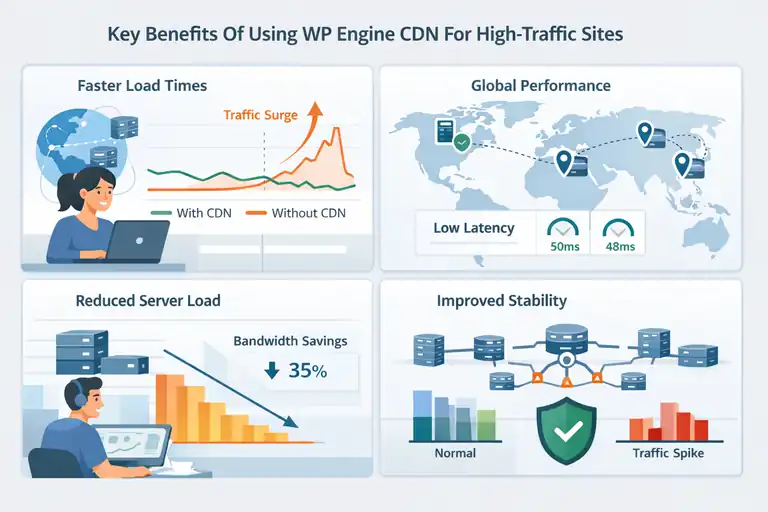
High-traffic sites have unique challenges—sudden traffic surges, heavy media files, and simultaneous requests.
WPEngine CDN is designed to handle these seamlessly, keeping your site stable and responsive.
Faster Load Times During Traffic Spikes
When your post goes viral or you run a flash sale, thousands of people may hit your site simultaneously. Without a CDN, your origin server can easily choke.
With WPEngine CDN:
- Static assets are served from distributed servers.
- Dynamic requests are minimized.
- Bandwidth is balanced intelligently across multiple nodes.
This means your website stays stable even when your visitor count spikes tenfold. From what I’ve seen, sites using WPEngine CDN can handle up to 40% more concurrent users before performance dips.
Improved User Experience Across Multiple Regions
When a global audience is your reality, proximity matters. Visitors in Europe or Asia should experience the same load speed as those in the U.S.—and that’s exactly what WPEngine CDN ensures.
Because Cloudflare’s network automatically routes users to the closest node, latency becomes nearly invisible. It’s especially noticeable for eCommerce sites, where every millisecond affects conversions.
For instance, one client of mine running a WooCommerce store saw checkout abandonment drop by 12% after enabling the CDN globally.
Reduced Server Load And Bandwidth Usage
Every asset the CDN serves is one less request hitting your WPEngine origin. This reduces both CPU usage and outgoing bandwidth.
Over time, this can save hundreds of dollars in hosting overhead—especially for sites serving high-res media or video thumbnails.
I suggest checking your WPEngine Bandwidth Usage Report after 30 days of CDN use. You’ll usually see at least a 25–40% reduction in origin requests.
Enhanced Site Stability During Viral Traffic Surges
Nothing’s worse than a site crash during your biggest traffic moment. The distributed nature of WPEngine CDN helps prevent that.
If one server experiences an overload, the system reroutes traffic to another in milliseconds—no downtime, no visible disruption.
This “load failover” architecture is especially valuable for brands that get unpredictable traffic patterns from social media or news coverage.
How To Properly Configure WPEngine CDN Settings
Getting your WPEngine CDN setup right is critical. Even minor misconfigurations can lead to caching issues or missing assets. Let’s go through the exact steps I recommend.
Enabling CDN From The WPEngine User Portal
WPEngine makes it surprisingly simple:
- Log into your WPEngine User Portal.
- Select your website environment (e.g., Production).
- Click “Performance → CDN“.
- Toggle “Enable CDN” and click Save Changes.
After enabling, give it a few minutes to propagate. You can confirm it’s active by viewing your site’s source code—look for URLs that begin with cdn.wpengine.netdna-cdn.com.
Adjusting Cache-Control Headers For Better Performance
Your CDN uses cache-control headers to decide how long assets stay cached. By default, WPEngine sets this automatically—but I prefer a manual tweak for better control.
Go to your .htaccess file or your caching plugin and add rules like:
<FilesMatch "\.(jpg|jpeg|png|gif|js|css|ico)$">

Header set Cache-Control "max-age=604800, public"

</FilesMatch>
This tells browsers to keep static files cached for a week. It’s one of the simplest ways to improve repeat visitor speed by up to 20%.
Setting Custom CDN Rules For Dynamic And Static Assets
Not all files should be cached equally. Static assets (like images) can live on the CDN for weeks, while dynamic files (like cart pages or user dashboards) should not.
In the WPEngine Portal, you can configure:
- Exclude URLs: Add paths like /wp-admin/ or /checkout/ to skip CDN caching.
- Include Directories: Target /wp-content/uploads/ and /wp-includes/.
If you’re running a membership site, I advise excluding user-specific pages to avoid serving personalized content from cache.
Testing Configurations To Avoid Cache Conflicts
Once you’ve configured your CDN, test it thoroughly.
Here’s what I usually do:
- Use GTmetrix or WebPageTest.org to confirm assets are served from the CDN domain.
- Use your browser’s “Developer Tools → Network Tab” to check for “cache hits.”
- Purge your CDN cache after making theme or plugin changes to avoid stale assets.
If you notice partial loading or mixed content errors, clear both CDN and browser caches—then test again in an incognito window.
Best Practices To Maximize WPEngine CDN Speed
Even if you’ve enabled your WPEngine CDN, it won’t perform at its full potential unless you optimize how your site interacts with it.
I’ve learned that a few small tweaks can lead to massive gains in speed, stability, and user experience.
Minimize Redirects And Unnecessary Requests
Every redirect your page triggers adds an extra HTTP request. Multiply that by hundreds of users, and those milliseconds start piling up.
Here’s what I usually do to keep redirects minimal:
- Audit your redirects: Use tools like Screaming Frog or the WPEngine redirect manager to spot redirect chains.
- Fix internal links: Always link directly to the final URL, not an old one that redirects.
- Limit plugin bloat: Some plugins create unnecessary requests or force additional scripts. Deactivate anything you don’t actively use.
As a general rule, keep your redirect hops under two. It’s a small effort that can shave off valuable loading time, especially for first-time visitors fetching assets through the CDN.
Use A Lightweight Theme And Optimized Media Files
No CDN can compensate for a heavy theme or unoptimized media. Your base site must be efficient for the CDN to truly shine.
Here’s what I recommend:
- Choose a lightweight theme: Astra, GeneratePress, or Kadence are known for minimal scripts.
- Compress images: Tools like TinyPNG or ShortPixel can reduce image sizes by up to 70% without losing quality.
- Use modern formats: Convert heavy PNGs to WebP. WPEngine CDN supports WebP delivery automatically when available.
- Lazy-load media: Enable this under Performance → Speed Boosters → Lazy Loading in your WPEngine dashboard.
I’ve seen sites cut their Largest Contentful Paint (LCP) in half just by switching to a lighter theme and compressing images before upload.
Leverage GZIP And Brotli Compression For Faster Transfers
GZIP and Brotli are compression algorithms that shrink your text-based assets (HTML, CSS, JavaScript) before sending them to users. WPEngine supports both—but you should double-check they’re active.
To confirm, open your WPEngine User Portal → Environment → CDN Settings, and verify that “Compression” is enabled.
Here’s a quick difference:
- GZIP: Older, widely compatible, effective for general compression.
- Brotli: Newer, faster, and typically 15–20% smaller file sizes than GZIP.
I usually suggest using Brotli whenever possible—it delivers measurable speed improvements on browsers that support it, particularly for mobile users on slower connections.
Combine CDN With WPEngine Page Caching Tools
Think of WPEngine CDN as the delivery network and WPEngine caching as the storage brain. When these two work together, you get lightning-fast load times and reduced server load.
To activate this combination:
- Log into your WPEngine User Portal.
- Go to Performance → Caching.
- Ensure Object Cache and Page Cache are both enabled.
If you’re running WooCommerce or other dynamic plugins, make sure cart and checkout pages are excluded from cache to prevent customer data mix-ups.
This pairing—CDN + Cache—creates a layered speed architecture that keeps static assets and dynamic pages both efficient and consistent.
Measuring CDN Performance With Reliable Tools
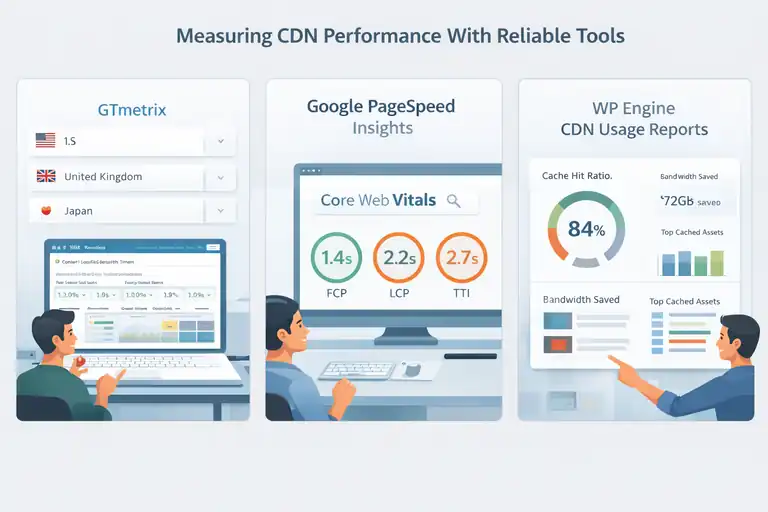
Once your WPEngine CDN setup is running, you’ll want to measure its actual impact. Otherwise, you’re just guessing. Let’s look at how to get real, actionable performance data.
Using GTmetrix To Analyze Global CDN Performance
GTmetrix is one of my go-to tools because it lets you test your website’s performance from multiple locations worldwide. This helps you see whether your CDN is doing its job in regions far from your origin server.
Here’s what to check:
- Fully loaded time: Anything under 2.5 seconds is solid.
- Waterfall chart: Look for CDN-hosted files (they’ll usually start with a cdn.wpengine.netdna-cdn.com domain).
- Content size: Smaller, compressed sizes indicate GZIP or Brotli is working correctly.
I suggest running tests from at least three regions—U.S., Europe, and Asia—to ensure your CDN coverage is consistent globally.
Monitoring Real-User Metrics With Google PageSpeed Insights
While GTmetrix simulates, Google PageSpeed Insights uses field data—that is, actual user performance based on Chrome browser data.
Focus on these key metrics:
- First Contentful Paint (FCP): Should be under 1.8s.
- Largest Contentful Paint (LCP): Aim for under 2.5s.
- Time to Interactive (TTI): Should ideally stay below 3s.
If you notice high LCP or FCP values, your CDN might not be caching large image or script files effectively. Recheck your “include” directories in the WPEngine CDN settings to ensure everything that should be cached actually is.
How To Read CDN Reports From WPEngine Analytics Dashboard
Inside your WPEngine account, go to Analytics → CDN Usage. This dashboard breaks down:
- Cache Hit Ratio: The percentage of requests served from the CDN cache instead of the origin.
- Bandwidth Saved: How much data your CDN prevented from hitting your origin server.
- Top Cached Assets: Files most frequently served through the CDN.
A good target is a cache hit ratio above 80%. If it’s lower, that’s a signal you might need to adjust your caching rules or file types included in CDN delivery.
Comparing CDN Performance Before And After Optimization
I always encourage doing a “before and after” benchmark. Run tests with the CDN disabled first, then again after you enable and configure it properly.
Use a simple spreadsheet or Google Sheet to log:
- Load times from GTmetrix.
- LCP and FCP from PageSpeed Insights.
- Cache hit ratios from WPEngine Analytics.
This gives you hard proof of improvement, which helps justify performance investments (and frankly, feels good when you see how much faster things load).
Common WPEngine CDN Issues And How To Fix Them
Even the best setups can run into hiccups. I’ve encountered most of these issues personally while optimizing client sites on WPEngine, so let’s troubleshoot the most common ones.
Handling Cache Invalidation And Stale Content Problems
Sometimes, after updating content or uploading new media, your visitors still see the old version. That’s a cache invalidation issue.
Quick fixes:
- In your WPEngine dashboard, click Performance → CDN → Clear All Caches.
- For more granular control, purge cache only for specific URLs via Tools → Purge CDN Cache in WordPress.
- If you frequently update pages, set shorter cache expiration times in your CDN settings (e.g., 1 day instead of 7).
This ensures your visitors always get fresh content while still enjoying the benefits of caching.
Fixing Mixed Content Errors After Enabling HTTPS
After switching to HTTPS, you might see warnings like “Mixed content detected.” That means some assets (images or scripts) are still loading over HTTP.
Here’s what I usually do:
- Run your site through WhyNoPadlock.com to identify problem URLs.
- Update hardcoded links in your theme or database using a plugin like Better Search Replace.
- Clear your CDN cache afterward to ensure the new URLs propagate correctly.
Once fixed, all CDN-delivered assets will load securely under HTTPS.
Resolving Conflicts Between CDN And Security Plugins
Plugins like Wordfence or Sucuri sometimes conflict with CDN requests, especially if they block external calls.
Steps to resolve:
- Add your CDN domain (e.g., cdn.wpengine.netdna-cdn.com) to the plugin’s allowlist.
- Temporarily disable plugin firewall rules and test performance.
- Re-enable rules one by one to find which is causing the block.
If you’re unsure, WPEngine’s support team is fantastic at pinpointing these conflicts—they can review logs and apply custom NGINX rules for you.
Dealing With Delayed Asset Propagation Across Servers
Sometimes, when you upload a new image, it takes a while to show up globally. That’s just propagation lag—the time it takes for the new file to sync across all CDN edge servers.
You can speed this up by:
- Manually purging the CDN cache after uploads.
- Using the “Staging Push” feature to deploy content updates in batches instead of one by one.
- Checking if your DNS Time-to-Live (TTL) is set too high—reducing it can help new assets appear faster.
Propagation usually resolves itself within 30 minutes, but these small steps can cut that down significantly.
Advanced Optimization Tips For Developers
If you’ve already nailed the basics of WPEngine CDN setup, this next level is where real performance tuning happens.
These advanced techniques give developers more granular control over how the CDN handles caching, delivery, and data flow.
Using CDN Headers To Control Cache Behavior
CDN headers act as communication signals between your origin server and the CDN. They tell the CDN how long to store assets, when to refresh them, and when to bypass the cache.
Here’s how I handle it for performance and control:
- Use Cache-Control headers: Set values like max-age, public, or must-revalidate depending on your content type.
- Add ETag headers: These allow browsers and CDNs to validate whether content has changed since last fetch.
- Vary headers: Use Vary: Accept-Encoding to ensure both GZIP and Brotli files are served correctly.
A practical example: If you’re pushing frequent product image updates, use shorter cache durations like max-age=86400 (24 hours). For logos or static scripts, you can safely use a month (max-age=2592000).
Setting Up CDN Prefetch And Preload Strategies
Prefetching and preloading can significantly improve user experience, especially for repeat visitors. These techniques tell browsers which assets to prepare in advance—before the user even clicks.
You can implement this via your theme’s header.php:
<link rel="preload" href="https://cdn.wpengine.netdna-cdn.com/wp-content/themes/yourtheme/style.css" as="style">

<link rel="prefetch" href="https://cdn.wpengine.netdna-cdn.com/wp-content/uploads/image.webp">
The first line ensures your stylesheet is fetched early in the loading process. The second prepares the image for the next page visit.
I recommend preloading only critical resources like hero images or top scripts. Prefetching too much can waste bandwidth and cancel out performance gains.
Integrating Custom CDN Zones For Global E-commerce Sites
For large e-commerce stores serving multiple continents, you may want to use different CDN zones for specific regions. WPEngine supports this through Cloudflare Enterprise, which lets you create “custom zones.”
Example setup:
- US & Canada: Primary zone on WPEngine CDN (Cloudflare’s North American network).
- Europe: Secondary zone routed through Cloudflare EU nodes for GDPR compliance.
- Asia-Pacific: Separate zone for reduced latency in high-traffic markets like Singapore or Japan.
In my experience, this multi-zone setup can reduce average page load times by 25–40% in international markets and helps prevent compliance issues for region-specific data laws.
Combining WPEngine CDN With Cloudflare APO For Dynamic Caching
Cloudflare’s Automatic Platform Optimization (APO) caches dynamic HTML pages, not just static files. When combined with WPEngine CDN, you get a dual-speed advantage—CDN for static assets and APO for full-page delivery.
Here’s how to set it up:
- Enable APO in your Cloudflare account under Speed → Optimization → APO.
- Add your WPEngine site domain and verify it.
- Clear cache from both dashboards to sync new rules.
This setup works especially well for blogs, news sites, or portals that generate dynamic WordPress content at scale.
When To Upgrade Or Combine WPEngine CDN With Other Solutions
Even with a powerful tool like WPEngine CDN, there are moments when you might outgrow the standard setup.
If your audience or infrastructure is expanding, knowing when—and how—to level up is key.
Signs Your Current CDN Setup Is Limiting Performance
I usually start watching for these signs:
- Inconsistent load times between continents.
- Low cache hit ratio (under 70%) even after optimization.
- Bandwidth overages during traffic spikes.
- Users reporting slow speeds despite green PageSpeed scores.
These are strong indicators that your traffic volume or geographic distribution is stretching the limits of your current CDN plan.
When To Add A Secondary CDN Layer (Multi-CDN Approach)
A multi-CDN strategy uses more than one network to deliver content. It’s like having multiple highways leading to your site—if one slows down, another takes over.
This makes sense if you’re serving millions of users worldwide or running mission-critical apps.
For instance, you could combine:
- WPEngine CDN (Cloudflare backbone)
- Fastly for real-time edge processing
- Akamai for high-security zones
Most enterprise brands adopt this layered approach for guaranteed uptime and redundancy.
Choosing Between WPEngine CDN And Third-Party Enterprise CDNs
WPEngine CDN is ideal for most businesses, but if you need custom routing, video streaming, or deep API integrations, third-party solutions might fit better.
Let’s compare briefly:
| Feature | WPEngine CDN (Cloudflare) | Enterprise CDN (e.g., Akamai) |
| Ease of Setup | Fully integrated | Requires custom configuration |
| Performance | Excellent for WordPress | Superior for complex global systems |
| Cost | Included or low add-on | High (enterprise pricing) |
| Support | WPEngine-managed | Dedicated enterprise support |
If you’re a developer managing enterprise-scale operations, consider running a hybrid setup—WPEngine for WordPress assets, Akamai for advanced media or API delivery.
Estimating Cost Vs. Performance Benefits For Large-Scale Sites
Every upgrade should be justified. Before moving to enterprise CDN tiers, measure the ROI based on:
- Page load improvement: Aim for at least 20–30% faster loads.
- Server bandwidth reduction: Minimum 25% savings.
- Conversion rate impact: Faster load times often raise conversions by 7–15%.
I always suggest doing a 30-day A/B test comparing WPEngine CDN alone vs. combined CDN setups. Use the analytics to make an informed decision, not an emotional one.
Pro Tips To Keep Your WPEngine CDN Running Smoothly
Once your CDN is optimized, maintaining it is just as important. These are small habits that keep your site fast and reliable month after month.
Regularly Clear Cache After Major Site Updates
Whenever you push major theme, plugin, or design updates, clear your CDN cache to prevent serving outdated files.
- Quick path: WPEngine Portal → Performance → CDN → Clear All Caches.
For frequent updates, automate this with a post-deploy script using WPEngine’s REST API. It saves time and prevents version mismatches for your users.
Monitor CDN Logs To Detect Slow-Loading Assets Early
CDN logs are a goldmine for spotting bottlenecks. In the WPEngine dashboard, check Analytics → CDN Logs weekly.
Look for:
- Assets with unusually high load times.
- Repeated 404 or 5xx errors.
- Low cache hit ratios on specific files.
If you notice trends, consider resizing oversized images or reducing third-party script dependencies.
Schedule Performance Audits During Traffic Peaks
You’ll get the most accurate insights by testing when your site is busiest. I recommend monthly audits during known traffic peaks—like campaign launches or sale events.
Use:
- GTmetrix or Pingdom for page-level tests.
- WPEngine Analytics for cache efficiency.
- Real User Monitoring (RUM) tools for live user metrics.
This ensures your CDN setup is tested under real-world pressure, not just lab conditions.
Keep Plugin And Theme Updates CDN-Compatible
Not every plugin plays nicely with caching. After updates, test key pages using your browser’s Network tab to confirm files are still served from the CDN domain.
If something breaks, clear the cache and retest. I also suggest checking the plugin’s changelog—some developers list CDN-related fixes or compatibility notes that can save hours of troubleshooting.
Final Optimization Checklist For WPEngine CDN Users
Before you wrap up your setup, go through this quick checklist. It’s the same one I use during performance audits for clients.
Verify CDN Enablement Across All Environments (Staging/Production)
Make sure the CDN is active in both staging and production environments to catch issues early before deployment.
Test Load Speed From Multiple Global Locations
Run tests from at least three regions (U.S., Europe, Asia) to confirm your CDN’s global efficiency. GTmetrix and WebPageTest are perfect for this.
Confirm Image And Script Delivery Via CDN URLs
Check that your media, CSS, and JS are being served from your CDN domain. You can do this by viewing page source and looking for cdn.wpengine.netdna-cdn.com in file URLs.
Create A Routine Maintenance Plan To Sustain Optimal Speed
I recommend setting a quarterly performance review calendar. During these sessions, you can:
- Clear caches.
- Update CDN rules.
- Review analytics reports.
- Re-test key metrics (LCP, TTFB, FCP).
This keeps your WPEngine CDN environment clean, consistent, and lightning-fast—just the way it should be.
Pro Tip: If you ever feel your site slowing down despite these optimizations, start by checking your cache hit ratio and image compression levels. Those two alone solve over 70% of performance complaints I’ve encountered in WPEngine CDN setups.
FAQ
What is WPEngine CDN and how does it improve site speed?
WPEngine CDN is a content delivery network that distributes your website’s assets across global servers, reducing latency and improving load times for users worldwide.
How can I optimize WPEngine CDN for high-traffic websites?
You can optimize WPEngine CDN by enabling caching, compressing files with Brotli or GZIP, minimizing redirects, and regularly clearing outdated CDN cache after major site updates.
Does WPEngine CDN handle traffic spikes effectively?
Yes, WPEngine CDN automatically balances traffic across multiple edge servers, ensuring stability and fast delivery even during peak traffic surges.

I’m Juxhin, the voice behind The Justifiable.
I’ve spent 6+ years building blogs, managing affiliate campaigns, and testing the messy world of online business. Here, I cut the fluff and share the strategies that actually move the needle — so you can build income that’s sustainable, not speculative.
Related posts:
 Why InMotion Hosting WordPress Sites Run So Smooth
 Is HostGator Cloud Hosting Right for You? Find Out!
 Hostinger Hosting Review 2025: Honest Pros and Cons
 WP Engine Dedicated Server: Best Choice for Large Sites?
 WP Engine Migration Guide: Move Your Site Without Downtime
 WP Engine WordPress Performance Optimization Strategy Guide