
Table of Contents
Some links on The Justifiable are affiliate links, meaning we may earn a small commission at no extra cost to you. Read full disclaimer.
If you’re looking for a real wp engine wordpress performance optimization strategy, the good news is you do not need to guess your way through it.
You already have access to a hosting stack built for speed, but in my experience, WP Engine only performs at its best when the hosting layer, WordPress setup, theme choices, caching behavior, and content delivery all work together.
That is where most site owners get stuck. They buy premium hosting, install a few plugins, and expect perfect Core Web Vitals.
This guide will help you build a practical strategy from the ground up so your site loads faster, converts better, and stays stable as traffic grows.
Understand What A WP Engine WordPress Performance Optimization Strategy Really Means
A strong strategy starts with the right expectation. WP Engine can give you a faster foundation, but it does not automatically fix a slow WordPress build.
What WP Engine Optimizes For By Default
WP Engine is designed to remove a lot of the low-level hosting work that usually slows WordPress sites down. That includes server-level caching, a managed environment, CDN support on many plans, automatic updates, backups, and performance-focused infrastructure.
In plain English, it handles much of the heavy lifting that would normally require a systems admin.
What matters here is that hosting performance and site performance are not the same thing. A fast server cannot fully compensate for a bloated page builder, oversized images, bad plugin choices, or too many third-party scripts.
I have seen sites on premium managed hosting still fail Core Web Vitals because the front end was doing too much work.
A practical way to think about it is this:
- Hosting layer: Server response time, caching, CDN, PHP resources
- Application layer: WordPress core, theme, plugins, database behavior
- Front-end layer: Images, JavaScript, CSS, fonts, layout shifts
- User layer: Device quality, location, network speed, browser behavior
Your strategy should improve all four layers, not just one. WP Engine gives you a head start on the hosting layer, which is valuable because it lets you focus more attention on the parts of performance that directly affect user experience and SEO.
Why Speed Is Not Just About Page Load Time
Many site owners still think performance means “the page opens quickly enough.” That is too simple now. Google cares about real user experience, and so do your visitors. That means you need to think in terms of Core Web Vitals and user behavior, not just a stopwatch.
The three big metrics most people should care about are:
- Largest Contentful Paint (LCP): How quickly the main visible content loads
- Interaction To Next Paint (INP): How responsive the page feels when someone clicks or taps
- Cumulative Layout Shift (CLS): How stable the page layout stays while loading
Here is why this matters in real life. Imagine you run a service business and a potential customer lands on your homepage from Google.
If your hero image loads late, the call-to-action jumps down the page, and the menu lags on mobile, that person may leave before reading a single word. Technically, the page “loaded,” but the experience still felt slow and frustrating.
I believe this is the biggest mindset shift in WordPress performance today. You are not optimizing for a synthetic score alone. You are optimizing for how fast your site feels, how stable it looks, and how smoothly it reacts.
Build The Right Baseline Before You Change Anything
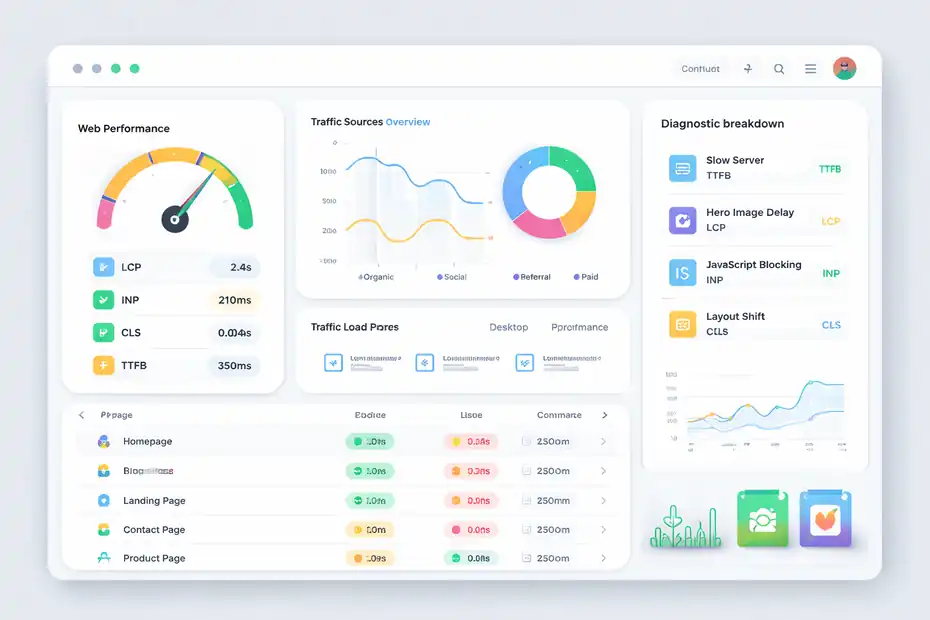
Before you optimize, you need a baseline. Otherwise, you are making changes without knowing what actually helped.
Measure The Right Metrics First
Start by documenting current performance on your most important pages. Do not only test the homepage. I recommend checking at least these page types:
- Homepage
- One high-traffic blog post
- One key landing page
- One contact or lead form page
- One product or category page if you run ecommerce
The reason is simple. Different page templates behave differently. A lightweight blog template may perform well while a builder-heavy landing page struggles badly.
Track metrics such as:
- LCP
- INP
- CLS
- Time To First Byte
- Total Blocking Time
- Page weight in MB
- Number of requests
Also note whether performance issues appear mostly on mobile, which is very common. A page that seems fine on desktop can feel sluggish on a mid-range phone.
I suggest keeping a simple spreadsheet with page URL, test date, performance score, and problem notes. This gives you a clean “before” picture. It also prevents a common mistake: improving one score while accidentally making another metric worse.
Identify Whether The Bottleneck Is Hosting, WordPress, Or Front End
Once you have baseline data, sort your issues by source. This is where a lot of people waste time. They tweak image compression when the real issue is render-blocking JavaScript. Or they obsess over hosting when the slowdown comes from five chat, tracking, and personalization scripts firing at once.
Use this simple diagnostic lens:
- If Time To First Byte is high: Check server response, cache behavior, heavy uncached pages, or dynamic queries
- If LCP is high: Look at hero images, font loading, render-blocking CSS, and above-the-fold elements
- If INP is weak: Reduce JavaScript work, plugin conflicts, and heavy interactive widgets
- If CLS is poor: Reserve image space, define dimensions, stabilize headers, and preload key assets carefully
With WP Engine, the hosting layer is often already decent, so in many cases the biggest wins come from the theme, plugins, database behavior, and front-end assets. That is actually good news because those areas are more within your control.
In my experience, performance work gets much easier once you stop treating speed as one vague problem. Break it into components, and the path forward becomes much clearer.
Start With Hosting-Level Wins Inside WP Engine
This is where WP Engine gives you an advantage. You should get the most from the platform before installing extra layers that may conflict with it.
Use WP Engine Caching The Right Way
One of the biggest mistakes on WP Engine is stacking extra caching tools without understanding what the host is already doing. Managed WordPress hosting often includes server-side caching, which means adding another full-page caching plugin can be unnecessary or even create conflicts.
Your job is not to “add more cache.” Your job is to make sure the existing caching works well for your site structure.
Focus on these practical actions:
- Confirm that important public pages can be cached
- Exclude pages that truly need dynamic behavior, such as cart, checkout, account, or personalized dashboard areas
- Avoid unnecessary query strings and session-heavy plugins where possible
- Test whether recent changes are actually reflected after cache clears
A common scenario looks like this: a site owner adds multiple optimization plugins, enables page cache, object cache, CSS delay, script merging, and image lazy loading from several different systems at once. The result is not a faster site. It is a harder site to debug.
I recommend starting with WP Engine’s native environment first, then adding only the missing pieces. That usually means you keep caching simple and use plugins more selectively for asset optimization rather than for replacing the host’s performance stack.
Use The CDN And Edge Delivery Features Strategically
A CDN helps deliver static assets such as images, stylesheets, and scripts from locations closer to the visitor. That reduces latency, which is especially helpful if your audience is geographically spread out.
But a CDN is not magic on its own. It helps most when the assets being delivered are already optimized. A 2.8 MB hero image served from a CDN is still a 2.8 MB hero image.
Use CDN delivery strategically by prioritizing:
- Large image-heavy pages
- Global or national traffic rather than purely local traffic
- Repeatedly requested static files
- Pages where first-view performance matters most
If you run a content site with national traffic, CDN usage can produce meaningful gains in perceived speed. If you run a local service site with most visitors in one metro area, the benefit may still be helpful, but image and JavaScript cleanup often produce bigger wins first.
I suggest thinking of CDN delivery as an amplifier. It amplifies good optimization. It does not replace it.
Clean Up Your WordPress Foundation
Once the hosting layer is stable, move to the WordPress build itself. This is where many performance issues begin.
Choose A Lightweight Theme And Page Structure
The fastest WordPress site is usually the one doing the least work. That sounds obvious, but it is easy to ignore when attractive visual features keep getting added one by one.
A lightweight theme matters because it controls a huge part of your front-end output: layout structure, CSS size, JavaScript behavior, template efficiency, and mobile rendering. If the theme is overloaded, every page starts at a disadvantage.
Here are common red flags:
- Large theme option panels loading many assets sitewide
- Multiple sliders and animated sections above the fold
- Excessive reliance on shortcodes
- Templates packed with icons, counters, popups, and motion effects
Imagine two service pages. Page A uses a simple hero, clean text sections, compressed images, and one clear form. Page B uses a video header, three animations, a testimonial carousel, an embedded map, a sticky popup, and a chatbot. Even on good hosting, Page B has a much harder path to strong performance metrics.
In most cases, I suggest simplifying layout structure first before trying aggressive technical optimization. Cleaner pages tend to rank and convert better anyway because users can process them faster.
Audit Plugins Like You Are Paying For Every Millisecond
A plugin audit is one of the highest-value steps in a wp engine wordpress performance optimization strategy. Too many WordPress sites slow down not because any single plugin is terrible, but because the total stack becomes messy.
Review plugins in these categories:
- Utility overlap, such as multiple SEO or optimization tools
- Front-end assets, especially popups, sliders, and widgets
- Database-heavy tools, including statistics or logging plugins
- Third-party integrations, like chat, booking, reviews, and tracking
- Admin-only tools accidentally affecting front-end performance
Do not judge plugins only by count. One poorly built plugin can hurt more than ten lightweight ones. What matters is how much code loads, how often it runs, and whether it affects every page.
I usually ask three questions for each plugin:
- Does this directly support revenue, leads, publishing, or operations?
- Does it need to run on every page?
- Is there a lighter way to achieve the same goal?
This kind of cleanup often produces surprising gains. I have seen sites drop dozens of requests and hundreds of kilobytes just by removing overlapping frontend features no one was really using.
Optimize Images, Media, And Above-The-Fold Content
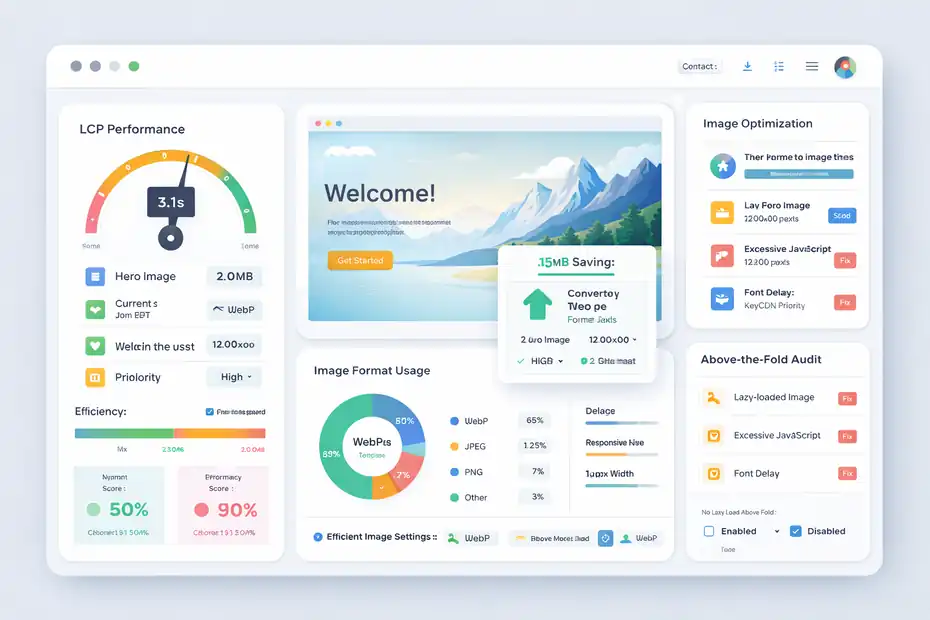
Media is one of the most visible and fixable causes of slow WordPress pages. It is also where many easy wins live.
Fix Your Largest Contentful Paint Element First
Your LCP element is often the hero image, featured image, large heading block, or main content visual near the top of the page. Because it is usually the largest thing visible when the page opens, improving it can make the site feel dramatically faster.
Start by finding what the LCP element actually is on your key templates. Then work through these questions:
- Is the image larger than it needs to be?
- Is it being served in a modern format such as WebP where appropriate?
- Is it lazy-loaded by mistake even though it appears above the fold?
- Does CSS or JavaScript delay its rendering?
- Are fonts causing the hero section to paint late?
A practical example: If your homepage hero uses a 2400-pixel image displayed in a 1200-pixel container on mobile and desktop, you are likely shipping more data than needed. Resizing that image, compressing it properly, and loading it with the right priority can cut meaningful time from LCP.
This is one of those areas where a small change can have an outsized impact. I would prioritize the first screen of your page before touching less important elements further down.
Make Images Efficient Without Hurting Visual Quality
Good image optimization is a balancing act. Over-compress and the site looks cheap. Under-compress and performance suffers. What you want is efficient clarity.
I recommend these practical standards:
- Resize images to the maximum display size they actually need
- Prefer modern formats when supported
- Use responsive image handling so smaller devices get smaller files
- Compress before upload whenever possible
- Avoid decorative images that add weight without adding meaning
For content-heavy sites, featured images and inline blog visuals can quietly become a major load burden. For ecommerce or portfolio sites, galleries often create even more strain.
A good rule is to think in terms of visual job to be done. Is the image selling a product, explaining a process, or building trust? Then keep it. Is it generic decoration filling space? Consider removing it.
In my experience, some of the fastest design improvements come not from better compression tools, but from better editorial judgment about which media elements actually deserve to exist.
Reduce JavaScript, CSS, And Third-Party Script Bloat
This is often the hardest part of optimization because the site may look fine while still doing too much work behind the scenes.
Remove Or Delay Scripts That Do Not Earn Their Keep
Every script on your site should justify its existence. That includes analytics layers, chat tools, tracking pixels, A/B testing scripts, social feeds, review widgets, and visual enhancements.
Here is the honest reality: many WordPress sites are not slow because of WordPress itself. They are slow because marketing and design layers have piled on without performance accountability.
Use this decision framework:
- Revenue-critical: Keep, but optimize loading behavior
- Useful but not essential: Delay or conditionally load
- Nice to have: Remove if it hurts experience
- Forgotten or duplicate: Delete immediately
For example, a live chat widget may matter on high-intent service pages, but it may not need to load instantly on every blog post. A review widget may support trust, but perhaps it can appear lower on the page or after user interaction.
The biggest gains often come from third-party scripts because they introduce network requests and processing work outside your direct control. That makes them expensive in two ways: download cost and unpredictability.
If I had to give one blunt opinion, it would be this: most sites would benefit more from removing one bloated third-party widget than from adding one more optimization plugin.
Minify Carefully And Prioritize Delivery Order
Minification can help by reducing file size, but it is not a silver bullet. Merging, deferring, and delaying assets can help too, but only when done carefully.
On modern sites, aggressive file combining is not always the right move, especially when HTTP delivery is already efficient and script dependencies are complex.
What matters more is delivery order and render impact:
- Critical CSS should help the first screen load quickly
- Non-essential JavaScript should not block rendering
- Below-the-fold assets should not compete with above-the-fold content
- Fonts and styling for visible content should load predictably
A site can have “optimized” files and still feel slow if the browser is waiting on the wrong resources first. That is why I suggest thinking less about individual tricks and more about loading priority.
When performance tuning goes wrong, this is often why. Site owners apply broad optimization switches without checking what breaks, what shifts, or what loads too late. Test carefully after each change, especially forms, menus, popups, sliders, and checkout behavior.
Improve Database Health And WordPress Back-End Efficiency
Database performance affects more than admin speed. It can influence uncached requests, dynamic content, and overall application responsiveness.
Keep The Database Lean And Predictable
WordPress databases tend to collect clutter over time. Revisions, transients, expired data, orphaned metadata, old plugin tables, and spam can all add noise. A bloated database does not always create a disaster, but it often makes dynamic tasks less efficient.
This matters more on sites with:
- Large content libraries
- WooCommerce or membership activity
- Frequent plugin experimentation
- Heavy search or filtering behavior
- Old legacy tables from removed tools
A clean database strategy usually includes limiting unnecessary post revisions, removing plugin leftovers, clearing expired transients, and reviewing tables that have grown abnormally large.
Think of it like cleaning a garage. The clutter may not stop you from opening the door, but it slows every task down and makes troubleshooting harder. The same is true in WordPress. When the database is easier to read and query, the whole application tends to behave more predictably.
This is not a daily job, but it should be part of regular maintenance, especially on mature sites that have changed hands or gone through many redesigns.
Watch For Query-Heavy Features And Dynamic Pages
Some WordPress features are naturally more dynamic and expensive. Search results, related posts engines, faceted product filters, booking systems, membership dashboards, and complex form workflows often hit the database repeatedly.
On WP Engine, your static pages may perform beautifully while these dynamic sections feel much slower. That is normal, but it is also where focused optimization matters.
Ask questions like:
- Does this feature need to generate results live every time?
- Can some outputs be cached or simplified?
- Are there too many conditional queries on one page?
- Is one plugin creating heavy database activity unnecessarily?
Imagine a product category page with layered filters, sorting, related products, trust badges, personalized recommendations, and stock notices. Each one may seem harmless alone. Together, they can turn a page into a query-heavy experience.
This is why I recommend evaluating performance by page type, not just sitewide averages. Often, your biggest business pages are also your most complex ones. That is where targeted improvements pay off most.
Align Performance With Core Web Vitals And SEO Goals
Performance work should lead to better search visibility and better user behavior, not just prettier test results.
Optimize For Real User Experience, Not Just Lab Scores
Lab tools are useful, but they are controlled simulations. Real users bring messy reality: slower phones, older browsers, unstable connections, and impatient behavior. A page that scores well in testing can still feel sluggish in the wild.
That is why your wp engine wordpress performance optimization strategy should prioritize:
- Fast first impression
- Stable layout
- Quick interaction response
- Clean mobile usability
- Predictable page transitions
Here is a simple example. Suppose your homepage score improves from 71 to 91 after several optimization changes. That looks great, but if your lead form becomes buggy, your sticky header flickers, or your booking widget loads too late, the practical result may be worse.
I believe the best SEO-minded performance work is business-aware performance work. Ask not only, “Did the score improve?” Ask also, “Did the main action become easier?” On most sites, that action is reading, clicking, contacting, subscribing, or buying.
Search engines increasingly reward pages that satisfy users. That means technical performance and conversion experience should support each other rather than compete.
Match Optimization Priorities To Search Intent
Not every page deserves the same optimization strategy. That is a point many guides skip. A blog article, service page, product page, and tool page all serve different intents.
For informational content, prioritize:
- Readability
- Fast content rendering
- Lightweight media
- Minimal intrusive scripts
For service pages, prioritize:
- Hero clarity
- Fast contact options
- Trust elements without clutter
- Mobile call-to-action usability
For ecommerce pages, prioritize:
- Product image efficiency
- Variant selection responsiveness
- Checkout stability
- Search and filter performance
This intent-based approach keeps optimization practical. You are not chasing abstract perfection. You are helping each page perform its job better.
In my experience, this is where mature performance strategy starts to feel smarter. Instead of optimizing everything the same way, you optimize according to user expectations and business goals.
Avoid The Most Common WP Engine Performance Mistakes
Sometimes the fastest improvement comes from stopping what is hurting the site.
Mistakes That Quietly Undermine Speed
A lot of performance problems come from well-meaning decisions. Someone installs extra plugins “just to be safe.” Someone adds tracking for every campaign. Someone redesigns the homepage with visual flourishes that look premium but slow everything down.
The most common mistakes I see include:
- Running overlapping optimization plugins
- Using oversized images in hero sections
- Loading scripts sitewide when only one page needs them
- Keeping inactive but resource-heavy plugin remnants
- Letting page builders stack too many layout layers
- Ignoring mobile experience while testing mostly on desktop
One subtle issue is assuming WP Engine alone will compensate for design and plugin excess. It helps, absolutely, but it cannot rescue every poor front-end decision.
Another mistake is changing too many variables at once. When six settings are updated together, you cannot tell which one helped or broke something. I strongly suggest making changes in small batches, checking performance and functionality after each one.
That disciplined approach feels slower at first, but it saves a huge amount of time later.
When To Simplify Instead Of “Optimize Harder”
There is a point where continued technical tweaking produces smaller returns than simplifying the page itself. That could mean removing a carousel, cutting an animation, reducing widget count, or redesigning a bloated template.
Here is a simple comparison:
| Approach | Likely Outcome |
|---|---|
| Keep a heavy page and apply aggressive script workarounds | Moderate gains, higher risk of breakage |
| Simplify the page structure and reduce assets | Bigger gains, cleaner maintenance |
| Add more plugins to fix plugin-caused problems | Complexity rises, results often unstable |
| Reduce dependencies at the source | Better long-term performance and reliability |
I recommend simplification whenever a page feels overbuilt. It improves speed, editing experience, and often conversion clarity too.
For many of us, the most effective optimization is not adding a clever fix. It is giving the browser less to do in the first place.
Create A Repeatable Workflow For Ongoing Optimization
Performance is not a one-time task. It is a system. That matters even more as your site grows.
Build A Simple Performance Maintenance Routine
The best-performing sites usually have a routine, not just a cleanup sprint. Your site changes over time. New plugins get installed. New landing pages get built. New scripts appear. Team members upload giant images. Performance drifts.
A practical monthly or quarterly workflow could look like this:
- Review key page templates for speed and usability.
- Check recently added plugins, embeds, and scripts.
- Audit image sizes from recent uploads.
- Spot-test mobile performance on major entry pages.
- Review cache behavior after major content or design updates.
- Remove tools or features that are no longer earning their keep.
This does not need to become complicated. The goal is to catch regression early. A site that loads well in January can become noticeably heavier by June simply through normal publishing and marketing activity.
I suggest assigning ownership too. Performance dies in shared responsibility. When no one owns it, everyone assumes someone else is watching.
Scale Performance As Traffic And Complexity Grow
As your site grows, your strategy should mature with it. A small brochure site and a growing content or ecommerce platform have very different needs.
Scaling performance often means:
- Designing new templates with speed in mind from the start
- Testing on real mobile devices, not just desktops
- Setting rules for script usage and plugin approvals
- Reviewing performance before major launches
- Prioritizing your revenue-driving pages for deeper tuning
Imagine you are growing from 5,000 monthly visits to 150,000. At that point, little inefficiencies become expensive. Heavier pages increase bounce risk, strain resources, and create more debugging complexity every time something changes.
That is why I believe the smartest wp engine wordpress performance optimization strategy is governance as much as technology. You need standards, not just fixes. When your team knows what good performance looks like, future launches start faster instead of starting bloated.
Use The Right Tools Only When The Section Calls For Them
You do not need a giant toolbox, but a few well-chosen platforms can make performance work easier to measure and maintain.
Best Tool Categories For WP Engine Performance Work
Tools are useful when they help you validate decisions, not when they create noise. For most site owners, the most valuable categories are:
- Performance testing tools for lab reports and diagnostics
- Real user monitoring tools for actual visitor data
- Image optimization workflows
- Database cleanup utilities
- Analytics platforms that connect speed to behavior
I would keep your stack lean. In many cases, one testing tool, one real-user source, one image workflow, and your existing analytics setup are enough.
Here is the key mindset: tools should answer a question. They should not become the project. If a report tells you that your largest image is delayed by render-blocking CSS, that is useful. If it gives you thirty warnings but no business context, it is easy to chase the wrong thing.
The goal is always action. Measure, identify the bottleneck, fix the bottleneck, verify the result.
How To Connect Performance Data To Revenue Metrics
This is where performance work becomes much more persuasive. It is one thing to say, “We improved LCP by 0.8 seconds.” It is another to say, “The service page now loads faster on mobile, and form submissions improved.”
Try to connect performance monitoring with:
- Bounce rate by page type
- Conversion rate on landing pages
- Revenue per session for ecommerce
- Scroll depth and engagement for content pages
- Form completion and abandonment rates
For example, if your fastest blog posts also produce stronger time-on-page and better email signup rates, that gives you a business case for continuing the work. Likewise, if product pages with lighter media load faster and convert better, that tells you where to scale the strategy.
I recommend making performance part of growth reporting, not a separate technical side quest. That is how it gets maintained over time.
Put Your Strategy Into Action With A Practical Game Plan
You now have the pieces. The final step is turning them into a sequence you can actually follow.
A 30-Day WP Engine Performance Improvement Plan
If I were starting fresh on a typical WP Engine site, I would follow this order:
- Benchmark your main page types and document current metrics.
- Confirm WP Engine caching and CDN behavior are set up sensibly.
- Audit theme weight and page builder complexity.
- Remove overlapping, unused, or high-cost plugins.
- Optimize hero images and key LCP assets.
- Reduce third-party scripts and delay non-essential ones.
- Clean the database and inspect dynamic page behavior.
- Re-test your most important pages on mobile.
- Compare pre- and post-change results against business metrics.
- Create a lightweight maintenance checklist for future changes.
This sequence works because it follows leverage. You start broad, fix the biggest structural issues, then fine-tune.
Many site owners want to jump straight into advanced tweaks. I understand the temptation. But from what I’ve seen, the biggest wins usually come from the fundamentals: better media handling, fewer unnecessary scripts, cleaner templates, and disciplined plugin choices.
What Good Results Usually Look Like
Not every site will end up with perfect scores, and that is fine. The goal is meaningful improvement where it matters most. A realistic successful outcome often looks like this:
- Faster visible loading on mobile
- Lower LCP on key landing pages
- Fewer layout shifts during page open
- More stable forms, menus, and calls to action
- Better user engagement from search traffic
- Easier maintenance because the stack is cleaner
That is the real win. Not vanity metrics. Not optimization theater. A site that feels fast, stays stable, and supports your business.
If you take one thing from this guide, let it be this: WP Engine gives you a strong platform, but performance still depends on the choices you make in WordPress itself.
Keep the build lean, optimize what users see first, remove what does not earn its cost, and treat performance as an ongoing system. That is how you turn premium hosting into a real competitive advantage.
FAQ
What is a wp engine wordpress performance optimization strategy?
A wp engine wordpress performance optimization strategy is a structured approach to improving site speed using WP Engine’s hosting features combined with optimized themes, plugins, and front-end assets. It focuses on improving Core Web Vitals, reducing load time, and delivering a smoother user experience across devices.
Does WP Engine automatically make WordPress sites fast?
WP Engine provides a strong performance foundation with caching and infrastructure, but it does not guarantee a fast site on its own. Performance still depends on your theme, plugins, images, and scripts. Poor front-end choices can slow down even well-hosted WordPress sites.
What are the most important factors for WordPress performance optimization?
The most important factors include fast hosting, optimized images, minimal plugins, efficient themes, and reduced JavaScript. Core Web Vitals like LCP, INP, and CLS also play a key role. Focusing on above-the-fold content and mobile performance usually delivers the biggest improvements.
How can I improve Core Web Vitals on WP Engine?
To improve Core Web Vitals, optimize your largest visible content, reduce unused JavaScript, stabilize layout shifts, and ensure proper caching. Focus on faster loading of key elements, especially on mobile devices, and remove unnecessary scripts that delay page interaction.
How often should I optimize my WordPress site performance?
WordPress performance should be reviewed regularly, ideally once a month or after major updates. New plugins, content, or design changes can affect speed. Ongoing monitoring helps maintain fast load times and prevents gradual performance decline over time.

I’m Juxhin, the voice behind The Justifiable.
I’ve spent 6+ years building blogs, managing affiliate campaigns, and testing the messy world of online business. Here, I cut the fluff and share the strategies that actually move the needle — so you can build income that’s sustainable, not speculative.
Related posts:
 WP Engine WordPress Review: Pros, Cons, Real Benchmarks
 WPEngine Security Checklist to Harden WordPress Fast
 WP Engine Dedicated Server: Best Choice for Large Sites?
 How Cloudways Hosting Boosts Site Speed by 300%
 WP Engine Migration Guide: Move Your Site Without Downtime
 HostGator VPS Pricing: Pros, Cons & Cost Breakdown