
Table of Contents
Some links on The Justifiable are affiliate links, meaning we may earn a small commission at no extra cost to you. Read full disclaimer.
How to automate order fulfillment using AppScenic becomes a lot easier once you stop thinking of it as one big technical project and start seeing it as a simple workflow: connect your store, import the right products, fund payments properly, and let the system handle the repetitive parts.
In my experience, most fulfillment problems do not come from automation itself. They come from weak setup.
This guide walks you through the full process, from beginner basics to advanced optimization, so you can build a store that runs faster, makes fewer mistakes, and gives customers a smoother post-purchase experience.
What AppScenic Automation Actually Does
If you are new to AppScenic, this is the part that matters most: automation is not magic. It is a chain of connected actions that only works well when each step is configured correctly.
How The Fulfillment Workflow Works
When you automate order fulfillment with AppScenic, the goal is to reduce manual handoffs between your storefront, your supplier, and your order updates.
AppScenic connects with ecommerce platforms including Shopify, WooCommerce, Wix, Ecwid, Walmart, and eBay, then handles several repetitive tasks around product import, stock and price sync, order processing, supplier payments, and tracking updates.
Here is the simple version of the workflow:
- A customer places an order on your store.
- That order is imported into AppScenic.
- The supplier processes and ships it.
- Tracking details are sent back to your store automatically.
On supported store integrations, AppScenic says orders can be imported automatically, processed through suppliers, and paired with automatic tracking imports so your customers can see shipment progress without you updating each order by hand. That is the core promise behind AppScenic fulfillment automation.
What I like about this setup is that it removes the two biggest time drains in dropshipping: manually placing supplier orders and manually chasing tracking numbers. That does not mean you can ignore operations. It means your job shifts from doing repetitive admin work to monitoring exceptions and improving the system.
What Parts You Can Automate And What Still Needs You
A lot of sellers assume “automated fulfillment” means fully hands-off ecommerce. I do not recommend thinking that way. AppScenic can automate key operational tasks, but it cannot replace judgment.
The parts AppScenic is built to automate include product import, 24/7 stock and price syncing, automatic ordering on paid plans, wallet-based supplier payments, and auto-imported tracking numbers. On its pricing page, AppScenic lists automatic ordering, instant price and stock sync, and auto-import tracking on its Standard, Pro, and Elite plans.
What still needs your attention:
- Product selection and margin decisions
- Product page quality
- Shipping promise accuracy
- Customer service
- Refund and exception handling
- Monitoring low-wallet or failed payment issues
Imagine you are selling pet accessories. AppScenic can keep the inventory synced and pass paid orders to suppliers, but it cannot decide whether a product with thin margins and slow shipping belongs in your catalog.
That is still your call. In most cases, the sellers who get the best results use automation to remove busywork, not to avoid responsibility.
Why Automation Usually Fails For Beginners
From what I have seen, beginners do not struggle because AppScenic is hard. They struggle because they automate a messy store. If your product catalog is bloated, your pricing is inconsistent, or your payment setup is weak, automation simply makes those problems move faster.
- Mistake 1: Importing too many products too early. AppScenic lets sellers push products at scale, with plan limits ranging from 100 on Standard to 20,000 on Elite. That sounds exciting, but speed without curation usually creates catalog clutter and support headaches.
- Mistake 2: Ignoring wallet setup. AppScenic’s wallet system is central to automatic supplier payment, and auto-funding is designed to top up your balance when it reaches a threshold. If that is not configured well, orders can stall.
- Mistake 3: Confusing synced inventory with profitable inventory. A synced product can still be a bad product.
I suggest treating fulfillment automation like plumbing. You only notice it when it breaks. Your job is to make sure the pipes are clean before you turn the pressure on.
Set Up Your Store Before You Automate Anything
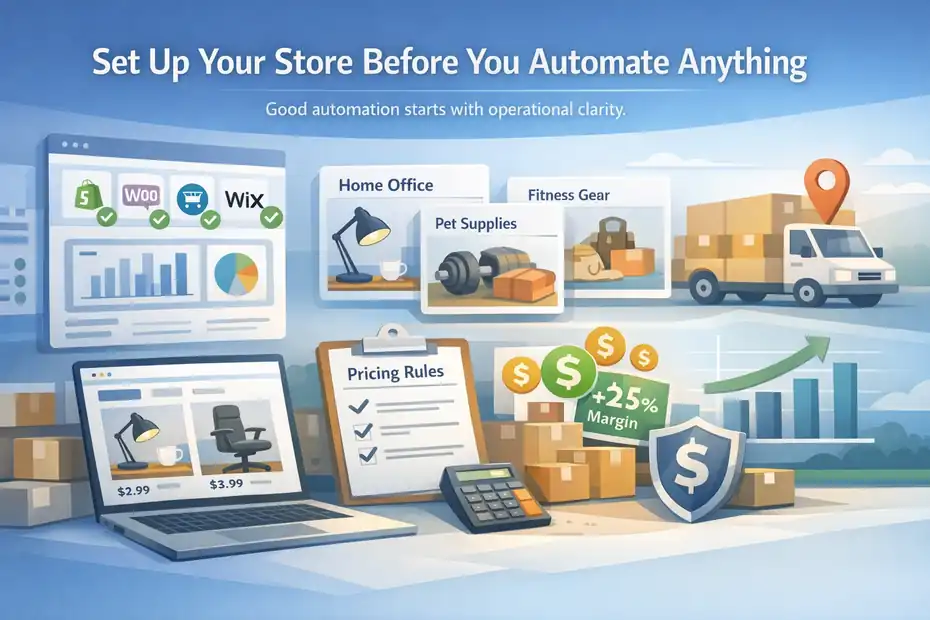
This stage is less exciting than product importing, but it is where most profitable stores are quietly built. Good automation starts with operational clarity.
Choose A Store Structure That Supports Automation
Before you automate order fulfillment using AppScenic, decide how simple or complex your store should be. I usually recommend starting with one clear niche or a tightly grouped catalog, not a giant general store full of unrelated items.
Why this matters: Automation works best when your product set shares similar shipping expectations, customer questions, and pricing logic. If half your catalog ships in three days and the other half ships in three weeks, your support inbox will become a mess even if the technical fulfillment is “automated.”
A cleaner structure makes all of this easier:
- Pricing rules: Similar margins across related products
- Shipping communication: Fewer surprises for customers
- Order monitoring: Easier to spot late or stuck shipments
- Returns handling: Less chaos around category-specific issues
AppScenic promotes access to more than 1 million products and 100+ categories, which is useful, but that scale does not mean you should publish everything. In my experience, a smaller, more focused catalog usually performs better and is much easier to automate responsibly.
A simple example: If you run a home office store, fulfillment automation is easier when your products mostly come from suppliers with similar regions and delivery speeds. That keeps customer expectations aligned and reduces exceptions.
Connect Your Store And Confirm Integration Health
AppScenic says it supports built-in integrations for Shopify, WooCommerce, Wix, Ecwid, Walmart, eBay, and more, with automation around product import, order payments, fulfillment, stock sync, and tracking updates.
The exact setup steps vary by platform, but the core process is the same: connect the store, authorize access, and confirm your catalog and order flow are syncing properly.
On the pricing page, AppScenic also breaks store connection limits down by plan: 1 connected store on Free and Standard, 3 on Pro, and 10 on Elite.
Here is how I would verify the setup after connecting:
- Check that the store is recognized inside AppScenic.
- Import one or two test products first.
- Confirm prices, variants, and images display correctly on your storefront.
- Review whether stock changes sync back properly.
- Place a low-risk test order if possible.
This is one of those boring steps that saves real money. A seller can assume the integration is working, launch ads, get ten orders, and only then realize variants are mismatched or shipping details are unclear. I would rather spend 20 minutes testing than spend three days cleaning up preventable issues.
Set Pricing Rules Before Orders Start Coming In
Pricing is part of fulfillment, even though many people treat it like a separate marketing issue. The reason is simple: if your synced supplier cost changes and your retail pricing does not protect margin, automation can quietly sell products at the wrong profit level.
AppScenic highlights smart pricing formulas and instant price sync as part of its automation stack. That means the system is not just about passing orders to suppliers. It is also about keeping product data aligned so you are not selling based on stale cost assumptions.
I recommend setting guardrails early:
- Minimum margin target: For example, 25% to 40% depending on category
- Shipping cost buffer: Account for packaging or regional variance
- Promo tolerance: Decide how low you can discount without hurting profit
- High-risk exclusions: Skip products with unstable costs or weak supplier reliability
Imagine a supplier raises the product cost by $4 overnight. If your store is synced but your pricing logic is loose, that margin loss spreads across every sale automatically. Good automation prevents stock errors. Great automation also protects profitability.
Configure AppScenic For Automatic Order Processing
Once the store foundation is solid, now you can move into actual fulfillment setup. This is where AppScenic starts doing the heavy lifting.
Import Products With Fulfillment In Mind
It is tempting to import products based only on what looks trendy. I think that is backwards. You should import based on operational fit first, then market potential second.
AppScenic allows product import through its integrations and highlights one-click importing, premium products on higher plans, and a catalog of more than 1 million items.
When reviewing products for automation, ask these questions:
- Is the supplier region aligned with your target market?
- Does the product have reliable stock history?
- Can the margin absorb refunds, chargebacks, or ad fluctuations?
- Is the product likely to create support tickets because of sizing, fragility, or confusing expectations?
For example, a simple desk organizer with domestic shipping may automate beautifully. A fragile decorative lamp with complex variants might create nonstop exceptions. The second one may still sell, but it costs more attention to operate.
I suggest importing in controlled batches. Start with 10 to 25 products, not 300. Watch how they sync, how the pages look, and how your first customer questions come in. Once those products behave well operationally, expand from there.
Turn On Automatic Ordering The Right Way
On AppScenic’s plan pages and integration pages, automatic ordering is presented as a core feature on paid plans. In plain English, that means customer orders can be forwarded into AppScenic’s supplier workflow without you manually recreating them one by one.
This is the moment most store owners look forward to, but it is also where I suggest slowing down just a bit. Before you rely on automatic ordering, confirm five things:
- Your connected store is syncing orders correctly.
- Your wallet and payment method are already configured.
- Your shipping expectations match the supplier setup.
- Your test orders have passed cleanly.
- Your team knows what exceptions look like.
A useful habit is to monitor your first 10 to 20 automated orders manually. Do not interfere unless something breaks, but do watch the path. You want to confirm that the order appears, gets processed, moves to shipment, and updates tracking as expected.
That “trust but verify” period matters. I have seen sellers switch on automation and assume the job is done, only to discover a payment threshold blocked fulfillment or a product mapping issue delayed the order. The first week is your calibration phase.
Set Up The Store Wallet And Auto-Funding
AppScenic’s Store Wallet is a big part of how automated fulfillment works. According to AppScenic’s HelpDesk and pricing pages, the wallet is designed to pay suppliers automatically, supports auto-funding based on a threshold, and can use backup payment methods to avoid missed payments.
Orders can be funded through methods including bank transfer, Wise, and credit card, while subscriptions are billed separately via debit or credit card.
This is where automation becomes operationally real. No wallet strategy means no dependable auto-payment flow.
Here is the setup approach I recommend:
- Add your primary payment method first.
- Enable auto-funding only after you understand your daily order volume.
- Set a threshold that gives you breathing room, not just enough for one order.
- Use backup payment methods if available.
- Review funding alerts during your first few weeks.
A practical scenario: If your average fulfilled order cost is $22 and you get 8 to 12 orders on a good day, a wallet threshold of $30 is probably too low. One sales spike could stall payments. A more comfortable threshold gives you continuity.
Automation works best when payments are invisible in the good sense. You should not be thinking about them all day.
Build A Reliable Tracking And Post-Purchase Flow
Most fulfillment guides stop at “the order shipped.” Real customers do not. The post-purchase experience is where trust is either reinforced or damaged.
Make Tracking Updates Part Of The Customer Experience
AppScenic highlights automatic tracking imports across its integrations and pricing pages, including auto-import tracking for Shopify and WooCommerce flows. Once suppliers ship the order, tracking numbers can be imported back into the connected store automatically.
This matters more than many beginners realize. Customers are usually not upset that an order is in transit. They are upset when they have no idea what is happening.
I recommend you treat tracking updates as part of marketing, not just logistics. A clear post-purchase flow can reduce support tickets and improve repeat purchase confidence.
A simple setup looks like this:
- Order confirmation email immediately after purchase
- Shipping confirmation when the order is fulfilled
- Tracking visibility inside the customer account or order page
- Delivery follow-up after arrival
You do not need to overcomplicate this. You just need consistency. If AppScenic is importing tracking automatically but your customer emails are unclear, the automation value gets partially lost. The technical layer and the communication layer need to work together.
Prevent Inventory And Price Sync Problems Before They Hurt Orders
AppScenic repeatedly emphasizes 24/7 price and stock sync and instant syncing with suppliers across its integrations, automation page, and pricing materials. That is one of the biggest reasons sellers use it in the first place.
Still, synced data is not the same as risk-free operations.
Here is what I suggest monitoring weekly:
- Products with sudden price jumps
- Products frequently going out of stock
- Listings with unusually high cancelation or refund rates
- Bundles or variants that confuse customers
- Products with inconsistent shipping windows
A realistic example: Say a gadget product stays in stock but the supplier cost keeps fluctuating. The sync may technically work, but your ad performance and margin stability can become unpredictable. That product might not deserve to stay in your top-selling collection even though it is fully automated.
This is why I tell store owners to review catalog health, not just fulfillment status. Automation keeps data moving. You still have to decide whether the moving data supports a healthy business.
Handle Exceptions Without Breaking The System
No fulfillment automation setup is perfect. A small percentage of orders will need human intervention. That is normal. The trick is to build a process for exceptions so you do not panic every time one appears.
Typical exceptions include:
- A wallet payment issue
- Supplier delay
- Address error from the customer
- Tracking imported late
- Item damaged or unavailable after purchase
I believe the smartest stores separate “normal flow” from “exception flow.” The normal flow is automated. The exception flow is documented.
For example, if a customer enters the wrong apartment number, do not try to redesign your whole fulfillment system around that edge case. Create a simple rule: flag, review, contact the customer, and log the outcome. If a supplier repeatedly causes issues, remove the product or the supplier from your active catalog.
That is the real mindset shift. The goal is not zero problems. The goal is fewer problems, faster detection, and cleaner resolution.
Avoid The Common Mistakes That Slow Fulfillment Down
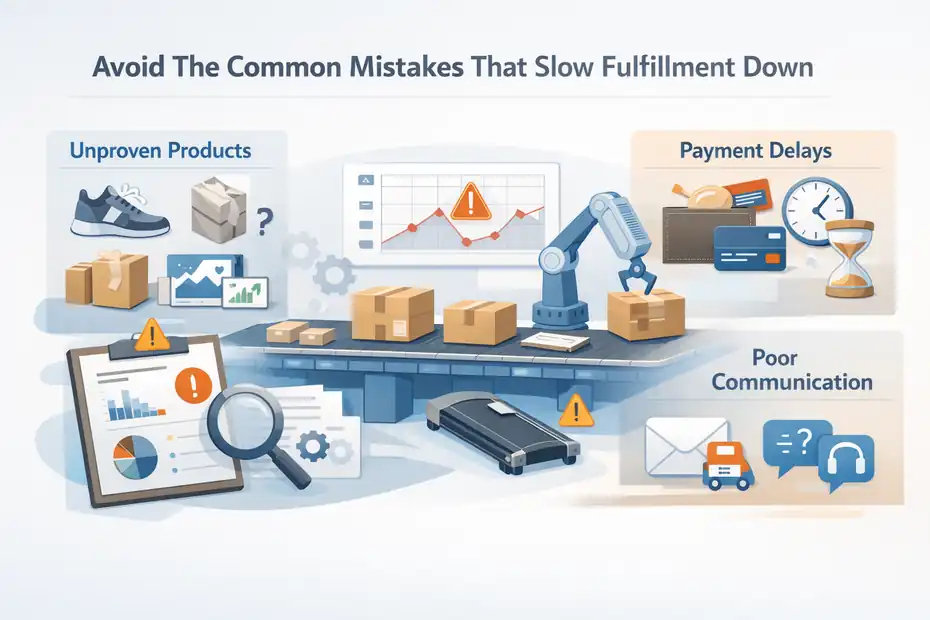
This section is where you save yourself from the stuff nobody mentions in sales pages.
Most stores do not fail because they lacked automation. They fail because the automation hid weak decisions.
Relying On Automation Before Testing Your Catalog
I have a strong opinion here: do not automate a catalog you have not pressure-tested. It is one of the fastest ways to scale confusion.
AppScenic gives you the tools to import products, sync data, and automate ordering, but the platform does not know which items in your store are likely to trigger problems. That part comes from your judgment and your testing process.
Watch for these warning signs:
- High variant complexity
- Fragile products
- Products with vague sizing or dimensions
- Items with inconsistent product images
- Supplier listings with thin descriptions
A good rule is this: If a customer is likely to ask three clarification questions before buying, the product is probably not ideal for early automation.
Imagine you are selling portable treadmills. The demand may look great, but if the product dimensions, power specs, and warranty expectations are not crystal clear, you may end up with preventable complaints. Start with simpler products, learn the flow, then graduate to the more operationally sensitive items.
Letting Payment Settings Create Hidden Delays
AppScenic’s wallet and auto-funding setup can be a huge strength, but only if you configure it around your actual sales behavior. The platform explains that auto-funding can top up your balance at a defined threshold and that backup payment methods can be added for safety.
The mistake is treating payment setup like a one-time checkbox.
I suggest reviewing these points regularly:
- Average supplier cost per order
- Daily order range
- Peak sales periods
- Threshold size compared to order volume
- Backup payment reliability
A simple example: During a holiday campaign, your normal 5 orders a day becomes 25. Your wallet threshold that worked fine last month may suddenly feel tiny. The orders are real, the demand is real, and the fulfillment delay is also real if the wallet is underprepared.
This is one reason experienced operators revisit settings before promotions, influencer pushes, or email campaigns. Automation is only smooth when your financial rails can support the traffic.
Ignoring Customer-Facing Communication
This might sound odd in a fulfillment guide, but I think communication mistakes create as much damage as operational mistakes. Customers do not care that your supplier portal looks tidy. They care whether they got clear expectations.
Even when AppScenic is automating the backend, you still need to control the frontend experience:
- Estimated delivery messaging on product pages
- Shipping confirmation email tone
- Tracking visibility
- Support response templates
- Refund and delay policies
A store can technically fulfill orders automatically and still feel disorganized to customers. That usually happens when the internal automation is strong but the external communication is vague.
In practice, one sentence can prevent a ticket.
For example, telling customers that tracking may take a short time to update after shipment is often enough to reduce “where is my order?” messages. Small improvements like that protect your support time and make the automation feel smoother from the buyer’s perspective.
Optimize Your Fulfillment System For Profit And Scale
Once the basic workflow is stable, the real opportunity is not just saving time. It is building a system that supports margin, growth, and better decisions.
Use Smaller Catalogs To Scale Faster
This sounds counterintuitive, especially when AppScenic gives access to a very large catalog and generous product limits on higher plans. But in many cases, smaller catalogs scale better because they create less operational drag.
AppScenic’s current plan limits range from 100 pushed products on Standard up to 20,000 on Elite, so the platform can support both focused and broad-store strategies.
Here is what usually happens:
- A huge catalog creates more sync noise
- More products create more weak pages
- More weak pages create more low-converting traffic
- More low-intent orders create more support load
I prefer a curated scale model. Start with a tight set of products that have:
- Solid margins
- Predictable shipping
- Low return risk
- Clear demand signals
- Good operational fit
Then grow by replacing weaker products, not just adding more. That creates a catalog that gets cleaner as you scale instead of more chaotic.
A 50-product store with strong merchandising and stable fulfillment often beats a 2,000-product store that feels random.
Match Your Plan To Your Operational Stage
AppScenic’s pricing currently shows a Free plan, then Standard at $39 per month, Pro at $79 per month, and Elite at $99 per month, with differences in AI tokens, connected stores, pushed product limits, and access to premium products. Automatic ordering, instant price and stock sync, and auto-import tracking are shown on paid plans.
I would think about plan choice like this:
- Free: Good for exploring the catalog and understanding the interface
- Standard: Good for a small store proving one focused offer
- Pro: Better for growing stores, larger tests, or multiple active collections
- Elite: Best when you are managing multiple stores or operating at higher volume
Do not upgrade just because a bigger plan exists. Upgrade when your operations justify it. For example, if one store is validated and you want to launch niche expansions, Pro starts to make more sense. If you are managing multiple storefronts or a much wider catalog, Elite may be more practical.
The best plan is not the one with the most features. It is the one that matches your current bottleneck.
Create A Weekly Fulfillment Review Habit
This is probably the most unglamorous advice in the article, but it is also one of the most valuable. Automated fulfillment still needs review.
Once a week, I suggest checking:
- Orders that took longer than expected
- Products with repeated support issues
- Wallet balance behavior and payment interruptions
- Out-of-stock or unstable products
- Tracking update lag
- Refund reasons by product type
This review does not have to take long. Even 20 to 30 minutes can surface patterns early.
For instance, imagine you notice one supplier category is responsible for half your refund requests. That is not just a customer service issue. It is a catalog strategy issue. Or maybe your wallet threshold gets uncomfortably low every weekend because sales spike after your email campaign. That tells you the payment system needs adjustment before the next push.
The stores that scale well are rarely the ones with the fanciest automation. They are the ones with the cleanest feedback loops.
Step-By-Step: How To Automate Order Fulfillment Using AppScenic
Now let me put the whole process into one practical sequence you can actually follow without overthinking it.
Step 1: Connect Your Store And Keep The First Test Small
Start by creating your AppScenic account and connecting your ecommerce store using one of its supported integrations. AppScenic currently promotes integrations for Shopify, WooCommerce, Wix, Ecwid, Walmart, and eBay, with store connection limits based on plan tier.
Do not begin with a giant import.
Instead:
- Connect the store
- Import a few products only
- Check product pages carefully
- Confirm stock and pricing sync
- Test the order path
I really recommend this restrained start. It is easier to catch mapping issues, unclear descriptions, or fulfillment mismatches with five products than with five hundred.
If you are on WooCommerce, for example, verify that images, variants, and pricing all land correctly. If you are on Shopify, make sure your collection structure still makes sense after import. This sounds basic, but early cleanup is what makes later automation smooth.
Step 2: Configure Wallet Payments Before Real Volume Arrives
After store connection, move directly into wallet setup. AppScenic’s documentation explains that the Store Wallet is used for supplier payments, can be topped up manually, and supports auto-funding when a balance threshold is reached. Backup payment methods can also be set.
Your focus here should be reliability.
I suggest this order:
- Add the primary payment method
- Understand your average supplier order cost
- Set a realistic low-balance threshold
- Turn on auto-funding
- Add a fallback payment option where possible
A lot of people leave this step until after their first sales. I think that is a mistake. You want the payment rails ready before customer demand appears, not after.
Once it is configured, watch the first few transactions closely. You are not trying to babysit the system forever. You are just making sure the automation behaves the way you expect.
Step 3: Activate Automation, Then Manage By Exception
Once products, payment settings, and sync behavior look healthy, you can rely more confidently on AppScenic’s automated ordering and tracking flow.
On paid plans, AppScenic lists automatic ordering, instant stock and price sync, and auto-import tracking as core functionality, which is exactly what you need for a more hands-off fulfillment process.
At this point, your role changes.
You are no longer manually placing every order. You are managing exceptions:
- A delayed supplier
- A customer address issue
- An order needing refund review
- A wallet shortfall during a spike
- A product that becomes unstable operationally
That is a much better use of your time.
In my experience, this is the real answer to how to automate order fulfillment using AppScenic: build a clean foundation, automate the normal flow, and stay available for the unusual cases. That is what makes fulfillment scalable without making your store feel careless.
Final Thoughts
If you want AppScenic automation to work well, the trick is not doing more. It is setting up fewer things, more carefully.
AppScenic can automate product syncing, order routing, supplier payments, and tracking updates across supported store integrations, but the stores that benefit most are the ones with focused catalogs, realistic wallet settings, and strong customer communication.
I believe that is the most honest way to approach ecommerce automation in 2026. Use the software to remove repetitive work. Keep your own attention on margins, customer trust, and product quality. When you do that, automation stops feeling risky and starts feeling like leverage.
FAQ
What is AppScenic order fulfillment automation?
AppScenic order fulfillment automation is a system that connects your online store with suppliers, allowing orders to be processed, paid, and shipped automatically. Once set up, it handles stock syncing, order routing, and tracking updates without manual input, reducing workload and improving accuracy.
How to automate order fulfillment using AppScenic step by step?
To automate order fulfillment using AppScenic, connect your store, import products, configure your wallet for payments, and enable automatic ordering. Once active, customer orders are sent to suppliers automatically, and tracking information is synced back to your store for a seamless process.
Does AppScenic handle payments to suppliers automatically?
Yes, AppScenic uses a Store Wallet system to automate supplier payments. When an order is placed, funds are deducted from your wallet and sent to the supplier. You can enable auto-funding to ensure your balance stays sufficient for uninterrupted order processing.
Can AppScenic update tracking information automatically?
AppScenic automatically imports tracking details from suppliers once orders are shipped. These updates are then synced with your store, allowing customers to track their orders without manual updates, which helps reduce support requests and improves customer experience.
Why is my AppScenic automation not working properly?
Automation issues usually happen due to poor setup, such as low wallet balance, incorrect product mapping, or integration errors. Checking payment settings, testing orders, and reviewing sync behavior can quickly identify and fix most problems before they impact customers.

I’m Juxhin, the voice behind The Justifiable.
I’ve spent 6+ years building blogs, managing affiliate campaigns, and testing the messy world of online business. Here, I cut the fluff and share the strategies that actually move the needle — so you can build income that’s sustainable, not speculative.
Related posts:
 How to Use Dsers Shopify for Seamless Dropshipping
 AliDropship Shopify: Pros, Cons & Best Alternatives
 Shopify DSers Review: Is It Really Worth Your Time?
 Salehoo WooCommerce Integration That Boosts Growth
 How to Start Dropshipping Using Appscenic
 Connective Ecommerce Explained: Build Without Inventory