
Table of Contents
Some links on The Justifiable are affiliate links, meaning we may earn a small commission at no extra cost to you. Read full disclaimer.
How to set up website using Bluehost is one of those searches that usually means you want a real site online today, not a vague explanation.
I get it. The process can feel simple in ads and weirdly confusing once you’re staring at hosting plans, domain settings, and WordPress dashboards.
The good news is that Bluehost’s current setup is built to get beginners live fast, with WordPress pre-installed on many plans, a free domain for the first year on eligible plans, free SSL, and guided onboarding that removes a lot of the technical friction.
1. Understand What You Actually Need Before You Sign Up
This first step matters more than people think.
Before you buy anything, get clear on what kind of website you’re building so you choose the right Bluehost path and avoid paying for extras you do not need.
Know The Difference Between Hosting, Domain, And WordPress
A lot of beginners think these are the same thing. They are not.
Your domain is your web address, like yourbusiness.com. Your hosting is the rented space where your website files live. WordPress is the software that lets you build and manage the site without coding everything from scratch.
Bluehost bundles these pieces in a way that is beginner-friendly, which is one reason it continues to be promoted for WordPress users.
WordPress.org currently lists Bluehost as a recommended host, and Bluehost says many of its WordPress plans include pre-installed WordPress, AI builder tools, SSL, CDN, and support.
Here is the practical way to think about it:
- Domain: Your online address
- Hosting: The server space that keeps your site online
- WordPress: The system you use to design pages, publish posts, and manage content
I believe this is where most early mistakes start. Someone buys a domain from one place, hosting somewhere else, then has to connect everything manually. Bluehost is popular with beginners because it reduces that setup friction.
Decide What Type Of Site You’re Building
Your website setup changes slightly depending on your goal.
Imagine you are starting one of these:
- A personal blog
- A small business website
- A portfolio
- A local service company site
- A simple online store
If you are building a blog, service business, or portfolio, a standard WordPress setup is usually enough. If you plan to sell products, book appointments, or run memberships, you should think one step ahead because your theme, plugins, and page structure will matter more from day one.
In my experience, the biggest trap is building a “temporary” website that later turns into a real business site. It is better to structure it like a real asset from the start.
Set A Simple Goal For The First Version
Do not try to launch the perfect site.
Your first version only needs to do one job well. That could be:
- Explain what you do
- Capture leads
- Sell one product line
- Showcase your work
- Publish useful content
That single decision affects your homepage layout, menu, pages, and plugin choices. It also keeps you from overcomplicating your setup.
A clean first website usually needs only these core pages:
- Home
- About
- Services or Shop
- Blog if relevant
- Contact
- Privacy Policy
That is enough to get online and look legitimate.
2. Choose The Right Bluehost Plan Without Overpaying
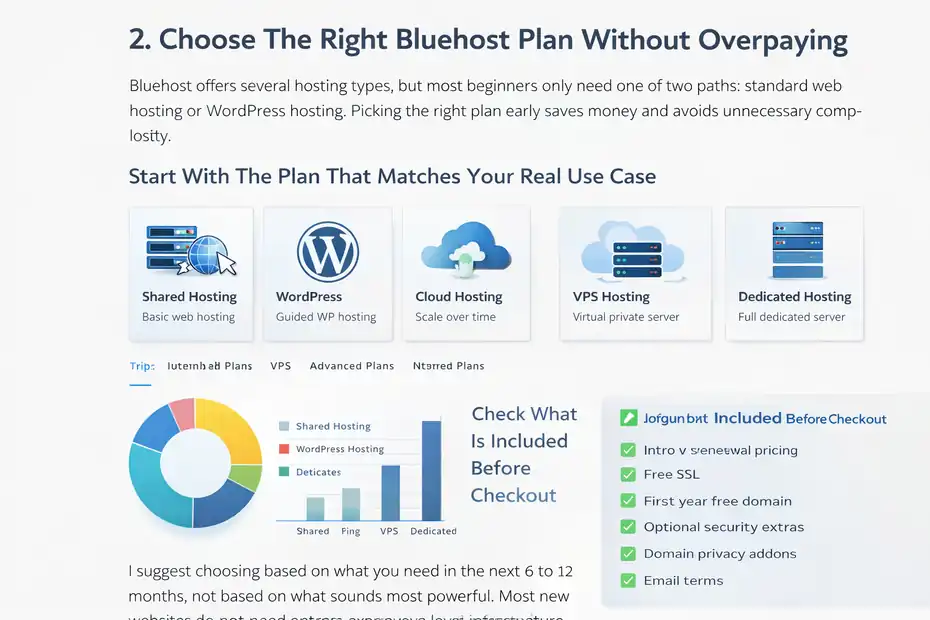
Bluehost offers several hosting types, but most beginners only need one of two paths: standard web hosting or WordPress hosting.
Picking the right plan early saves money and avoids unnecessary complexity.
Start With The Plan That Matches Your Real Use Case
Bluehost currently offers shared hosting, WordPress hosting, cloud options, VPS, and dedicated plans on its pricing pages. For most new users, shared hosting or WordPress hosting is the realistic starting point.
Here is the simplest breakdown:
- Shared hosting: Lower-cost option for basic sites, blogs, and small business websites
- WordPress hosting: Better if you specifically want a guided WordPress-focused experience
- VPS or dedicated: Usually overkill for a brand-new site
- Cloud or advanced plans: Better later if traffic or performance needs grow
I suggest choosing based on what you need in the next 6 to 12 months, not based on what sounds most powerful. Most new websites do not need enterprise-level infrastructure. They need clarity, speed, and a setup they can actually manage.
Check What Is Included Before Checkout
This is where you need to slow down for five minutes.
Bluehost says many plans include features like a free domain for the first year, free SSL, support, and WordPress setup assistance, while optional add-ons can increase the total at checkout.
Bluehost also states that optional add-ons such as domain privacy or email can affect the price, even if the main hosting rate is clearly listed.
Pay attention to:
- Intro pricing versus renewal pricing
- Domain inclusion
- SSL certificate
- Backups
- Professional email trial or paid add-on
- Security extras
- Domain privacy
This is one of those moments where a beginner can spend $30 more than necessary just by leaving every box checked.
Pick Based On Simplicity, Not Feature Anxiety
A lot of people buy a bigger plan because they are scared of making the wrong choice.
I would not do that unless you already have strong traffic, multiple sites, or a store with real demand. For a first website, the smartest move is usually the plan that gives you solid basics, WordPress access, and enough room to grow one level later.
That keeps your learning curve manageable. And honestly, managing your site well matters far more than squeezing 15 extra features out of your hosting account.
3. Register Your Domain Name The Smart Way
Your domain is a branding decision, an SEO decision, and a trust decision all at once. This is one of the few things that is annoying to change later, so give it real thought.
Choose A Domain That Is Easy To Remember And Say
A strong domain is usually:
- Short
- Easy to spell
- Easy to say out loud
- Brandable
- Relevant to your niche or business
Try not to use random hyphens, extra words, or odd spellings. If someone hears your domain in conversation, they should be able to type it correctly on the first try.
For example, imagine you run a local cleaning company. SparkleCleanDallas.com is clearer than TheBestAffordableCleaningServicesInDallas.net. One sounds like a business. The other sounds like a panic decision.
I recommend making a shortlist of 5 to 10 options before you start checkout. Domain availability can disappear fast.
Decide Whether To Use A New Domain Or Connect An Existing One
Bluehost lets users either register a new domain during setup or use a domain they already own. That flexibility is helpful if you purchased your name elsewhere first.
Here is how to choose:
- New project with no brand yet: Register a new domain during signup
- Existing business with a branded domain already purchased: Connect that existing domain
- Rebuilding an old site: Keep the current domain if possible to preserve recognition and search equity
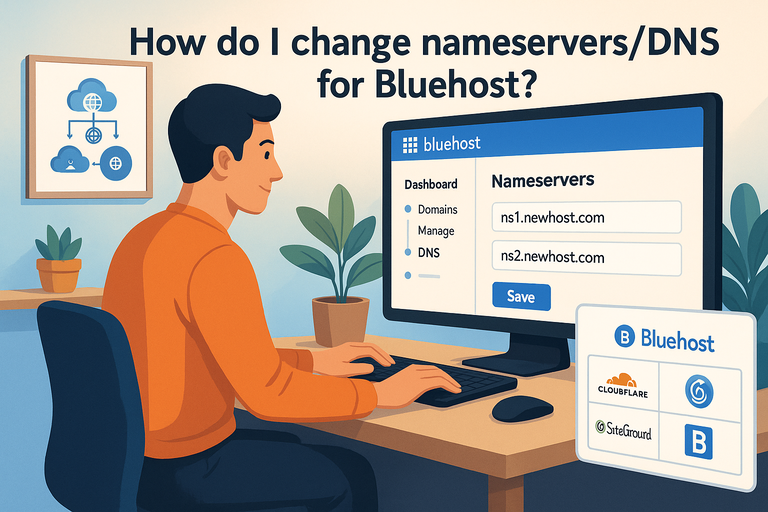
If you already own a domain from another registrar, you may need to update nameservers or DNS records later. That is not hard, but it adds one more moving part.
Think One Step Ahead About Branding
Your domain should still make sense if the business expands.
For example, if you start with handmade candles but may later sell home fragrance products, a broader brand name often ages better than something ultra-specific.
I have seen people lock themselves into names like onlysoywaxcandles.com and then regret it six months later when they add diffusers, sprays, and gift boxes.
The best domain is usually not the most keyword-heavy. It is the one you can grow into.
4. Create Your Bluehost Account And Complete Checkout
Once you know your plan and domain, the actual account creation is pretty straightforward. This is the point where you want to be careful, not fast.
Fill Out The Core Account Details Carefully
During signup, Bluehost asks for the usual basics like your account information, domain choice, and plan term. You should double-check spelling, billing email, and domain selection before paying because fixing small errors later is annoying. Bluehost’s pricing pages also note that optional add-ons may be presented during checkout.
Here is what I suggest reviewing before clicking submit:
- Domain spelling
- Email address you actually use
- Plan term length
- Renewal terms
- Add-on boxes
That last one matters. New users often assume every preselected add-on is mandatory. It usually is not.
Avoid Buying Extra Features You Do Not Need Yet
This is where being practical beats being emotional.
For a new site, the must-haves are usually:
- Hosting
- Domain
- SSL
- WordPress access
Everything else depends on your comfort level and business model.
You may choose extras like domain privacy, premium backups, or advanced security. Those can be useful. But they are not automatically essential for every brand-new website.
My rule is simple: If you do not understand what an add-on does, do not buy it just because it sounds protective. Learn first, then upgrade later if needed.
Save Your Login Information Immediately
Once checkout is done, store your access details in a password manager or secure note.
Save:
- Bluehost login
- Billing email
- Domain details
- WordPress login if created separately
- Recovery methods
This sounds basic, but it prevents a very real beginner problem: getting locked out before your site is even live.
5. Set Up WordPress And Finish The Initial Onboarding
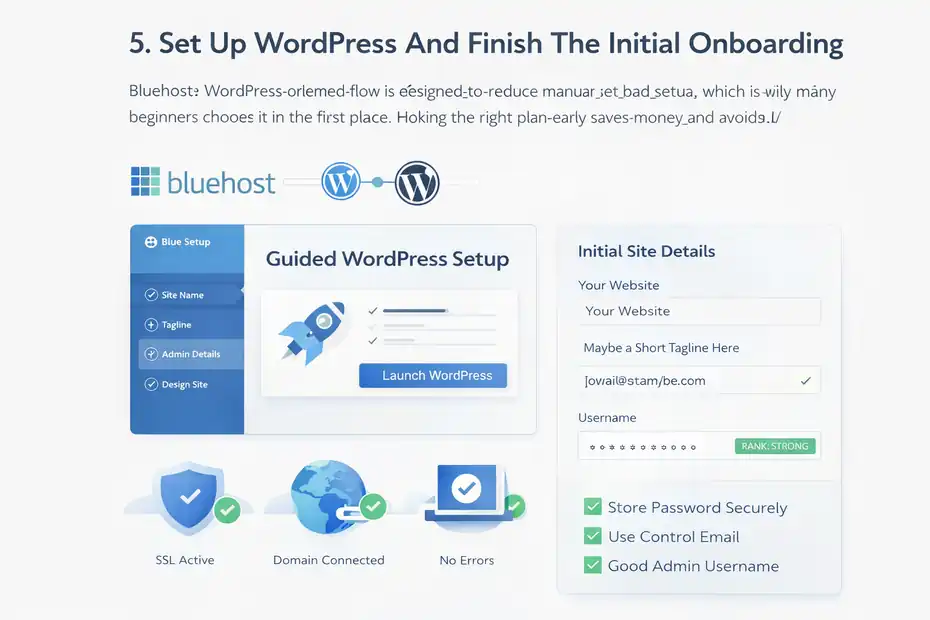
This is the point where your website starts to feel real. Bluehost’s WordPress-oriented flow is designed to reduce manual setup, which is why many beginners choose it in the first place.
Use Bluehost’s Guided WordPress Setup
Bluehost says WordPress is pre-installed on many of its WordPress plans and highlights one-click installation or guided onboarding, depending on the hosting path you choose. WordPress.org also notes that Bluehost provides WordPress-focused setup and pre-installation benefits.
That means you typically do not need to upload WordPress manually or configure a database from scratch like you would on a more technical server.
In most cases, your flow looks like this:
- Log into Bluehost
- Open your website or hosting dashboard
- Launch WordPress
- Follow the setup prompts
- Choose basic site details
This is much easier than traditional manual installation, which WordPress still documents for users on more custom server setups.
Enter Your Site Name, Tagline, And Admin Basics
During the initial setup, you will usually be asked for your website name and maybe a short tagline.
Do not overthink this. Your site title can be changed later.
What matters more is setting up your admin access properly:
- Use a strong password
- Store it securely
- Use an email address you control
- Make sure your admin username is not something obvious
A sloppy admin setup creates avoidable security headaches later.
Skip Fancy Design Decisions For A Moment
I know the temptation is to jump straight into colors, fonts, logos, and homepage sections.
Resist that for a few minutes.
First, make sure:
- WordPress opens correctly
- The dashboard loads
- Your domain is connected properly
- SSL is active
- The site is not throwing setup errors
Design is easier when the technical foundation is stable.
6. Configure The Essential Website Settings First
This is one of the most overlooked steps in any Bluehost tutorial. A website can look fine on the surface and still be poorly configured underneath.
Set Your Site URL, SSL, And Basic Visibility
Bluehost includes free SSL on relevant plans, which means your site should load securely with HTTPS instead of HTTP. That secure padlock is not just cosmetic. It helps with trust, browser behavior, and basic search expectations.
Check these first:
- Does your site load with HTTPS
- Does the non-HTTPS version redirect properly
- Is your WordPress Address correct
- Is your Site Address correct
Then check WordPress visibility settings. You do not want to accidentally leave “discourage search engines” enabled after launch.
That one tiny checkbox has delayed more launches than most people realize.
Clean Up Permalinks And Default Content
Permalinks are your page URL structure. In plain English, they decide whether your links look clean or messy.
A good default is the post name structure because it creates readable URLs like:
- yourdomain.com/about
- yourdomain.com/contact
- yourdomain.com/website-setup-guide
Inside WordPress, also remove the junk that comes with fresh installs:
- Sample page
- Hello world post
- Unused themes you will not keep
- Placeholder plugin clutter
This cleanup gives you a cleaner dashboard and reduces confusion later.
Set Time Zone, Site Language, And Discussion Rules
These settings sound minor until they cause weird issues.
Set:
- Your time zone for proper publishing times
- Site language for dashboard consistency
- Comment settings if you plan to allow blog comments
- User roles if more than one person will manage the site
For example, if you publish blog posts for a U.S. audience but your time zone is wrong, your scheduling can feel unpredictable. That is a small detail that makes your site feel less controlled.
7. Choose A Theme That Matches Your Website Goal
Your theme controls the overall design and layout of your website. This is where a lot of beginners either freeze up or make the site too fancy too early.
Pick A Theme Based On Function First, Style Second
A theme should help your site do its job.
If you run a local service business, you need strong homepage sections, clear calls to action, service pages, and contact visibility. If you run a blog, you need readability, category organization, and post templates. If you run a store, you need product-focused layouts.
I suggest asking one question: what does this site need visitors to do?
Then choose a theme built for that action.
Do not choose a theme just because the demo looks dramatic. Demo content is often doing a lot of heavy lifting that your actual site will not replicate.
Keep Your First Design Simple And Fast
Fast, clean, and trustworthy usually beats flashy.
A beginner-friendly site should prioritize:
- Clear navigation
- Mobile responsiveness
- Readable fonts
- Good contrast
- Visible contact options
- Easy page editing
Many of us assume a professional website needs lots of animation. In reality, most converting websites are visually calm. They guide attention instead of showing off.
That is especially important if your audience is local, older, busy, or visiting from a phone.
Customize Only The Essentials First
Here is the order I recommend:
- Upload your logo or text logo
- Set brand colors
- Choose fonts
- Build header navigation
- Add homepage sections
- Set footer details
That is enough for version one.
Do not spend six hours adjusting button radius or shadow depth before your About page even exists. I say that with love because I have absolutely seen people do exactly that.
8. Install Only The Plugins You Truly Need
Plugins add features to WordPress, but too many can slow your site down, create conflicts, and make maintenance harder. This is where restraint helps.
Start With A Small Core Plugin Stack
A new Bluehost WordPress site usually does not need 20 plugins. It needs a clean core setup.
For most websites, that includes plugins for:
- SEO
- Caching or performance
- Backups
- Security
- Forms
- E-commerce if needed
Bluehost’s WordPress hosting pages mention included or supported tools such as Yoast SEO, backups, malware scanning, CDN, and support features on some WordPress plans. Which features are included depends on the plan, so always confirm inside your account before assuming you already have them.
That last point matters. Beginners often install a plugin for a feature their hosting plan already provides.
Avoid Plugin Overlap
This is a quiet website killer.
Examples of bad overlap:
- Two SEO plugins
- Two caching plugins
- Two security suites
- Multiple page builders on one site
- Several backup tools doing the same job
That overlap creates conflicts, slower load times, and dashboard clutter.
I recommend adding one plugin at a time and testing your site after each installation. That makes troubleshooting much easier if something breaks.
Think In Terms Of Business Need, Not Feature Hype
Every plugin should answer a clear question.
Ask:
- Does this help me publish content better
- Does this improve speed or security
- Does this help me capture leads
- Does this support sales or usability
If the answer is vague, skip it.
A simple site with six good plugins usually outperforms a chaotic site with twenty-five.
9. Build Your Key Pages And Launch The Site Properly
This is where your Bluehost setup turns into an actual website people can use. You do not need every page on earth. You need the right pages, written clearly.
Create The Core Pages Every Real Website Needs
Start with these:
- Home
- About
- Services or Products
- Contact
- Privacy Policy
Then add:
- Blog if content marketing matters
- FAQ if you answer the same questions often
- Testimonials if trust is a major conversion factor
Each page should have one clear job.
For example, your homepage should not try to explain every detail of your business history. It should quickly help a visitor understand who you help, what you offer, and what to do next.
Write For Clarity Before SEO Perfection
Yes, rankings matter. But your first launch should focus on clear communication.
A strong homepage usually includes:
- A headline with your main offer
- A short supporting explanation
- A primary call to action
- A few trust signals
- A quick overview of services or benefits
Imagine you are a photographer. Instead of a vague headline like “Capturing Life Beautifully,” say something like “Wedding And Family Photography In Austin That Feels Natural And Relaxed.”
That version is clearer for both people and search engines.
Test Before You Announce Your Site
Before launch, click everything.
Check:
- Navigation links
- Contact form
- Mobile layout
- Footer links
- Social icons
- SSL padlock
- Page speed feel
- Broken placeholder text
- Basic grammar issues
I also recommend opening your site on your phone and sending it to one other person. Fresh eyes catch obvious problems fast.
10. Optimize, Secure, And Grow After Launch
Launching is not the finish line. It is the start of the real work. The good news is that once your Bluehost website is live, improvement becomes much easier because you are working with something real.
Handle The First Round Of SEO Basics
A new website should leave launch day with these basics done:
- Clear page titles
- Meta descriptions where relevant
- Clean URLs
- Internal links between key pages
- One main keyword focus per important page
- Image alt text
- An XML sitemap through your SEO setup
Bluehost highlights WordPress-friendly marketing and SEO tools on some plans, and Yoast SEO is one of the named tools on its WordPress hosting pages.
Still, tools do not replace thinking. The real SEO win comes from matching each page to one search intent and writing better than the average competitor.
Add Analytics And Basic Tracking Early
This is something I strongly recommend because otherwise you are guessing.
Set up tracking for:
- Traffic
- Top pages
- Form submissions
- Sales if you run a store
- Search performance
- Bounce patterns on key landing pages
Even a simple site benefits from knowing what pages people actually visit.
For example, you may think your homepage is the star, but your contact page or one blog post might quietly become your main conversion asset. Without analytics, you miss that signal.
Plan For Ongoing Maintenance Instead Of Website Panic
A healthy site needs small, regular maintenance.
That includes:
- Updating WordPress core
- Updating themes and plugins
- Checking backups
- Reviewing security alerts
- Testing forms
- Improving slow pages
- Refreshing outdated content
Bluehost’s WordPress hosting pages mention backups, malware scanning, DDoS protection, and support features on some plans, which can reduce the manual burden depending on the plan you choose.
I believe the smartest mindset is this: your website is not a one-time project. It is a digital asset. Treat it like something that should get stronger every month.
Common Mistakes To Avoid When Setting Up A Website With Bluehost
Most setup problems are not technical disasters. They are small decisions that stack up. If you avoid these, your site launch will be much smoother.
Choosing Based On Price Alone
Cheap hosting is attractive, and I get why. But price without fit is expensive later.
A plan that saves a few dollars but creates extra manual work, poor performance, or missing features is not a bargain. Look at the full picture: setup experience, included SSL, WordPress handling, support, and upgrade path.
Bluehost’s official pages emphasize beginner-friendly WordPress setup, included SSL, support, and optional upgrade paths across hosting tiers.
Skipping Basic Site Structure
Some people launch with one homepage and nothing else.
That creates trust problems fast. Visitors want to know who you are, what you offer, and how to contact you. Even a very simple website should feel complete enough to earn confidence.
Overdesigning Before You Have Real Content
This one is so common it is almost a rite of passage.
You do not need a masterpiece on day one. You need a clear site with useful pages, strong messaging, and a credible presentation. Fancy design without useful content is just decoration.
Advanced Tips Once Your Bluehost Website Is Live
Once the basics are done, you can start improving performance, conversions, and scalability. This is where a website stops being “set up” and starts becoming useful.
Build Topic Clusters Instead Of Random Blog Posts
If you plan to use content marketing, create groups of related articles around one core topic.
For example, if you run a bakery website, your cluster might include:
- Custom wedding cakes
- Birthday cake pricing
- Cake tasting guide
- Delivery zones
- How far ahead to order
Then link those articles back to your main service page. This improves usability and helps search engines understand topical relevance.
Improve Conversion Paths On High-Traffic Pages
Look at pages that attract visitors and ask: what should happen next?
Then add one logical next step:
- Book a call
- Request a quote
- Join your email list
- View services
- Shop now
A website that gets traffic but gives visitors no direction is wasting attention.
Upgrade Hosting Only When The Data Justifies It
You do not need to panic-upgrade because someone said your site “might scale.”
Upgrade when you see real reasons:
- Slower performance during traffic spikes
- Higher plugin or store demands
- Multiple websites under one account
- More complex workflows
- Need for staging or stronger resources
Bluehost offers higher-tier options like cloud, VPS, and dedicated hosting, so there is a growth path if your website outgrows the starter environment.
Final Thoughts
If you wanted the real answer to how to set up website using Bluehost, here it is: the process is not hard, but it is much easier when you follow the steps in the right order.
Choose the right plan, secure a smart domain, complete WordPress onboarding, configure the essentials, keep your design simple, and launch with only the pages and plugins you actually need.
That is how you get online without turning the project into a month-long maze.
And honestly, that is the part many people need to hear most: Your first website does not need to be perfect. It needs to be live, clear, secure, and useful. Once that foundation is in place, you can improve everything else from a much stronger position.
FAQ
How do I set up a website using Bluehost?
To set up a website using Bluehost, sign up for a hosting plan, register a domain, and complete checkout. Then log into your account, launch WordPress, follow the setup prompts, and customize your site with a theme, pages, and essential settings before publishing.
Does Bluehost include WordPress installation?
Yes, Bluehost includes automatic or one-click WordPress installation on most plans. This means you do not need to install it manually. Once your account is active, you can access WordPress directly from your dashboard and begin building your website immediately.
How much does it cost to create a website with Bluehost?
The cost depends on the plan you choose, but Bluehost typically offers beginner plans with introductory pricing. Many plans include a free domain for the first year and SSL. Additional features like backups or security tools may increase the total cost if selected.
Can I use my existing domain with Bluehost?
Yes, you can connect an existing domain to Bluehost instead of registering a new one. During setup, choose the option to use your current domain and update its DNS or nameservers to point to Bluehost so your website becomes accessible online.
Is Bluehost good for beginners building a first website?
Bluehost is considered beginner-friendly because it offers guided setup, WordPress integration, and simple dashboards. Many users find it easier to launch their first website compared to more technical hosting providers, especially when they want a fast and straightforward setup process.

I’m Juxhin, the voice behind The Justifiable.
I’ve spent 6+ years building blogs, managing affiliate campaigns, and testing the messy world of online business. Here, I cut the fluff and share the strategies that actually move the needle — so you can build income that’s sustainable, not speculative.
Related posts:
 HostGator Website Builder Review: Fast, Simple, Worth It?
 How Do I Change Nameservers / Dns For Bluehost?
 Webhostingpad: Everything You Need to Know
 The Ultimate Guide to UltraWebHosting: Features, Benefits, and Pricing
 How to Host a Website: A Step-by-Step Guide for Beginners
 WP Engine Managed WordPress Hosting Review: Worth Cost?