
Table of Contents
Some links on The Justifiable are affiliate links, meaning we may earn a small commission at no extra cost to you. Read full disclaimer.
The app Omnisend has become a favorite tool for business owners who want to send professional, automated email campaigns without being tied to their desks.
Whether you’re traveling, working remotely, or running a growing eCommerce store, Omnisend helps you manage everything from a single dashboard—anytime, anywhere.
But how exactly can you run successful email campaigns using the app Omnisend while staying mobile?
Let’s break down how you can use its powerful features to simplify, automate, and optimize your marketing on the go.
Understanding How The App Omnisend Works
Before you dive into running mobile email campaigns, it’s important to really understand what the app Omnisend does under the hood.
It’s more than just an email-sending tool—it’s a full marketing automation platform designed to help you connect your store, segment your audience, and send targeted campaigns with ease.
The Core Functionality Behind Omnisend’s Platform
At its heart, Omnisend helps you create, send, and automate marketing campaigns across multiple channels—email, SMS, and push notifications—all from one dashboard.
Here’s what that means in practice:
- Automation Workflows: You can set up prebuilt workflows like “Welcome Series” or “Abandoned Cart Recovery” with a few taps. These run automatically once triggered by customer actions.
- Segmentation Engine: Omnisend’s audience segmentation allows you to target customers based on purchase history, browsing behavior, or engagement.
- Real-Time Analytics: Campaign results update instantly in your dashboard, letting you see open rates, clicks, and conversions as they happen.
I like to think of it as having a personal assistant who handles repetitive email tasks while you focus on strategy.
For instance, you could automate a follow-up sequence that goes out after someone abandons their cart—without lifting a finger after setup.
Integration Options That Simplify Your Marketing Workflow
Omnisend’s integrations are what make it truly flexible. You can connect it with eCommerce platforms like Shopify, WooCommerce, BigCommerce, and Magento in minutes.
Here’s an example UI path: Dashboard → Integrations → Shopify → Connect Store
Once linked, Omnisend automatically imports customer data, product details, and purchase history. This makes personalized marketing effortless. You can even connect it to tools like Google Analytics or Facebook Ads to sync customer behavior data.
I recommend enabling two-way sync between your eCommerce platform and Omnisend so customer data updates automatically. It saves time and ensures your campaigns always reflect real-time behavior.
How Omnisend Differs From Traditional Email Tools
Most basic email tools handle only bulk newsletters. Omnisend goes several steps further with automation and omnichannel support.
Here’s a quick comparison to show the difference:
| Feature | Omnisend | Traditional Email Tool |
| Multi-channel marketing (Email, SMS, Push) | Yes | No |
| Automation workflows | Advanced | Basic |
| eCommerce integrations | Deep & automatic | Manual |
| Customer segmentation | Behavior-based | List-based |
| Real-time analytics | Included | Often limited |
I’ve found this versatility especially useful when managing email campaigns while traveling.
You don’t have to rely on different platforms for SMS or automation—it’s all unified in Omnisend’s mobile interface.
Setting Up Omnisend For Mobile Campaign Management
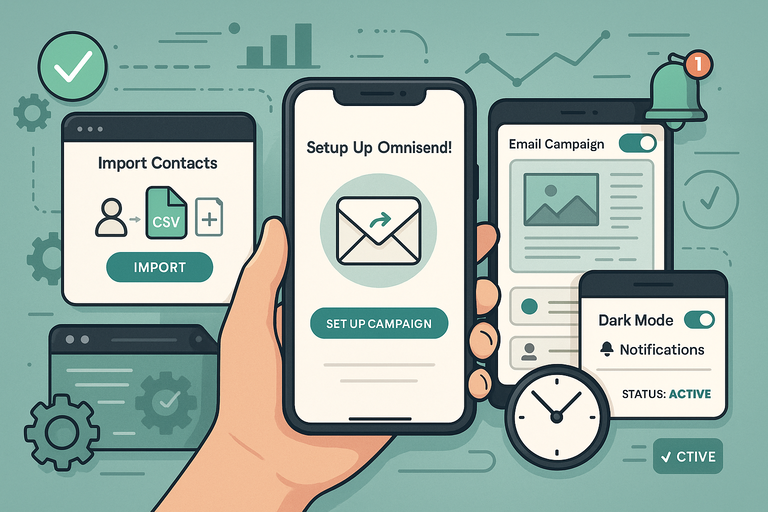
Running campaigns from anywhere starts with setting up the app Omnisend properly.
Once configured, you can track and adjust everything from your phone or tablet without missing a beat.
Step-By-Step Guide To Getting Started With Omnisend
Getting started with Omnisend is surprisingly quick. Here’s how I recommend setting it up:
- Sign Up & Connect Your Store: Go to omnisend.com or download the Omnisend app. Once logged in, connect your eCommerce store using the Integrations tab.
- Import Contacts: Omnisend can automatically pull your store’s contacts, or you can upload them via CSV.
- Create Your First Campaign: From the main dashboard, select Campaigns → Create Email Campaign. Choose a template or start from scratch.
- Preview on Mobile: Use the preview toggle to see how your email will look on a smartphone screen.
- Schedule or Automate: Decide if you’ll send it immediately or set up an automation trigger (like a cart abandonment email).
Within 20 minutes, you can have your first automated email live and running.
Customizing Settings For Mobile Use And Accessibility
If you’re working from your phone, Omnisend’s mobile app (available on iOS and Android) gives you nearly all the power of the desktop version.
A few things I suggest adjusting for smoother mobile use:
- Enable Push Notifications: Get instant alerts when campaigns go live or when performance metrics spike.
- Quick Access Shortcuts: Pin your most-used automations or reports to the home screen.
- Dark Mode: Perfect for late-night campaign tweaks—reduces eye strain and battery use.
I’ve noticed that using push notifications helps you catch campaign errors (like invalid links) early, even when you’re on the move.
Syncing Contacts And Customer Data Across Devices
Keeping your customer data consistent across platforms is key. Omnisend automatically syncs your contacts, segments, and campaigns between the web dashboard and mobile app.
To check synchronization: Settings → Account → Data Sync → Status: Active
This feature ensures every campaign uses the latest customer information—no matter where you edit it. If a user unsubscribes via mobile email, that change is reflected across all devices in real time.
Designing Effective Email Campaigns With Omnisend
Design is where your creativity meets data. The app Omnisend makes it simple to craft beautiful, mobile-responsive campaigns that actually convert.
How To Use Omnisend’s Drag-And-Drop Email Builder
Omnisend’s drag-and-drop builder is one of its biggest strengths. It lets you design emails visually, without needing to code a single line.
Here’s a typical path I use: Campaigns → Create → Email Builder → Choose Template → Edit
You can drag in blocks for text, images, buttons, or products directly from your store catalog. For example, dragging a “Product Block” automatically pulls in your product image, title, and price.
A few builder tips I’ve learned:
- Use Sections to organize emails logically—header, content, CTA, and footer.
- Preview frequently using the mobile view toggle.
- Keep your email width under 600px to ensure perfect mobile rendering.
Omnisend also saves your design elements so you can reuse them in future campaigns.
Tips For Creating Mobile-Optimized Email Templates
Since most users check emails on their phones, mobile optimization isn’t optional—it’s essential.
Here are a few mobile-first practices I always recommend:
- Single Column Layout: Keeps content easy to scroll through on small screens.
- Larger Buttons: At least 44×44 pixels for touch-friendly CTAs.
- Short Subject Lines: Aim for under 40 characters to prevent cutoffs.
- Readable Fonts: Stick to system fonts like Arial or Helvetica.
I once tested two nearly identical emails—one with a desktop-heavy layout and one mobile-optimized. The mobile-friendly version saw a 32% higher click rate. That’s the difference good design makes.
Personalization Techniques That Boost Engagement
Personalization is where Omnisend truly shines. The app allows you to dynamically insert customer data—like first name, product recommendations, or even purchase history—directly into your email.
Examples include:
- Hi {{FirstName}}, we saved your favorite items!
- You might like these based on your last order.
Using conditional blocks (under “Content → Dynamic Blocks”), you can show different messages to different segments within the same campaign.
In my experience, adding even one personalized element can increase open rates by up to 26%. When customers feel recognized, they engage more deeply with your brand.
Automating Campaigns Using The Omnisend App
One of the biggest advantages of the app Omnisend is how easily it automates your email campaigns.
Instead of manually sending every message, you can set up smart workflows that trigger at the perfect time—so your customers always get relevant content without you constantly checking in.
Set up workflows that convert—welcome flows, abandoned cart recovery, and segmentation baked in. 👉 Activate Omnisend automation tools here!
Setting Up Automated Workflows For Customer Journeys
Automation in Omnisend starts with workflows. A workflow is basically a sequence of messages that get sent automatically based on certain triggers, such as a customer signing up, making a purchase, or abandoning a cart.
Here’s how you can set up your first one: Dashboard → Automation → Create Workflow → Choose Template
Omnisend provides several prebuilt templates to make this easy:
- Welcome Series: Automatically greets new subscribers.
- Cart Abandonment: Sends a reminder when someone leaves items in their cart.
- Re-engagement Sequence: Tries to win back inactive customers.
Once you select a template, you can customize the message, delay time, and audience conditions.
I recommend testing one workflow at a time to see which triggers perform best for your store.
I’ve personally found that a three-step abandoned cart series—sent 1 hour, 12 hours, and 24 hours after cart abandonment—can recover up to 20% of lost sales.
Using Behavioral Triggers To Send The Right Message
Behavioral triggers are what make Omnisend’s automation feel natural. These triggers are actions your customers take (or don’t take) that tell the system when to send a message.
Common examples include:
- Email Opened / Not Opened
- Product Viewed
- Cart Abandoned
- Order Completed
- Birthday Date Reached
You can set these under: Workflow Editor → Trigger Settings → Choose Behavior
For example, if someone browses a specific category on your site—say “women’s shoes”—Omnisend can automatically send an email featuring top-selling products from that category.
I advise keeping triggers focused on intent rather than just activity. Sending too many automated messages can feel spammy; it’s better to respond when the customer shows real buying signals.
Balancing Automation With A Human Touch
It’s easy to let automation run wild, but a fully robotic tone can push customers away. The best-performing Omnisend campaigns blend automation with empathy.
Here’s what I suggest:
- Use Friendly Language: Write your emails as if you’re speaking to one person.
- Add Real Names: Use your own name or your brand’s founder to sign off messages.
- Customize Send Times: Avoid sending automated emails at odd hours in your recipient’s time zone.
For example, I like adding a short “personal” note at the end of automated emails like: “If you have any questions, just hit reply—I read every message.” It’s automated, yes, but it feels human.
Automation saves you time, but it’s the human tone that earns customer trust.
Managing Campaigns From Anywhere In Real-Time
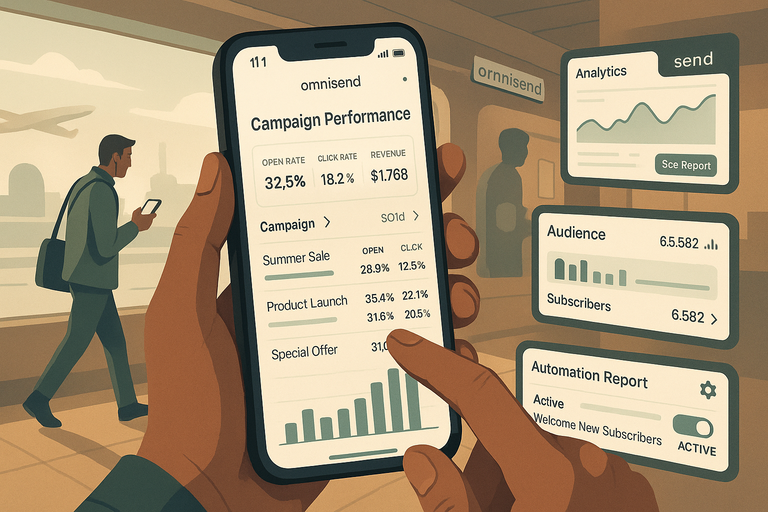
Once your workflows and campaigns are running, you can easily monitor and manage them on the go using the Omnisend mobile app.
Whether you’re traveling or working remotely, you’ll still have full control.
How To Track Campaign Performance On The Go
Omnisend’s mobile dashboard provides a clear snapshot of your key metrics—open rates, click-through rates, revenue, and more—all in real time.
Here’s where to find it: Mobile App → Dashboard → Campaign Performance
From there, you can:
- See how each campaign is performing.
- Check which emails are generating the most revenue.
- Compare open and click rates between campaigns.
I recommend checking this once a day when you’re running active campaigns. It only takes a minute, and it helps you make quick adjustments if something’s underperforming.
For example, if your open rate drops, you might want to tweak the subject line or resend the campaign to unengaged subscribers.
Using Omnisend’s Mobile Analytics Dashboard Effectively
Omnisend’s analytics aren’t just numbers—they’re actionable insights. You can tap into specific reports to analyze what’s working and what’s not.
Useful sections include:
- Audience Overview: Tracks subscriber growth and segment engagement.
- Campaign Report: Shows which products or links are driving clicks.
- Automation Report: Reveals which workflows convert best.
For instance, I once noticed a welcome email had a much higher conversion rate when sent within 10 minutes of signup rather than an hour later. Small insights like that can significantly improve ROI over time.
The beauty of Omnisend’s mobile analytics is that you can identify these trends even while you’re on a train or between meetings.
Troubleshooting Common Issues While Traveling
Sometimes, campaigns don’t go exactly as planned—and that’s where the mobile app really shines.
If you’re traveling and encounter issues, try these quick fixes:
- Campaign Not Sending? Check your “Automation Status” toggle under Campaigns → Active Workflows.
- Emails Not Displaying Correctly? Use the preview option to test rendering on mobile and desktop views.
- Sync Delays? Tap Settings → Data Sync → Refresh Now.
I suggest always enabling email and push notifications from Omnisend so you’re alerted if a campaign fails or a workflow gets paused. That way, you can resolve problems fast, wherever you are.
Leveraging Omnisend’s SMS And Push Notification Features
Email alone is powerful—but when you combine it with SMS and push notifications, your marketing becomes unstoppable.
The app Omnisend makes it easy to create integrated campaigns that reach customers across multiple channels.
Why Combining Email And SMS Boosts Conversion Rates
According to Omnisend’s internal data, brands that use both email and SMS in their automation sequences see 47% higher conversion rates compared to email-only campaigns.
It works because SMS offers instant visibility. While emails might sit unopened, texts are usually read within minutes.
Here’s how I like to use them together:
- Email: Sends detailed content, product info, or visuals.
- SMS: Delivers short, time-sensitive updates like flash sales or order confirmations.
For example, after sending an abandoned cart email, you can schedule a follow-up SMS saying, “Hey, we saved your cart for you—checkout before it’s gone!”
This one-two punch keeps your message top of mind without feeling intrusive.
Creating Integrated Campaigns For Maximum Impact
Omnisend allows you to combine channels within the same workflow. You can send an email, wait two hours, and then trigger an SMS or push notification automatically.
Here’s how to set it up: Automation → Create Workflow → Add Channel → Choose SMS or Push
To keep it seamless:
- Space out messages so they don’t overwhelm the recipient.
- Use consistent branding and tone across all channels.
- Track combined performance metrics under Automation Reports.
I recommend using push notifications sparingly—save them for major promotions, shipping updates, or VIP offers. They grab attention instantly but can be overused if not planned carefully.
Real-World Examples Of Multi-Channel Success
Let me share a quick scenario that highlights this in action.
A boutique clothing store I worked with used Omnisend to set up a multi-channel campaign for a new product launch:
- Email: Sent a preview of the new collection.
- SMS: Reminded customers of early access the next morning.
- Push Notification: Announced “Now Live” when the sale opened.
The result? A 28% increase in total revenue during launch week—and half the sales came from mobile users.
That’s the real power of combining channels in Omnisend: it doesn’t just send messages; it orchestrates customer experiences.
Measuring Results And Improving Future Campaigns
Once your app Omnisend campaigns are live, the real magic happens in the analysis phase.
This is where data helps you understand what’s working, what isn’t, and how to improve future campaigns.
Understanding Key Metrics In Omnisend Reports
Omnisend gives you a full picture of your campaign performance through detailed reports. You’ll find these under Dashboard → Reports → Campaign Performance.
The key metrics to focus on include:
- Open Rate: Measures how many people opened your email. A good benchmark is around 20–25%, though it varies by industry.
- Click-Through Rate (CTR): Tells you how engaging your email content is. Anything above 3–5% is strong.
- Conversion Rate: Shows how many recipients completed a desired action—like making a purchase.
- Revenue per Email (RPE): Calculates how much money each email generates on average.
- Unsubscribe & Bounce Rates: Help you gauge audience health and list quality.
In my experience, the most valuable insights often come from comparing campaigns over time. For instance, if one subject line consistently drives higher opens, it’s worth using that tone or structure again.
Omnisend also visualizes your data in clean graphs, making it easy to spot patterns—like which days or times your audience is most active.
Using A/B Testing To Optimize Email Performance
A/B testing in Omnisend is a simple but powerful way to experiment and find what truly resonates with your audience.
Here’s how you can set one up: Campaigns → Create → A/B Test → Select Variable
You can test elements like:
- Subject Lines: “New Arrivals Just Dropped” vs. “Your Exclusive Preview Awaits”
- Send Times: Morning vs. evening sends.
- CTA Buttons: “Shop Now” vs. “Get Yours Today.”
Omnisend automatically sends two versions to small audience samples and then rolls out the winning version to the rest.
From what I’ve seen, even small tweaks can have big impacts. One store I worked with improved click-throughs by 18% simply by changing the CTA color and positioning.
A tip I always share: Test one variable at a time. That way, you’ll know exactly which change caused the improvement.
Turning Data Insights Into Actionable Strategies
Collecting data is only half the job—the real value comes from acting on it.
Here’s a quick approach I use:
- Identify Trends: Look for recurring patterns, like which segments respond best.
- Set Improvement Goals: For example, “Increase open rate from 22% to 28% in 30 days.”
- Implement Adjustments: Change one element at a time—subject lines, timing, or personalization.
- Measure Again: Compare results and refine further.
Omnisend’s Automation Reports and Audience Insights make this easy to track. You can even export performance data into Google Sheets for deeper analysis.
I believe that data shouldn’t intimidate you—it should empower you. Every campaign, even a poorly performing one, is a lesson in what your customers respond to.
Advanced Omnisend Features To Try On The App
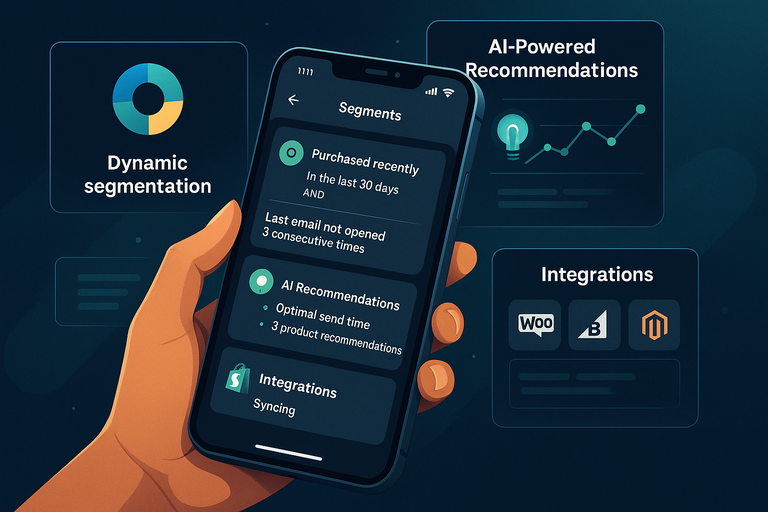
Once you’ve mastered the basics, Omnisend’s advanced tools can help you take your campaigns to the next level.
These features focus on personalization, automation intelligence, and seamless integrations.
Dynamic Segmentation For Smarter Targeting
Dynamic segmentation in Omnisend automatically updates your audience lists based on behavior and demographics.
You can find it here: Audience → Segments → Create Segment → Add Conditions
For example, you might create a segment like “Customers who purchased in the last 30 days but didn’t open the last two emails.” Omnisend will keep this list updated automatically as customer behavior changes.
Why it matters:
- It ensures your messages stay relevant.
- It reduces the risk of over-emailing inactive users.
- It boosts conversions by targeting intent-driven groups.
From what I’ve noticed, segmented campaigns can perform up to 60% better than non-segmented ones in both engagement and revenue.
AI-Powered Recommendations For Better Campaigns
Omnisend now includes AI-driven features that analyze your audience data and suggest campaign improvements.
These might include:
- Optimal Send Times: Based on past engagement history.
- Personalized Product Recommendations: Automatically generated from purchase data.
- Content Suggestions: For subject lines and message timing.
You’ll find these recommendations highlighted directly in your dashboard after a few campaigns.
I’ve tested the AI send-time optimization, and it’s surprisingly effective. One eCommerce brand saw a 12% lift in open rates just by switching from fixed schedules to AI-driven timing.
I recommend treating Omnisend’s AI like an assistant—not a replacement for your instincts. It’s great at pattern recognition, but your human touch ensures the tone stays personal.
Integrations With Shopify, WooCommerce, And More
Omnisend integrates effortlessly with most major eCommerce platforms, allowing you to sync data and automate actions between systems.
Common integrations include:
- Shopify: Imports customer and product data automatically.
- WooCommerce: Syncs order information for personalized automation.
- BigCommerce and Magento: Allow advanced segmentation and analytics syncing.
For example, with Shopify connected, Omnisend can send an email featuring items from a user’s recently viewed products—without any manual setup.
To connect: Dashboard → Integrations → Select Platform → Connect Store.
Integrations save hours of manual work, keeping your campaigns accurate and your data unified across all tools.
Best Practices For Running Omnisend Campaigns Anywhere
When managing campaigns remotely, consistency and timing are key. The app Omnisend makes it possible to handle everything from scheduling to compliance—no matter where you are.
Keeping Your Campaigns Consistent Across Devices
Omnisend automatically syncs campaign drafts, templates, and workflows between your desktop and mobile app.
To check this: Settings → Account → Device Sync → Status: Active.
This means you can start creating a campaign on your laptop and finish editing it on your phone while traveling.
I suggest keeping a consistent visual and tone style by saving Brand Templates under your account. That way, no matter which device you use, your emails always align with your brand identity.
Managing Time Zones And Scheduling Emails Globally
Omnisend allows you to schedule emails based on your audience’s local time zone—an invaluable feature when you have international customers.
When creating a campaign: Campaigns → Schedule → Send By Recipient’s Time Zone.
This ensures no one gets a midnight email alert in their region.
A small but impactful adjustment like this can boost engagement by up to 15%. I’ve seen this firsthand when running campaigns across multiple continents.
If you travel frequently, enabling auto time-zone adjustment keeps your reports aligned with your current location while preserving local send times for subscribers.
Staying Compliant With GDPR And Other Email Regulations
Omnisend helps you stay compliant automatically by managing consent and unsubscribe settings.
Here’s what I recommend:
- Always include an unsubscribe link at the bottom of your emails.
- Use double opt-in forms for EU subscribers.
- Track consent logs under Audience → Compliance Reports.
The app also automatically suppresses unsubscribed or bounced contacts to keep your list clean and legally sound.
It’s not the most glamorous part of email marketing, but it’s crucial. Staying compliant builds trust and keeps your sender reputation healthy.
Expert Tips To Maximize Results With The App Omnisend
After working with Omnisend across dozens of campaigns, I’ve gathered a few practices that consistently drive better performance and engagement.
Common Mistakes To Avoid When Using Omnisend
A few things I see users struggle with include:
- Over-Automation: Too many workflows can lead to repetitive or irrelevant messages.
- Neglecting Mobile Testing: Always preview your emails on mobile before sending.
- Ignoring Segmentation: Sending blanket emails reduces engagement over time.
- Not Cleaning Lists: Keep your subscriber base fresh by removing inactive contacts every few months.
I believe Omnisend is at its best when used strategically, not mechanically. Automate where it helps—but always keep control of your messaging.
Proven Strategies To Boost Open And Click Rates
Here are techniques I often use to consistently improve performance:
- Use Curiosity in Subject Lines: Example: “Your Next Favorite Product Just Landed.”
- Personalize Content Deeply: Include purchase history or recommendations.
- Optimize Send Timing: Leverage Omnisend’s AI to test best times per audience.
- Add Visuals Wisely: Use high-quality product images, but keep file sizes light for mobile.
When applied together, these small changes can compound into significant engagement gains. I’ve seen brands double open rates within two months just by focusing on personalization and timing.
How To Build Long-Term Customer Relationships Through Email
Omnisend isn’t just about campaigns—it’s about building relationships.
Here’s what I’ve found works best for retention:
- Send Value First: Don’t only promote products—share tips, tutorials, or stories.
- Reward Loyalty: Use Omnisend’s automation to send personalized thank-you or milestone messages.
- Gather Feedback: Send occasional surveys through the platform to learn what your audience wants.
For example, I helped an online skincare brand use Omnisend to send birthday discounts and reorder reminders. Their repeat purchase rate jumped by 23% in three months.
Consistency, personalization, and timing—those three elements, when done right, turn subscribers into loyal advocates.
Pro Tip: Set aside 30 minutes weekly to review your Omnisend analytics and workflows. Tiny, consistent optimizations—like adjusting triggers or updating templates—compound into massive long-term gains.

I’m Juxhin, the voice behind The Justifiable.
I’ve spent 6+ years building blogs, managing affiliate campaigns, and testing the messy world of online business. Here, I cut the fluff and share the strategies that actually move the needle — so you can build income that’s sustainable, not speculative.
Related posts:
 How to Integrate Aweber with ClickFunnels
 Top 5 Email Marketing Platforms: Boost Your ROI Now!
 Aweber Email Marketing: Boosting Your Business Through Effective Email
 Blog Monetization Strategies: 5 Proven Ways to Earn More
 Aweber Autoresponder: Expert Setup & Automation Guide
 Best Email Marketing Solutions to Nurture Leads and Boost Sales