
Table of Contents
Some links on The Justifiable are affiliate links, meaning we may earn a small commission at no extra cost to you. Read full disclaimer.
Monday PM software has quickly become the go-to choice for many modern teams, but why are they leaving behind traditional project management tools? Is it just about flashy design, or is there something deeper driving this shift?
In this article, I’ll break down the key reasons teams prefer Monday PM software over outdated methods, so you can see if it’s the right fit for your workflow.
Intuitive Design That Simplifies Team Workflows
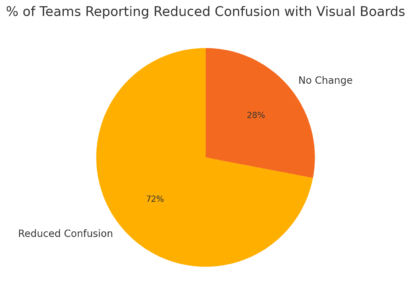
One of the biggest reasons teams love Monday PM software is its design. Traditional tools often feel like spreadsheets dressed up as “software,” but Monday keeps things visual, interactive, and human-friendly.
Instead of staring at endless rows of text, your projects come to life on boards you can actually navigate.
Visual Boards Make Project Tracking Effortless
Monday uses a board system that acts like a digital whiteboard. Imagine sticky notes, but smarter—you can drag them around, assign people, and add deadlines.
For example, if you’re running a content calendar, each article sits on a board with its due date, writer, and status clearly displayed. From the dashboard, just click “Add Board” > “Marketing” and you instantly have a place to organize campaigns.
This way, everyone sees the same information at a glance, without needing to dig through emails or spreadsheets. I’ve found this especially useful when working with cross-functional teams who all care about different milestones but need a single source of truth.
Thinking of ditching spreadsheets? Try Monday’s visual boards and build your first workflow in minutes.
Drag-And-Drop Features Eliminate Setup Hassles
Old-school tools often require manual setup that feels like busywork. Monday flips that on its head with drag-and-drop functionality. Want to rearrange tasks by priority? Just click and drag. Need to assign a designer to a task? Drag their avatar onto the card.
Here’s how it works in practice: If you’re planning a product launch, you can rearrange your launch checklist in seconds by dragging “Design Assets” above “Copywriting” to reflect the new workflow. It feels natural, almost like rearranging icons on your phone.
Color-Coded Status Updates Reduce Confusion
One of the most underrated features is Monday’s color-coded statuses. Instead of cryptic labels like “In Progress” or “Pending Review,” you see bright colors that instantly communicate progress.
- Green = Done
- Yellow = Working on it
- Red = Stuck
It’s almost impossible to misinterpret. I suggest using these statuses in team standups. For example, if a task is marked red, it signals blockers and the team can quickly swarm to fix it. Compared to traditional tools where updates get buried in text, this system cuts down on confusion and meetings.
Seamless Integrations With Everyday Tools
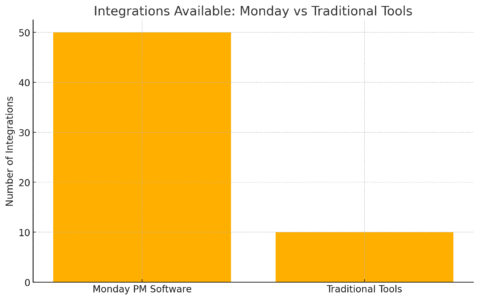
Another reason Monday PM software wins over traditional platforms is how effortlessly it plays with the tools teams already use.
Instead of bouncing between apps, Monday acts like a hub where email, chat, calendars, and automation all come together.
Connecting Email, Slack, and Calendar in One Hub
Imagine this: You get an email from a client requesting changes. Instead of copying and pasting it into your project tool, you can link Gmail or Outlook directly with Monday. From there, you turn the email into a task with one click.
Slack integration works the same way. You can set up automations so that when a task status changes (say from “Working on it” to “Done”), Monday automatically posts an update in your team’s Slack channel.
The same goes for calendars—deadlines sync with Google Calendar or Outlook, meaning no one can “forget” because it’s already in their schedule.
This centralization saves time and reduces the friction of switching contexts constantly.
Want everything synced in one workspace? See how Monday integrates with your tools instantly.
Explore Monday integrations →
Automating Repetitive Tasks With Zapier and APIs
Repetition is where productivity dies. That’s why I always recommend exploring Monday’s automation with Zapier. You can build “Zaps” (little workflows) that eliminate manual steps.
For example:
- When a new lead is added to your CRM, automatically create a task in Monday.
- When a task is marked “Done” in Monday, trigger an email to the client.
If you’re more technical, Monday’s open API allows developers to integrate custom workflows. This means you’re not boxed into rigid structures—you can tailor the software to how your team already works.
How Teams Save Time by Avoiding App Switching
Switching between apps kills efficiency. Studies show that employees waste up to 5 hours per week just juggling between tools. Monday reduces that pain by bringing everything into one platform.
Here’s a real-world example: a design team managing creative requests no longer needs to check three tools—email for requests, Slack for discussions, and Trello for tasks. In Monday, requests come in, conversations happen in task comments, and the work is tracked on the same board.
The result? Less time clicking around, more time actually working. I suggest starting by connecting your team’s top three apps to Monday. Once the integrations are in place, you’ll quickly see how much smoother everything feels.
Pro Tip: If you’re just getting started, focus on integrating your communication tool first (Slack, Teams, or email). Once your team sees updates automatically flowing into Monday, adoption skyrockets, and the rest of the integrations feel natural to add later.
Customization That Fits Every Team’s Needs

One of the most powerful aspects of Monday PM software is how adaptable it is. Unlike traditional project management tools that force you into rigid frameworks, Monday bends to fit your team’s exact workflow.
Whether you’re managing marketing campaigns, IT tickets, or client deliverables, you can build dashboards, workflows, and templates that feel like they were made just for you.
Creating Dashboards Tailored to Different Roles
Dashboards in Monday aren’t just pretty charts—they’re role-specific command centers. You can create one dashboard for executives who want a high-level overview (budgets, deadlines, project progress) and a different one for your marketing team that tracks campaign performance in real time.
For example: From your main board, click “Add Dashboard” > “New Dashboard.” Then choose widgets like “Timeline,” “Numbers,” or “Workload.” A sales manager might track quotas with a bar chart widget, while an operations lead could use a timeline to watch project dependencies.
I recommend building dashboards during onboarding so each team member feels like the tool reflects their daily priorities. It’s the difference between a cluttered workspace and a personalized cockpit.
Building Flexible Workflows Without Coding
Traditional tools often require a developer or admin to customize workflows. Monday eliminates that friction with no-code automation.
You can set up rules like:
- When a task is marked “Done,” notify the manager.
- When a new item is created, assign it to “John.”
- If a deadline changes, automatically update the calendar.
To do this, click “Automations” > “Create Custom Automation” and use the visual builder to piece together triggers and actions. It feels more like stacking Lego blocks than writing scripts.
This flexibility is a game-changer for smaller teams who don’t have the luxury of an IT specialist on hand.
Adapting Templates for Marketing, Sales, or IT
One of my favorite shortcuts in Monday is the templates library. You don’t have to start from scratch—just pick a pre-built board and tweak it to your needs.
- Marketing teams can use the “Campaign Planning” template to track ads, content, and budgets.
- Sales teams often lean on the “CRM Pipeline” template, which mirrors popular CRMs but keeps everything inside Monday.
- IT teams can grab the “Bug Tracking” template to manage tickets and fixes.
From the dashboard, go to “+ New Board” > “Choose from Template” and select the category that matches your use case. I suggest starting with a template and then slowly customizing fields, statuses, and automations as your team gets comfortable.
Real-Time Collaboration That Boosts Communication
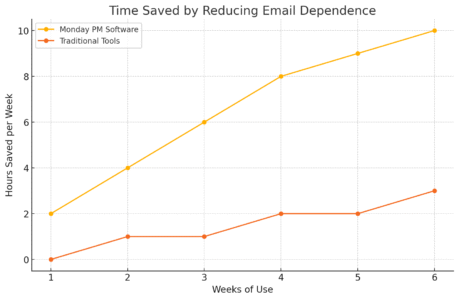
If you’ve ever been stuck in a never-ending email thread trying to track who’s doing what, you’ll understand why real-time collaboration is such a big deal.
Monday PM software centralizes communication directly in the platform, so discussions happen alongside tasks instead of being scattered across inboxes and chat windows.
Centralized Updates Replace Endless Email Threads
In Monday, every task (called an “item”) has its own activity feed. This is where team members can comment, upload files, and tag each other.
Instead of sending an email like “Hey, did you update the budget spreadsheet?” you just comment directly on the item and tag the responsible person with @username.
Here’s the workflow: Click into a task > “Updates” tab > type your message. You can even add GIFs or emojis if your team enjoys a lighter tone. I’ve noticed this dramatically reduces the clutter in inboxes—no more endless reply-all chains.
File Sharing and Commenting Keep Everyone Aligned
You don’t need a separate file-sharing service when using Monday. You can upload attachments directly to tasks—whether it’s a design mockup, presentation deck, or contract. What I like most is that files stay linked to the context of the task itself.
For example: If a designer uploads a new logo draft, the marketing manager can immediately comment with feedback right under the file. This eliminates the classic “Where’s the latest version?” confusion that plagues teams using email.
Notifications Ensure No One Misses Key Changes
One common frustration with traditional tools is that updates slip through the cracks. Monday solves this with smart notifications.
You can choose to be notified when you’re assigned a task, when a due date changes, or when someone comments on an item you’re following.
Notifications appear in three ways:
- In-app (inside Monday’s bell icon).
- Via email (if you prefer inbox reminders).
- On mobile (push notifications).
I suggest enabling mobile push notifications for critical tasks. For example, if you’re managing a product launch, getting an instant ping when a task is marked “Stuck” can help you respond quickly before delays spread.
Pro Tip: When setting up Monday for the first time, encourage your team to use task comments instead of email. It takes a few weeks to break old habits, but once updates and files live inside the platform, communication feels smoother and more transparent.
Transparency and Accountability for Team Projects
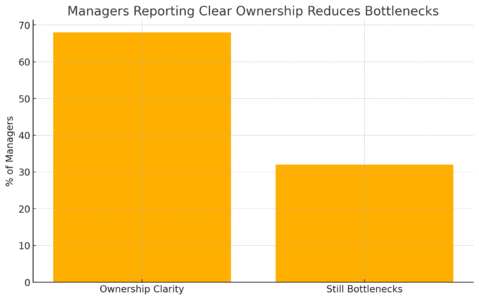
One of the biggest challenges in project management is keeping everyone accountable without micromanaging. Monday PM software makes this easier by giving teams full visibility into who owns what, when it’s due, and how it’s progressing—all in one place.
Clear Ownership Reduces Project Bottlenecks
Every item (task) in Monday can be assigned to a specific person or multiple people. This ownership is front and center, displayed on the board itself with the assignee’s avatar. No more “I thought someone else was handling it.”
For example: From a project board, click into a task > “People” column > select the assignee. You can even set up automation so that when a task is created, it automatically assigns to the right team member.
I advise using the People column consistently. When responsibilities are visible, bottlenecks are easier to spot. If one person is overloaded, you can redistribute tasks before deadlines are missed.
Timeline and Gantt Views Track Deadlines Accurately
Deadlines slip when they’re hidden in a spreadsheet or buried in emails. Monday’s Timeline and Gantt views solve this by showing exactly how tasks overlap and whether your project is on track.
- Timeline View: Best for high-level scheduling. You see who’s working on what, across weeks or months.
- Gantt View: Perfect for dependency tracking. If Task A depends on Task B, dragging Task B’s deadline automatically adjusts Task A.
From your board, click “View” > “Timeline” or “Gantt.” I find the Gantt view especially helpful for product launches where several moving parts must sync up. It’s like seeing the whole orchestra at once rather than listening to one instrument at a time.
Reporting Tools Provide Instant Performance Insights
Accountability isn’t just about deadlines—it’s also about performance. Monday’s reporting tools let you track metrics like completed tasks, overdue items, or team workload.
You can build custom reports right inside dashboards. For example, add a “Workload” widget to see which team member is swamped and which has capacity. Or use the “Numbers” widget to track total tasks completed per week.
I recommend reviewing reports at the end of each sprint. Instead of guessing where bottlenecks are, you’ll have hard data to discuss. It’s a healthier way to hold teams accountable—less finger-pointing, more problem-solving.
Mobile Accessibility for Remote and Hybrid Teams
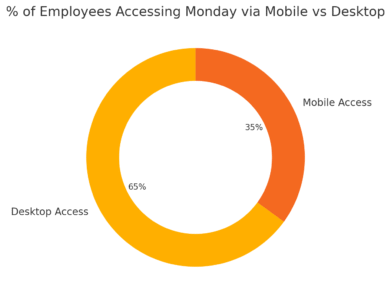
In today’s hybrid world, not everyone is sitting at a desk from 9 to 5. Monday PM software shines here because its mobile app keeps work moving—whether you’re on a train, at a client meeting, or working from a coffee shop.
Managing Projects Seamlessly on the Go
The Monday mobile app (iOS and Android) mirrors most of the desktop features.
You can:
- Update task statuses with a quick tap.
- Comment on items and tag teammates.
- View dashboards for a project overview.
For example, if you’re a project manager traveling between offices, you can quickly open the app, check which tasks are stuck, and send an update without needing your laptop.
I believe this flexibility is one of the reasons adoption rates are higher compared to clunky traditional tools.
Offline Access Keeps Work Moving Without Wi-Fi
One underrated feature: you can still use Monday offline. You can update tasks, add notes, and mark items complete. Once your phone reconnects to the internet, everything syncs automatically.
This is a lifesaver in real-world scenarios. Picture an engineer working on-site with no Wi-Fi—they can still log updates in Monday. No more waiting until they’re back online to catch the team up.
Push Notifications Improve Remote Responsiveness
Push notifications on the mobile app are customizable, so you only get the alerts that matter.
You can choose to be notified for:
- New task assignments.
- Deadline changes.
- Comments or mentions.
I suggest enabling “mentions” notifications at minimum. This ensures that if your name is tagged, you’ll know right away, no matter where you are. It makes collaboration feel immediate, which is critical when teams are spread across time zones.
Cost-Effective Scaling for Growing Companies

As teams grow, costs can spiral if you’re juggling multiple tools for project management, communication, and reporting.
Monday PM software scales gracefully, making it more budget-friendly than patching together several systems.
Flexible Pricing Plans Fit Small and Large Teams
Monday offers tiered pricing—Basic, Standard, Pro, and Enterprise. Smaller teams can start with Standard (which includes automations and integrations) while larger companies can scale up to Enterprise for advanced security and control.
From what I’ve seen, the per-seat pricing is predictable, which makes budgeting easier compared to traditional tools that sneak in hidden fees for integrations or storage.
Saving Costs by Replacing Multiple Tools With One
Here’s where real savings kick in: Monday often replaces 3–4 tools at once. Instead of paying for Trello (task tracking), Slack (communication), and a reporting tool, Monday combines these into one platform.
For example, a marketing agency I worked with saved over $500/month by consolidating. They used Monday for campaign tracking, client communication, and reporting—cutting out three separate subscriptions.
How Easy Onboarding Cuts Down Training Expenses
Another hidden cost of traditional tools is training. If a system is hard to learn, you waste time onboarding new hires. Monday’s design is intuitive enough that most people pick it up within a week.
From the main dashboard, new users can click “Help” > “Getting Started” for tutorials and walkthroughs. I recommend assigning a small starter project to new hires in Monday—it acts as both onboarding and training, cutting down costs on formal sessions.
Pro Tip: If you’re scaling your business, compare Monday’s plan costs against the combined cost of your current tool stack. Often, the math alone makes the decision obvious.
Data Security and Compliance That Build Trust
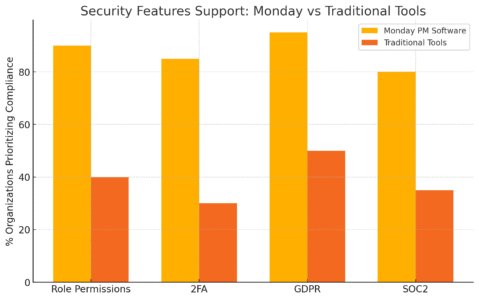
When you’re managing projects in the cloud, trust is everything. Monday PM software puts a strong focus on data security so teams can confidently handle sensitive information without worrying about leaks or compliance issues.
Role-Based Permissions Protect Sensitive Information
Not every team member needs access to everything. Monday allows admins to set role-based permissions, which means you control who can view, edit, or share specific boards.
Here’s a simple workflow: From the board menu, click “Board Settings” > “Permissions.” You can set options like “Only Owners Can Edit” or restrict certain columns (e.g., salary info or client budgets) to managers only.
I recommend using this feature for financial or HR boards where confidentiality is non-negotiable. It prevents accidental edits and keeps private data in the right hands.
GDPR and SOC Compliance Safeguard Company Data
Monday is fully GDPR compliant (General Data Protection Regulation), which is especially important if you’re working with EU clients. It also meets SOC 2 Type II compliance, meaning its data handling processes are independently audited and meet strict security standards.
From my experience, this makes client conversations smoother. Instead of scrambling to prove your tools are compliant, you can confidently say, “Yes, we’re covered.” For businesses in regulated industries, that’s peace of mind worth having.
Secure Cloud Hosting Minimizes Risk of Data Loss
Monday hosts its data on secure cloud servers with multiple redundancies. Translation: even if one server fails, your project data is safe and backed up elsewhere.
For example, if a laptop crashes or an employee accidentally deletes a local file, everything is still safe inside Monday.
I suggest enabling two-factor authentication (2FA) for extra protection. To do this: Click your profile picture > “Admin” > “Security.” Turning on 2FA adds a layer of login safety that’s critical for remote teams.
Continuous Innovation and Regular Feature Updates
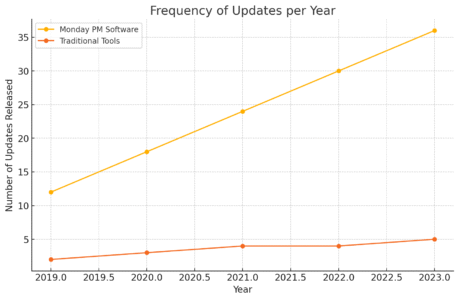
One of the biggest advantages of Monday PM software is that it doesn’t stand still.
Unlike older tools that only release major updates once a year, Monday rolls out improvements regularly based on team feedback.
Frequent Updates Reflect Team Feedback
Monday runs on a cycle of continuous updates. New features and enhancements often come directly from user requests in their community forum.
For example, the addition of advanced Gantt charts was driven by demand from project managers who needed better timeline tracking.
I advise checking the “What’s New” section inside Monday (found under “Help” > “What’s New”). You’ll see new features added almost monthly, which makes it clear the platform evolves alongside its users.
Beta Features Let Users Test Cutting-Edge Tools
Monday also offers beta features you can opt into, which is a great way to test upcoming tools before they’re officially released.
For instance, early testers of the WorkForms feature were able to gather client requests directly in Monday without third-party tools.
If you want to try beta tools, go to “Admin” > “Labs” and toggle the features on. I recommend experimenting with one feature at a time so your team doesn’t feel overwhelmed.
Why Traditional Tools Struggle to Keep Up
Traditional project management tools often lag because they’re built on older infrastructure. Updates are slower, and new features require big releases. In contrast, Monday’s cloud-native design allows for fast, incremental changes.
This matters because work itself evolves quickly. What worked two years ago may feel outdated today. Monday’s constant updates keep your processes modern without you needing to jump between different platforms.
Better User Adoption Compared to Traditional Tools
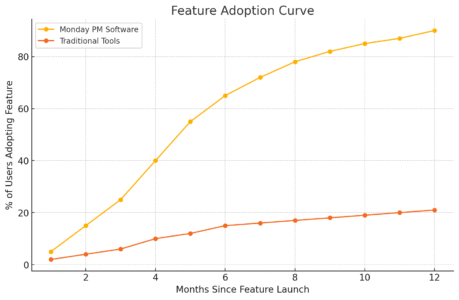
Even the most powerful tool is useless if your team doesn’t want to use it.
Monday PM software succeeds here because it’s visually engaging, easy to learn, and supported with in-app tutorials that lower the barrier to adoption.
Short Learning Curve Encourages Quick Setup
Monday’s interface feels familiar, even if you’ve never used project management software before. It looks more like a digital whiteboard than a spreadsheet, which helps new users feel comfortable right away.
From the dashboard, you can click “+ New Board” > “Choose a Template” and have a project board running in minutes.
I’ve seen small teams go from sign-up to fully managing campaigns in under a day. That speed makes adoption much easier compared to tools that require weeks of training.
Engaging UI Keeps Teams Motivated to Use It Daily
The colorful, interactive design is more than just aesthetic—it’s motivational. Statuses like green (“Done”) or red (“Stuck”) create instant visual feedback that makes progress rewarding.
I believe this is why teams stick with Monday longer than other tools. It doesn’t feel like work to update your board—it feels like progress.
A designer once told me, “I actually look forward to updating my status, because it’s like turning a sticky note from red to green.” That’s a small but powerful motivator.
Built-In Support and Tutorials Help New Users Succeed
Monday includes built-in guides, tooltips, and video tutorials that pop up contextually as you explore the platform. For example, if you’re adding automations for the first time, you’ll see a quick walkthrough showing how to set them up.
You can also access live webinars and community forums where real users share solutions. I recommend encouraging your team to explore the “Help” center during their first week—it shortens the learning curve dramatically.
Pro Tip: If you’re rolling out Monday across a new team, start small. Pick one project, set up a board, and let people play with it. The hands-on experience is far more effective for adoption than sending long instruction documents.

I’m Juxhin, the voice behind The Justifiable.
I’ve spent 6+ years building blogs, managing affiliate campaigns, and testing the messy world of online business. Here, I cut the fluff and share the strategies that actually move the needle — so you can build income that’s sustainable, not speculative.
Related posts:
 Is Monday Project Management Software Worth It?
 Social Media Marketing for Small Business – Best Tips
 How to Increase Social Media Followers
 Online Business Courses: Start Your Entrepreneurial Journey Today
 Top Marketing for Business Tactics Every Entrepreneur Must Know
 Project Management Tools Monday: Complete Beginner’s Guide