
Table of Contents
Some links on The Justifiable are affiliate links, meaning we may earn a small commission at no extra cost to you. Read full disclaimer.
Omnisend forms are one of the most effective ways to capture leads instantly—if you know how to use them right.
Whether you’re running an online store or building an email list, your signup forms can make or break your growth.
But how do you design Omnisend forms that actually convert visitors into subscribers instead of scaring them away?
In this guide, we’ll break down the exact strategies, tools, and proven techniques to help you turn casual visitors into loyal subscribers in minutes.
Understanding How Omnisend Forms Work
Before diving into optimization tricks, it’s important to understand what makes Omnisend forms tick.
These forms are more than just sign-up boxes—they’re intelligent, behavior-driven tools designed to adapt to your visitor’s actions in real time.
What Makes Omnisend Forms Different From Other Tools
Most form builders collect data. Omnisend forms connect that data to your broader marketing system.
Unlike tools that simply capture emails, Omnisend instantly pushes every form submission into your contact database—complete with tags, behavioral data, and even the user’s browsing activity.
You can create and manage them under: Omnisend Dashboard → Forms → Create Form.
Here’s where Omnisend stands out:
- Integrated Automation: Every form can trigger an automation workflow. For example, a new subscriber can instantly receive a “Welcome” email sequence or discount code.
- Behavior Tracking: Omnisend tracks clicks, time on site, and exit intent, allowing forms to appear only when a visitor is most likely to act.
- E-commerce Integration: Unlike standalone form tools, Omnisend connects directly with platforms like Shopify, WooCommerce, and BigCommerce—automatically syncing user actions such as abandoned carts or past purchases.
In my experience, this “real-time intelligence” is what turns passive forms into active lead machines.
How Data Syncs With Your Omnisend Audience Segments
When someone signs up using an Omnisend form, the data doesn’t just drop into a spreadsheet—it’s categorized automatically.
Omnisend assigns tags (like “Welcome Series,” “VIP,” or “Sale Interest”) and routes the contact into dynamic segments.
Example:
- A user signs up via a “10% off first order” form.
- Omnisend tags them as “New Subscriber.”
- They are automatically added to a “New Leads” segment.
- The Welcome Series automation starts immediately.
This means you’re not manually sorting leads or guessing intent.
I recommend reviewing your Audience → Segments every few weeks to ensure your form tags still align with your email automation goals.
The Role Of Behavior-Based Triggers In Capturing Leads
Omnisend’s behavior triggers are the secret sauce. These triggers determine when and to whom a form appears. You can set them based on:
- Time on Page: e.g., after 15 seconds of browsing.
- Scroll Depth: e.g., once a user scrolls 60% of the page.
- Exit Intent: e.g., when a visitor moves their mouse toward the tab bar.
- Cart Value: e.g., trigger a discount form when the cart total exceeds $50.
What I love is how precise you can get.
Let’s say a user visits your “Sale” page twice in one week but hasn’t purchased—Omnisend can automatically display a personalized popup offering an additional discount. That’s personalization at the behavioral level.
Choosing The Right Type Of Omnisend Form For Your Store
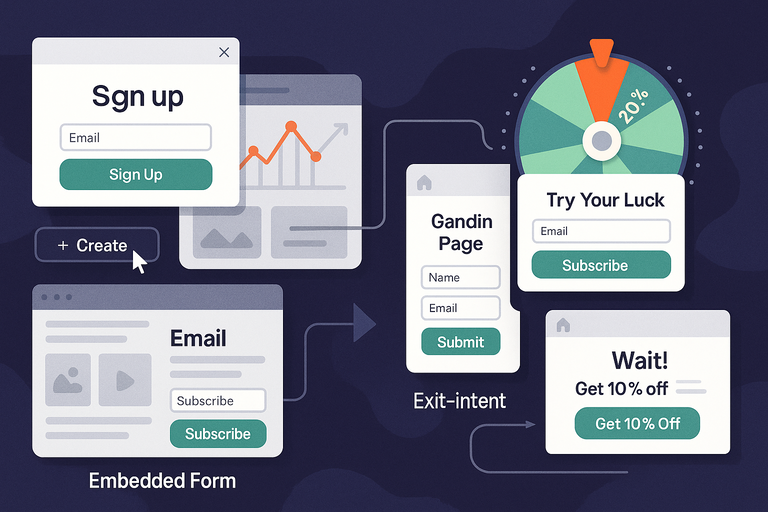
Choosing the right form type is about context—where your user is in their journey.
Omnisend offers multiple form styles, each tailored for different engagement levels.
When To Use Popups Vs. Embedded Forms
Popups are attention-grabbing, but timing is everything. I usually recommend using them:
- When visitors land on high-traffic pages like the homepage or product category pages.
- For limited-time offers, flash sales, or newsletter signups.
Embedded forms, however, feel more natural for blog posts, “About Us” pages, or content hubs. They invite engagement without interrupting reading flow.
Quick setup path: Forms → Create → Popup / Embedded Form
Pro tip: Try using a gentle delay (3–5 seconds) on popups. It gives users time to engage before asking for something.
Using Landing Page Forms For High-Intent Visitors
Landing page forms work best when visitors come from ads, email campaigns, or social media promotions.
Since they already have a goal in mind—like claiming a discount or downloading a guide—landing page forms can be more detailed.
In Omnisend, you can build one under Forms → Create → Landing Page.
Here’s what I suggest including:
- Clear headline with a direct promise (“Get 15% Off Your First Order”).
- Minimal fields (email and name only).
- A visible “Submit” button above the fold.
This form type turns targeted traffic into conversions without distractions.
Gamified Forms: Spin-The-Wheel And Interactive Options
Gamified forms—like the “Spin-the-Wheel” template—are brilliant at catching attention. Omnisend lets you offer fun rewards (discounts, free shipping, or mystery gifts) in exchange for email addresses.
Why it works: People love micro-rewards and the dopamine hit of interaction.
You can set one up via Forms → Create → Wheel of Fortune.
Tips for success:
- Keep odds realistic (e.g., 20% off max).
- Use brand colors and fonts for consistency.
- Limit spins per user to avoid exploitation.
I’ve seen stores increase signup rates by 30–50% using this playful approach.
Exit-Intent Forms To Recover Abandoning Visitors
Exit-intent forms are lifesavers. They detect when someone’s about to leave and deliver a last-minute offer or message.
Common use cases:
- “Wait! Here’s 10% off your cart.”
- “Want to save your wishlist before leaving?”
To activate: Forms → Display Rules → Exit Intent Trigger.
From my tests, offering free shipping rather than discounts tends to perform better for higher-margin stores—it feels like added value without cutting profits.
Designing Omnisend Forms That Convert Instantly
Design isn’t just about colors—it’s about guiding emotion and action.
Omnisend gives you flexibility, but the strategy behind your design determines conversion success.
Create high-converting popups, banners, and gamified forms without coding. Launch your first form in minutes and watch your subscriber list grow faster. Start Building Forms With Omnisend!
The Psychology Behind High-Converting Form Design
Every high-performing form leverages a few psychological principles:
- Clarity Over Creativity: Users must know what they’re signing up for in under 2 seconds.
- Perceived Value: A small incentive (discount, freebie, or early access) increases conversions dramatically.
- Social Proof: Add “Join 10,000+ happy subscribers” for credibility.
I believe the most overlooked element is urgency. Adding subtle time pressure—like “Offer ends in 24 hours”—can increase signup rates by up to 20%.
Crafting Short, Clear, And Persuasive Copy For Your Form
Your copy should be human, conversational, and direct. Avoid corporate tones.
Here’s a quick structure that works:
- Headline: What they’ll get (“Get 15% Off Instantly”).
- Subtext: Why it’s worth it (“Join our insider list for early access to deals”).
- CTA Button: What happens next (“Claim My Discount”).
Omnisend allows live previews, so you can test tone and placement. Try writing in first person—it makes a difference: “Send me my code” feels friendlier than “Submit.”
Choosing Eye-Catching Visuals And Layouts That Match Your Brand
Visuals should complement, not compete. Stick to 2–3 colors aligned with your brand palette.
Examples of what works:
- Transparent overlays for popups.
- Clean, minimal layouts for embedded forms.
- Product images beside offers for relevance.
Inside Omnisend, under Design → Layout → Customize, you can tweak color schemes, fonts, and button shapes. I advise previewing on both desktop and mobile before publishing.
How Mobile Optimization Affects Conversion Rates
Here’s the hard truth: Over 65% of form submissions come from mobile devices. If your form isn’t mobile-optimized, you’re losing leads.
Focus on these essentials:
- Single-column layout: Easier to scroll and interact with.
- Large tap targets: Buttons at least 44px high.
- Minimal fields: Fewer input boxes reduce friction.
Omnisend automatically generates a mobile preview. Always test how forms look and load across devices—especially iPhone and Android browsers.
I’ve noticed conversion rates jump by up to 40% just by fixing layout spacing and button placement for mobile.
Creating Smart Targeting Rules Inside Omnisend
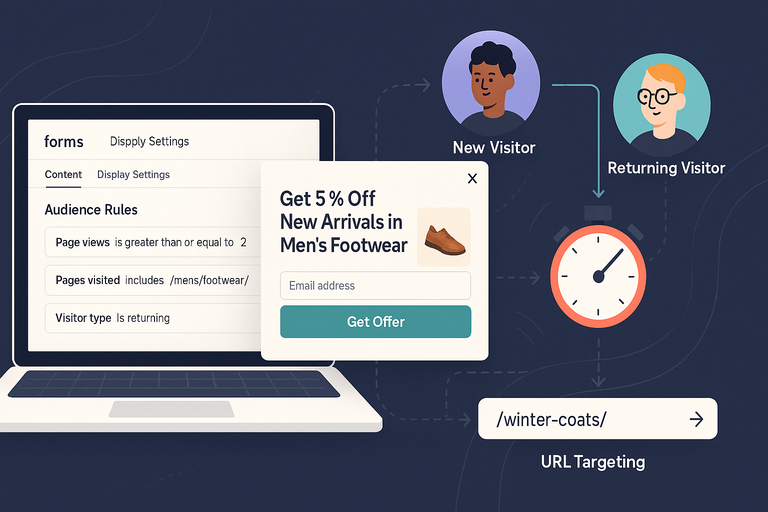
Smart targeting rules are where Omnisend forms move from “static popups” to “personalized engagement tools.”
This is where you control who sees your forms, when they appear, and why.
Done right, targeting rules prevent form fatigue and boost your lead capture rate dramatically.
Segmenting Forms Based On Visitor Behavior
In Omnisend, behavioral segmentation means showing forms based on what a visitor does—not just who they are. You’ll find this feature under Forms → Display Settings → Audience Rules.
You can segment by actions such as:
- Pages visited or time spent on site.
- Cart or product view activity.
- Number of visits or purchase frequency.
For instance, I recommend showing a discount form only after a visitor views two or more product pages. It signals real intent. If you display the form too early, it feels intrusive.
Here’s a quick scenario I’ve used: A returning visitor who’s checked the same category page three times in a week sees a form offering “5% off new arrivals in [category name].” That level of relevance often converts three times better than a generic pop-up.
Displaying Different Forms For Returning vs. New Users
Omnisend makes it simple to create separate forms for new versus returning visitors. Navigate to Forms → Display Rules → Visitor Type.
- New Visitors: Offer incentives that encourage their first signup, like a 10% welcome discount or free shipping.
- Returning Visitors: Instead of discounts, use loyalty-based messaging such as “Welcome back! Want early access to our next drop?”
I personally suggest excluding existing subscribers from seeing forms altogether. It keeps the user experience clean and reduces redundancy.
You can do this by toggling “Hide for existing subscribers” in the display rules.
Timing And Frequency: When To Show Forms For Maximum Results
Timing can make or break your conversion rate. Omnisend gives you fine control over when and how often forms appear through Forms → Display Settings → Timing.
Here are a few data-backed timing insights I’ve learned from running multiple stores:
- Show popups after 10–15 seconds on-page to give users time to engage.
- Use scroll-based triggers (40–60%) for blog posts or long content pages.
- Limit form frequency to once per session or per 24 hours.
Avoid bombarding visitors. Instead, test frequency intervals. I’ve found that spacing out form appearances (once every two sessions) can double your engagement rates without annoying users.
Using URL And UTM Parameters To Personalize Signup Offers
This feature is underrated but powerful. You can tailor Omnisend forms based on URL or UTM parameters from your campaigns.
Example: A visitor coming from a Facebook ad promoting “winter coats” can see a custom form offering “10% off winter styles today.”
You can configure this under Display Rules → URL Conditions.
This is especially useful for paid traffic campaigns. It ensures message continuity between your ad and your form—one of the simplest ways to improve conversions by 20% or more.
Integrating Omnisend Forms With Your Email Workflows
Once your forms start capturing leads, integration with email workflows is what transforms them into revenue generators.
Every subscriber you collect should automatically flow into the right automation inside Omnisend.
Turn every new subscriber into a customer with Omnisend’s pre-built email workflows. Personalize your automation and deliver the right message from day one. Activate Your Welcome Workflow!
Automatically Adding Subscribers To Welcome Series
Every new signup should trigger a welcome email sequence. You can automate this by connecting your form to your workflow in Automation → Create Workflow → Welcome Series.
Here’s what usually works best:
- Immediate Email: Send a warm welcome with their promised discount or freebie.
- Follow-Up (24 hours later): Introduce your brand story or bestsellers.
- Third Email: Offer social proof or customer reviews.
From what I’ve seen, brands using Omnisend’s automated welcome flows see 40–50% open rates and up to 10% conversions from those first three messages.
Sending Targeted Discounts Or Product Recommendations
Omnisend’s dynamic content feature lets you send personalized offers based on form data.
For instance, if someone subscribes via a “Men’s Shoes” popup, you can automatically segment them and send relevant recommendations.
To do this, go to Automation → Segments → Create Dynamic Segment.
You can then use that segment in your campaigns to send:
- Discount codes for the product category they viewed.
- Style or color-based recommendations.
- Back-in-stock alerts for their interest area.
I recommend adding merge tags like {{product_name}} or {{discount_code}} inside your emails for personalization that feels human and direct.
How To Trigger Abandoned Cart Workflows From Form Signups
When a visitor subscribes and adds items to the cart but doesn’t check out, you can automatically trigger an abandoned cart email sequence.
Here’s the setup path: Automation → Create Workflow → Abandoned Cart → Trigger by Form Signup.
A simple 2-step email series usually works:
- Email 1: Reminder about the abandoned product (within 1 hour).
- Email 2: Offer a small incentive (within 24 hours).
In my experience, adding dynamic product images and urgency lines like “Your cart will expire soon!” can recover up to 15% of abandoned carts.
A/B Testing Omnisend Forms For Continuous Optimization
No matter how good your form design seems, real-world testing always surprises you.
Omnisend’s built-in A/B testing tools make it easy to experiment and refine your approach based on data, not guesswork.
Elements You Should Always Test (Headlines, CTAs, Timing)
The three biggest impact areas are:
- Headlines: Try different incentive wordings (“Get 10% Off” vs. “Save Instantly”).
- CTAs: Test emotional phrasing like “Send Me My Code” vs. “Join Now.”
- Timing: Experiment with delay times—5 seconds vs. 15 seconds often changes results dramatically.
You can set these variations under Forms → A/B Test → Create Variant.
I’ve seen even small wording tweaks lead to 5–10% lifts in conversions. Keep a running log of what works best for each form type.
How To Measure Conversion Rate Improvements Accurately
Omnisend tracks form impressions, submissions, and conversion rates automatically. You can find these under Reports → Forms Performance.
Focus on three main KPIs:
- Conversion Rate (CR): Number of submissions divided by impressions.
- Exit Rate: How often users close your form without acting.
- Time to Conversion: How quickly visitors engage after the form appears.
I suggest running tests for at least 7–14 days to gather statistically valid data. Avoid calling a winner too early—it’s a common mistake that can skew results.
Using Omnisend’s Built-In Reports To Refine Your Strategy
Once tests run their course, dive into Omnisend’s analytics dashboard. Here’s how to make the most of it:
- Identify which form type (popup, wheel, embedded) drives the highest CR.
- Review which pages or sources bring the most engaged signups.
- Adjust your display rules or design accordingly.
For example, if you notice higher conversions on product pages but lower on the homepage, it might mean your homepage offer lacks clarity or urgency.
I recommend setting a monthly review reminder to evaluate form performance trends.
Continuous testing and refinement can easily compound into a 20–30% higher lead capture rate over time.
Avoiding Common Mistakes When Using Omnisend Forms
Even with Omnisend’s smart tools, a few small mistakes can quietly sabotage your lead generation results.
Understanding these pitfalls will help you create forms that feel natural, user-friendly, and high-performing.
Asking For Too Much Information Too Soon
One of the easiest ways to lose a potential subscriber is by asking for too much, too early. People visiting your store might be curious—but not yet ready to give away detailed personal data.
In Omnisend, you can simplify your form fields in Forms → Design → Input Fields. I recommend sticking to just the essentials—usually name and email address.
Here’s a rule I follow:
- If it’s a first-time signup, limit it to one field (email).
- Add more fields only in progressive forms, such as post-purchase surveys or loyalty signups.
For example, I once tested two popups—one asking for name and email, the other for just email. The single-field version converted 27% better. Less friction almost always means more conversions.
Ignoring User Experience On Mobile Devices
More than half of Omnisend form signups come from mobile traffic, yet many forms are still designed on desktop screens.
If a form doesn’t resize correctly, takes up the full screen, or hides the “close” icon, users will bounce fast.
You can preview mobile layouts inside Forms → Design → Mobile Preview.
Focus on these mobile best practices:
- Use short forms with large tap areas.
- Keep input fields above the fold.
- Avoid heavy images that slow loading times.
I advise testing every form on your own phone before publishing—it’s the simplest quality check that saves you from conversion loss.
Failing To Match Form Copy With Audience Intent
Copy mismatch happens when what your form says doesn’t align with why the visitor is there.
For example, showing a “Get 10% off skincare” popup on a blog post about summer travel creates a disconnect.
The solution is simple: align your message with intent. In Omnisend, use Display Rules → Page Conditions to show topic-specific forms.
A quick example:
- On product pages, offer a discount or free shipping.
- On blogs, invite readers to “Join our insider list for weekly tips.”
Relevance is everything. When your copy mirrors what a visitor already wants, your conversion rate jumps naturally.
Overusing Popups And Causing Visitor Fatigue
Popups can drive leads—but too many can drive people away. I’ve seen stores where every page triggers a new form, and users exit in frustration.
Use Omnisend’s Display Frequency setting to control exposure. Ideally, show a popup once every few sessions or after specific user actions (like scrolling 50% of a page).
If you rely heavily on popups, consider mixing in embedded forms, slide-ins, or banners for balance. It keeps your engagement high without overwhelming your audience.
Real Metrics To Track Lead Capture Performance
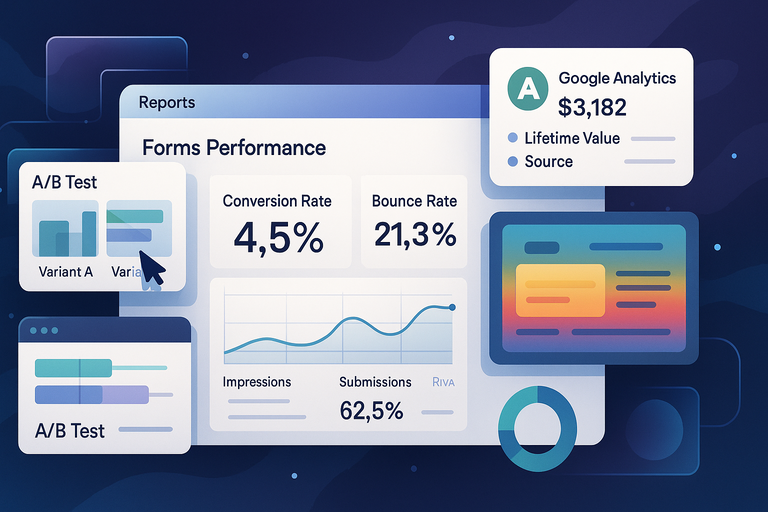
Your Omnisend forms are only as good as the data behind them. Tracking the right metrics helps you understand not just how many leads you capture—but which forms and strategies truly perform.
Conversion Rate And Engagement Metrics That Matter Most
Conversion rate (CR) is your primary success indicator. It tells you what percentage of viewers actually submit your form. You can find this in Reports → Forms Performance.
Key metrics to focus on:
- Form Conversion Rate: Submissions ÷ Impressions.
- Engagement Rate: How long users interact before submitting.
- Bounce or Close Rate: When users dismiss the form without action.
In my experience, an average CR between 3%–8% is solid, but top-performing forms often hit 10%–15%. If yours is below 3%, revisit your offer or timing.
How To Track ROI From Omnisend Forms In Analytics
It’s not just about leads—it’s about revenue. To calculate ROI, integrate Omnisend with Google Analytics or Shopify Reports. Go to Settings → Integrations → Google Analytics.
This lets you track:
- Revenue generated from subscribers captured via specific forms.
- Lifetime value (LTV) of leads by form type.
- Source attribution (e.g., blog, ad, or landing page).
I suggest reviewing ROI quarterly. You’ll often find that one or two high-converting forms drive the bulk of your revenue, making it easier to focus your energy where it pays off most.
Using Heatmaps And Scroll Data To Improve Placement
If your forms aren’t performing, it might not be the design—it might be where they appear. Tools like Hotjar or Microsoft Clarity can integrate with your site to reveal where visitors stop scrolling or click away.
Use those insights to adjust form placement:
- If users rarely reach 75% of your page, move embedded forms higher.
- If popups trigger before users engage, delay their timing by a few seconds.
One eCommerce client I worked with moved a form from the footer to the midpoint of their homepage and saw a 40% lift in conversions overnight. Placement really does matter.
Expert Tips To Boost Omnisend Form Conversions Instantly
When it comes to boosting your Omnisend form performance, small creative tweaks often outperform big design overhauls.
These are the strategies I’ve personally seen make the biggest difference.
Offer Irresistible Incentives Without Cheapening Your Brand
Incentives work—but they must feel valuable, not desperate. Instead of endless discounts, offer exclusive access or member-only perks.
Examples that perform well:
- “Join to get early access to new collections.”
- “Sign up for 2x reward points this week.”
In Omnisend, you can easily automate these offers under Automation → Welcome Series.
I’ve noticed that switching from discount-based to value-based incentives can maintain brand prestige while still capturing leads effectively.
Combine Countdown Timers And Urgency For Better Results
Urgency triggers action. Adding a countdown timer or “limited-time offer” can push hesitant visitors to sign up now instead of later.
To add this in Omnisend: Forms → Design → Add Element → Countdown Timer.
Keep it authentic—use it for real campaigns, not fake scarcity. I suggest limiting countdowns to seasonal promos or 48-hour sales. Done right, urgency can increase conversions by up to 25%.
Add Social Proof To Increase Trust In Your Forms
People follow other people. Adding subtle social proof reassures visitors that signing up is safe and worthwhile.
A few options I use often:
- “Join 10,000+ happy subscribers.”
- “Loved by over 1,500 customers.”
- Display reviews or star ratings below the CTA.
You can add social proof under Design → Text Elements → Custom Text Block.
Even one simple line can significantly reduce hesitation and increase conversions.
Use Dynamic Fields To Personalize Every Visitor’s Experience
Omnisend allows you to use merge tags—dynamic fields that personalize content automatically. You can display the visitor’s name, location, or browsing category right in the form.
Example: “Hey {{first_name}}, get 10% off your next order today!”
Set this up via Forms → Dynamic Fields → Insert Merge Tag.
Personalization like this creates an immediate connection. I believe it’s one of the simplest, most underused ways to humanize your forms and drive loyalty from the very first interaction.
Final Optimization Steps To Scale Your Lead Capture
Scaling your lead capture isn’t about adding more forms—it’s about continually refining what already works.
Omnisend gives you the tools to build a self-improving system if you stay consistent.
Setting Up Automated A/B Test Cycles Every Quarter
Testing shouldn’t be a one-time project. Set a recurring quarterly schedule for A/B testing across your top forms.
Go to Forms → A/B Testing → Schedule Test.
Focus on small, measurable variables—like CTA copy, color, or timing.
I suggest testing one variable per quarter to collect clean data. It keeps your optimization process steady and meaningful over time.
Syncing Data Between Omnisend And Other Marketing Platforms
For a full-funnel view of performance, sync Omnisend with your other tools—like Google Ads, Meta Ads, or Klaviyo. You can do this via Integrations → Connected Apps.
Syncing lets you:
- Retarget non-subscribers based on on-site behavior.
- Share form data with your CRM for better segmentation.
- Maintain consistent messaging across channels.
I’ve seen stores double their retargeting ROI just by feeding Omnisend form data into ad audiences. It’s a game-changer.
Reviewing Seasonal Form Performance To Adjust Offers
Forms that work in summer might flop in December. Seasonal behavior shifts, and your offers should too.
At the start of each season, I recommend reviewing:
- Conversion rates from the previous quarter.
- Which incentives resonated best (discounts vs. access).
- User engagement by device type.
Then, tweak offers accordingly. Omnisend’s Form Reports make this analysis easy—you can filter by date, location, and device to see clear trends.

I’m Juxhin, the voice behind The Justifiable.
I’ve spent 6+ years building blogs, managing affiliate campaigns, and testing the messy world of online business. Here, I cut the fluff and share the strategies that actually move the needle — so you can build income that’s sustainable, not speculative.
Related posts:
 5 Must-Have Email Signup Forms to Grow Your List Effortlessly
 How to Integrate Aweber with ClickFunnels
 Top 5 Email Marketing Platforms: Boost Your ROI Now!
 Omnisend Popup: How to Turn Visitors Into Subscribers
 Best Tips To Write Cold Emails
 Aweber Email Automation Examples: Templates & Pro Insights