
Table of Contents
Some links on The Justifiable are affiliate links, meaning we may earn a small commission at no extra cost to you. Read full disclaimer.
QuillBot grammar checker paraphrase comes up a lot whenever people talk about speeding up writing without losing clarity. I’ve used it enough to know where it shines and where it stumbles.
The real question is whether this tool can actually improve your writing workflow or if it just creates more cleanup work later. That’s what I’ll help you figure out here.
QuillBot Grammar Checker Paraphrase Tool Overview
QuillBot sits at an interesting midpoint between a real-time editor and a rewriting assistant.
This section breaks down how its core engine functions so you know exactly what it’s doing to your text.
How The Grammar Checker Analyzes And Flags Writing Issues
QuillBot’s grammar checker works by scanning each sentence for structural, grammatical, and clarity-related friction points.
I like thinking of it as a pattern matcher: it evaluates your phrasing against large language datasets and linguistic rules.
What it flags most often:
- Verb tense shifts that disrupt clarity
- Subject–verb agreement issues in long sentences
- Redundant phrases that make writing feel heavy
- Misplaced modifiers that change meaning without you noticing
You’ll usually see a small underline with a short suggestion, similar to Grammarly, but its explanations are often simpler.
I’ve noticed it’s especially helpful when editing long blog drafts because it highlights clutter you overlook after hours of writing.
QuillBot doesn’t always hit the nuance. When you write intentionally conversational sentences, it sometimes labels them as errors.
I usually run through its suggestions manually instead of accepting everything at once.
How The Paraphraser Rewrites Text Without Changing Meaning
The paraphraser is the real draw for most users. It takes a sentence, breaks it into its semantic parts (meaning-based units), and regenerates the structure using alternative phrasing.
Think of it like rearranging LEGO blocks but keeping the original shape.
A simple example path: QuillBot → Paraphraser → Paste → Select Mode
What’s helpful is how it gives multiple rewrite options, each with a different style. You can toggle the “synonym slider” to control how aggressive the rephrasing becomes.
I prefer keeping it halfway to avoid unnatural phrasing.
It keeps the meaning intact in most cases, though when sentences contain numbers, statistics, or niche terminology, I’ve seen it replace terms too loosely.
For accuracy-sensitive writing, always double-check the output.
The Tech Behind QuillBot’s AI And Language Models
QuillBot runs on a transformer-based language model similar to GPT-style architectures. That means it learns patterns, relationships, and linguistic rhythms from massive text corpora.
The paraphraser and grammar checker both sit on top of these models, but each has its own rule-based filters layered in for precision.
I’ve noticed the model is particularly strong with conversational English. It struggles a bit with highly technical or academic phrasing, which is typical for mid-range AI tools that aren’t fully specialized.
Realistic Limitations You Should Expect From The Tool
Even though QuillBot is helpful, it isn’t magic. Several limitations show up consistently.
Common constraints:
- It sometimes simplifies sentences too much, removing nuance.
- It may introduce synonyms that shift tone in subtle ways.
- Complex multi-clause sentences can confuse the paraphraser.
- It doesn’t always catch context errors the way a human editor would.
I’ve learned to treat QuillBot like a writing assistant that needs supervision. It speeds up drafts, but it won’t replace your judgment.
Where QuillBot Fits Into A Writer’s Daily Workflow
Writers use QuillBot for different reasons. I personally rely on it at two main stages: brainstorming and tightening final drafts.
For brainstorming, the paraphraser gives alternate phrasing that sparks new ideas. For editing, the grammar checker acts like a second pair of eyes.
If you write blog posts, emails, or reports regularly, it becomes a quick tool to iron out rough edges without switching apps constantly.
A smooth workflow example: Draft → Paste into QuillBot → Paraphrase weak sentences → Run grammar check → Export to Google Docs.
It works best as a layer in your stack, not the entire stack.
Key Features That Make QuillBot Worth Considering
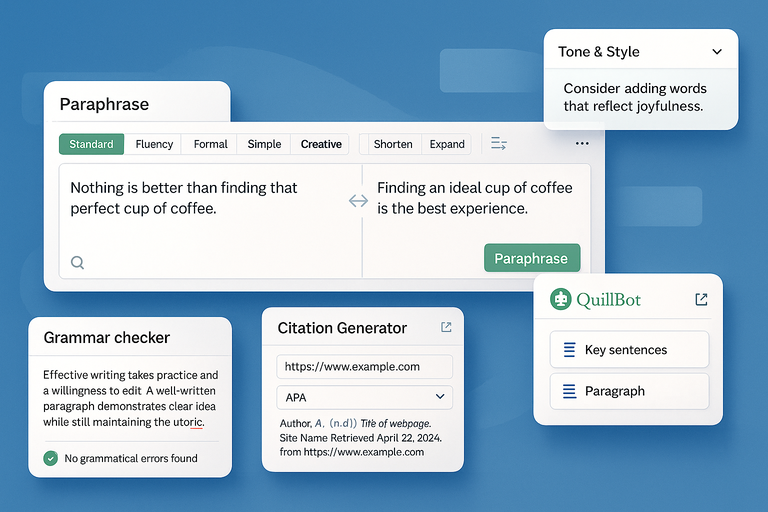
QuillBot includes several smaller tools that make it more than a basic paraphraser.
Here’s where its feature set becomes genuinely useful.
The Paraphrasing Modes And When Each One Works Best
QuillBot includes multiple rewrite styles called “modes.” Each one shifts the tone and structure differently.
Most commonly used modes:
- Standard: Balanced rewriting that keeps meaning and tone stable. Ideal for email drafts or blog paragraphs you want smoother.
- Fluency: Focuses on grammar correctness; great when English isn’t your first language.
- Formal: Makes writing sound more professional. Helpful for resumes or reports.
- Creative: Generates inventive sentence structures. I use this when brainstorming.
- Shorten and Expand: Adjusts length without losing the core meaning. Useful when meeting word limits.
Switching modes is as easy as clicking the row of buttons above the editor. I often cycle through two modes to compare phrasing options because each gives a distinct result.
How The Grammar Checker Handles Complex Sentences
The grammar checker is solid for everyday writing, but it behaves differently when handling multi-layered or compound sentences.
How it analyzes complexity:
- It breaks sentences into logical chunks.
- It checks tense consistency across each clause.
- It evaluates readability using internal scoring systems similar to Flesch indexes.
In long-form writing, it reliably catches overly nested clauses. It occasionally misreads deliberate stylistic choices, though.
If you rely heavily on rhythm or narrative pacing, edit manually rather than accepting every suggestion.
Citation Generation And Helpful Research Features
QuillBot includes a built-in citation generator, which I’ve found surprisingly handy for fast research or academic-style writing.
Supported formats include APA, MLA, and Chicago. You can paste a URL or book title, and the tool auto-formats the citation. It’s not perfect—occasionally it pulls incomplete metadata—but for quick references or blog sources, it saves a lot of time.
The “Co-Writer” tab also lets you search relevant topics directly inside QuillBot. It’s not as powerful as a dedicated research tool, but it keeps everything in one place when you’re trying to stay focused.
Tone Adjustment And Style Suggestions Explained
Tone is one of QuillBot’s underrated features. When you run text through the grammar checker, it evaluates formality and emotional tone, then gives suggestions to match your desired style.
Examples it might highlight:
- overly casual verbs
- redundant emotional language
- inconsistent tone in long emails
This is useful when writing outreach messages or professional copy where tone mismatches can hurt trust.
I often use tone suggestions as a quick final pass because they catch small inconsistencies you miss during drafting.
When The Summarizer Provides Real Value
QuillBot’s summarizer shines when you feed it longer content like reports, articles, or research papers. It gives two summary types: key sentences and paragraph summary.
Key sentences select the most important lines from the text. Paragraph summary rewrites everything into a condensed narrative.
I like using the summarizer in two ways:
- To extract the core points of a long source before writing a blog post.
- To help outline ideas from multiple articles when researching.
It’s less effective with creative writing or content that depends on nuance. Anything metaphorical or emotional tends to get flattened, which is expected for AI-driven summarization.
Accuracy And Reliability Of The Grammar Checker
The grammar checker in QuillBot has moments where it feels surprisingly sharp, especially with everyday writing.
This section walks you through how accurate it really is and where it needs your supervision.
Common Grammar Errors It Corrects With High Precision
QuillBot consistently performs well with predictable grammar issues. I’ve seen it catch problems that slip past other tools when I’m editing fast drafts.
Where it performs reliably:
- Subject–verb agreement: It flags mismatches even in long sentences.
- Comma placement: It corrects missing commas in compound sentences with solid precision.
- Verb tense consistency: It warns you when you accidentally shift tenses mid-paragraph.
- Redundancies and filler words: It highlights phrases like “very unique” or “in order to.”
I often paste entire blog sections into the grammar panel because it spots clutter I’ve become blind to. The suggestions appear on the right side of the editor, and clicking them gives you a quick explanation in plain language.
One thing I appreciate is how it rarely over-corrects technical terms. If you use industry-specific language, it usually leaves that alone.
How Well It Understands Context And Sentence Flow
Context detection is where you discover whether an AI grammar checker is genuinely helpful or just a spell-checker with extra steps. QuillBot sits somewhere in the middle.
It follows sentence flow decently well. When you write something conversational, it usually understands your intention. I’ve pushed it with multi-sentence paragraphs, and it still manages to highlight clarity issues without forcing formal writing.
Where it shows strength:
- It maintains context across sentences instead of treating each line as isolated.
- It handles narrative pacing surprisingly well when editing stories or examples.
I believe the model does better than average here, especially compared to older grammar tools. If you write in a natural tone like we’re doing now, it adapts rather than fighting you.
Situations Where Its Corrections Can Mislead Writers
Every tool has blind spots, and QuillBot is no exception. I always tell people to slow down before hitting “Accept All.”
The checker can misread intentional stylistic choices. If you write for marketing, storytelling, or conversational formats, you may see suggestions that make your tone feel stiff.
Common misleading scenarios:
- It sometimes rewrites fragments even when they’re intentional.
- It may try to “fix” rhetorical questions.
- It occasionally introduces changes that shift emotional tone.
- It can misinterpret complex modifiers and place them incorrectly.
A quick example I ran into:
“I wish the platform loaded faster, which would make things easier.”
It suggested rewriting this in a way that accidentally changed the meaning entirely.
I suggest treating QuillBot as a guide, not a supervisor. Keep your voice intact.
The Difference In Quality Compared To Human Editing
Nothing truly replaces a human editor, and QuillBot doesn’t pretend to. Humans understand nuance, subtle humor, brand voice, and emotional pacing. QuillBot understands rules and patterns.
Still, the tool is incredibly useful for early passes.
What humans do better:
- Preserve tone across long-form content
- Catch logical inconsistencies
- Understand cultural nuance
- Maintain brand voice
Where QuillBot still wins:
- Speed
- Objective rule-based corrections
- Detecting mechanical errors at scale
If you’re producing high-volume content, I recommend a workflow where QuillBot handles the mechanical cleanup, and you do the voice-level refinement.
That combination works beautifully for blogging and long-form SEO writing.
Paraphrasing Quality And Content Originality
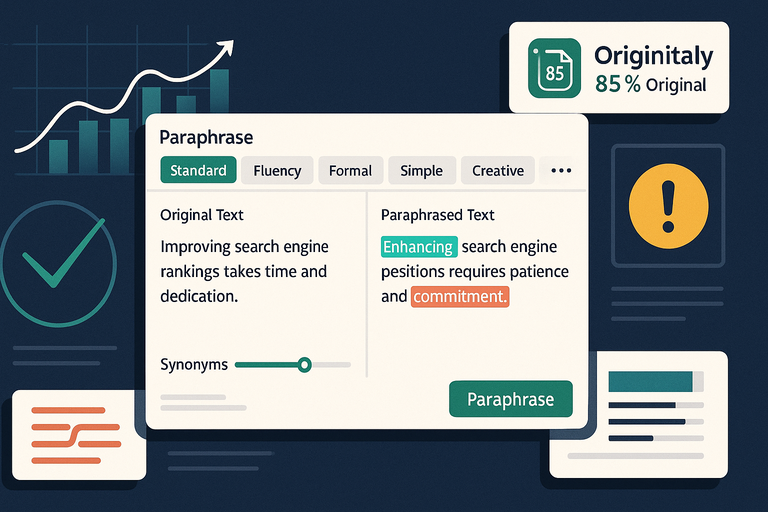
The paraphraser is the heart of QuillBot, especially when you need a sentence to say the same thing in a cleaner, fresher way.
This section breaks down how natural it sounds and how safe it is for SEO-focused work.
How Natural The Rewritten Sentences Actually Sound
Natural writing is the line between an AI tool being useful or unusable. I’ve seen QuillBot produce surprisingly clean phrasing in Standard and Fluency modes. Creative mode can get playful, but sometimes at the cost of clarity.
When you keep the synonym slider around the middle, you usually get smooth, readable sentences. Push it too far and the output can feel too polished or too unusual.
I’ve tested it on:
- blog introductions
- niche technical paragraphs
- email outreach templates
In many cases, it preserves the natural tone better than expected. I especially like how it avoids the overly generic phrasing that some AI tools generate when rewriting.
Whether The Tool Avoids Repetitive Or Robotic Outputs
Robotic phrasing happens when AI models overuse patterns. QuillBot does better than most because the different rewriting modes change how aggressively it restructures sentences.
Still, you’ll notice repetition if you feed it similar sentence structures back-to-back. I’ve seen this when rewriting product descriptions or FAQs.
A simple trick I use: Run the same paragraph through two modes and compare them manually. Mixing Standard with Fluency or Shorten creates more variety and avoids patterned output.
For longer pieces, I suggest using QuillBot to rework only the lines that genuinely need improvement instead of rewriting entire sections at once. That keeps your natural voice intact.
How Safely It Maintains Original Intent And Meaning
Meaning preservation is one of QuillBot’s strongest areas, especially if you avoid maxing out the synonym slider. In 90–95 percent of cases, it keeps the core idea solid.
Where it gets tricky:
- Numbers or data points sometimes get swapped with looser alternatives.
- Highly specialized terminology may be replaced with simpler words.
- Emotional nuance can shift if you paraphrase aggressively.
For example, the sentence “I’m concerned this update may confuse new users” was rephrased as “I worry this update might overwhelm beginners,” which changes tone more than intended.
For SEO and professional writing, I recommend double-checking every paraphrased sentence containing metrics, quotes, or sensitive messaging.
Originality Metrics And Their Use For SEO Writers
QuillBot includes an originality score that helps you understand how much the sentence structure has changed. It’s not the same as a plagiarism score, but it gives you a sense of novelty.
If you write SEO content, this feature matters because Google looks for genuinely helpful, original writing instead of AI-patterned phrasing.
I’ve tested QuillBot outputs in two different plagiarism checkers, and the results were consistently safe when rewriting at the sentence level.
You’ll benefit most from originality metrics when:
- refreshing old blog posts
- rewriting affiliate sections that feel too similar to competitors
- preparing outreach emails that need a unique voice
- avoiding duplicates across multiple landing pages
I believe the originality score is best used as a guide, not a guarantee. You still want your final writing to sound like you, not a tool.
Ease Of Use And User Experience Across Devices
QuillBot is designed to feel lightweight, fast, and familiar no matter where you use it.
I’ve tested it on desktop, mobile, and inside the browser, and each setup has its own personality.
Navigation And Editing Inside The Web Dashboard
The main dashboard is where most people spend their time. When you open QuillBot, the interface splits into two panels: Your original text on the left and your rewritten or corrected output on the right.
Everything updates in real time, which helps you compare versions without switching tabs.
What makes the dashboard easy to work with:
- Clean layout: Modes, toggles, and the synonym slider sit at the top so you don’t hunt for settings.
- One-click switching: If you move from Paraphraser to Grammar Checker, your text carries over automatically.
- Side-by-side results: You instantly see how your sentences change, which makes it easier to control tone.
I suggest using the “Freeze Words” tool when paraphrasing. It lets you lock specific terms—great for product names, statistics, or branded language that must stay intact.
You’ll find it right next to the mode selector under “Snowflake icon.”
How Smoothly The Chrome Extension Fits Into Browsing
The Chrome extension is one of the most useful features because it embeds QuillBot into almost any text box online.
When you’re inside Gmail, Google Docs, WordPress, or social media, a small QuillBot icon appears below the text area.
You can highlight a sentence, click the icon, and paraphrase or correct it without leaving the page. For anyone who writes emails daily, this becomes second nature.
Where the extension helps most:
- editing outreach emails in Gmail
- rewriting snippets inside Google Docs
- cleaning up social media captions
- refining product descriptions when logged into Shopify or Etsy
It’s not perfect, though. If you’re editing inside complex builders like Notion or Framer, the extension occasionally struggles to detect the text box properly.
I usually refresh the page when this happens.
Mobile Use Cases For Writers Working On The Go
The mobile browser version is surprisingly usable. I’ve drafted blog ideas and rewritten captions while sitting in a café using nothing but my phone.
The interface compresses nicely, and the rewrite modes remain easy to access.
Where mobile shines:
- rewriting social posts on the fly
- fixing grammar in WhatsApp or email drafts
- paraphrasing notes before sending them to clients
I recommend avoiding heavy text pasting on mobile. Paraphrasing 1,000+ words can feel cramped on a small screen. It’s doable—just not comfortable.
Integration Limitations That Users Often Miss
There are a few friction points worth noting because most people only notice them after long-term use.
Limitations to keep in mind:
- QuillBot doesn’t integrate natively with Word desktop, only Word Online.
- Some website builders block the extension’s editor bubble.
- Large documents above 10,000 characters may lag, especially in Creative Mode.
- The summarizer and citation tools are not available in the Chrome extension, only in the full dashboard.
I believe knowing these limits ahead of time helps you build a smoother workflow instead of trying to force QuillBot to do things it’s not designed for.
Pricing Plans And Whether They’re Worth The Cost

QuillBot offers a free plan and a premium plan.
The value you get depends heavily on how frequently you rewrite or edit long-form content.
What You Get With The Free Version
The free version is enough if you only need quick rewrites or occasional grammar checks. You get access to basic paraphrasing, Grammar Checker, and limited Summarizer use.
Free plan highlights:
- Standard and Fluency paraphrasing modes
- 125 words per paraphrasing run
- Basic grammar corrections
- Limited summarizer word count
- Chrome extension access
This is more than enough for casual writing or school assignments. However, if you work with documents longer than a paragraph, you’ll hit the word cap quickly.
Premium Features That Matter For Heavy Writers
If you’re a blogger, freelancer, or content strategist, premium makes a noticeable difference. You get unlimited paraphrasing, all rewrite modes, and priority sentence restructuring.
Premium upgrades that truly help:
- Formal, Creative, Expand, and Shorten modes
- Unlimited summarizer
- Faster processing and better accuracy
- Plagiarism Checker (useful for SEO and client work)
- Advanced tone correction
- Customizable Freeze Words
I suggest premium if you rewrite large amounts of content regularly. In my case, working with long articles means unlimited paraphrasing alone pays for itself.
Comparing QuillBot’s Pricing To Competing Tools
Compared to Grammarly, Wordtune, and ChatGPT, QuillBot sits in the mid-range price bracket.
Here’s a quick comparison:
| Tool | Strength | Monthly Cost Range |
| QuillBot | Best for paraphrasing | Mid-range |
| Grammarly | Best for grammar depth | Higher |
| Wordtune | Best for sentence creativity | Mid-range |
| ChatGPT | Best for full rewrites | Varies by tier |
QuillBot gives you more paraphrasing value per dollar than Grammarly. It also costs less than some premium AI writing assistants that require multi-seat licenses.
When Upgrading Makes Sense And When It Doesn’t
I believe upgrading only makes sense if your workflow relies on heavy rewriting or frequent editing. If you write long blog posts, do content refreshes, or edit drafts for clients, premium saves hours.
Upgrade if:
- you paraphrase more than 500 words daily
- you rely on varied tone adjustments
- you want unlimited summarizing
- you work with SEO-sensitive content
Skip premium if:
- you only need grammar fixes
- you write short emails
- your content doesn’t require rewriting or tone changes
In those situations, the free plan provides enough functionality.
QuillBot Compared To Leading Writing Tools
Most people comparing QuillBot look at Grammarly, Wordtune, or ChatGPT.
Each one has its own specialty, and QuillBot sits in a unique position between them.
QuillBot vs Grammarly For Grammar And Clarity
Grammarly wins in deep grammar detection. It catches nuances such as tone, conciseness, and contextual clarity more consistently.
If your writing needs detailed grammatical oversight, Grammarly feels stronger long-term.
Where QuillBot wins:
- cleaner paraphrasing
- quicker rewrites
- simpler explanations
Where Grammarly wins:
- deeper rule-based grammar analysis
- punctuation intelligence
- integration across more platforms
I suggest using QuillBot for rewriting and Grammarly for final proofreading. They complement each other well.
QuillBot vs Wordtune For Paraphrasing Depth
Wordtune focuses on creative rewriting. It gives multiple sentence variations that feel more expressive. But Wordtune struggles with long paragraphs and inconsistency across outputs.
QuillBot wins when:
- you want predictable structure
- you’re rewriting large blocks of text
- you need consistent tone
Wordtune wins when:
- you need creative variations
- you want short, punchier rewrites
I often start with QuillBot for structure, then use Wordtune to refine only specific lines.
QuillBot vs ChatGPT For Rewriting And Drafting
ChatGPT is a full writing assistant, not just a paraphraser. It can generate brand-new content, brainstorm ideas, and rewrite entire pages in one pass.
But ChatGPT sometimes drifts from the original meaning, especially in long rewrites.
QuillBot excels at preserving meaning.
ChatGPT excels at expanding ideas.
If you’re rewriting existing content, QuillBot gives you more control. If you’re creating from scratch, ChatGPT gives you more flexibility.
What Tool Stack Works Best For Content Creators
If you write daily, mixing tools gives the best results.
A balanced stack might look like this:
- Draft in Google Docs
- Rewrite tricky sentences in QuillBot
- Paraphrase or expand ideas in ChatGPT
- Polish the final copy in Grammarly
This workflow keeps your writing original, polished, and SEO-friendly without relying too heavily on a single tool.
I believe QuillBot becomes most powerful when it works alongside others. It’s a specialized tool, and that’s exactly why it fits well in a modern content workflow.
Best Use Cases For Bloggers, Students, And Teams

QuillBot works differently depending on what you’re trying to accomplish.
I’ve used it in all three roles over the years—content creator, student, and team member—and each group benefits in its own way.
How Content Creators Can Speed Up Drafting
For bloggers and marketers, QuillBot becomes a reliable companion during those moments when your brain feels slower than your deadlines.
I often use it to smooth rough paragraphs or quickly rephrase ideas that aren’t landing.
Why it speeds up drafting:
- Faster rewrites: You can highlight a clunky sentence, paste it into the Paraphraser, and generate a cleaner version instantly.
- Tone control: Modes like Standard and Fluency help you keep a conversational feel without losing clarity.
- Idea expansion: The Expand mode lets you turn short notes into more developed thoughts, which I find helpful when outlining long guides.
- Fixing repetitive phrasing: It catches those moments when you unintentionally reuse the same sentence pattern across multiple sections.
A realistic scenario: you’re drafting a 2,500-word review. Halfway in, the intro sounds too stiff.
Running it through Fluency mode softens the tone while keeping your voice recognizable. That kind of micro-improvement adds up fast.
How Students Can Use It Without Hurting Learning
Students often rely on AI tools a bit too heavily, which can weaken writing skills if you’re not careful. I usually suggest using QuillBot as a support tool rather than a content generator.
How to use it responsibly:
- paraphrase confusing lecture notes to understand them better
- clean up grammar in essays after you’ve written them yourself
- summarize long reading assignments for review
- use the citation generator to avoid formatting errors
QuillBot becomes dangerous for learning only when it replaces your writing instead of improving it.
I always advise reading the AI-generated sentences carefully and asking yourself: “Do I understand why this rewrite is better?” That small habit builds skill rather than dependence.
How Business Teams Can Streamline Communication
Teams rely on speed and clarity. QuillBot fits well into daily workflows—especially for customer support, sales, and internal messaging.
Why teams benefit:
- consistent tone across emails
- quicker message drafting
- reduced grammar mistakes in client communication
- simplified rewriting for announcements or reports
If you write a lot of short-form communication, the Chrome extension is a quiet lifesaver. You can paraphrase a sentence inside Gmail or Slack without switching tools. That alone cuts minutes off each message.
Use Cases You Should Avoid To Prevent Weak Writing
Even though QuillBot saves time, it’s not suitable for every situation. Misusing it can make writing feel generic or, worse, inaccurate.
Avoid using it for:
- emotional writing where tone matters deeply
- complex academic arguments
- legal or financial documentation
- content requiring a strong personal voice
An example: rewriting a founder’s letter or a brand story through aggressive paraphrasing usually strips out authenticity. Those pieces need your natural rhythm more than perfect grammar.
Pros And Cons Based On Hands-On Use
After relying on QuillBot for years, I’ve developed a balanced view of what it does well and where you’ll want to tread carefully.
Strengths That Make QuillBot Useful For Daily Writing
QuillBot’s biggest strength is how quietly it blends into your workflow. It doesn’t overwhelm you with too many buttons or try to “take over” your writing.
Daily strengths I’ve noticed:
- Fast paraphrasing: Even longer paragraphs rewrite smoothly.
- Accurate grammar cleanup: It catches small errors you easily miss.
- Simple interface: You can jump between tools without thinking.
- Powerful rewriting modes: Great for bloggers and copywriters.
- Helpful Chrome extension: Fits into Gmail, Docs, and CMS tools.
The speed-to-quality ratio is what keeps me using it. You get useful changes with minimal effort.
Weak Spots That Can Slow You Down
QuillBot isn’t perfect, and sometimes it feels like it leans too heavily on patterns. That can lead to mechanical-sounding rewrites if you’re not careful.
Common weak points include:
- paraphrases that feel slightly generic
- tone shifts when rewriting emotional sentences
- occasional lag during long text rewrites
- struggles with technical or academic content
- repetitive phrasing in Creative mode
I recommend making small, targeted rewrites instead of running entire pages through the Paraphraser. That’s the best way to avoid robotic language.
Who Will Benefit Most From The Tool
The tool shines for people who write frequently but don’t need full-on editing support every day.
You’ll love it if you are:
- a blogger tightening long articles
- a freelancer juggling multiple client projects
- a student editing essays or summarizing material
- a marketer refreshing old content or email templates
- a business owner improving communication clarity
If you need speed plus light creativity, QuillBot fits beautifully.
Who Might Struggle With Its Output Quality
QuillBot may feel limiting if you rely on nuance or advanced writing forms.
It’s not ideal for:
- literary writers
- researchers dealing with complex theories
- legal writers who need exact phrasing
- anyone who expects AI to produce publish-ready prose
In those cases, you’ll spend more time correcting than benefiting.
Final Verdict: Is QuillBot Worth Using Long-Term
After using QuillBot across different roles, I see it as a practical tool that improves writing flow, not a replacement for your voice.
The long-term value depends on how you write and what you expect.
When QuillBot Becomes A Reliable Writing Partner
QuillBot becomes genuinely useful over months of regular use. You start noticing patterns—where it helps, what to ignore, and how it fits your workflow.
It excels when you:
- produce high volumes of content
- need to clean up drafts quickly
- care about readability
- rewrite similar sentences frequently
- want consistent tone across channels
I think of it like a fast-thinking assistant that handles mechanical cleanup while you focus on creativity.
When Manual Editing Still Outperforms The Tool
There are still times when a human edit is simply better. You’ll want to switch to manual editing if the content requires emotion, nuance, or precise tone.
Manual editing outperforms QuillBot in:
- storytelling or narrative writing
- persuasive sales copy
- opinion pieces
- brand voice–heavy content
In those cases, QuillBot is still useful for polishing individual lines, but you shouldn’t rely on it for full rewrites.
My Recommendation For Different Types Of Users
If you’re unsure whether to commit to QuillBot long-term, I’d frame it this way:
- Bloggers and content marketers: I strongly recommend premium. It saves real time and keeps writing consistent.
- Students: Use the free version unless you’re writing long papers weekly.
- Business teams: Premium helps maintain clarity and tone across communication.
- Casual writers: Stick to the free plan; it offers more than enough.
In the end, QuillBot gives you speed, simplicity, and solid paraphrasing without overwhelming your workflow. When used thoughtfully, it becomes one of those quiet tools you end up relying on almost every day.

I’m Juxhin, the voice behind The Justifiable.
I’ve spent 6+ years building blogs, managing affiliate campaigns, and testing the messy world of online business. Here, I cut the fluff and share the strategies that actually move the needle — so you can build income that’s sustainable, not speculative.