
Table of Contents
Some links on The Justifiable are affiliate links, meaning we may earn a small commission at no extra cost to you. Read full disclaimer.
QuillBot student users often wonder if this AI-powered writing tool can actually help them write smarter—faster, clearer, and with better results.
Whether you’re working on essays, research papers, or scholarship applications, the right strategy with QuillBot can transform your writing process from frustrating to effortless.
In this guide, we’ll break down how to use QuillBot effectively as a student, the key features that boost writing quality, and practical tips to save time while still producing original, polished work.
Understanding QuillBot for Students
QuillBot has become a favorite tool among students because it helps improve clarity, accuracy, and confidence in writing without replacing the student’s own ideas.
Let’s break down how it actually works in practice.
How QuillBot Simplifies Academic Writing
Writing essays, reports, or research papers can often feel like juggling structure, tone, and citation all at once. QuillBot simplifies that entire process.
When you paste your text into QuillBot’s editor, the AI analyzes your content and suggests reworded sentences that preserve meaning but improve fluency.
This feature, called the Paraphraser, helps remove awkward phrasing, improve vocabulary, and make arguments sound more natural.
Here’s an example:
- Original: “Students are finding it hard to balance multiple assignments in limited time.”
- QuillBot Rewrite (Fluency Mode): “Many students struggle to manage several assignments within a short timeframe.”
Small change, huge difference. The meaning stays intact, but the tone feels smoother and more academic.
I suggest using QuillBot early in the writing process—not just for cleanup at the end.
Rephrasing drafts helps you refine ideas and see alternative ways to express complex thoughts. Over time, you’ll naturally start writing more clearly on your own.
Why QuillBot Is More Than Just a Paraphrasing Tool
Many people think QuillBot is just a fancy paraphrasing app, but it’s actually a full writing assistant designed for academic growth.
Beyond paraphrasing, it includes:
- Grammar Checker: Catches syntax, punctuation, and spelling errors you might overlook.
- Summarizer: Condenses long research articles into quick summaries, saving you hours of reading.
- Citation Generator: Instantly creates proper citations in APA, MLA, or Chicago style.
Each of these features supports a different stage of your writing journey—from research and drafting to editing and citation.
I often tell students: Treat QuillBot like a writing lab partner. It won’t do your thinking for you, but it makes every draft sharper and cleaner.
The Ethical Use of AI Tools in Student Writing
Using AI in education always raises a valid concern: Where’s the ethical line?
QuillBot is built to assist learning, not replace it. Ethical use means leveraging the tool to improve your writing skills—not submitting AI-generated content as your own.
Here are a few best practices:
- Always read and edit QuillBot’s suggestions before submitting work.
- Use the Paraphraser to learn better phrasing, not to mask plagiarism.
- Cite your sources, even when using the Summarizer for research.
I believe AI tools like QuillBot actually strengthen academic integrity when used responsibly—they encourage clarity, originality, and awareness of language. It’s about learning to write smarter, not cheat faster.
Mastering QuillBot’s Core Features
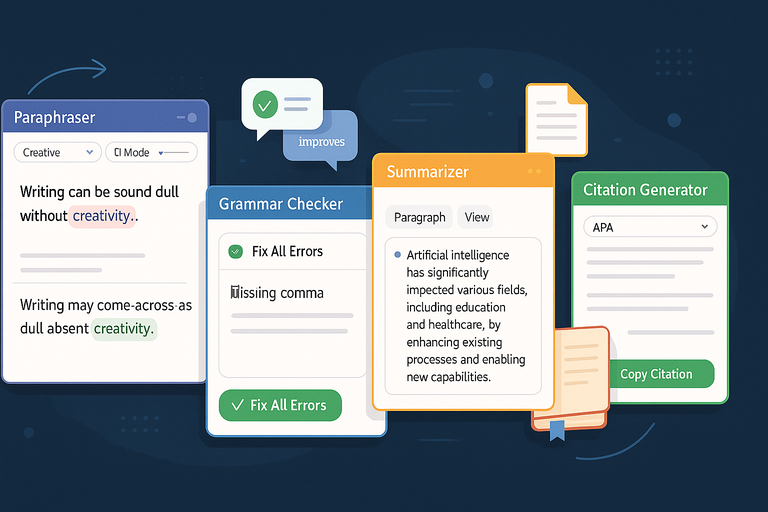
Once you understand what QuillBot can do, the next step is mastering its individual tools. Each feature can dramatically improve your writing workflow when used strategically.
Using the Paraphraser to Strengthen Your Writing Voice
The Paraphraser is QuillBot’s most-used feature—and for good reason. It helps rewrite sentences in seven different modes like Fluency, Standard, Creative, and Formal.
Here’s how I use it:
- Write your draft in your natural tone.
- Paste it into QuillBot.
- Test a few modes to see how your sentences evolve.
- Copy back only what genuinely improves flow and tone.
For example, Formal Mode is perfect for research papers, while Creative Mode works beautifully for personal essays or reflections.
Pro tip: Adjust the Synonym Slider at the top. Moving it toward “More” creates bolder rewrites, while “Less” keeps things close to your original phrasing. It’s a simple way to control how much rewriting happens—and to protect your authentic voice.
How the Grammar Checker Helps You Write Flawless Papers
Even strong writers miss small grammar mistakes. QuillBot’s Grammar Checker acts like a real-time editor, catching not only typos but also structural and stylistic issues.
For instance, it flags:
- Subject-verb disagreements (“He go to class” → “He goes to class”)
- Missing commas or capitalization
- Repetitive sentence starts or weak transitions
The best part is that corrections appear inline, with short explanations. This helps you learn why something’s wrong rather than just fixing it blindly.
I often recommend students run their final draft through this feature before submission—it’s a last layer of polish that boosts professionalism.
Leveraging the Summarizer for Research and Note-Taking
Research can eat up entire evenings, especially when dealing with long journal articles. QuillBot’s Summarizer helps cut that down drastically.
Paste in an article or link, and it generates two types of summaries:
- Key Sentences View: Extracts the most important sentences from the text.
- Paragraph View: Condenses everything into a concise summary.
I like using the Paragraph View when scanning new material and the Key Sentences View when creating notes or outlines for papers.
For example, when preparing a literature review, you can summarize ten studies in minutes, identify key patterns, and then expand them in your own words later.
It’s a smart way to digest complex information without missing important details.
Enhancing Productivity with the Citation Generator
The Citation Generator is a hidden gem for students juggling multiple sources. It automates the tedious part of referencing so you can focus on content instead of formatting rules.
Simply:
- Go to Tools → Citation Generator.
- Paste your source link or book details.
- Select a style—APA, MLA, or Chicago.
- Copy and paste the citation directly into your paper.
You can even save your citations in My Library for later use. I suggest pairing this feature with QuillBot’s Co-Writer tool (available in premium) to manage all research and references in one space.
It’s a small change, but automating citations can save hours during finals season—and ensures your academic work stays consistent and credible.
Writing Smarter With QuillBot Modes
QuillBot gives students several writing modes designed for different goals—clarity, creativity, fluency, or professionalism.
Knowing when and how to use these modes is what separates average writing from sharp, confident, and well-structured work.
When To Use Standard Mode for Clarity and Flow
Standard Mode is the default setting in QuillBot, and it’s perfect for everyday writing. It focuses on rewriting sentences to make them sound smoother while keeping your original meaning intact.
Think of this mode as your clarity booster. It’s ideal when your sentences feel cluttered or slightly off but you don’t want to lose your natural tone.
I often suggest using it for:
- Essay drafts: To tighten paragraphs without changing your argument.
- Emails or discussion posts: When you need professional clarity without sounding robotic.
- Assignment edits: To refine sentences that sound repetitive or wordy.
For instance, if you write, “The main reason why students tend to procrastinate is due to time management issues,” QuillBot might rephrase it as, “Students often procrastinate because they struggle to manage their time effectively.”
Notice how it sounds more natural without altering meaning. If you’re unsure which mode to start with, Standard Mode is the safest and most balanced option.
Creative Mode for Essays and Reflective Writing
Creative Mode is where QuillBot lets your imagination breathe. It’s built to make writing more expressive by experimenting with sentence structure, rhythm, and vocabulary.
This mode shines when you’re writing:
- Personal reflections or creative essays
- Scholarship applications that require emotional tone
- Blog-style assignments or storytelling projects
Here’s a small example. Original: “Traveling teaches students valuable lessons about independence and responsibility.”
Creative Mode might turn it into: “Through travel, students discover freedom, self-discipline, and the art of navigating the world on their own terms.”
See the difference? It adds emotional weight without drifting from your point.
I recommend reading outputs from Creative Mode carefully—it can occasionally push phrasing too far, so keep what aligns with your authentic voice.
Fluency Mode to Improve Sentence Smoothness
Fluency Mode helps fix grammar, syntax, and awkward phrasing. It’s great for non-native English speakers or anyone polishing work for readability.
Fluency Mode ensures sentences follow natural language patterns. It doesn’t make dramatic changes—just subtle ones that make your writing easier to read.
Use it when:
- You’re proofreading a final draft before submission.
- Your sentences feel technically correct but don’t flow.
- You’re reworking content translated from another language.
For example, QuillBot might adjust “He did his homework and then he watched a movie later” to “He did his homework before watching a movie.” Small tweak, but smoother rhythm.
I like running my text through Fluency Mode as a final step after using Standard or Formal Mode. It’s like a quick polish before turning in your paper.
Formal Mode for Academic and Professional Tone
Formal Mode is your go-to for essays, dissertations, or emails to professors. It enhances vocabulary and tone to make writing sound authoritative and polished—without overcomplicating sentences.
Here’s how I suggest using it:
- Draft your content naturally in your voice.
- Switch to Formal Mode.
- Review and keep only changes that maintain clarity and professionalism.
For instance, “I think this experiment shows good results” might become “The experiment demonstrates promising outcomes.” That’s more academic but still simple.
I often use this mode for research summaries, cover letters, and any written work submitted for grading. It subtly boosts your credibility by aligning your tone with academic expectations.
Integrating QuillBot Into Your Study Routine

Using QuillBot effectively means making it part of your daily workflow.
When integrated with your regular writing tools, it can turn long study sessions into smooth, organized work.
How To Use QuillBot Alongside Google Docs and Word
QuillBot integrates directly with Google Docs and Microsoft Word, which means you can edit as you write—without switching tabs.
Here’s how to set it up:
- For Google Docs: Go to Extensions → Add-ons → Get Add-ons → Search “QuillBot.” Install and enable it.
- For Word: Visit the Insert → Add-ins → Get Add-ins tab and install QuillBot for Word.
Once connected, you can highlight any text, click Paraphrase, and see instant improvements on the sidebar.
I recommend activating Fluency Mode or Formal Mode for essays you write directly in Docs. It ensures consistent tone and helps catch small mistakes before your professor does.
Organizing Study Notes and Essays With QuillBot Extensions
One underrated use of QuillBot is for organizing notes. The Summarizer and Paraphraser can turn long reading materials or lecture transcripts into short, clear notes.
Here’s a quick strategy:
- Copy your lecture transcript or research article.
- Paste it into the Summarizer to get a short version.
- Use the Paraphraser (Standard Mode) to rewrite the summary in your own words.
This approach helps you build original notes that stick in memory and sound like your own.
I use it myself when processing dense material from academic journals—it’s faster and helps me focus on key ideas.
Streamlining Group Projects Using Shared QuillBot Tools
If you’ve ever managed group work, you know how inconsistent writing styles can make the final project feel disjointed. QuillBot solves that problem neatly.
You can:
- Share paraphrased sections in a shared Google Doc for consistency.
- Use Formal Mode to align tone across different team members’ writing.
- Run the Grammar Checker on the final document for a unified finish.
I suggest creating a shared folder where everyone runs their text through QuillBot before combining drafts. It makes collaboration smoother and ensures the final document sounds like it came from one voice—not five.
Avoiding Common Student Mistakes With QuillBot
While QuillBot can elevate your writing, it’s still a tool—and like any tool, using it carelessly can hurt more than help.
Here are a few pitfalls to watch out for.
Overreliance on Paraphrasing Without Understanding
Many students rely too heavily on the Paraphraser to “fix” their writing instead of understanding how it improves their language. I’ve seen this lead to bland, confusing essays.
Instead, use paraphrasing as a learning exercise. Compare your original sentences to QuillBot’s suggestions.
Ask: Why does this version sound better? Over time, you’ll internalize those patterns naturally.
Try paraphrasing small sections of text manually after using QuillBot. It keeps your brain active and reinforces real writing skill.
Ignoring Proper Citation and Plagiarism Risks
QuillBot’s Summarizer and Paraphraser can reword text quickly—but they don’t automatically create citations. If you paraphrase academic sources without attribution, that’s plagiarism.
Always use QuillBot’s Citation Generator after summarizing or rephrasing research. It lets you build proper references in seconds. I can’t stress this enough: citation is not optional, even if you’re using AI.
This is where AI and integrity intersect—learning to balance convenience with responsibility makes you a stronger academic writer.
Misusing Modes and Losing Your Original Voice
Every mode in QuillBot serves a different purpose, but jumping between them too freely can make your writing sound mechanical or inconsistent.
Here’s my advice:
- Use Standard Mode for drafting and polishing.
- Apply Formal Mode for academic tone.
- Run Fluency Mode last for smoothness.
Avoid stacking modes on top of each other repeatedly—it can strip away your natural rhythm. The best writers use QuillBot like an assistant, not a replacement.
Expert Tips To Get the Most Out of QuillBot
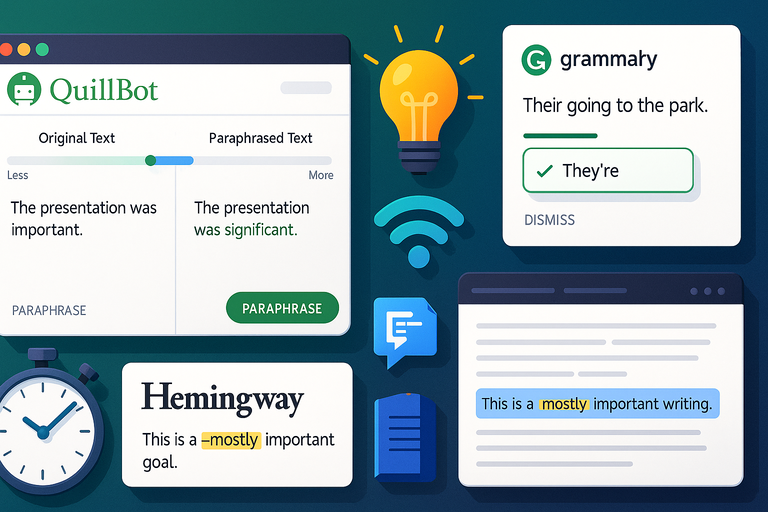
Once you’ve explored QuillBot’s main features, it’s time to fine-tune your workflow.
These expert tips will help you use QuillBot like a pro, combining tools and strategies to sharpen both your writing and your learning.
Combine QuillBot With Grammarly or Hemingway for Precision
QuillBot is excellent for rewriting and improving sentence flow, but it doesn’t always catch every small grammar or readability issue. That’s where tools like Grammarly or Hemingway Editor come in.
Here’s what I personally recommend:
- Start with QuillBot: Use the Paraphraser to strengthen structure and clarity.
- Then open Grammarly: It’s perfect for fine-tuning grammar, punctuation, and tone consistency.
- Finish in Hemingway: This app highlights hard-to-read sentences and passive voice, so your writing feels crisp and confident.
For example, I once revised a 2,000-word essay using this trio. QuillBot improved sentence quality, Grammarly caught tense inconsistencies, and Hemingway simplified overly long sentences. The result? A paper that read as if it were edited by a professional.
These tools complement each other beautifully—QuillBot enhances meaning and flow, Grammarly ensures technical accuracy, and Hemingway polishes readability.
Build Vocabulary and Writing Style Using the Synonym Slider
One of QuillBot’s most underrated features is the Synonym Slider—that small bar above the paraphrasing window. It lets you control how much the tool changes your text.
Here’s a quick breakdown:
- Less Change: Keeps your writing close to the original but slightly smoother.
- More Change: Replaces more words with synonyms, introducing fresh vocabulary.
I suggest experimenting with it to learn new expressions and sentence variations. For instance, sliding right on “important” might generate “crucial,” “vital,” or “significant”—helping you naturally expand your word choice.
If you’re learning English or trying to build a more academic tone, this tool is gold. You can hover over underlined words to see alternate suggestions—almost like an interactive vocabulary lesson.
Over time, using the Synonym Slider teaches you to write more precisely and confidently without sounding repetitive.
Save Time With QuillBot’s Rewriter and Summarizer Shortcuts
If you often switch between rephrasing and summarizing, you’ll love how efficiently QuillBot’s Rewriter and Summarizer work together.
Here’s how I typically use them during essay prep:
- Use the Summarizer to condense long research papers into core insights.
- Paste those summaries into the Paraphraser (Standard Mode) to rephrase them in your own words.
- Compile them into your notes or research outline.
This two-step method can save you hours during research-heavy projects.
A mini case example: I once needed to review six 10-page academic papers for a literature review. Instead of reading every page, I summarized each article using QuillBot, paraphrased the summaries, and quickly built a structured outline.
What normally took a weekend took about three hours—and my professor praised the clarity of my writing.
The key is balance: Let the AI simplify the grunt work, but always verify the accuracy of the summarized content before including it in your essay.
Experiment With AI Feedback for Continuous Improvement
One overlooked feature in QuillBot’s Co-Writer (available in premium) is real-time AI feedback. It’s like having a personal editor who points out awkward phrasing, redundancy, or structural issues as you write.
I recommend using this feedback as a learning tool rather than a quick fix. When QuillBot suggests a change, pause and ask yourself why it made that choice. This reflection helps you internalize better writing habits.
If you’re serious about growth, keep a small “AI Feedback Log.” Note down recurring suggestions—like “use active voice” or “avoid redundancy.” Over time, you’ll see patterns and naturally start correcting them before the AI does.
The goal isn’t perfection; it’s progress. QuillBot can be an incredible writing coach if you pay attention to how it guides your edits.
Comparing QuillBot to Other Student Writing Tools
QuillBot doesn’t exist in a vacuum—it’s part of a larger ecosystem of writing tools.
Understanding how it compares helps you know when it’s the best option for your needs and when to combine it with others.
How QuillBot Stacks Up Against Grammarly
Both QuillBot and Grammarly improve writing, but they focus on different strengths.
QuillBot:
- Excels in paraphrasing, summarizing, and tone adjustment.
- Great for reworking entire paragraphs and improving flow.
- More budget-friendly for students.
Grammarly:
- Focuses on grammar, tone detection, and real-time editing.
- Ideal for short texts, essays, and professional communication.
In my experience, Grammarly is best for micro-level corrections, while QuillBot shines in macro-level rewriting. If you’re working on a large essay or research paper, QuillBot offers more flexibility.
Here’s a quick comparison snapshot:
| Feature | QuillBot | Grammarly |
| Paraphrasing | Yes | No |
| Summarization | Yes | No |
| Grammar & Punctuation | Good | Excellent |
| Citation Generator | Yes | No |
| Real-time Feedback | Available in Co-Writer | Always On |
| Price | More affordable | Premium plans higher |
If you write long-form academic work, QuillBot’s tools will serve you better. For fast grammar fixes and tone analysis, Grammarly wins.
Why Students Prefer QuillBot for Research-Based Writing
Research writing often requires summarizing complex studies and rewording technical content—something QuillBot was practically designed for.
Its Summarizer and Citation Generator combo makes it easy to digest and properly reference academic materials. Plus, it helps maintain originality by offering different phrasing patterns, reducing the risk of accidental plagiarism.
For instance, I once worked with a student writing a 20-page psychology paper. QuillBot’s Summarizer condensed her sources into digestible notes, while the Paraphraser rewrote key points into clear, academic sentences.
She later told me it saved her nearly eight hours of manual work.
That’s why QuillBot stands out for research—it supports the thinking process, not just the editing process.
When To Use Other Tools Alongside QuillBot for Best Results
While QuillBot covers most writing needs, pairing it with complementary tools can boost your results:
- Notion or Evernote: For organizing research and saving QuillBot-generated summaries.
- Grammarly: For precision editing after rewriting.
- Hemingway: For simplifying overly complex sentences.
- Turnitin or Copyscape: To double-check originality after heavy paraphrasing.
I often use QuillBot first to polish content, then Grammarly and Hemingway to refine tone and structure. This layered approach ensures your writing stays both authentic and polished.
Final Thoughts: Becoming a Smarter Writer With AI
At its core, QuillBot isn’t just about faster writing—it’s about learning how to think, structure, and express ideas more effectively.
When used intentionally, it becomes a study companion that sharpens both skill and confidence.
How QuillBot Empowers Students To Think and Write Independently
QuillBot encourages students to experiment with sentence structure, test phrasing, and explore word alternatives. This hands-on experience builds deeper understanding of language mechanics.
For example, when you rephrase the same idea in multiple ways, you start to see how tone, rhythm, and syntax affect meaning. Over time, this habit transforms your raw drafts into refined, clear arguments.
That’s what I admire about the tool—it doesn’t just correct you; it teaches you through repetition and reflection.
Building Long-Term Writing Confidence Through Smart AI Use
Confidence in writing comes from practice, not shortcuts. QuillBot helps you get there faster by acting as a patient writing coach.
The more you use it thoughtfully, the more patterns you’ll recognize—like transitions, strong openers, and concise phrasing. I’ve seen students move from relying on QuillBot for every paragraph to using it sparingly just to polish their ideas.
That’s progress worth celebrating.
Balancing AI Assistance With Original Thought and Creativity
The ultimate goal of AI writing tools isn’t dependency—it’s mastery. Use QuillBot to refine your voice, not replace it.
A good balance looks like this:
- Use AI to polish structure and flow.
- Use your own judgment for arguments, creativity, and tone.
- Reflect on each AI suggestion before accepting it.
I believe writing is both an art and a discipline. QuillBot can handle the mechanics, but the soul—your unique perspective—should always come from you.
Pro Tip: The smartest students treat QuillBot like a mentor. They learn from its feedback, apply it consciously, and evolve their own voice through every rewrite. That’s how you don’t just use AI—you grow with it.

I’m Juxhin, the voice behind The Justifiable.
I’ve spent 6+ years building blogs, managing affiliate campaigns, and testing the messy world of online business. Here, I cut the fluff and share the strategies that actually move the needle — so you can build income that’s sustainable, not speculative.
Related posts:
 Quillbot Alternative Review: Top 5 Choices
 How Long Is the Quillbot Trial? Full Details & Limitations
 Best Alternative Of QuillBot That Writers Actually Use
 How To Use QuillBot Tool To Rewrite Like A Pro
 Why QuillBot Free Grammar Checker Outperforms Other Tools
 Quillbot Pricing Explained: Honest Breakdown of All Plans