
Table of Contents
Some links on The Justifiable are affiliate links, meaning we may earn a small commission at no extra cost to you. Read full disclaimer.
If you’ve ever wondered how to polish your writing without paying for expensive tools, the free grammar checker QuillBot AI might be your best kept secret.
Whether you’re writing blog posts, academic papers, or emails, clear and mistake-free writing can completely change how your message is received.
But can QuillBot’s free grammar checker really help you write flawlessly without sounding robotic or losing your voice?
Let’s break it down step-by-step and see exactly how you can use it to write with confidence and style.
Understanding How QuillBot AI Grammar Checker Works
QuillBot’s free grammar checker AI is designed to go beyond basic spell-check.
It analyzes your text with natural language processing (NLP) — the same kind of technology used in advanced chatbots and language translation models — to catch grammar, punctuation, and stylistic issues based on context.
How QuillBot AI Detects and Fixes Grammar Mistakes
QuillBot doesn’t just flag errors — it explains why something might be wrong. When you paste text into the Grammar Checker tab, the AI scans for sentence fragments, misplaced commas, tense shifts, and confusing phrasing.
- Real-Time Feedback: As you type or paste your text, QuillBot highlights issues in yellow. Clicking the underlined phrase gives you suggestions for correction or rewording.
- Smart Context Detection: It understands word relationships, meaning it can tell the difference between “your” and “you’re” based on sentence intent.
- AI Learning: The system improves over time, meaning it learns from user corrections and adjusts its understanding of natural writing patterns.
For example, if you write, “He go to work every day,” QuillBot instantly suggests, “He goes to work every day,” explaining it’s a subject-verb agreement issue.
That’s not something simple spell-checkers always catch.
Difference Between QuillBot’s Free and Premium Grammar Tools
The free grammar checker QuillBot AI covers all the core grammar, punctuation, and spelling checks you need.
The main difference is depth:
- Free Plan: Detects basic grammar, punctuation, and spelling errors. You can fix them manually or accept automatic corrections.
- Premium Plan: Adds advanced sentence rewrites, fluency improvements, and a tone optimizer that adjusts phrasing to sound more professional, creative, or casual.
From my experience, if you write short-form content like emails or blog intros, the free version is often enough. But for long-form writing, Premium can save hours, especially with its paraphrasing and vocabulary tools.
Why QuillBot’s AI Model Is More Context-Aware Than Most Grammar Tools
Many grammar tools correct based on static rules. QuillBot goes further by analyzing sentence meaning, intent, and rhythm.
Its language model uses transformer architecture — similar to GPT-based systems — allowing it to read your writing in full context, not word by word.
For instance, in “Let’s eat, kids” vs “Let’s eat kids,” QuillBot recognizes the contextual importance of the comma. This deeper understanding prevents awkward or robotic rewrites that often plague older grammar checkers.
Setting Up QuillBot’s Free Grammar Checker for Smooth Writing

Getting started with QuillBot’s grammar checker takes just minutes — and you don’t even need an account. Once you’re set up, the tool integrates smoothly with your favorite writing apps.
How To Access QuillBot’s Grammar Checker Without Signing Up
To start using it:
- Visit quillbot.com.
- Click on “Grammar Checker” in the top navigation.
- Paste or type your text directly into the editor window.
The tool starts analyzing instantly, underlining grammar mistakes and suggesting corrections. You can click any suggestion to apply it automatically.
You can also switch between the Grammar Checker, Paraphraser, or Summarizer tabs without losing your text — a convenient feature if you’re revising a longer article.
Integrating QuillBot With Google Docs and Microsoft Word
If you’re a frequent user of Google Docs or Microsoft Word, QuillBot offers direct integration:
- Google Docs Add-On:
- Go to Extensions → Add-ons → Get add-ons and search for “QuillBot.”
- Install and launch it from the sidebar.
- Highlight text and click Check Grammar to fix errors inside your document.
- Microsoft Word Integration:
- Download QuillBot’s Word plugin from its official site.
- After installation, it appears as a new tab on the Word ribbon.
- Select text, then choose Paraphrase or Grammar Check to review instantly.
I recommend syncing your document frequently when using integrations to ensure you don’t lose any revisions, especially during large edits.
Using the Browser Extension for Real-Time Grammar Suggestions
The Chrome and Edge browser extensions bring QuillBot’s grammar checker to everything you write online — emails, tweets, or blog comments.
- Installation: Go to the Chrome Web Store → Search “QuillBot” → Click Add to Chrome.
- Usage: Once installed, you’ll see the QuillBot icon in text fields. Errors are highlighted as you type, and hovering over them shows suggestions.
This real-time correction feature helps maintain consistent tone and correctness across platforms like Gmail, Notion, or WordPress.
Using QuillBot AI To Improve Sentence Structure and Flow
Beyond catching grammar mistakes, QuillBot helps you refine how your writing feels.
Its paraphrasing and sentence-structure tools improve readability while keeping your unique style intact.
How the Paraphrasing Tool Enhances Readability and Tone
The Paraphraser is where QuillBot shines. It rewords sentences while preserving meaning — ideal for removing repetition or awkward phrasing.
You can access it via the Paraphraser tab, paste your text, and choose between modes like:
- Standard: Balanced rewrites for natural tone.
- Fluency: Corrects grammatical issues while improving readability.
- Formal/Creative: Adjusts tone to match your audience.
Example:
Original: “Using QuillBot makes your writing better.”
Paraphrased (Fluency mode): “QuillBot helps improve the clarity and quality of your writing.”
In practice, I often use Fluency first, then Standard for a final polish.
Tips for Balancing Grammar Accuracy With Natural Writing
While QuillBot can fix grammar automatically, it’s still important to keep your own writing voice.
Here’s how:
- Accept selectively: Don’t approve every suggestion blindly. Keep phrases that sound more natural to your audience.
- Use tone-appropriate rewrites: For formal writing, use the “Formal” mode. For blog content, “Standard” or “Creative” modes keep your tone conversational.
- Review flow manually: Read your text aloud after corrections. This helps you catch robotic phrasing AI might overlook.
I believe AI should assist, not replace your writing intuition. Use it as a co-editor, not the author.
Combining Grammar and Paraphrasing Modes for Flawless Results
To get truly flawless writing, combine the Grammar Checker and Paraphraser strategically:
- Run Grammar Check First: Fix basic errors like punctuation, verb tenses, and spelling.
- Switch to Paraphraser: Use “Fluency” or “Standard” mode to improve readability and flow.
- Recheck Grammar: Ensure new rewrites didn’t introduce new mistakes.
For example, I’ll run an article draft through Grammar Check, then paraphrase key paragraphs for tone consistency. The result: smoother flow, fewer redundancies, and stronger reader engagement.
Pro Tip: Use QuillBot alongside a readability analyzer like Hemingway App to gauge sentence simplicity and structure. QuillBot fixes accuracy; Hemingway ensures clarity — a powerful combo for flawless, human-like writing.
Correcting Common Grammar Mistakes With QuillBot AI
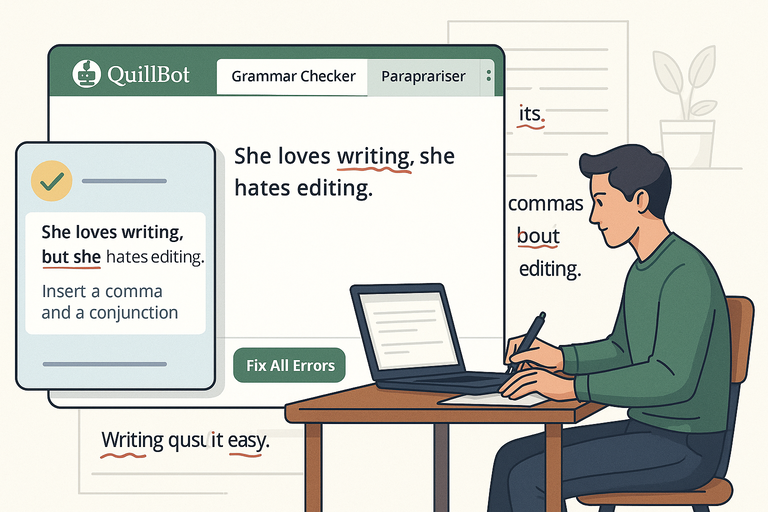
Even skilled writers make grammar mistakes—especially when writing fast. The free grammar checker QuillBot AI is excellent at catching subtle errors that slip through traditional proofreading.
It doesn’t just correct your sentences; it explains why something is wrong, so you learn as you go.
How To Eliminate Run-On Sentences and Fragments Automatically
Run-ons and fragments are the silent killers of good writing. QuillBot flags both instantly by identifying sentence length, missing conjunctions, and incomplete thoughts.
Here’s how to fix them using QuillBot:
- Paste your text into the Grammar Checker.
- Look for underlined segments—QuillBot uses yellow or red lines to mark grammar issues.
- Hover or click on a suggestion to see an instant explanation and correction.
For instance, if you write:
“She loves writing she hates editing.”
QuillBot suggests: “She loves writing, but she hates editing.”
I like how it automatically proposes a connecting word (“but”) based on meaning, not just grammar rules. It also detects fragments—like “Because I was tired.” —and rewrites them into complete sentences, e.g., “I stayed home because I was tired.”
Fixing Subject-Verb Agreement Errors With Context Detection
Subject-verb errors are some of the most common grammar mistakes, especially in long sentences.
What sets QuillBot apart is its context-based AI—it analyzes the full sentence, not just nearby words.
Example:
“The list of items are long.”
QuillBot identifies “list” as the true subject, suggesting: “The list of items is long.”
In my experience, it’s smart enough to catch even tricky plural-noun patterns or phrases with interruptions (like “The bouquet of roses smell sweet”) and correct them accurately (“The bouquet of roses smells sweet”).
Pro tip: If you’re editing academic or business writing, always recheck plural subjects in long, complex sentences. QuillBot helps maintain consistent grammatical agreement without over-editing.
Handling Misused Words and Confusing Punctuation
QuillBot also detects commonly confused words—like “affect” vs “effect” or “then” vs “than”—using its deep contextual learning model.
When it senses a potential mix-up, it highlights the phrase and offers the correct alternative with a short note explaining the logic.
Punctuation is another strong suit. The AI suggests commas for clarity, fixes misplaced apostrophes, and flags missing periods at the end of sentences.
For example:
“Lets go shopping its fun.”
QuillBot instantly rewrites it as: “Let’s go shopping; it’s fun.”
It even understands stylistic punctuation—like choosing between commas and semicolons—depending on sentence complexity. I find this especially useful for maintaining rhythm in blog writing without losing readability.
Boosting Writing Clarity and Style Using QuillBot Features
Once grammar is under control, clarity and flow become the next challenge.
QuillBot offers several built-in features that help polish tone, improve rhythm, and elevate overall writing style without making it sound artificial.
Using the Synonym Slider To Adjust Vocabulary Strength
The Synonym Slider is one of QuillBot’s most underrated tools. It lets you control how much the AI changes your word choices when paraphrasing.
You’ll find it as a small slider bar above the paraphrasing editor. Moving it to the right makes your text more creative or sophisticated, while moving it left keeps words closer to the original.
Here’s a quick test:
- Original: “He made a big mistake.”
- Low Synonym Level: “He made a huge mistake.”
- High Synonym Level: “He committed a significant error.”
I suggest keeping the slider between levels 2 and 3 for natural tone. Too high, and your text can sound overly formal. Too low, and it might miss opportunities to vary your vocabulary.
Enhancing Sentence Variety Without Losing Your Voice
QuillBot’s “Fluency” and “Standard” modes are perfect for introducing variety while preserving your tone.
Instead of repeating the same sentence structure, the AI rewrites content with subtle shifts in word order or phrasing.
Example:
“I started blogging to share my ideas.”
might become
“Sharing my ideas inspired me to start blogging.”
This keeps writing dynamic without changing your intent. I’ve noticed it’s especially effective in breaking monotony when editing paragraphs heavy with similar sentence lengths.
To make the most of it:
- Use Fluency mode for improving flow and transitions.
- Use Creative mode sparingly to inject variety into dull sections.
- Always review the output to ensure it matches your voice and emotional tone.
How the Rephraser Improves Writing Flow and Transitions
The Rephraser works like a personal editor for smoothing awkward transitions and tightening sentences. It reorders phrases to make your content read more naturally.
Try this: Paste a choppy paragraph into the Rephraser tab. Select “Fluency,” then click Paraphrase. Within seconds, you’ll get a smoother, more polished version.
For instance:
Before: “The meeting was long. Everyone was tired. The results were not good.”
After (Rephrased): “After a long meeting, everyone felt drained as the results fell short of expectations.”
That’s the kind of subtle improvement that makes your writing sound confident and human.
I often use the Rephraser for transitions between sections in long articles—it prevents abrupt shifts that can confuse readers.
Comparing QuillBot’s Free Grammar Checker to Other Tools

No AI tool exists in isolation, and it’s worth comparing how QuillBot’s free grammar checker stacks up against others like Grammarly and Hemingway Editor.
Each has its strengths, but QuillBot shines in flexibility and context awareness.
QuillBot vs Grammarly: Which Free Grammar Checker Wins?
Grammarly is more rule-based, while QuillBot focuses on natural readability. Grammarly tends to flag stylistic elements more aggressively, sometimes altering tone.
QuillBot, in contrast, allows you to control rephrasing intensity and tone adjustment through modes and the synonym slider.
Quick comparison:
| Feature | QuillBot (Free) | Grammarly (Free) |
| Grammar & Punctuation | Excellent | Excellent |
| Context Understanding | Strong | Moderate |
| Tone Control | Manual (via modes) | Automatic |
| Paraphrasing | Included | Not included |
| Vocabulary Adjustments | Adjustable slider | Fixed suggestions |
From my perspective, QuillBot wins for creative or content-focused writers who need flexibility, while Grammarly suits academic or business writing where strict accuracy matters more.
How QuillBot Compares to Hemingway Editor for Readability
Hemingway focuses entirely on simplicity—it grades your writing’s readability level and highlights long or complex sentences. While it’s great for reducing wordiness, it doesn’t fix grammar.
Here’s what I do: I run my text through QuillBot first for grammar, then through Hemingway to simplify and shorten. It’s a powerful one-two combo.
For example, a paragraph that reads at a “Grade 12” level in Hemingway often drops to “Grade 8” after QuillBot’s paraphrasing, which boosts accessibility without dumbing down meaning.
When To Use Multiple Grammar Tools Together for Accuracy
I suggest using multiple tools strategically instead of depending on just one.
Here’s a simple workflow I use for blog editing:
- Grammar & Style: Run the draft through QuillBot Grammar Checker.
- Readability: Analyze the text with Hemingway Editor.
- Final Proofing: Double-check tone and structure with Grammarly’s free extension.
Each tool has unique strengths: QuillBot improves flow, Hemingway simplifies phrasing, and Grammarly polishes mechanics. Combining them ensures precision and balance in both readability and tone.
Pro Tip: I recommend using QuillBot as your first-pass editor. It helps you fix grammar while learning from your own mistakes. Over time, you’ll start writing more cleanly on your own—meaning less reliance on AI and more confidence in your natural writing rhythm.
Writing Smarter With QuillBot’s AI-Powered Suggestions
QuillBot’s AI doesn’t just fix mistakes — it helps you write smarter. Its suggestions adapt to your context, meaning the more you write, the better it gets at predicting your tone, style, and intent.
This makes it a fantastic tool not just for editing but also for learning and improving your craft.
How AI Learns From Context To Offer Human-Like Corrections
Unlike traditional grammar checkers that rely on strict rules, QuillBot uses natural language processing (NLP) — a branch of AI that understands meaning rather than just form.
When you paste text into QuillBot, the system analyzes your sentence structure, vocabulary, and even emotional tone. It then suggests corrections that fit the context instead of blindly applying grammar rules.
Example:
“I can’t wait to see you their.”
Most basic grammar tools would just say “Check your spelling.” QuillBot knows the word “their” doesn’t fit contextually and changes it to “there.”
From what I’ve seen, this context-awareness helps you sound more natural. It feels like having a smart editor who understands what you meant to say, not just what you typed.
Identifying Style Patterns and Tone Adjustments Automatically
QuillBot’s paraphrasing modes (like “Fluency,” “Formal,” or “Creative”) automatically adjust your tone to suit the type of writing. It detects patterns — whether you tend to write too formally, too casually, or too repetitively — and subtly adjusts your style to match your intent.
For example, if your tone in an email is too casual (“Hey, just checking in!”), switching to Formal mode will rewrite it as “I wanted to follow up regarding…” without changing your message.
Here’s what I suggest: use different modes when switching between writing types. I often use Formal for client proposals and Fluency for blog posts. It’s like having a tone dial — you set the vibe, and QuillBot fine-tunes the words.
Building Better Writing Habits Through AI Feedback
QuillBot’s greatest hidden feature is how it teaches you over time. Each correction comes with a reason, so instead of just clicking “Fix,” you start recognizing patterns in your own writing.
If you often see suggestions like “Add a comma before the conjunction,” it’s a subtle reminder of what to watch for next time. Over time, you internalize those habits — meaning fewer mistakes even before running the check.
In my own workflow, I treat QuillBot as a coach rather than just a fixer. I take note of repeated issues and adjust my writing style to improve naturally. That’s how AI becomes not just a correction tool, but a learning partner.
Practical Tips To Get the Most Out of QuillBot’s Free Version
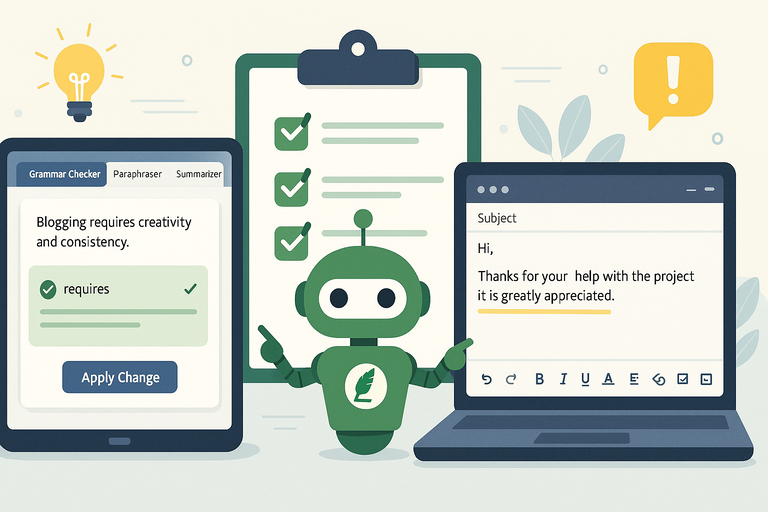
The free grammar checker in QuillBot AI is powerful enough for most writers if you know how to use it strategically. Here’s how to squeeze every bit of value out of it without upgrading.
How To Use the Free Grammar Checker for Blog Posts and Emails
For blog posts, paste your draft into the Grammar Checker tab, then click through each suggestion. Pay attention to explanation pop-ups — they tell you why the AI flagged something, helping you avoid similar mistakes later.
In emails, I recommend using the browser extension. It checks grammar in real time on Gmail or Outlook, catching tone issues before you hit Send.
Here’s a quick workflow I use:
- Write freely without worrying about grammar.
- Paste the draft into QuillBot.
- Apply necessary grammar fixes and paraphrase repetitive sentences.
- Copy back the polished text to your document or editor.
This method ensures clean, natural writing without getting stuck on perfection during the first draft.
Saving Time With Batch Grammar Checks and Paraphrasing
If you write long-form content, QuillBot’s batch processing approach can save time.
Copy large chunks of text — up to the character limit — into the Grammar Checker, fix errors, then switch to the Paraphraser tab for clarity and flow improvement.
I recommend alternating between:
- Grammar Checker (for correctness)
- Fluency mode (for readability)
- Standard mode (for polishing tone)
This two-step edit takes about half the time of manual proofreading while keeping your writing consistent and clean.
Avoiding Over-Editing: When To Trust Your Voice Over AI
One mistake I see many writers make is letting AI rewrite too much. Over-editing can make your writing sound sterile — like it’s written by a robot.
Here’s how I avoid that:
- Accept only necessary fixes: Grammar and clarity first, style second.
- Keep your tone consistent: Don’t let AI flatten your unique phrasing.
- Re-read before publishing: If it doesn’t sound like you, tweak it manually.
Remember, the goal isn’t to write like AI — it’s to write with it. Use QuillBot as a second set of eyes, not your voice.
Advanced Ways To Combine QuillBot With Other Writing Tools
To get the most out of QuillBot, I recommend integrating it with other writing and productivity tools.
This creates a smoother, more efficient editing workflow that covers everything from SEO to research.
Integrating QuillBot With SEO and Content Optimization Platforms
If you’re writing for SEO, try pairing QuillBot with optimization tools like Surfer SEO or Frase.
Here’s my usual workflow:
- Draft your content in Google Docs.
- Run it through QuillBot for grammar and clarity.
- Paste the edited text into Surfer SEO to fine-tune keyword density and structure.
This ensures your writing reads naturally while still meeting SEO standards. QuillBot improves flow, while Surfer helps with ranking optimization — a perfect balance between human quality and algorithm friendliness.
Using QuillBot With Research or Note-Taking Apps Like Notion
QuillBot works beautifully with productivity apps like Notion or Evernote.
- Use QuillBot’s Summarizer to condense long articles or PDFs into quick notes.
- Copy those notes into Notion for easy organization.
- Rephrase summaries using the Paraphraser to create unique drafts for blogs or reports.
For example, I often summarize research papers using QuillBot, store the summaries in Notion, then expand them later into full posts. It keeps my content pipeline organized and saves hours of manual note-taking.
How Writers and Marketers Automate Editing Workflows With QuillBot
For marketers and freelancers managing large volumes of writing, automation is key. You can integrate QuillBot with tools like Zapier to create automated workflows.
Example automation:
- A new Google Docs draft automatically triggers QuillBot paraphrasing.
- The corrected version is saved in a separate “Edited” folder.
This workflow helps content teams maintain consistency across multiple writers while cutting editing time. I’ve seen agencies save 20–30% of editing hours using such setups.
Expert Tips for Writing Flawlessly With Free Grammar Checker QuillBot AI
Using QuillBot effectively is about strategy — not just clicking “Fix All.” Here’s how to use it like a pro.
Developing an Editing Routine That Uses QuillBot Effectively
Build a repeatable workflow so you can polish faster without losing creativity.
Here’s the routine I recommend:
- Write freely in Google Docs.
- Run your text through QuillBot Grammar Checker.
- Use the Paraphraser in Fluency mode to refine tone.
- Recheck grammar once more for new errors.
- Read the final draft aloud before publishing.
I believe this two-pass method produces cleaner, more authentic writing than one quick grammar check.
How To Train Yourself To Spot Grammar Patterns AI Misses
Even QuillBot misses a few things — especially nuanced stylistic choices like rhythm, emphasis, or creative punctuation. To improve beyond the tool, I suggest keeping a personal “grammar habit list.”
Every time QuillBot corrects something, jot it down. Over time, you’ll notice recurring themes — maybe comma placement or tense consistency. This self-tracking helps you catch those patterns faster, even without the AI.
Turning AI Suggestions Into Long-Term Writing Improvement
The ultimate goal is to let AI teach you, not just correct you. When you review each suggestion, focus on why it changed something. The more you understand, the fewer mistakes you’ll make next time.
In practice, I treat QuillBot as a writing mentor — patient, fast, and endlessly available. It doesn’t replace creativity or judgment, but it amplifies both.
Pro Tip: The real power of QuillBot’s free grammar checker lies in repetition. Use it often, study its feedback, and experiment with tone adjustments. Over time, you’ll find yourself writing with fewer edits and more confidence — proof that the smartest way to write isn’t harder, just smarter.

I’m Juxhin, the voice behind The Justifiable.
I’ve spent 6+ years building blogs, managing affiliate campaigns, and testing the messy world of online business. Here, I cut the fluff and share the strategies that actually move the needle — so you can build income that’s sustainable, not speculative.
Related posts:
 How Many Words Can Quillbot Paraphrase
 Grammar Checker Quillbot for SEO Writers
 How Long Is the Quillbot Trial? Full Details & Limitations
 AI QuillBot: The Smart Writing Assistant That Rewrites Perfectly
 Quillbot Pricing Explained: Honest Breakdown of All Plans
 QuillBot Website Guide: How To Use Every Tool Feature