
Table of Contents
Some links on The Justifiable are affiliate links, meaning we may earn a small commission at no extra cost to you. Read full disclaimer.
Download QuillBot might sound simple enough, but what if you want to use it offline—without relying on your internet connection every time you write, rephrase, or edit?
That’s where things get a little tricky. Can you actually download QuillBot and use it without Wi-Fi or data?
In this guide, I’ll break down the truth behind QuillBot’s offline options, walk you through every available method, and share smart alternatives if you want similar functionality without being tied to the web.
Understanding QuillBot’s Download and Offline Limits
Before we talk about how to download QuillBot, it’s important to understand what’s actually possible—and what isn’t.
QuillBot was built to run online, using cloud-based AI to generate results in real time.
How QuillBot Works and Why It Needs Internet Access
QuillBot is an AI-powered paraphrasing and writing assistant that processes your text using cloud servers.
When you input a sentence, the tool doesn’t compute it on your device—it sends that text to QuillBot’s servers, where its AI models analyze and rephrase it.
Because of this cloud setup, the AI requires an active internet connection to work.
In short:
- Your input text is uploaded to QuillBot’s servers.
- The AI processes and returns a rewritten version.
- You see the result in your browser.
This is why QuillBot isn’t like a regular desktop app—it doesn’t store or process data locally. The good news?
This setup means faster updates, more accurate suggestions, and stronger security on the back end. The trade-off, though, is that you can’t use it when offline.
What Happens If You Try to Use QuillBot Offline
If you try to open QuillBot without an internet connection, you’ll hit a blank page or a “Connection error” message.
Since the paraphrasing engine depends on live API requests (basically small data calls to the AI servers), it can’t function offline.
The interface might load partially if your browser cached it, but you won’t be able to rephrase, summarize, or check grammar.
Think of it like trying to stream a YouTube video with no Wi-Fi—you might see the player, but the video won’t load.
Why There’s No Official Offline QuillBot App Yet
As of now, QuillBot hasn’t released an official offline app for Windows, Mac, or mobile. The reason is simple: the tool relies heavily on cloud infrastructure to handle millions of users and complex AI tasks.
Running that level of AI locally would require massive computing power—something your average laptop or phone can’t handle efficiently.
That said, QuillBot’s team has hinted at improving accessibility and integration options in the future. So while a fully offline app doesn’t exist yet, there are clever ways to make QuillBot feel more “app-like” and accessible.
How To Download QuillBot for Windows or Mac
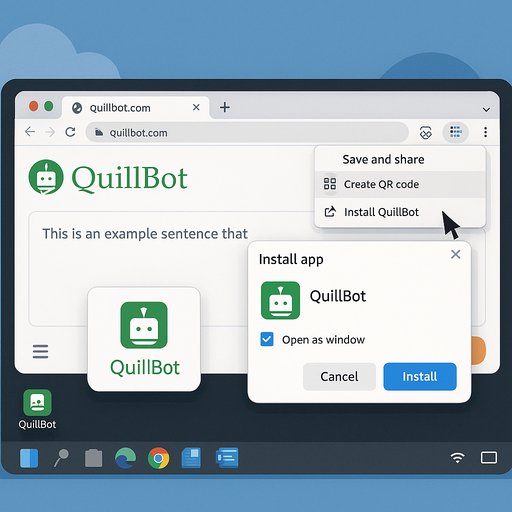
While you can’t truly download QuillBot to run offline, you can install it as a desktop shortcut or turn it into a pseudo-app using your browser.
This lets you open QuillBot instantly—just like a regular program—without needing to type in the website each time.
Step-By-Step Way To Install QuillBot as a Desktop Shortcut
If you use Chrome or Edge, you can create a quick-access desktop version of QuillBot:
- Open quillbot.com in your browser.
- Click the three-dot menu at the top right.
- Go to “Save and Share” → “Create shortcut…” (Chrome) or “Apps → Install this site as an app” (Edge).
- Name it QuillBot and check “Open as window.”
- Click Create.
Now, QuillBot opens in its own clean window—just like a standalone desktop tool.
This method doesn’t make it offline, but it removes distractions and saves time switching between tabs.
Using QuillBot Through Progressive Web App (PWA) Mode
If you’re on Chrome, you can turn QuillBot into a Progressive Web App (PWA). It’s the same idea as a shortcut but slightly more advanced.
A PWA behaves like a hybrid app—it installs on your system, appears in your taskbar, and launches in a standalone frame.
Here’s the path: Browser Menu → “Install QuillBot” → Confirm Installation.
Once installed, you can pin it to your Start Menu or Dock for faster access. It’s a great compromise for users who want app-like speed without needing a true download.
Saving QuillBot Tools for Quick Access Without Browser Tabs
If you use different QuillBot features—like Paraphraser, Grammar Checker, or Summarizer—you can bookmark them individually for quicker access:
- Paraphraser: quillbot.com/paraphrasing-tool
- Grammar Checker: quillbot.com/grammar-check
- Summarizer: quillbot.com/summarize
I suggest creating a folder named “QuillBot Tools” in your bookmarks bar so you can switch tools instantly without opening new tabs or searching.
Using QuillBot on Mobile Devices Without Internet
Many users wonder if they can download QuillBot for Android or iOS to use offline.
While there’s no offline app, you can make it feel almost native with a few smart tricks.
Can You Download QuillBot on Android or iOS?
Currently, QuillBot doesn’t offer a downloadable mobile app that works offline. However, you can access it easily through your mobile browser—whether you’re on Chrome (Android) or Safari (iPhone).
Once opened, QuillBot functions smoothly online. But when you go offline, the same limitation applies: the paraphrasing tool stops responding because it can’t connect to the cloud servers.
How To Create an Offline Shortcut on Mobile Browsers
To make access faster, you can create a home screen shortcut that opens QuillBot in one tap:
For Android (Chrome):
- Open quillbot.com in Chrome.
- Tap the three dots (⋮) in the top right.
- Select “Add to Home screen.”
- Name it QuillBot and tap Add.
For iPhone (Safari):
- Open quillbot.com in Safari.
- Tap the Share icon (square with an arrow).
- Select “Add to Home Screen.”
- Rename and tap Add.
This creates an app-like icon on your phone. While it still needs internet, it loads instantly when connected.
Smart Workarounds for Editing Offline With QuillBot
If you often write offline, here’s how to make QuillBot part of your workflow:
- Draft Offline, Rephrase Later: Write your initial text in an offline editor (like Notepad++ or Google Docs Offline Mode). When you reconnect, paste your content into QuillBot to improve clarity and tone.
- Use Text Expansion Tools: Apps like PhraseExpress can automate phrases or rewrites offline, helping bridge the gap until you can access QuillBot again.
- Save Frequently Used Outputs: Keep a document of your favorite rewrites or sentence structures from QuillBot. You can reuse them offline when needed.
I’ve found this hybrid approach works best—you get QuillBot’s powerful AI when connected, and a structured offline workflow when traveling or working without Wi-Fi.
Best Alternatives To QuillBot for Offline Use
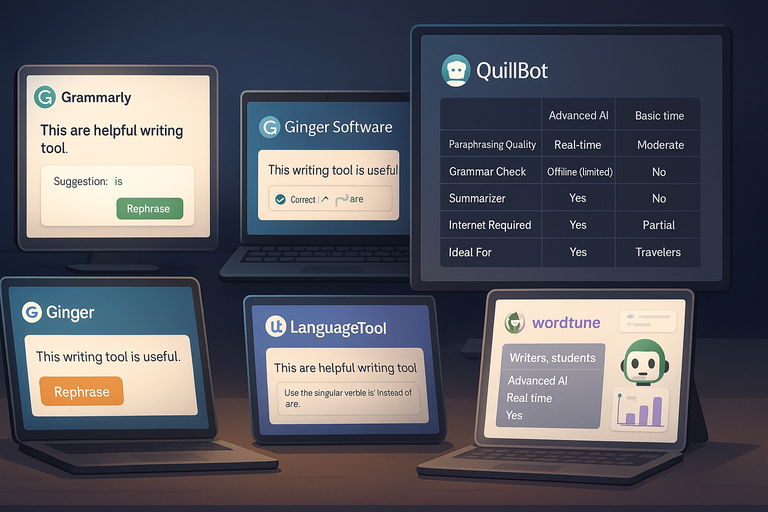
If you often work without an internet connection, you’ll need more than just browser shortcuts.
While you can’t truly download QuillBot to use offline, there are excellent alternatives that let you paraphrase, edit, and refine your writing even when you’re disconnected.
Top Grammar and Paraphrasing Tools That Work Offline
I’ve tested several AI writing tools, and only a few actually function without internet access.
Here are the most reliable ones:
- Grammarly Desktop App (Windows & Mac) – Once installed, the Grammarly app can check grammar and style even when offline using its local rules-based engine. The AI suggestions still require internet, but for basic editing, it’s solid.
- Ginger Software – Ginger offers an offline grammar checker with limited paraphrasing features. It’s great for quick sentence rewrites when you’re traveling or have poor connectivity.
- LanguageTool (Offline Version) – This open-source grammar checker lets you download a local version. I like it for privacy-focused users since it runs entirely on your computer.
- Wordtune Read Offline (PDF Summarizer) – While Wordtune’s paraphrasing tool is online-only, its reading extension allows limited offline text analysis.
If you’re mostly editing essays, blog drafts, or reports, these options fill the gap well when QuillBot isn’t accessible.
Comparing QuillBot vs Offline Editors Like Grammarly Desktop
Let’s be clear—offline editors are useful, but they’re not full AI replacements for QuillBot.
| Feature | QuillBot (Online) | Grammarly Desktop | LanguageTool | Ginger Software |
| Paraphrasing Quality | Advanced AI | Basic rewrite | Moderate | Good |
| Grammar Check | Real-time | Offline (limited) | Fully offline | Offline |
| Summarizer | Yes | No | No | No |
| Internet Required | Yes | Partial | No | No |
| Ideal For | Writers, students | Professionals | Privacy users | Travelers |
I believe the smartest setup is to combine QuillBot with one of these offline tools. QuillBot gives you AI accuracy when connected, and the offline tool keeps you productive when you’re not.
Why You Might Combine Online and Offline Tools for Flexibility
From what I’ve seen, many professionals now use a hybrid approach:
- QuillBot for AI rewriting and fluency improvement online.
- Grammarly for offline proofreading.
- Scrivener for offline drafting and note organization.
This setup balances convenience and reliability. You’re never “stuck” waiting for internet access just to fix a paragraph or polish your writing. It’s a smart way to keep your creative flow uninterrupted.
How To Save QuillBot Text or Work Offline Efficiently
If you want to keep working even when your internet drops, it helps to save your QuillBot text and organize it for offline editing. Here’s how to make that workflow smooth and secure.
Exporting and Saving QuillBot Output for Later Editing
Once you finish rephrasing or summarizing text in QuillBot, click the Copy or Download button under the editor.
I suggest saving your file in plain text (.txt) or Word (.docx) format so you can open it anywhere.
To stay organized, create folders like this:
- /Writing Projects/QuillBot Edits
- /Writing Projects/Original Drafts
- /Writing Projects/Offline Work
Each folder can hold different versions of your text. That way, even if your Wi-Fi cuts out, you can keep refining your drafts without losing progress.
I recommend using Google Drive Offline Mode or Dropbox Smart Sync. Both allow you to access and edit files locally, and your updates sync automatically when you reconnect.
Using Text Editors Like Notepad++ or Google Docs Offline Mode
If you prefer lightweight tools, Notepad++ is perfect for writing offline. It doesn’t need the internet, supports autosave plugins, and handles large documents without lag.
Google Docs Offline Mode is another great option:
- Open Google Docs in Chrome.
- Go to Settings → Offline → Turn on “Available offline.”
- Your recent documents will sync and be editable without internet.
You can then paste your QuillBot outputs into Docs, edit them offline, and sync automatically later. I’ve used this setup during flights—it works flawlessly for ongoing projects.
Managing Offline Workflows for Writers and Students
If you’re writing research papers, blog drafts, or academic essays, managing files is key.
Here’s a simple structure I use:
- Draft Online: Write and refine using QuillBot.
- Save Output: Export your text in DOCX or TXT format.
- Continue Offline: Edit in Notepad++ or Google Docs Offline Mode.
- Sync Later: Upload back to Google Drive or your writing platform.
This hybrid workflow keeps your drafts evolving smoothly, no matter where you’re working.
Expert Tips To Work Smarter With QuillBot Offline
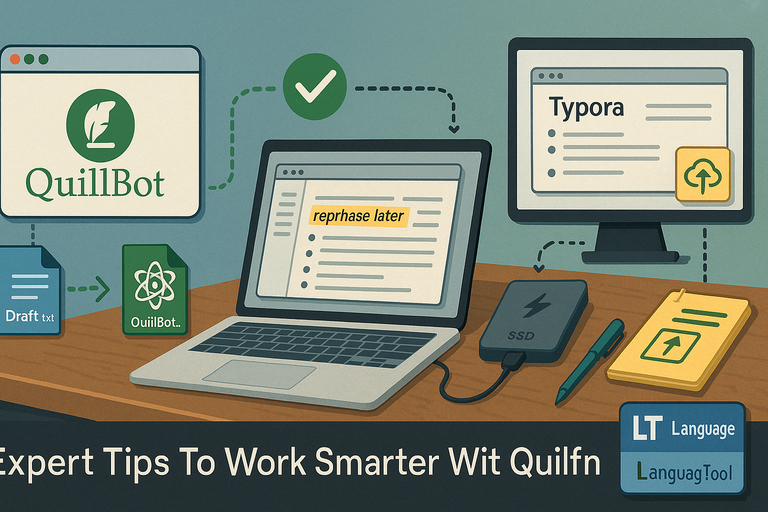
Working offline doesn’t have to slow you down. I’ve learned a few tricks that help maintain creativity and efficiency when you can’t access QuillBot directly.
Setting Up a Hybrid Online-Offline Writing System
The key is to plan ahead. When you know you’ll be offline (say, during travel), pre-download what you need:
- Your drafts or articles.
- A few QuillBot outputs you can refine later.
- Offline grammar tools like LanguageTool or Ginger.
You can even keep a local “rewrite folder” with sentences or phrases you want QuillBot to improve once you’re back online. This keeps your workflow organized and ready for rephrasing later.
Backing Up Your Content When You’re Working Without Internet
It’s easy to lose track of offline edits, so always back up locally.
I suggest:
- Saving copies on an external USB or SSD.
- Enabling File History (Windows) or Time Machine (Mac).
- Using note apps like Obsidian or Evernote that sync when you reconnect.
One real-world example: I once lost a full blog draft during a train ride because I forgot to enable autosave in Notepad++. Now I always use a mix of local backups and auto-sync tools like Syncthing. It’s saved me countless hours.
Tools and Tricks To Stay Productive Even When Offline
Here are my favorite tools that help replicate QuillBot’s benefits offline:
- Scrivener: Perfect for long-form writing with built-in structure and keyword tagging.
- Zettlr: A free Markdown editor for notes, blogs, and citations—all offline.
- Typora: Minimalist writing tool for distraction-free drafting.
- LanguageTool Offline Extension: Great for grammar checking while offline.
Pro tip: Create “rewrite tags” in your text like (rewrite this sentence for clarity) or (simplify tone here). When you’re back online, paste those sections into QuillBot and instantly improve them.
This approach lets you stay productive anywhere—whether you’re in a café with weak Wi-Fi or on a flight drafting your next big article.
Common Myths About Downloading QuillBot
There’s a lot of confusion online about how to download QuillBot or use it offline. Some websites promise “QuillBot APKs” or “desktop versions” that supposedly run without the internet—but these claims are misleading.
Let’s clear up what’s true and what’s not, so you can stay safe and productive.
The Truth About QuillBot APKs and Unofficial Downloads
If you’ve ever searched for “QuillBot APK” or “QuillBot offline download,” you’ve probably seen third-party websites offering downloadable versions of the tool. Here’s the reality: there is no official QuillBot APK or offline desktop app.
These sites usually fall into two categories:
- Fake apps that copy QuillBot’s interface but don’t actually connect to its servers.
- Malicious downloads that can install malware or spyware on your device.
QuillBot only operates through its official website (quillbot.com) or browser extensions like Chrome and Edge add-ons. The real paraphrasing engine lives on QuillBot’s servers, so any “offline APK” claiming otherwise is not authentic.
I strongly recommend avoiding any site that offers downloadable QuillBot apps outside the official channels—it’s not worth risking your data or device security.
How To Avoid Fake QuillBot Offline Apps or Malware
Here are a few quick ways to stay safe when exploring writing tools:
- Check the source: Only download from official domains (quillbot.com or Chrome Web Store).
- Avoid APK mirror sites: If the app isn’t listed on Google Play, it’s not legitimate.
- Use antivirus software: Tools like Malwarebytes or Windows Defender can flag suspicious downloads.
- Be cautious with browser pop-ups: If you see a “Download QuillBot Now” ad, close it immediately—it’s not real.
In short, QuillBot isn’t meant to be downloaded because it’s a cloud-based AI. The processing happens online for accuracy, consistency, and data protection.
Safe and Legal Ways To Use QuillBot Without Compromising Data
If you need QuillBot often, the best and safest options are:
- Install the Chrome or Edge extension from the official store. This gives quick access while keeping your account secure.
- Create a desktop shortcut or Progressive Web App (PWA) version of QuillBot, which opens like an app but runs safely in your browser.
- Use offline-compatible writing tools (like Notepad++ or Google Docs Offline Mode) to prepare drafts and then upload them to QuillBot when you’re online again.
These methods protect your privacy while letting you enjoy the same writing efficiency. I believe being patient with the official tool is far better than risking data theft for the illusion of “offline access.”
Future Possibilities for QuillBot Offline Mode
As AI technology evolves, the question many writers ask is: Will QuillBot ever release a true offline version? While nothing official has been announced yet, it’s an interesting possibility worth exploring.
What QuillBot’s Developers Have Said About Offline Access
So far, QuillBot’s developers haven’t released any public statements confirming an offline mode. The main reason is technical—QuillBot’s advanced paraphrasing relies on large AI models hosted in the cloud.
Running those locally would require enormous processing power and memory, similar to what’s used in enterprise AI systems.
However, QuillBot has gradually added integrations (like Microsoft Word and Chrome extensions), hinting that they’re exploring more accessible ways to use the tool.
A lightweight offline module in the future isn’t impossible—it just depends on how compact their AI models can become.
Predictions and Potential Updates for Desktop Versions
If QuillBot ever moves toward an offline version, here’s what I expect:
- A hybrid app model: The core app could install locally, but complex paraphrasing might still sync online.
- AI caching for basic rewrites: Common sentence structures could be handled offline through pre-trained mini-models.
- Subscription-based offline access: QuillBot might offer premium users limited offline features with cloud sync when online.
Think of it like how Spotify lets you download songs for offline listening but still requires internet for new searches. That same balance could make sense for QuillBot’s writing features.
What To Expect If QuillBot Adds True Offline Functionality
If an offline version of QuillBot ever arrives, it could change how writers and students work.
Imagine being able to paraphrase or summarize text without needing a signal—perfect for travelers, digital nomads, and professionals who often work in remote locations.
That said, the transition to offline AI will likely come slowly. Most AI language tools are still optimized for cloud-based computation because it ensures accuracy, updates, and shared learning.
Until then, hybrid use (online + offline editors) remains the most practical setup.
Pro Tip: The Smart Way To Use QuillBot Without Limits
If you’ve read this far, you already know that you can’t fully download QuillBot or use it offline—but you can still make it feel effortless. Here’s how I do it.
My hybrid setup looks like this:
- I draft offline in Notepad++ or Google Docs Offline Mode while traveling.
- When I’m online, I open QuillBot’s Paraphraser and refine key sections for tone, fluency, and clarity.
- I save outputs in organized folders for quick offline access later.
- For grammar tweaks without internet, I rely on LanguageTool’s offline version.
This workflow covers every writing stage—drafting, editing, paraphrasing, and polishing—without depending on Wi-Fi.
If you want to work smarter, treat QuillBot as your online co-writer, not your entire workspace. Build your system around flexibility: offline tools for creation, online tools for refinement.

I’m Juxhin, the voice behind The Justifiable.
I’ve spent 6+ years building blogs, managing affiliate campaigns, and testing the messy world of online business. Here, I cut the fluff and share the strategies that actually move the needle — so you can build income that’s sustainable, not speculative.
Related posts:
 Best QuillBot Alternative Free Tools For Writers
 The QuillBot Review: Is This AI Writing Tool Worth It?
 How To Use QuillBot Tool To Rewrite Like A Pro
 Is QuillBot Subscription Worth It? Honest Review & Pricing Guide
 Best AI Tools Similar To QuillBot For Smarter Writing
 Quillbot Alternative Review: Top 5 Choices