
Table of Contents
Some links on The Justifiable are affiliate links, meaning we may earn a small commission at no extra cost to you. Read full disclaimer.
If you’ve ever tried building an online store with WooCommerce, you know that finding reliable suppliers and profitable products can feel like a full-time job.
That’s where SaleHoo WooCommerce integration steps in—it connects your store with trusted wholesalers and dropshippers, making it easier to scale without the inventory stress.
In my experience, combining WooCommerce’s flexibility with SaleHoo’s verified supplier network can completely change how you grow and manage your eCommerce business.
Let’s break down exactly how this integration can boost your store’s growth and what steps you can take to make it work efficiently for you.
Understanding The Power Of Salehoo WooCommerce Integration
Integrating SaleHoo with WooCommerce opens the door to effortless sourcing, faster store setup, and smoother operations.
It’s like giving your WooCommerce store an extra brain that finds, verifies, and syncs high-quality products automatically—without the usual supplier headaches.
How SaleHoo Simplifies Product Sourcing For WooCommerce Stores
One of the biggest hurdles in running an online store is finding trustworthy suppliers and products that actually sell.
SaleHoo makes that easy by giving WooCommerce store owners direct access to over 8,000 verified wholesalers and dropshippers.
Here’s how SaleHoo simplifies it:
- Verified Suppliers Only: Every supplier in SaleHoo’s directory is manually vetted for legitimacy, meaning no scams, unreliable shipping, or fake inventory.
- Search By Profit Potential: You can filter by profit margin, product demand, and competition, which is great if you want to avoid crowded niches.
- Easy Import To WooCommerce: Once you find a winning product, you can import it directly into WooCommerce with images, descriptions, and pricing data—saving hours of manual work.
In my experience, the biggest advantage is peace of mind. You’re not just guessing which supplier might deliver; SaleHoo has already done the background checks for you.
Why Integrating SaleHoo Into WooCommerce Matters For Growth
The SaleHoo WooCommerce integration does more than connect two tools—it creates a streamlined system that reduces friction and speeds up growth.
When everything from sourcing to order fulfillment happens in sync, you can focus on marketing and customer experience instead of supplier management.
Here’s why it matters:
- Faster Time-To-Market: Instead of spending weeks hunting for products, you can have listings live in hours.
- Reduced Risk: Working with verified suppliers lowers refund rates and increases customer satisfaction.
- Scalability: As your store grows, you can easily expand your product range using SaleHoo’s database without worrying about stock consistency.
If you’ve ever struggled to keep up with multiple suppliers or unreliable shipping times, integrating SaleHoo into WooCommerce can feel like finally switching to autopilot.
Common Challenges Solved By Connecting SaleHoo With WooCommerce
When I first started using WooCommerce, supplier communication, slow updates, and out-of-stock items were constant pain points. SaleHoo eliminates many of these problems.
Here’s what it solves:
- Stock Syncing Issues: No more selling items that are out of stock—SaleHoo’s integration keeps inventory levels updated in real time.
- Product Data Errors: Instead of manually adding or editing product details, SaleHoo imports accurate listings directly.
- Supplier Confusion: You only deal with verified, responsive suppliers who actually ship on time.
Simply put, the SaleHoo integration helps you run a store that feels like a well-oiled machine—consistent, fast, and reliable.
Setting Up Salehoo WooCommerce Integration Step-By-Step
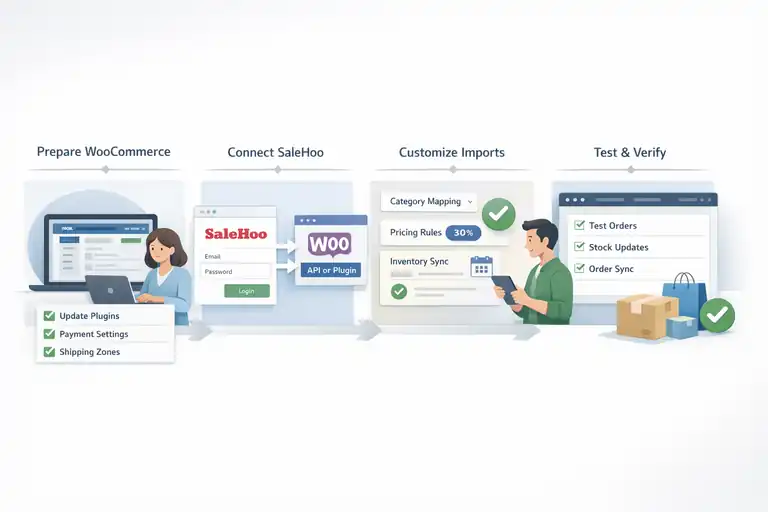
Connecting SaleHoo and WooCommerce doesn’t require advanced technical skills—it’s a structured process that takes less time than setting up your first product manually.
Preparing Your WooCommerce Store For Integration
Before linking SaleHoo, make sure your WooCommerce setup is ready.
Quick checklist:
- Update WooCommerce and WordPress to their latest versions.
- Confirm that your payment gateways and shipping zones are configured.
- Install a reliable theme optimized for product imports (I recommend lightweight themes like Astra or Storefront).
A clean, stable WooCommerce foundation ensures that SaleHoo can sync data smoothly without causing plugin conflicts.
Connecting SaleHoo To WooCommerce Through API Or Plugin
There are two main ways to connect: via SaleHoo Dropship’s API integration or its WooCommerce plugin.
Step-by-step:
- Log in to your SaleHoo Dropship account.
- Go to Integrations and choose WooCommerce.
- Follow the prompts to authorize SaleHoo to connect with your store.
- Once connected, test a product import to ensure syncing works.
From what I’ve seen, using the official plugin is faster for most users—it handles the authentication automatically and sets up your API keys behind the scenes.
Customizing Product Imports And Inventory Settings
Once connected, it’s time to tailor how products are imported into your WooCommerce store.
You can control:
- Product Categories: Map SaleHoo categories to your store’s existing ones.
- Pricing Rules: Automatically set markups (e.g., 30% above supplier cost).
- Inventory Updates: Schedule sync intervals (daily, hourly, etc.).
I suggest testing a few items first to confirm that images, descriptions, and variants display properly before importing products in bulk.
Testing The Integration To Ensure Smooth Syncing
Testing is often overlooked but essential. Import a few products, place a test order, and verify that SaleHoo receives the data.
Check the following:
- Product stock updates correctly after a test purchase.
- Order details sync back to your SaleHoo dashboard.
- Product prices match your markup settings.
A quick 20-minute test can prevent hours of troubleshooting later. Once it all runs smoothly, your SaleHoo WooCommerce connection is ready to scale.
Finding High-Profit Products Using SaleHoo’s Database
With the integration done, the next step is finding products that sell—not just ones that look nice. SaleHoo’s database is designed exactly for that, giving you powerful data to make smart product decisions.
Using SaleHoo’s Research Lab To Identify Winning Products
SaleHoo’s Research Lab is one of the best tools for spotting profitable products before they trend.
Here’s how to use it effectively:
- Search by keyword or category to view real-time product demand.
- Sort results by Sell Rate, which shows how often items actually sell online.
- Analyze competition levels to find low-saturation niches.
For example, if you’re selling fitness gear, you might notice that resistance bands have a steady demand but lower competition than yoga mats. That’s a cue to position yourself smartly.
Filtering Products By Demand, Margin, And Supplier Reliability
Instead of chasing random trends, focus on products that tick three key boxes: high demand, strong margins, and supplier reliability.
Smart filtering approach:
- Demand: Look for consistent monthly search volume and steady order history.
- Margin: Aim for at least 30–40% markup potential after shipping.
- Reliability: Check supplier ratings, reviews, and average delivery times.
It’s better to sell 10 solid products with reliable suppliers than 100 products that cause customer complaints.
Tips For Testing New Product Ideas Before Full Launch
Before going all in on a new product, I recommend testing it small-scale first.
Try this simple validation plan:
- Import 3–5 new products into your store.
- Run a short paid ad or promote them on social media.
- Track click-throughs, add-to-carts, and conversions for a week.
If one product performs better, double down on it and slowly phase in similar items. This method helps avoid wasting time on low-demand inventory while finding high performers that fit your audience.
Automating Order Management And Inventory Updates
Once your SaleHoo WooCommerce integration is set up, automation becomes your best ally. It keeps your store running smoothly without you constantly checking stock levels or order statuses.
This is where SaleHoo’s automation tools truly save time and prevent costly mistakes.
How SaleHoo Keeps WooCommerce Inventory In Sync Automatically
One of the most powerful features of the SaleHoo WooCommerce connection is real-time inventory synchronization. This means your product listings always reflect what’s actually available from your suppliers.
Here’s how it works:
- When a supplier updates their stock, SaleHoo automatically updates your WooCommerce product inventory.
- You can set how often these updates happen—hourly, daily, or in real time depending on your plan.
- Out-of-stock items can be automatically hidden or labeled as unavailable, so you never oversell.
From what I’ve seen, this feature is especially useful during busy sales seasons like Black Friday or holidays, when stock levels change fast. It saves hours of manual checking and prevents awkward refund situations caused by sold-out products.
Managing Orders Efficiently Between Supplier And Store
After a customer places an order, the integration ensures that everything flows smoothly from WooCommerce to SaleHoo and then to your supplier. You no longer have to copy order details manually.
The process looks like this:
- A customer completes a purchase on your WooCommerce site.
- The order automatically appears in your SaleHoo Dropship dashboard.
- SaleHoo sends the details to your supplier, who ships directly to the customer.
This seamless handoff saves time and reduces errors. You can track order progress right from your SaleHoo account, which is handy for managing customer expectations and providing quick updates.
Preventing Overselling And Stock Discrepancies With Automation
Overselling is one of the quickest ways to frustrate customers. Thankfully, SaleHoo’s automation prevents it by constantly syncing product data and stock levels.
Here’s why it matters:
- Automatic updates stop you from selling products that your supplier just ran out of.
- Price changes are synced too, ensuring your profit margins stay consistent.
- Low-stock alerts notify you before products become unavailable.
I learned early on that manually managing stock is almost impossible once you have more than 50 products. Automation turns what could be a daily headache into a background task you barely need to think about.
Optimizing Product Listings For Better Conversions
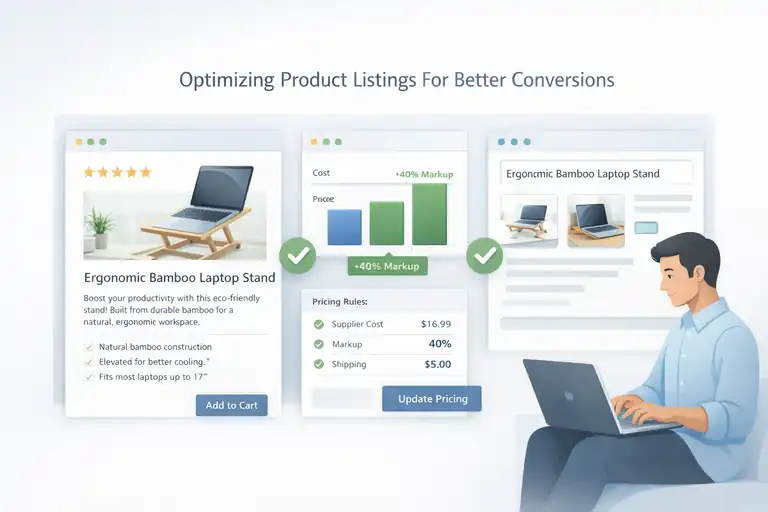
Even the best products won’t sell without strong listings. Optimizing your SaleHoo-imported items inside WooCommerce can make the difference between a visitor browsing and a customer buying.
Writing Compelling Product Descriptions Using SaleHoo Data
SaleHoo provides detailed supplier information, but you’ll want to customize it for your audience. The goal is to take the data and make it sound like a personal recommendation.
Try this formula for better descriptions:
- Start with a benefit-driven opening sentence.
- Add 2–3 short bullet points highlighting key features.
- End with a call to action that feels conversational, like “Add this to your cart before it sells out.”
For example, instead of copying a generic supplier description like “Made of durable polyester,” you could write, “Built from tough, travel-proof polyester that holds up through every trip.” This small change connects with real buyers emotionally, not just technically.
Setting Competitive Pricing Based On Supplier Costs
The SaleHoo WooCommerce integration makes it easier to manage pricing by automatically pulling in supplier costs. From there, you can set smart markups that balance profit and competitiveness.
Here’s a simple pricing method I use:
- Identify supplier cost per product.
- Add shipping or handling costs if applicable.
- Apply a markup between 30–50%, depending on niche and competition.
You can even use dynamic pricing rules in WooCommerce so prices automatically adjust when supplier costs change. It’s a set-it-and-forget-it approach that ensures you’re never selling at a loss.
Enhancing Images And Titles To Match Buyer Intent
Your product title and images are what grab attention first. SaleHoo provides high-quality images, but customizing them for your audience can boost conversion rates significantly.
Practical steps:
- Use descriptive titles that include the product type and key feature (for example, “Ergonomic Bamboo Laptop Stand” instead of “Laptop Stand”).
- Replace supplier watermarked images with clean, lifestyle photos whenever possible.
- Add multiple angles or real-use images for better transparency.
From what I’ve seen, stores that invest in authentic visuals and optimized titles often see conversion rates increase by 15–20%. It’s worth the effort.
Strengthening Supplier Relationships Through SaleHoo
Your suppliers aren’t just vendors—they’re long-term partners who influence your customer experience.
Building solid relationships through SaleHoo ensures reliable communication, better deals, and smoother operations as you grow.
How To Communicate Effectively With Verified Suppliers
SaleHoo gives you direct access to supplier contact information, making it easier to build a personal rapport.
Effective communication tips:
- Introduce yourself clearly when you first reach out—mention your store niche and order goals.
- Use polite, concise messages that respect time zones and professional boundaries.
- Keep records of every interaction for future reference.
I’ve found that simple gestures like saying “thank you for the quick shipping” or giving feedback after a smooth transaction go a long way in building trust.
Negotiating Better Terms And Pricing Over Time
Once you’ve worked with a supplier for a few months, you’ll have room to negotiate. This could mean better discounts, faster fulfillment, or exclusive products.
Here’s how to approach it:
- Show consistent sales volume to prove reliability.
- Ask for small benefits first—like reduced shipping costs or quicker restock alerts.
- Build up to bigger requests like bulk order discounts or priority access to new stock.
Suppliers are more likely to offer better terms when they see you as a professional partner rather than a one-time customer.
Managing Multiple Suppliers Without Losing Control
As your WooCommerce store grows, you might end up working with several suppliers at once. That’s perfectly fine—as long as you keep things organized.
Simple systems that help:
- Use SaleHoo’s built-in dashboard to track which products belong to which supplier.
- Label suppliers in your WooCommerce backend for quick identification.
- Create an internal spreadsheet noting lead times, contact info, and average response speed.
It may sound basic, but this kind of organization helps you handle sudden order spikes or supplier delays without confusion.
It keeps your store flexible, professional, and customer-friendly—three traits that always win in eCommerce.
Tracking Performance And Scaling Your WooCommerce Store
Once your SaleHoo WooCommerce integration is running smoothly, the next step is keeping track of what’s actually working.
Growth isn’t just about adding more products—it’s about understanding which ones perform best and how to scale without unnecessary risk.
Using WooCommerce Analytics To Measure SaleHoo Product Success
WooCommerce comes with built-in analytics that give you a clear view of sales trends, conversion rates, and customer behavior.
When used alongside your SaleHoo data, these insights help pinpoint which products are your real revenue drivers.
Here’s what to monitor regularly:
- Sales by product: Identify which SaleHoo-sourced items consistently sell well.
- Profit margins: Make sure the best-sellers are also your most profitable.
- Refund rates: High refunds might signal poor product quality or misleading descriptions.
From my experience, creating a weekly dashboard review habit is the easiest way to spot opportunities early.
For instance, if one product’s sales jump after a price adjustment, you’ll know to apply that strategy to others.
Identifying Best-Selling Categories And Reinvesting Profits
Once you start noticing patterns, it’s time to double down on what works. Look for product categories that perform well month after month—those are your core money-makers.
A simple reinvestment strategy could be:
- Allocate 60% of profits back into your best-selling category.
- Reserve 25% to test new niches or seasonal products.
- Keep 15% as a buffer for unexpected costs or ad scaling.
By consistently reinvesting into proven product lines, you’re not gambling—you’re building momentum. This approach has helped many WooCommerce store owners go from a few hundred in sales to steady five-figure months.
Scaling Your Product Range Without Increasing Risk
Scaling doesn’t mean adding hundreds of new products overnight. It’s about expanding strategically while keeping operations stable.
Here’s how to scale safely:
- Add 5–10 new products at a time, testing each one before expanding further.
- Use SaleHoo’s Research Lab to explore related categories instead of random niches.
- Maintain at least two reliable suppliers for your top-selling products to avoid supply issues.
Think of scaling like building a house—you don’t add another floor until the foundation can handle it. Gradual growth ensures your customer service, fulfillment, and cash flow stay strong as sales increase.
Troubleshooting Common SaleHoo WooCommerce Integration Issues
Even with smooth integrations, occasional hiccups happen. The good news is that most SaleHoo WooCommerce issues are quick to fix once you know where to look.
Fixing Product Sync And Inventory Update Errors
Sometimes products don’t sync correctly between SaleHoo and WooCommerce. Usually, it’s a small configuration or timing issue.
Steps to fix it:
- Go to your SaleHoo Dropship dashboard and manually trigger a sync.
- Ensure your WooCommerce API connection is still active.
- Check if you recently changed product SKUs (unique product codes), as that can break syncing.
If inventory updates are delayed, shorten the update interval in your SaleHoo settings.
I once had a delay issue that turned out to be a simple caching conflict with another plugin—it’s almost always something small like that.
Resolving API Or Plugin Connection Failures
If your SaleHoo WooCommerce connection stops working entirely, it’s often due to an expired API token or outdated plugin.
Quick fix checklist:
- Reconnect your SaleHoo account through the Integrations tab.
- Make sure your WooCommerce REST API keys are valid.
- Update both the SaleHoo and WooCommerce plugins to their latest versions.
If all else fails, deactivate and reactivate the SaleHoo plugin—this refreshes the API link without losing data. It sounds basic, but it solves 80% of connection issues I’ve seen.
When To Contact SaleHoo Or WooCommerce Support Teams
If your problem persists after basic troubleshooting, it’s best to reach out to support.
Here’s who to contact for what:
- SaleHoo Support: Product syncing, supplier-related errors, or import issues.
- WooCommerce Support: Plugin conflicts, site speed, or checkout problems.
Both teams are responsive, especially when you include screenshots and clear descriptions. I’ve found that explaining what you already tried helps them fix the issue faster.
Expert Tips To Maximize Growth With Salehoo WooCommerce
Once your store is stable, it’s time to optimize for long-term success. The most profitable WooCommerce stores aren’t the biggest—they’re the most strategic.
Diversifying Product Niches To Reduce Market Saturation
If you rely too heavily on one niche, you risk sudden drops in demand. The key is balancing stability with variety.
Here’s how to diversify smartly:
- Use SaleHoo’s trending product data to spot emerging markets early.
- Add complementary products that serve the same audience.
- Test new categories during off-peak seasons to spread revenue evenly.
For example, if you sell kitchen accessories, adding eco-friendly storage items or smart kitchen gadgets keeps your brand relevant without confusing customers.
Using SEO And Content Marketing To Drive Organic Sales
Paid ads can bring traffic quickly, but SEO builds sustainable growth. When you optimize your WooCommerce store around your product keywords, you attract ready-to-buy visitors organically.
Start with these basics:
- Add descriptive meta titles and tags for each product.
- Use keyword-rich but natural descriptions (like “handmade wooden watch” instead of just “watch”).
- Write short blog posts comparing popular SaleHoo products to boost internal links.
Over time, organic traffic can become your most profitable channel. I’ve seen stores cut ad spend by 40% just by improving product SEO and content marketing consistency.
Leveraging SaleHoo’s Community Insights For Smarter Decisions
One underrated benefit of SaleHoo is its community. The forums and groups are filled with store owners sharing real-time data and feedback.
Ways to benefit from the community:
- Ask for feedback on potential product ideas before launching.
- Stay updated on supplier performance and new market trends.
- Learn from others’ mistakes so you can skip those steps entirely.
From my experience, the SaleHoo community feels less like competition and more like collaboration. You’ll often get insights that aren’t available anywhere else.
Final Strategy To Sustain Long-Term WooCommerce Growth
Growth is exciting, but sustaining it takes structure. With SaleHoo WooCommerce integration, the goal isn’t just scaling up—it’s building a repeatable, data-backed system that keeps working even when you step away for a few days.
Building A Repeatable System For Product Discovery And Launch
Consistency beats luck in eCommerce. You can develop a simple system for finding, testing, and launching new products using SaleHoo’s tools.
A simple repeatable system might look like this:
- Research 10 new ideas in SaleHoo’s Research Lab.
- Import 3–5 products for small-scale testing.
- Track sales and engagement for 2–3 weeks.
- Expand only on proven winners.
This approach removes guesswork and keeps your product line fresh while reducing financial risk.
Maintaining Supplier Trust And Consistency Over Time
Suppliers are the backbone of your dropshipping business. Treating them as partners, not just vendors, keeps your supply chain strong.
Practical steps:
- Pay invoices on time and communicate changes early.
- Provide honest feedback after each fulfillment cycle.
- Build long-term relationships by offering consistent business.
Over time, trusted suppliers often give you first access to new products or better wholesale prices—advantages that new competitors can’t easily match.
Investing In Automation And Data-Driven Decisions For Scale
As your store grows, manual management becomes a bottleneck. The secret to scaling without burnout lies in automation and analytics.
Focus on these key areas:
- Automate inventory syncing and order fulfillment through SaleHoo.
- Use analytics tools like Google Analytics and WooCommerce Reports for real-time insights.
- Set clear performance goals each quarter—conversion rate, repeat customer rate, and profit margin.
When data guides your decisions, you’ll scale faster and smarter. It’s not about guessing what customers want—it’s about responding to what the numbers show you.
Pro tip: Don’t chase every new trend. Instead, master your system—source strategically with SaleHoo, optimize your WooCommerce operations, and let data guide your growth. That’s how you turn an online store into a sustainable, scalable business.
FAQ
How does the SaleHoo WooCommerce integration help grow my store?
The SaleHoo WooCommerce integration streamlines product sourcing, automates inventory updates, and connects verified suppliers, helping you scale faster with less manual work.
Can I import products directly from SaleHoo to WooCommerce?
Yes, you can easily import products from SaleHoo into WooCommerce, including images, descriptions, and pricing data, saving time and ensuring accurate listings.
Does SaleHoo automatically sync inventory with WooCommerce?
Yes, SaleHoo keeps your WooCommerce store inventory updated automatically, preventing overselling and ensuring product availability stays accurate in real time.

I’m Juxhin, the voice behind The Justifiable.
I’ve spent 6+ years building blogs, managing affiliate campaigns, and testing the messy world of online business. Here, I cut the fluff and share the strategies that actually move the needle — so you can build income that’s sustainable, not speculative.
Related posts:
 AliDropship Shopify: Pros, Cons & Best Alternatives
 Shopify DSers Review: Is It Really Worth Your Time?
 How to Use Dsers Shopify for Seamless Dropshipping
 Connective Ecommerce Explained: Build Without Inventory
 Ecommerce Automation That Saves Time Without Breaking Sales
 Is SaleHoo Worth the Money? Costs, Gains, and Risks