
Table of Contents
Some links on The Justifiable are affiliate links, meaning we may earn a small commission at no extra cost to you. Read full disclaimer.
If you’re running an online store, you’ve probably heard how powerful WP Engine WooCommerce can be when properly optimized. But here’s the thing—most stores never unlock its full potential.
Have you ever wondered why some WooCommerce sites convert visitors like crazy, while others barely make a sale?
In this guide, I’ll walk you through exactly how to set up WP Engine WooCommerce for higher conversions—step by step, the right way.
Choosing The Right WP Engine Plan For WooCommerce Success
Before diving into setup, it’s crucial to start with the right WP Engine plan for your WooCommerce store.
The hosting plan you choose can make or break your performance, especially once traffic and transactions start growing.
Understanding WP Engine Plans Built For Ecommerce
WP Engine offers several tiers — Startup, Professional, Growth, and Scale — each designed with different performance thresholds in mind. While all include features like daily backups, SSL, and EverCache, only the higher-tier plans are optimized for high-traffic WooCommerce stores.
If you’re just starting out, Startup might seem appealing due to its lower cost. But from experience, WooCommerce demands more server resources than a standard WordPress site.
Every product page, cart update, and checkout request adds to your database load — so you’ll likely want at least the Growth plan for smooth performance.
Here’s a quick way to think about it:
- Startup Plan: Suitable for testing or very small stores (under 1,000 products).
- Growth Plan: Ideal for established stores with steady traffic and growing sales.
- Scale Plan: Best for large stores, high-volume traffic, and multiple checkout sessions per minute.
I usually suggest aiming slightly above your current traffic needs rather than just meeting them. WooCommerce stores don’t scale well on underpowered hosting.
Evaluating Bandwidth, Storage, And Traffic Needs
When choosing your plan, don’t just look at the number of visitors WP Engine lists. Focus on real resource usage — bandwidth, PHP workers, and storage.
Each product image, variation, and page load consumes bandwidth. If your store uses large images or has multiple plugins, you’ll want more storage space and bandwidth headroom.
You can estimate your needs by checking your current store analytics:
- Average monthly visits × average page size (in MB) = approximate bandwidth needed.
- Number of orders per day × average checkout duration helps gauge PHP worker demand.
If you notice that your checkout or admin dashboard slows down during peak hours, that’s a sign you’re hitting your hosting resource limits.
When To Upgrade Your Plan For Scalability And Speed
The best time to upgrade your WP Engine plan is before performance becomes a problem. If you’re seeing signs like:
- Longer checkout load times (3+ seconds)
- Plugin update failures or timeout errors
- Increased cart abandonment despite stable traffic
… then it’s time to move up a tier. WP Engine makes this simple through their dashboard: My Sites → Site Overview → Upgrade Plan.
Upgrading ensures that your database, memory, and caching layers can handle more simultaneous users without lag. In my experience, a proactive upgrade almost always costs less than fixing conversion loss due to slow site speed later.
Setting Up WooCommerce On WP Engine The Right Way
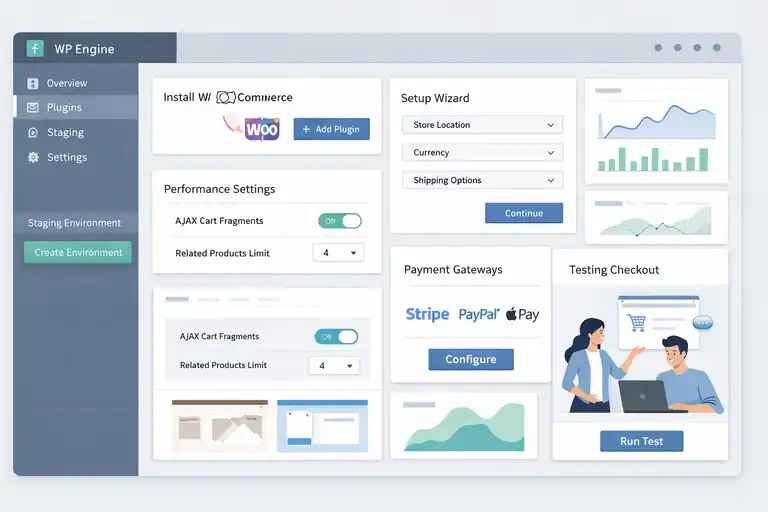
Getting WooCommerce running efficiently on WP Engine isn’t just about installing the plugin — it’s about configuring it for speed, security, and stability from day one.
Installing WooCommerce Securely Through WP Engine Dashboard
You can install WooCommerce directly from your WP Admin panel under Plugins → Add New → WooCommerce. But before you activate it, make sure your environment is production-ready.
WP Engine automatically handles caching and PHP configuration, so you don’t need to tweak server files. However, I suggest doing the installation on a staging environment first. You can create this through WP Engine → Staging → Add Environment.
Once installed, walk through WooCommerce’s setup wizard. When it asks for your store’s location, currency, and shipping methods — enter accurate data from the start to avoid recalculating taxes or shipping later.
Configuring Core WooCommerce Settings For Performance
After installation, go to WooCommerce → Settings → Products and Checkout. These areas have the biggest impact on speed and conversions.
Here’s what I recommend:
- Disable AJAX cart fragments if you’re not using dynamic cart updates — they often cause unnecessary requests.
- Limit the number of related products shown per page to reduce queries.
- Set up caching exceptions in WP Engine’s settings for pages like Cart, Checkout, and My Account (WP Engine already does this automatically, but double-check it).
Also, enable Storefront Theme or a lightweight alternative — avoid bloated themes that require heavy JavaScript.
Connecting Payment Gateways Optimized For WP Engine
Payment gateways are another key performance factor. WooCommerce integrates smoothly with gateways like Stripe, PayPal, and Square — but not all process requests equally fast.
Stripe is often the best balance of speed, reliability, and simplicity. It supports Apple Pay and Google Pay by default, which reduces friction for mobile users.
To connect it, navigate to WooCommerce → Payments → Stripe → Set Up. WP Engine’s security and SSL support ensure all transactions remain encrypted and PCI compliant.
I’d also recommend testing the entire checkout process using WP Engine’s staging environment. Simulate transactions before going live to confirm there are no caching or timeout issues.
Optimizing WP Engine WooCommerce Performance For Speed
Once your store is running, performance optimization becomes an ongoing task.
WP Engine offers several built-in tools to help you deliver faster page loads and smoother user experiences.
Using WP Engine’s EverCache For Lightning-Fast Load Times
WP Engine’s proprietary caching layer, EverCache, is what makes it stand out from standard hosting. It automatically caches pages and static assets like CSS, JavaScript, and images at the server level.
However, WooCommerce pages like Cart, Checkout, and My Account must remain dynamic. WP Engine’s system automatically excludes them from caching.
If you want to confirm, go to WP Engine → Advanced Configuration → Cache Settings. Ensure those pages are listed under Do Not Cache URLs.
This ensures that every visitor sees real-time updates for carts and inventory — without sacrificing site speed elsewhere.
Enabling CDN And Image Optimization Tools
A Content Delivery Network (CDN) is essential if you’re selling internationally. WP Engine includes a built-in CDN through Cloudflare, which you can activate under WP Engine → CDN Settings → Enable CDN.
Once active, your images, scripts, and product thumbnails are served from the nearest global data center. This often reduces load time by up to 40%.
You can also enable Image Optimization to compress and resize images automatically. For WooCommerce stores with hundreds of products, this feature can dramatically improve first paint time without compromising image quality.
Reducing Plugin Bloat And Avoiding Conflicts
One of the most common WooCommerce slowdowns comes from unnecessary plugins. WP Engine already provides caching, backups, and staging — so you can safely remove overlapping plugins that do the same job.
Here’s a good rule of thumb:
- Keep only essential WooCommerce extensions (payments, shipping, analytics).
- Avoid multiple caching or security plugins — WP Engine already covers these.
- Audit your plugins monthly and deactivate unused ones.
I’ve seen stores gain up to 1.5 seconds faster load times just by trimming plugin clutter.
Monitoring Performance With WP Engine Analytics
You can track real performance metrics directly within your WP Engine dashboard. Go to WP Engine → Site Monitoring. Here, you’ll find data on response time, uptime, and slow requests.
Use this data to identify recurring bottlenecks — for example, spikes during sales events or checkout slowdowns during high traffic.
Pair this with Google PageSpeed Insights or GTmetrix for external validation. When metrics dip, it’s often due to image size, third-party scripts, or outdated plugins. Fixing these quickly helps you maintain fast, consistent load times — which directly improves conversions.
Leveraging WP Engine Staging Environments For Safe Testing
One of the biggest perks of using WP Engine for WooCommerce is its built-in staging environment.
It’s like having a private sandbox where you can safely test updates, plugins, and design changes before they ever touch your live store.
Creating A Staging Site For Plugin And Theme Updates
In WooCommerce, even a small plugin or theme update can cause major disruptions if something breaks. That’s why I always suggest testing first.
To create a staging site on WP Engine, log in to your WP Engine dashboard and go to Sites → [Your Site] → Add Environment → Staging. This instantly clones your live website, including products, customers, and settings.
Once it’s created, you can safely:
- Install or update plugins.
- Test theme changes or new page builders.
- Run checkout or coupon experiments.
The staging URL usually looks like staging.yourstore.wpengine.com. This lets you see exactly how updates behave in a controlled environment. It’s also helpful for developers working on custom functionality — they can test freely without worrying about disrupting customers.
I recommend syncing your staging environment at least once a month so it reflects your live data. That way, your tests are always accurate and relevant.
Testing Checkout And Cart Features Without Risk
Your checkout flow is the most sensitive part of your WooCommerce store. Even a minor script error or caching misconfiguration can lead to abandoned carts.
In the staging environment, you can simulate the entire shopping experience using dummy payment methods like WooCommerce Test Gateway.
You can also test:
- Coupon codes and discounts.
- New shipping methods or pricing logic.
- Third-party checkout plugins like WooCommerce Stripe Gateway.
If your site uses caching plugins or third-party analytics scripts, this is where you make sure they don’t interfere with checkout. WP Engine automatically disables caching for cart and checkout pages, but testing ensures no plugin overrides that setting.
Think of it this way — your staging environment acts as your store’s safety net. Every serious WooCommerce brand I’ve worked with treats staging as a mandatory step, not an optional one.
Syncing Approved Changes Back To The Live Site
Once you’re happy with your updates, pushing them to your live site is surprisingly easy. From your WP Engine dashboard, go to Sites → Staging → Copy To → Production.
You’ll be prompted to choose what you want to sync:
- Entire site (files + database)
- Database only (useful for settings updates)
- Files only (helpful for theme or plugin updates)
I usually copy files first, test again on the live site, then sync the database if everything looks good. This layered approach reduces the risk of overwriting customer orders or new data created since your last sync.
It’s a small extra step, but it can save hours of troubleshooting later. WP Engine also keeps a full backup before every sync, so if something unexpected happens, you can restore with one click.
Enhancing Store Security And Reliability On WP Engine
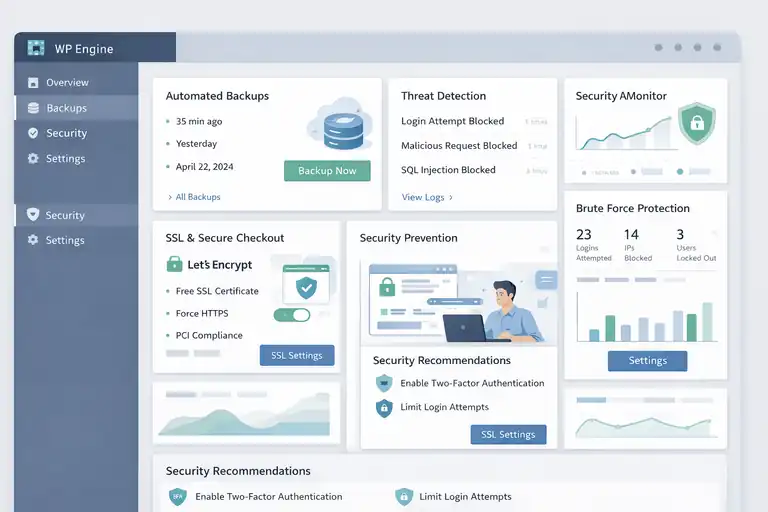
Your WooCommerce store handles sensitive customer data — and WP Engine provides a suite of built-in tools to keep it safe.
From automated backups to threat detection, you can protect your store without juggling extra plugins.
Enabling Automated Backups And One-Click Restore
WP Engine automatically creates daily backups of your entire site, including your WooCommerce database, products, and settings. You can find this feature under WP Engine → Backups → Backup Points.
Each backup is timestamped, so if anything breaks during an update or plugin test, you can restore your site in seconds.
I like to take a manual backup before big changes, especially before WooCommerce updates. To do that, click Backup Now → Add Description (e.g., “Before WooCommerce 9.0 Update”). This simple habit has saved me from hours of panic more times than I’d like to admit.
Restoring is just as easy: choose your backup point, then click Restore. WP Engine handles the rest automatically — no FTP or database work required.
Using WP Engine’s Threat Detection And Blocking Tools
WP Engine continuously monitors for security threats using its Global Edge Security (powered by Cloudflare). It blocks malicious traffic, DDoS attacks, and known vulnerabilities before they even reach your site.
In your WP Engine dashboard, navigate to Security → Threat Detection to review logs of blocked IPs or suspicious requests. If you notice a spike, that usually means bots are probing your site — and WP Engine is already intercepting them.
I suggest combining this with strong WordPress login practices:
- Use two-factor authentication (2FA).
- Limit login attempts with a plugin like Limit Login Attempts Reloaded.
- Keep your WooCommerce and WP Engine plugins up to date.
Security isn’t a one-time setup — it’s an ongoing process. But WP Engine makes it feel seamless by automating most of the heavy lifting.
Implementing SSL And Secure Checkout Configuration
SSL encryption isn’t just about trust — it’s required for every WooCommerce store handling payments. WP Engine includes free SSL certificates via Let’s Encrypt.
You can enable SSL by going to WP Engine → SSL → Add Certificate → Let’s Encrypt Free SSL. Once activated, make sure your WordPress and WooCommerce URLs use https:// under Settings → General.
If you’re using Stripe or PayPal, test a live transaction to confirm secure processing. A simple green padlock in the browser can boost customer confidence and even improve your SEO rankings.
I always advise enabling Force HTTPS in your WP Engine settings to make sure every visitor uses the secure version of your site automatically. It’s a small step that ensures your customers never land on an unsecured page.
Designing A Conversion-Focused WooCommerce Store
You can have the best products and hosting setup, but without smart design, conversions will still fall flat.
A WooCommerce store built on WP Engine should not only load fast — it should also guide visitors toward checkout effortlessly.
Choosing A Lightweight, Mobile-Optimized Theme
Theme choice impacts everything — from site speed to user experience. WP Engine works best with lightweight themes optimized for performance, such as Astra, GeneratePress, or Storefront.
These themes integrate cleanly with WP Engine’s caching system and minimize JavaScript bloat. When evaluating themes, test mobile responsiveness using Google’s Mobile-Friendly Test tool.
Here’s a small checklist I use before finalizing any theme:
- Fast-loading demo pages (under 2 seconds)
- Built-in WooCommerce templates (product grids, single product pages)
- Minimal external dependencies (avoid themes that require 10+ bundled plugins)
I’ve seen stores gain up to 25% more conversions simply by switching from a heavy theme to a lightweight, mobile-first one.
Structuring Product Pages For Maximum Engagement
Your product pages are where the buying decision happens — so clarity and trust matter most.
I recommend this structure:
- Clear product title and short description – Include benefits, not just features.
- High-quality images or short videos – Show the product in real use.
- Visible price and “Add to Cart” button – Keep above the fold on desktop and mobile.
- Social proof – Add reviews or trust badges near the CTA.
- Smart upsells – Use related products strategically without cluttering the layout.
You can also experiment with sticky “Add to Cart” buttons or accordion tabs for FAQs to improve usability. Every small improvement here helps reduce buyer hesitation.
Streamlining Navigation And Reducing Friction In Checkout
Navigation should feel intuitive — shoppers should never wonder where to click next.
Start by simplifying your main menu: keep only essential categories like Shop, About, Contact, and Cart. Too many links can overwhelm first-time visitors.
Then, focus on checkout flow:
- Remove unnecessary fields like company name or phone (unless required).
- Offer guest checkout — forcing account creation often increases abandonment.
- Display shipping and taxes early so customers aren’t surprised at the end.
I believe every WooCommerce store should run periodic checkout tests from a customer’s point of view. Sometimes you’ll spot small obstacles — like unclear field labels or slow coupon validation — that can quietly hurt conversions.
A fast, secure, and frictionless checkout process builds trust and encourages repeat purchases. Combine that with WP Engine’s performance power, and you’ve got the foundation of a high-converting ecommerce experience.
Integrating Marketing And Analytics Tools Seamlessly
Once your WP Engine WooCommerce store is running smoothly, the next step is connecting your marketing and analytics tools.
These integrations give you the data and automation you need to boost conversions without guessing what works.
Setting Up Google Analytics And Tag Manager With WP Engine
Google Analytics and Google Tag Manager are essential for tracking how customers behave on your site — from which products they view to where they drop off in checkout.
Here’s the simplest way to set them up:
- Create a Google Analytics 4 property if you haven’t already.
- Install Google Site Kit (official plugin by Google) from your WordPress dashboard under Plugins → Add New → Site Kit by Google.
- Follow the setup wizard to connect your Google account, Analytics, and Tag Manager.
WP Engine’s infrastructure is fully compatible with these tools, and you don’t need to edit code manually. Once linked, you’ll be able to track metrics like conversion rate, checkout abandonment, and revenue per session directly in Google Analytics.
If you prefer more control, you can manually insert the Tag Manager container code into your theme header through Appearance → Theme File Editor → header.php, but I’d suggest using Site Kit for ease and accuracy.
For advanced users, you can use Tag Manager to track:
- Add to Cart events.
- Checkout progress steps.
- Purchase completion tracking.
This setup gives you a clear view of what’s working — and what needs improvement — in your store’s conversion funnel.
Using WooCommerce Conversion Tracking Extensions
While Google Analytics provides broad insight, WooCommerce-specific conversion tracking tools dig deeper into purchase behavior.
Two reliable plugins for this are PixelYourSite and WooCommerce Conversion Tracking. They help connect WooCommerce with ad platforms like Meta (Facebook), TikTok, and Google Ads.
Here’s why they’re useful:
- They track events like Product View, Add to Cart, Initiate Checkout, and Purchase.
- You can automatically sync audience data for remarketing campaigns.
- They help optimize ad performance based on real purchase behavior.
For example, if you notice that customers frequently drop off at the payment step, you can retarget those users with a special offer ad on Facebook.
In my experience, setting up tracking at this granular level can boost your return on ad spend (ROAS) by up to 20%, simply because you’re making data-backed adjustments instead of guessing.
Automating Email Marketing Through WP Engine-Compatible Tools
Email automation is where WooCommerce can really shine — especially when integrated with WP Engine’s high-speed environment.
If you’re looking for tools that work seamlessly, I’d recommend:
- Klaviyo: For advanced ecommerce email flows (cart abandonment, win-backs, post-purchase).
- MailPoet: A native WordPress email solution that runs smoothly on WP Engine.
- Omnisend: For omnichannel automation (email + SMS).
All three connect easily through the WooCommerce → Marketing tab. Once linked, you can trigger emails automatically based on customer actions.
For instance, you might set up a cart recovery email that sends 30 minutes after a customer leaves without checking out. With WP Engine’s reliable email delivery and site speed, these automations run smoothly without lag or downtime.
The best part? You don’t need extra plugins for performance optimization — WP Engine’s caching system ensures marketing scripts and email triggers work efficiently without slowing down the store.
Speeding Up WooCommerce Checkout To Reduce Abandonment
Checkout speed is often the deciding factor between a completed purchase and an abandoned cart. Even a one-second delay can cause up to a 7% drop in conversions.
That’s why optimizing WooCommerce checkout on WP Engine is non-negotiable.
Optimizing Checkout Fields And Minimizing Steps
The fewer obstacles you place between a customer and the “Place Order” button, the better.
You can simplify your checkout flow using the Checkout Field Editor plugin. This allows you to remove unnecessary fields like Company Name, Address Line 2, or Order Notes.
I usually recommend keeping it to the essentials:
- Name
- Shipping address
- Payment method
You can also switch to a one-page checkout layout using the WooCommerce One Page Checkout extension. WP Engine’s fast servers handle dynamic page content well, so this setup keeps everything responsive and smooth.
If you want to measure results, monitor the checkout abandonment rate in Google Analytics under Monetization → Ecommerce Purchases → Checkout Funnel. A noticeable drop in abandonment means your optimizations are paying off.
Enabling Express Checkout Options (Apple Pay, Google Pay)
Mobile users expect quick, secure payment options — and WP Engine’s SSL and PCI-compliant setup make it safe to enable them.
You can activate Apple Pay and Google Pay through the WooCommerce Stripe Gateway plugin.
Once installed:
- Go to WooCommerce → Payments → Stripe → Settings.
- Enable Apple Pay and Google Pay.
- Test a live transaction on both desktop and mobile.
Express checkout options can increase mobile conversions by up to 30% because they remove friction — no need to type card details or addresses manually.
This setup pairs perfectly with WP Engine’s optimized checkout caching rules, ensuring the payment buttons load instantly on every page.
Testing Load Times And Checkout Flow Regularly
Speed optimization isn’t a one-time thing — it’s something you should test regularly.
WP Engine’s Performance Intelligence tool gives you real-time insight into how your checkout pages perform under load. You can access it via WP Engine → Performance → Page Speed.
For best results, also test using external tools like GTmetrix or Pingdom.
Check specifically:
- Checkout page load time under 2.5 seconds
- Cart update time under 1 second
- No layout shifts during payment entry
I like to run these tests monthly or after major updates. It’s a simple habit that helps you catch performance issues before they start costing sales.
Utilizing WP Engine Add-ons For Advanced Store Optimization
WP Engine’s add-ons give your WooCommerce store superpowers — from automation to personalization.
These tools help you save time while improving user experience and engagement.
Exploring The WP Engine Smart Plugin Manager
If you’ve ever lost sleep worrying about plugin updates breaking your store, you’ll love the Smart Plugin Manager. It automatically updates your plugins while testing the site for visual and functional errors.
You can enable it in your WP Engine dashboard under Add-ons → Smart Plugin Manager → Activate.
Once active, it:
- Creates a backup before each update.
- Runs visual regression tests to check for design issues.
- Automatically rolls back changes if something breaks.
For WooCommerce stores, this is a game-changer. You’ll never have to manually update 20+ plugins again or risk your checkout breaking overnight.
Integrating WP Engine GeoTarget For Personalized Offers
If you sell internationally, GeoTarget can help tailor experiences based on a customer’s location. You can enable it under Add-ons → GeoTarget → Install.
This lets you:
- Show region-specific prices (like USD vs EUR).
- Display localized shipping messages.
- Customize promotions based on visitor country.
For example, you could offer free shipping for U.S. customers while showing a “Low international rates” banner for visitors from Canada or the UK.
This kind of personalization can increase engagement by over 25% because it feels local and relevant — not generic.
Enhancing Product Search With WP Engine’s ElasticPress
WP Engine’s ElasticPress integration transforms how customers find products on your site. It replaces WooCommerce’s default search with a much faster, smarter system powered by Elasticsearch.
To enable it, go to Add-ons → ElasticPress → Activate. Then sync your product catalog under ElasticPress → Sync Data.
Benefits include:
- Instant, predictive search suggestions.
- Filtering by attributes like color, size, or price.
- Faster response times for large catalogs (especially 10,000+ products).
I’ve seen stores with over 50,000 SKUs reduce search query time from 2 seconds to under 200 milliseconds after enabling ElasticPress. That kind of speed keeps shoppers engaged and dramatically improves the likelihood of conversion.
Measuring And Improving Conversions Continuously
Once your WP Engine WooCommerce store is live and optimized, the real growth starts — measuring what’s working and improving it over time.
Continuous tracking and refinement help you uncover patterns that turn casual visitors into loyal buyers.
Tracking KPIs And Conversion Rates In WooCommerce Reports
WooCommerce includes its own analytics dashboard under WooCommerce → Analytics → Overview, where you can view sales, orders, revenue, and conversion rates. But to truly understand performance, I suggest focusing on a few key KPIs:
- Conversion rate: Percentage of visitors who complete a purchase.
- Average order value (AOV): Total revenue divided by the number of orders.
- Customer lifetime value (CLV): The total amount a customer is likely to spend over time.
- Cart abandonment rate: Percentage of customers who add items but don’t buy.
You can also connect Google Analytics to your WooCommerce store for deeper insights. Under Reports → Monetization → Ecommerce Purchases, you’ll find data showing where customers drop off in your checkout funnel.
If you’re using WP Engine’s built-in caching and CDN, you’ll notice that your analytics data remains accurate because these systems are optimized not to interfere with dynamic user tracking. That’s a small but meaningful advantage compared to generic hosting setups.
In my experience, reviewing these KPIs weekly helps catch conversion declines early — before they turn into sales losses.
Running A/B Tests With WP Engine Tools
A/B testing lets you compare two versions of a page to see which converts better. For WooCommerce, this might mean testing different product page layouts, pricing displays, or CTA buttons.
While WP Engine doesn’t include a native A/B testing tool, it integrates easily with third-party options like VWO or Convert.com.
Here’s how to run a simple test:
- Create a staging copy of your site through WP Engine → Environments → Add Staging.
- Adjust one element — for instance, change the “Add to Cart” button color or position.
- Push the test version live using a split URL test (half of users see each version).
- Monitor performance using Google Analytics or your testing tool dashboard.
Always let your test run long enough to gather meaningful data — typically two weeks or until you reach 95% statistical confidence.
From what I’ve seen, even small layout adjustments can improve conversions by 5–10%. It’s all about continuous fine-tuning.
Refining Product Pages Based On Customer Behavior
Behavioral analytics tools like Hotjar or Microsoft Clarity can show how visitors interact with your product pages — where they scroll, click, or lose interest.
Once connected, look for signs such as:
- Users abandoning the page before seeing reviews (move reviews higher).
- Heatmaps showing attention near product images (add video demos).
- Confusion around shipping or pricing details (clarify in a bullet section).
You can also review WooCommerce → Analytics → Products to find your best-performing and underperforming items. Products with high traffic but low conversions likely need better images or clearer CTAs.
When refining, I recommend making one change at a time and documenting the results. That way, you know exactly which tweak drove improvement — and can replicate it elsewhere.
Troubleshooting Common WP Engine WooCommerce Issues
Even with a premium setup like WP Engine WooCommerce, occasional hiccups can happen. The key is knowing how to identify and fix issues without disrupting your store or losing data.
Fixing Slow Admin Dashboards And Cart Loading Times
If your WordPress admin or WooCommerce dashboard feels sluggish, it’s often due to excessive post revisions, plugin queries, or unoptimized database tables.
Start by checking your WP Engine tools:
- Go to WP Engine → Advanced → Database Tools and run a database optimization.
- Clear cache from WP Engine → Utilities → Clear Cache.
- Check for large logs or transients with plugins like WP-Optimize.
For front-end slowness, make sure you haven’t added unnecessary plugins that overlap with WP Engine’s built-in caching. Disable secondary caching or security plugins — they often duplicate processes and slow things down.
If your cart pages lag, ensure dynamic pages like Cart and Checkout are excluded from caching. WP Engine does this by default, but it’s worth confirming under WP Engine → Caching → Exclusions.
From what I’ve seen, these steps resolve about 80% of performance issues without needing developer intervention.
Resolving Plugin Conflicts Safely
WooCommerce stores often rely on many plugins — but compatibility isn’t guaranteed. A new update can sometimes break styling or cause checkout errors.
If this happens:
- Log in to your WP Engine dashboard and open Staging Environment.
- Deactivate all plugins except WooCommerce.
- Reactivate each plugin one by one while checking functionality.
WP Engine’s Smart Plugin Manager can automate this process by testing updates visually before applying them live. It takes a snapshot, runs updates, and rolls back automatically if it detects issues.
I always suggest enabling Smart Plugin Manager for active WooCommerce sites — it saves you from late-night emergencies after updates.
When To Contact WP Engine Support For WooCommerce-Specific Help
WP Engine’s support team is known for its expertise, especially when it comes to WooCommerce performance and PHP-level troubleshooting.
If you encounter persistent issues — like failed cron jobs, server errors, or checkout instability — it’s worth reaching out. You can open a chat directly from your dashboard under Support → Chat With Us.
Be ready to share details like:
- Affected pages or features.
- Steps to reproduce the issue.
- Recent changes (plugins, themes, updates).
I’ve found WP Engine’s team incredibly responsive — often diagnosing issues in minutes that would take hours to debug manually.
Expert Tips To Maximize WP Engine WooCommerce Conversions
Once your store runs smoothly, you can start optimizing for higher conversions and customer lifetime value.
WP Engine’s speed and stability give you the perfect foundation — now it’s time to layer on smart strategies.
Prioritizing Mobile Performance And Checkout Simplicity
Over 70% of WooCommerce traffic now comes from mobile devices. If your mobile checkout isn’t smooth, you’re losing sales.
I recommend testing your store on both Android and iOS devices using different browsers. Pay attention to button size, input fields, and load times.
Here are a few quick mobile-specific tweaks:
- Use a sticky “Add to Cart” button for long product pages.
- Enable Apple Pay or Google Pay for one-tap checkout.
- Compress images using WP Engine’s built-in Image Optimization feature.
These small adjustments can lead to significant improvements in mobile conversion rates.
Scheduling Regular Optimization Audits
I believe every WooCommerce store should run an optimization audit at least once a quarter. This isn’t just about fixing problems — it’s about finding new opportunities.
During an audit, review:
- Site speed metrics: Use WP Engine’s Performance Insights.
- Plugin usage: Remove anything unnecessary.
- Analytics data: Identify top and underperforming pages.
You can even schedule recurring tests with UptimeRobot or WP Engine’s own monitoring tools. Staying proactive keeps your site ahead of performance dips that might quietly hurt conversions.
Leveraging Customer Data For Personalized Upsells
Personalization can dramatically increase order value — and WP Engine’s scalability ensures your site can handle these dynamic elements without lag.
You can use plugins like AutomateWoo or Klaviyo to trigger personalized upsells based on:
- Products viewed or added to the cart.
- Previous purchase history.
- Time since last order.
For instance, if a customer buys running shoes, you could automatically recommend matching socks or accessories in their next email.
This approach feels helpful, not pushy — and it’s proven to increase repeat purchases by up to 30%.
Pro Tip: From what I’ve seen managing multiple WooCommerce stores, the most successful ones don’t chase quick fixes. They focus on steady, data-driven improvements — refining product pages, simplifying checkout, and automating what they can.
With WP Engine’s robust hosting and built-in tools, you’re already halfway there. The rest is just smart, consistent optimization.
FAQ
How do I set up WP Engine WooCommerce for better performance?
You can set up WP Engine WooCommerce by installing WooCommerce through your WP Engine dashboard, enabling caching with EverCache, and optimizing images and CDN for faster load times.
Why is WP Engine good for WooCommerce stores?
WP Engine is ideal for WooCommerce because it offers built-in speed optimization, staging environments for safe testing, and automated backups that keep your store secure and reliable.
How can WP Engine WooCommerce improve conversion rates?
By combining fast load speeds, secure checkout, and optimized product pages, WP Engine WooCommerce helps reduce cart abandonment and creates a smoother shopping experience that increases conversions.

I’m Juxhin, the voice behind The Justifiable.
I’ve spent 6+ years building blogs, managing affiliate campaigns, and testing the messy world of online business. Here, I cut the fluff and share the strategies that actually move the needle — so you can build income that’s sustainable, not speculative.
Related posts:
 Is WP Engine Ecommerce Right for WooCommerce Stores?
 How Do I Install WordPress on Bluehost? A Step-by-Step Beginner’s Guide
 WP Engine Dedicated Server: Best Choice for Large Sites?
 Bluehost Reviews You Can Trust Before Signing Up
 HostGator Domain vs Competitors: Smart Saving Strategies
 Expert Review: Are Namecheap Hosting Plans Worth It?