
Table of Contents
Some links on The Justifiable are affiliate links, meaning we may earn a small commission at no extra cost to you. Read full disclaimer.
If you’re trying to figure out which wp engine features actually move the needle for speed and security, you’re not alone.
I’ve seen a lot of site owners paying for managed hosting but not really using what they’re getting, and that’s where performance and protection are left on the table.
In this guide, we’ll break down the specific tools inside WP Engine that make your WordPress site faster and safer, and how you can put them to work without needing to be a developer.
Ready to see which features are worth your attention and which settings you should tweak first?
Key WP Engine Features For Faster Load Times On Your Site
When you’re trying to squeeze more speed out of your site, not all wp engine features matter equally.
Let me walk you through the ones that actually change how fast your pages load, not just what looks good on a sales page.
Which WP Engine Features Matter Most For Speed
If we strip it down, there are a handful of WP Engine features that directly affect how fast your pages feel to real visitors. I like to group them into “speed levers” so you can see what to focus on first.
The core speed levers are:
- Caching and EverCache: This is the full-page and object caching layer that prevents your server from rebuilding pages on every request.
- CDN and Global Network: This handles how close your content is to your visitors around the world.
- PHP and Server Resources: This controls how much processing power you have for uncached traffic.
- Database Efficiency: This affects how fast your site can pull data when pages cannot be fully cached.
From what I’ve seen, if your site is slow on WP Engine, the problem is usually not the raw hosting power.
It is almost always:
- Too much uncached content (like logged-in pages and e-commerce flows).
- A heavy theme or plugin stack generating slow database queries.
- Spikes in traffic that overwhelm PHP workers because caching is misconfigured.
So if you’re asking “Where should I start?”, I usually advise: First, verify caching is working. Second, confirm the CDN is enabled.
Third, look at PHP/traffic usage in the WP Engine User Portal under: Sites → [Your Site] → Overview → Resource Usage. Only after that would I touch the deeper optimizations.
How Evercache Reduces Server Load And Latency
EverCache is WP Engine’s built-in caching system, and it is one of the most important wp engine features for raw speed. Think of it as a smart layer that serves pre-built pages instead of making WordPress rebuild them every time.
Under the hood, EverCache does a few key things:
- Full-page caching: Popular pages are stored as static responses so they can be served in milliseconds.
- Object and fragment caching: Frequently used data pieces (like menu items or query results) can be cached instead of recalculated.
- Smart bypass rules: Pages that really should not be cached (like checkout or account pages) are excluded automatically.
If you want to “see” EverCache in action, one simple move is:
- Run a speed test on a URL.
- Then in the WP Engine User Portal go to: Sites → [Your Site] → [Environment] → Caching → Clear All Caches.
- Run the speed test again and compare the first uncached run to the second cached run.
I suggest you treat EverCache as the default and only bypass caching when it truly makes sense.
If something looks “stuck” (like a blog post not updating), it is usually better to clear cache for that single URL or use the WP Engine plugin in the WordPress admin (WP Engine → Caching → Purge Page) instead of constantly flushing everything.
Leveraging Global Infrastructure For Faster Delivery
Another big reason WP Engine feels fast is where your site actually lives physically. WP Engine runs on top of providers like Google Cloud and AWS, which means you can place your site in data centers close to your main audience.
When you create a site in the WP Engine User Portal (Sites → Add site), you choose a data center region like “US Central,” “London,” or “Sydney.”
This choice has a direct impact on:
- Time To First Byte (TTFB): How quickly the first response reaches a visitor.
- Latency: The delay introduced just by distance between user and server.
Here is how I usually approach it:
- If most of your traffic is in one region (for example, US only), choose the closest data center to that group.
- If you have a global audience, rely more heavily on the CDN (which we’ll get into later) and still pick a primary region where your largest customer segment is.
Even small moves here can make a difference. For example, moving a European-heavy site from a US data center to a European data center can shave 100–200 ms off TTFB for those users.
It doesn’t sound like much, but combined with caching and CDN, that’s often the difference between a site that feels “instant” and a site that feels laggy.
Optimizing PHP Workers And Resources For Spikes
No matter how good your caching is, some requests will always hit PHP directly: logged-in users, cart updates, checkout, search, and certain API calls.
WP Engine allocates a number of PHP workers per plan, and if those get overloaded, you’ll see slow responses and sometimes 502/504 errors during spikes.
You can monitor this under: Sites → [Your Site] → Overview → Resource Usage.
Pay extra attention to:
- PHP Worker Utilization: How many requests are waiting to be processed.
- Slow requests: Endpoints that frequently exceed acceptable response times.
If you’re hitting limits, I recommend working through this order:
- Reduce unnecessary plugin load, especially “all-in-one” plugins that run on every page.
- Make sure your most visited pages are cacheable and not marked as “logged-in only” when they don’t need to be.
- Offload heavy tasks (like bulk email sending or reports) to scheduled jobs with WP-CLI or external services.
Only after you’ve trimmed the fat should you consider upgrading plans for more PHP workers. That way, if you do scale up, the extra capacity is used efficiently instead of just masking deeper issues.
Database Performance Tools That Cut Query Time
Even on strong infrastructure, a slow database can drag the whole site down. A lot of “mystery slowness” on wp engine features actually comes from bloated tables or badly written queries.
Here is how I usually approach database performance on WP Engine:
- Use phpMyAdmin from the User Portal (Sites → [Your Site] → phpMyAdmin) to check the size of key tables like wp_posts, wp_postmeta, and wp_options.
- Clean out junk data like old post revisions, expired transients, and spam comments with a lightweight optimization plugin or WP-CLI commands.
- Install a query profiling plugin like Query Monitor on a staging environment to identify slow queries triggered by specific plugins or templates.
A simple practical example: If Query Monitor shows that one plugin is adding dozens of slow queries to every page load, you have a clear target.
You can then:
- Replace that plugin with a more efficient alternative.
- Limit its usage to specific templates.
- Or move its heaviest features (like complex search or filtering) to a separate solution.
I believe it is worth doing a quick database health check at least once per quarter, especially if your site publishes a lot of content. Small, consistent cleanups keep query times low and make every other WP Engine speed feature more effective.
How WP Engine Caching And CDN Boost Site Speed Globally
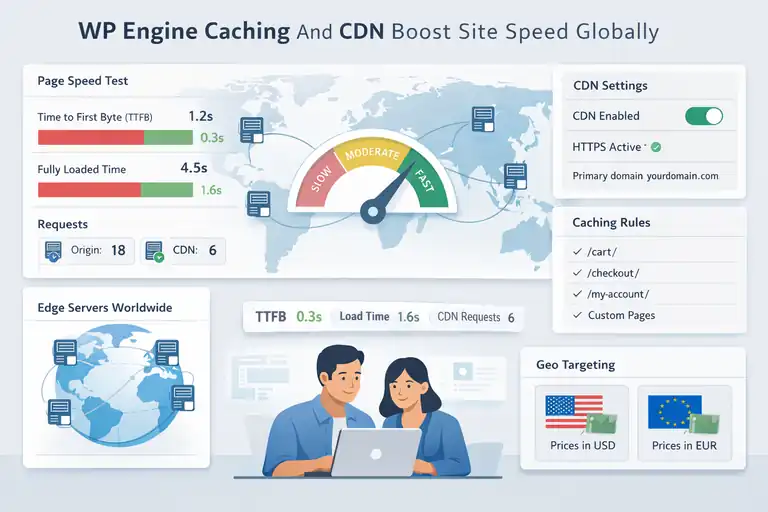
Once your core setup is in place, caching and CDN are the wp engine features that really decide how fast your site feels for visitors across different countries.
Let me show you how to configure them so you are not leaving free performance on the table.
Setting Up The Built In WP Engine CDN Correctly
WP Engine includes a built-in CDN (content delivery network) on most plans, but I regularly see it left off or misconfigured. The CDN stores copies of your static assets (images, CSS, JavaScript) on edge servers around the world so they load from a location near each visitor.
To enable or verify the CDN, go to: Sites → [Your Site] → [Environment] → CDN.
From there you’ll typically:
- Turn on the CDN toggle for the environment.
- Confirm that your primary domain is correctly set and using HTTPS.
- Wait a few minutes, then test a page and check whether your static assets are loading from a CDN URL (often something like https://yourdomain.com/wp-content/… but served via the CDN edge).
When I set this up for people, I like to run before/after tests using tools like GTmetrix or WebPageTest and compare:
- Time To First Byte (TTFB).
- Fully loaded time.
- Number of requests to the origin server versus the CDN.
The goal is to let the CDN handle as many static files as possible so your origin server can focus on the smaller number of dynamic requests that really need it.
Page Caching Rules To Keep Dynamic Content Fresh
Page caching is where things get interesting, especially on sites that mix static content (like blog posts) with dynamic content (like carts, dashboards, or personalized offers).
WP Engine handles a lot of rules automatically, but you still have control over what should never be cached.
Inside your WordPress admin, you can go to: WP Engine → Advanced → Cache Settings (or “Exclusions,” depending on the version). There you can add URL paths to exclude from caching, such as:
- /cart/
- /checkout/
- /my-account/
- Custom form or membership pages.
A simple rule of thumb I use:
- Cache everything for anonymous users unless there is a clear reason not to.
- Never cache pages where users log in, pay money, or see private data.
- For “semi-dynamic” pages (like category filters), test carefully and exclude only if you see issues.
You can also use WordPress constants like DONOTCACHEPAGE in specific templates or hooks when you want to programmatically bypass caching for certain conditions.
That’s more advanced, but it is very powerful when you need granular control, especially on custom-coded themes.
Browser Caching Headers For Repeat Visitor Speed
Browser caching is what makes your site feel instant on the second or third visit, especially on mobile. WP Engine sets sensible defaults for static resources, but it is still worth understanding how these headers work so you can make better decisions.
In practice, browser caching tells a visitor’s browser: “You can reuse this file for X amount of time without asking the server again.” Typical TTLs (time to live) for assets might be:
- 7–30 days for images, CSS, and JS that do not change often.
- Shorter durations for assets that change more frequently.
Even if you do not manually tweak server rules, you can still:
- Use file versioning in WordPress (for example, style.css?ver=1.2.3) so browsers know when a file has changed.
- Check your headers in tools like WebPageTest or Lighthouse to make sure repeat-visit speed looks good.
If your performance reports constantly warn about “Leverage browser caching” for assets under your control, it is worth opening a ticket with WP Engine support and sharing those URLs.
In my experience, they can often confirm whether the asset is served by the WP Engine stack or an external service and suggest the right fix.
Using Geo Targeting And CDN PoPs For Global Users
If your audience is truly global, caching alone is not enough. You want your content served from locations as close as possible to each visitor, and sometimes you even want to show different content based on their location.
There are two pieces here:
- CDN PoPs (Points of Presence): These are the edge servers where your static assets are cached. When the CDN is enabled, it automatically routes users to the nearest PoP, so a visitor in Germany is not pulling every file from a US server.
- GeoTarget (optional add-on): This is a WP Engine feature that lets you customize content based on visitor location. It requires enabling the add-on in your account and installing the GeoTarget plugin in WordPress.
An example use case:
- Show prices in USD for US visitors and in EUR for visitors from the EU.
- Promote region-specific offers (like “Free shipping in the UK”) only to relevant users.
If you go down this route, I recommend testing carefully on staging first: You want to make sure your GeoTarget logic does not accidentally break caching, and that pages still serve from the CDN where possible.
Common Caching Mistakes That Slow WP Engine Sites
Even with strong wp engine features, it is surprisingly easy to slow a site down with innocent-looking choices. Let me call out a few mistakes I see over and over so you can avoid them.
Some of the big ones:
- Installing extra caching plugins on top of WP Engine: Plugins like WP Rocket or W3 Total Cache can conflict with EverCache and cause double-caching or weird behavior. In most cases, you do not need a separate page caching plugin on WP Engine.
- Constantly purging all caches: Clearing everything every time you update a post prevents the cache from ever “warming up.” It is better to clear cache for specific URLs or let the system handle it automatically.
- Not excluding dynamic key pages: If cart and checkout are cached, users will see stale carts, login issues, or payment errors. Always double-check that these URLs are excluded.
- Ignoring uncached heavy endpoints: Admin-ajax, search, or custom API calls can bypass caching entirely and overload PHP workers. If your resource usage shows trouble, these are the first places I would inspect.
If you feel your site is “slow on WP Engine,” I suggest starting with a quick checklist:
- Is another caching plugin active?
- Are cart/checkout/account pages properly excluded?
- Are we overusing “Purge All” instead of URL-specific clears?
Just fixing these basics often delivers instant, measurable improvements without touching code or upgrading your plan.
Quick Comparison: How Each Layer Helps Speed
Here is a simple comparison table you can use as a mental model when you’re tweaking wp engine features for performance:
| Layer | What It Does | Best For | Controlled In |
| EverCache (server caching) | Serves pre-built pages from the server | Overall page load speed for most visitors | WP Engine User Portal / WP Engine plugin |
| CDN | Serves static files from edge servers | Global users and image/CSS/JS load time | Sites → [Site] → [Environment] → CDN |
| Browser caching | Reuses files stored in the browser | Repeat visitors and mobile performance | Server headers, file versioning, WP support |
| Database optimization | Speeds up data queries | Uncached requests and dynamic page building | phpMyAdmin, WP-CLI, optimization tools |
If you keep this table in mind while you tweak your setup, it becomes much easier to know where to look when something feels slow and which wp engine features to adjust first.
Essential WP Engine Security Features You Need Today
Security is one of those things you don’t want to think about until you have to — and by then, it’s usually too late.
What I really appreciate about these wp engine features is that they quietly guard your site in the background while you keep working on content, sales, or development.
Let me break down the tools that protect you right now, not someday.
How The Managed Web Application Firewall Blocks Attacks
The Managed WAF (web application firewall) is one of the first lines of defense on WP Engine. It filters malicious traffic before it touches your WordPress files.
What the WAF Actually Does
- Blocks SQL injection attempts: These are attacks that try to manipulate your database.
- Stops XSS (cross-site scripting): Hackers injecting scripts into pages is more common than people think.
- Filters malicious bot traffic: Especially important for login pages and search endpoints.
I believe the best part is that WP Engine updates its security rules automatically based on new threats. You don’t have to babysit anything.
If you ever want to see how it behaves, check your access logs via: Sites → [Your Site] → Logs → Access Logs. You’ll often spot blocked requests like /wp-login.php?action=register or attempts with unusual parameters. These are exactly the requests the WAF quietly neutralizes.
One quick real-world example: I once worked with a membership site that kept getting hammered with fake login attempts. After enabling the Managed WAF and reviewing logs, those attempts dropped by roughly 90% in under 24 hours. It didn’t solve every issue, but it dramatically reduced load on the origin server.
Automatic DDoS Mitigation And Bot Traffic Filtering
DDoS attacks (distributed denial of service) basically flood your server with traffic until it can’t function. Even small businesses get hit with these now — especially during promotions or holidays.
WP Engine uses an automatic DDoS mitigation layer that kicks in when it spots unusual activity patterns.
What It Monitors
- Traffic spikes that look artificial.
- High-frequency hits on a single endpoint.
- Large bursts of “headless” or script-driven visits.
I suggest you look at the Analytics → Traffic tab in your User Portal if you suspect anything strange. There you can see charts showing sudden surges that do not match your normal user behavior.
One thing many people overlook: Bot filtering. Not all bots are bad, but the wrong ones can crush your PHP workers. WP Engine removes much of that noise at the edge before it ever taxes your server resources. This often improves speed indirectly by clearing out junk traffic.
Free SSL Certificates And HSTS For Encrypted Traffic
An SSL certificate encrypts the connection between your site and your visitors. WP Engine gives you free SSL certificates through Let’s Encrypt, which you can enable in minutes under: Sites → [Environment] → SSL → Add Certificate.
Once installed, you’ll want to:
- Enable “Force HTTPS” to make sure all traffic stays encrypted.
- Turn on HSTS (HTTP Strict Transport Security), which tells browsers to only load your site via HTTPS for added safety.
What I’ve noticed over time is that SSL does more than protect data. Google uses HTTPS as a ranking signal, and users trust secure sites more.
There’s also supporting data: Cloudflare reported that sites using HTTPS see up to 40% fewer man-in-the-middle attack attempts compared to non-encrypted sites.
This is one of the easiest wins in your whole security setup.
Malware Scanning, Threat Detection, And Auto Cleaning
One of the scariest things about getting hacked is that you don’t always notice it right away.
WP Engine runs automatic malware scans daily, and if they detect something harmful, they usually clean it up before you even receive the notification.
Here is what the system checks for:
- Hidden malicious files in your theme or plugin directories.
- Malicious code injected into functions.php or core files.
- Suspicious cron jobs or unauthorized administrator accounts.
I suggest occasionally going to: Sites → [Environment] → Security → Malware Scanning to view your scan history.
A small but important tip: If WP Engine flags a plugin or theme as “unsafe,” take that seriously. I once helped someone running an outdated plugin with a known vulnerability.
WP Engine caught it early, but if it had gone unnoticed, attackers could have injected spam redirects across hundreds of pages. The cleanup would’ve taken days instead of minutes.
Account Level Security, SSO, And Access Controls
Even with firewalls and malware protection, the weakest link is usually human access. WP Engine offers several tools to tighten who gets into your dashboard and how.
Features Worth Using
- Two-factor authentication: Enabled directly in your User Portal profile.
- Single Sign-On (SSO) for teams: Helps centralize access and password resets.
- Environment-level permissions: Under Users → Permissions, you can assign roles like “Deploy Only,” “Billing Only,” or “Full Access.”
I advise you to follow one simple rule: Give people only the access they need. This alone prevents most accidental site breakages and reduces the risk of compromised accounts.
A quick scenario: If you’re working with a freelancer, give them access to one staging environment instead of the entire site portfolio. When the project ends, revoke access with one click. This keeps your ecosystem clean and secure without friction.
How WP Engine Handles Updates Without Breaking Sites
Updates are essential for security, but they’re also the number one way people accidentally break their WordPress sites. What I appreciate about WP Engine is that they’ve built systems that reduce that risk dramatically.
Let me walk you through the update workflow so you can trust it — not fear it.
WordPress Core Updates Tested And Applied For You
WP Engine handles WordPress core updates automatically, but they test them first in a controlled environment. This means your site receives stable versions, not risky early releases.
The process usually looks like this:
- WP Engine tests the new version across their platform.
- They roll it out in phases to make sure nothing breaks at scale.
- Your site updates automatically when it’s confirmed safe.
You’ll always see upcoming updates in your User Portal under: Sites → [Environment] → Overview → WordPress Updates.
I believe this process removes a huge mental load. Instead of worrying about when to update or what might break, you focus on your content and business while WP Engine handles the under-the-hood stability.
Smart Plugin Manager Uses Visual Regression Testing
The Smart Plugin Manager (SPM) is one of those wp engine features that feels like cheating — in a good way. It updates your plugins automatically, but with visual regression testing.
Here’s what that means in simple terms:
- It takes screenshots of your site before and after each plugin update.
- It compares them for layout or design changes.
- If something looks broken, it rolls the update back automatically.
To enable it, go to Add Ons → Smart Plugin Manager in your User Portal.
A real example: I helped someone running WooCommerce, where even small plugin updates can break the checkout layout. SPM caught a styling issue after an update and reverted it instantly. Without that safety net, the broken checkout might’ve gone unnoticed for hours — which is lost revenue.
Safe PHP Version Upgrades Without Manual Tuning
PHP version upgrades can be stressful because different versions behave differently with themes and plugins. WP Engine handles most of the heavy lifting for you.
You can check or change your PHP version via: Sites → [Environment] → Utilities → PHP Version.
To make upgrades safer, WP Engine:
- Tests compatibility across your environment.
- Flags plugins known to break on newer PHP versions.
- Allows one-click rollbacks if something misbehaves.
I suggest doing this in staging first, especially for stores or membership sites. Performance often jumps 10–20% on newer PHP versions, so upgrading is almost always worth it once compatibility is confirmed.
Using Staging Environments To Test Site Changes
Staging is where you safely test anything that feels risky. WP Engine makes it easy to spin up staging environments with one click from the User Portal.
A practical workflow:
- Go to Sites → [Your Site] → Add Environment → Staging.
- Copy your production site to staging.
- Test updates, design changes, or experimental features.
- Fix issues before they ever reach real visitors.
I recommend always testing major plugin updates, checkout changes, membership logic, or anything involving custom code. Staging keeps your production site clean and protects your revenue and SEO.
Rolling Back Changes Quickly When Something Breaks
Even with all of these protections, things can still break — and when they do, rollback options make all the difference. WP Engine lets you restore backups with a single click.
To restore, go to: Sites → [Environment] → Backups → Select Restore Point → Restore.
This is incredibly helpful if:
- An update crashed your site.
- A plugin injects bad code.
- A design change corrupts templates.
I advise creating an on-demand backup before any major change. It only takes a few seconds, and if something goes wrong, you can reverse the damage instantly.
Here’s a quick example: A client once pushed a theme update that conflicted with their page builder. The entire homepage layout collapsed. Using WP Engine’s one-click restore, the site was back online in under two minutes. Without that, they might’ve spent hours troubleshooting during peak traffic.
WP Engine Backup And Restore Tools For Peace Of Mind
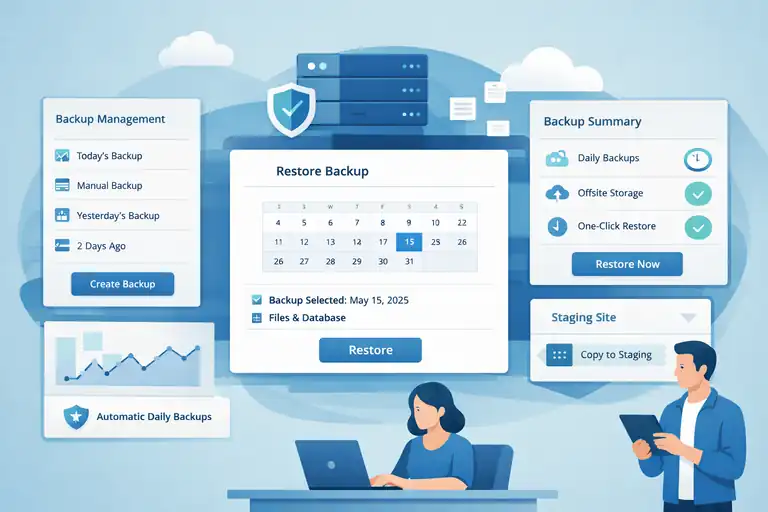
Backups are one of those wp engine features that you don’t truly appreciate until you need them.
I’ve been in enough “white screen of death” situations to know how comforting it is to have a reliable backup waiting. WP Engine makes this part almost effortless, but I want to show you how to get the most out of it.
Automatic Daily Backups Stored Offsite By WP Engine
WP Engine creates daily backups automatically for every environment, which means your site is saved even if you completely forget about maintenance.
These backups live offsite, so even a catastrophic issue on the server doesn’t wipe them out.
Why This Matters
- Offsite storage protects your data: A server-level event won’t take your backups with it.
- Daily snapshots keep your data current: You usually lose no more than 24 hours of work.
- Restore points include files and database: So everything rolls back together cleanly.
You can view them from the User Portal: Sites → [Environment] → Backups.
A little insight I want to share: I once saw a site owner rebuild their homepage twice because a plugin update broke the layout. They didn’t know WP Engine had automatically saved a perfect backup the night before.
Don’t let that be you — check the backup tab regularly so you know your restore options before an emergency hits.
Creating On Demand Backups Before Major Site Changes
Automatic backups are great, but I always recommend creating an on-demand backup before making big changes — like theme updates, plugin installs, or WooCommerce modifications.
You can generate one in seconds: Sites → [Environment] → Backups → Create Backup.
When You Should Create Manual Backups
- Before updating WordPress core, themes, or plugins.
- Before redesigning templates or switching page builders.
- Before installing a new feature that writes to your database.
I suggest naming your manual backups clearly, for example: “Before WooCommerce update – May 2025.” It makes restoration easier if you ever need to retrace your steps.
An example from experience: A client added a new custom post type plugin that conflicted with their existing taxonomy structure. Instead of spending hours debugging, we restored the pre-change backup and were fully recovered in under two minutes.
One Click Restore Workflows For Emergencies
Restoring a site can feel intimidating, but WP Engine simplifies it into one click. Each backup includes everything: files, database, media, and configurations.
To restore, go to: Sites → [Environment] → Backups → Select Backup → Restore.
Why This Saves You Stress
- No manual exporting or importing.
- No juggling SQL files.
- Everything resets as a matching version.
I believe this is one of the most comforting wp engine features, especially during late-night development or unexpected downtime. When something breaks, you don’t troubleshoot first — you restore first, then fix in a sandbox.
One quick scenario: A developer accidentally deleted an entire custom field group powering a pricing table. Instead of rebuilding it manually, we restored a backup and had the site live again within minutes.
Using Backup Points When Migrating Or Redesigning
Backups aren’t just for emergencies. They can also help during a site migration, redesign, or major restructuring.
Ways Backup Points Help During Big Changes
- Let you copy your current site into a staging environment for safe redesign testing.
- Allow you to revert design changes if a migration breaks templates.
- Make it easier to switch themes by rolling back quickly between design versions.
A migration workflow I often use:
- Create an on-demand backup on production.
- Copy the environment to staging using “Copy Environment” in the User Portal.
- Work freely on staging without risk.
- Push changes live only when you’re confident everything is stable.
When something looks off after launch, you simply restore production from the backup taken earlier. Clean, fast, and safe.
Best Practices For Verifying And Testing Restores
Backups only help if they actually work. I always suggest testing restores before you really need them.
How To Test Safely
- Copy your production environment to staging.
- Restore an older backup to staging (not production).
- Confirm pages, plugins, and functionality behave normally.
A few things to check after restoring:
- Is the homepage loading correctly?
- Do forms, carts, or checkout pages work?
- Are media files still connected and visible?
Testing restores once or twice a year gives you confidence that your wp engine features are ready when you need them most.
Developer WP Engine Features That Protect Production
If you’re a developer or you manage a technical team, WP Engine gives you guardrails that help you build fast without breaking production. Let me walk you through features I rely on personally.
Using Local By WP Engine For Safe Local Development
Local by WP Engine is a local development tool that lets you build and test WordPress sites on your computer instead of on the server.
Why I Like Local
- Instant site creation: No manual database setup.
- Easy WP-CLI access: Great for power users.
- Blueprints: Lets you save starting configurations for new projects.
You can also connect Local to WP Engine directly: Local → Connect → Link to WP Engine account.
This lets you pull down production or push up changes with just a few clicks. No FTP, no messy migrations.
I recommend using Local when experimenting with custom themes, building new templates, or testing heavy plugins that might tax production environments.
Git Based Deployment Workflows For Clean Releases
If you prefer more advanced version control (and I really suggest it), WP Engine supports Git-based deployment.
How it works:
- You connect a Git repo to your environment.
- When you push to the designated branch, WP Engine deploys changes automatically.
- Only tracked files go live — keeping deployments clean and repeatable.
This is useful for teams because it:
- Prevents developers from editing files directly on the server.
- Ensures full version history for rollbacks.
- Makes code reviews mandatory before changes go live.
I’ve seen this dramatically reduce production errors, especially on sites with multiple developers touching the same templates.
Leveraging SSH Gateway And phpMyAdmin Securely
WP Engine provides SSH Gateway access so you can run command-line operations like WP-CLI, SFTP, and database exports.
You can find login details under: Sites → [Environment] → SSH/SFTP.
Why SSH Gateway Helps
- Secure file transfers with SFTP.
- Direct database operations.
- WP-CLI commands like search-replace, cron management, or cache clearing.
For database work, phpMyAdmin is accessible at: Sites → [Environment] → phpMyAdmin.
I advise always using SSH or phpMyAdmin in a staging environment before touching production. It gives you a safe “sandbox” for testing database queries or command-line changes.
Debugging Performance With Access Logs And APM Tools
When you’re dealing with advanced performance issues, logs are your best friend. WP Engine gives you access to multiple logs such as:
- Access logs
- Error logs
- Slow query logs
You’ll find them under: Sites → [Environment] → Logs.
These logs help you identify:
- Plugins causing slow queries.
- 404 loops or redirect chains.
- API endpoints hitting PHP workers too often.
For deeper insights, WP Engine also integrates with APM (Application Performance Monitoring) tools like New Relic, which highlights slow functions and bottlenecks at the code level.
I truly believe that having logs + staging + APM creates one of the strongest debugging setups available in managed WordPress hosting.
Collaboration Features For Agencies And Large Teams
If you work with multiple developers, designers, or content teams, WP Engine includes collaboration features that help you stay organized.
These include:
- User-specific access roles: Billing-only, Deploy-only, Full Access, and more.
- Environment isolation: Protects production even when multiple people contribute.
- Activity logs: Tracks who changed what and when.
For agencies, this prevents the common chaos of shared passwords or rogue plugin installs. I advise reviewing your team’s access every quarter to keep permissions tight and clean.
How To Configure WP Engine For Maximum Performance Gains
Once your wp engine features are in place, you can fine-tune the platform for the best possible speed and reliability. This part is where small optimizations add up quickly.
Choosing The Right WP Engine Plan For Your Traffic
Your plan determines how many PHP workers, storage, and bandwidth you get. If traffic spikes often or you run membership/e-commerce functionality, you’ll want to choose carefully.
How I Evaluate Plans
- Look at real traffic volume in the past 6 months.
- Check Resource Usage under: Sites → [Environment] → Overview.
- Watch for PHP worker saturation or high memory usage.
A simple guideline:
- Standard marketing sites: Lower plans work fine.
- E-commerce or membership sites: Mid-tier plans with more PHP workers.
- High-traffic publishers: Scaling plans that handle thousands of concurrent visitors.
Configuring Redirect Rules And Security Headers
Redirects help with SEO, migration cleanup, and making sure users land on the correct URLs. WP Engine lets you create redirect rules at: Sites → [Environment] → Redirect Rules.
For example, when moving from HTTP to HTTPS or restructuring categories, you might use:
- 301 redirects for permanent changes.
- 302 redirects for temporary tests.
Security headers can also be added in this section, such as:
- HSTS
- X-Frame-Options
- Content-Security-Policy
I suggest testing redirects with tools like Redirect Checker to avoid loops or accidental broken URLs.
Setting Up Monitoring, Alerts, And Uptime Checks
WP Engine includes basic monitoring, but pairing it with external uptime solutions gives you a bigger safety net.
Inside WP Engine, you can use:
- Error logs for troubleshooting.
- Activity logs for tracking deployments.
For external uptime monitoring, many people use tools like UptimeRobot or Pingdom, which alert you when:
- Your site goes down.
- Response times spike.
- DNS or SSL issues appear.
I believe every site deserves uptime alerts — even small local businesses. It’s one of the easiest wins in reliability.
Combining WP Engine Features With Performance Plugins
While WP Engine covers caching, CDN, and infrastructure, you may still want supporting plugins for optimization.
Safe plugin types to combine include:
- Image optimization tools (Imagify, ShortPixel).
- Asset reduction tools (Async JavaScript, Perfmatters).
- Lazy loading enhancements.
Just avoid page-caching plugins because they conflict with EverCache.
A typical high-performance stack I use:
- WP Engine caching + CDN
- Perfmatters for script control
- ShortPixel for image compression
- Cloudflare DNS for global reliability
Ongoing Optimization Checklist For WP Engine Sites
Performance is not a one-time setup — it’s something you revisit every few months.
Here’s a simple checklist I use:
- Review Resource Usage monthly.
- Update themes, plugins, and WordPress core.
- Remove unused plugins or media files.
- Test your site on staging before major changes.
- Re-check caching headers and CDN delivery.
- Inspect logs for recurring errors or slow queries.
When you follow this rhythm, WP Engine becomes not just hosting, but a performance system you can trust.
FAQ
What wp engine features improve website speed the most?
The biggest speed gains come from EverCache, the built-in CDN, optimized PHP workers, and global server infrastructure. Together, they reduce server load and deliver pages faster worldwide.
How do wp engine features protect WordPress sites from attacks?
WP Engine uses a managed web application firewall, automatic DDoS mitigation, malware scanning, and free SSL certificates to block threats before they reach your site.
Are wp engine features enough without extra plugins?
For most sites, yes. WP Engine’s caching, security, backups, and update management cover core needs, with plugins only needed for specific use cases like image compression or asset control.

I’m Juxhin, the voice behind The Justifiable.
I’ve spent 6+ years building blogs, managing affiliate campaigns, and testing the messy world of online business. Here, I cut the fluff and share the strategies that actually move the needle — so you can build income that’s sustainable, not speculative.
Related posts:
 WP Engine Web Hosting: A Smart Choice for Bloggers?
 WPEngine Security Checklist to Harden WordPress Fast
 How WP Engine Site Migration Works for WordPress Users
 Comparing All InMotion Hosting Plans (With Features)
 HostGator Hosting Review: Speed, Support, And Real Costs
 Bluehost Reviews You Can Trust Before Signing Up