Table of Contents
Some links on The Justifiable are affiliate links, meaning we may earn a small commission at no extra cost to you. Read full disclaimer.
If you’re searching for a freshworks ticket system not working fix, you probably do not need another vague checklist.
You need to know why tickets stopped appearing, why emails are not converting, why agents are missing notifications, or why the portal suddenly refuses submissions. I’ve seen this kind of issue turn into a full support bottleneck fast.
The good news is that Freshdesk usually fails in a few predictable places: service status, channel setup, forms, permissions, browser sessions, or automation logic. Once you test them in the right order, the fix becomes much more straightforward.
Start With The Fastest Checks First
Before you change workflows, forms, or routing rules, confirm whether the issue is local or platform-wide. This first pass saves a lot of wasted time.
Check Whether Freshdesk Is Having A Platform Issue
A lot of teams jump straight into admin settings when the real issue is higher up the stack.
Freshdesk maintains a live status page through Freshstatus, where you can review current state labels such as Operational, Degraded Performance, Partial Outage, Major Outage, and Maintenance, plus incident history.
That should be your first stop when tickets are not loading, not syncing, or behaving strangely across the entire team.
Here is the practical way I suggest handling it:
- Step 1: Open the Freshdesk status page and review current service indicators.
- Step 2: Check incident history to see whether your issue started during a known disruption.
- Step 3: Compare the scope. If every agent sees the same problem, it is more likely service-related than permission-related.
- Step 4: Pause major config changes until you rule out an outage.
A simple pattern helps here. If one agent cannot create tickets, that usually points to browser, role, or portal access. If everyone suddenly cannot create or update tickets, status and incident history become much more important.
In my experience, this single check prevents a lot of unnecessary “fixes” that only make later diagnosis harder.
Confirm Whether The Problem Affects One Channel Or All Tickets
Freshdesk supports multiple ticketing channels, including email, portal forms, web chat, social, widgets, and more.
That matters because “ticket system not working” is often not one problem. It can be one channel failing while the rest of the system is fine.
Freshworks’ own channel documentation shows how many independent entry points can feed tickets into the system.
Try this quick isolation test:
- Email Test: Send a message to your support address.
- Portal Test: Submit a ticket through the support portal.
- Agent Test: Create a manual ticket inside the agent view.
- Widget Test: Submit from the embedded form or help widget if you use one.
If manual ticket creation works but email tickets do not, you are likely dealing with mailbox forwarding, channel connection, spam filtering, or delivery logic.
If the portal fails but agent-created tickets work, focus on forms, portal permissions, CAPTCHA, or customer-facing access.
If only one embedded widget fails, I would check form publishing and site embed settings before touching broader admin rules. This channel-by-channel method is much faster than guessing.
Fix Ticket Creation Problems At The Source
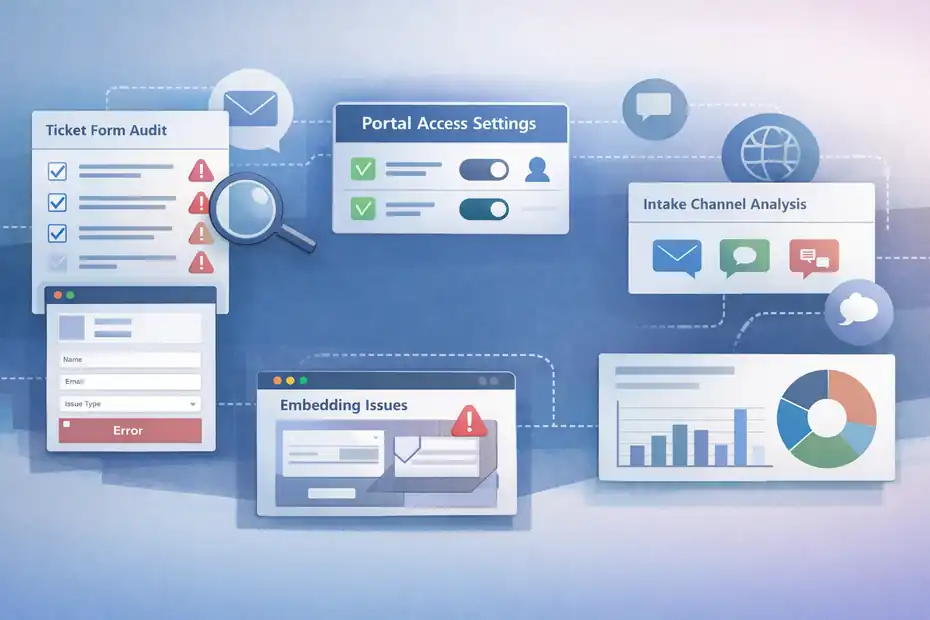
When new tickets are not being created, the root cause is usually tied to forms, submission access, or the intake channel itself.
This is where you stop assuming and start tracing the entry point.
Audit Ticket Forms, Fields, And Publishing Settings
Freshdesk uses structured ticket forms to collect customer data, and those forms can be published to portals, widgets, and web pages.
The default “Report an issue” form is always published, while additional forms can be created and deployed across experiences.
Freshworks also notes that multiple forms are available from the Pro plan onward, and a form can be tied to automation rules.
That creates a few common failure scenarios:
- Form was edited but not published: Customers still see an outdated version or no usable form in the intended location.
- Required fields became too strict: Users cannot complete submission because a new field is mandatory or confusing.
- A field was removed from the visible flow: The automation depends on data that the customer can no longer provide.
- The wrong form is attached to the portal or widget: Tickets appear missing when they are actually never being submitted through the expected form.
Freshworks says form edits can affect every place where the form is deployed, which is easy to overlook when one admin is testing changes in a live portal.
I recommend cloning a form before experimenting, especially if multiple teams or brands share the same workspace. Also check whether the form is still attached to the correct portal, help widget, or embedded page after edits.
Review Portal Access, Submission Rules, And Embedded Form Behavior
Freshdesk lets admins control who can submit and view tickets through the portal settings. In the form setup, there are also options for attachments, screenshot capture, knowledge base search, CAPTCHA, and HTTPS support for secure pages.
That flexibility is useful, but it also means a small setting change can quietly block ticket creation.
The most common portal-side issues I see look like this:
- Customers can open the portal but not submit: Submission permissions were tightened.
- Embedded form breaks on your website: HTTPS or embed placement is misconfigured.
- Spam prevention blocks real users: CAPTCHA or anti-spam settings introduce friction.
- Attachments fail or the form looks incomplete: The form height or page embed is not configured cleanly.
Imagine you run a SaaS company and your marketing team redesigns the support page. The embed code stays the same, but the page container changes and cuts off required fields below the fold. Users click submit, nothing obvious happens, and support thinks Freshdesk is broken.
In reality, the form experience is just broken on the website. That is why I suggest testing the portal and the native Freshdesk form separately before escalating.
Repair Email-To-Ticket And Notification Failures
Email issues create some of the most frustrating support gaps because they look invisible at first.
A customer writes in, no ticket appears, or an agent replies and the message never arrives.
Use Delivery Status Views To Find Stuck Or Failed Email Actions
Freshworks provides a dedicated way to identify email delivery failures inside Freshdesk.
According to its support documentation, failed messages are categorized as either Delivery Pending or Undelivered, and admins can filter these from Ticket Inbox views such as All Undelivered Messages.
Each ticket can also show review details explaining why the delivery failed.
This matters because many teams misdiagnose a delivery problem as a “ticket system” problem. The ticket may exist just fine, but outgoing notifications or replies are failing.
Freshworks lists causes such as incorrect domains, invalid email addresses, full inboxes, temporary service issues, login credential problems, or mail server connectivity issues.
Use this workflow:
- Open the ticket inbox and filter for undelivered or pending messages.
- Open an affected ticket and review the delivery notification details.
- Separate temporary issues from permanent ones.
- Re-test after fixing the actual cause rather than resending blindly.
I believe this is one of the most underused checks in Freshdesk. It quickly tells you whether the system created the ticket but failed in the communication layer after that.
Fix Agent Notifications And Follow-Up Automation Gaps
Freshdesk’s ticket settings include email notifications for agents, contacts, and CC’d users when ticket actions happen.
Freshworks also documents an automation template called “Get notified of email delivery failures,” which can change ticket status, email the agent, and add a tag when delivery problems occur.
That tells us something important: Notification issues are often workflow issues, not platform bugs.
Look at these points closely:
- Notifications are enabled but not reaching agents: Check whether the email itself is failing delivery.
- Replies send, but alerts do not: The ticket action may work while the notification rule does not fire.
- Agents think tickets vanished: Status or tagging automation may be moving them out of their default view.
- Nobody notices failures: There is no automation to flag undelivered messages.
A realistic example: Your dispatcher rule creates the ticket correctly, but a follow-up automation marks it with a custom status and routes it to another queue.The agent who expects a “new ticket created” email never gets it because the notification condition is too narrow.
The team reports “Freshworks ticket system not working,” but the underlying problem is visibility and alert logic. In practice, I always review ticket creation, routing, and notifications as one chain.
Solve Workflow, Routing, And Automation Problems
When tickets exist but end up in the wrong place, never get assigned, or fail to trigger downstream actions, the issue usually sits inside fields and workflow logic.
Check Whether Required Fields Still Match Your Automation Rules
Freshworks highlights ticket fields as a core part of categorization, assignment, reporting, and automation.
In its ticket settings overview, custom fields are described as essential for routing support queries and generating targeted reports.
In the ticket forms documentation, Freshworks also notes that automations can run based on specific ticket forms.
That combination creates a fragile dependency. If you change a field, rename a value, or alter who can see or fill it, your automation can quietly stop working.
I would review:
- Field names and values: Did a dropdown option change from “Billing Issue” to “Billing”?
- Customer visibility: Can the requester still supply the value your routing rule expects?
- Form-specific logic: Is the automation limited to one form while submissions now come through another?
- Reporting dependencies: Are dashboards showing “missing tickets” because classification broke?
A lot of automation failures are really taxonomy failures. That sounds technical, but it just means your categories no longer line up. When I audit a broken help desk, I often find one innocent config update behind days of support confusion.
Test Webhooks And External Actions For Silent Failures
If your Freshdesk workflow pushes data to another system, updates records, or syncs events through a webhook, you need to test that connection directly.
Freshworks’ webhook documentation explains that you can test the webhook from the configuration screen and that misconfigurations return standard error codes such as 401 Unauthorized, 403 Forbidden, 404 Not Found, 422 Unprocessable Entity, 429 Too Many Requests, 500 Internal Server Error, and 502 Bad Gateway.
It also notes a read-timeout behavior when a response is not received within 6 seconds.
That is valuable because “ticket not working” can actually mean “ticket created, but downstream process failed.”
Use this debugging pattern:
- 401 or 403: Authentication or permission issue.
- 404 or 405: Wrong endpoint or unsupported method.
- 422: Payload format is wrong even though the request structure looks valid.
- 429: Your integration is hitting rate limits.
- 500 or 502: The receiving system has server-side trouble.
- Timeout: The destination may succeed later, but Freshworks treats the response as failed.
For advanced setups, I suggest keeping a tiny test workflow that writes to a safe endpoint before you change production routing. It is boring, but it saves a lot of guesswork.
Fix Permissions, Sessions, And Browser-Level Bugs
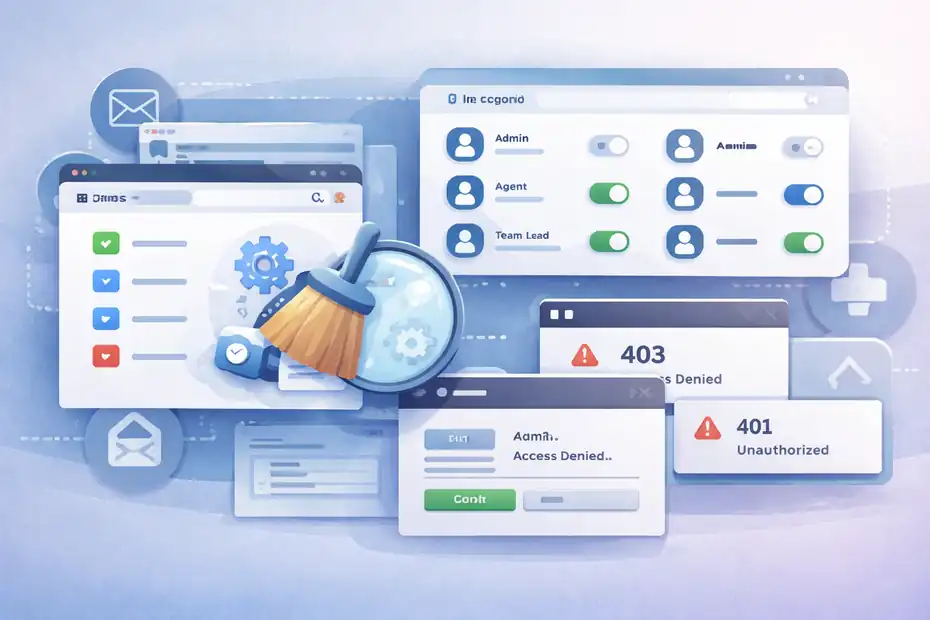
Some Freshdesk issues are much less dramatic than they feel.
A stale browser session, a cached asset, or an access mismatch can make the whole ticket system look broken.
Clear Browser Cache And Re-Test In A Clean Session
Freshworks support articles for product-side loading and integration issues repeatedly recommend clearing browser cache and cookies, then refreshing or retesting.
That advice appears in troubleshooting for integrations and login/loading problems in Freshworks products.
I know this sounds like the classic support cliché, but it genuinely matters in admin-heavy tools where cached scripts, stored sessions, and outdated auth tokens can interfere with forms, widgets, and settings screens.
My preferred validation order is simple:
- Open the affected page in an incognito or private session.
- Log in with the same role.
- Test the exact workflow again.
- Then clear cache and cookies for the Freshworks domain if the clean session behaves differently.
If the issue disappears in a private window, do not skip that clue. It usually means the platform is not globally broken. You are dealing with a client-side session problem, a cached script, or an extension conflict.
In many cases, that turns a scary support emergency into a quick cleanup task.
Verify Roles, Authorization, And Access Scope
Permission problems often show up as ticket failures because users only see the symptom. They click submit, update, or load a view, and the action fails without much context.
Freshworks’ webhook documentation clearly distinguishes 401 Unauthorized from 403 Forbidden, and archived Freshworks community examples also show 403-style access errors around portal authorization.
Here is the key idea: a successful-looking screen does not guarantee the user has permission to complete the action behind it.
Look for these signs:
- Only one team or user is affected: Likely role or scope related.
- Portal users see access errors: Submission or viewing permissions may have changed.
- Admin settings load inconsistently: Session or role inheritance may be out of sync.
- External integrations fail with 401 or 403: The token, app scope, or endpoint authorization needs review.
From what I’ve seen, permissions get messy after team restructures, app migrations, or role cleanups. If you recently changed who can manage channels, forms, or workflows, I would audit access before rewriting the process itself.
Build A Reliable Troubleshooting Workflow For Your Team
Once the immediate problem is fixed, the real win is preventing the same mess next month.
A repeatable troubleshooting process is what separates a support team from a support scramble.
Use A Simple Diagnostic Ladder Instead Of Random Guessing
Freshworks’ own support guidance emphasizes structured troubleshooting, and the broader product documentation shows that tickets, forms, channels, and automations all have specific testing points.
That makes it possible to build a lightweight internal checklist that anyone on your team can follow.
I recommend this order every time:
- Status: Check Freshdesk status and incidents.
- Scope: Confirm whether the issue affects one user, one channel, or the whole desk.
- Creation: Test ticket creation through agent, portal, email, and widget paths.
- Visibility: Check views, status changes, tags, and assignment.
- Delivery: Review pending and undelivered email actions.
- Workflow: Inspect forms, fields, and automations.
- Access: Test in a clean browser and verify permissions.
- Integration: Test webhook and external system behavior.
This is the kind of process that reduces diagnosis time dramatically. Even if your first-line support staff are not Freshdesk admins, they can still narrow the issue to the right layer before escalating.
Create Safe Change Management For Forms And Automations
Freshworks explicitly recommends cloning forms before experimenting, and it warns that editing a form changes it everywhere that form is deployed.
It also notes that deleting a form is irreversible and that admins should confirm it is not in use by automation rules before removing it.
That gives you a strong operating principle: never “fix live” without a rollback path.
A practical change policy can be very simple:
- Use cloned forms for testing: Do not edit the live customer path first.
- Document every field dependency: Especially routing, SLA, and assignment logic.
- Retest every channel after changes: Portal, widget, email, and agent creation.
- Keep one audit log: Date, admin, change, expected outcome, actual result.
Imagine you change one portal form to improve lead quality, but that same form also feeds a priority assignment automation. Without documentation, the support team sees slower responses and assumes agent performance dropped.
In reality, a field dependency broke the queue logic. This is why I always say Freshdesk configuration is operations work, not just settings work.
Advanced Optimization After You Fix The Immediate Issue
Once tickets are flowing again, you can make the system more resilient so the same failure does not keep costing you time, revenue, and customer trust.
Add Early Warning Signals For Hidden Ticket Failures
Freshworks documents a built-in approach for email delivery failure monitoring through views, delivery notifications, and automation templates. That means you do not have to wait for a customer to complain before discovering a failure.
I suggest setting up three guardrails:
- A saved view for undelivered and pending messages: Review it daily.
- Automation for delivery failures: Tag the ticket, reopen it, and alert the assigned owner.
- A weekly audit of channel submissions: Submit test tickets through the channels that matter most.
This is especially important for small teams. When you only have two or three agents, one broken channel can quietly cut incoming support volume in a way that looks like a good week. Then churn appears a month later.
I believe hidden failure detection is one of the highest-value improvements you can make after solving the original problem.
Standardize Your Ticket Intake For Better Reporting And Faster Fixes
Freshworks points out that ticket fields help categorize support queries and generate detailed reports, while forms help structure incoming requests.
In practice, better intake quality means easier routing, better reporting, and faster troubleshooting when something breaks.
Here is the larger benefit many teams miss:
- Cleaner forms: Better customer input.
- Better field values: More accurate automation.
- Consistent categories: Easier reporting and trend analysis.
- Stable workflows: Faster diagnosis when issues reappear.
For many of us, the temptation is to keep adding fields every time a new problem appears.
I usually advise the opposite. Simplify the intake path, keep only fields that actively support routing or reporting, and test form usability from the customer side.
A support system is not stronger because it is more complex. It is stronger when the data coming in is consistent enough to trust.
Common Mistakes That Make Freshdesk Problems Worse
Once a ticketing issue starts, a few common reactions tend to multiply the damage. Avoiding these can save you hours.
Changing Multiple Settings At Once
When admins edit forms, automations, views, permissions, and integrations at the same time, they lose the ability to isolate the real cause.
Since Freshworks forms can be deployed to multiple places and tied to automations, one rushed edit can have wider effects than expected.
The fix is simple: Change one variable, test it, document the result, then move on. It is not glamorous, but it works.
Ignoring Channel-Specific Testing
Freshworks supports multiple ticketing channels, so treating the whole system as one black box wastes time. Email, portal forms, widgets, and manual agent tickets should each be tested separately when something breaks.
This is one of the biggest reasons teams misreport the issue internally.
Assuming Missing Notifications Mean Missing Tickets
Freshworks distinguishes between ticket creation and email delivery failures. A ticket can exist while the related email is pending or undelivered. If you only look at inbox alerts, you may think tickets were never created at all.
Always confirm the record exists before declaring a ticket loss.
Final Thoughts
A real freshworks ticket system not working fix usually comes down to disciplined diagnosis, not guesswork. Start with status, isolate the affected channel, inspect forms and fields, review delivery failures, test permissions, and then move into integrations or webhook logic.
I’d treat this guide like a working playbook: the next time tickets stop flowing, you should be able to pinpoint the failure in minutes instead of burning a full day on random admin changes.
FAQ
What causes the Freshworks ticket system to stop working?
The most common causes include email channel failures, unpublished ticket forms, incorrect automation rules, permission issues, or platform outages. In many cases, tickets are still being created but not routed or displayed properly due to misconfigured fields or workflows.
How do I fix tickets not being created in Freshdesk?
Start by testing ticket creation through different channels like email, portal, and manual entry. Then check form settings, required fields, and submission permissions. If only one channel fails, the issue is usually related to that specific intake source rather than the entire system.
Why are Freshdesk email tickets not coming through?
Email tickets may fail due to forwarding issues, spam filtering, invalid addresses, or server connection problems. You should check undelivered or pending email logs inside Freshdesk to identify whether the issue is temporary or caused by incorrect configuration.
How do I troubleshoot Freshworks ticket system issues quickly?
Follow a structured process: check system status, test ticket creation across channels, verify forms and fields, review automation rules, and confirm permissions. This step-by-step method helps isolate the root cause faster instead of guessing or changing multiple settings at once.

I’m Juxhin, the voice behind The Justifiable.
I’ve spent 6+ years building blogs, managing affiliate campaigns, and testing the messy world of online business. Here, I cut the fluff and share the strategies that actually move the needle — so you can build income that’s sustainable, not speculative.