
Table of Contents
Some links on The Justifiable are affiliate links, meaning we may earn a small commission at no extra cost to you. Read full disclaimer.
If you’re trying to figure out how to install Debutify theme Shopify style without getting lost in menus, you’re in the right place.
I’ve seen this trip people up because the actual upload is simple, but the part around downloads, backups, publishing, and post-install setup is where mistakes usually happen.
The good news is that Shopify lets you import a theme ZIP directly from your admin, and Debutify’s own help docs follow that same path. Once you understand the order of operations, the whole process feels much easier and a lot less risky.
What Debutify Is And Why Store Owners Choose It
Debutify is a Shopify theme focused on conversion, speed, and simpler store setup. Before you install anything, it helps to understand what kind of theme you’re adding and what role it plays in your storefront.
What Debutify Actually Does For A Shopify Store
Theme Role: A Shopify theme controls your store’s layout, design structure, and many of the on-page shopping elements your visitors interact with.
Debutify positions itself as a conversion-focused Shopify theme with built-in features designed to reduce friction and help stores sell more efficiently.
On Debutify’s official site, the brand highlights fast performance, mobile-friendly design, and a wide set of built-in widgets and features aimed at ecommerce growth.
That matters because many Shopify beginners assume a theme is only about colors and fonts, when in reality it shapes product pages, collection layouts, cart flow, and overall user experience.
From what I’ve seen, that’s one reason people search for how to install Debutify theme Shopify guides in the first place. They are not just installing a design. They are trying to install a selling framework that can replace extra customization work later.
A practical way to think about it is this: your theme is the skeleton of the store. Apps, images, copy, and offers come later, but the theme determines how all of those pieces show up. If your theme is clean and easy to manage, you save time every time you update a page.
Why Installation Order Matters More Than Most Guides Admit
Common Mistake: Many store owners rush straight to upload and publish, then realize they skipped backup, preview, or settings review.
Shopify lets you upload a ZIP theme file directly into the Theme library from Online Store > Themes.
That sounds easy, and it is, but installation is not just the upload itself. The real process includes downloading the correct Debutify ZIP, uploading it to Shopify, previewing it, customizing key settings, and only then publishing it live.
Shopify’s own help documentation separates importing, customizing, and publishing into distinct steps, which tells you something important: they are meant to be handled deliberately, not all at once.
I recommend treating installation like a safe rollout, not a one-click switch. Imagine you run a small jewelry store and you upload Debutify five minutes before a sales campaign starts. If menus, homepage sections, or cart settings are off, you create problems at the worst possible time.
That is why a proper setup flow protects both your store design and your revenue. A theme install takes minutes. A messy launch can cost hours.
What You Need Before You Install Debutify
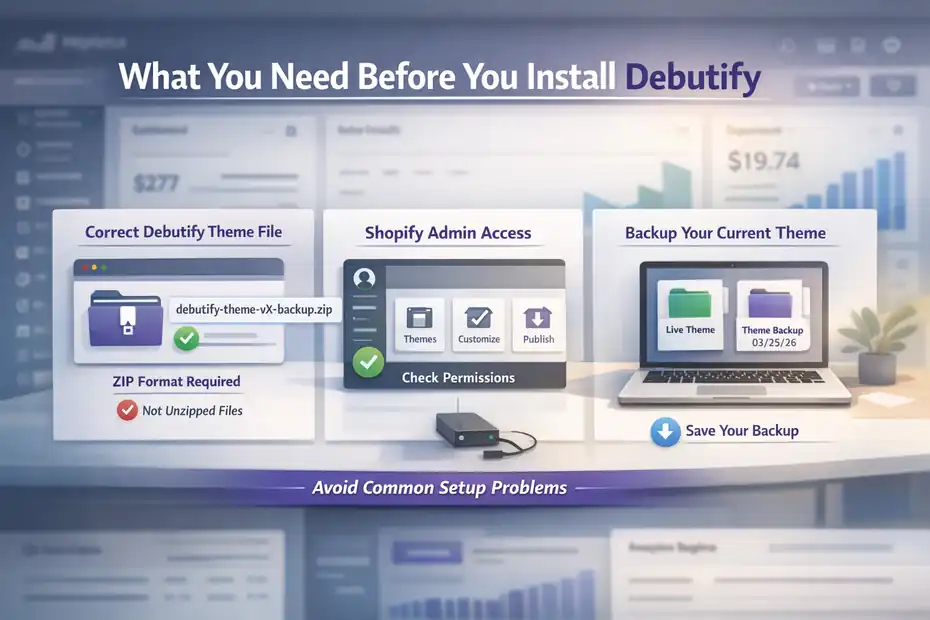
Before you upload anything, make sure the basic pieces are in place. This prevents the most common “it didn’t work” moments.
Confirm You Have The Correct Debutify Theme File
File Format: Shopify imports themes as ZIP files through the Theme library.
The first thing you need is the correct Debutify theme ZIP file downloaded from your Debutify account or help-guided process.
Debutify’s own installation guide shows that the Shopify upload step expects a theme ZIP, not an extracted folder and not random store files.
Shopify’s import process says the same thing: you choose the ZIP file and upload it directly from the Theme library.
This matters more than it sounds. A lot of beginners unzip the file on their computer and then try to upload the extracted folder contents. Shopify is looking for the packaged ZIP theme file, so if you upload the wrong thing, you create unnecessary friction.
I suggest keeping the download in a clearly labeled folder such as debutify-theme-vX-backup so you do not confuse it with exports, product CSVs, or image files. That tiny bit of organization saves time later when you update the theme or troubleshoot a version issue.
If you are working with a team, also make sure everyone knows which theme file is the live candidate. One mislabeled ZIP can send you into a very avoidable mess.
Check Your Shopify Access And Theme Permissions
Admin Access: You need access to Online Store > Themes in Shopify admin to upload and manage themes. Shopify’s help docs place all relevant actions there, including import, customize, preview, and publish.
This sounds obvious, but I’ve seen merchants lose time because they had partial staff permissions. If your Shopify login cannot reach the Themes area, you will not be able to import Debutify properly.
Go into your Shopify admin and make sure you can do these four things before starting:
- Open Themes: You can access Online Store > Themes.
- Import A Theme: You can see the upload or import option in the Theme library.
- Customize A Theme: You can enter the theme editor.
- Publish A Theme: You can make a theme live when ready.
If you are working on a client store, I strongly recommend confirming permissions before downloading anything. It is one of those boring checks that prevents embarrassing delays later.
Back Up Your Existing Theme Before You Touch Anything
Best Practice: Download or duplicate your current theme before installing or updating another version. Shopify explains that theme files can be downloaded and that updated theme versions can be added separately to the theme library.
Debutify’s update guidance also recommends backing up before replacing or updating a version.
Even if you are only testing Debutify, I believe this is non-negotiable. Themes affect navigation, templates, product pages, and customer flow. If something breaks or looks wrong, a backup gives you a clean return path.
A safe backup routine looks like this:
- Duplicate your current live theme inside Shopify.
- Download a copy if you want an external backup too.
- Label both clearly with the date, such as
live-theme-backup-mar-25-2026.
This is especially helpful if you already made heavy customizations. Theme editor changes often stay within that theme version, and while Shopify can carry some customizer changes into supported updates, manual changes and custom edits still deserve caution.
How To Install Debutify Theme Shopify Step By Step
This is the part most readers actually want, so let’s keep it simple and practical. The install itself is straightforward once your file and access are ready.
Download The Debutify Theme ZIP File
Step 1: Download the official Debutify theme file from your Debutify account or guided support flow.
Debutify’s help center has a dedicated installation article showing the process begins with downloading the theme and then uploading that ZIP into Shopify.
The important part is using the official Debutify source rather than a random shared file, because version mix-ups can create issues with updates or settings later.
When you download the file, do not rename it into something vague like theme-final-latest-new.zip. I know that sounds small, but after a few months most store owners forget what “final” even meant. Use a clean naming style that includes the theme and version.
A simple example would be debutify-vX-storetest.zip. That makes future updates much easier to track.
If your browser automatically unzips downloads, re-check the folder before moving on. Shopify wants the ZIP file itself during import, not the unpacked contents. That one detail causes more install confusion than it should.
Upload Debutify Into Your Shopify Theme Library
Step 2: In Shopify admin, go to Online Store > Themes, then use the Theme library import option to upload the ZIP file.
Shopify’s official help says the import path is Online Store > Themes > Theme library > Import theme > Upload zip file.
Debutify’s help article mirrors essentially the same workflow, though wording can vary slightly between “Add Theme” and “Upload Zip File” depending on interface changes. The core action is the same: upload the Debutify ZIP into the theme library.
Here is the clean install sequence:
- Open Shopify Admin: Go to Online Store > Themes.
- Find Theme Library: Look for the import or add theme option.
- Choose Upload ZIP File: Select the Debutify ZIP from your computer.
- Click Upload: Wait for Shopify to process the file.
Once uploaded, Debutify should appear in your theme library. At this stage, it is added to the store but not necessarily live yet. That distinction matters. Uploading is safe. Publishing is the point where customer-facing changes go live.
In my experience, this separation is one of Shopify’s best safety features. Use it.
Preview The Theme Before Publishing It
Step 3: Preview the theme in your library before making it live.
Shopify’s theme management flow is designed so you can add a theme, customize it, and then publish it when ready. That gives you room to inspect the homepage, product pages, collection pages, and cart flow before customers ever see the new design.
I strongly recommend previewing Debutify on both desktop and mobile. Debutify emphasizes mobile-friendly performance on its site, but your store’s own content is what really determines whether the layout feels polished.
Large product titles, oddly cropped banners, or oversized announcement bars can all show up differently once a new theme is applied.
Check these pages first:
- Homepage: Hero section, menus, announcement bar, featured collections.
- Product Page: Images, price layout, add-to-cart area, trust elements.
- Collection Page: Filters, sorting, grid spacing.
- Cart: Notes, discounts, upsell spacing, button visibility.
A realistic scenario: if you sell apparel with long variant names like “Heathered Charcoal / Extra Large / Tall Fit,” previewing lets you catch broken mobile spacing before it hurts conversions.
Publish Debutify When Your Store Looks Ready
Step 4: Publish the theme only after your preview and basic customization checks are complete.
Shopify’s publishing guide shows that you publish from the Theme library or directly from the theme editor top bar, depending on the screen you’re using. Once published, the chosen theme becomes the live storefront customers see.
This is where I suggest a little discipline. Just because the install worked does not mean the store is launch-ready. You want at least a basic pass on branding, navigation, homepage blocks, product page structure, and cart behavior before switching the store live.
A simple go-live checklist:
- Brand Basics: Logo, colors, fonts, favicon.
- Navigation: Main menu, footer links, policy pages.
- Shopping Flow: Product page, cart, checkout path.
- Mobile Check: Home, collection, product, cart.
- Performance Sense Check: No broken images or empty sections.
Once those look clean, publish with confidence. Shopify keeps the process reversible because you can keep multiple themes in your library, but it is still better to launch on purpose than to “fix it live” while traffic is active.
What To Do Right After Installing Debutify
Installation is only the beginning. This is where your store starts looking like your brand instead of a freshly imported theme.
Customize Global Theme Settings First
Shopify’s theme settings let you control store-wide elements such as typography, colors, cart settings, and social links. Those global settings apply across the store, which is why they should be your first stop after install.
I usually advise starting with the broad settings before touching individual sections. Why? Because global choices create consistency fast. If your fonts, button styles, and brand colors are right, even a partially customized store already feels more intentional.
Focus first on:
- Typography: Choose readable fonts and consistent hierarchy.
- Colors: Match your brand and keep contrast strong.
- Cart Settings: Review notices, layout, and key purchase actions.
- Social Links: Add real links so icons do not lead nowhere.
From what I’ve seen, many stores look “unfinished” not because the theme is bad, but because these global settings were skipped. A clean theme can still feel off-brand if the default typefaces and colors remain untouched.
Think of this as setting the visual rules for the whole store before decorating individual pages.
Rebuild The Homepage So It Matches Your Offer
Shopify’s theme editor allows you to add, remove, rearrange, and edit sections and blocks. That flexibility is where your Debutify installation starts becoming a real storefront rather than a demo shell.
After install, your homepage should answer a basic customer question fast: “What do you sell, and why should I trust you?” That means your first edits should not be fancy. They should be strategic.
A strong starting order usually looks like this:
- Hero Section: Clear value proposition and one primary call to action.
- Featured Collection Or Bestsellers: Show what matters first.
- Trust Builder: Shipping promise, returns, reviews, or brand credibility.
- Secondary Sections: FAQs, image-with-text, email capture, social proof.
Imagine you sell skincare. A weak homepage says, “Welcome to our store.” A strong one says, “Simple skincare for acne-prone skin, with a visible before-and-after promise and a clear shop button.” Same theme, very different conversion potential.
That is why post-install customization matters so much. The theme gives structure. Your messaging gives it purpose.
Check Product Pages, Cart, And App Embeds
After theme installation, Shopify also lets you add app blocks and activate app embeds inside the theme editor. This becomes important if your store depends on reviews, subscriptions, bundles, or other storefront app features.
I would not go app-crazy on day one, but I would absolutely test your essential store flow. At minimum, review:
- Product Template: Titles, media, descriptions, variant selectors.
- Cart Experience: Quantity changes, notes, discount flow, button clarity.
- App Integrations: Review widgets, upsell blocks, badges, or subscription elements.
- Mobile Layout: Sticky buttons, spacing, dropdown usability.
This is also where you catch hidden compatibility issues. A theme can install perfectly and still need small layout adjustments if your apps inject storefront blocks in awkward positions.
In my experience, the fastest quality check is to act like a real customer. Add a product to cart, change quantity, remove it, browse a collection, and open the menu on your phone. Five minutes of pretending to shop can reveal what thirty minutes of staring at the editor might miss.
Common Problems When Installing Debutify On Shopify
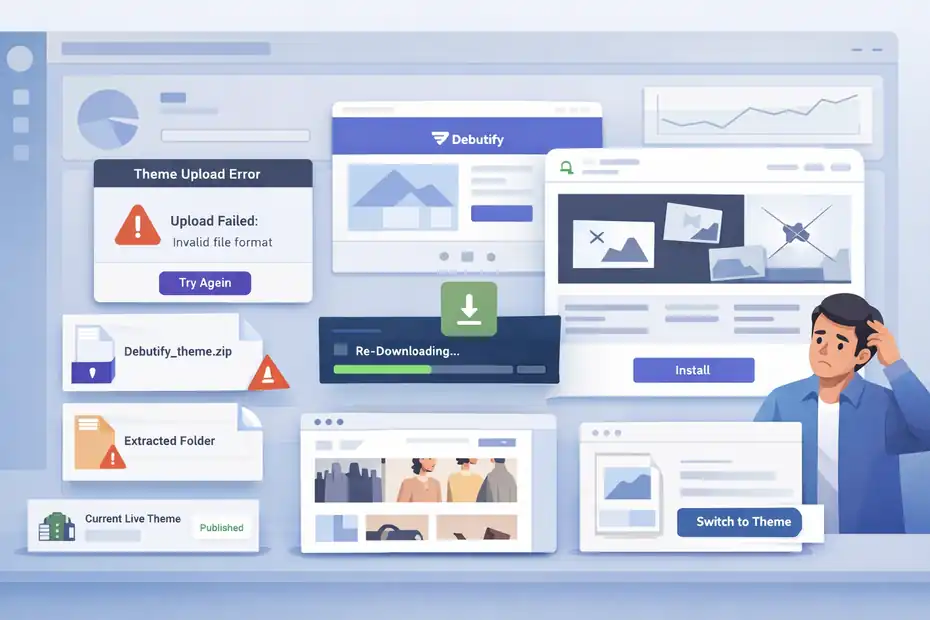
Most installation issues are small, but they feel stressful when you hit them. Here are the ones that come up most often and how to think through them.
The Theme File Will Not Upload
Likely Cause: The wrong file type, a broken ZIP, or the wrong file source.
Shopify’s import system expects a ZIP file when you upload a theme. Debutify’s installation guide follows that same structure, so if the upload fails, the first thing to check is whether you are using the correct untouched ZIP from the official source.
Here is the simplest troubleshooting flow:
- Check File Type: Make sure it ends in
.zip. - Re-Download The File: The original download may have corrupted.
- Avoid Extracted Folders: Upload the ZIP, not its contents.
- Confirm Source: Use the file from Debutify’s official process.
I’ve seen people accidentally try to upload a backup export, product archive, or manually edited folder. Shopify is usually pretty clear, but in the moment it can still be confusing.
If the ZIP is correct and the problem continues, a fresh download usually fixes it faster than overthinking the issue.
The Theme Installs But Looks Broken
Likely Cause: Missing setup, mismatched content, or section defaults that do not fit your store.
A newly uploaded theme entering your library does not automatically become a polished finished storefront. Shopify’s editor is built for customization, and store-wide settings plus section arrangement often need immediate attention after install.
Common visual issues include oversized banners, empty featured sections, strange spacing, or menus that do not reflect your intended navigation. That does not necessarily mean the installation failed.
It usually means the theme is loaded, but your store content has not been mapped cleanly to the theme structure yet.
I suggest working through the store in this order:
- Global theme settings.
- Header and footer.
- Homepage section order.
- Product template.
- Mobile review.
One helpful mindset shift: “Installed” and “ready” are not the same thing. A theme can be technically installed while still needing design setup to match your products and brand.
You Published Too Early And Need To Recover
Recovery Option: Switch back to another theme in your library while you continue setup.
Shopify supports multiple themes in the Theme library, and publishing is a separate action from importing. That means if you made Debutify live too soon, you can move back to a previous theme while continuing work on the new one.
This is exactly why backups and theme duplicates matter. If your old theme is still preserved, recovery is not dramatic. It becomes a simple management task.
A calm rollback process looks like this:
- Open Themes: Go back to Online Store > Themes.
- Find Previous Theme: Use your backup or prior live version.
- Publish It: Restore the stable storefront.
- Keep Debutify In Library: Continue customizing it privately.
I believe this is one of the smartest habits you can build on Shopify: never make your “work in progress” your only safety net.
How To Optimize Debutify After Installation
Once the theme is installed and stable, the next job is performance, conversion flow, and usability. This is where the theme begins to earn its keep.
Set Up The Store For Clarity Before Fancy Features
A conversion-focused theme performs best when the store basics are clean. Debutify emphasizes conversion and user experience, but no theme can rescue unclear offers, weak page hierarchy, or confusing navigation.
That is why I suggest optimizing in this order:
- Message Clarity: Make your headline and product promise obvious.
- Navigation Simplicity: Reduce clutter in menus and footer links.
- Product Confidence: Use strong images, concise benefits, and clear returns/shipping info.
- Call To Action Visibility: Make the next step easy to spot.
Imagine two stores using the same theme. One says “Premium Essentials for Everyone” with vague categories. The other says “Minimalist desk tools that keep your workspace tidy” with a clear featured collection. Same Debutify install, very different conversion outcome.
Themes matter, but positioning matters more. Use Debutify as the delivery system for a clear offer, not as a substitute for one.
Improve Mobile Shopping Experience Early
Debutify promotes mobile-friendly ecommerce design, and Shopify’s editor makes it possible to preview and adjust theme content before going live.
That is important because a huge share of ecommerce browsing happens on phones, and small usability issues hit harder there.
From what I’ve seen, the fastest wins usually come from mobile cleanup:
- Shorter Headlines: Prevent awkward wrapping.
- Tighter Section Order: Put bestsellers and trust signals earlier.
- Clear Buttons: Make add-to-cart and menu buttons obvious.
- Cleaner Image Crops: Avoid banners that hide the product.
If your product page feels great on desktop but cramped on mobile, do not assume customers will “figure it out.” They usually won’t. They bounce.
A simple metric mindset helps here. If your mobile product page loads cleanly, keeps the buy button visible, and avoids visual clutter above the fold, you have already improved the odds of a purchase without adding anything complicated.
Plan For Future Updates Without Losing Control
Shopify explains that theme updates can be added to the theme library, and Debutify’s update guidance recommends backing up your current version before installing a newer one.
Shopify also notes that some theme editor customizations may carry over, but custom code changes need extra caution.
This is where a lot of growing stores get sloppy. They install a theme, customize it heavily, and then months later forget how anything was changed.
I recommend a lightweight version-control habit:
- Keep A Backup Before Every Major Update.
- Document Custom Changes: Even a simple note in Google Docs helps.
- Test New Versions In The Library First.
- Publish Only After Side-By-Side Review.
This matters even more if you use custom code or app-specific edits. In those cases, an update is not just a refresh. It is a mini migration.
Tools And Platform Features That Actually Matter During Setup
Most guides dump a pile of tools on you too early. I think that creates noise. During installation, only a few platform features really matter.
Shopify Features You Will Use During Debutify Installation
Shopify itself provides the core tools needed to install and manage the theme: the Theme library, the theme editor, theme publishing controls, and theme download or backup options. These are the only platform features that truly matter during the install stage.
Here is the practical role of each one:
| Feature | What It Does During Install | Why It Matters |
|---|---|---|
| Theme Library | Stores uploaded themes | Lets you add Debutify safely before publishing |
| Upload ZIP File | Imports the theme package | This is the actual install action |
| Theme Editor | Customizes layout and settings | Lets you prepare the store before launch |
| Publish Control | Makes a theme live | Prevents accidental public changes too early |
| Download Theme File | Creates a backup path | Helps you recover or document versions |
That is really the core stack. You do not need a dozen extras just to install Debutify correctly.
When Debutify Add-Ons Or App Embeds Become Relevant
Debutify also promotes built-in widgets and related apps, and Shopify supports app embeds and app blocks inside the theme editor. These become relevant after the theme is installed and your base storefront is stable.
I would not lead with these on day one unless they are directly tied to your launch. First get the store structure right. Then layer in extras that support your business model.
Examples where post-install add-ons make sense:
- Reviews: If social proof is central to your offer.
- Bundles Or Upsells: If average order value is a major goal.
- Cookie Or Compliance Elements: If you need required storefront notices.
- Back-To-Top Or Utility Features: If they improve long-page usability.
The key is restraint. Features should serve the shopping journey, not clutter it. In my experience, a simpler well-ordered Debutify store often outperforms a feature-heavy store that feels busy.
Common Mistakes To Avoid With Debutify Theme Setup
This is where many stores lose momentum. The install succeeds, but the store still underperforms because of avoidable setup choices.
Treating Installation Like The End Instead Of The Start
A lot of merchants search how to install Debutify theme Shopify because they think the theme itself is the main win. It is a useful step, but it is still only a step.
Shopify’s docs separate importing, customizing, and publishing for a reason. The platform expects you to shape the theme before relying on it live.
Debutify’s own documentation also separates installation from updates and app setup, which reinforces that a theme is part of a system, not a magic switch.
I’ve seen stores install a polished theme and then leave generic collection names, weak product descriptions, and an empty homepage block in place. The result is a store that looks “better” but still does not sell well.
Your real job after installation is to align the theme with your offer, audience, and store flow.
Over-Customizing Too Early
It is tempting to start editing everything at once, especially if you enjoy design. I get it. But early over-customization often slows down launches and creates harder troubleshooting later.
Shopify supports theme editing and even code editing, but that does not mean you should jump into advanced changes before the store fundamentals are tested. Once custom code enters the picture, updates become more delicate and troubleshooting takes longer.
A smarter sequence is:
- Install the theme.
- Set global branding.
- Fix navigation and core templates.
- Test mobile and cart flow.
- Only then consider deeper customization.
I suggest earning complexity rather than starting with it. A clean launch with a simple structure beats an ambitious half-finished redesign every time.
Ignoring The Update Path
Debutify and Shopify both document update-related workflows, including backing up, adding updated versions to the library, and reviewing changes before publishing. That means updates are normal, expected, and worth planning for.
If you do not document what changed in your store, future theme updates become frustrating fast. You start asking questions like, “Did we add that in the editor, with code, or through an app?” That uncertainty is expensive.
Even a lightweight store notes file can save you:
- Theme version installed
- Date published
- Key homepage changes
- Custom code added
- Critical app embeds enabled
It is not glamorous, but it is the kind of habit that makes your store easier to scale.
Advanced Tips For A Smoother Debutify Rollout
Once the basics are covered, a few smarter habits can make your installation and future maintenance much easier.
Use A Staging Mindset Even If You Only Have One Store
Shopify’s theme library effectively gives you a staging workflow because you can upload, preview, and customize a theme before publishing it. That is one of the cleanest parts of the platform’s design.
I recommend thinking like this:
- Library Theme: Your work-in-progress environment.
- Published Theme: Your revenue-facing storefront.
- Backup Theme: Your recovery option.
That mental model helps you stay calm and organized. Instead of editing in panic, you create a mini release process. It sounds formal, but even solo store owners benefit from it.
If you are preparing for a campaign, seasonal launch, or redesign, this approach becomes even more valuable. Build in the library, check mobile, review pages, then publish when the store is ready.
Build A Repeatable Theme Checklist For Future Changes
The nicest thing about learning how to install Debutify theme Shopify style the right way is that the same system helps you with every future theme update or redesign.
A simple repeatable checklist might include:
- Backup current theme.
- Download correct theme ZIP.
- Upload to theme library.
- Review global settings.
- Check homepage, collection, product, and cart.
- Test app embeds.
- Preview mobile.
- Publish only after approval.
I believe checklists are underrated because they remove emotion from technical tasks. You do not need to “remember everything.” You just follow your process.
For many of us, that is the difference between a smooth store upgrade and a stressful one.
Final Thoughts
Learning how to install Debutify theme Shopify stores properly is less about clicking upload and more about following the right sequence.
Download the right ZIP, back up your current setup, upload Debutify into the theme library, preview it carefully, customize the essentials, and publish only when the shopping experience feels ready.
Shopify’s own workflow supports that cautious approach, and Debutify’s documentation points the same way.
If I were doing this on a real store today, I would keep it simple: protect the current theme first, install Debutify cleanly, test the customer path on mobile, and only then go live. That one habit alone prevents most of the headaches people run into.
FAQ
How do I install Debutify theme on Shopify?
To install Debutify theme Shopify stores, download the theme ZIP file, go to your Shopify admin, open Online Store > Themes, and upload the ZIP file. Once uploaded, preview the theme, customize it, and publish it when your store layout and settings are ready.
Do I need to unzip the Debutify theme file before uploading?
No, you should not unzip the Debutify theme file before uploading it to Shopify. Shopify requires the original ZIP file format for theme installation, so uploading extracted files will cause errors or failed imports.
Is Debutify free to install on Shopify?
Debutify offers a free version that you can install on Shopify, but advanced features and add-ons typically require a paid plan. You can still use the basic theme structure without paying, which is helpful for beginners testing their store setup.
Can I install Debutify without affecting my live store?
Yes, installing Debutify does not affect your live store until you publish it. Shopify allows you to upload and customize themes in the theme library first, so you can safely test and edit everything before making it live.
What should I do after installing Debutify on Shopify?
After installing Debutify, customize your theme settings, adjust your homepage layout, review product pages, and test the shopping experience on mobile and desktop. This ensures your store looks professional and works smoothly before publishing it live.

I’m Juxhin, the voice behind The Justifiable.
I’ve spent 6+ years building blogs, managing affiliate campaigns, and testing the messy world of online business. Here, I cut the fluff and share the strategies that actually move the needle — so you can build income that’s sustainable, not speculative.
Related posts:
 Debutify Theme Shopify Setup: A Complete Starter Guide
 Debutify Shopify Theme Review: Powerful or Overrated?
 Headless Ecommerce Platform: Is It the Faster Way to Scale?
 Ecommerce CRM Tools That Turn Customers Into Repeat Buyers
 Online Store Website Builder That Helps You Sell Fast
 Starting an Ecommerce Business: A Realistic Step-By-Step Guide