
Table of Contents
Some links on The Justifiable are affiliate links, meaning we may earn a small commission at no extra cost to you. Read full disclaimer.
QuillBot paraphrasing not working fix is usually much simpler than it feels in the moment.
If the tool is stuck, not rewriting your text, freezing, or giving weak results, the problem is often tied to one of five things: input limits, mode settings, browser conflicts, account restrictions, or a temporary product issue.
I’ve seen a lot of people jump straight to “QuillBot is broken,” when the real fix is usually a small reset.
Let me walk you through the cleanest way to troubleshoot it so you can get back to writing fast without wasting another hour clicking random buttons.
1. Confirm What “Not Working” Actually Means
Before you fix anything, you need to define the problem clearly. This sounds obvious, but it saves a ton of time because “QuillBot isn’t working” can describe several completely different issues.
The 4 Most Common Failure Patterns
Most users run into one of these situations: the Paraphrase button does nothing, the tool keeps loading without producing output, the rewritten text barely changes, or the editor works in some places but not others.
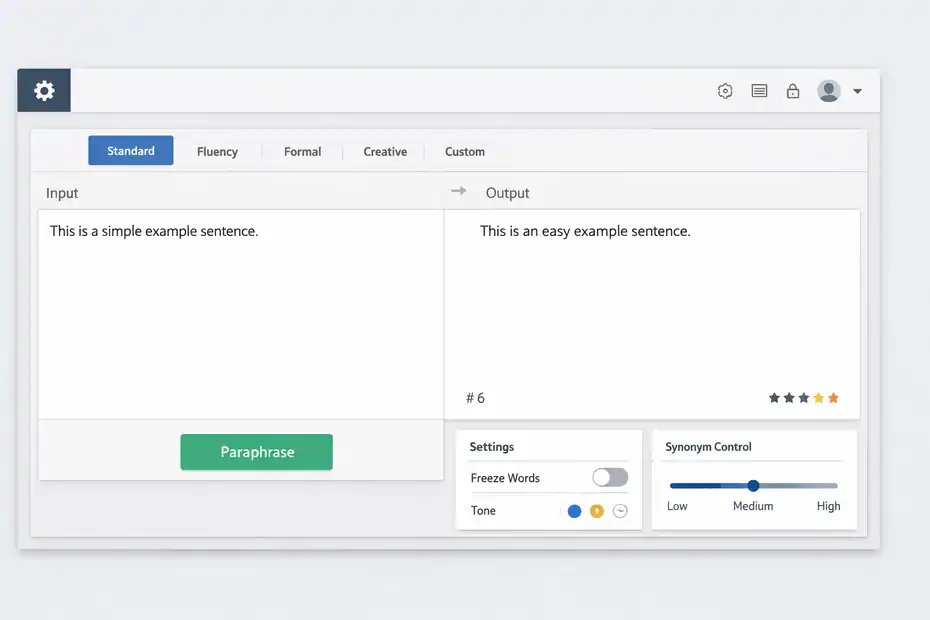
QuillBot’s current Paraphraser flow is straightforward: you enter text, choose a mode, click “Paraphrase,” and the result appears in the output box on the right. If that expected sequence breaks, your fix depends on where it breaks.
Here’s the practical way to diagnose it:
- Button problem: You click “Paraphrase” and nothing happens.
- Processing problem: The tool starts but hangs or spins.
- Output quality problem: The text rewrites, but the change is too small or too strange.
- Access problem: Features are grayed out, limited, or unavailable.
I suggest identifying the exact symptom before changing settings or reinstalling anything. In my experience, this is where most people lose time. They treat a weak-output issue like a browser bug, or they treat a browser conflict like a pricing limitation.
A simple test helps: paste one short sentence, choose Standard mode, and run it again. If short text works but longer text fails, you are probably dealing with a text-length, browser-memory, or formatting issue rather than a full QuillBot outage.
QuillBot’s free plan currently allows up to 125 words in the Paraphraser and includes two modes, so anything beyond that can trigger confusion if you expect full-length rewrites on a free account.
Check Whether You’re Hitting A Limit Instead Of A Bug
This is one of the most overlooked parts of any quillbot paraphrasing not working fix. Sometimes the tool is functioning exactly as designed, but the user expects premium behavior from a free session.
QuillBot’s current product pages show that free access includes paraphrasing up to 125 words and access to two modes, while the broader Paraphraser page promotes 10+ modes for users with expanded access. That matters because a lot of “not working” complaints are really one of these:
- You pasted too much text into the free version.
- You selected a feature that is mode-specific.
- You expected a premium mode, history feature, or customization control that is not available in your current plan.
I believe this is the first thing worth checking because it is the fastest possible win. If you are testing with a 400-word paragraph and nothing useful happens, cut it down to 80 to 120 words and rerun it.
If the shorter sample works, the issue is not total failure. It is either a usage limit or a text-complexity problem.
Another smart check is to remove unusual formatting. Pasted content from Google Docs, PDFs, email threads, or CMS editors can carry hidden characters that make AI editors behave weirdly.
Try pasting into a plain-text editor first, then copy that clean version into QuillBot. That tiny step fixes more “mystery bugs” than most people realize.
2. Reset The Input, Mode, And Settings First
Once you know the problem type, the next step is to rule out a messy input or a setting conflict.
This is the fastest real fix for a huge share of paraphrasing failures.
Start With A Clean Input Box And A Small Test Sample
If I had to pick one habit that solves the most QuillBot issues, it would be this: strip everything down and test with the smallest possible clean example.
Use this sequence:
- Paste one plain sentence with no emojis, links, citations, or weird spacing.
- Choose Standard mode.
- Click “Paraphrase.”
- Compare the output.
- Then slowly add complexity back in.
QuillBot’s official help flow confirms that the mode selector sits above the text boxes and the paraphrased result appears in the right-hand box after processing. So if even a basic sentence does not process, your issue is likely outside the wording itself.
What you are trying to remove here is “noise.” Long pasted text can include:
- nonbreaking spaces
- hidden line breaks
- copied citation formatting
- strange punctuation from PDFs
- tables or bullet structures that confuse the rewrite
Imagine you are rewriting a product description copied from a supplier PDF. It looks normal, but the original file contains odd spacing and line-wrap characters.
QuillBot may hang, partially rewrite, or output clunky text. When you repaste the same copy as plain text, it suddenly works. That is not magic. It is clean input.
In my experience, this step is especially useful for students, marketers, and e-commerce teams because they often paste from formatted sources rather than typing directly into the tool.
Switch Modes And Reduce Rewrite Intensity
Sometimes QuillBot is technically working, but the output feels unchanged, awkward, or inconsistent. That usually points to a mode mismatch, not a broken paraphraser.
QuillBot’s help center explains that modes are the settings that control how the AI rewrites text, and current options include free and premium variations such as Standard, Fluency, Formal, Simple, Creative, Academic, Expand, Shorten, Humanize, and Custom. If the rewrite feels “stuck,” changing the mode can solve it immediately.
Here is the practical rule I recommend:
- Use Standard when you want a balanced rewrite.
- Use Fluency when the text sounds clunky and needs smoother wording.
- Use Formal or Academic only when your source already has a clear structure.
- Avoid highly aggressive settings when you need precision.
QuillBot also supports feature layers like Freeze Words and tone analysis, but some controls are not available in every mode. Its help center explicitly notes that Freeze Words can be disabled when the selected mode does not support it.
This matters because a grayed-out feature can look like a bug when it is actually mode behavior.
I also recommend avoiding over-control on your first pass. If you freeze too many terms or expect a dramatic rewrite from a conservative mode, the result can look like “nothing changed.” That is not a failure. It is the tool following your settings too closely.
3. Fix Browser, Extension, And Device Conflicts
This is the section where many real technical issues live.
If QuillBot keeps spinning, refuses to respond, or works in one browser but not another, you are probably dealing with a local environment problem.
Refresh, Disable Conflicting Extensions, And Retest
QuillBot’s own troubleshooting guidance says refreshing the page often gets the tool running again, and if conflicts continue, browser extensions are a common cause.
That aligns with what I’ve seen across a lot of web apps. The AI tool is fine; the browser environment is what broke the session.
Here is the clean troubleshooting order I suggest:
- Refresh the page.
- Open QuillBot in a private or incognito window.
- Disable nonessential extensions one by one.
- Retest using a short sample.
- Try another browser.
Extensions that often interfere with text tools include grammar checkers, ad blockers, privacy blockers, script managers, and screenshot tools.
These do not always break a site completely. Sometimes they only block one script, one button action, or one panel. That partial failure is what makes the problem feel random.
A realistic example: you have QuillBot open in Chrome with two other writing extensions enabled. The editor loads, but the Paraphrase action stalls. You switch to an incognito window with extensions off, and it works instantly.
That tells you the issue is not your account, not your text, and not QuillBot’s servers. It is a browser conflict.
I recommend this route before reinstalling anything. It is faster, cleaner, and much easier to verify.
Clear Cache Or Switch Devices When The Editor Feels “Corrupted”
Sometimes a session gets stuck in a weird half-broken state. The page loads, but the interface behaves strangely. Maybe buttons are missing, settings do not open, the output pane fails to refresh, or the editor looks off.
This can happen when cached scripts, old session data, or stale cookies get in the way.
QuillBot’s current interface includes a gear icon for Paraphraser settings and other right-side controls, and those elements should open predictably in a normal session. If they do not, I would not keep fighting the same browser tab for 20 minutes.
Use this practical sequence:
- Log out and back in.
- Hard refresh the page.
- Clear browser cache and cookies for QuillBot.
- Try a second browser.
- Try your phone or another computer.
This matters because a device test gives you instant direction. If your laptop session fails but your phone works, you have isolated the issue to the browser or machine. If both fail the same way, the problem is more likely tied to the account, network, or service.
I know clearing cache sounds boring, but it is one of those annoyingly effective fixes. I would do it much earlier than most people do. Not because it is glamorous, but because it often works.
4. Check Account Access, Premium Features, And Service Status
If the browser is clean and the input is clean, your next job is to verify whether the problem is tied to account access, plan restrictions, or a temporary platform issue.
Make Sure You’re Logged Into The Right Account
Account mix-ups create a surprising number of QuillBot problems. A person upgrades on one email, then opens QuillBot from another browser session and wonders why premium controls are missing. Or they expect saved history to appear when they are not logged into the same account.
QuillBot’s help center currently notes that paraphrasing history is available for Premium users inside the Paraphraser, accessible from the History icon, and it shows up to 50 entries for the month. So if you cannot see history or premium options, that can signal one of three things:
- You are logged out.
- You are logged into the wrong account.
- Your current plan does not include the feature you expect.
This is especially common for people who use Google sign-in on one device and email sign-in on another. It feels like a bug, but it is really two different sessions.
I suggest checking your billing email, your account dashboard, and the exact plan that is active. QuillBot’s public pricing pages still distinguish free access from Premium plan access, and that matters a lot when you are troubleshooting features like advanced modes, longer paraphrases, and premium controls.
A two-minute account check can save you from doing 30 minutes of completely wrong troubleshooting.
Rule Out A Temporary QuillBot-Side Issue
Sometimes the problem really is on QuillBot’s side. I know that is the answer everyone jumps to first, but every now and then, it is actually correct.
When the paraphraser suddenly stops working across devices, across browsers, and with tiny test samples, the most likely explanation is a temporary service issue, backend bug, or rolling deployment problem.
QuillBot’s support channels include direct support contact and chat options for technical issues. That is usually the right move once you have ruled out user-side causes.
Here is when I’d stop self-troubleshooting and escalate:
- The problem appears on multiple devices.
- Multiple browsers fail the same way.
- Short plain-text inputs still do not process.
- You already refreshed, cleared cache, and verified your account.
- Premium features disappeared unexpectedly.
At that point, collect the useful evidence before contacting support:
- screenshot of the issue
- device and browser name
- whether it happens on Wi-Fi and mobile data
- sample word count
- whether Standard mode fails too
That makes support much faster because you are not sending a vague “it doesn’t work” message. You are sending a mini bug report.
From what I’ve seen, this is the point where disciplined troubleshooting pays off. You either solve it yourself, or you hand support exactly what they need.
5. Improve Results So QuillBot Works Better Going Forward
A good quillbot paraphrasing not working fix is not only about getting the button to work again.
It is also about making the output more reliable so the same issue does not keep coming back.
Write For The Tool: Chunk Your Text And Give It Cleaner Material
AI paraphrasers perform better when they are given cleaner, more focused input. That is not unique to QuillBot. It is true across almost every writing assistant.
One of the best long-term fixes is chunking. Instead of dropping 600 messy words into the editor and hoping for a miracle, break the passage into smaller logical sections. For most users, that means one paragraph or one idea at a time.
Here is why this helps:
- The tool has less structure to untangle.
- You can spot weak rewrites faster.
- Errors are easier to isolate.
- You avoid reprocessing huge blocks when only one section is problematic.
Imagine you are rewriting a blog draft with intro, product specs, FAQ answers, and a conclusion all pasted together. If QuillBot returns awkward output, you have no clue where the issue started.
But if you run each section separately, you can tell whether the problem comes from your technical paragraph, your list formatting, or your citation-heavy section.
I also recommend editing the source sentence before paraphrasing it. If the original sentence is overloaded, repetitive, or grammatically shaky, the AI often produces a shaky paraphrase too.
QuillBot’s own help content notes that errors can appear because of how the AI interprets text. So cleaner input usually means cleaner output.
That is a big mindset shift: sometimes the best fix is not “change the app.” It is “improve the prompt material.”
Use The Right Supporting Features Without Overcomplicating The Workflow
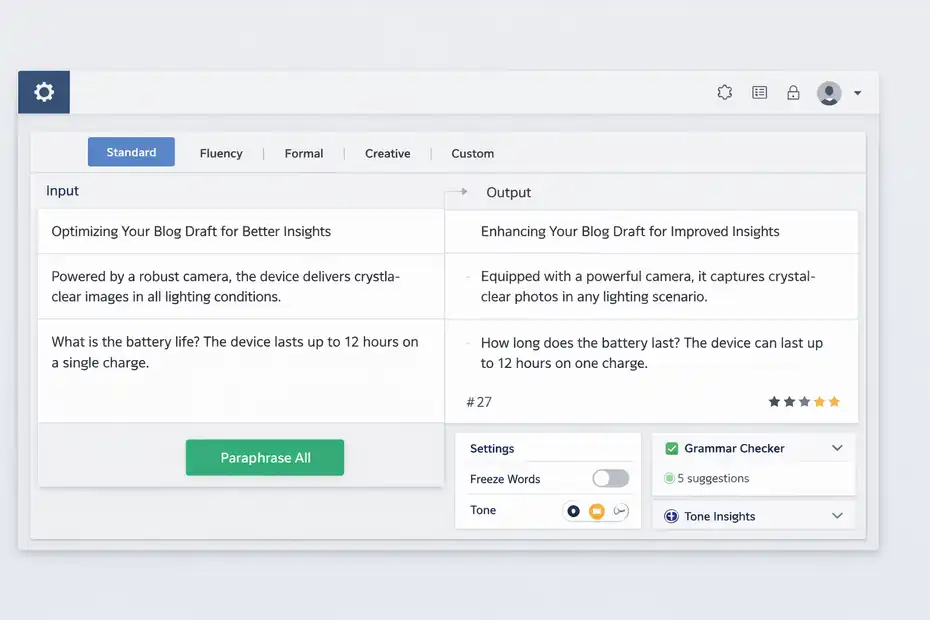
QuillBot now offers a wider writing ecosystem beyond simple paraphrasing, including grammar-related tools, tone insights, statistics, multilingual support, and other writing products.
Its current help and product pages describe Paraphraser statistics, tone settings, multilingual support in 20+ languages, and a broader suite that includes Grammar Checker and related writing tools.
That is useful, but I want to be honest: more features do not always mean better results. Sometimes they create unnecessary friction.
I suggest using a very simple workflow:
- Clean the source text.
- Paraphrase in Standard or Fluency mode.
- Review the changed wording manually.
- Use grammar correction only after the paraphrase looks right.
- Check tone or statistics only if you have a specific reason.
This order matters because too many users try to optimize everything at once. They are switching modes, freezing words, analyzing tone, and editing synonyms before they even know whether the base paraphrase is useful.
A cleaner process usually performs better. You get fewer weird outcomes, and you make it easier to spot whether the problem is quality, settings, or true technical failure.
I believe that is the real expert shortcut here. Do less, but do it in the right order.
Common Reasons QuillBot Paraphrasing Stops Working
This section pulls the whole issue together. If you want the fastest mental model, these are the usual causes behind a broken or disappointing session.
Input Problems You Can Fix In Minutes
A lot of failures start with the text itself. The source may be too long for the plan you are using, packed with strange formatting, copied from a PDF, or loaded with fragments that do not paraphrase well.
Watch for these signs:
- The paraphraser works on one sentence but not a full block.
- The output changes only a few words.
- The editor struggles more with pasted content than typed content.
- Technical terms, URLs, or citations are making the rewrite unstable.
In practical terms, the fix is usually to simplify first. Remove headings, tables, references, or code-like elements. Then rerun the core sentence or paragraph.
This is also where expectations matter. A paraphraser is not a magic replacement for revision. It rewrites language patterns. It does not always repair weak logic, broken structure, or unclear intent. If the original paragraph is muddy, the rewritten version may still be muddy.
That is why I often recommend a two-pass method: clarify first, paraphrase second.
Technical Problems That Need Environment Checks
The second major category is environmental. Here, the text is fine, but the browser, account, or session is not.
Typical clues include:
- buttons not responding
- loading loops
- missing settings panels
- features present on one device but absent on another
- inconsistent behavior between browsers
These usually point to extension conflicts, stale cache, wrong login state, or a temporary service issue. That is why the five-step workflow in this guide starts simple and gets more technical only when needed.
My advice is to avoid random guessing. Test one variable at a time. Use a short sample. Change one thing. Rerun. That method feels slower for about three minutes, then becomes much faster than chaotic troubleshooting.
The 5 Easy Steps At A Glance
If you just want the quick-reference version of this quillbot paraphrasing not working fix, here it is.
Your Fast Troubleshooting Checklist
- Define the exact issue: Is the button dead, the tool loading forever, the output weak, or a feature locked?
- Test with clean short text: Use one plain sentence in Standard mode.
- Reset settings and mode: Remove heavy formatting, reduce control layers, and switch modes.
- Check browser conflicts: Refresh, use incognito, disable extensions, clear cache, or switch devices.
- Verify account and service status: Confirm your plan, login, and whether the issue happens everywhere before contacting support.
That checklist solves the majority of cases because it follows the real order of failure points. You start with the simplest explanation and work upward.
I recommend saving that sequence somewhere because the same logic also works for other writing tools, not just QuillBot.
Best Practices To Prevent Future QuillBot Problems
Once you get the paraphraser working again, the smartest move is to reduce the odds of running into the same problem next week.
A Smarter Routine For More Reliable Paraphrasing
Use this simple operating routine:
- Draft in plain text when possible.
- Paraphrase one section at a time.
- Start with Standard or Fluency mode.
- Do not overuse frozen terms or advanced controls on the first pass.
- Review manually before copying the final output.
- Keep your browser lean while writing.
I know that sounds basic, but boring workflows are usually the most stable ones. The more layers you stack on top of your writing session, the more points of failure you create.
For many of us, the goal is not just to make QuillBot work once. It is to make it dependable enough that it becomes part of a repeatable writing system.
If that is your goal too, focus less on “hacking” the tool and more on giving it cleaner material, cleaner sessions, and clearer expectations.
Final Thoughts
If you searched for quillbot paraphrasing not working fix, you probably needed an answer that actually gets you unstuck, not vague advice like “try again later.”
In most cases, the fix comes down to a simple sequence: test a shorter clean input, reset the mode, remove browser conflicts, verify your account, and then escalate only if the issue appears across every device and browser.
I’d start there every single time. It is practical, fast, and it works more often than people expect. And once the tool is back, use smaller chunks, simpler settings, and cleaner source text so you are not troubleshooting the same problem again tomorrow.
FAQ
Why is QuillBot paraphrasing not working?
QuillBot paraphrasing may stop working due to text length limits, browser conflicts, incorrect mode selection, or account restrictions. In many cases, the issue is not a bug but a mismatch between the input, settings, or plan you are using.
How do I fix QuillBot not paraphrasing text?
Start by testing a short, clean sentence in Standard mode. If it works, remove formatting from your original text and try again. If not, refresh the page, disable extensions, or switch browsers to rule out technical conflicts.
Does QuillBot have a word limit for paraphrasing?
Yes, the free version of QuillBot limits paraphrasing to around 125 words at a time. If you exceed this limit, the tool may not process your text properly, making it seem like it is not working.
Why is QuillBot paraphrasing not changing my text?
This usually happens when using conservative modes or when too many words are frozen. Switching to a different mode like Fluency or Creative can produce more noticeable changes in the paraphrased output.
What should I do if QuillBot keeps loading or freezing?
If QuillBot keeps loading, try refreshing the page, clearing your browser cache, or using incognito mode. If the issue continues across devices and browsers, it may be a temporary service issue that requires support.

I’m Juxhin, the voice behind The Justifiable.
I’ve spent 6+ years building blogs, managing affiliate campaigns, and testing the messy world of online business. Here, I cut the fluff and share the strategies that actually move the needle — so you can build income that’s sustainable, not speculative.
Related posts:
 Is QuillBot Subscription Worth It? Honest Review & Pricing Guide
 Quillbot Review For Writers: Is It Worth Using Daily
 Quillbot Alternative Review: Top 5 Choices
 Best Alternative Of QuillBot That Writers Actually Use
 The QuillBot Review: Is This AI Writing Tool Worth It?
 Best AI Tools Similar To QuillBot For Smarter Writing