
Table of Contents
Some links on The Justifiable are affiliate links, meaning we may earn a small commission at no extra cost to you. Read full disclaimer.
If you’re wondering whether mailbird worth it for productivity workflows is a real question or just clever marketing, the honest answer is: it depends on how messy your current email setup is.
If you manage multiple inboxes, bounce between calendar and task apps, and lose time to constant tab switching, Mailbird can create real efficiency gains. But if your workflow is simple, the upgrade may feel smaller than the hype suggests.
Mailbird currently positions itself as a Windows and Mac desktop email client with unified inbox support, built-in app integrations, AI help, and both subscription and one-time purchase options.
What Mailbird Actually Is And Who It Helps Most
Mailbird is not an email provider like Gmail or Outlook. It is a desktop email client, which means it pulls your existing accounts into one workspace so you can read, send, organize, and search across them from one place.
Mailbird says it supports Gmail, Outlook, Yahoo, iCloud, Exchange, and standard IMAP/SMTP accounts on Windows and Mac.
The reason this matters for productivity is simple: consolidation reduces friction. Harvard Business Review reported that workers toggled between apps and websites nearly 1,200 times per day, spending just under four hours a week reorienting themselves after those switches.
That does not mean Mailbird magically gives you four extra hours every week, but it does explain why centralizing email, calendar, and a few key tools can feel immediately lighter.
In my view, Mailbird helps three kinds of people the most.
People Managing Multiple Email Accounts
If you run a business, freelance, recruit, sell, or juggle personal and work email at the same time, a unified inbox is the big draw. Mailbird’s core promise is that you can manage multiple accounts in one place rather than opening separate browser tabs or desktop apps.
For someone checking two Gmail accounts, one Outlook inbox, and one domain email all day, that cuts down the mental overhead fast.
Imagine a consultant who has one company inbox, one client-facing inbox, and one personal account. In a browser workflow, they are constantly asking, “Which tab was that message in?”
In a centralized client, that question mostly disappears. That is not glamorous, but it is exactly the kind of tiny repeated decision that drains momentum.
The value becomes even clearer when you use email as a command center instead of just a message box. If email is where approvals, follow-ups, deadlines, invoices, and handoffs all arrive first, reducing switching costs matters more than adding flashy features.
People Whose Work Starts In Email But Ends Elsewhere
Mailbird also targets users who move from email into calendar, tasks, chat, file storage, or simple web apps. The company says it integrates with 30+ tools and lets you add custom apps or websites into the interface, with examples including Slack, Dropbox, Google Calendar, and Asana.
That is useful when your workflow follows a pattern like this: email comes in, you check the due date, open the calendar, confirm a meeting, save an attachment, and add a task. In a browser-only setup, that becomes a chain of tabs. In a consolidated workspace, it can become one session.
I would not oversell this. Integrations do not automatically create a great system. But for many of us, being able to keep the core tools in one visual space reduces the “where was I?” feeling that shows up after interruptions.
People Who Care About Speed More Than Enterprise Complexity
Mailbird is not trying to be the most advanced enterprise collaboration platform. Its positioning leans much more toward simplicity, clean design, keyboard-driven use, and everyday productivity.
G2’s review summary highlights the clean interface, fast performance, multi-account setup, and integrations as recurring strengths, while also noting that some users see missing print preview as a drawback.
That makes Mailbird a stronger fit for solo professionals, small teams, founders, operators, and heavy email users who want less clutter. It is less compelling if you need deep enterprise controls, advanced shared-inbox collaboration, or highly specialized Outlook-style corporate workflows.
So before asking whether it is worth it, ask a better question: does your current workflow lose time because your communication is scattered? If the answer is yes, Mailbird starts looking more useful.
How Mailbird Improves Productivity In Real Workflows
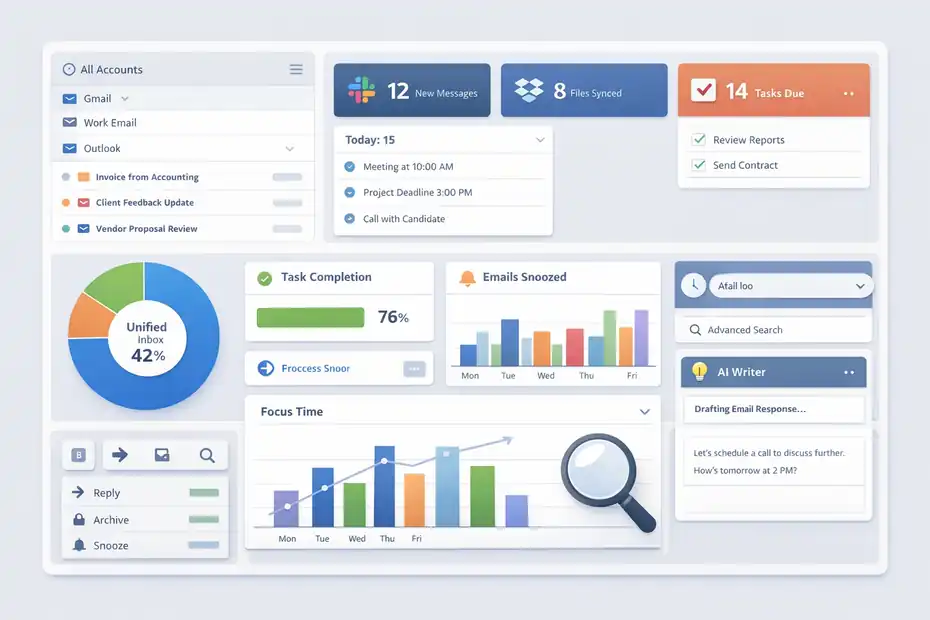
The biggest mistake I see in software buying decisions is focusing on feature count instead of friction removal. Productivity gains rarely come from one giant capability.
They usually come from shaving seconds and micro-decisions off repetitive tasks all day.
Mailbird’s real value is that it tries to remove those micro-frictions.
Unified Inbox Reduces Search Friction
Searching across separate inboxes is one of those hidden time leaks nobody notices until they add it up.
Mailbird’s unified account setup lets you manage multiple email accounts from one desktop client, which can reduce the need to remember where a message lives before you even start looking for it.
Here is a realistic example. Let’s say you are an agency owner. A client sends feedback to your Gmail address, accounting sends an invoice from your domain inbox, and a vendor replies to your Outlook account.
In a scattered workflow, each lookup starts with account selection. In a unified workflow, lookup starts with the message itself.
That sounds small, but it adds up. When interruptions already make it harder to get back into focused work, removing even one extra step can preserve momentum.
UC Irvine research cited by Berkeley and Duke notes that workers are interrupted frequently and can take around 23 to 25 minutes to return fully to a task.
Built-In App Access Can Reduce Tab Sprawl
Mailbird says you can access tools like Slack, Google Calendar, Dropbox, Instagram, and Asana inside the app, plus add custom apps or websites. That matters less for casual users and much more for people whose inbox is the front door to everything else.
A recruiter is a good example. An inbound email leads to checking a calendar, then opening LinkedIn, then reviewing an attachment, then sending a follow-up. The work is not “email” in the narrow sense. Email is just the trigger. When the trigger and the next tools sit closer together, the workflow feels smoother.
I would describe the benefit as reduced recovery time rather than raw speed. You are less likely to get lost in a browser rabbit hole when the next action sits near the message that created it.
Keyboard Shortcuts, Snooze, Search, And Templates Improve Throughput
Mailbird highlights keyboard shortcuts, snooze, advanced search, templates, tracking, and AI writing support among its productivity features. The company also describes Gmail-compatible shortcuts and multiple ways to snooze messages, including a keyboard shortcut.
These features matter because they support fast triage. A good email workflow is not about reading faster. It is about deciding faster. Can you archive, snooze, reply, template, search, and move on without leaving the keyboard? That is the question.
For power users, that is where the real efficiency gain lives. Not in a flashy dashboard. In reduced hand movement, fewer repeated clicks, and cleaner inbox decisions across hundreds of small interactions each week.
The Mailbird Features That Matter Most For Productivity
Not every feature deserves equal attention. Some are nice-to-have. Some actually change how you work.
If your goal is better productivity workflows, these are the features worth evaluating first.
Unified Account Management
Mailbird’s most practical feature is multi-account support. Official pages say it can connect major providers and standard protocols, while pricing pages indicate lower-tier plans manage three email accounts and premium plans support unlimited accounts plus Exchange.
This is the feature I would put at the center of any buying decision. If you only use one inbox, the value is decent but not dramatic. If you use three to eight inboxes, the value can be immediate.
A good rule is this: The more often you ask “which inbox was that in?”, the more useful Mailbird becomes.
Email Triage Features
Mailbird also pushes several classic productivity helpers: snooze, advanced search, folders, email signatures, templates, tracking, and unsubscribe/block sender tools. These are not revolutionary on their own, but together they support a faster triage system.
For example, snooze is underrated. When you cannot act now but need to act later, snooze keeps the inbox from turning into a parking lot of half-decided messages.
Templates help when you send similar replies often, such as support answers, proposals, scheduling replies, onboarding instructions, or sales follow-ups.
Tracking is more situational. It can help in outreach-heavy roles, but I would not treat it as the reason to buy the product. It is useful when follow-up timing matters, not as a universal productivity feature.
App Integrations And Custom Workspaces
Mailbird says it offers customizable workspaces and access to 30+ integrations, along with the ability to add custom apps or websites. This is where workflow design becomes personal.
A simple setup might include just email and calendar. A more advanced setup might include task management, team chat, file storage, and a CRM web view. The key is restraint. I suggest bringing in only the tools you actually use during email processing. If you add everything, you recreate the same clutter you were trying to escape.
In my experience, the best consolidated workflows are narrow. Email, calendar, tasks, and one reference tool are usually enough.
AI Writing Support
Mailbird also promotes built-in AI email writing and Capterra’s pricing details list ChatGPT integration on premium plans.
This can help when you write repetitive or high-volume messages, but I would treat it as a supporting feature, not the main productivity case.
Harvard Business Review recently argued that AI can sometimes intensify work instead of reducing it, especially when it adds review and revision overhead.
So yes, AI can save time, but only if your bottleneck is drafting. If your real bottleneck is inbox chaos, the more meaningful gains will still come from consolidation and triage.
Pricing, Plans, And Whether The Cost Makes Sense
Software can be productive and still not be worth the price for you. The cost side matters because email tools often look cheap monthly but become expensive when the value is vague.
Mailbird’s pricing is a little unusual because it offers both subscription and one-time options.
What Mailbird Costs Right Now
Mailbird’s official pricing page currently shows a €59 one-time option including future versions, future updates, Windows and Mac access, and no renewals.
Capterra’s current pricing listing shows four plan types: Standard Yearly at $2.28, Standard Pay Once at $49.50, Premium Yearly at $4.03, and Premium Pay Once at $99.75, with premium including unlimited email accounts, Exchange support, unlimited tracking, ChatGPT integration, and templates.
That matters because the product can be positioned either as a low monthly productivity tool or as a one-time desktop software buy. For many users, the pay-once model is a psychological advantage over another recurring SaaS bill.
When The Price Is Easy To Justify
Mailbird is easy to justify financially when one of these is true:
- You manage multiple inboxes every day.
- You spend noticeable time switching between browser tabs and accounts.
- Your email work directly affects revenue, client service, hiring, or operations.
- You currently pay more for a heavier toolset you barely use.
A simple example: If Mailbird saves even 10 minutes per workday for someone billing client time or handling sales follow-ups, the return can outpace the software cost very quickly. I would not publish that as a guaranteed ROI claim, but it is a realistic way to think about the purchase.
When The Price Is Harder To Justify
The price is harder to justify if you have one low-volume inbox, live happily in Gmail web, and rarely use templates, shortcuts, snooze, or integrations. In that case, the software may feel tidy and pleasant without creating meaningful productivity lift.
This is the heart of the verdict. Mailbird is not a must-have for everyone. It is a leverage tool. The more email complexity you already have, the more value it can extract.
Setting Up Mailbird For A Real Productivity Workflow
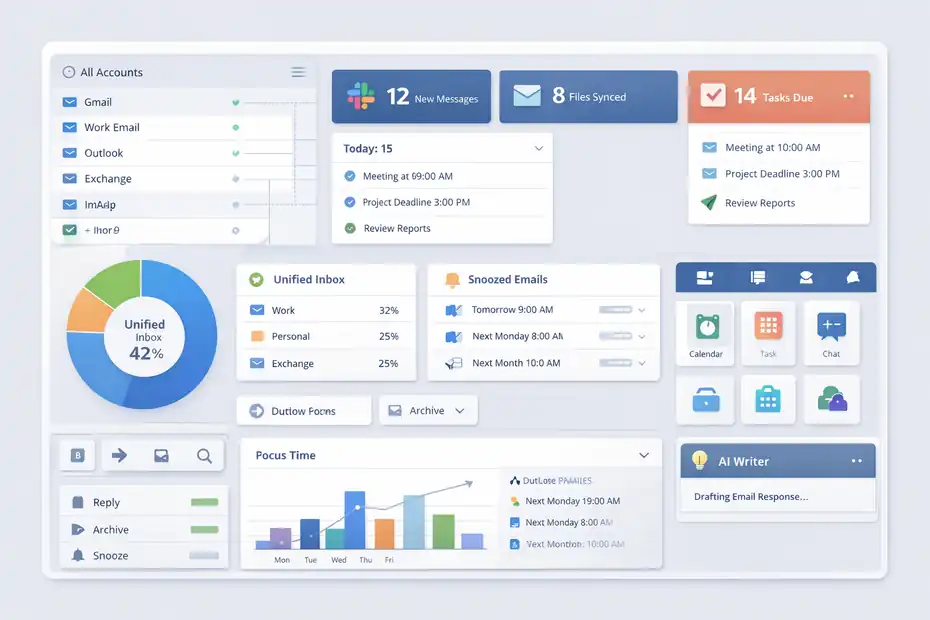
Buying the app is the easy part. The real gains come from setup. A lot of people install email software, import everything, and never build an actual workflow around it.
Here is the setup approach I recommend.
Start With Account Consolidation, Not Customization
Mailbird supports Gmail, Outlook, Exchange, IMAP, and POP/SMTP-style accounts, and its help center includes dedicated setup guidance for Gmail IMAP and Exchange accounts.
Your first goal is not themes, layouts, or advanced tweaks. Your first goal is to get every relevant inbox connected correctly. That includes making sure provider settings are configured properly, especially for IMAP-based accounts.
I suggest connecting accounts in this order: Primary work inbox, secondary work inbox, personal inbox, then any legacy or low-priority accounts. That sequence helps you test the workflow where the stakes are highest before expanding the setup.
Build A Triage System Around Decisions
Once accounts are connected, set up your triage habits before adding more tools. Mailbird’s shortcut, snooze, folder, and search features support this kind of system well.
A practical triage model looks like this:
- Delete or archive anything irrelevant.
- Reply immediately if it takes less than two minutes.
- Snooze anything important but not actionable yet.
- Move reference material to folders.
- Template any repeated reply you send more than twice a week.
This works because it turns the inbox into a decision interface instead of a storage bin. The inbox should not be where unresolved thinking goes to hide.
Add Only The Apps That Support The Email Loop
After triage works, add calendar and one or two adjacent tools. Mailbird’s integration layer is useful, but only if it stays focused.
For example, a solid lightweight setup might be:
| Workflow Need | What To Add |
|---|---|
| Scheduling and time blocking | Calendar |
| Converting emails into action | Task app |
| Retrieving files during replies | Cloud storage |
| Fast internal coordination | Team chat |
That is enough for most people. I do not recommend turning Mailbird into a dashboard for every tool you own. Productivity workflows break when convenience turns into visual overload.
Where Mailbird Falls Short And What Could Frustrate You
A trustworthy review should say where the product is weaker. Mailbird has clear strengths, but it is not perfect.
Some Users Want More Advanced Native Features
G2’s review summary mentions a lack of print preview as a recurring complaint from some users. Capterra reviews also show that some users want stronger core email functionality rather than more integrations.
That tells me something important: Mailbird appeals most to people who value a cleaner experience and workflow convenience, not people who need every advanced mail control under the sun.
If your workflow depends on niche enterprise features, mailbox delegation, or heavy-duty Outlook-specific processes, you may feel friction.
Integrations Are Helpful, But They Are Not The Same As Deep Platform-Native Workflows
This is where buyers sometimes get disappointed. Having a tool accessible inside an email client is not always the same as having full two-way native workflow automation.
Mailbird’s integration approach is about convenience and consolidation, not replacing specialized project management or collaboration systems.
So if you expect it to become your full operating system for work, that is probably too much. If you expect it to reduce switching during common actions, that is a more realistic and fair expectation.
Compatibility And Email Protocol Changes Can Matter
Mailbird has published guidance about modern authentication, IMAP changes, and provider compatibility issues affecting desktop clients in 2025 and 2026.
That is a reminder that email productivity software is partly dependent on what providers allow and how authentication standards evolve.
This is not unique to Mailbird, but it does matter. If your organization uses locked-down Microsoft environments or unusual mailbox policies, confirm compatibility before treating any third-party client as your permanent workflow hub.
Who Should Buy Mailbird And Who Should Skip It
This is the section most people actually need.
Buy Mailbird If Your Workflow Looks Like This
Mailbird is probably worth it if you:
- Manage several email accounts every day.
- Prefer desktop workflows over living in browser tabs.
- Want a cleaner inbox environment with faster triage.
- Need calendar, tasks, or a few adjacent tools near your email.
- Value a one-time purchase option.
- Care more about everyday efficiency than enterprise complexity.
A freelancer, recruiter, founder, agency owner, executive assistant, or operations lead can often justify it quickly because email is already a central work surface.
Skip Mailbird If Your Workflow Looks Like This
Mailbird is probably not worth it if you:
- Use one inbox with low daily volume.
- Already work comfortably in Gmail or Outlook web.
- Need highly specialized enterprise features.
- Want deep team collaboration rather than personal productivity.
- Rarely use shortcuts, templates, or triage systems.
In that case, the software may still be pleasant, but “pleasant” is not the same as “worth paying for.”
My Honest Verdict
I believe Mailbird is worth it for productivity workflows when your problem is fragmentation. That is the keyword here. Fragmentation across inboxes, tabs, calendar checks, file lookups, and repeated responses is where Mailbird earns its place.
If your problem is not fragmentation, the value shrinks fast.
Advanced Tips To Get More Value After You Buy It
This is where you turn a decent tool into a high-return workflow.
Use Mailbird As A Processing Hub, Not A Permanent Parking Lot
A lot of people keep email visible all day and mistake constant inbox monitoring for productivity. That usually backfires. Gloria Mark’s research on attention shows how quickly interruptions disrupt concentration.
Use Mailbird in focused processing blocks instead. Open, triage, respond, snooze, schedule, and leave. That pattern lets the software support your workflow without turning it into a distraction engine.
A good rhythm is two to four email blocks per day, depending on your role. Fast-moving support or sales work may need more. Deep work roles may need fewer.
Build Templates For Your Highest-Frequency Replies
Premium plans include email templates according to Capterra’s pricing breakdown.
This matters more than many people realize. If you repeatedly send onboarding info, scheduling language, follow-up nudges, proposal replies, support clarifications, or meeting recaps, templating them can save real time and improve consistency.
I suggest creating templates only after you notice repetition. Do not build 30 templates on day one. Start with three. Use them. Refine them. Keep only the ones that truly shorten thinking time.
Keep The Interface Lean
Mailbird offers themes, customizable workspaces, and app integrations. That is useful, but there is a productivity trap here. More visible tools can mean more visible temptations.
My advice is simple: keep the interface boring. One mail view, one calendar view, one task tool, maybe one file or chat tool. Anything beyond that should have to earn its place.
A productive workspace is not the one with the most options. It is the one that creates the fewest unnecessary choices.
Final Answer: Is Mailbird Worth It For Productivity Workflows?
Yes, Mailbird is worth it for productivity workflows for the right user, but the right user is specific.
It is a strong fit when you manage multiple accounts, prefer desktop email, want a unified workspace, and feel daily friction from switching between inboxes, calendars, files, and lightweight task tools.
In that environment, Mailbird’s unified account support, app integrations, shortcuts, snooze, search, templates, and optional one-time pricing can create real efficiency gains.
It is a weak fit when your email life is simple. One inbox, low volume, browser-first habits, and little need for templates or workflow consolidation usually means the gains will be modest.
So my final take is this: Mailbird is not universally worth it, but it is very worth it when your workday is suffering from communication sprawl. If your inbox is already the center of your workflow chaos, Mailbird has a credible case. If your inbox is already calm, it may just be a nicer shell around the same process.
FAQ
What is Mailbird and how does it improve productivity workflows?
Mailbird is a desktop email client that combines multiple inboxes, apps, and tools into one workspace. It improves productivity by reducing tab switching, simplifying email management, and helping you process messages faster using features like snooze, templates, and keyboard shortcuts.
Is Mailbird worth it for productivity workflows in 2026?
Mailbird is worth it for productivity workflows if you manage multiple email accounts or rely heavily on email for work. It helps reduce friction, centralizes tasks, and speeds up daily communication. However, users with a single low-volume inbox may see limited benefits.
How does Mailbird compare to using Gmail or Outlook in a browser?
Mailbird offers a more centralized and distraction-free environment compared to browser-based email. It reduces the need for multiple tabs and allows integrated access to tools like calendar and tasks, which can improve focus and workflow efficiency for heavy email users.
What features make Mailbird useful for productivity?
Mailbird includes features like unified inbox, email snooze, templates, advanced search, app integrations, and keyboard shortcuts. These tools help streamline email handling, reduce repetitive actions, and improve how quickly you can respond, organize, and prioritize incoming messages.
Who should not use Mailbird for productivity workflows?
Mailbird may not be ideal for users with simple email needs, such as one inbox with low daily activity. It is also less suitable for teams requiring advanced enterprise collaboration features or highly specialized workflows found in more complex email platforms.

I’m Juxhin, the voice behind The Justifiable.
I’ve spent 6+ years building blogs, managing affiliate campaigns, and testing the messy world of online business. Here, I cut the fluff and share the strategies that actually move the needle — so you can build income that’s sustainable, not speculative.
Related posts:
 How to Advertise Your Business: Utilizing Email Marketing Strategies
 Top 10 Email Service Providers: Powerful Tools for Businesses
 10 Proven Strategies to Collect Emails and Boost Your Business
 How to Get More Leads: 5 Proven Strategies to Boost Sales Now
 The Top 7 Signup Forms Trends of This Year: Increase Your Signups!
 Email Platform: 12 Proven Strategies for Higher ROI