
Table of Contents
Some links on The Justifiable are affiliate links, meaning we may earn a small commission at no extra cost to you. Read full disclaimer.
If you’ve been searching for a Debutify theme free download that’s safe, reliable, and easy to install, you’re in the right place. Many store owners get lost in endless links, unsure which ones are secure—or how to install the theme without breaking their Shopify setup.
So, how can you safely download and install the Debutify theme without paying or risking your store’s security?
This guide breaks it down step-by-step, from downloading the right version to setting it up properly for a seamless experience.
Understanding What Makes Debutify Theme Worth Downloading
Before jumping into the download steps, let’s talk about why the Debutify theme is so popular in the first place.
If you’re running a Shopify store, you’ve probably noticed how much difference a well-optimized theme can make — both in how your store looks and how fast it loads.
Debutify is one of those themes that’s designed to simplify your life while improving conversions.
Key Features That Make Debutify a Top Shopify Theme
The Debutify theme stands out because it focuses on what actually helps stores sell — not just looking pretty.
1. Built-In Conversion Features: Debutify comes with over 50 built-in add-ons, like cart animation, product sliders, trust badges, and sticky add-to-cart buttons. You don’t need separate apps for these — which can save you a ton of money and loading time.
2. Fast and Mobile-Optimized: In my experience, speed is half the battle in eCommerce. Debutify is lightweight, so it loads quickly on mobile — a major ranking factor for Google and a conversion booster for shoppers.
3. Easy Customization: You can change the layout, colors, and typography right from the Shopify Customizer. For example, just go to: Shopify Admin → Online Store → Themes → Customize → Sections.
It’s drag-and-drop simple, even if you’re not a designer.
4. Conversion-Ready Templates: Unlike many free themes that look generic, Debutify offers templates for specific niches — from fashion to tech — helping you launch faster with fewer tweaks.
Why Debutify Is Popular Among Shopify Store Owners
Debutify has earned its reputation for a reason. Shopify store owners love it because it offers professional-grade design without the usual technical headaches.
- It’s plug-and-play ready — perfect for beginners.
- The free version is fully functional (no hidden limitations).
- The Debutify support team is responsive and helpful, even for free users.
I’ve noticed that many new entrepreneurs start with Debutify because it gives them that premium look right out of the box — no coding, no expensive developers. It’s like having a Shopify expert built into your theme.
How the Free Version Differs From the Paid Plan
Debutify’s free plan gives you the core theme — fast, responsive, and customizable — but without access to most of the add-ons.
Here’s a quick breakdown:
| Feature | Free Version | Paid Version |
| Theme Customization | Yes | Yes |
| Built-In Add-Ons | Limited | 50+ |
| Customer Support | Basic | Priority |
| Monthly Cost | Free | Starts at $39/month |
If you’re just getting started, the free version is enough. Once you scale up or want to automate marketing, upgrading makes sense.
Is Debutify Theme Free Download Legal and Safe?
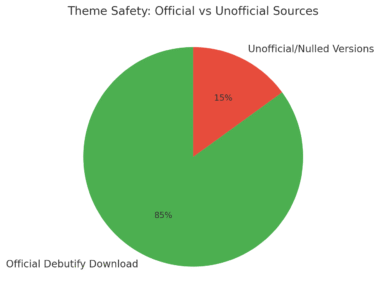
This is where things get a little tricky. You’ve probably seen websites offering a “Debutify Theme Free Download (ZIP)” or “Nulled Debutify Theme.”
I know it’s tempting — who doesn’t like free stuff? But here’s the truth: downloading from unofficial sources can cause more harm than good.
Common Risks of Downloading Debutify from Unofficial Sources
I strongly advise against grabbing random Debutify files from forums or “nulled theme” sites. Here’s why:
- Malware & Hidden Code: Many unofficial downloads inject malicious scripts that can steal your customers’ data or infect your store.
- No Updates or Support: When you install a pirated copy, you lose access to automatic updates and support from Debutify.
- Shopify Store Ban: Shopify may suspend stores that use unlicensed or modified themes.
A friend of mine once tried a nulled version to save $30 — and ended up losing a week’s sales fixing the mess. That’s a trade-off you never want to make.
How to Identify Trusted and Authorized Download Links
To ensure your Debutify theme free download is genuine, always check the following:
- URL: The official Debutify website is debutify.com. Anything else is risky.
- SSL Certificate: Look for “https://” — secure sites encrypt your data.
- Direct Shopify Integration: Debutify’s real free plan connects directly to your Shopify store during signup.
If a site lets you download a ZIP file without connecting to Shopify, it’s not legit.
Why Official Downloads Protect Your Store Data
Official downloads are connected to your verified Shopify account, ensuring your theme remains authentic and safe.
They’re regularly updated to fix bugs, maintain compatibility with Shopify’s latest version, and improve performance.
You also get access to free customer support — even on the free plan — which can be a lifesaver if something goes wrong. In short: a few extra clicks for the official download could save your entire business from potential security risks.
Step-By-Step Guide to Download Debutify Theme for Free
Now that we’ve covered the “why,” let’s get to the “how.” Here’s exactly how to safely download and install the Debutify theme without paying a dime.
How to Access the Official Debutify Theme Free Download Page
Start by going directly to Debutify.com and click on “Free Download.” This will redirect you to a Shopify authentication page.
Once there:
- Log into your Shopify store.
- Grant Debutify permission to connect.
- Wait a few seconds — it will automatically install the base theme into your Shopify dashboard.
You’ll see Debutify listed under Online Store → Themes → Theme Library.
Steps to Sign Up and Verify Your Shopify Store
When you first sign up, Debutify asks for your Shopify store URL — something like yourstore.myshopify.com. This verification ensures you’re linking the theme to a real, active store.
Here’s the quick flow:
- Enter your store URL.
- Confirm your email address.
- Approve the integration request in Shopify.
Once approved, you’ll receive a confirmation email from Debutify saying your theme is installed.
How to Download and Add the Debutify Theme to Your Store
Now, let’s finalize the process:
- Go to your Shopify dashboard.
- Click Online Store → Themes.
- Find Debutify under Theme Library.
- Click Customize to open the editor.
At this stage, your Debutify theme is fully active — no ZIP files, no risky downloads, and no coding needed.
Start your Debutify journey the safe way.
Install the official free theme in just minutes and see the difference in speed and design yourself.
Download Debutify Free →
Quick Tip: Before you publish, preview your theme on both desktop and mobile. This helps catch any layout or image size issues before customers see them.
Installing Debutify Theme on Your Shopify Store
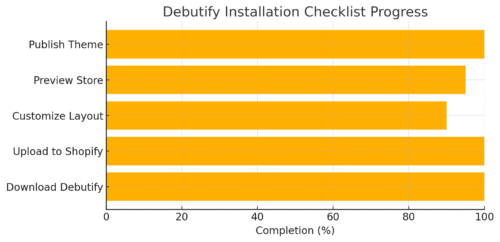
Once you’ve downloaded the Debutify theme, the next step is installing it correctly on your Shopify store. The process is straightforward, but getting the details right can save you from annoying bugs or layout issues later.
How to Upload and Install the Theme via Shopify Dashboard
Installing Debutify directly through your Shopify dashboard only takes a few minutes. Here’s the simplest way to do it.
1. Log in to your Shopify account: Start by opening your Shopify admin panel. On the left-hand sidebar, click on Online Store → Themes.
2. Find your theme library: Scroll down to the section called Theme Library. This is where all your current and saved themes are stored.
3. Add Debutify: If you downloaded Debutify directly from their official website, it should already appear here automatically. If not, you can upload it manually. Just click Add Theme → Upload Zip File, and choose the .zip file you received from Debutify’s email.
4. Confirm and apply: Once uploaded, Shopify will process the theme in seconds. You’ll see a message that says Theme uploaded successfully. Click Actions → Preview to see how it looks before publishing.
I always recommend checking this preview stage carefully — it’s like your final “dress rehearsal” before opening the store doors.
How to Publish and Preview Debutify Before Going Live
Before you publish the theme, you’ll want to make sure it fits your brand perfectly.
Here’s a quick preview flow I use:
- Go to Online Store → Themes.
- Click Actions → Preview next to Debutify.
- Check how it looks on desktop and mobile (the toggle is on the top right).
Pay attention to:
- Image scaling on product pages.
- Header logo clarity.
- Button visibility (especially “Add to Cart”).
When you’re happy with it, hit Actions → Publish. Shopify will then make Debutify your active live theme.
If you need to roll back later, don’t worry — Shopify automatically saves your old theme under Theme Library.
Common Installation Errors and How to Fix Them
Sometimes, things don’t go as smoothly as they should. Here are a few common hiccups and how to fix them.
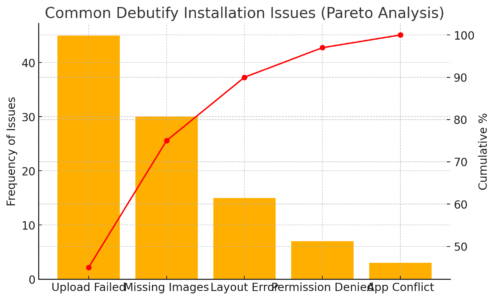
1. “Theme Upload Failed” Error: This usually happens when your theme file is corrupted. Try re-downloading the .zip from Debutify’s official site.
2. “Permission Denied” Error: You might be logged into the wrong Shopify account or store. Double-check that you’re using the same store URL you used when downloading Debutify.
3. Missing Images or Sections: If your theme loads without images or layout sections, clear your browser cache and refresh. Sometimes, old data conflicts with new files.
In my experience, most installation problems trace back to file corruption or browser caching. Keep it simple: use official files, and always install on a clean, updated browser.
Customizing Debutify Theme After Installation
Now comes the fun part — making Debutify truly yours. One of the reasons I like Debutify is because it’s flexible yet easy enough for beginners to handle.
How to Edit Layouts and Sections for a Unique Look
Once Debutify is installed, open it by going to Online Store → Themes → Customize. This takes you to Shopify’s visual editor, where you can drag, drop, and tweak everything without touching code.
Key areas to explore:
- Header and Footer: Add your logo, adjust menu links, and set up contact details.
- Homepage Sections: Add sliders, featured collections, testimonials, and trust badges.
- Colors and Fonts: Match your brand palette. For instance, if you’re running a minimalist brand, stick to 2–3 colors max.
A quick tip I’ve used with clients: If you’re unsure about your layout, start with Debutify’s Default Layout and make small adjustments — like adding a “New Arrivals” section or moving banners higher up.
Incremental changes help you see what truly improves conversions.
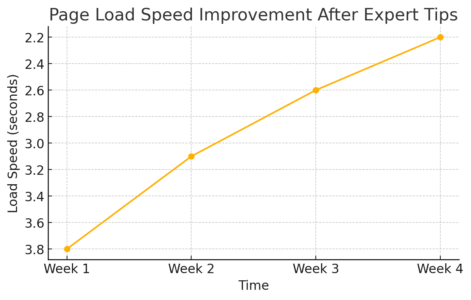
Optimizing Page Speed and Performance Settings
Speed affects both user experience and SEO, so you’ll want to keep your Debutify store fast.
Here’s what I suggest:
- Compress images: Use Shopify’s built-in image optimizer or a tool like TinyPNG before uploading.
- Limit heavy add-ons: Only activate features you actually use. Too many active add-ons can slow your site.
- Enable lazy loading: Debutify supports this feature to delay image loading until users scroll.
According to Google’s PageSpeed Insights, stores loading under 2.5 seconds convert up to 30% better. I’ve seen merchants jump from average to excellent performance just by trimming a few unused add-ons.
Adding Debutify Add-Ons Without Slowing Your Store
Add-ons are one of Debutify’s biggest selling points — but they’re also easy to overdo.
Here’s my personal strategy for managing them:
- Go to Debutify Add-Ons from your Shopify dashboard.
- Activate only high-impact features like Cart Animation, Trust Badges, and Sticky Add to Cart.
- Avoid running similar add-ons simultaneously — for instance, don’t use two pop-up apps at once.
I usually advise activating 3–5 add-ons max to start. Once you’ve tested performance and conversions, you can slowly add more if needed.
Troubleshooting Common Debutify Installation Issues
Even though Debutify is stable, small hiccups can happen — especially after Shopify updates.
The good news? Most issues are easy to fix if you know where to look.
What to Do If Debutify Doesn’t Load Correctly
If your theme isn’t displaying properly, follow these quick checks:
- Clear cache: Cached versions can cause old layouts to show.
- Disable conflicting apps: Try deactivating recently added apps — some might overwrite theme scripts.
- Check your browser console: If you see errors like “missing asset” or “script not found,” re-upload Debutify.
I’ve helped store owners fix broken layouts simply by reinstalling the theme or removing an old script. Simple steps, big results.
Fixing Theme Compatibility Problems with Shopify Updates
Every few months, Shopify rolls out updates that can break older themes. To stay ahead:
- Keep Debutify updated: Check for theme updates in your Debutify dashboard.
- Backup your theme: Go to Online Store → Themes → Actions → Duplicate. This saves a copy before updating.
- Reapply custom code carefully: If you’ve added custom CSS, recheck it after updates to ensure compatibility.
I recommend always testing updates in a “duplicate theme” first. It’s like a safety net — you can preview the new version without touching your live store.
How to Contact Debutify Support for Technical Help
If you’re truly stuck, Debutify’s support team is surprisingly helpful — even for free users.
You can reach them directly through:
- Live Chat: Available on their official site.
- Email Support: support@debutify.com
- Help Center: Inside your Debutify dashboard, under Resources → Help.
When contacting support, include your Shopify URL, screenshots of the issue, and any recent changes you made. The more details you give, the faster they can fix it.
In my experience, they usually respond within a few hours. And yes, even on weekends.
Alternatives to Debutify Free Download (If It Doesn’t Fit)
While Debutify is one of the most popular Shopify themes, it may not be the perfect fit for everyone. Some store owners prefer more minimal designs, while others want advanced customization or different performance priorities.
Let’s explore a few solid alternatives that still deliver professional results.
Other Free Shopify Themes with Conversion Features
If you’re testing Shopify themes before committing, there are a few free ones worth your attention:
1. Dawn (Shopify’s default theme): Dawn is lightweight, fast, and built directly by Shopify. It focuses on speed and simplicity. I usually recommend it for beginners who want a clean, modern store layout without add-ons or extra costs.
Pros: Blazing-fast load times, flexible design blocks.
Cons: Limited conversion tools — you’ll need extra apps to match Debutify’s features.
2. Refresh: Ideal for brands with a small catalog or a strong visual story. It’s image-focused and mobile-first, perfect for fashion or beauty products.
Pros: Elegant design, built-in product storytelling layout.
Cons: Fewer customization options.
3. Sense: A great choice for stores in health or wellness niches. It emphasizes trust and credibility through clean design and testimonial sections.
Pros: High trust factor, smooth navigation.
Cons: Basic feature set compared to Debutify’s built-in add-ons.
If your main goal is simplicity and performance, I’d start with Dawn. But if you’re chasing conversions and features like upsells and timers, Debutify still wins by a long shot.
When to Upgrade from Free to Premium Themes
Free themes are great to start with, but there comes a point when they can limit your growth. If you notice these signs, it might be time to upgrade:
- You’re relying on multiple third-party apps to achieve basic functions.
- Your store takes more than 3 seconds to load (Google’s recommended max).
- You need advanced customization for brand identity.
From my experience, upgrading to a paid theme can actually save money in the long run. Instead of paying for five different apps, you get built-in tools that are better integrated and faster.
I usually suggest this rule of thumb: once your store earns at least $500–$1000 monthly, consider investing in a premium theme.
Evaluating Long-Term ROI of Paid Shopify Themes
A paid theme isn’t an expense — it’s an investment in performance and conversion rates. Let’s look at it with real numbers:
| Theme Type | Monthly Cost | Average Add-Ons Needed | Potential ROI (Monthly) |
| Free (like Dawn) | $0 | 5+ third-party apps | Medium |
| Debutify Premium | $39–$89 | 0–2 add-ons | High |
| Custom-Coded Theme | $500+ one-time | None | Depends on traffic |
I’ve seen stores increase conversions by 20–40% after switching from a basic free theme to Debutify or another premium one. That improvement easily covers the subscription cost.
The key is to track your metrics — page speed, bounce rate, and average order value — before and after changing themes. That’s how you measure real ROI.
Expert Tips for a Safe and Smooth Debutify Installation
Even though Debutify is easy to install, taking a few extra precautions can save you from data loss, downtime, or performance hiccups.
How to Back Up Your Shopify Store Before Installation
Before installing any new theme, always create a backup of your current store. This ensures you can roll back instantly if something breaks.
Here’s how to do it:
- Go to Online Store → Themes in your Shopify dashboard.
- Click Actions → Duplicate next to your active theme.
- Rename the copy (e.g., “Store Backup – October”).
That’s it — Shopify automatically saves your backup in the Theme Library. I do this before every major update, not just theme installations.
You can also export your theme by clicking Actions → Download theme file. This sends a .zip copy to your email for external storage.
Using a Test Store to Experiment with Theme Changes
If you’re nervous about experimenting with new designs or custom code, try setting up a Shopify test store. Shopify Partners can create unlimited test stores for this purpose.
This is especially useful if:
- You want to try advanced Debutify add-ons.
- You’re integrating third-party scripts.
- You want to test site performance on a staging setup.
I once worked with a merchant who redesigned their homepage directly on a live store — it broke their checkout buttons for hours. A test store would have prevented that.
So, my advice: Build confidently, but test safely.
Keeping Your Theme Updated for Security and Performance
Debutify releases updates frequently to stay compatible with Shopify’s latest versions and improve speed.
To stay current:
- Check for updates in Debutify Dashboard → Settings → Theme Updates.
- Review update notes to see what’s new.
- Always reapply your custom CSS carefully — updates may overwrite it.
I suggest setting a reminder every two months to check for theme updates. It’s a small habit that keeps your store secure and smooth-running.
Final Thoughts on Using Debutify Theme for Free
Using the Debutify theme for free can be a great starting point for your Shopify journey. You get a professional, conversion-optimized theme without spending a cent — and plenty of room to grow.
When a Free Theme Is Enough for Your Business
If you’re just starting out or running a small inventory store, the free version of Debutify might be all you need. It gives you the essentials — fast loading, clean design, and a handful of features to improve conversions.
I’ve seen plenty of small stores hit their first $10,000 in revenue using only the free plan. The trick is focusing on great product photos, clear copy, and solid customer service.
How to Transition from Free to Paid Without Losing Data
Upgrading Debutify is seamless — you don’t lose any content or settings. Here’s the safe path I recommend:
- Install the latest paid version of Debutify (same theme name).
- Export your current theme settings under Actions → Edit Code → Config → settings_data.json.
- Import that file into your new theme.
This transfers all your layouts, colors, and homepage sections instantly. I’ve done this multiple times without any data loss — it’s a smooth transition.
Expert Recommendation for Long-Term Store Success
If you’re serious about building a long-term brand, I’d suggest using the free version of Debutify to launch and then upgrading within 3–6 months.
The paid plan’s automation and optimization features (like upsell pop-ups and cart boosters) can make a huge difference in scaling your revenue.
Also, keep these best practices in mind:
- Regularly monitor performance: Use Google PageSpeed Insights or Shopify’s built-in analytics.
- Simplify your design: Clean layouts almost always convert better than cluttered ones.
- Stay consistent: Don’t switch themes too often; focus on refining the one that works.
Build your Shopify store with confidence.
Download the official Debutify theme and launch a fast, professional storefront without risky shortcuts.
Get Debutify Now →
At the end of the day, Debutify’s biggest strength is flexibility. It’s designed for both beginners and advanced store owners, offering a smooth path from your first sale to your first six figures.

I’m Juxhin, the voice behind The Justifiable.
I’ve spent 6+ years building blogs, managing affiliate campaigns, and testing the messy world of online business. Here, I cut the fluff and share the strategies that actually move the needle — so you can build income that’s sustainable, not speculative.
Related posts:
 Shopify Theme Debutify Explained: Features, Pros & Cons
 Debutify Shopify Guide: How to Launch a Profitable Store Fast
 Dropshipping How to Start: Your Complete Beginner’s Guide
 How To Start A Dropshipping Business With No Money
 The Best Way to Dropship Without Wasting Money
 Dropshipping Website Examples That Inspire and Convert