
Table of Contents
Some links on The Justifiable are affiliate links, meaning we may earn a small commission at no extra cost to you. Read full disclaimer.
An honest Cloudways review for WordPress users should answer a simple question: does the platform actually make cloud hosting easier without taking away the performance and control that make cloud servers attractive?
Cloudways sits between cheap shared hosting and fully managed premium WordPress hosting, which makes it appealing but also slightly harder to evaluate.
In this review, I’ll break down how it works, what you really pay for, where the performance benefits come from, what the limitations are, and which WordPress users are most likely to get good value from it.
How Cloudways Works for WordPress Hosting
Cloudways is not conventional shared hosting. It adds a managed control layer on top of cloud infrastructure, giving WordPress users server-level flexibility without requiring them to build and maintain a server from scratch.
Cloudways Flexible Versus Cloudways Autonomous
The first decision is whether you want Cloudways Flexible or Cloudways Autonomous. Flexible is the version most people mean when they talk about Cloudways. You choose cloud infrastructure, server resources, a data center, and the applications you want to run. Cloudways then handles much of the operating-system maintenance, security hardening, caching stack, monitoring, backups, and platform management.
Flexible supports infrastructure from providers including DigitalOcean, Vultr, Linode, Amazon Web Services, and Google Cloud. Autonomous takes a different approach. It is designed specifically for WordPress workloads that need hands-off autoscaling and higher availability. Instead of asking you to size and scale a single server manually, it uses a Kubernetes-based architecture with load balancing and horizontal autoscaling. It also bundles performance features such as Cloudflare Enterprise and object caching more tightly into the service.
For most blogs, business sites, agency portfolios, and smaller WooCommerce stores, Flexible is the more relevant starting point. Autonomous makes more sense when traffic spikes, concurrent users, or revenue-critical uptime justify a higher baseline cost.
What Cloudways Actually Manages for You
The value proposition becomes clearer when you separate infrastructure from management. Renting a raw cloud server can be inexpensive, but someone still has to configure the web server, PHP, database, caching, firewall rules, backups, SSL, monitoring, updates, and recovery process. Cloudways packages many of those responsibilities into one dashboard.
On Flexible, the platform provides its optimized Lightning Stack, server monitoring, managed security controls, automated and on-demand backups, free Let’s Encrypt SSL, application isolation, SSH/SFTP access, staging, cloning, and vertical scaling. WordPress installations also come with the Breeze caching plugin, although you are free to change your optimization setup if another approach better suits the site.
This does not mean Cloudways manages every layer of WordPress for you. Your theme, plugins, custom code, content, database behavior, third-party scripts, and application-level compatibility remain your responsibility. Standard support can help with the hosting environment, but it should not be treated as an unlimited WordPress development service.
You gain meaningful infrastructure control, but you also inherit more decisions than you would with a highly opinionated managed WordPress host.
Who Benefits Most From This Hosting Model
Cloudways works best when you want more performance headroom than entry-level shared hosting but do not want to become a server administrator. That describes many growing WordPress sites: content publishers with increasing traffic, agencies managing several client sites, membership sites, and WooCommerce stores that need dedicated resources.
Flexible allows multiple applications on one server rather than charging a separate hosting plan for every WordPress installation. The practical limit is not an arbitrary site count; it is the CPU, RAM, storage, bandwidth, database load, and traffic your server can handle comfortably.
That distinction matters. Ten brochure sites may coexist easily on a modest server, while one poorly optimized ecommerce store can consume more resources than all ten combined. I recommend thinking in terms of workload rather than number of websites.
Cloudways is less compelling if you want domain registration, email inboxes, DNS, site building, and hosting bundled into one beginner-oriented account. It also may not suit developers who require unrestricted root access or want to use their own cloud-provider credentials. The platform intentionally trades some low-level freedom for a managed environment.
Cloudways Pricing and the Real Cost of Ownership
Cloudways pricing looks straightforward at first, but the meaningful question is what your finished hosting stack costs after backups, email, CDN choices, and enough server capacity for your actual WordPress workload.
What Flexible and Autonomous Cost
At the time of writing, Cloudways lists Flexible hosting from $11 per month on a DigitalOcean Standard configuration. The entry configuration shown on its pricing page includes 2 GB RAM, 1 vCPU, 50 GB storage, and 2 TB of transfer. Billing is usage-based and calculated hourly, so you do not need to commit to a long prepaid term to get the advertised base price.
Autonomous sits in a different price category. Its Growth plan is currently listed at $99 per month, with higher tiers for applications that need more baseline capacity. The key difference is that Autonomous includes true autoscaling, load balancing, Cloudflare Enterprise, Redis caching, Object Cache Pro with Relay, and managed migration as part of the WordPress-focused architecture.
| Option | Starting Price | Best For | Scaling Model |
|---|---|---|---|
| Cloudways Flexible | From $11/month | Blogs, business sites, agencies, growing stores | Manual vertical scaling |
| Cloudways Autonomous | From $99/month | High-traffic or spike-prone WordPress sites | Automatic horizontal scaling |
The important point is that Flexible competes on efficient server-based value, while Autonomous competes on reducing operational work during traffic volatility.
Extra Costs That Are Easy to Miss
The base server price is not always the full monthly bill. Flexible charges for off-site backup storage, currently listed at $0.033 per GB per server. That is usually a small amount on modest sites, but large media libraries, long retention periods, and several applications can make backup storage more noticeable.
Cloudflare Enterprise is another example. On Flexible, the enterprise CDN is a paid add-on rather than a universal inclusion; pricing currently starts at $4.99 per domain per month. Autonomous packages Cloudflare Enterprise differently.
Email is also separate. Cloudways is primarily a hosting platform, not an all-in-one email host. Professional inboxes are available through the Rackspace add-on, currently listed at $1 per mailbox per month, while transactional email can be handled through Elastic Email or your own SMTP provider.
Additional bandwidth is billed according to the infrastructure provider, and AWS or Google Cloud pricing can vary by region. A useful budget therefore includes server cost, backup storage, email, CDN choices, and any premium support or security add-ons you actually need.
When the Price Becomes Good Value
Cloudways becomes especially attractive when the server can support several revenue-producing or client websites without compromising performance. Instead of buying separate premium WordPress plans for each small site, an agency might consolidate a group of carefully selected workloads on one server and monitor resource usage. The economic advantage improves as long as the sites remain compatible with that shared resource pool.
Paying for managed cloud flexibility you never use is not automatically better value. A $11 starting price is competitive, but the real benefit comes from the combination of dedicated resources, scaling options, operational tools, and multi-application flexibility.
I also suggest valuing your time. A raw cloud server may look cheaper on paper, but saving a few dollars is not meaningful if you then spend hours patching packages, configuring backups, diagnosing server services, or recovering from mistakes. Cloudways charges a management premium over infrastructure because it removes much of that work.
The fairest comparison is therefore not “Cloudways versus the cheapest VPS.” It is “Cloudways versus the total cost of managing equivalent infrastructure yourself or buying a more restrictive managed WordPress plan.”
WordPress Performance: Where Cloudways Can Be Strong
Performance is one of the main reasons WordPress users consider Cloudways. The platform can provide a strong foundation, but hosting alone cannot compensate for a bloated theme, oversized images, slow plugins, or inefficient database queries.
The Lightning Stack and Built-In Caching
Cloudways has moved toward its NGINX-based Lightning Stack for handling requests and caching efficiently. The broader WordPress environment also includes technologies such as PHP-FPM, database services, and caching layers designed to reduce the work required to serve repeated requests.
PHP has to execute code, WordPress may run multiple database queries, and plugins can add additional processing. Page caching lets the server reuse a prepared response instead of rebuilding it every time. Object caching helps repeated database operations, which is particularly valuable on dynamic sites where full-page caching cannot cover every request.
The practical lesson is not to activate every cache layer indiscriminately. Start with the platform’s intended stack, verify whether Breeze is handling page optimization, then add specialized tools only when testing identifies a specific gap.
For dynamic WordPress workloads, Object Cache Pro availability on qualifying Flexible servers can be valuable. However, features and minimum server sizes can change, so confirm what your selected plan includes before treating a premium cache component as guaranteed.
My recommendation is to treat Cloudways as a strong performance foundation, not a substitute for WordPress optimization. The server should make good code faster, not hide bad code indefinitely.
Data Center Choice, Resources, and Scaling
Server location is one of the easiest performance decisions to get right. Choose a data center close to the majority of your paying customers or readers, not necessarily close to you. A London-based site owner with most customers in New York should usually prioritize the audience location.
Flexible gives you direct control over server size and supports vertical scaling. Vertical scaling means increasing resources such as RAM and CPU when the site outgrows its current server. That is convenient for a store or membership site that needs more capacity, but it is not the same as true real-time autoscaling. You still need to watch demand and resize intentionally.
The right choice depends on the workload. A content site with strong page caching may need far less CPU than a busy WooCommerce store processing uncached cart, checkout, search, and account requests.
If traffic is highly unpredictable, Autonomous changes the model by adding horizontal autoscaling and load balancing. That can be more appropriate for ticket launches, viral content, course enrollment windows, or flash sales where waiting to resize a server would be too slow.
How to Judge Performance Without Guessing
Do not decide whether Cloudways is fast by running one homepage test immediately after migration. A useful performance review looks at several page types and separates front-end weight from server response.
Start with the homepage, a representative article or landing page, and any critical dynamic page such as search, account, cart, or checkout. Run repeated tests from a location near your audience. If your old host used a CDN, page cache, and image optimization, keep those variables comparable. Otherwise you may credit the host for an improvement caused by a completely different cache state.
Inside Cloudways, monitor CPU, RAM, disk usage, database activity, and traffic over time. A server that feels fast at 10 a.m. may behave differently during a campaign. If you use application monitoring such as New Relic, focus on slow transactions and plugin or database bottlenecks rather than chasing a perfect synthetic score.
The goal is stable user experience under your real workload. That is a much better measure of hosting quality than a single “100” on a speed-test dashboard.
Setup, Migration, and Day-to-Day WordPress Management
The Cloudways dashboard is designed to simplify cloud hosting, but it still exposes more infrastructure concepts than a typical shared host. A smooth setup depends on understanding the server layer and the application layer separately.
Launching or Migrating a WordPress Site
Cloudways provides temporary access details so you can work before pointing the production domain.
Existing WordPress users have two main migration routes. The Cloudways WordPress Migrator plugin supports self-service migrations, and current documentation describes unlimited free migrations through the plugin. Cloudways also offers managed migration for WordPress and WooCommerce, which reduces the risk for users who do not want to move files and databases manually.
Regardless of method, do not point DNS immediately after the copy finishes. First check front-end pages, forms, login, media, redirects, ecommerce functions, scheduled tasks, and any integrations that rely on IP addresses or domain verification. Then lower DNS time-to-live in advance when possible and schedule the final switch during a quieter period.
After the domain points to Cloudways, install or confirm SSL, force HTTPS, clear caches, and re-test. A migration is complete only when the public site, admin area, email delivery, analytics, and transactions behave correctly.
Staging, Backups, SSL, and Routine Changes
Staging is one of the features that makes Cloudways more useful than basic hosting for active WordPress sites. You can create a staging copy, test plugin or theme changes away from production, and push changes when they are ready. That reduces the temptation to experiment directly on a live store or client site.
Backups add another safety layer. Flexible supports automated off-site backups with configurable frequency from hourly to every seven days and retention from one to four weeks. You can also create on-demand restore points before risky work. A sensible workflow is to take an on-demand backup, make the change in staging, test it, then deploy during a low-risk window.
Free Let’s Encrypt SSL can be installed from the platform, which keeps HTTPS setup simple. The important habit is to use these tools as a workflow, not isolated features. A staging site without realistic testing does not prevent production problems, and a backup you have never verified is only a promise. For ecommerce or membership sites, document how you will handle database changes so pushing staging does not overwrite new live orders or user activity.
Developer Control and the Limits of Management
Cloudways gives developers SSH and SFTP access, Git deployment options, WP-CLI, database management, PHP version controls, cron management, and various server settings through the dashboard. That is enough control for many WordPress development workflows without exposing the entire operating system.
The most important limitation is root access: Cloudways does not provide it. You also cannot deploy Cloudways-managed servers inside your own infrastructure-provider account using your own cloud credentials. Those restrictions help Cloudways keep the server environment within the configuration it supports and manages.
You can still inspect files, run WP-CLI commands, deploy code, work with the database, and adjust supported services. But advanced system administrators who want custom kernel settings, uncommon packages, custom network rules, or complete server ownership may find the platform restrictive.
There is also no traditional cPanel requirement. Cloudways uses its own management interface. That reduces clutter once you learn it, but users moving from a cPanel host may need time to find familiar functions.
Think of Cloudways as controlled flexibility. It gives you more infrastructure visibility than many managed WordPress hosts, but it deliberately stops short of handing you unrestricted server ownership.
Security, Backups, and Support Quality
Security and support matter most when something goes wrong. Cloudways provides a useful managed baseline, but WordPress owners still need good application-level habits and a realistic understanding of what support covers.
What Cloudways Protects at the Server Level
Its Flexible security management also uses Imunify360 capabilities, while WordPress vulnerability scanning can flag known risks in core, themes, or plugins.
These features reduce the amount of server hardening you need to perform yourself, but they do not make a WordPress site invulnerable. A vulnerable plugin, weak administrator password, compromised laptop, malicious administrator account, or poorly written custom code can still create serious problems.
Use two-factor authentication on your hosting account and WordPress administrators where practical. Remove unused plugins and themes, keep supported software updated, limit administrator access, and review unfamiliar logins. If a plugin is abandoned, replacing it is usually safer than waiting for a security incident.
For stores and membership sites, security also includes operational controls: limit who can access production, use staging for changes, and avoid sharing master credentials across a team. Cloudways provides infrastructure protections, but your access model and WordPress maintenance still determine a large part of the real risk.
How Good the Backup System Really Is
The built-in backup system is a meaningful strength because it supports both scheduled and on-demand recovery. By default, Cloudways documents daily server-level backups with one-week retention, but you can adjust the frequency from one hour to seven days and retention from one to four weeks. Backups are stored off-site rather than only on the same server.
A brochure site that changes twice a month may be comfortable with daily backups. A busy ecommerce store can lose meaningful order data in a few hours, so it needs a more deliberate recovery plan.
Cloudways notes that very large servers can take longer to back up, and overly aggressive schedules can overlap or fail. On high-change sites, consider what must be restored and how a restore would affect orders, customer accounts, subscriptions, or form submissions created after the recovery point.
I also recommend keeping an independent backup for business-critical sites. Host-level backups are excellent for fast recovery, but a second copy under your control reduces dependence on one platform. The best backup strategy is the one you have actually tested, documented, and know how to restore under pressure.
What to Expect From Cloudways Support
Every Cloudways plan includes 24/7 support through chat and ticketing, with paid support tiers available for customers who want deeper or faster assistance. Standard support is useful for platform issues such as server services, application access, SSL, backups, deployment questions, and problems connected to the managed environment.
Cloudways offers advanced support options that extend further into areas such as plugin or theme troubleshooting and performance optimization, but those are paid services rather than an unlimited entitlement in the base plan.
This is why expectations shape the support experience. If you approach the team with a reproducible hosting problem and relevant details, the platform model works well. If you expect the host to debug every WordPress plugin conflict, rewrite custom PHP, or act as your developer, frustration is more likely.
When submitting a ticket, include the affected application, exact error, time of occurrence, recent changes, screenshots or logs, and steps to reproduce. Good diagnostic information shortens the path from “something is slow” to an actionable answer.
The Biggest Pros and Cons of Cloudways
The platform has a distinctive trade-off: more control and potentially better resource value than conventional managed WordPress hosting, but more responsibility than an all-in-one beginner host.
The Advantages That Matter Most
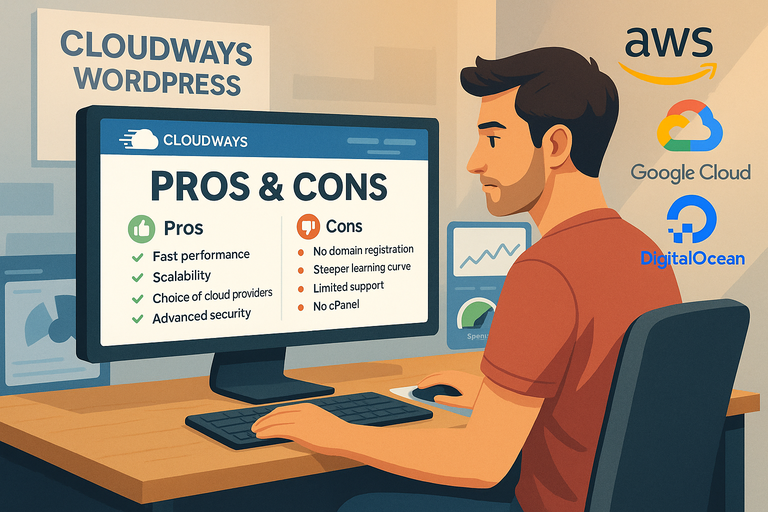
The strongest advantage is resource flexibility. Flexible lets you choose cloud infrastructure, server size, and region while Cloudways handles much of the server administration. That combination is valuable when your site has outgrown shared hosting but you do not want to manage a VPS manually.
You can host multiple WordPress installations on one server as long as the resources support them. Agencies and freelancers can therefore structure hosting around server capacity rather than buying a separate plan for every small site.
The operational tools are also practical: staging, cloning, free SSL, backups, SSH/SFTP, WP-CLI, monitoring, vertical scaling, and security controls are available in one environment. These features reduce the number of separate hosting tasks you have to assemble yourself.
Flexible billing is usage-based rather than tied to a multi-year contract.
For the right user, those strengths add up to a hosting platform that feels efficient rather than restrictive. You pay a management premium over raw infrastructure, but you retain far more visibility and control than you get from many simplified WordPress plans.
The Drawbacks You Should Consider Before Buying
Cloudways is not the easiest WordPress host for a complete beginner. Terms such as server, application, vertical scaling, Varnish, object cache, SMTP, and DNS appear because the platform exposes real infrastructure decisions. The dashboard simplifies them, but it does not make them disappear.
The second drawback is fragmented extras. Domain registration is handled elsewhere, Cloudways does not provide built-in DNS hosting by default, professional inboxes are an add-on, Flexible off-site backup storage has a usage charge, and Cloudflare Enterprise is a paid Flexible add-on.
You also do not receive root access, and you cannot use your own AWS, Google Cloud, DigitalOcean, Linode, or Vultr account credentials for Cloudways-managed servers. Developers who want complete infrastructure ownership may prefer a self-managed setup.
Flexible can scale vertically, but you are still responsible for deciding when to resize. If your traffic can jump unpredictably within minutes, a manually sized server may not be the ideal architecture.
These are not hidden flaws so much as product boundaries. The mistake is buying Cloudways because “cloud” sounds faster without checking whether the operating model matches how you want to work.
Is Cloudways the Right Choice for Your WordPress Site?
The best hosting decision depends less on hype and more on workload, skill level, and how much operational control you want. Cloudways is strongest when those three factors line up with its managed-cloud model.
Best Fits: Growing Sites, Agencies, and Dynamic WordPress
The ability to resize, choose data-center location, and monitor server resources gives you a clearer growth path.
Agencies can benefit even more. Several small client sites can share one appropriately sized server, while staging, cloning, team access, and SSH workflows make recurring maintenance more manageable. The key is isolation by business risk: I would not put every mission-critical client on one small server just because the platform allows multiple applications.
Dynamic WordPress sites can also benefit. WooCommerce, memberships, learning platforms, booking systems, and communities generate uncached requests that place more pressure on PHP and the database than a static brochure site. Dedicated resources and object caching can therefore matter more.
A useful scenario is a store that runs smoothly most days but becomes sluggish during promotions. Moving it to Flexible with enough CPU and RAM, testing cache behavior, and monitoring peak resource usage can create a more predictable environment. If those promotions turn into sudden large spikes, Autonomous may become the better architecture.
When I Would Choose Another Host
I would choose a simpler host for a first personal blog if the owner wants domain registration, email, DNS, backups, and WordPress management in one beginner-friendly account. Paying for infrastructure flexibility is unnecessary when the site has little traffic and the owner does not want to think about servers.
I would also look elsewhere if you want a highly curated premium WordPress experience where the host makes more technical decisions for you. Providers such as Kinsta and WP Engine package managed WordPress differently, often around per-site or visit-based plans and more opinionated workflows. SiteGround may be easier for users moving from traditional hosting who still want a familiar all-in-one approach.
Cloudways intentionally blocks some of that freedom.
The decision therefore is not “best host overall.” It is “best level of management for me.” If you want less server responsibility than a VPS but more infrastructure control than a tightly managed WordPress host, Cloudways occupies a very useful middle position.
A Simple Decision Framework Before You Migrate
Before signing up, score your situation against five questions. First, do you need dedicated resources or have evidence your current host is the bottleneck? Second, are you comfortable managing DNS, email, caching, and basic server concepts from separate settings? Third, will you benefit from hosting multiple applications or scaling resources? Fourth, do you need root access? Fifth, is your traffic predictable enough for manual vertical scaling, or do you need autoscaling?
If you answer yes to dedicated resources, moderate technical control, and scaling flexibility—but no to root access—Flexible is probably worth testing. If you need hands-off scaling for a high-traffic WordPress workload, compare Autonomous with other premium managed platforms. If your needs are basic, a simpler host may be the smarter purchase.
Use the three-day trial to validate the dashboard and workflow before moving a critical site. Launch a representative WordPress copy, connect staging, install SSL, inspect monitoring, and test a normal maintenance task. You will learn more from performing that workflow than from reading another benchmark.
Hosting upgrades work best when they solve a measured problem.
How to Optimize and Scale Cloudways After Launch
Choosing the host is only the first step. The better long-term results come from configuring the site deliberately, measuring resource use, and scaling only when the data shows a real constraint.
Build a Clean Performance Baseline
Establish a baseline first. Confirm the correct PHP version for your plugin stack, enable SSL, verify page caching, configure object caching if your plan and workload support it, and make sure scheduled tasks and transactional emails work correctly.
Then remove duplicate optimization. Running several page-cache plugins, overlapping minification tools, and multiple image optimizers can create difficult-to-debug problems. Keep one clear owner for each job: page caching, object caching, CDN delivery, image optimization, and script management.
Measure representative pages after caches warm up. Record server response, Core Web Vitals, page weight, query-heavy actions, and admin responsiveness. For WooCommerce, test cart, checkout, My Account, search, and logged-in behavior because these paths often bypass full-page cache.
A hypothetical example: a publisher migrates and sees a fast homepage but slow article previews for logged-in editors. That points away from “the server is slow” and toward uncached application behavior. Monitoring can then reveal whether PHP, database queries, or a plugin is responsible.
Optimization becomes much easier when every change is tied to a measured bottleneck.
Monitor the Server Before You Upgrade It
Cloudways exposes server and application metrics so you can watch CPU, RAM, disk, bandwidth, and service behavior. Use those metrics before paying for a larger server. High resource usage during a one-time import is different from sustained saturation during normal customer traffic.
If CPU stays high during uncached traffic, identify which pages or processes create the load. If memory is consistently tight, check whether PHP workers, database activity, or background jobs are consuming it. If disk usage is climbing rapidly, review media growth, backups, logs, and old staging copies.
For ecommerce, correlate resource peaks with business events. If checkout slows every day during a predictable sales window, you have a capacity problem worth solving. If CPU rises because a broken plugin launches thousands of background tasks, scaling the server may only make the bug more expensive.
Slow database queries, third-party API calls, and inefficient plugins can remain slow on a larger machine.
I recommend treating a server upgrade as the last step in diagnosis, not the first. Fix avoidable application waste, confirm caching, then scale when demand genuinely exceeds the optimized environment.
Know When to Scale Up or Move to Autonomous
Flexible vertical scaling is appropriate when demand grows in a fairly predictable way. If traffic and revenue have risen steadily for several months and CPU or memory is regularly constrained, moving to a larger server is a rational next step. Schedule the change during a lower-traffic period and take an on-demand backup first.
An agency may begin with several client sites on one server, then move a high-traffic store onto its own server once it starts competing for resources. That isolates risk and makes capacity planning easier.
Autonomous becomes more interesting when manual resizing stops matching the traffic pattern. Examples include flash sales, event ticket releases, viral media traffic, or learning platforms with concentrated enrollment periods. Horizontal autoscaling and load balancing are designed for those bursts, while Flexible is better suited to users who want direct server control.
Extra capacity that sits idle is still a cost. The better scaling strategy is to define thresholds: acceptable response time, peak CPU behavior, memory headroom, checkout stability, and the business impact of downtime.
Scale when those thresholds are repeatedly exceeded, not when a dashboard number briefly turns red.
Is Cloudways Worth It for WordPress Users?
For many growing WordPress sites, yes—Cloudways is worth the attention, especially if you want dedicated cloud resources without managing the server yourself. Flexible offers strong value through server-based pricing, staging, backups, monitoring, security controls, developer access, and straightforward scaling.
The trade-off is that you still need to understand basic hosting concepts, arrange some services such as email separately, and accept limits such as no root access.
The “hype” becomes misleading only when Cloudways is presented as automatically faster or universally easier than every alternative. It is neither. Its real strength is the middle ground between raw cloud infrastructure and tightly managed WordPress hosting.
Choose it when that middle ground solves a real problem. Test the workflow, measure your current bottlenecks, budget for the extras you need, and size the environment from evidence rather than guesswork. That is how Cloudways becomes a worthwhile hosting decision instead of just another migration.

I’m Juxhin, the voice behind The Justifiable.
I’ve spent 6+ years building blogs, managing affiliate campaigns, and testing the messy world of online business. Here, I cut the fluff and share the strategies that actually move the needle — so you can build income that’s sustainable, not speculative.
Related posts:
 Cloudways Review For Small Business Websites: Fast Hosting Or Costly Risk?
 Best Cloudways Alternatives For WordPress Hosting: 11 Stronger Options To Try
 How to Host a Website: A Step-by-Step Guide for Beginners
 HostGator Hosting Review: Speed, Support, And Real Costs
 Cloudways WordPress Pros & Cons: What You Need to Know
 WP Engine Growth Plan Review for Business Scaling