
Table of Contents
Some links on The Justifiable are affiliate links, meaning we may earn a small commission at no extra cost to you. Read full disclaimer.
How to use WP Rocket for faster WordPress site results is one of those questions that sounds technical until you actually open the plugin and realize most of the heavy lifting is already built in.
That is exactly why I like WP Rocket for beginners and busy site owners. You can get a real speed improvement fast, without turning your dashboard into a science project.
In this guide, I’ll walk you through the exact setup I’d use to get a WordPress site noticeably faster in about 15 minutes, then show you how to tune it safely for better Core Web Vitals and fewer plugin conflicts.
Understand What WP Rocket Actually Does
WP Rocket can feel almost too simple at first, which makes some people assume it is “just caching.” It is not. The plugin combines page caching, cache preloading, file optimization, lazy loading, database cleanup options, and CDN support in one place.
WP Rocket also says it applies around 80% of web performance best practices right after activation, which is a big reason it is popular with non-technical WordPress users. As of March 2026, Rocket Insights is also included with the license.
What Caching Changes For Your Site
When someone visits a normal WordPress page, the server usually has to run PHP, query the database, and assemble the page before sending it to the browser. Caching changes that by serving a ready-made static HTML version instead.
In plain English, that means less work for your server and a faster page for your visitor. WP Rocket enables page caching automatically after activation, so your site starts benefiting without a long setup.
That matters because speed is not just about vanity scores. Google’s Core Web Vitals still center on real user experience, with “good” thresholds of up to 2.5 seconds for LCP, 200 milliseconds for INP, and 0.1 for CLS. If your site is slow or unstable, visitors feel it before they read a single word.
My practical take is simple: WP Rocket works best when you treat it as a performance system, not a magic button. The default settings often give you a good starting boost, but the real gains usually come from combining caching with smarter CSS and JavaScript handling, image lazy loading, and selective exclusions where needed. That is where the next 15 minutes should go.
What WP Rocket Is Best At And Where It Will Not Save You
I recommend WP Rocket when the problem is performance overhead, not a fundamentally broken site. It is excellent for reducing load-time friction caused by uncached pages, render-blocking assets, unused CSS, and unoptimized frontend delivery.
It also has strong compatibility messaging around major themes, plugins, hosts, multilingual setups, and ecommerce use cases.
What it will not do is fix a terrible hosting stack, a 9 MB hero video, or a page builder layout stuffed with third-party scripts. If your server response is weak, your theme is bloated, and your homepage loads six chat widgets, WP Rocket helps, but it cannot perform miracles.
WordPress core performance has improved over time, but even WordPress.org’s own performance notes show that gains are incremental, not magical.
That is why I suggest using WP Rocket as the first serious optimization layer, not the only one. Think of it as the plugin that removes most obvious speed waste quickly. Then you measure, tweak, and decide whether the bottleneck is now hosting, media, theme code, or third-party apps.
Install WP Rocket And Get The Baseline Right
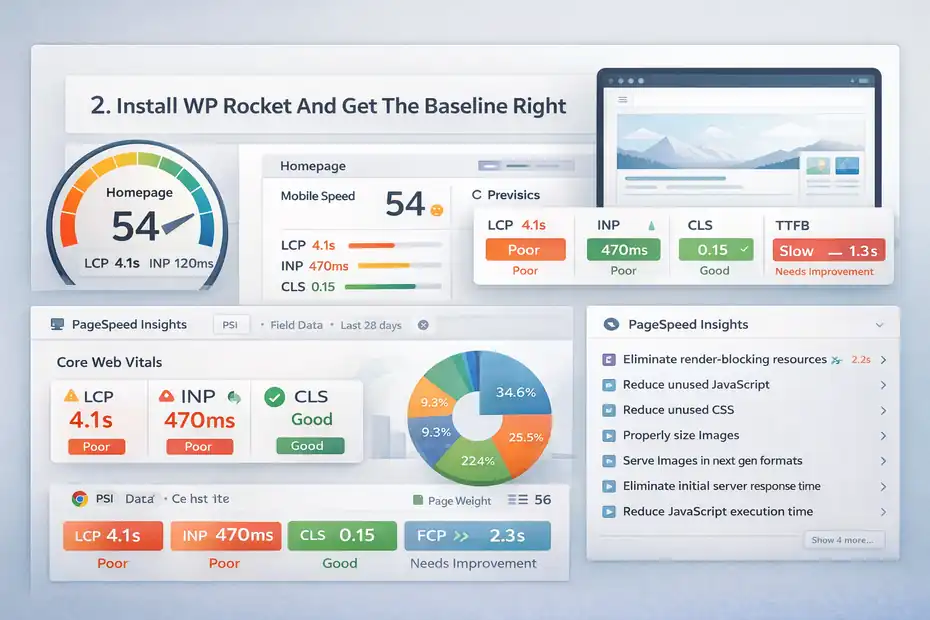
Before you change settings, get a clean baseline. This is one of the most overlooked parts of speeding up WordPress.
People install a performance plugin, click every checkbox, then have no idea which setting helped and which one broke the layout. A five-minute baseline keeps the whole process sane.
Run A Before Test So You Know What Improved
Start by testing your homepage and one key internal page, such as a blog post, service page, or product page. Use PageSpeed Insights or the built-in Rocket Insights area later for ongoing monitoring.
PageSpeed Insights surfaces field and lab data tied to Core Web Vitals, which helps you separate “looks okay in my browser” from “real visitors are still having a rough time.” Chrome’s published thresholds for LCP, INP, CLS, FCP, and TTFB make this easier to interpret.
Here is the baseline I like to capture in one note:
- Homepage mobile score: Good for quick comparison later.
- LCP, INP, CLS: These are the most useful user-experience signals.
- Largest visible issue: Usually render-blocking CSS, heavy JavaScript, or oversized images.
- Page weight and requests: Helpful if your site still feels heavy after caching.
Imagine you run a small local services site and your homepage scores 54 on mobile with a 4.1-second LCP. After WP Rocket activation and a few safe optimizations, getting that into the low 2-second range is realistic on decent hosting.
The point is not the exact number. The point is knowing whether your changes moved the right metric.
Install, Activate, And Let The Defaults Work First
WP Rocket is a premium plugin, with current pricing listed at $59 per year for one site, $119 for three sites, and $299 for 50 sites on the pricing page as of March 2026.
After purchase, install the ZIP file in WordPress, activate it, and let the default configuration run before touching advanced settings. WP Rocket says setup takes about three minutes and that caching starts automatically on activation.
This is the part where many people overcomplicate things. I would not begin with file optimization. I would activate the plugin, clear cache once, browse the site, and rerun the same test page. That tells you what the plugin’s baseline caching and preload behavior already fixed before extra tuning.
A good early win is simply verifying that the site still looks correct and feels snappier on repeat visits. If the site is already faster after activation, perfect. That means you can move into optimization from a stable base instead of debugging ten changes at once.
Configure The Core Settings First
This is the fastest path to noticeable speed gains. In most cases, you do not need to touch every tab. You need to make a few high-impact choices in the right order.
WP Rocket’s own documentation makes clear that some features are enabled by default, especially preload-related behavior, so your job is mostly to verify, not reinvent.
Check Cache And Preload Before Anything Else
The first settings I care about are page caching and preload. Caching serves the prebuilt page. Preloading warms that cache before a real visitor lands there.
WP Rocket documents preload cache as a feature that simulates visits to generate cache files and notes that it is enabled by default on installation.
That is important because first visits can feel slow on uncached sites, and preload reduces that problem.
My recommendation is:
- Confirm cache is active: This is the foundation.
- Leave preload enabled: It helps pages feel fast from the first visit.
- Clear and preload after major changes: Especially after design edits, plugin installs, or bulk content updates.
In real life, this matters a lot for blogs and brochure sites. If Googlebot or a new visitor hits a page that has already been preloaded, they are more likely to get the fast version immediately. I have seen sites gain more from reliable preload than from aggressive file optimization that later causes breakage.
Use LazyLoad And Basic Media Controls Early
WP Rocket includes LazyLoad, which delays offscreen images until they are needed. That is one of the easiest performance wins because large image-heavy pages often spend too much bandwidth rendering things the visitor has not even scrolled to yet.
WP Rocket lists LazyLoad among its key features, and Chrome’s LCP guidance also reinforces how much the largest visible content element influences perceived speed.
Here is my rule of thumb: Enable image lazy loading quickly, but keep an eye on the hero section. If your above-the-fold hero image is the LCP element, delaying it too aggressively can backfire. In many cases, the best setup is to lazy load below-the-fold media while letting the primary hero content load immediately.
For content-heavy blogs, this is usually painless. For ecommerce or landing pages, check sliders, galleries, and product image behavior after you turn it on. The goal is not “maximum optimization.” The goal is faster rendering without weird visual delays.
Optimize CSS And JavaScript Without Breaking The Layout
This is where most people either unlock huge gains or create a support ticket. File optimization is powerful, but you should treat it like seasoning, not a dare.
Turn on one change at a time, test, then keep going. WP Rocket’s strongest frontend options live here, especially Remove Unused CSS and Delay JavaScript Execution.
Start With Remove Unused CSS
WP Rocket’s Remove Unused CSS feature removes CSS and stylesheets that are not used while keeping only the used CSS for each page, according to its documentation. That can make a dramatic difference on themes and builders that load large stylesheets sitewide, even when only a fraction is needed on a given page.
I usually start here because bloated CSS is one of the biggest reasons WordPress sites feel sluggish, especially on mobile. If your page builder loads everything for everyone, trimming unused CSS can improve render speed and reduce layout baggage before the browser even gets interactive.
A safe workflow looks like this:
- Enable Remove Unused CSS: Then clear cache.
- Check homepage, blog post, contact page, and one archive page: Different templates often expose issues.
- Look for missing icons, broken spacing, or hidden elements: These are the usual clues.
WP Rocket also has a dedicated troubleshooting page for display issues caused by Remove Unused CSS, which tells you a lot: the feature is powerful, but you need to verify layouts after enabling it.
Then Test Delay JavaScript Execution
Delay JavaScript Execution is described by WP Rocket as its most powerful JavaScript optimization. It delays script execution so the browser can prioritize rendering the visible page first. That is often exactly what slow WordPress sites need, especially when plugin scripts pile up before the page becomes usable.
This feature is excellent for trimming unused JavaScript pressure and improving perceived responsiveness, but it needs more careful testing than caching or lazy loading. I suggest checking:
- Menus and mobile navigation
- Popups and forms
- Search bars
- Consent banners
- Cart and checkout behaviors on stores
In my experience, the best approach is to enable delay, test every major interaction, and only exclude scripts if something critical fails. WP Rocket’s own docs warn that excluding too many scripts can reduce the performance benefit.
So do not start with a giant exclusion list. Start lean, keep what works, and only patch what truly needs immediate execution.
Use The 15-Minute Setup I Would Actually Recommend
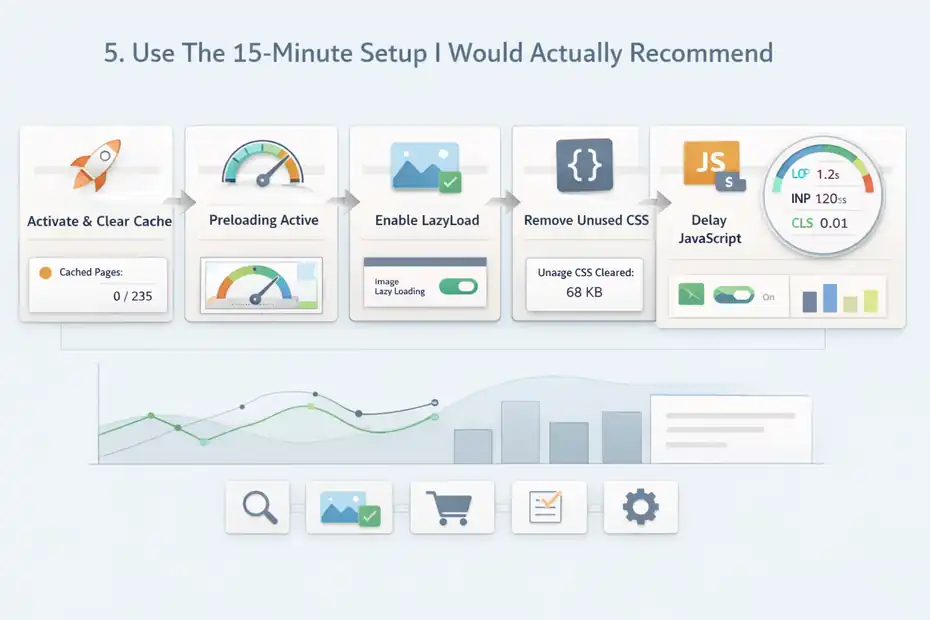
Most “quick setup” guides either stay too vague or tell you to switch on everything. I would not do either.
If you want the shortest practical route to a faster site, follow a deliberate order. This gives you the best chance of improving speed without chasing random bugs for the next two hours.
The Fastest Safe Setup For Most WordPress Sites
Here is the exact 15-minute sequence I would use for a typical blog, business site, or lightweight WooCommerce store:
- Step 1: Activate WP Rocket and clear cache once. Let the default cache kick in first.
- Step 2: Verify preload is active. This helps first visits feel faster.
- Step 3: Enable LazyLoad for images. Then review the homepage hero and long posts.
- Step 4: Enable Remove Unused CSS. Clear cache and test key templates.
- Step 5: Enable Delay JavaScript Execution. Test forms, menus, search, and cart flows.
- Step 6: Retest in PageSpeed Insights. Compare against your baseline using LCP, INP, and CLS.
That sequence is boring in the best possible way. It prioritizes settings with the highest upside and the clearest troubleshooting path. If something breaks, you know which step caused it.
The Settings I Would Not Rush To Change
There is a strong temptation to keep optimizing after you see the first speed bump. Resist that urge for a minute. Once your site is faster and stable, ask whether the next setting solves a real problem or just scratches your inner control freak. I say that with love because I have absolutely been that control freak.
I would avoid random deep tweaks until you know your actual bottleneck. For example, if LCP is now good but INP is still weak, the issue may be heavy third-party scripts rather than more caching.
If CLS is poor, you may be dealing with image dimensions, fonts, or late-loading banners instead of missing one secret WP Rocket checkbox. Chrome’s documentation is useful here because it separates the metrics clearly.
A faster site is not the same thing as a perfectly optimized site. Get the easy gains, confirm stability, and then optimize based on what the data still shows.
Fix The Most Common Problems After Activation
Even strong plugins run into edge cases, especially on sites with page builders, ecommerce extensions, multilingual layers, or lots of marketing scripts
The good news is that most issues after WP Rocket activation are predictable. They usually involve CSS rendering, delayed JavaScript, or pages that should not be cached.
When The Design Looks Broken
If your layout shifts, icons disappear, spacing changes, or some elements seem unstyled after file optimization, start by suspecting CSS delivery changes, especially Remove Unused CSS. WP Rocket explicitly provides troubleshooting guidance for this feature because it can expose edge cases on more complex builds.
My fix order is:
- Disable Remove Unused CSS temporarily: See if the issue disappears.
- If the problem is gone, re-enable it and inspect the affected template carefully.
- Test builder-specific pages, membership areas, and custom post templates separately.
This is where patience pays off. Do not wipe every optimization because one landing page has a styling issue. Isolate the feature, verify the conflict, then decide whether that feature stays on globally or whether the page needs a narrower workaround.
Most of the time, the broken design is not a reason to abandon WP Rocket. It is just a reason to stop treating aggressive optimization like a one-click stunt.
When Interactive Features Stop Working
If a menu refuses to open, a popup never appears, a search box feels dead, or checkout interactions become inconsistent, delayed JavaScript is the first thing I would inspect.
WP Rocket describes Delay JavaScript Execution as its strongest JavaScript optimization for a reason, but strong optimizations can affect script timing.
The right move is not to panic and disable everything. Instead:
- Test with delay off: Confirm the feature is the cause.
- Re-enable it and identify the broken interaction: Menu, slider, form, cart, consent, or analytics.
- Add exclusions only for the scripts that truly need immediate execution: WP Rocket’s docs specifically caution that too many exclusions dilute performance benefits.
I like this narrow approach because it protects your gains. One broken popup does not mean your whole JavaScript optimization strategy was wrong. It usually means one script deserves special handling.
Measure Results The Right Way
A lot of site owners install WP Rocket, see a nicer score, and call it done. That is better than doing nothing, but it leaves performance gains on the table.
Measurement tells you whether you actually improved user experience or just made a lab tool a little happier. That difference matters.
Focus On Core Web Vitals, Not Just The Headline Score
Google’s published Core Web Vitals thresholds give you a solid target: LCP at 2.5 seconds or less, INP at 200 milliseconds or less, and CLS at 0.1 or less. These metrics matter more than a single performance score because they map to actual user experience: how fast the page appears, how responsive it feels, and whether the layout jumps around.
Here is how I read results after a WP Rocket setup:
- LCP improved a lot: Your caching, CSS, and image handling are working.
- INP still weak: You likely have heavy scripts or too much frontend interactivity.
- CLS still poor: You should inspect images, font loading, banners, or dynamic inserts.
A site can jump from a score of 62 to 88 and still feel clunky if INP remains poor. That is why I always look at the specific metrics, not just the badge. Better numbers are nice. Better experience is the real goal.
Use Rocket Insights Or Repeatable Before-And-After Testing
WP Rocket now includes Rocket Insights with the license, and WP Rocket positions it as a built-in performance hub that tracks key pages, shows what affects performance, and offers recommendations.
That is genuinely useful because speed work is rarely one-and-done. Themes update. plugins change. editors add huge images. marketing adds a script at 4:45 p.m. on a Friday and suddenly your homepage feels like wet cement.
If you do not use Rocket Insights, at least test the same pages the same way every time. Compare homepage to homepage, product page to product page, and mobile to mobile. Consistency matters more than fancy tooling.
From what I have seen, a simple habit wins here: Retest after every major plugin install, theme change, or homepage redesign. That keeps your WP Rocket setup useful instead of becoming a forgotten plugin that worked great six months ago.
Go Beyond The Plugin For Bigger Gains
WP Rocket is powerful, but the best performance results usually come when you combine it with smarter site decisions. Once the plugin handles the obvious optimization layer, the next gains usually come from images, hosting, third-party scripts, and page design choices.
This is where many sites either level up or keep wondering why their “fast plugin” did not solve everything.
Pair WP Rocket With Smarter Theme And Media Choices
WP Rocket highlights broad compatibility with themes, plugins, hosting environments, ecommerce setups, and multilingual sites, which is good news if your stack is already decent.
But even the best caching plugin cannot fully compensate for a heavy design system, oversized media, or bloated templates.
I believe this is the most important mindset shift: performance is cumulative. If your homepage uses a giant hero image, autoplay video, animation libraries, a review widget, a chat app, and seven font files, WP Rocket has to fight uphill. If the same page is lean and structured well, WP Rocket can make it feel dramatically faster.
A realistic example: Two local business sites use the same plugin settings. Site A has compressed images, one clean theme, and limited scripts. Site B has huge PNG banners, four tracking tools, and a page builder section for every sentence. Site A flies. Site B improves, but still struggles. Same plugin, different inputs.
Know When Hosting Or Third-Party Scripts Are The Real Problem
If you have already enabled cache, preload, lazy loading, Remove Unused CSS, and Delay JavaScript safely, but TTFB or interactivity is still weak, the plugin is probably not your limiting factor.
Chrome’s documented thresholds include TTFB as a useful diagnostic signal, and poor TTFB often points upstream to hosting or backend overhead.
This is also where I advise honesty. Some sites do not need more WP Rocket tweaking. They need:
- Better hosting
- Fewer third-party scripts
- Smaller images and fonts
- A lighter page structure
- Less plugin clutter
WP Rocket can help expose that truth by removing the easy waste first. Once the site is cached and frontend delivery is optimized, what remains is usually the real problem. That is actually a good outcome, even if it is less glamorous than “click this one checkbox.”
Common Mistakes That Quietly Cancel Out Your Gains
Once your site is faster, the biggest risk is not the plugin. It is us. We add one script, one fancy widget, one “helpful” popup, and slowly rebuild the same mess the plugin cleaned up.
Keeping WP Rocket effective is mostly about avoiding habits that reintroduce performance debt.
Turning On Everything Without Testing
This is the classic mistake. A site owner activates multiple CSS and JavaScript options at once, sees a score jump, then notices the mobile menu is broken, checkout is weird, and a landing page lost its styles. Because the changes happened together, troubleshooting becomes slower and more frustrating.
WP Rocket’s own documentation structure tells you these features are powerful enough to deserve dedicated articles, especially for preload, Remove Unused CSS, and delayed JavaScript. That is a clue to use them methodically, not impulsively.
My rule is boring but effective: One major setting, one clear cache, one site check, one retest. It takes a few extra minutes and saves a lot of cleanup later.
Ignoring What Visitors Actually Experience
The other big mistake is treating performance like a plugin dashboard trophy. A site can post a prettier number and still frustrate real visitors. Chrome’s guidance around Web Vitals and PageSpeed Insights makes this pretty clear: real user data and metric-level analysis matter.
So after you configure WP Rocket, actually use the site:
- Open it on your phone.
- Tap the menu.
- Submit a form.
- Browse a category page.
- Test the cart if you run a store.
That tiny habit catches more problems than endless staring at settings. In my experience, the best-performing WordPress sites are not the ones with the fanciest plugin stack. They are the ones where someone cared enough to measure, test, and keep the frontend simple.
The 15-Minute WP Rocket Checklist To Keep
At this point, you do not need another theory section. You need a practical setup you can follow again later or hand to a client, teammate, or future version of yourself.
So here is the condensed version I would actually keep pinned.
Your Fast Repeatable WP Rocket Workflow
Use this sequence any time you set up a new site or revisit an existing one:
- Install and activate WP Rocket. Caching starts automatically.
- Run a before test on the homepage and one key internal page. Use LCP, INP, and CLS as your main checks.
- Confirm preload is active so pages are warmed before real visitors arrive.
- Enable image lazy loading and verify the hero section still loads properly.
- Enable Remove Unused CSS and test the main templates carefully.
- Enable Delay JavaScript Execution and test menus, forms, search, popups, and checkout flows.
- Retest and compare your metrics against the baseline.
- Leave the setup alone unless the data points to a specific remaining issue.
This is the closest thing to a “15 minutes flat” setup that still respects reality.
Final Advice I’d Give You Before You Close The Tab
If you only remember one thing from this guide, let it be this: how to use WP Rocket for faster WordPress site performance is mostly about using the right settings in the right order, then stopping when the site is already fast and stable. That is the part many people miss. They chase perfect instead of useful.
WP Rocket is current, actively updated, and still one of the most straightforward all-in-one performance plugins for WordPress, with features like caching, preload, LazyLoad, Remove Unused CSS, Delay JavaScript, and the now-included Rocket Insights all sitting in one ecosystem.
As of March 25, 2026, the changelog shows version 3.21.0.1, which is a good reminder that performance plugins evolve and your setup should be reviewed over time.
My honest recommendation is simple: Get the fast wins first, test what matters, and let the data tell you whether the next problem is WP Rocket-related or something bigger in your stack. That is how you turn a speed plugin into an actual performance advantage.
FAQ
What is WP Rocket and how does it speed up a WordPress site?
WP Rocket is a premium caching plugin that improves WordPress speed by creating static versions of pages, reducing server load, and optimizing CSS, JavaScript, and images. It also includes features like lazy loading and cache preloading, which help pages load faster for both new and returning visitors.
How to use WP Rocket for faster WordPress site performance quickly?
To use WP Rocket for faster WordPress site performance, activate the plugin, enable caching and preload, turn on lazy loading for images, then optimize CSS and delay JavaScript execution. Test your site after each step to ensure speed improves without breaking layout or functionality.
Is WP Rocket enough to fix a slow WordPress website?
WP Rocket can significantly improve speed, but it cannot fix everything. If your hosting is slow, images are oversized, or too many third-party scripts are loaded, performance may still suffer. It works best when combined with good hosting, optimized media, and a lightweight theme.
Does WP Rocket improve Core Web Vitals scores?
Yes, WP Rocket can improve Core Web Vitals by reducing load time, improving interactivity, and stabilizing layout. Features like Remove Unused CSS and Delay JavaScript Execution help optimize LCP, INP, and CLS, which are key metrics Google uses to measure real user experience.
What settings in WP Rocket give the biggest speed improvement?
The most impactful settings in WP Rocket are caching, preload, lazy loading images, Remove Unused CSS, and Delay JavaScript Execution. These directly reduce page load time and improve rendering. However, each setting should be tested carefully to avoid layout or functionality issues.

I’m Juxhin, the voice behind The Justifiable.
I’ve spent 6+ years building blogs, managing affiliate campaigns, and testing the messy world of online business. Here, I cut the fluff and share the strategies that actually move the needle — so you can build income that’s sustainable, not speculative.
Related posts:
 Maximize Web Performance: 10 Tips for Optimizing Speed
 10 Best WordPress Caching Plugins for Faster Websites
 5 Powerful Tricks to Ace PageSpeed Insights: Boost Your Site!
 LiteSpeed Cache Review For WordPress: Is It The Fastest Plugin?
 How to Increase Your SEO Ranking
 SEO Basic Concepts: Get Your Website To Rank Well