
Table of Contents
Some links on The Justifiable are affiliate links, meaning we may earn a small commission at no extra cost to you. Read full disclaimer.
Mailbird features overview sounds like the kind of thing you search when you are tired of juggling too many inboxes, too many tabs, and too many tiny interruptions all day.
That is really the core promise here: turning email from a constant distraction into a cleaner, faster workflow.
Mailbird’s current positioning centers on unified inbox management, built-in app access, email tracking, templates, and customization, with official pages now highlighting support for both Windows and Mac plus a free tier and paid plans.
What Mailbird Is Really Built To Do
Mailbird is not just trying to be another inbox. It is positioned as an email client that reduces context switching by letting you manage multiple accounts and access related tools from one interface, rather than bouncing between browser tabs, desktop apps, and separate mail windows.
The official site highlights features like unified inbox, calendar access, built-in app integrations, email tracking, and customization as the core productivity story.
Why This Matters For Daily Productivity
Most email tools promise organization, but the real productivity gain usually comes from reducing the number of decisions you make every hour.
That is where Mailbird tries to help. Instead of asking you to constantly decide which inbox to open, which app to switch to, and which account to reply from, it centralizes those actions into one workspace.
Its Unified Inbox feature pulls messages from connected accounts into one view, while still letting you customize which accounts appear there.
From what I have seen, this matters most for people with split identities online. Maybe you have a work address, a freelance address, a personal Gmail, and a side-project inbox.
In a browser-based setup, you can easily lose time just checking whether the message landed in the right place. With a unified view, that friction drops.
There is also a practical difference between “having access” and “being able to work smoothly.” Many of us already have multiple inboxes. The problem is not access. The problem is mental switching cost.
A tool like Mailbird works best when you want one command center rather than a pile of disconnected communication tools. That is the real search intent behind a mailbird features overview, and it is also the real value proposition.
Who Gets The Most Value From Mailbird
Mailbird is not equally useful for every type of user. In my view, it is strongest for people who process a moderate to heavy email load and want a desktop workflow built around speed.
Official help pages and plan documentation point to support for multiple accounts on paid plans, cross-platform licensing for Windows and macOS, access to integrations, templates, and unlimited email tracking in higher tiers. The free version is more limited and supports one email account.
That means the best-fit user is usually one of these:
- Someone managing work and personal email together
- A freelancer or consultant replying from several brands or identities
- A small business owner who wants a cleaner desktop inbox
- A productivity-focused user who prefers desktop over browser tabs
I would not frame it as a universal replacement for every mail setup. For example, some enterprise environments have strict IT policies, and some people are perfectly happy living inside Gmail or Outlook in a browser.
But if your day is shaped by repetitive email decisions, Mailbird’s feature mix is clearly designed to remove those tiny bottlenecks. That is where the productivity claim becomes believable rather than marketing fluff.
Unified Inbox Is The Feature Most People Care About First

If you only remember one thing from this Mailbird features overview, make it this: Unified Inbox is the center of the whole experience.
Mailbird’s support documentation says it combines messages from inbox, drafts, sent, archive, and other folders across connected accounts into a single view, and you can control which accounts appear in that view.
How Unified Inbox Actually Works
A lot of people hear “unified inbox” and assume their emails are being imported into a single mailbox. That is not what Mailbird says it does. Its recent unified inbox guidance explains that a unified inbox is a view, not a forwarding system.
In simple terms, you are looking at mail from multiple accounts in one place while those accounts remain separate behind the scenes.
That distinction matters because it affects trust and control. You can still keep work and personal identities separate, but you no longer need to manually hop between them just to see what came in.
Mailbird also notes that you can read, search, and reply from the unified setup without switching inboxes, which is exactly where many users reclaim time.
Imagine you run a small online store. You have a support inbox, a supplier inbox, and a personal inbox. Without a unified setup, you might check them one by one all morning.
With a unified view, you scan everything in time order, answer urgent items, and then move into deeper work. That workflow is simple, but simple is often what actually saves time.
In my experience, this is the feature that makes or breaks an email client. If the unified view feels clear, reliable, and easy to control, the rest of the productivity features become worth exploring. If not, nothing else really matters.
Mailbird clearly understands that, which is why Unified Inbox is so central in both its support content and public product messaging.
When Unified Inbox Helps And When It Can Hurt
Unified Inbox sounds obviously helpful, but there is a catch: more convenience can create more noise if you use it without rules.
Mailbird’s own recent guidance around managing work and personal email stresses that unified inbox works best when paired with filtering and account-specific visibility choices, not when you dump everything together and hope for the best.
Here is the good version of unified inbox use:
- You want one scanning view
- You still care which account you are replying from
- You need quick triage, not endless sorting
- You use filters or folders to prevent clutter
Here is the bad version:
- You connect everything without any structure
- You mix low-priority newsletters with client emails
- You rely on memory instead of rules
- You never customize which accounts appear in the unified view
I suggest thinking of Unified Inbox as a dashboard, not a dumping ground. Use it to identify what needs attention now. Then let folders, filters, and account-specific views handle the deeper organization. That balance is what keeps the feature productive instead of overwhelming.
For many people, the practical benefit is not “fewer emails.” It is “fewer inbox checks.” That is a very different outcome, and it is one of the clearest ways Mailbird can genuinely boost productivity.
The Best Productivity Features Go Beyond Just Reading Email
Once the inbox is unified, Mailbird adds another layer: tools that help you move through messages faster and with less friction.
These include email tracking, templates, snooze, notifications, unread counts, and speed reading, depending on your plan and setup.
Email Tracking, Templates, And Faster Replies
Mailbird’s support docs say email tracking can be enabled while composing, and it can also be turned on by default in settings. Higher-tier plan documentation lists unlimited email tracking and email templates as premium capabilities.
That combination is more useful than it sounds. Tracking tells you whether a message was opened. Templates reduce the time it takes to send common replies. Together, they create a simple outbound workflow:
- Write repeatable replies once
- Send them quickly when needed
- Track whether the recipient opened them
- Follow up based on behavior, not guessing
This is especially helpful for sales, recruiting, support, partnerships, and client communication. Let’s say you send 20 outreach emails each week. Without tracking, every follow-up is a guess.
With tracking, you can separate “not opened” from “opened but ignored,” which leads to better timing and usually less awkward follow-up.
I would still use this feature with restraint. Not every email needs tracking, and not every team should lean too hard into surveillance-style behavior. But for work where response timing matters, it is a practical productivity tool because it reduces uncertainty.
Templates do the same thing in a different way: they turn repetitive writing into a reusable system. That is one of the cleanest forms of productivity improvement.
Snooze, Notifications, And Focus Protection
One underrated part of Mailbird’s feature set is that it helps you control when email deserves your attention. Mailbird’s snooze documentation explains that snoozing removes an email from the inbox and brings it back at a later time you choose.
Separate help pages also show controls for new-email notifications and unread indicators.
This is a bigger deal than many people realize. Productivity is not only about speed. It is also about preserving attention. If every email stays visible from the second it lands, your inbox becomes a to-do list that interrupts you all day.
I believe the smartest way to use these features is this:
- Keep notifications tight, not constant
- Snooze emails that are not actionable yet
- Use unread counts as a checkpoint, not a stress trigger
- Review email in batches instead of living in the inbox
Imagine a message arrives on Monday for a meeting happening Thursday. Without snooze, it sits in your inbox cluttering your view for three days. With snooze, it disappears and returns when it becomes relevant. That is not revolutionary technology, but it is excellent workflow design.
For many of us, the biggest email problem is not volume. It is timing. Mailbird’s focus-related features are useful because they help you decide what deserves attention now, later, or not at all. That is how an email client starts acting like a productivity tool instead of just a mail reader.
Mailbird’s App Integrations Are A Major Part Of Its Appeal
Mailbird’s official site says you can access tools like Slack, Dropbox, Google Calendar, Instagram, and Asana inside the app, and its support documentation says the platform offers nearly 40 third-party app integrations plus a Custom Apps feature.
What Integrated Apps Actually Change In Real Life
This feature matters because email rarely exists on its own. Most email tasks spill into a calendar, task manager, file storage system, chat tool, or CRM-style workflow. Mailbird’s app strategy is basically: keep those jumps inside the same workspace when possible.
That can help in very practical ways. Say a client emails asking for a document and a meeting time. In a traditional setup, you might jump from Gmail to Google Calendar to Dropbox to Slack.
In Mailbird, the pitch is that you can bring those related services into the same environment and reduce tab overload. The homepage explicitly frames this as a focus benefit.
I like this idea when it is used selectively. The danger is turning your email app into a crowded control center that contains too much. More integration is not always more productive. Sometimes it just means more things competing for your attention.
The smart approach is to integrate only the tools that support your email workflow directly. Calendar is an easy yes for most people. File storage often makes sense. Task management can help if you actually convert messages into work.
Social apps or extra tools should earn their place. Otherwise, you are just rebuilding the same clutter problem inside a different window.
Which Integrations Are Most Useful For Productivity
Mailbird’s public materials mention calendar, Slack, Dropbox, Asana, and custom apps, while support documentation notes a broad third-party app list. There is also documentation for Outlook In-Place Archive access through app integration.
Here is a simple table of the integration categories that usually matter most:
| Integration Type | Why It Helps | Best For |
|---|---|---|
| Calendar | Lets you check availability without leaving email | Meetings, scheduling, client work |
| File Storage | Makes attachments and shared files easier to access | Teams, freelancers, project-based work |
| Task Management | Turns emails into actions instead of clutter | Operations, project managers, founders |
| Chat/Team Communication | Reduces switching when an email becomes a discussion | Hybrid teams, support, collaboration |
| Custom Apps | Adds web tools you use regularly into the Mailbird interface | Power users with stable workflows |
My advice is to start with just two or three integrations and test whether they reduce actual switching time. If they do, keep them. If they mostly create visual noise, remove them. Productivity software works best when it is slightly boring and very reliable.
That sounds less exciting than “all-in-one workspace,” but it is usually the truth. A tight setup beats a flashy one every time.
Setup Is Where Most Productivity Gains Are Won Or Lost
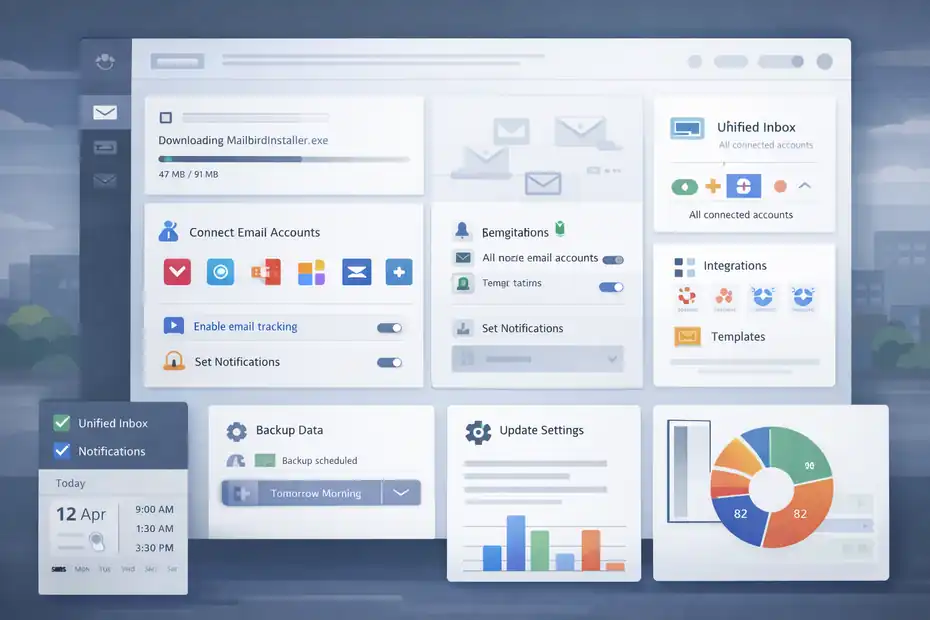
The features themselves matter, but the setup is what determines whether Mailbird becomes useful or annoying.
Mailbird support materials cover installation, new mail checking, startup behavior, update checks, and data backup, which tells you something important: this is a desktop workflow product, and desktop products live or die by configuration quality.
How To Set Up Mailbird For A Clean Start
Mailbird’s installation guide says setup on Windows begins by downloading the installer from the official website and running it, while the main site and pricing page currently market Mailbird as working on Windows and Mac.
Support documentation also confirms that the free version exists and that paid plans unlock broader functionality.
Here is the setup sequence I recommend:
- Connect only your essential email accounts first
- Turn on Unified Inbox only after confirming each account is syncing correctly
- Set notification preferences before your first busy workday
- Add one or two integrations that clearly support your workflow
- Create at least one template for a message you send repeatedly
- Test tracking and snooze on non-critical messages
This order matters. Many users do the opposite. They connect everything, enable every feature, and then blame the app when it feels chaotic. In reality, the chaos came from setup.
A good first-day setup should feel almost plain. Your goal is not to discover every feature. Your goal is to remove friction from the emails you already send and receive. Once that works, you can expand.
I would also suggest checking update settings and backup options early. Mailbird has help documentation for both. That is not glamorous, but reliable software habits are part of productivity too. Losing configuration data or missing fixes can undo a lot of workflow gains.
The Best Starter Workflow For One Person Or A Small Team
If you are a solo professional, consultant, or small business owner, I think the best Mailbird setup is based on role clarity.
Connect your key accounts, use Unified Inbox as your scanning layer, and then preserve boundaries through folders, filters, and reply discipline.
Mailbird’s newer unified inbox guides stress testing reply-from-correct-account behavior and checking calendar sync when multiple accounts are connected.
A practical starter workflow looks like this:
- Morning triage in Unified Inbox
- Immediate replies for anything under two minutes
- Snooze for time-specific emails
- Template use for recurring outreach or support replies
- Calendar check before scheduling conversations
- One final batch review later in the day
For a small team, the value is similar, but consistency matters more. Everyone should agree on template use, follow-up timing, and what belongs in email versus chat. Mailbird can make individual productivity better, but no email client can fix a messy team communication culture on its own.
That is worth saying because people sometimes expect software to solve process problems. It usually cannot. What it can do is make a good process faster and easier to maintain. That is the real role of a tool like Mailbird.
Pricing, Plans, And Feature Access Change The Value Equation
A Mailbird features overview is incomplete without looking at feature access by plan.
Mailbird’s current pricing page shows a free tier and paid options, while support documentation says Mailbird Free supports one email account and that paid licensing can include cross-platform access, unlimited account connections, all integrations, custom apps, unlimited tracking, templates, and Exchange support.
Pricing on the public page is shown as changing by plan and promotion, so exact numbers should be checked at purchase time.
Which Features Are Usually Worth Paying For
The paid value is not really about “unlocking more stuff.” It is about unlocking the specific features that save time if your email load is heavy enough.
Based on official license comparisons, the biggest paid-tier advantages are multiple account support, integrations, email tracking, templates, and custom apps.
Here is a simplified view:
| Plan Level | Best For | Main Limitation Or Benefit |
|---|---|---|
| Free | Light personal use | One email account, fewer advanced features |
| Paid Personal/Pro | Individuals with multiple accounts | Better fit for freelancers and power users |
| Higher-Tier/Cross-Platform Options | Users working across Windows and macOS or needing broader feature access | Unlocks integrations, tracking, templates, more accounts |
I believe the easiest buying question is this: how much is your inbox friction costing you each week? If you are saving 20 to 30 minutes a day by avoiding account-switching, using templates, and tracking follow-ups better, a paid plan can justify itself quickly. If you only check one personal inbox occasionally, the free version may be enough.
That is why pricing should be viewed through workflow value, not just feature count. The right question is not, “How many features do I get?” The right question is, “Which of these features solve a problem I actually have?”
When Mailbird Is A Better Buy Than Staying In Browser Email
A lot of people compare Mailbird not with another desktop client, but with doing nothing and sticking with browser tabs. That is a fair comparison.
Mailbird’s own comparison-style content argues that desktop email clients can offer advantages in ownership, account consolidation, advanced features, and cost trade-offs versus pure browser-based workflows.
I would say Mailbird becomes a stronger buy when at least two of these are true:
- You manage more than one inbox
- You regularly schedule meetings from email
- You send repetitive replies
- You do follow-up work where open status matters
- You hate switching tabs
- You prefer a dedicated desktop workspace
If none of those apply, the productivity lift may feel small. But when they do apply, the difference can be surprisingly noticeable. Browser email often feels fine until your workload becomes fragmented. Then you start paying a tax in attention, not just time.
That is where Mailbird makes the most sense. It is not magic. It is simply trying to reduce a pile of small inefficiencies that add up over a workweek. And honestly, that is how most worthwhile productivity gains happen.
Common Mistakes That Stop Mailbird From Boosting Productivity
Even strong email software can become counterproductive when it is set up badly. Mailbird’s support and guide content repeatedly point toward customization, filters, account control, and troubleshooting because the tool works best when it is intentionally configured.
The Biggest Setup And Usage Mistakes
The first mistake is connecting too many accounts too fast. The second is turning on unified inbox without deciding how to separate priorities. The third is enabling lots of integrations just because they are available.
These are not official warnings written exactly that way, but they are a reasonable inference from how Mailbird documents account control, filtering, and selective visibility in its support and workflow guides.
Here are the mistakes I see most often:
- Treating Unified Inbox like permanent storage instead of a triage layer
- Leaving notifications too aggressive
- Failing to test reply identity across multiple accounts
- Ignoring filters and doing everything manually
- Using tracking on every message instead of only where it adds value
- Never checking updates or backing up local data
These mistakes matter because they create hidden friction. A cluttered setup feels like the software is the problem, when the real issue is that the workflow was never designed.
I suggest doing a simple weekly audit for the first month. Ask yourself which accounts should stay in the unified view, which integrations you actually opened, which templates saved the most time, and whether notifications improved focus or damaged it.
Small changes here can dramatically improve the experience. That is usually how software goes from “interesting” to “indispensable.”
Troubleshooting The Friction Points That Matter Most
One reason productivity software sometimes gets unfairly judged is that tiny sync or sending issues can overshadow its best features. Mailbird’s support content includes troubleshooting for sending errors, update checks, backup procedures, and supported Windows versions, which is a reminder that reliability matters as much as features.
A few examples:
- If emails fail to send, Mailbird says incorrect SMTP settings are a common cause and points users to verify server address, port, encryption, and authentication in account settings.
- If you suspect version issues, Mailbird documents how to check for updates manually in settings.
- If you want safety before making major changes, Mailbird provides a help article for backing up local data.
My view is simple: The more central Mailbird becomes to your workday, the more you should treat it like critical infrastructure. Keep it updated. Test sending after account changes. Know where your data lives. That is not exciting advice, but it is the kind that prevents the worst workday surprises.
Productivity is not just about speed. It is also about trust. You need to trust that the message will send, the right account will reply, and the app will behave predictably. Without that, every feature benefit starts to weaken.
Advanced Ways To Use Mailbird More Effectively Over Time
Once the basics are stable, Mailbird becomes more useful when you build habits around it.
The company’s newer productivity and workflow articles talk about weekly reviews, unified account testing, calendar synchronization, faster reading, and workflow consolidation as ways to improve ongoing email management.
How To Turn Mailbird Into A Real Workflow System
This is where a lot of people stop too early. They install the app, enjoy the cleaner layout, and never build a system around it. But the real gains show up when you pair features with routines.
A strong weekly system might look like this:
- Review all connected accounts every Friday
- Remove or adjust noisy integrations
- Refresh templates you use most
- Audit snoozed messages so nothing disappears forever
- Check whether tracking is helping follow-up timing
- Confirm calendar sync and reply identity are working correctly
Mailbird’s own weekly-review style content specifically suggests checking unified inbox display, reply-from-correct-account behavior, and calendar sync. That is smart advice because these are the areas where a multi-account workflow can quietly drift.
I also think speed matters less than consistency here. You do not need to process email at superhuman pace. You need a repeatable flow that reduces hesitation. That is why templates, snooze, unified view, and selective integrations work well together. Each one removes a small delay. Stack enough of those together, and your email day feels lighter.
That is the kind of productivity gain that lasts, because it comes from system design, not temporary motivation.
The Bottom Line On Mailbird Features
If I had to sum up this Mailbird features overview in one honest sentence, it would be this: Mailbird is most useful when your inbox is not the problem by itself, but the center of a messy digital workflow.
Its strongest features are the ones that reduce switching, centralize visibility, and speed up repetitive communication. Official materials consistently place Unified Inbox, app integrations, templates, email tracking, customization, and calendar access at the center of that value story.
For some users, that will feel transformative. For others, it will simply feel cleaner and calmer. Both outcomes are valuable.
The biggest takeaway is that Mailbird does not boost productivity just because it has more features. It boosts productivity when the right features are configured around your actual work: one place to triage messages, fewer tab jumps, better follow-up visibility, simpler repeat replies, and more control over attention.
That is why I think the title is fair. The tools that actually boost productivity are not the flashy ones. They are the ones you quietly use every day without friction. And in Mailbird’s case, that is exactly where the best features seem to live.
FAQ
What is Mailbird and how does it improve productivity?
Mailbird is a desktop email client that combines multiple inboxes into one interface while integrating tools like calendars and apps. It improves productivity by reducing tab switching, simplifying email management, and helping you respond faster with features like templates, snooze, and unified inbox.
What is the most important feature in Mailbird?
The unified inbox is the most important feature in Mailbird because it allows you to manage multiple email accounts in one view. This reduces the need to switch between accounts, making it easier to track messages, prioritize tasks, and respond quickly without missing important emails.
Does Mailbird support multiple email accounts?
Yes, Mailbird supports multiple email accounts on its paid plans, allowing you to manage personal, work, and other inboxes in one place. This feature is especially useful for freelancers and business owners who need to monitor and respond across different email identities efficiently.
Is Mailbird better than using Gmail in a browser?
Mailbird can be more efficient than using Gmail in a browser if you manage multiple accounts or want a focused workspace. It reduces distractions, offers built-in integrations, and centralizes communication, which can help streamline your workflow compared to juggling multiple browser tabs.
What features in Mailbird help with email management?
Mailbird includes features like email tracking, templates, snooze, and app integrations to improve email management. These tools help you send faster replies, follow up more effectively, and organize your inbox so you can focus on important tasks instead of constantly checking emails.

I’m Juxhin, the voice behind The Justifiable.
I’ve spent 6+ years building blogs, managing affiliate campaigns, and testing the messy world of online business. Here, I cut the fluff and share the strategies that actually move the needle — so you can build income that’s sustainable, not speculative.
Related posts:
 Mailbird Email Client Review: Is This The Fastest Inbox Upgrade?
 Mailbird Email: The Inbox Upgrade You Need Now
 Mailbird Download: Save Hours on Email Every Week
 Mailbird Free Version: Worth It or Too Limited?
 The Mailbird App Looks Great—But Does It Deliver?
 Mailbird for Mac Review: Email Just Got Better