
Table of Contents
Some links on The Justifiable are affiliate links, meaning we may earn a small commission at no extra cost to you. Read full disclaimer.
Mailbird platform walkthrough guide is exactly what you need if you want to stop poking around the app and start using it with confidence.
If you have just opened Mailbird for the first time, or you switched from Outlook, Gmail in a browser, or another desktop client, the interface can feel simple at first but layered once you start customizing it.
In this guide, I’ll walk you through what each area does, how the workflow fits together, which settings matter first, and how to make Mailbird feel fast, clean, and genuinely useful for your daily email routine.
Understand What Mailbird Is And Why The Interface Matters
Mailbird is designed as a desktop email client focused on speed, simplicity, and managing multiple accounts from one place.
The reason the interface matters so much is that most of the productivity gains come from how you move through the layout, not just from adding your inbox.
What Mailbird Is Actually Built To Do
Mailbird is positioned as a modern email client with a unified inbox, app integrations, customization options, and a workflow built around reducing tab-switching and handling email faster.
Its official feature pages consistently center on simplicity, multiple account management, and turning the inbox into a broader communication workspace rather than just a message list.
Independent roundups have also continued to highlight Mailbird as a strong Windows email client, especially for people who care about interface design and productivity features over enterprise complexity.
What that means for you in practice is simple: Mailbird is not trying to be the most technical or most corporate mail app on the market. It is trying to help you process email faster, see multiple accounts together, and reduce friction.
I think that matters because many people download a new email client expecting magical automation, when the real win comes from better layout, fewer clicks, and a cleaner daily routine.
If you manage one personal inbox, the gains may feel modest. If you manage work, freelance, support, or side-project email accounts at the same time, the interface becomes a much bigger deal.
That is where the unified inbox, account color indicators, app panel, and shortcut support start to pay off.
Why Learning The Interface First Saves You Time Later
A lot of people install Mailbird, add an account, and then jump straight into reading email. That works, but it usually creates a messy setup. You end up reacting to the inbox instead of shaping it.
In my experience, five to ten minutes spent understanding the layout saves you hours of annoyance over the next few weeks.
Here is the real reason: Mailbird has several layers that affect how you work every day. The left side handles navigation and accounts. The center is where your message list lives.
The reading pane controls how you consume and act on individual emails. Then there is a settings layer for shortcuts, composing behavior, unified inbox behavior, and visual preferences.
Mailbird also includes quick actions, snooze, undo send, folders, custom apps, and shortcut options that are easy to miss if you only use the default view.
Think of the app like a desk. If you know where everything belongs, you move quickly. If not, every reply, archive, and search becomes tiny friction. That friction adds up fast, especially when email already eats a huge chunk of the average workweek.
Mailbird’s own recent productivity content cites knowledge workers spending about 28% of their workweek on email, which lines up with why interface efficiency matters so much.
Set Up Mailbird The Right Way From The Start

Before you worry about advanced features, you want a clean initial setup.
This step is about getting your accounts, inbox view, and basic preferences into a shape that feels calm instead of cluttered.
Add Your Accounts And Choose Your Initial Workflow
Mailbird supports the usual email account types and is built around bringing them into one desktop workspace. Current Mailbird materials describe a free entry tier with limits for casual use and premium tiers that unlock unlimited accounts and more advanced features.
Pricing references on Mailbird’s own 2026 comparison pages vary by promotion and billing page, but they consistently show a free option and premium plans for broader account management.
When you add your first account, pause for a second before adding all the others. Ask yourself how you actually work:
- One primary inbox: Best if you want a simple personal setup.
- Separate roles: Best if you need clear boundaries between personal, work, and project mail.
- Unified daily command center: Best if you check everything in one session and want speed over strict separation.
I suggest starting with two accounts max on day one, even if you have more. That gives you space to learn how the sidebar, folders, and message list behave before the interface gets crowded.
A realistic example: Imagine you run a small store and also freelance on the side. You might add your main business Gmail first, then your freelance Outlook account.
Once you are comfortable with how messages appear, how colors identify accounts, and how folders sync, then add the rest. That staged setup reduces confusion and makes it easier to spot whether unified inbox is helping or hurting your workflow.
Turn On Or Review Unified Inbox Early
Unified Inbox is one of Mailbird’s most important features because it combines messages from connected accounts into a single view.
Mailbird’s support documentation also explains that account color indicators help you identify which inbox a message came from, which becomes important once you stop treating all incoming mail the same way.
For many readers searching for a mailbird platform walkthrough guide, this is the point where the software clicks. You are no longer opening separate browser tabs or switching between profiles. You are scanning one central stream and deciding what matters.
But there is a tradeoff. Unified inbox is excellent for triage and fast review, yet it can also create visual duplication in certain cases. Mailbird’s support notes that if the same message is sent to multiple connected addresses, it can appear in each inbox and in the unified view, which can make duplicates look worse than they really are.
My advice is simple:
- Use Unified Inbox: If your goal is speed and daily overview.
- Use Separate Inboxes: If your roles are very different and context switching matters.
- Use Both Together: This is often the smartest option. Triage in unified view, then handle account-specific work in the individual inbox.
That hybrid approach feels more natural than forcing yourself into one rigid system. It also mirrors how many people really work: broad review first, focused action second.
Learn The Main Interface Zones In A Few Minutes
Once your accounts are connected, the fastest way to master Mailbird is to understand its interface as a set of zones.
Every action you take lives in one of these areas.
The Left Sidebar: Accounts, Navigation, And Apps
The left side of Mailbird is where your day begins. This area typically houses main navigation, your account list, and quick access to built-in or connected apps.
Support documentation for custom apps points users to the Apps icon in the bottom-left area, which shows how central that section is to the overall workspace design.
Here is how to think about that sidebar:
- Inbox Navigation: This is where you jump between unified view, individual accounts, and folders.
- Account Awareness: Color indicators help you instantly tell which account is involved when you are in combined views.
- App Access: Mailbird supports third-party and custom app integration so you can open supporting tools inside the interface instead of bouncing out to a browser.
If the sidebar feels too busy at first, that is normal. The trick is not to use everything. Use it like a home screen, not a storage closet. Keep your attention on the few navigation areas you use most often: Inbox, Sent, Drafts, Snoozed, and whatever folders matter to your real workflow.
I believe this is where many users either love Mailbird or abandon it. If you treat the sidebar as a focused control panel, the app feels lightweight. If you stuff it with every possible app and shortcut immediately, it starts to feel noisy. Restraint makes the interface better.
The Message List And Reading Pane: Where Most Of Your Time Goes
The center panel is your message list. The reading pane is where selected messages open and where much of your action happens. This sounds obvious, but understanding the relationship between those two panels changes how fast you work.
The message list is your scanning layer. It is where you identify priority, sender, subject, and timing. The reading pane is your decision layer. It is where you reply, archive, snooze, star, delete, or move on.
Mailbird also uses a Quick Action Bar that appears when hovering over a sender avatar, giving you fast access to actions like archive, snooze, reply, forward, trash, spam, and star.
That matters because every email client has the same basic job, but the good ones reduce the gap between noticing and acting. In Mailbird, you want to build muscle memory around that movement:
- Scan the list.
- Open only what deserves attention.
- Use quick actions instead of over-reading.
- Return to the list fast.
A practical scenario: Let’s say you receive 40 emails before lunch. You do not need to deeply read all 40. You need to identify five that require action now, ten that should be archived, three that should be snoozed, and the rest that can wait. When you use the list and reading pane that way, Mailbird starts feeling less like an inbox and more like a processing screen.
Customize The Layout So It Matches How You Work
Mailbird becomes more useful once you stop using it as a default install and start shaping it to your habits.
Customization is where the interface starts feeling like yours.
Adjust Core Preferences Before You Build Habits
One mistake I see often is people building habits around the default setup, then resisting useful changes later because the defaults already feel familiar.
Mailbird includes settings for composing behavior, keyboard shortcuts, Gmail-style shortcuts, undo send timing, and other interface preferences that are worth reviewing before your routine locks in.
Start with these:
- Undo Send: Mailbird allows an undo send window between 5 and 30 seconds. That is small, but it can save you from embarrassing mistakes.
- Quick Compose Shortcut: The default quick compose shortcut can be changed in Settings under the Composing tab.
- Keyboard Shortcut Access: The full shortcut list is available through the top-left menu under Help.
- Gmail Shortcut Support: You can enable Gmail keyboard shortcuts in General settings if that is already part of your muscle memory.
I strongly recommend enabling only the features you will genuinely use this week. That keeps customization purposeful. The goal is not maximum functionality. The goal is less friction.
Use Apps And Integrations Without Turning Mailbird Into A Mess
Mailbird’s official feature pages emphasize app integrations as a key part of the platform, and support documentation confirms that users can also add custom apps from the Apps section.
That flexibility is useful, but it is also where over-customization can start hurting clarity.
The smartest way to handle integrations is to think in layers:
| Need | Best Approach In Mailbird | Why It Helps |
|---|---|---|
| Pure email handling | Keep the interface minimal | Less distraction while triaging |
| Email plus scheduling | Add calendar-related access only | Good for reply timing and planning |
| Email plus task flow | Add one task or project app | Reduces copy-paste and tab switching |
| Multi-role workspace | Use only role-critical apps | Prevents sidebar overload |
This is one of those places where “more” often makes the product feel worse. For example, if you add messaging, notes, tasks, project boards, social tools, and custom web apps all at once, you are basically recreating the chaos of a browser inside your email client.
A better setup might be one calendar view, one task system, and your inbox. That is enough for most people. Simpler almost always wins.
Master Daily Email Actions Inside The Interface
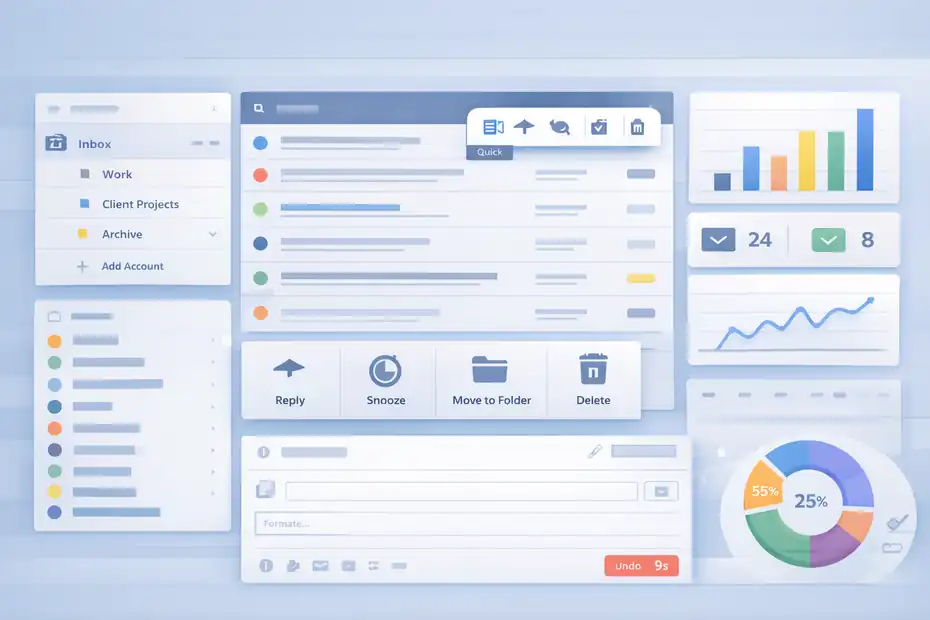
Once the layout is familiar, the next step is learning how to move through email quickly.
This is where the guide shifts from “what the interface is” to “how to use it well.”
Build A Fast Triage Routine With Quick Actions, Folders, And Snooze
Mailbird includes a Quick Action Bar for fast email handling, folder management features, and a Snooze function that temporarily removes messages from your inbox until the time you choose.
Mailbird’s support describes snooze as a tool for reaching inbox zero more easily by making an email disappear and return later.
That combination is enough to build a very strong triage routine:
- Reply now: For items that need under two minutes.
- Snooze: For things that matter, but not today.
- Archive or folder: For reference material you do not need visible.
- Delete or spam: For obvious clutter.
This is where a lot of email overwhelm disappears. Most inbox stress comes from treating every message like an unresolved task. Snooze breaks that pattern. Instead of leaving something in view for five days, you can remove it and choose when it returns.
Imagine you get an invoice request on Monday, but you cannot handle it until Thursday. Leaving it in your inbox creates low-level mental pressure. Snoozing it until Thursday morning turns it into a timed reminder instead of visual guilt. That is a small change, but it adds up.
Compose, Reply, And Send With Fewer Mistakes
Mailbird also gives you workflow improvements around composing and replying. Quick Compose can be launched with a shortcut, quick reply can be expanded into a normal reply, and undo send adds a short safety window after sending.
Here is the practical playbook I recommend:
- Use quick compose for speed: Great when you already know what you need to say.
- Use full reply when context matters: Better for complex or multi-recipient threads.
- Enable undo send immediately: Especially useful if you work fast or send lots of client emails.
A small but important mindset shift: fast email is not just about typing quickly. It is about reducing recovery costs. Every accidental send, missed attachment, or rushed reply costs more time than a slightly slower compose process.
This is why I like Mailbird’s composing options. They support speed, but they also give you a bit of protection. For freelancers, support agents, founders, and anyone juggling a lot of communication, that balance is more valuable than flashy features.
Use Productivity Features That Actually Save Time
Mailbird includes several extras that sound small until you use them consistently. The key is choosing the ones that support your real bottlenecks.
Keyboard Shortcuts And Speed Reading
Mailbird supports keyboard shortcuts, optional Gmail-style shortcut behavior, and a speed reader feature for reading email more quickly.
Support articles explain where to access the shortcut list and how to enable Gmail shortcuts, while Mailbird’s productivity content and third-party coverage describe the speed reader as a way to display content at adjustable words-per-minute rates.
This matters because productivity in email is often about reducing micro-movements:
- Keyboard shortcuts: Cut down mouse travel and repeated clicks.
- Gmail shortcut support: Makes switching easier if you already think in Gmail commands.
- Speed reader: Useful for low-stakes informational messages or routine updates.
I would not use speed reading for sensitive client communication or nuanced negotiations. But for newsletters, internal updates, or repetitive status emails, it can help you skim faster.
Mailbird’s recent content notes that typical reading speeds often fall around 200 to 300 words per minute, while its speed reader can be pushed much higher for simpler content.
The real productivity win, though, is shortcuts. Even shaving one second off a repeated action adds up across hundreds of emails.
Email Tracking, Calendar View, And Other Useful Extras
Mailbird’s support center highlights email tracking, calendar display, spellcheck-related tools, contacts features, and other optional enhancements.
Email tracking is presented as a way to see when and by whom sent messages were opened, while calendar display support points to upcoming event alerts and reminder actions inside the app.
These features are best used selectively.
Use tracking when the send matters. For example, if you send proposals, contracts, or time-sensitive follow-ups, knowing whether the message was opened can help you time your next step more intelligently.
Use the calendar view when scheduling is part of your inbox routine. If your email is mostly casual personal communication, you may barely touch either one.
That is the broader lesson with Mailbird: the platform gives you layers, but you do not need all of them. The best setup is the one that removes friction from your day, not the one with the longest feature list.
Avoid Common Mailbird Mistakes That Slow You Down
A good walkthrough should also save you from the mistakes that make the interface feel worse than it is. Most of these problems come from setup choices, not from the product itself.
Mistakes New Users Make In The First Week
The most common mistake is turning on every feature too early. Another is misunderstanding unified inbox behavior and assuming duplicated messages mean something is broken, when support documentation explains that messages sent to multiple connected accounts can appear in multiple places by design.
Here are the biggest early mistakes:
- Adding too many accounts at once: Makes it hard to learn the interface.
- Ignoring account color indicators: Leads to reply mistakes or poor context in unified view.
- Using the inbox as a to-do list: Creates stress instead of structure.
- Skipping shortcut setup: Leaves obvious speed gains unused.
- Stuffing the sidebar with apps: Reduces clarity more than it increases convenience.
I have seen this pattern a lot in email tools generally. People want the app to prove itself immediately, so they load it with accounts, integrations, and preferences on day one. Then the app feels heavy. A cleaner approach is to earn complexity gradually.
Troubleshoot The Most Annoying Workflow Issues
Mailbird’s support center includes help for issues like snoozed emails reappearing unexpectedly and confusion around duplicates in unified inbox. In the snooze case, Mailbird even documents a debug-window database fix for a specific issue involving awakened snooze read state.
That tells you two things. First, Mailbird has a reasonably detailed knowledge base. Second, some issues are workflow misunderstandings rather than true bugs.
A simple troubleshooting sequence looks like this:
- Check whether the behavior is tied to Unified Inbox.
- Confirm whether the message exists in more than one connected account.
- Review folder placement and sync expectations.
- Check the relevant support article before changing settings randomly.
This matters because random tinkering usually makes email setups worse. Use a controlled approach. Identify the behavior, locate the likely feature involved, and then adjust one thing at a time.
Optimize Mailbird For Speed, Focus, And Long-Term Use
Once your setup works, the final step is optimization. This is where Mailbird goes from “nice desktop client” to a reliable daily command center.
Create A Sustainable Interface For Real Work
Mailbird is strongest when used as a focused email workspace rather than a novelty dashboard. Its recent official content repeatedly ties the platform to reducing overload, simplifying cross-account workflow, and helping users reclaim time from messy inbox habits.
Here is the long-term setup I usually recommend:
- Primary view: Unified inbox for top-level scanning.
- Secondary views: Individual accounts for sensitive or role-specific work.
- Daily actions: Reply, snooze, archive, and foldering done in short batches.
- Support features: Shortcuts, undo send, and one or two high-value integrations.
- Weekly cleanup: Review folders, snoozed items, and accounts you no longer need connected.
This is not glamorous, but it works. Many of us do not need a revolutionary new inbox philosophy. We need a stable interface that helps us see what matters, respond without panic, and stop carrying unread clutter mentally.
Know When Mailbird Is The Right Fit
Mailbird’s official site now describes the product as an email client for Windows and Mac, while older third-party reviews often focused on Windows-only support.
That means platform assumptions have changed over time, so it is worth checking current official messaging rather than relying on old review summaries alone.
That said, Mailbird still tends to fit a specific kind of user best:
| User Type | Mailbird Fit | Why |
|---|---|---|
| Solo professional | Strong | Fast interface, customization, multi-account flow |
| Freelancer or consultant | Strong | Easy account separation plus unified review |
| Small business owner | Strong | Good for handling client, admin, and internal email together |
| Heavy enterprise admin | Mixed | May want deeper enterprise controls elsewhere |
| Minimalist single-inbox user | Moderate | Helpful, but may be more tool than necessary |
I think Mailbird shines when you are drowning in browser tabs, juggling multiple inboxes, or tired of stiff corporate email clients. It is less compelling if you only check one casual account a few times a week.
Follow A Simple 10-Minute Mailbird Interface Setup Plan
If you want the shortest path to confidence, follow this simple action sequence. It pulls together everything from this mailbird platform walkthrough guide into one practical setup.
Your Fast-Start Checklist
Use this order:
- Add one or two accounts first: Do not import your whole digital life on day one.
- Review Unified Inbox: Keep it on if you want one central overview.
- Learn the left sidebar: Focus on inboxes, folders, and apps only.
- Test quick actions: Hover and practice archive, snooze, and reply.
- Enable undo send: Choose a delay that protects you from rushed mistakes.
- Open the shortcut list: Learn a few commands you will use daily.
- Turn on Gmail shortcuts if needed: Great if you are migrating from Gmail habits.
- Add only one useful app integration: Resist the urge to add everything.
- Create a snooze habit: Use it for future tasks instead of leaving them hanging.
- Review duplicates calmly: Check whether Unified Inbox is the reason before assuming something is broken.
That is enough to get productive without overcomplicating the interface.
Conclusion
Mailbird gets easier the moment you stop seeing it as “just another email app” and start treating it like a workflow surface. The interface is built to help you scan faster, act faster, and manage multiple accounts without constant tab switching.
If you focus first on the sidebar, unified inbox, quick actions, shortcuts, and a small set of useful settings, you can master the basics in minutes and keep improving from there.
For most people, that is the real win: less inbox friction, more control, and a setup that actually feels pleasant to use.
FAQ
What is the Mailbird platform and how does it work?
Mailbird is a desktop email client that combines multiple email accounts into one unified interface. It helps you manage messages, contacts, and apps in one place, reducing the need to switch between tabs and improving productivity through a cleaner, faster workflow.
How do I set up Mailbird for the first time?
To set up Mailbird, install the app, add your email account, and choose whether to enable Unified Inbox. Then adjust basic settings like shortcuts and undo send. Starting with one or two accounts helps you learn the interface without feeling overwhelmed.
What is Unified Inbox in Mailbird and should I use it?
Unified Inbox combines emails from all connected accounts into a single view. It’s useful for quickly scanning and managing messages in one place. However, if you prefer separating work and personal emails, you can switch between individual inboxes instead.
How can I use Mailbird more efficiently every day?
You can improve efficiency by using keyboard shortcuts, quick actions like archive or snooze, and setting up a simple workflow. Focus on scanning emails quickly, replying to urgent ones, and scheduling others for later to keep your inbox organized.
What are common mistakes to avoid when using Mailbird?
Common mistakes include adding too many accounts at once, overloading the interface with apps, and using the inbox as a task list. Keeping your setup simple and learning key features gradually helps maintain a clean and efficient workflow.

I’m Juxhin, the voice behind The Justifiable.
I’ve spent 6+ years building blogs, managing affiliate campaigns, and testing the messy world of online business. Here, I cut the fluff and share the strategies that actually move the needle — so you can build income that’s sustainable, not speculative.
Related posts:
 Mailbird Free Version: Worth It or Too Limited?
 Mailbird Email: The Inbox Upgrade You Need Now
 Mailbird Download: Save Hours on Email Every Week
 Mailbird for Mac Review: Email Just Got Better
 Mailbird Email Client Review: Is This The Fastest Inbox Upgrade?
 Constant Contact Pricing: Which Plan Is Right for You?