
Table of Contents
Some links on The Justifiable are affiliate links, meaning we may earn a small commission at no extra cost to you. Read full disclaimer.
If you’ve ever used QuillBot online to rephrase a sentence but weren’t sure how to get the most accurate, natural-sounding results—you’re not alone.
This AI writing tool is incredibly powerful, but many people don’t realize just how much control they actually have over tone, clarity, and speed.
So how can you use QuillBot online to rewrite text fast and keep it sounding human?
This guide breaks down exactly how to do that step by step, with practical tips that save time and improve quality.
Understanding How QuillBot Online Works
Before you can truly speed up your writing and rewriting process, it helps to understand how QuillBot online actually works behind the scenes.
Think of it as an intelligent writing assistant that analyzes your sentence structure, tone, and meaning—then rephrases it while keeping your intended message intact.
How QuillBot Uses AI To Rewrite Text
QuillBot’s engine is powered by advanced natural language processing (NLP) models, similar to how AI systems like ChatGPT understand and generate language.
But its focus is much narrower: rewriting text while maintaining meaning.
When you paste a sentence into the QuillBot editor, it breaks it down into parts of speech—verbs, nouns, modifiers—and predicts multiple natural rewordings.
It then scores each rewrite for clarity, readability, and similarity to your original meaning.
Example:
- Original: “Content creation requires consistency and originality.”
- Rewritten by QuillBot (Fluency mode): “Creating content takes both consistency and creativity.”
See how it subtly improves flow without distorting meaning? That’s QuillBot’s strength: keeping your message intact while improving phrasing.
Key Modes That Affect Tone and Accuracy
QuillBot offers several rewriting modes designed for different goals:
- Standard: Best for general rewriting; balances accuracy and creativity.
- Fluency: Focuses on grammatical correctness and natural flow.
- Formal: Ideal for professional or academic writing.
- Creative: Takes more risks with structure and vocabulary.
- Shorten / Expand: Adjusts text length without changing the essence.
- Simple: Makes complex ideas more readable.
I usually suggest experimenting with Standard and Fluency first—they strike a good balance between reliability and speed.
Once you’re comfortable, try Creative for marketing copy or blog intros that need flair.
When To Use Each Mode
Each mode serves a distinct purpose depending on your writing intent:
- Standard: Everyday rewriting for blogs or articles.
- Fluency: Editing emails or client messages for clarity.
- Formal: Research papers or corporate communication.
- Creative: Ads, headlines, or storytelling pieces.
- Shorten / Expand: Adapting text to character limits or SEO word counts.
A good rule of thumb: If accuracy matters more than tone, choose Fluency. If engagement matters more than precision, go Creative.
How The Synonym Slider Impacts Readability
The Synonym Slider is one of QuillBot’s most misunderstood tools. You’ll find it just below the input box. Sliding it right increases how many words QuillBot replaces with synonyms.
- Lower settings = higher accuracy, minimal changes.
- Higher settings = more varied vocabulary, but slightly riskier meaning shifts.
For most content writing, I recommend keeping it between 2–3 on the scale. It keeps your phrasing fresh but not robotic. Try reading the rewritten version aloud—if it sounds unnatural, lower the slider slightly.
Setting Up QuillBot Online For Maximum Efficiency
Once you understand the mechanics, it’s time to set QuillBot up so it fits your workflow.
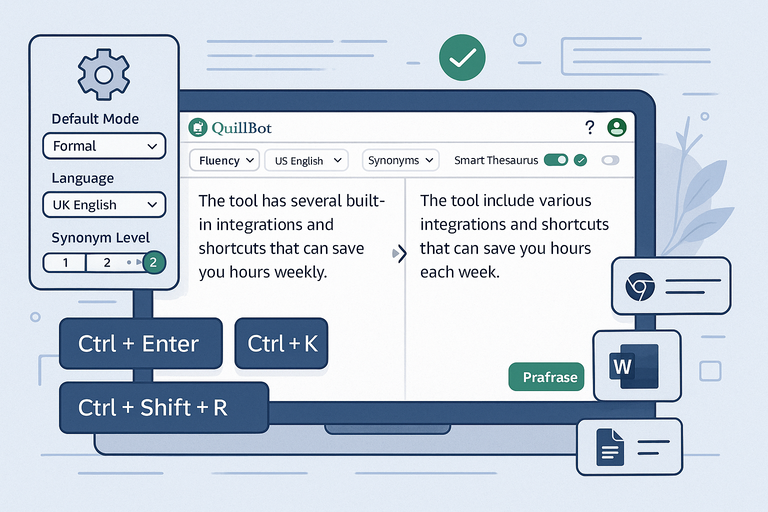
The tool has several built-in integrations and shortcuts that can save you hours weekly.
Customizing Your Writing Style and Preferences
Under your profile settings, QuillBot lets you personalize default modes, language variants (US/UK English), and synonym levels.
I recommend setting your default mode to Fluency and your synonym level to 2 for balance.
You can also toggle Smart Thesaurus, which suggests synonyms in real-time—great for fine-tuning tone. If you often rewrite professional content, activate Formal mode by default.
Using Shortcuts and Settings To Speed Up Workflow
To work faster, learn QuillBot’s built-in shortcuts:
- Ctrl + Enter: Rewrites selected text instantly.
- Ctrl + K: Copies the best rewrite to clipboard.
- Ctrl + Shift + R: Cycles between rewriting modes.
Small efficiency tweaks like these add up fast—especially when rewriting long-form blog posts or SEO drafts.
Integrating QuillBot With Chrome, Word, and Google Docs
You don’t need to keep the QuillBot website open all the time. Install its Chrome Extension to paraphrase directly within Google Docs or Gmail.
For Word users, the Microsoft Word Add-In allows rewriting without switching windows—perfect for reports or client documents.
Example UI Path:
- Chrome: Click Extensions → Add QuillBot → Pin Icon → Enable on Google Docs.
- Word: Go to Insert → Add-Ins → QuillBot → Launch Pane.
Once integrated, highlight any sentence, right-click, and choose Paraphrase with QuillBot. It saves you from constant copy-paste loops.
Avoiding Common Mistakes That Slow Down Rewriting
Here are a few errors I often see people make:
- Rewriting without cleaning up formatting first. Always paste plain text to avoid spacing issues.
- Ignoring the Compare Mode (we’ll cover that next).
- Using Creative mode for factual or academic content—it often introduces inaccuracies.
I’d advise running a quick grammar check after each rewrite, just to ensure flow and tone match your intent.
How To Get Accurate Rewrites Using QuillBot Online
Now that your setup is optimized, accuracy becomes the focus. The difference between a good rewrite and a great one is often how you prepare and review your input.
Crafting The Right Input Text Before Rewriting
QuillBot performs best with clean, complete sentences. If your input is messy or fragmented, it struggles to preserve meaning.
- Remove filler words and redundancies.
- Fix obvious grammar issues first.
- Keep sentences under 25 words for clarity.
Example:
- Instead of: “Since the product, which was new, hadn’t yet been tested much, users didn’t know how reliable it would be.”
- Try: “Users were unsure about the reliability of the new product.”
Cleaner input equals better output—every single time.
Using QuillBot’s Compare Mode To Choose The Best Output
The Compare Mode (available in Premium) shows side-by-side rewrites from multiple modes. This helps you decide which version fits your tone or audience.
Here’s how to use it effectively:
- Click Compare Modes under the text box.
- Select Fluency, Standard, and Creative.
- Review readability scores and tone differences.
I suggest choosing the version that reads most naturally when read aloud—it’s often the one with the right emotional rhythm.
See your sentences rewritten in real-time, compare tones instantly, and choose the version that fits your style. Use QuillBot Now →
Editing Results To Maintain Original Meaning
QuillBot can occasionally over-simplify complex ideas. Always double-check key phrases, numbers, and context.
A quick trick: Copy your rewritten text into ChatGPT or Grammarly and ask, “Does this change meaning from the original?” You’ll instantly catch subtle shifts before publishing.
Spotting AI Errors and Making Manual Adjustments
Even the smartest AI makes mistakes. Look out for:
- Incorrect tense or subject-verb agreement.
- Awkward transitions or unnatural phrasing.
- Lost tone—especially in persuasive writing.
When that happens, make small human edits rather than rewriting the entire piece.
For instance, if QuillBot removes a transition like “however” or “on the other hand,” reinsert it manually to restore flow.
Pro Tip: QuillBot online is like an intelligent co-writer—it won’t replace your voice but can enhance it dramatically. Treat its rewrites as drafts, not final versions. Once you learn how to balance AI assistance with your editing judgment, your productivity skyrockets.
Combining QuillBot With Other Writing Tools
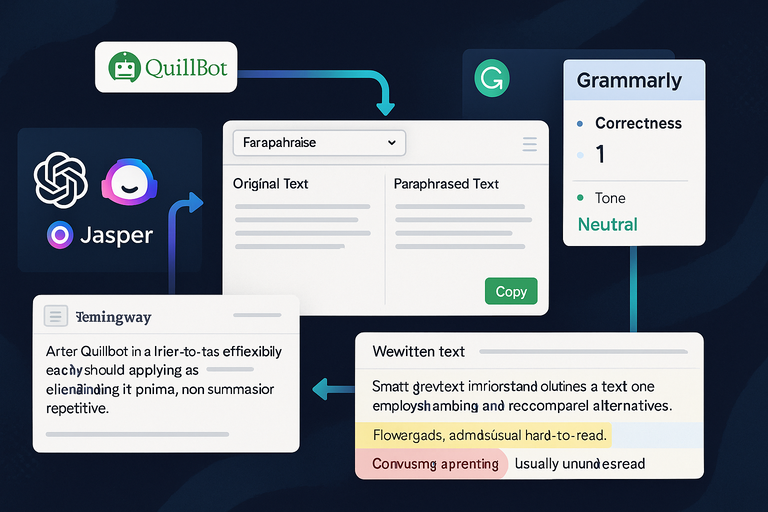
Using QuillBot online alongside other writing and editing tools can seriously boost your workflow.
Each app brings something different to the table—grammar correction, style enhancement, or deeper rewriting control. When they’re combined right, you get faster, sharper, and more natural writing.
Using Grammarly With QuillBot For Better Grammar and Clarity
Grammarly and QuillBot work beautifully together. QuillBot rewrites your text for readability, while Grammarly polishes it for grammar, tone, and punctuation.
Here’s a simple workflow:
- Paste your draft into QuillBot and run it through Fluency mode for a clean rewrite.
- Copy the output and paste it into Grammarly.
- Review suggested fixes for tense, word choice, and flow.
I recommend using Grammarly’s Tone Detector afterward—it helps ensure your rewritten text still sounds like you. For example, if you’re writing a casual blog post but Grammarly detects “formal,” loosen your phrasing a bit.
Pro insight: Grammarly can occasionally flag QuillBot rewrites as “wordy” because of synonym changes. Don’t blindly accept all edits—use your ear to decide what feels natural.
Leveraging ChatGPT or Jasper For Idea Expansion Before Rewriting
Before using QuillBot to polish your writing, you can use idea-generation tools like ChatGPT or Jasper to expand on key points.
Think of it like this:
- ChatGPT helps brainstorm outlines, headlines, or topic angles.
- Jasper helps you generate first drafts quickly.
- QuillBot steps in afterward to rewrite or refine.
Here’s a quick example workflow:
- Ask ChatGPT: “Give me five creative ways to introduce the topic of AI rewriting tools.”
- Take one of those intros, run it through QuillBot’s Creative mode, and compare outputs using Compare Mode.
This combination helps you keep your content original while maintaining a consistent brand voice. I use this trio when I’m batch-creating SEO blog content—it keeps ideas fresh without sounding repetitive.
Using Hemingway App To Polish Rewritten Sentences
After QuillBot and Grammarly, run your text through Hemingway App to check for readability. This tool highlights long or complex sentences and suggests simpler alternatives.
Here’s why it matters: Google tends to favor readable content. Hemingway grades your writing based on school levels—aim for Grade 6–8 for online audiences.
UI path: Go to hemingwayapp.com → Paste rewritten text → Review highlights.
- Yellow = lengthy sentences.
- Red = confusing sentences.
- Blue = adverbs (usually unnecessary).
I suggest rewriting highlighted areas manually. Hemingway doesn’t rewrite—it forces you to simplify, which brings back your natural tone after QuillBot’s AI processing.
Building a Streamlined Writing System With Tool Integrations
If you’re juggling multiple tools, integration is key. Here’s a quick system that keeps everything connected:
- Idea phase: Use ChatGPT or Jasper for brainstorming.
- Drafting phase: Write in Google Docs with the QuillBot Chrome extension.
- Rewriting phase: Run the content through QuillBot’s Fluency or Creative mode.
- Editing phase: Use Grammarly for grammar and tone.
- Polishing phase: Run the text through Hemingway for readability.
Once you set this up, your writing process becomes a seamless, five-step loop that reduces editing time by up to 40%.
Tips To Make QuillBot Online Rewrites Sound More Human
Even though QuillBot online uses advanced AI, its output can sometimes sound a little robotic.
Making small manual tweaks helps your writing flow naturally and sound like it came from a real person.
Adjusting Sentence Length and Structure Naturally
One of the easiest ways to humanize AI text is to vary sentence structure. Real human writing has rhythm—it moves between short, punchy lines and longer, detailed ones.
For example:
- Too mechanical: “QuillBot helps rewrite content. It improves grammar. It ensures accuracy.”
- More natural: “QuillBot helps rewrite content while improving grammar and keeping your sentences clear.”
After rewriting, scan your text. If every sentence starts with a subject (“It,” “This,” “The”), change a few to begin with a preposition or transition word for variety.
Avoiding Overuse of Synonyms and Robotic Phrasing
QuillBot’s synonym replacement is powerful, but too much of it can make your content sound off. Keep your Synonym Slider between 2–3.
When it’s too high, sentences may feel over-polished—like someone using a thesaurus for every other word. If you notice unnatural phrasing, switch that synonym back to the original.
Example:
- AI version: “The entrepreneur endeavored to actualize his aspirations.”
- Human version: “The entrepreneur worked hard to achieve his goals.”
You’ll know you’ve found the balance when your text reads smoothly out loud.
Re-Injecting Your Voice After Rewriting
AI can’t capture your personality—that’s your job. After QuillBot finishes rewriting, skim through your content and reinsert words or expressions that sound like you.
Maybe you often say “honestly” or “to be fair.” Add those back in moderation. If you’re writing for a brand, include consistent phrasing or taglines to maintain tone.
This step is what keeps your writing authentic and helps readers connect with you.
Reading Aloud To Check Flow and Tone
Reading your rewritten text aloud is the simplest—and most underrated—way to spot awkward phrasing. If something sounds unnatural, it probably is.
You’ll quickly notice when a sentence feels stiff or repetitive. Adjusting even a few words can make your writing flow like conversation again.
I often suggest using browser extensions like Speechify to hear your text read back to you. Hearing it spoken helps you edit more intuitively.
How To Use QuillBot Online For SEO and Blogging
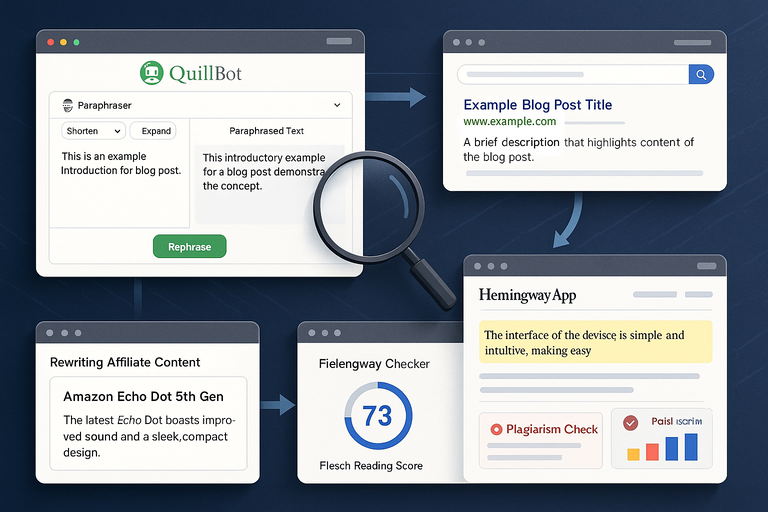
Using QuillBot online for SEO content creation isn’t just about rewriting—it’s about optimizing.
When used right, it can help you craft unique, high-quality, search-friendly copy in half the time.
Creating Unique Blog Intros and Meta Descriptions Quickly
QuillBot’s Shorten and Expand modes are perfect for SEO meta work. Use Shorten for concise meta descriptions and Expand for detailed blog intros.
Here’s an example process:
- Write a rough intro or meta line manually.
- Run it through Standard or Fluency mode.
- Adjust tone until it fits your audience.
You’ll end up with crisp, readable openings that hook readers and satisfy search intent.
Rewriting Affiliate Content Without Losing Intent
Affiliate marketers often need to reword product descriptions without altering the message. QuillBot helps here by paraphrasing while maintaining key selling points.
Tip: Always lock brand names or numbers before rewriting to prevent them from changing. Then, use Fluency mode for reliable rewrites.
Example: Instead of rewriting “Amazon Echo Dot 5th Gen,” freeze it in the editor so QuillBot won’t alter it.
Improving Content Readability for Search Rankings
Search engines favor content that’s readable and clear. QuillBot helps simplify complex phrasing, especially when used alongside the Hemingway App.
Run your article through Fluency mode to tighten sentences and remove fluff. Then, check your Flesch reading score using Hemingway—aim for 60–80.
This not only improves SEO but also boosts user engagement metrics like time on page.
Avoiding Duplicate Content Detection With Smart Paraphrasing
Duplicate content can hurt rankings. Using QuillBot’s Creative or Standard mode helps you rewrite ideas uniquely while preserving meaning.
For best results:
- Rephrase one paragraph at a time.
- Change sentence order and structure.
- Add your own examples or insights.
QuillBot reduces similarity rates when checked with plagiarism tools like Copyscape or Grammarly’s plagiarism checker—making your content safer for SEO publishing.
Common Pitfalls To Avoid When Using QuillBot Online
Even though QuillBot online is powerful, it’s not foolproof. I’ve seen writers lose their natural tone or even factual accuracy because they trusted it too much.
The key isn’t to use QuillBot less—it’s to use it smarter. Let’s break down the mistakes you’ll want to avoid.
Over-Reliance on AI Without Review
This is the biggest trap most people fall into: copying QuillBot’s output and publishing it without checking.
AI paraphrasing saves time, but it’s still predictive, not perfect. It might miss subtle nuances, humor, or cultural references that a human reader would catch instantly.
I suggest treating every QuillBot rewrite as a first draft, not a final version. Read it once for clarity and once for accuracy. This two-pass method usually catches awkward sentences, missing transitions, or unintended tone shifts.
If you’re handling client content or brand writing, your review is where you add value—the human judgment AI can’t replicate.
Losing Original Meaning Through Excessive Rewrites
Over-paraphrasing is another common issue. The more you rewrite a sentence, the further it drifts from the original intent. This happens especially when using the Creative or Expand modes too aggressively.
Here’s a simple way to test if meaning is lost: Paste your rewritten version beside the original and ask, “Would the reader interpret this the same way?” If not, scale back the AI’s creativity.
I often keep the Synonym Slider at 2 or below for factual or data-driven writing. That small tweak helps retain meaning while still refreshing your wording.
Failing To Proofread Before Publishing
No matter how accurate your rewrite looks, always proofread manually. QuillBot doesn’t always handle punctuation perfectly, and it may leave redundant phrases after rewording.
A quick system I use:
- Read the content once visually for structure and punctuation.
- Use Grammarly for grammar polish.
- Read it aloud (or use Speechify) to check for rhythm.
This triple-check process may sound tedious, but it prevents embarrassing errors that AI tools can’t catch—especially when writing for public audiences or clients.
Forgetting To Check for Tone and Audience Fit
QuillBot rewrites text mechanically, not contextually. That means a rewrite intended for a friendly blog could accidentally sound like a formal report.
When you finish rewriting, ask yourself: “Does this sound like something my reader would enjoy reading?” Adjust accordingly. For example, switch contractions (“it is” → “it’s”) for casual tones or shorten long phrases for conversational writing.
Tone-checking is the one area where human intuition always beats AI.
Pro Tips for Faster, Smarter Rewrites
Once you’ve mastered the basics, there are smart ways to push QuillBot online further—faster, cleaner, and more in tune with your personal workflow.
Creating a Personal Rewrite Template in QuillBot
If you often work on similar content types (like blog posts or emails), I recommend creating your own rewrite template.
Here’s how:
- Open a Google Doc and create a structure—Intro, Subheadings, CTA.
- Draft placeholders where you’ll insert rewritten content.
- Decide which QuillBot mode fits each section (e.g., Creative for intros, Fluency for main paragraphs).
This system saves huge amounts of time because you’re not deciding on structure every single time. You can even pin this doc in your browser bookmarks for easy access.
Using Keyboard Shortcuts To Save Time
QuillBot has built-in shortcuts that many users don’t take advantage of:
- Ctrl + Enter: Rewrite selected text instantly.
- Ctrl + K: Copy best rewrite.
- Ctrl + Shift + R: Cycle between modes.
Using these daily can easily shave minutes off every rewrite—especially when working on long-form content or batch editing.
Combining Multiple Modes for Balanced Output
Each mode has its own strength, and combining them strategically leads to better results. Here’s a simple formula I use often:
- Run content first in Standard mode for structure.
- Then use Fluency mode to refine grammar.
- Finally, pass through Creative mode only for key sentences that need personality.
This multi-pass method produces output that reads smoothly, sounds natural, and avoids the robotic tone of single-mode rewriting.
Setting a Daily Practice To Train Your Editing Eye
QuillBot can help you become a better writer—but only if you treat it as practice, not just a tool.
Here’s a quick daily exercise: Take a short paragraph, rewrite it in two different QuillBot modes, then manually edit both. Over time, you’ll start predicting how QuillBot will rephrase sentences, sharpening your editing instincts.
The more you practice, the faster you’ll be at spotting when AI output needs tweaking—and when it’s perfect as is.
Expert Take: When Not To Use QuillBot Online
There are times when QuillBot online shouldn’t be your go-to. As helpful as it is, some types of writing require precision, emotion, or originality that AI tools can’t replicate well.
Avoiding Use in Sensitive or Academic Writing
I strongly advise against using QuillBot for legal, academic, or ethical writing. These contexts demand accountability for every word, and paraphrasing can blur ownership or citation accuracy.
In fact, many universities and publishers use AI detection tools to flag rewritten text. Always write original material in those cases, or clearly attribute sources if you must use paraphrasing.
Recognizing When Manual Rewriting Is More Effective
If you’re working on storytelling, creative writing, or emotional copy, manual rewriting often wins. AI tends to flatten emotion—it’s good with structure but not with subtlety.
For instance, in brand storytelling, every word carries emotional intent. You’ll want to fine-tune pacing, tone, and sensory details manually to keep that spark intact.
My rule of thumb: If the message needs to move people, rewrite it yourself.
Ethical Use of AI Rewriters in Content Creation
It’s tempting to let QuillBot do the heavy lifting, but ethical writing matters. AI rewriting should assist your creativity, not replace it. Always ensure your rewritten content is original, accurate, and transparent when needed.
If you’re rewriting client work, disclose that you use AI tools as part of your process. It builds trust and positions you as a responsible, tech-savvy professional rather than someone hiding behind automation.
Conclusion and Actionable Takeaway
The beauty of QuillBot online is that it blends human creativity with AI precision—but only when used wisely.
How To Build a Repeatable Rewriting Workflow
Create a consistent flow:
- Draft your content manually or with idea tools like ChatGPT.
- Rewrite in QuillBot using Standard or Fluency mode.
- Edit with Grammarly, then polish with Hemingway.
- Read aloud and finalize tone manually.
When followed consistently, this process gives you faster rewrites that still sound human.
Applying These Techniques To Your Everyday Writing
You don’t need to use every mode or integration at once. Start small. Maybe set aside 15 minutes a day to experiment with QuillBot on different text types—emails, blogs, product pages.
You’ll quickly learn where it saves the most time and where your personal touch makes the difference.
Why QuillBot Online Is a Tool—Not a Replacement—for Skill
AI tools like QuillBot amplify your ability—they don’t replace it. The best results come when you combine technology with awareness, judgment, and personality.
The future of writing isn’t about AI taking over—it’s about humans learning how to collaborate with it skillfully. Once you find that balance, you’ll write faster, sound more authentic, and build content that connects with both readers and algorithms.
Pro tip: Treat every rewrite as a learning opportunity. The more you understand how QuillBot rephrases ideas, the better you’ll become at writing original, engaging content from scratch.

I’m Juxhin, the voice behind The Justifiable.
I’ve spent 6+ years building blogs, managing affiliate campaigns, and testing the messy world of online business. Here, I cut the fluff and share the strategies that actually move the needle — so you can build income that’s sustainable, not speculative.
Related posts:
 Quillbot Alternative Review: Top 5 Choices
 Best Alternative Of QuillBot That Writers Actually Use
 The QuillBot Review: Is This AI Writing Tool Worth It?
 How To Use QuillBot Tool To Rewrite Like A Pro
 Top Tools QuillBot Similar For Rewriting And Grammar Fixing
 Paraphrase Tool QuillBot: Rewrite Smarter, Not Harder