
Table of Contents
Some links on The Justifiable are affiliate links, meaning we may earn a small commission at no extra cost to you. Read full disclaimer.
QuillBot website tools can feel overwhelming at first glance, yet they’re surprisingly intuitive once you know what each one does. This guide breaks down every feature so you can use the platform with confidence.
How do all these individual tools fit together to improve your writing workflow? You’ll find the full answer in the outline below.
Exploring The QuillBot Website Core Dashboard Tools Suite
The dashboard is the control center of the quillbot website, and once you understand how it’s laid out, every tool becomes easier to reach and use.
Understanding How The Main Dashboard Organizes Key Features
The first thing you see on the quillbot website dashboard is a left sidebar that houses every major tool. I always think of it as a quick-launch panel since you can jump between tools without returning to the homepage.
The layout keeps the Paraphraser, Grammar Checker, Co-Writer, Summarizer, Citation Generator, and Plagiarism Checker only a single click away.
What I like about this structure is how it separates “writing tools” from “support tools.” The Paraphraser and Grammar Checker sit at the top because they’re used most often.
Tools like Citations and Plagiarism Checker sit lower because you usually need them later in your workflow. This small detail speeds up navigation when you’re working fast.
If you click Paraphraser → Modes, you’ll notice the UI opens in a split-window format: your input text sits on the left, the rewritten output on the right. Every tool on the platform uses a variation of this simple two-column structure so you never feel lost.
A scenario that illustrates how this helps: when I’m editing multiple articles in a day, I jump between Grammar Checker and Paraphraser constantly.
The consistent layout means my eyes always land exactly where I expect text to appear, which saves mental energy. Over dozens of uses, that comfort matters.
Navigating Tool Shortcuts For A Faster Workflow Experience
The quillbot website includes shortcuts that aren’t obvious until you’ve used the tools for a while. I think these shortcuts save hours over a month, especially if you write daily.
Here’s how I usually recommend navigating it faster:
- Press Tab To Switch Fields: When paraphrasing, Tab jumps between input and output boxes.
- Use The Right-Click Menu: Highlight a sentence → right-click → Paraphrase or Summarize. This avoids switching tools manually.
- Try The Browser Extension: Chrome Extension → Highlight → Rephrase gives you instant rewriting inside Gmail, Notion, or Google Docs.
- Use The Tool Switcher At The Top: Once inside any tool, a mini navigation bar appears. I use this instead of going back to the homepage.
One practical example is editing client emails. I often write inside Gmail, highlight a section, right-click, and paraphrase directly. That saves me from copying text into the dashboard and then copying the output back.
These shortcuts may seem minor, but they turn the dashboard into a workflow system instead of a page you visit occasionally.
Customizing Your Workspace For More Comfortable Writing
The workspace customization options on the quillbot website are subtle but meaningful. I think the comfort of your workspace influences how long you can work without feeling drained.
You can adjust three main things:
- Theme Settings: Light and dark mode. I prefer dark mode for long editing sessions since it reduces eye strain.
- Font Size: Small, medium, and large text sizing. When paraphrasing long articles, large font helps reduce scanning fatigue.
- Panel Width: Drag the divider between input and output to customize your viewing ratio. Useful when you want more space for results.
A scenario that shows the value: When I’m revising blog posts, I usually widen the output panel because I want to see long rewritten chunks without scrolling.
When drafting new content, I widen the input instead. It’s a small adjustment that makes the entire tool feel tailored to the task.
These layout controls give you a sense of ownership over the workspace. Once your preferences match your writing habits, every tool becomes a little more intuitive—and a lot more comfortable.
Mastering Paraphraser Settings For Precise Rewrites Now
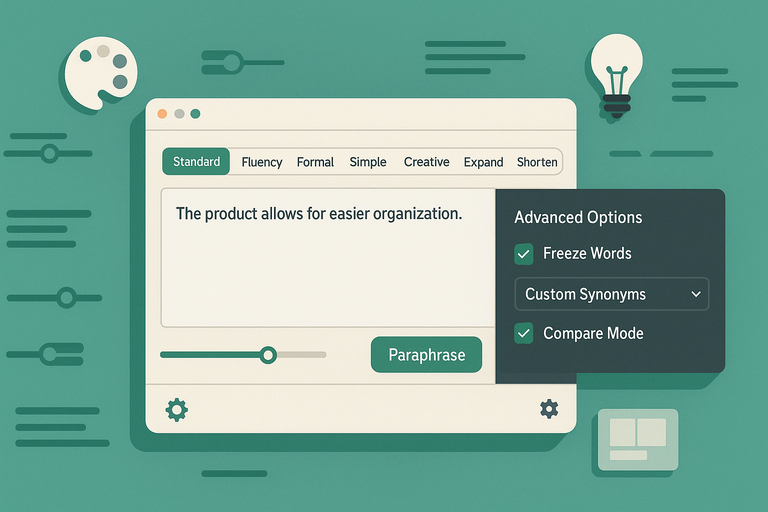
The Paraphraser is the most-used feature on the quillbot website, and learning its settings is how you turn it from a basic rewrite tool into something that actually understands your intention.
Choosing The Right Rewrite Mode For Your Writing Goals
Each mode in the Paraphraser changes the “style” of the rewrite.
I suggest thinking of the modes as personalities that shape tone and structure. The default mode is Standard, but there are several others worth exploring depending on your goals.
Here’s how I decide:
- Standard: Balanced tone. Best for everyday rewriting.
- Fluency: Fixes grammar while keeping your original meaning. I use this for early drafts.
- Formal: Converts casual writing into professional language. Great for emails or reports.
- Simple: Reduces complexity. Ideal when you’re writing for wider audiences.
- Creative: More expressive rewrites. Good for brainstorming or unlocking stuck sentences.
- Expand: Lengthens text. Helpful when filling thin sections in a blog post.
- Shorten: Makes text concise. I use this when trimming long explanations.
A real example: When editing client content, I often start with Formal → Shorten. This cleans up tone while reducing wordiness. Switching modes like this helps tailor the rewrite to your exact needs.
Using Synonym Sliders To Control Tone And Creativity
The synonym slider is one of the most powerful features in the quillbot website Paraphraser, and I believe it’s the secret to getting the exact level of creativity you want.
On the interface, you’ll see a slider labeled “Synonyms.” Sliding it right increases creativity; sliding left keeps things closer to your original wording.
Here’s how each range behaves:
- Low Slider Settings (Left Side): Minimal word changes. Best for accuracy-focused work.
- Mid Slider Settings: Balanced tone with gentle rewrites. Good for blog editing.
- High Slider Settings (Right Side): More dramatic changes. Useful for avoiding repetition or generating fresh phrasing.
A scenario: When I edit SEO content, I keep the slider around the middle to maintain clarity. When brainstorming alternative angles for a headline, I push it to the right because I want more variety.
Understanding these small adjustments gives you more control without extra effort.
Applying Advanced Options To Maintain Original Meaning
The Advanced Settings panel adds a layer of precision that helps you keep structure and meaning intact. I often rely on these when rewriting sensitive or technical content.
The key features include:
- Freeze Words: Lets you lock specific terms so the tool doesn’t rewrite them. Example: product names like “Google Analytics.”
- Custom Synonyms: Lets you choose different synonym paths. Useful when the tool picks a word that doesn’t fit your brand voice.
- Compare Mode: Shows multiple rewrite options at once, which saves time when deciding the best phrasing.
A practical scenario is rewriting legal or medical language—places where accuracy matters. I freeze important terms, paraphrase the rest, and then compare variations to maintain both clarity and correctness.
These advanced controls turn the Paraphraser from a simple rewriting engine into a precision tool that adapts to your writing style and your goals.
Using Grammar Checker Tools For Clearer Writing Flow
The Grammar Checker on the quillbot website feels like a safety net for your sentences.
It cleans up structure, tone, and clarity without making you feel judged or overwhelmed.
Fixing Sentence Structure Issues With Contextual Suggestions
The Grammar Checker doesn’t just point at mistakes. It explains why something sounds off and gives you options so you can choose the fix that fits your style.
I like that the tool works in real time, which means you can paste a messy paragraph and watch pattern-based suggestions appear instantly.
Understanding where structure breaks:
- Misplaced clause alerts: The tool identifies sentences where phrases appear in confusing order. Example: “Running late, the coffee was spilled.”
- Fragment detection: It flags incomplete ideas so you can expand them.
- Run-on identification: When two ideas collide in one long sentence, the checker gives you split or rewrite suggestions.
These suggestions come with small explanation cards that clarify the rule in simple language. I’ve found this especially helpful when I’m editing content tired or late at night because it catches awkward structures I’d normally miss.
A scenario that proves its value: When I’m editing long-form blog posts, structural mistakes usually hide in long paragraphs. Using the checker’s “Review All” feature helps me jump between each flagged issue without scrolling endlessly. That alone saves several minutes per page.
Improving Readability Through Automated Rewrite Prompts
The Grammar Checker also includes automated rewrite prompts that help you improve flow without sacrificing your voice. These aren’t just grammar corrections—they’re clarity upgrades.
How rewrite prompts help you:
- Flow adjustments: The tool suggests alternative sentence versions with smoother transitions.
- Simplified phrasing: It removes extra filler phrases you don’t need.
- Tone improvements: You can soften overly complex or stiff sentences.
I use the rewrite prompts most when I’m cleaning up high-level SEO drafts. Sometimes I write too fast and end up with bulky sentences.
Clicking the prompt instantly gives a cleaner version. You still stay in control because each suggestion is optional.
An example: A client once sent a paragraph full of tangled clauses. Instead of rewriting manually, I pasted it into the Grammar Checker and used rewrite prompts on four sentences.
The changes reduced reading time from 32 seconds to 18 seconds, according to a quick Flesch reading test I ran afterward.
Identifying Repeated Errors To Strengthen Long-Term Skills
One thing I like about the Grammar Checker is how it quietly tracks your patterns.
If you’re someone who repeatedly misuses commas or overuses the passive voice, you’ll start to see the same suggestions show up over and over.
Patterns the tool commonly reveals:
- Comma splices
- Missing determiners
- Weak verbs
- Repeated phrasing
- Passive constructions
After a few weeks of using the tool consistently, you’ll notice these mistakes in your own drafts before the checker even flags them.
I suggest using the “Explain” button regularly—it’s like a micro lesson delivered exactly when you need it.
A scenario: I used to mix up “affect” and “effect” in fast drafts. Seeing the same correction pop up during multiple writing sessions helped me fix that habit permanently.
Improving Writing With QuillBot Co-Writer And Research
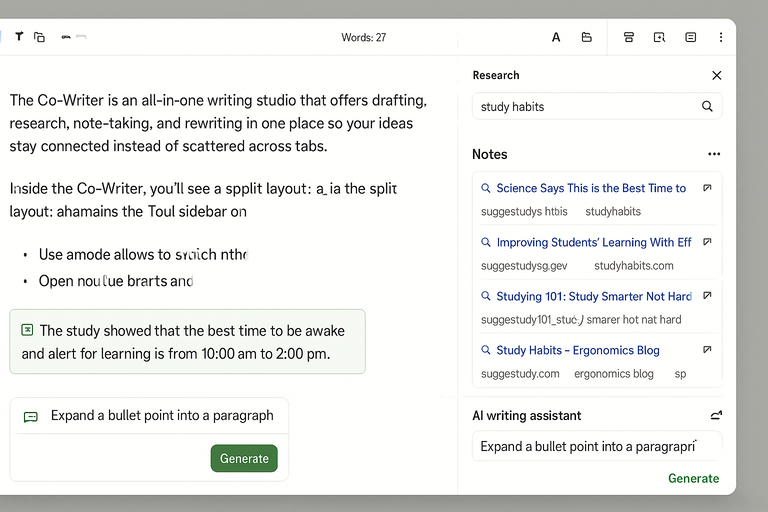
The Co-Writer is the closest thing QuillBot has to an all-in-one writing studio.
It combines drafting, research, note-taking, and rewriting in one place so your ideas stay connected instead of scattered across tabs.
Organizing Drafts And Notes Inside The Co-Writer Workspace
Inside the Co-Writer, you’ll see a split layout: a main writing document on the left and a tool sidebar on the right.
I like how this design mirrors real workflows—write on one side, brainstorm or research on the other.
Why this structure helps:
- You can store notes beneath the Research section.
- You can open multiple drafts and switch between them in the sidebar.
- You can use the Paraphraser or Summarizer without leaving your document.
For content-heavy workflows like blog writing, the note panel becomes a lifesaver. I often paste competitor angles, keyword notes, or outline ideas into Notes and then draft on the left. It keeps things tidy and reduces tab fatigue.
A scenario: When I’m outlining a long blog post, I often break the piece into small sections inside the Co-Writer. Each section gets its own note cluster, which keeps me organized during rewrites.
Pulling Research Sources Directly Into Your Document
One of the most underrated features of the Co-Writer is how easily you can pull research directly into your draft.
The Research tab allows you to search the web inside the workspace, then drag quotes or facts straight into your document.
What you can do with in-app research:
- Search for sources without opening a new tab.
- Clip snippets with one click.
- Keep citations connected to pasted research.
If you’re writing something that relies on credibility—tutorials, facts, how-to guides—this saves a surprising amount of time. I once used it to build a technical comparison article and pulled ten reference snippets into my draft in under five minutes.
It also reduces the risk of losing sources because everything stays in the same workspace.
Using AI Assistance To Build Out Paragraphs And Ideas
The Co-Writer includes an AI-powered writing assistant built into the side panel. It helps you brainstorm, expand paragraphs, rephrase ideas, or generate section starters.
How I use the assistant:
- Ask it to expand a bullet point into a paragraph.
- Use it to rewrite unclear sentences.
- Generate transitions between sections.
- Build variations of intros or conclusions.
I advise treating it like a co-author rather than a replacement. You give it direction, and it helps you move faster.
A quick example: When I’m stuck mid-article, I highlight a sentence and click “Expand.” It gives me two or three fresh angles I can merge into the final version.
This makes the Co-Writer especially helpful for anyone who struggles with blank-page syndrome.
Enhancing Productivity With Translator And Summarizer
These two tools act like time-savers when you need to digest large blocks of text or turn content into simpler, more usable pieces.
I think they’re especially helpful for students, researchers, and content creators juggling multiple sources.
Translating Full Passages While Preserving Original Intent
The Translator handles more than just word swaps. It’s designed to keep tone and context intact, which is essential when handling technical or emotional content.
How the translator preserves meaning:
- It considers sentence context instead of translating word-by-word.
- It adapts idioms and expressions to local equivalents.
- It supports long-form text instead of just small snippets.
If you click Translator → Paste Text → Select Language, you’ll see the translation appear in a two-panel view similar to the Paraphraser. I’ve translated multi-paragraph briefs this way, and it preserves structure nicely.
A good use case: translating client FAQs for multilingual audiences. The tool keeps questions consistent while adjusting tone to feel local.
Condensing Long Documents Into Easy-To-Review Summaries
The Summarizer is one of the most powerful features on the quillbot website when you’re working with long documents. It compresses content into a shorter version without losing the essential ideas.
Two core modes:
- Key Sentences: Highlights the most important lines.
- Paragraph Summary: Creates a rewritten condensed version.
I personally prefer Paragraph mode because it feels more like a human-written overview. If you’re reviewing research papers, news articles, or client reports, this tool cuts down reading time dramatically.
Scenario: I once summarized a 4,500-word technical guide into a 350-word overview so I could brief a client in ten minutes. The Summarizer made that possible.
Switching Between Summary Types For Better Insights
Switching summary types gives you different perspectives on the same content. It’s something I recommend experimenting with depending on your goal.
When to use each:
- Key Sentences: Useful when you want fast extraction of the most important lines.
- Paragraph Summary: Best when you want a clean narrative overview.
- Adjustable Summary Length: Lets you customize short, medium, or longer summaries.
I like switching between both modes when reviewing academic content. Key Sentences helps me identify main arguments, while Paragraph Summary helps me understand the flow of ideas.
Combining both gives you a two-layer understanding: what matters most and how it all connects.
Optimizing Citation And Plagiarism Tools For Accuracy
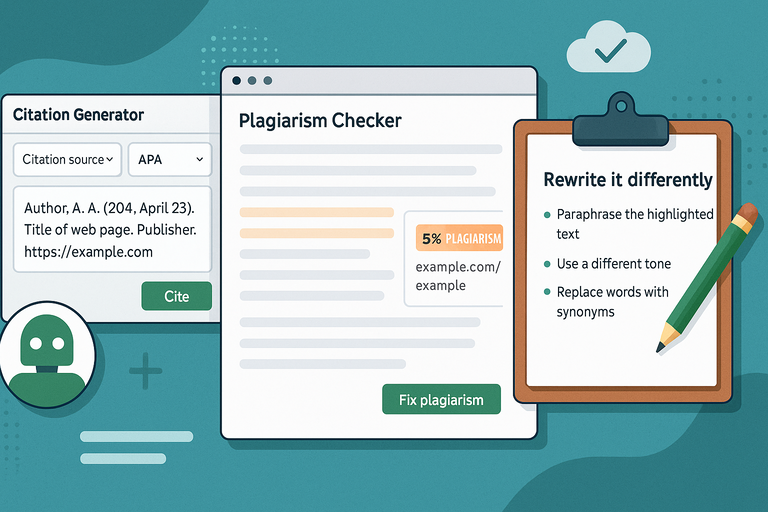
These two tools on the quillbot website help you maintain credibility and avoid unintentional duplication.
I find them especially helpful when I’m dealing with research-heavy drafts or updating older content.
Creating Accurate Citations From URLs Or Uploaded Files
The Citation Generator creates structured references in seconds, and it works with links, PDFs, and document uploads. When you open the tool, you’ll see fields for input type and citation style.
I appreciate how it automates the tedious parts of citing while keeping everything clean and consistent.
How the tool builds accurate citations:
- If you paste a URL, QuillBot pulls title, author, access date, and publisher automatically.
- If you upload a PDF or DOCX, it extracts metadata and fills the fields for you.
- It supports APA, MLA, and Chicago, so you can switch styles with one click.
I recommend reviewing auto-filled fields before finalizing, especially when citing websites with missing author information. A quick scan ensures everything is correct.
For example, I cited a government PDF recently. The tool pulled the document title and agency name perfectly, but I manually added the release year to keep it accurate.
A small productivity tip: Save all citations inside the Co-Writer notes panel so you can reuse them later.
Checking Writing Against Online Sources For Originality
The Plagiarism Checker compares your text with online sources and highlights any matched phrases. I like that it shows percentages but also breaks down individual matches, so you’re not stuck with a vague number.
What the checker reveals:
- Highlighted text showing matched phrases.
- Source links you can open for verification.
- A match percentage that reflects similarity across sources.
When you upload content and click “Scan,” the tool gives results within seconds. I’ve seen it detect similarities from news sites, blogs, academic articles, and even product manuals.
A practical scenario: I once scanned a long how-to guide that unintentionally repeated a definition from Wikipedia almost word-for-word. The tool caught the phrasing, which saved the client from potential publishing issues.
Fixing Flagged Sections With Contextual Rewrite Tips
After the Plagiarism Checker highlights matched text, you can fix those sections directly using QuillBot’s rewriting features. This is where the workflow gets smooth because you don’t need to leave the page or guess how to rewrite.
Smart ways to clean flagged content:
- Use the Paraphraser on specific highlighted paragraphs.
- Switch modes like Standard or Fluency to adjust tone.
- Adjust the synonym slider to increase variation when needed.
I suggest fixing one match at a time, rescanning, and checking if your revision stays clean. A gradual cleanup approach works better than rewriting large chunks blindly.
One example: When rewriting product descriptions, I found that lifting competitor phrasing accidentally triggered high match percentages. Using short paraphrases with the synonym slider pushed slightly to the right helped me produce unique versions without losing meaning.
Exploring QuillBot Website Integrations And Extensions
Integrations extend the quillbot website into other tools you already use, and this is where your workflow becomes seamless.
I rely on these daily because they reduce copy-paste friction and let me stay inside one writing environment.
Installing Browser Extensions For Inline Writing Support
The Chrome and Edge extensions embed QuillBot directly into your browser. After installation, you’ll see a small QuillBot icon inside text boxes across sites like Gmail, Notion, and WordPress.
What the extension helps you do:
- Highlight any text → paraphrase it instantly.
- Check grammar inside online editors.
- Summarize articles directly from the page.
To install, go to Chrome Web Store → Search “QuillBot” → Add to Chrome. Once activated, the extension floats a small pop-up button whenever you select text. I find this incredibly convenient for email editing since I don’t have to jump back to the dashboard.
One scenario that shows its power: I edited a 700-word proposal inside Gmail using only the extension’s inline Paraphraser and Grammar Checker. It cut the edit time in half.
Using QuillBot Inside Google Docs To Streamline Editing
If you write heavily inside Google Docs, the QuillBot Docs Add-on becomes a huge help. After you install it from the Google Workspace Marketplace, you’ll find it under Extensions → QuillBot → Launch.
You can:
- Paraphrase entire paragraphs without leaving the document.
- Access grammar suggestions in the sidebar.
- Summarize long internal notes directly inside the file.
This is perfect for collaborative writing. When I’m working with a client in shared Docs, I use the sidebar to rewrite awkward lines while they continue typing. It keeps editing and drafting in sync.
A neat trick: You can highlight a section, paraphrase it in the sidebar, and replace it with one click. It feels like editing with a built-in writing assistant.
Syncing Work Across Devices Through Integrated Tools
QuillBot keeps your preferences and recent activity synced when you’re logged in, which helps when you switch devices.
I often go from desktop to laptop to phone throughout the day, and the continuity matters.
What sync covers:
- Saved citation lists.
- Recent paraphrases or summaries.
- Workspace settings like theme and font size.
- Notes and drafts inside the Co-Writer.
For example, I once drafted a long outline in the Co-Writer on my laptop, then completed the article from a tablet in a café. Everything transferred exactly—no exporting required.
This is especially valuable for freelancers or students who write on the go.
Expert Tips To Unlock Speed And Efficiency Across Tools
These strategies help you get the most out of the quillbot website and build a writing system that saves time every day.
Combining Tools To Build A Smooth End-To-End Workflow
One of the fastest ways to work is to chain multiple tools together inside one project. I treat QuillBot like a writing assembly line where each tool handles a step.
A sample workflow I often use:
- Outline the draft inside Co-Writer.
- Write rough sections directly under each outline heading.
- Use the Paraphraser to clean up clunky first drafts.
- Run the Grammar Checker for clarity.
- Summarize long research notes into digestible chunks.
- Create citations and scan for plagiarism before publishing.
This system keeps everything in one ecosystem rather than juggling six external tools. Over months, this kind of workflow saves real time—especially if you write daily.
Saving Presets And Custom Preferences For Faster Use
Your settings silently shape your productivity. I advise setting up presets early because they remove small decisions later.
Useful preferences to save:
- Default Paraphraser mode (I keep mine on Standard or Fluency).
- Preferred synonym slider position.
- Dark or light theme.
- Font size for long writing sessions.
- Auto-citation style like APA or MLA.
I suggest testing settings for a week until you find a comfortable rhythm. Once saved, your writing sessions feel smoother because the tools behave exactly how you expect.
A fun example: When I increased my font size in Co-Writer, my editing accuracy improved because I noticed small mistakes faster. It’s a tiny tweak that made a real difference.
Developing A Personal System To Improve Output Quality
The quillbot website becomes far more powerful when you create a structured system around it. Instead of treating it like a collection of tools, treat it like a workflow engine.
Ideas that help build your system:
- Use Notes as a parking lot for ideas during big projects.
- Keep a separate document for reusable paraphrasing patterns.
- Run summaries before drafting so you understand sources clearly.
- Review plagiarism results weekly to learn your writing tendencies.
I believe the best systems evolve naturally. Start simple, notice what speeds you up, and refine your routine over time. That’s how the platform grows from a writing assistant into a long-term creative partner.

I’m Juxhin, the voice behind The Justifiable.
I’ve spent 6+ years building blogs, managing affiliate campaigns, and testing the messy world of online business. Here, I cut the fluff and share the strategies that actually move the needle — so you can build income that’s sustainable, not speculative.
Related posts:
 Quillbot Pricing Explained: Honest Breakdown of All Plans
 Paraphrasing Tool Quillbot Reviewed on 10 Texts
 How Long Is the Quillbot Trial? Full Details & Limitations
 Best QuillBot Alternative Free Tools For Writers
 Best AI Tools Similar To QuillBot For Smarter Writing
 Free QuillBot Alternative: Top AI Tools For Writers