
Table of Contents
Some links on The Justifiable are affiliate links, meaning we may earn a small commission at no extra cost to you. Read full disclaimer.
If you’ve been exploring websites similar to QuillBot, you’re probably looking for smarter tools to rewrite, refine, or enhance your writing without losing your voice.
QuillBot is great—but what if you could find alternatives that offer deeper AI rewriting, plagiarism detection, or real-time grammar insights?
In this guide, we’ll explore ten of the best QuillBot alternatives that can help you write faster, clearer, and more effectively—no matter your niche or writing style.
1. Grammarly – The All-in-One Writing Assistant
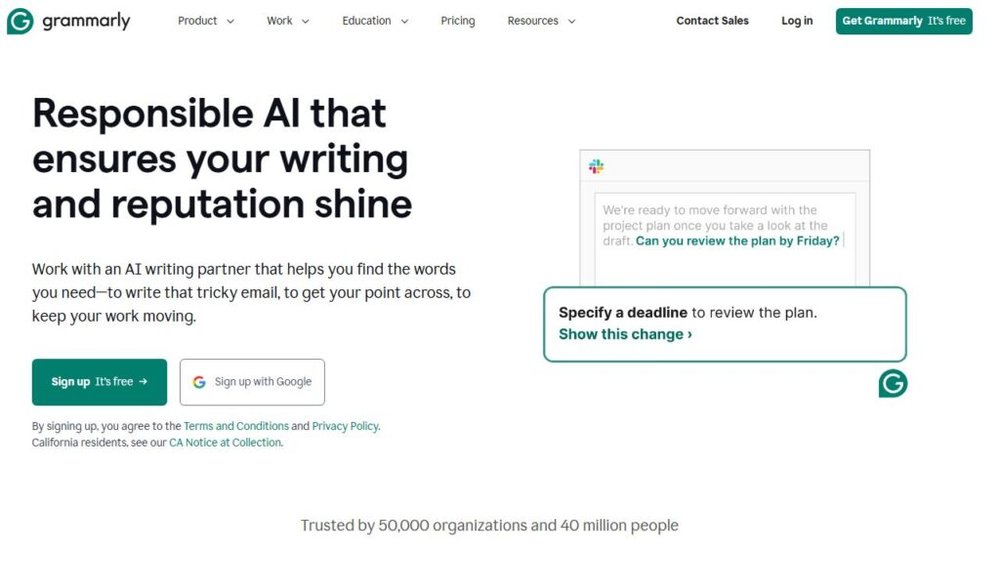
Grammarly is one of the most popular websites similar to QuillBot, built for anyone who wants to improve their writing speed, accuracy, and tone.
It’s more than a grammar checker—it’s a real-time writing coach that spots mistakes, rewrites sentences, and helps you sound confident in any context.
Real-Time Grammar and Style Suggestions
Grammarly doesn’t just underline errors—it teaches you how to fix them. Once you install the browser extension or use the desktop app, Grammarly automatically checks your writing for grammar, spelling, punctuation, and conciseness.
Example: If you type, “The results of the campaign was amazing,” Grammarly immediately highlights “was” and suggests “were,” explaining why it’s incorrect.
Why it stands out:
- You get explanations, not just corrections.
- It adapts suggestions based on your goals (academic, business, creative).
- Works in real-time across apps like Gmail, Google Docs, and even WordPress.
I recommend keeping Grammarly’s “Conciseness” and “Clarity” settings on. They help trim filler words that weaken your sentences—a small tweak that makes your writing instantly more readable.
Built-In Plagiarism Checker for Academic and SEO Writing
If you publish or submit work online, Grammarly’s plagiarism checker is an essential safety net. It scans your text against billions of web pages and academic databases to flag copied or unoriginal content.
You’ll see a percentage match and a list of sources where similar text appears.
This is especially useful for:
- Students ensuring originality in essays.
- Bloggers verifying unique SEO content.
- Freelancers avoiding accidental duplication from research notes.
In my experience, Grammarly’s plagiarism tool often catches nuances other free tools miss, like reworded but closely paraphrased sentences.
It’s integrated directly into the Grammarly Editor—just click “Plagiarism” in the right-hand toolbar and it runs automatically.
Tone and Clarity Detection for Professional Content
Here’s where Grammarly really steps up beyond basic grammar tools—it detects tone and intent. As you type, it predicts how your message might sound to your reader: confident, friendly, assertive, or even aggressive.
For example: Writing an email that says, “I need this report ASAP,” may flag a “harsh tone” warning. Grammarly suggests softening it to, “Could you send this report as soon as possible?”
Why tone matters:
- It keeps business emails polite and on-brand.
- Helps marketers align copy with audience emotion.
- Makes freelancers sound more professional in client communication.
I often advise writers to review Grammarly’s “Clarity” and “Delivery” insights before sending proposals or publishing posts. It’s like having a built-in editor who reminds you to sound both smart and human.
Grammarly Extensions for Browser and Word Processors
Grammarly integrates into almost every writing platform you already use. The browser extension works across Chrome, Safari, Firefox, and Edge—checking emails, blog posts, and social media captions in real time.
If you write long-form content, the Grammarly for Microsoft Word and Google Docs integrations are seamless. You’ll find a sidebar that suggests improvements as you type, without disrupting your workflow.
Pro tip: Grammarly’s desktop app syncs your documents, so you can edit offline and reconnect later without losing data. It’s ideal for writers who travel or work in low-connectivity environments.
Quick comparison:
| Feature | Grammarly (Free) | Grammarly Premium |
| Grammar & Spelling | Yes | Yes |
| Tone & Clarity | Basic | Advanced |
| Plagiarism Checker | No | Yes |
| Word Choice Suggestions | Limited | Full |
If you’re a content creator, upgrading to Premium is worth it. The deeper rewrites, vocabulary suggestions, and plagiarism checks help you write faster—and with far fewer rewrites later.
2. Wordtune – AI That Understands Context
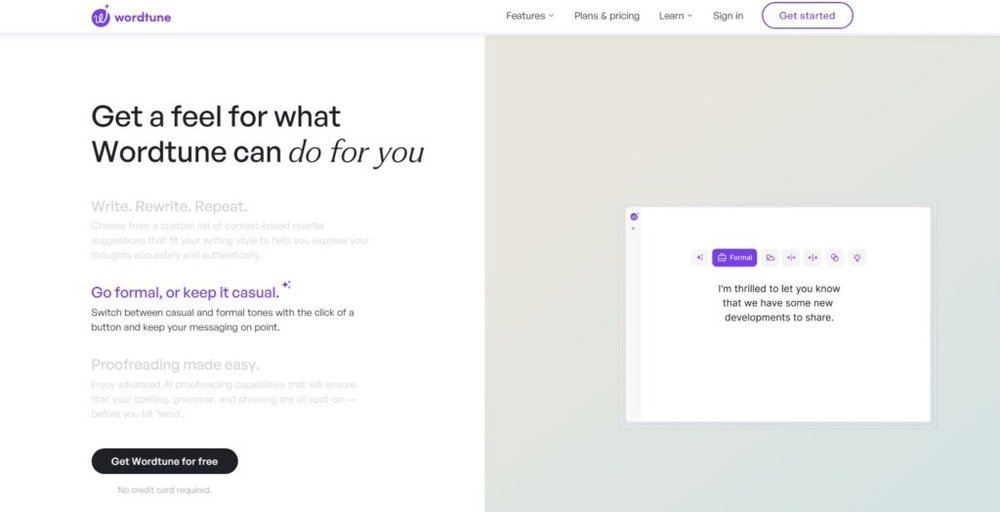
Wordtune takes rewriting to a new level. Unlike QuillBot, which focuses mainly on paraphrasing, Wordtune understands context—it reads the meaning of your sentence before suggesting alternatives.
This makes it perfect for professionals, marketers, and students who want their writing to sound human, not robotic.
Rewrite Sentences with Human-Like Flow
When you paste a sentence into Wordtune, it instantly offers multiple rewrite options—each phrased naturally, like how a human editor would write it.
Example:
- Original: “Our company aims to deliver fast and efficient solutions.”
- Wordtune Suggestion: “We’re committed to providing quick, efficient solutions that make a difference.”
What makes it special:
- It understands nuance and rhythm.
- It offers context-aware rewrites (no awkward phrasing).
- You can pin your favorite suggestion and tweak further.
I’ve found Wordtune especially useful when polishing paragraphs for tone variation—say, converting a casual blog into a more formal proposal. It helps refine your message without losing authenticity.
Adjust Tone and Formality Instantly
Wordtune’s Tone Control feature lets you instantly shift between Casual and Formal writing modes. For instance, click “Formal” when writing a business email or “Casual” for a blog post or social media caption.
This feature shines when you’re repurposing content. Imagine taking a technical report and adapting it into a readable LinkedIn post—the tool helps you maintain accuracy while making it conversational.
Tone adjustment tips I recommend:
- Use Casual mode for blog intros, personal emails, and social media.
- Use Formal mode for proposals, reports, and academic writing.
This small switch can completely transform your perceived tone and professionalism.
Use Wordtune Read to Summarize Long Articles
Wordtune Read is an underrated gem for researchers and content strategists. It condenses lengthy articles, PDFs, and reports into concise, bullet-style summaries—saving hours of manual skimming.
Example use case: You upload a 15-page marketing report, and within seconds, Wordtune Read highlights the key metrics, takeaways, and recommendations.
This is particularly useful when:
- Gathering insights from multiple sources.
- Writing summaries for newsletters or blog posts.
- Preparing talking points for meetings or presentations.
I believe every content writer should pair Wordtune Read with a note-taking app like Notion or Evernote—it turns research chaos into a clean summary in minutes.
Integrate with Google Docs and LinkedIn for Seamless Use
Wordtune integrates smoothly into your daily workflow. The Chrome extension adds a small purple icon inside text boxes in Google Docs, LinkedIn, Twitter, and even Outlook. Hover over it, and you’ll see rewrite suggestions without leaving your document.
The best part? It doesn’t require switching tabs or uploading text—it works in real time as you type.
Practical example:
- Typing a LinkedIn post? Wordtune’s suggestions pop up inline.
- Editing in Docs? Hit Ctrl + D (Windows) or Cmd + D (Mac) to rephrase instantly.
This hands-on integration is why many marketers prefer Wordtune over QuillBot—it keeps creativity flowing without breaking focus.
3. Jasper – AI Copywriting Beyond Rephrasing

Jasper isn’t just one of the websites similar to QuillBot—it’s a full-scale AI writing companion built to help you write high-performing content from scratch.
I like to think of it as your creative partner that never gets tired or runs out of ideas.
Whether you’re writing blog posts, emails, or ads, Jasper generates high-quality drafts that sound human and stay on brand.
Generate Blog Posts, Emails, and Ads from Prompts
Jasper’s magic begins with its “prompt-based” writing system. You simply tell it what you need—something like “Write a 500-word blog about sustainable fashion for Gen Z audiences”—and within seconds, it creates multiple variations for you to refine.
This is ideal when you’re juggling multiple projects. Instead of starting from a blank page, you can use Jasper’s templates for:
- Blog posts: Use the “Blog Post Intro” or “Paragraph Generator” template to flesh out ideas quickly.
- Emails: Choose “Cold Email” or “Follow-Up Email” templates to create professional outreach messages.
- Ads: Select “Facebook Ad Headline” or “Google Ads Description” to generate persuasive ad copy fast.
I often suggest pairing Jasper with SurferSEO (which integrates directly) to optimize articles in real time—balancing creativity and keyword accuracy. It’s a perfect combo for content teams focused on organic growth.
Rewrite Existing Text to Match Brand Voice
Jasper shines when you feed it your own content. You can copy-paste an article, select a section, and use the “Rewrite” command to make it sharper, more engaging, or tailored to a specific audience.
For example, if your tone is friendly but your client prefers corporate language, Jasper can instantly adapt. The “Brand Voice” feature lets you define tone, vocabulary, and even personality traits, so every piece of content feels consistent.
Example UI path: Go to Settings → Brand Voice → Create New Voice. Then describe your tone, upload writing samples, or paste URLs of your existing content. Jasper learns your style and mirrors it automatically.
I believe this feature alone saves hours of manual editing, especially for agencies that manage multiple brands. It’s like having a junior copywriter who already understands your tone perfectly.
Use Boss Mode for Long-Form AI Writing
Boss Mode is Jasper’s most powerful feature, designed for writers who want more control and depth. It allows you to command the AI directly—like saying “Write an introduction about eco-friendly marketing trends”—and Jasper responds intelligently.
What’s great about Boss Mode is how it understands context across several paragraphs, not just individual lines. That means it can maintain structure, flow, and tone throughout a full article.
Here’s how I use it:
- Set the “Content Goal” (e.g., blog post, sales page, email).
- Add keywords manually to guide SEO.
- Use “Compose” to expand sections naturally.
- Edit lightly for voice consistency.
Writers often say Jasper’s Boss Mode feels like brainstorming with an editor who never gets writer’s block. It’s ideal for freelancers, marketers, and content managers working under tight deadlines.
Collaborate with Teams in Real-Time
Jasper also offers a collaborative workspace for teams. Multiple users can edit, comment, and optimize drafts in real-time—perfect for agencies and marketing departments.
You can assign team roles (Writer, Editor, Manager) and track document history. The Campaign Dashboard lets you organize all your content assets—ads, posts, emails—in one place.
Quick tip: If you manage multiple clients, create separate “Brand Workspaces” to keep tones and projects distinct. This avoids crossover errors and ensures each brand stays consistent.
From my experience, Jasper’s team features cut down review cycles by almost 40%, especially when combined with its AI rewriting tools. You get speed, precision, and creative control—all in one dashboard.
4. ProWritingAid – The Editor for Serious Writers

ProWritingAid is another powerful alternative among websites similar to QuillBot, but it takes a more analytical approach.
It’s not just a grammar checker—it’s a full writing analysis suite designed for authors, academics, and professionals who want to master their writing craft.
Deep Grammar, Style, and Structure Reports
ProWritingAid stands out for its in-depth reporting. Every time you run an analysis, it doesn’t just fix errors—it explains why something is wrong and how to improve it.
You get over 20 detailed reports, including:
- Grammar & Spelling: Detects common mistakes and typos.
- Style: Highlights vague words, adverbs, and passive voice.
- Sentence Structure: Identifies repetitive sentence beginnings or word patterns.
I often advise writers to check the “Sentence Variety” and “Transition” reports. These reveal rhythm and flow issues that Grammarly and QuillBot sometimes overlook. It’s like having a university-level writing coach built into your text editor.
Built-In Writing Coach for Long-Form Content
For novelists, bloggers, and content strategists, ProWritingAid acts as a virtual mentor. It’s especially helpful when editing large manuscripts or 3,000-word blog posts.
The “Goals” feature allows you to set custom objectives, like lowering passive voice or improving readability. Once enabled, the tool tracks your progress and nudges you when you drift off course.
Example scenario: If you’re editing a long ebook, you can set a goal of “reduce sentence length by 10%.” ProWritingAid automatically measures your changes and offers sentence-level feedback.
I personally use this during book editing—it saves hours of manual revision while ensuring consistency from chapter to chapter.
Detailed Insights into Readability and Repetition
One of my favorite features is the Readability Report. It uses metrics like the Flesch Reading Ease Score to show how understandable your text is for different audiences.
If your article scores below 50, the app highlights complex words and suggests simpler alternatives. You’ll also see color-coded repetition maps showing overused words—perfect for fine-tuning flow.
Pro tip: Aim for a readability score of 60–70 for web content; it’s readable yet professional.
I believe this focus on audience comprehension gives ProWritingAid an edge—it’s less about correction and more about communication clarity.
Integrates with Scrivener, Word, and Chrome
ProWritingAid integrates directly with tools writers already use: Scrivener for novelists, Microsoft Word for professionals, and Chrome for online writing.
Installing the browser plugin means you get feedback on everything—emails, web forms, or CMS platforms like WordPress. You can edit live without switching tabs.
Example: In Google Docs, highlight text → right-click → choose “Improve with ProWritingAid.” The sidebar instantly opens with grammar, style, and structure feedback.
If you work offline, the desktop app syncs with Scrivener, letting authors edit massive manuscripts seamlessly. For writers managing multiple drafts, this integration is priceless.
5. Linguix – Smart Rewriting for Professionals
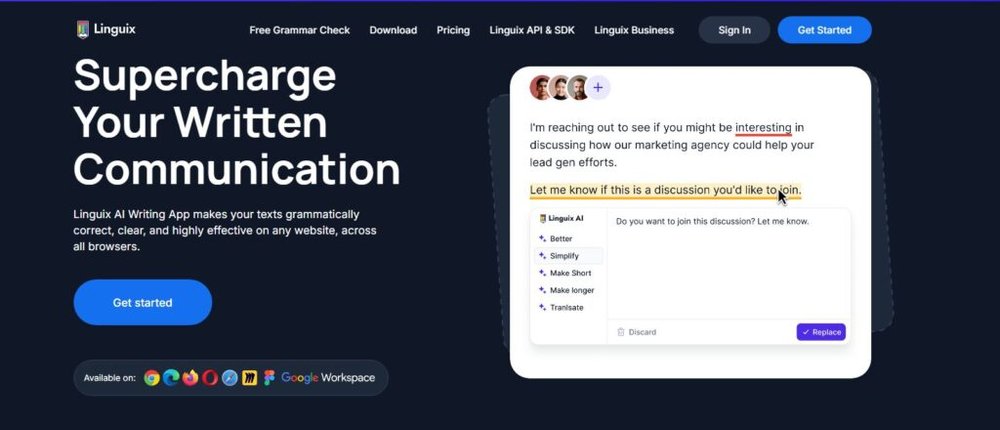
Linguix may not be as famous as Grammarly or Jasper, but it’s quietly one of the best websites similar to QuillBot for business communication.
I’d call it the “AI editor for professionals who write all day”—from client emails to LinkedIn posts.
Sentence Rewriting Focused on Business Communication
Linguix’s rewriting feature is designed for clarity and professionalism. Instead of random paraphrases, it focuses on concise and confident rewrites suited for business tone.
Example:
- Original: “We would like to inform you that your request has been processed.”
- Linguix Suggestion: “Your request has been processed.”
It cuts the fluff, keeps the meaning, and delivers the message with authority. That’s what makes it perfect for busy professionals, sales reps, and managers who value brevity.
Real-Time AI Writing Assistant for Email and Docs
Once you install the Linguix Chrome extension, it automatically checks your writing in Gmail, Google Docs, Notion, and LinkedIn. It flags grammar errors, wordy phrases, and tone mismatches as you type.
The Content Quality Score in the corner of your screen updates in real-time, showing how polished your text is on a scale from 0 to 100.
I recommend enabling “Shortcuts Mode,” which lets you fix multiple errors with one click—a small but powerful time-saver during heavy email days.
Shortcuts for Faster Typing and Editing
One of Linguix’s most unique features is Smart Templates, which lets you create reusable text snippets. You can save common phrases, like “Thank you for your patience” or “Looking forward to your feedback,” and insert them instantly using the “//” command.
Example UI path: Go to Dashboard → Templates → Create New Template.
This is especially handy for sales and customer support teams writing repetitive messages daily. I’ve seen it cut response time by up to 30%.
Style Guides for Consistent Team Writing
For teams, Linguix offers Style Guides—custom rules that enforce brand language across departments. You can define how your company uses words (e.g., “client” vs. “customer”) or tone preferences (formal, friendly, neutral).
Whenever someone writes outside those rules, Linguix alerts them with real-time feedback.
I suggest every company set up a guide early, especially if multiple people handle emails or marketing. It keeps brand communication consistent and professional without needing constant supervision.
6. Slick Write – Free and Fast Grammar Checker
Slick Write is one of the simplest websites similar to QuillBot for writers who want a quick grammar check without sign-ups or heavy software.
It’s a lightweight, browser-based tool designed to spot writing issues fast—perfect for students, bloggers, and professionals who don’t want distractions or delays.
Detect Grammar, Flow, and Readability Issues
Slick Write instantly checks your text for grammatical errors, awkward phrasing, and readability problems. You just paste your text into the editor and click “Check.” Within seconds, it highlights issues using different color codes for grammar, structure, and style.
What makes it stand out is how intuitive it feels—no learning curve or account needed. Each suggestion comes with a short explanation so you understand why something’s wrong.
Example scenario: You paste a product description or blog intro, and Slick Write flags overused adverbs like “really” or “very,” helping tighten your sentences.
I suggest using it as a quick pre-publish step—it’s not as advanced as Grammarly or ProWritingAid, but it’s perfect for catching small, easy-to-miss errors when you’re in a rush.
In-Depth Sentence Structure Analysis
Slick Write goes beyond basic grammar checks by analyzing sentence flow and rhythm. It highlights long, complex sentences and offers data visualizations showing how balanced your writing is.
The Sentence Structure Report is particularly helpful. It visualizes your sentence lengths, showing whether your text reads smoothly or feels choppy.
Why it matters:
- Balanced sentence lengths improve readability.
- Consistent rhythm makes text more engaging.
- Helps identify wordy or confusing sections.
For instance, if 80% of your sentences are over 25 words, it’s a sign your content may be too dense for online readers. I like this analytical approach because it gives a “bird’s-eye view” of your writing style rather than just fixing small errors.
Customize Reports Based on Writing Type
Slick Write’s flexibility lies in its customizable settings. You can choose different writing profiles—academic, casual, or professional—and the checker adjusts its rules accordingly.
Example UI path: Go to Settings → Profile → Choose Writing Type. Each mode changes the detection sensitivity and feedback tone.
If you’re a student writing essays, you might enable more formal rules. If you’re drafting blog posts, select the “Casual” setting to allow conversational tone and contractions.
This personalization ensures you get relevant feedback without overcorrection. It’s a small feature, but it makes Slick Write surprisingly adaptable for different writers.
No Login Required for Quick Edits
One of Slick Write’s biggest advantages is speed. You can use it instantly without creating an account. Just visit the website, paste your text, and start editing—no tracking, no saved data, no distractions.
This makes it perfect for quick, on-the-go writing checks—like reviewing an email before sending it or cleaning up a social media post.
Since everything runs in your browser, it’s also incredibly fast. I recommend bookmarking it if you frequently need lightweight grammar help but don’t want to commit to a full AI suite.
7. Reword – Simplicity Meets AI Rewriting
Reword is one of the newer websites similar to QuillBot, focused on clarity and minimalism. It’s not overloaded with features—it’s designed for people who want clean, readable writing without fluff or overcomplication.
AI-Powered Paraphrasing Focused on Clarity
Reword uses AI to rewrite sentences in a way that enhances meaning rather than just swapping synonyms. It’s particularly strong at clarifying confusing phrasing while preserving tone and intent.
Example:
- Original: “The new update aims to enhance the user experience in a variety of ways.”
- Reword Suggestion: “The update improves how users interact with the platform.”
This kind of clarity-first rewriting helps non-native speakers or writers who struggle with wordy phrasing. I often suggest Reword for short-form edits—like rewriting intros, headlines, or summaries that need to sound natural and professional.
Ideal for Students and Non-Native Writers
Reword’s clean interface and simplicity make it accessible for learners and non-native English users. It avoids complex jargon, instead focusing on easy-to-understand suggestions.
Why it’s great for learners:
- Offers readable explanations for edits.
- Simplifies grammar without sounding robotic.
- Works directly in your browser—no setup required.
If you’re writing essays or preparing reports, it’s a stress-free way to ensure your ideas sound polished and confident. I believe its gentle correction style makes it a great confidence booster for anyone improving their English writing skills.
Summarize Long Texts into Digestible Sentences
Reword includes a built-in summarization tool that condenses long paragraphs into quick, skimmable sentences. It’s ideal for students or researchers who need to digest large documents quickly.
Example: Paste a 1,000-word article, and within seconds, Reword produces a short version capturing the main arguments and data points.
This feature saves serious time when working on study notes or content outlines. I’ve used it myself when building article briefs—it pulls the key ideas without losing important details.
Distraction-Free Minimal Interface
The first thing you’ll notice when opening Reword is how clean it feels. The interface has no ads, pop-ups, or unnecessary buttons—just a simple editor focused on your text.
It’s designed for focus. You can write, rewrite, and summarize in one clean workspace without the visual clutter found in other AI tools.
If you’re easily distracted or simply prefer writing in a calm environment, I recommend Reword’s minimalist design. It’s the kind of tool that helps you think clearly as you write clearly.
8. Ginger – Grammar Checker with Translation
Ginger is a long-standing alternative among websites similar to QuillBot, built for users who want grammar correction plus multilingual support.
It’s especially useful if you write in English as a second language or work in an international environment.
AI Rewriter with Multilingual Support
Ginger’s rephrasing tool lets you rewrite sentences in multiple styles while supporting over 40 languages. You can translate text instantly while checking grammar—something even Grammarly doesn’t offer.
Example use case: You can write a draft in Spanish, click “Translate,” and Ginger outputs a grammatically correct English version with tone adjustments.
This dual feature is invaluable for global professionals or students working with international content. I’ve found its rewriter less rigid than traditional grammar checkers—it focuses on natural, fluent phrasing.
Personal Trainer for Common Writing Mistakes
Ginger includes a Personal Trainer tool that identifies your recurring mistakes and builds short, personalized lessons to help you avoid them.
Example UI path: Open Tools → Personal Trainer → Start Lesson.
It’s like having a mini writing coach that tracks your habits. For instance, if you often confuse “affect” and “effect,” Ginger will teach you through exercises until you stop making the same mistake.
I believe this feature makes Ginger stand out—it’s not just about fixing errors; it’s about helping you improve over time.
Built-In Dictionary and Synonym Suggestions
Ginger also has a built-in dictionary that helps you understand the meaning of any word instantly. When you right-click a word, it shows definitions, synonyms, and example sentences.
This is incredibly useful when you’re editing professional or academic work. You can quickly enrich your vocabulary without switching tabs to a dictionary website.
If you’re rewriting for SEO or creative copy, use the Synonym Suggestion tool—it helps vary your phrasing and avoid repetition while keeping meaning intact.
Works Across Web, Desktop, and Mobile
Ginger is one of the few AI grammar tools that works seamlessly across platforms. You can install it as a browser extension, use the desktop app, or download the mobile keyboard to write correctly anywhere.
Quick access options:
- Chrome and Edge extensions for web-based writing.
- Windows and macOS desktop apps for offline editing.
- Android and iOS keyboard app for emails and chats.
For professionals who write across multiple devices daily, Ginger’s cross-platform ecosystem makes it reliable and convenient.
9. Hemingway Editor – Make Your Writing Bold and Clear
Hemingway Editor is one of the most popular websites similar to QuillBot because it takes a different approach—it doesn’t rewrite your content; it teaches you to write better.
Inspired by Ernest Hemingway’s famously direct style, this tool helps you simplify your writing and make every sentence count.
Highlights Complex Sentences and Passive Voice
Once you paste your text into Hemingway Editor, it instantly color-codes problem areas. Yellow sentences are hard to read, red ones are very hard to read, and purple or green highlights flag adverbs or passive voice.
This visual system makes editing intuitive, even for beginners. You don’t have to guess what’s wrong—you can see it at a glance.
Why it’s powerful:
- You get immediate, visual feedback on readability.
- It encourages concise, direct writing.
- It teaches you how to self-edit effectively.
Example scenario: If you write “The product was delivered by our team,” Hemingway suggests “Our team delivered the product.” It’s more active, confident, and professional.
I often recommend Hemingway to bloggers, copywriters, and business professionals who tend to over-explain or write in long, winding sentences. It helps you tighten your message without losing impact.
Grade-Level Readability Scoring
One standout feature is Hemingway’s readability grade. It measures your writing complexity using a U.S. school-grade system. For instance, a score of “Grade 6” means your text is easy for most readers to understand.
Most web content performs best between Grade 5 and 8—simple but not oversimplified. Hemingway displays this score in the top-right corner of the editor, updating it live as you edit.
Why readability matters:
- Online readers scan more than they read.
- Clearer writing improves engagement and conversions.
- Easier text boosts SEO and user retention.
I personally aim for Grade 7 when writing blog posts—it keeps the content professional yet accessible. You’ll notice a smoother rhythm in your writing once you start chasing clarity over complexity.
Perfect for Bloggers and Copywriters
For bloggers, marketers, and content creators, Hemingway is like a built-in clarity coach. It helps trim unnecessary words and phrases, making your copy punchier.
Example use: If you paste a 1,200-word blog draft, Hemingway might suggest cutting down 100–150 words just by removing redundancy.
This editing precision is particularly useful for sales copy or email marketing, where every word matters. I often use Hemingway before final proofreading—it helps spot weak spots fast and boosts overall readability.
If you write content that needs to persuade, entertain, or inform quickly, Hemingway is one of the simplest yet most impactful editing tools to keep in your toolkit.
Offline App Available for Focused Writing
Hemingway isn’t limited to its web app. The desktop version, available for Mac and Windows, works offline and lets you write distraction-free.
This is ideal for writers who want to focus without browser notifications or slow connections. The offline app also supports direct export to WordPress or Medium, so you can publish with one click.
I recommend the desktop app for long-form writers or anyone who edits while traveling. It’s fast, stable, and keeps your writing flow uninterrupted.
Quick comparison:
| Feature | Free Web App | Desktop App |
| Highlights & Readability | Yes | Yes |
| Works Offline | No | Yes |
| Direct Publishing | No | Yes |
| One-Time Payment | – | $19.99 |
For a one-time cost, the desktop version is worth it if you write regularly. You get the same simplicity—just without distractions.
10. Paraphraser.io – Free and Simple Rewriting Tool
Paraphraser.io is one of the most accessible websites similar to QuillBot, built for users who need quick, accurate rewriting on a budget.
It’s lightweight, supports multiple languages, and includes built-in tools that make it more than just a paraphraser.
Multiple Modes: Fluency, Creative, and Standard
Paraphraser.io gives you several rewriting modes to choose from: Fluency, Creative, and Standard.
- Fluency mode: Keeps meaning intact while improving grammar and readability.
- Creative mode: Rewrites more freely, ideal for generating new phrasing.
- Standard mode: Balances accuracy and readability for general use.
Example:
- Original: “The company is making significant efforts to improve sustainability.”
- Fluency: “The company is working hard to enhance sustainability.”
- Creative: “The brand continues to innovate toward a greener future.”
This flexibility makes Paraphraser.io useful for everything from essays to social media captions. I suggest testing all three modes before finalizing content—each gives a slightly different voice.
Supports Multiple Languages
Unlike many rewriting tools, Paraphraser.io supports over 20 languages, including Spanish, French, German, and Hindi. You can paste text in your native language and get grammatically correct paraphrases in seconds.
This feature is especially helpful for multilingual writers or students who think in one language but need polished English output.
Example use: You can write a blog post draft in Spanish, then translate and rewrite it into fluent English—all within the same editor.
For non-native English speakers, this is an excellent bridge between translation and rewriting tools, ensuring content remains natural and contextually correct.
Includes Grammar Checker and Summarizer
Paraphraser.io also includes a built-in grammar checker and summarizer, turning it into an all-in-one writing assistant.
The grammar checker identifies basic errors—spelling, subject-verb agreement, punctuation—similar to Grammarly’s free version. The summarizer condenses long paragraphs into short, meaningful statements.
Why this helps:
- Streamlines your editing workflow.
- Ensures rewritten text remains grammatically sound.
- Saves time when researching or preparing content briefs.
I often use the summarizer to extract key points from competitor articles before outlining new blog content. It’s quick, accurate, and surprisingly good at maintaining context.
Ideal for Students and Freelancers on a Budget
Paraphraser.io stands out for being completely free and requiring no account to start. It’s ideal for students, freelancers, and small business owners who need to paraphrase or proofread without paying for advanced AI subscriptions.
What makes it practical:
- No sign-up or installation required.
- Free access to paraphrasing, summarizing, and grammar tools.
- User-friendly layout for quick edits.
If you’re writing essays, research papers, or blog posts on a tight schedule, Paraphraser.io is a reliable companion. It’s not as context-aware as Jasper or Wordtune, but for everyday rewriting, it’s efficient and easy to use.
Expert Tip: How to Choose the Right QuillBot Alternative
With so many websites similar to QuillBot, the best tool depends on your goals and writing habits. Each AI platform excels in a specific area—so choosing wisely can save time and improve your output quality.
Match the Tool to Your Writing Goals
Ask yourself what you need most: clarity, creativity, or correctness.
- For clarity: Hemingway Editor and ProWritingAid.
- For creativity: Jasper and Wordtune.
- For accuracy: Grammarly and Ginger.
- For speed and simplicity: Paraphraser.io or Slick Write.
I believe matching your tool to your purpose prevents “AI overkill”—where too many tools end up slowing you down instead of helping.
Balance Features with Ease of Use
Some tools like Jasper offer dozens of advanced options but may feel complex at first. Others, like Reword and Hemingway, focus on minimalism.
If you prefer clean, distraction-free editing, go with Reword or Hemingway. But if you need full-scale AI generation and team collaboration, Jasper or Grammarly Premium are better long-term investments.
Test Free Plans Before Committing
Nearly all these platforms offer free versions or trials. I always advise testing before subscribing. Run your typical writing samples—emails, blog intros, or ad copy—through different tools to see which one “gets” your style.
For example, Grammarly Free might cover your basics, but Jasper’s AI creativity may better suit content marketers. Trying before committing saves both time and money.
Combine Tools for Maximum Efficiency
In practice, no single AI tool covers everything perfectly. The best writers use a combination.
Here’s a practical combo I use often:
- Draft with Jasper for creative flow.
- Polish with Grammarly or ProWritingAid.
- Simplify with Hemingway Editor.
- Final check with Slick Write for quick grammar sweeps.
Combining tools creates a balance between creativity, clarity, and accuracy—helping you write faster while maintaining professional quality.

I’m Juxhin, the voice behind The Justifiable.
I’ve spent 6+ years building blogs, managing affiliate campaigns, and testing the messy world of online business. Here, I cut the fluff and share the strategies that actually move the needle — so you can build income that’s sustainable, not speculative.
Related posts:
 QuillBot AI Grammar: Fix Errors With One Click
 Best QuillBot Alternative Free Tools For Writers
 Honest Comparison: QuillBot Grammarly Review & Results
 Best QuillBot Free Alternative For Fast, Clear Rewriting
 Where to Find a Safe Quillbot Download—No Viruses, No Spam
 How To Use QuillBot Tool To Rewrite Like A Pro