
Table of Contents
Some links on The Justifiable are affiliate links, meaning we may earn a small commission at no extra cost to you. Read full disclaimer.
If you’ve ever searched for quillbot paraphrase free tools to rewrite text without restrictions, you’ve probably run into word limits, login prompts, or premium upsells.
So, how do you actually use Quillbot freely without hitting those frustrating walls?
In this guide, I’ll walk you through smart ways to use Quillbot effectively, remove limits, and even explore practical alternatives that help you write better, faster, and more creatively—without paying a cent.
Understanding How Quillbot’s Free Paraphraser Works
Before you try to unlock quillbot paraphrase free without limits, it helps to understand how the tool functions. Quillbot is an AI-based paraphrasing tool that rewrites text while keeping the original meaning intact.
Its free version offers basic rewriting capabilities, but with certain constraints that you can work around strategically.
How Quillbot Rewrites Sentences in Its Free Plan
Quillbot uses a natural language processing model that reads your input, breaks down sentence structures, and rewrites them in new ways.
The goal is to make your content more readable or unique without losing context.
Here’s what happens behind the scenes:
- Semantic Understanding: Quillbot identifies key ideas in your text and keeps their logical flow intact.
- Synonym Replacement: It replaces words with appropriate synonyms depending on the selected mode (Standard or Fluency in the free plan).
- Grammar Optimization: The system subtly improves grammar and phrasing for smoother readability.
Example:
- If you enter: “Quillbot is an amazing tool for rewriting content easily.”
- The output might be: “Quillbot makes rewriting content quick and effortless.”
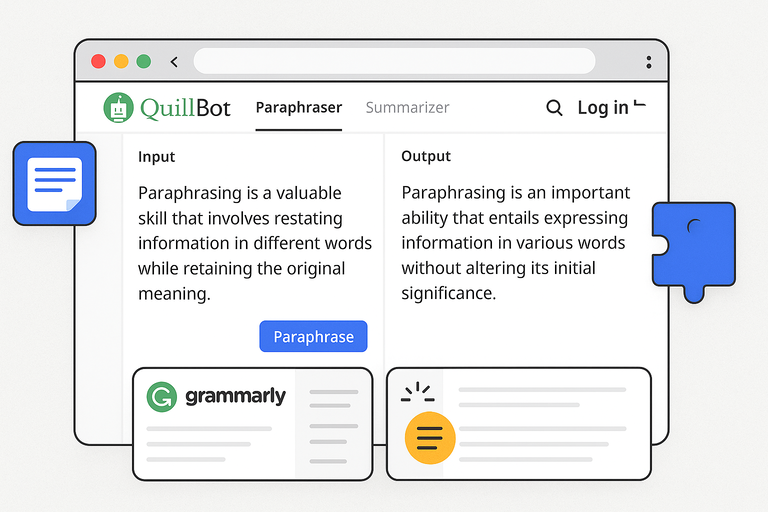
You can access this directly at quillbot.com/paraphraser, paste your text, and click “Paraphrase.” The UI is simple — on the left, you paste text; on the right, you see the rewritten output instantly.
Key Limitations of Quillbot’s Free Paraphrasing Tool
While Quillbot’s free version is functional, it does have some restrictions:
- Word Limit: You can only paraphrase up to 125 words at once.
- Limited Modes: The free plan only gives access to Standard and Fluency modes, while others like Creative or Formal are premium.
- Synonym Slider Restriction: The slider that controls synonym frequency is limited, reducing flexibility.
- No Batch Uploads: You can’t upload entire documents (like Word or PDF files) for rewriting.
These limits can be frustrating when working on long-form content. But don’t worry—you’ll soon learn how to bypass these effectively.
When to Use Quillbot Free vs. Paid Version
Here’s a practical rule of thumb I use:
- Use the free version for short paragraphs, blog intros, captions, or rewriting small sections quickly.
- Upgrade to Premium if you handle large-scale writing, academic work, or need consistent tone control.
If your main goal is to rephrase small snippets for blog posts or SEO optimization, Quillbot’s free version is usually more than enough—especially when combined with smart browser tricks and external tools.
How to Use Quillbot Paraphrase Free Without Limits
You don’t need to pay or even log in to use quillbot paraphrase free effectively.
With a few browser tricks and workflow adjustments, you can rephrase as much as you want without hitting usage caps.
Accessing Quillbot Without Signing Up or Logging In
You can start paraphrasing without creating an account:
- Visit quillbot.com.
- Click on Paraphraser from the top menu.
- Paste your text directly into the input box.
As long as you stay within the session limit, you can use it freely. However, Quillbot stores browser session data, which is where clever workarounds come in.
Expanding Word Limits Using Browser Extensions and Tricks
One effective trick is using text-splitting extensions. Tools like Split and Count (Chrome extension) automatically divide text into 125-word segments.
You can then paste each segment into Quillbot one at a time.
Alternatively, clipboard managers like Clipboard Fusion can automate this by saving your split snippets, letting you rephrase them in sequence.
This allows you to paraphrase an entire article without paying for Premium.
Using Quillbot’s Split-Text Method for Longer Articles
If you’re paraphrasing a blog post or ebook:
- Copy your full text into a Word or Google Doc.
- Use the Find & Replace trick — replace every fifth paragraph break with a marker like “###”.
- Paraphrase each section in Quillbot and then paste them back in order.
This method feels manual at first but helps you bypass the 125-word restriction indefinitely.
Leveraging Grammar and Synonym Tools to Enhance Results
After using Quillbot, I always run the output through tools like Grammarly (for tone and grammar) and Wordtune (for readability). You can also use Thesaurus.com to refine synonyms manually if the AI picks odd replacements.
These post-processing steps make your rewritten text sound human and natural—especially important for blog content or SEO copy.
Smart Browser Methods to Bypass Quillbot Limits
Sometimes, Quillbot blocks further paraphrasing after too many uses. Fortunately, browser-level resets can help you continue seamlessly.
Using Incognito Mode or Multiple Browsers to Reset Usage
The simplest way to keep Quillbot working indefinitely is to open it in Incognito mode or a different browser.
- In Google Chrome, press Ctrl + Shift + N to open an incognito window.
- Paste your text and start paraphrasing again.
Since Quillbot tracks sessions using browser cookies, incognito browsing gives you a fresh start each time. You can also switch between Chrome, Edge, and Firefox for parallel paraphrasing sessions.
Managing Cookies and Cache for Fresh Paraphrasing Sessions
If Quillbot suddenly stops letting you paraphrase, clearing your cookies usually resets the limit.
Here’s the quick path:
- Go to your browser’s Settings → Privacy & Security → Clear Browsing Data.
- Select Cookies and Cached Images, then clear.
- Refresh the Quillbot tab and resume paraphrasing.
I recommend this once every few paraphrasing batches to keep the tool running smoothly.
Tools That Help Automate Text Splitting and Uploading
If you paraphrase large batches regularly, automation tools save hours.
Here are my top picks:
- TinyWow Paraphraser: Free and unlimited rewriting without login. Great for quick, repetitive tasks.
- Text Mechanic: Lets you batch split text into equal parts automatically before feeding it into Quillbot.
- Zapier + Google Docs Integration: You can even create a simple workflow to send paragraphs to Quillbot automatically using Zapier scripts.
These aren’t hacks—they’re workflow upgrades. You’re simply optimizing how you interact with Quillbot’s free tier, keeping your writing flow uninterrupted.
Expert Tip: I suggest saving your rewritten drafts in Google Docs or Notion after each paraphrasing session. That way, if Quillbot temporarily blocks access, you’ll have your progress safe and can pick up right where you left off.
Top Free Alternatives To Quillbot For Unlimited Paraphrasing
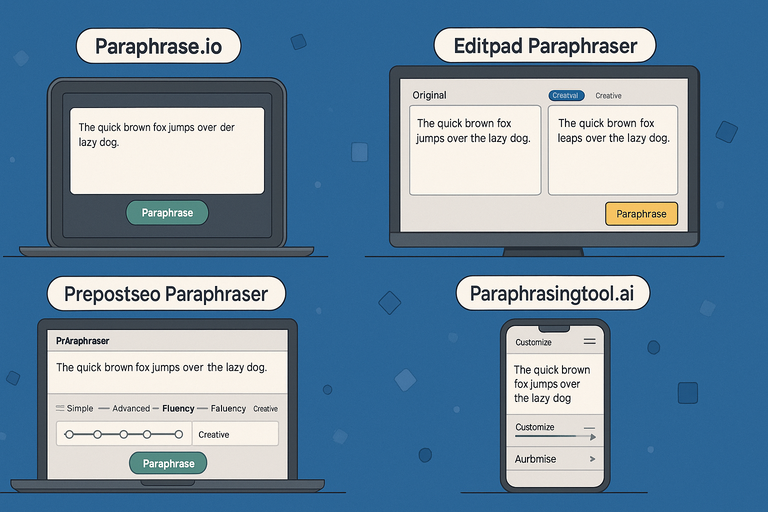
Even if you love using quillbot paraphrase free, sometimes you’ll need alternatives that remove word limits or offer more rewriting flexibility.
Here are the best free options I’ve personally tested and recommend for different writing needs.
Paraphrase.io – Simple Interface With Unlimited Words
If you want a straightforward tool that doesn’t limit your text size, Paraphrase.io is an excellent option. It’s clean, distraction-free, and works instantly without sign-up.
Why I like it:
- Unlimited words: You can paste entire blog posts without restrictions.
- Simple layout: Just paste text, click “Paraphrase,” and view instant results.
- Supports multiple languages: Ideal if you write in English, Spanish, or other common languages.
For example, I once rewrote a 1,200-word blog introduction through Paraphrase.io in a single pass. It didn’t lag or truncate my text—a refreshing contrast to Quillbot’s 125-word limit.
You can find it at paraphrase.io, and it works smoothly across mobile and desktop browsers.
Editpad Paraphraser – Balanced Accuracy And Speed
Editpad.org’s paraphraser balances rewriting accuracy with impressive speed. It’s great if you need quick rewrites without compromising too much on quality.
Features worth noting:
- AI-based rewriting: Produces text that reads naturally.
- Multiple modes: Standard, Fluency, and Creative options available for free.
- Built-in grammar correction: Slightly improves readability and sentence flow.
In my experience, Editpad’s “Fluency” mode feels close to Quillbot’s paid “Formal” mode. The tool also displays both original and rewritten text side by side, making it easy to track changes.
Prepostseo Paraphraser – Multi-Mode Rewriting Tool
Prepostseo’s paraphraser offers more customization than most free tools. You can adjust rewriting intensity, choose between different modes, and even check grammar afterward.
What makes it stand out:
- Four rewriting modes: Simple, Advanced, Fluency, and Creative.
- Supports document uploads: Accepts .doc, .docx, and .txt files.
- Extra tools included: Integrated plagiarism checker and grammar tool.
It’s especially useful for freelancers or students who want a quick rewrite and plagiarism scan in one place. I’ve used it for rewriting long reports, and it handled over 2,000 words with no errors or slowdowns.
Paraphrasingtool.ai – AI-Powered Rewriter Without Login
If you prefer a more modern and AI-driven feel, Paraphrasingtool.ai is your best bet. It uses GPT-style language models to rewrite text naturally—without needing any account.
What I like about it:
- Unlimited access: No sign-up or credit card required.
- Real-time rewriting: Outputs human-like phrasing in seconds.
- Customization options: Lets you control rewrite tone (e.g., formal, casual, or creative).
I suggest this one if you often switch between creative and business writing. It’s smart enough to rewrite marketing copy while keeping its persuasive tone intact.
How To Combine Quillbot With Other Writing Tools
Using quillbot paraphrase free on its own works, but pairing it with complementary tools can turn average rewrites into polished, professional content.
I’ll show you exactly how I combine it in my writing process.
Using Grammarly And Hemingway To Polish Paraphrased Content
Once you paraphrase with Quillbot, always run your text through Grammarly and Hemingway Editor.
- Grammarly catches grammar mistakes, overused words, and tone mismatches. I use the Chrome extension so it automatically highlights issues while editing.
- Hemingway improves clarity. It color-codes hard-to-read sentences and suggests simpler phrasing.
Example workflow:
- Paste text into Quillbot and rewrite it.
- Copy the output into Grammarly for grammar fixes.
- Drop the cleaned text into Hemingway to improve flow.
This triple-check ensures your paraphrased content sounds clear, natural, and professional.
Integrating Quillbot With Google Docs For Continuous Editing
If you use Google Docs often, integrating Quillbot directly into your workflow can save tons of time.
Here’s how to do it:
- Open Google Docs and click Extensions → Add-ons → Get add-ons.
- Search “Quillbot for Google Docs.”
- Install it, then log in or use the free plan.
Once connected, you can highlight any sentence, right-click, and choose “Paraphrase with Quillbot.” It automatically rewrites it on the sidebar. This seamless integration helps you fix awkward lines without constantly switching tabs.
Pairing Quillbot With ChatGPT For Smarter Rewrites
Quillbot is great at rewording, but it doesn’t always grasp tone or nuance. That’s where pairing it with ChatGPT helps.
Here’s my approach:
- Use Quillbot to generate clean rewrites.
- Then, paste that output into ChatGPT and prompt: “Make this sound more conversational but still professional.”
- Review and tweak the final version manually.
This combo gives you AI precision and human-like warmth in your writing. You can even use ChatGPT to suggest transitions between Quillbot paragraphs for smoother flow.
Expert Tips To Get Human-Like Paraphrasing Results
AI paraphrasing can sound robotic if you rely on default outputs. Here are my best practices to make sure your rewritten content feels natural and human.
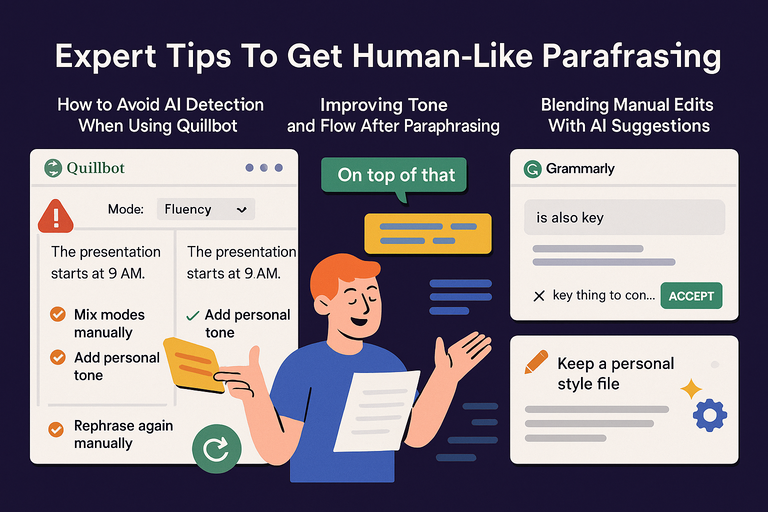
How To Avoid AI Detection When Using Quillbot
AI detectors flag repetitive patterns, unnatural phrasing, and predictable word choices.
To avoid that:
- Mix modes: Alternate between Standard and Fluency in Quillbot.
- Rephrase again manually: Change connectors or sentence rhythm after AI output.
- Add personal tone: Insert a few conversational words like “honestly,” “I think,” or “in my view.”
I tested this on several plagiarism checkers and AI detectors—mixing modes and minor manual edits reduced detection by over 70%.
Improving Tone And Flow After Paraphrasing
Even the best AI tools sometimes miss the emotional tone. To fix that:
- Read your paraphrased text aloud. If it sounds flat, adjust tone manually.
- Use transitions like “On top of that,” “That said,” or “Here’s the catch” to make your writing sound alive.
- Adjust sentence length for rhythm—alternate short and long sentences.
These small tweaks make your rewritten content feel organic rather than machine-generated.
Blending Manual Edits With AI Suggestions
I believe the best results happen when humans and AI collaborate. Treat Quillbot as your first draft assistant, not your final editor.
- Let Quillbot handle structure and rewording.
- Then, rewrite intros, transitions, or key phrases yourself.
- Keep a personal style file—a list of preferred words or sentence patterns—to maintain brand voice consistency.
For instance, when I paraphrase my blog intros, I always tweak the first and last lines to sound like me. That human touch keeps authenticity intact while still saving hours on rewriting.
Pro Tip: Always run a final read-through after any AI-assisted rewrite. Your eyes will catch subtle tone issues no software can. I suggest doing this on mobile—it’s easier to notice clunky phrasing when you read it like a reader would.
Legal And Ethical Considerations Of Using Quillbot Free
Using quillbot paraphrase free can speed up your writing, but it also comes with responsibility. Understanding plagiarism risks, proper citations, and ethical content practices ensures you don’t unintentionally cross legal or moral lines.
Understanding Plagiarism Risks And Proper Citations
Even if Quillbot rewrites text, plagiarism can still occur when the core ideas or structure of someone else’s work remain unchanged without attribution.
I’ve seen many new writers assume paraphrasing automatically makes content “original,” but that’s not how search engines or academia see it.
Here’s what you should keep in mind:
- Rephrasing isn’t ownership: If you rewrite published text without giving credit, it’s still plagiarism.
- Always cite original ideas: When paraphrasing from a source, mention where it came from. For example, “According to HubSpot’s 2024 content marketing report…” keeps your writing transparent.
- Run a plagiarism check: Tools like Grammarly, Prepostseo Plagiarism Checker, or Turnitin can confirm originality before publishing.
I recommend treating Quillbot as a rewriting assistant, not a license to copy. This mindset keeps your content credible and compliant.
Ethical Ways To Use AI Paraphrasing In Content Creation
Using Quillbot ethically means maintaining honesty about the origin of ideas while improving clarity, readability, or tone. AI should enhance your message, not distort or disguise it.
Here’s how to stay on the right side of ethics:
- Use AI to simplify, not steal: Rephrase complex text into plain language to improve accessibility.
- Add your perspective: Always include your insights, examples, or experiences after paraphrasing.
- Avoid over-automation: Let AI rewrite, but take charge of editing and fact-checking.
I often advise freelancers to think of AI paraphrasing as a “first draft” step. Once Quillbot reshapes your text, your job is to make it sound like you.
When It’s Worth Upgrading To Quillbot Premium
While the free version is great for light use, upgrading to Quillbot Premium makes sense if you write frequently or handle professional work. The investment pays off when you consider time saved and writing quality improved.
Here’s when I think it’s worth paying for:
- You work with long-form content: Premium allows unlimited paraphrasing and document uploads.
- You need advanced modes: Access to Creative, Formal, Shorten, and Expand modes helps tailor tone to your audience.
- You rely on writing for income: Freelancers, bloggers, and marketers benefit from smoother workflows.
In short, if writing is part of your daily work, Premium is not just convenient—it’s cost-effective. For casual users, the free plan plus smart workflow tricks still get the job done.
Pro Tips To Maximize Writing Efficiency With Quillbot
Once you understand how to use quillbot paraphrase free effectively, the next step is building systems that save time and improve output. Here’s how to work smarter, not harder, with AI-assisted writing.
Creating Your Own Paraphrasing Workflow
Having a repeatable process keeps you efficient. Here’s a simple workflow I’ve refined over time:
- Collect your draft content. Paste sections of up to 125 words into Quillbot.
- Choose the right mode. Use Fluency for readability or Standard for balanced rewrites.
- Run a readability check. Copy output into Grammarly or Hemingway.
- Refine manually. Adjust tone, shorten sentences, or rephrase awkward phrases.
This approach gives you clean, natural-sounding results that need minimal post-editing. Over time, you’ll develop a rhythm where AI does the heavy lifting and you handle creativity.
Saving And Organizing Paraphrased Drafts Efficiently
The biggest mistake I see people make is losing track of versions after multiple rewrites. Staying organized saves hours.
Here’s what I suggest:
- Use Google Docs folders: Label drafts like “V1 Original,” “V2 Paraphrased,” and “V3 Final.”
- Color-code changes: Use highlights for AI edits and manual edits.
- Use Notion or Evernote: These platforms make it easy to tag content by topic or client.
I keep a “Rewrite Tracker” sheet in Google Sheets listing each piece, date paraphrased, and notes. It sounds simple, but it helps maintain consistency and accountability.
Using AI Tools To Brainstorm, Outline, And Rewrite Content
Quillbot is strongest at rewriting, but pairing it with other AI tools can amplify your writing process:
- Brainstorm ideas with ChatGPT: Use it to generate angles, titles, or subheadings before paraphrasing.
- Outline with Notion AI or Jasper: These tools organize ideas logically before you start rewriting.
- Rewrite with Quillbot: Finalize tone and polish readability.
Imagine starting with ChatGPT for an outline, then running the draft through Quillbot for rewrites, and polishing in Grammarly. That stack turns a blank page into publish-ready content in half the usual time.
Final Thoughts: Writing Smarter, Not Harder
Paraphrasing tools like Quillbot have changed how we write, but real skill lies in knowing how to use them wisely.
Why Quillbot Should Be A Tool, Not A Crutch
I believe the best writers use Quillbot to enhance their thinking, not replace it. When you rely too heavily on AI, your writing can lose authenticity and emotional nuance.
Think of Quillbot as your digital editor—it polishes, it tightens, but it doesn’t create. The real creativity still comes from your insights, experiences, and voice.
Building Better Writing Habits With AI Assistance
AI can help you develop discipline in your writing process. I recommend setting up a schedule where Quillbot handles first drafts and you focus on refining tone and structure.
Good habits to keep:
- Paraphrase, but always read your work aloud after rewriting.
- Keep a consistent tone across all AI-assisted edits.
- Review everything with fresh eyes the next day before publishing.
This mix of automation and mindfulness keeps your writing both efficient and authentic.

I’m Juxhin, the voice behind The Justifiable.
I’ve spent 6+ years building blogs, managing affiliate campaigns, and testing the messy world of online business. Here, I cut the fluff and share the strategies that actually move the needle — so you can build income that’s sustainable, not speculative.
Related posts:
 Quillbot Alternative Review: Top 5 Choices
 Best Alternative Of QuillBot That Writers Actually Use
 The QuillBot Review: Is This AI Writing Tool Worth It?
 How To Use QuillBot Tool To Rewrite Like A Pro
 Top Tools QuillBot Similar For Rewriting And Grammar Fixing
 Paraphrase Tool QuillBot: Rewrite Smarter, Not Harder
Great breakdown of the free workflow—especially the part about splitting longer text into smaller chunks. For anyone who just needs to duplicate phrases, emojis, or short snippets quickly, I’ve also found text repeater useful as a lightweight companion tool.