
Table of Contents
Some links on The Justifiable are affiliate links, meaning we may earn a small commission at no extra cost to you. Read full disclaimer.
If you’re trying to learn how to create automation workflows MailerLite users actually rely on, the good news is that the platform is much easier to work with than many people expect.
You do not need to be “technical” to build useful automations that welcome subscribers, nurture leads, recover sales, or re-engage quiet contacts.
What you do need is a clear plan, the right trigger, and a workflow that matches how real people move through your business.
In this guide, I’ll walk you through the full process step by step so you can build smarter automations without wasting time.
What MailerLite Automation Workflows Actually Do
MailerLite automations are built to send the right message after a specific action happens, using a visual builder with triggers, delays, conditions, and actions.
MailerLite’s current automation builder supports rules such as delays and conditions, along with actions that move subscribers, update data, and send emails inside the workflow.
How An Automation Workflow Works In Plain English
At the simplest level, an automation workflow is just a sequence. Someone does something, MailerLite notices it, and the system responds automatically.
Think of it like this. A visitor joins your newsletter through a form. That signup becomes the trigger. MailerLite then starts a workflow you already designed. It might send a welcome email immediately, wait one day, check whether the person clicked a link, and then route them into a more relevant follow-up path.
That is the heart of email automation: timed, conditional responses based on real behavior. MailerLite describes automation triggers as the events that kick-start the workflow.
This matters because manual sending does not scale well. If you have 50 subscribers, you can probably keep up. If you have 5,000, you will miss timing, forget follow-ups, and send messages that feel generic. Automation fixes that.
I believe this is where many beginners overcomplicate things. They assume automation means building a giant maze. In reality, the best workflows are usually simple:
- Trigger: A signup, click, purchase, or date-based event starts the sequence.
- Action: MailerLite sends an email or updates the subscriber.
- Rule: A delay or condition decides what happens next.
That basic structure can handle most marketing needs surprisingly well.
The Main Parts You Need To Understand Before Building
Before you touch the builder, it helps to know the moving parts. Otherwise, you end up dragging blocks around with no strategy behind them.
The first part is the trigger. This is the event that begins the workflow. MailerLite offers trigger-based automation options, and the trigger is always the “why now?” of the sequence. If you choose the wrong trigger, even a well-written email series will feel off.
The second part is the rule layer. MailerLite’s help documentation explains that rules help control how subscribers move through the workflow. Delays pause the journey. Conditions split subscribers based on behavior, group membership, segment membership, custom fields, or activity.
The third part is the action layer. This is what the platform actually does. It might send an email, move a subscriber to a group, update a field, or kick off another process.
The fourth part is your content. No automation can rescue weak messaging. If your emails feel vague or irrelevant, automation will just deliver bad content more efficiently.
Here is the practical way I think about it:
- Trigger asks: Why did this subscriber enter?
- Workflow asks: What should happen next?
- Condition asks: What changed based on behavior?
- Email asks: What would genuinely help this person right now?
Once that clicks, building gets much easier.
Why MailerLite Is Popular For Beginners And Lean Teams
MailerLite has become a popular option because it combines email marketing, automation, forms, landing pages, and websites in one platform, which is useful for small businesses and creators trying to avoid tool sprawl.
The company also highlights a free plan and trial access to premium features, while paid plans currently start from relatively low monthly tiers compared with many competitors.
That all-in-one setup matters more than people realize. If your forms, landing pages, segments, and emails all live in the same system, setup friction drops a lot. You spend less time duct-taping platforms together.
I also think MailerLite works well for people who want visible logic. Some automation tools feel powerful but cluttered. MailerLite’s newer builder emphasizes drag-and-drop workflow creation and pre-built templates, which lowers the barrier for people building their first automations.
That does not mean it is only for beginners. MailerLite also supports integrations with 130+ services and offers webhooks for real-time event handling, which gives more advanced users room to extend workflows when needed.
For many businesses, that balance is ideal. You can start with a basic welcome sequence today and add deeper logic later instead of migrating platforms the moment your list grows.
Plan Your Workflow Before You Open The Builder
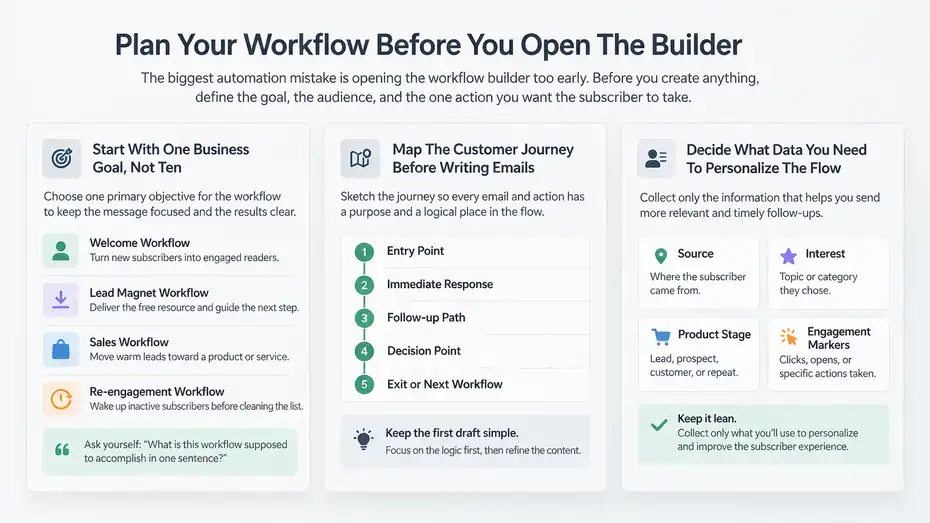
The biggest automation mistake is opening the workflow builder too early.
Before you create anything, define the goal, the audience, and the one action you want the subscriber to take.
Start With One Business Goal, Not Ten
A lot of people build bad automations because they try to solve everything inside one workflow. They want to welcome subscribers, sell a product, collect data, segment by interest, and revive inactive contacts all in one giant sequence.
That usually creates confusion for you and the subscriber.
A better approach is to choose one primary goal per workflow. For example:
- Welcome workflow: Turn new subscribers into engaged readers.
- Lead magnet workflow: Deliver the free resource and guide the next step.
- Sales workflow: Move warm leads toward a product or service.
- Re-engagement workflow: Wake up inactive subscribers before cleaning the list.
When I map automations, I always ask one question first: “What is this workflow supposed to accomplish in one sentence?” If I cannot answer that cleanly, the workflow is not ready.
Imagine you run a small online course business. A person downloads your free checklist. Your immediate goal is not to pitch three offers and a webinar and a coaching package.
Your goal is to deliver the checklist, build trust, and move them toward the next relevant offer. That kind of focus improves open rates, click rates, and conversions because the sequence feels coherent.
This also helps with reporting. If a workflow has one clear job, you can judge whether it is working much more honestly.
Map The Customer Journey Before Writing Emails
Once you know the goal, sketch the journey. You do not need fancy software for this. A plain document or notebook is enough.
Start by listing the stages:
- Entry point.
- Immediate response.
- Follow-up path.
- Decision point.
- Exit or next workflow.
Let’s say your workflow is for new newsletter subscribers. The map could look like this:
- Signup form submitted.
- Welcome email sent immediately.
- Wait one day.
- Send best-content email.
- Wait two days.
- If subscriber clicked a product-related link, move to a sales-intent group.
- If not, keep nurturing with educational content.
This is where automation gets smarter. You are not just sending emails on a timer. You are predicting likely behavior and preparing the next logical step.
I suggest keeping the first draft ugly and simple. Do not worry about perfect copy yet. Just identify the logic. Ask yourself:
- What made this person join?
- What do they need first?
- What behavior shows interest?
- What behavior signals they need more trust?
- Where should they go after this workflow ends?
That planning step saves hours later. It also prevents the common problem of writing six emails and realizing halfway through that the workflow has no real destination.
Decide What Data You Need To Personalize The Flow
Automation gets more useful when subscriber data is organized. But this is another area where people overdo it.
You do not need twenty custom fields on day one. In most cases, you need only enough information to send more relevant follow-ups. MailerLite conditions can use subscriber data like custom fields, group membership, and segment behavior to split paths inside a workflow.
Useful examples include:
- Source: Where the subscriber came from.
- Interest: What topic or category they chose.
- Product stage: Lead, prospect, customer, repeat customer.
- Engagement markers: Clicked pricing page, opened onboarding email, watched webinar.
A practical example: Imagine you sell templates for freelancers and agencies. Instead of one generic welcome automation, you could collect an “interest” field during signup. Then your workflow can branch based on whether the subscriber cares more about client onboarding, proposals, or productivity systems.
That creates a better reader experience without needing enterprise-level complexity.
My advice is simple here: Collect only data you will actually use. Every extra field adds friction to forms and clutter to workflow logic. Keep it lean, then expand once you can clearly see a personalization opportunity.
Set Up The Foundations Inside MailerLite
Before you build the workflow itself, make sure your audience structure, forms, and email assets are ready. Good automation depends on clean setup.
Organize Groups, Segments, And Custom Fields The Right Way
In MailerLite, audience structure matters because automation often relies on groups, segments, or custom fields to control how subscribers move through a workflow.
Conditions in the builder can check things like group membership, segment membership, automation activity, and custom field values.
Here is the simplest way to think about them:
- Groups: Best for intentional labels you assign or automate, like “Lead Magnet – SEO Guide” or “Customer – Course A.”
- Segments: Best for dynamic filtering based on rules, like subscribers who opened a campaign in the last 30 days.
- Custom Fields: Best for storing data points, like first name, business type, or preferred topic.
I recommend naming everything in a way that makes sense six months from now. Avoid vague labels like “test 1” or “hot leads maybe.” Use a naming pattern such as:
- Signup Source – Homepage Form
- Interest – Email Automation
- Customer Status – Active
- Workflow Entry – Welcome Series
This may feel boring, but it prevents serious confusion when your account grows.
I have seen accounts where the automation logic was fine, but the naming was so messy that nobody on the team knew which group triggered what. That is how duplicate emails and broken paths happen.
Clean structure is not exciting. It is just profitable.
Create The Form Or Entry Point That Feeds The Workflow
Every workflow needs an entry point. In many cases, that is a MailerLite signup form, landing page, popup, or embedded form. Since MailerLite combines form and audience tools in one platform, you can route subscribers into groups at signup and use that as the automation starting point.
This is one of the easiest wins in MailerLite: connect the form to the right group from the start.
For example, if you offer three different lead magnets, do not send all signups into one catch-all list and sort it out later. Give each form its own destination group. That way, your trigger and message match immediately.
A simple setup might look like this:
- Homepage popup: Sends to Group – Newsletter General
- Lead magnet landing page: Sends to Group – Free SEO Checklist
- Webinar registration form: Sends to Group – Webinar March 2026
That structure makes automation much cleaner because you can trigger by group or use group membership in conditions and actions.
Another practical note: Keep the form friction low. MailerLite has published GDPR-related guidance noting that shorter forms often work better and that using MailerLite forms can capture consent-related details such as IP, date, time, and source. For many audiences, name and email are enough to start.
The less resistance at signup, the easier it is to feed your automations with consistent leads.
Prepare Emails, Links, And Tracking Before Launch
You can build emails inside the workflow, but I still recommend preparing the core message strategy before you switch the automation on.
At minimum, decide:
- The purpose of each email.
- The one main call to action.
- The page each link should send people to.
- The metric you will use to judge success.
For a welcome workflow, that might be:
- Email 1: Welcome and deliver promised resource.
- Email 2: Set expectations and share the best starting content.
- Email 3: Introduce the product or next conversion step.
- Email 4: Handle a common objection or question.
Do not treat all clicks equally. A click to a blog post is different from a click to a pricing page. If a link shows buying intent, use it intentionally in your workflow logic.
MailerLite’s platform also includes email tracking and reporting features, which you will need later when optimizing open rates, clicks, and conversions. That means setup should not stop at writing copy. You also need to think about how you will measure whether the workflow is doing its job.
In my experience, a workflow becomes much easier to improve when each email has one obvious role instead of three competing goals.
Build Your First Automation Workflow Step By Step
Now you are ready to create the workflow itself. Start simple, get the logic working, then improve the copy and branching after the sequence is live.
Choose The Right Trigger For The Workflow
The trigger is the single most important setup choice because it determines who enters and when. MailerLite’s automation help center describes the trigger as the event that automatically kick-starts the workflow.
Common trigger ideas include:
- A subscriber joins a specific group.
- A subscriber completes a form.
- A subscriber reaches a date-based milestone.
- A subscriber takes an action that signals interest.
For most beginners, the cleanest trigger is group-based entry. A person signs up through a form, gets added to a specific group, and that event starts the workflow.
Why is this so effective? Because it keeps the trigger tied to intent. If someone joined through your “free email marketing checklist” form, you already know what they care about.
I usually suggest avoiding overly broad triggers at the beginning. A general “all subscribers” trigger can become messy fast, especially if people join through different forms and offers.
A strong trigger should answer three questions:
- Who is entering?
- Why are they entering?
- What should happen immediately because of that?
If the answers are fuzzy, pick a narrower trigger.
As a rule of thumb, one signup source or one audience intent per workflow is much easier to manage than one giant automation trying to serve everyone.
Add Emails, Delays, And Conditions In A Logical Order
Once the trigger is set, start building the path. MailerLite’s automation builder supports rule steps such as delays and conditions, which let you pace communication and branch based on behavior.
A clean beginner workflow often looks like this:
- Trigger: Subscriber joins group.
- Send email: Welcome message.
- Delay: Wait one day.
- Send email: Helpful educational follow-up.
- Delay: Wait two days.
- Condition: Did subscriber click the main offer link?
- Yes path: Move to high-intent group.
- No path: Continue nurture.
That sequence is simple, but it already does something powerful. It separates passive readers from active prospects without needing manual sorting.
When placing delays, think about context. A welcome email should usually go out immediately. A sales email sent five minutes later often feels rushed. A nurture email sent three weeks later may feel disconnected. Timing is part of the message.
I also recommend using conditions only when they create a clear difference in the subscriber experience. Do not add branches just because the builder allows it. If the next step would be the same either way, you probably do not need the condition.
Good workflow logic feels calm. Each step should feel like the natural next move, not a puzzle.
Use Actions To Move People Based On Behavior
Actions are what make your workflow adaptive instead of static. MailerLite explains that actions define what happens as subscribers move through the automation.
A few practical action examples:
- Add subscriber to a group after they click a product link.
- Remove subscriber from a promo group after purchase.
- Update a custom field when they choose an interest.
- End the workflow after a goal is achieved.
This is where your automation starts behaving more like a system.
Imagine you sell a monthly membership. In Email 2, you invite subscribers to read the pricing page. Anyone who clicks gets added to a “Membership Interest” group. That action lets you create a future workflow specifically for warm prospects, rather than blasting the same pitch to everyone.
That kind of behavioral sorting matters because relevance drives conversions. Trigger-based and behavior-based emails tend to perform better precisely because they arrive when the user is already interested. MailerLite’s own materials emphasize timely, targeted messaging and customer lifecycle personalization as core automation benefits.
My suggestion is to use actions to keep your audience organized in the background. Subscribers should feel like they are simply getting helpful emails. Behind the scenes, your account structure becomes smarter with every click.
Write Automation Emails That People Actually Open And Click
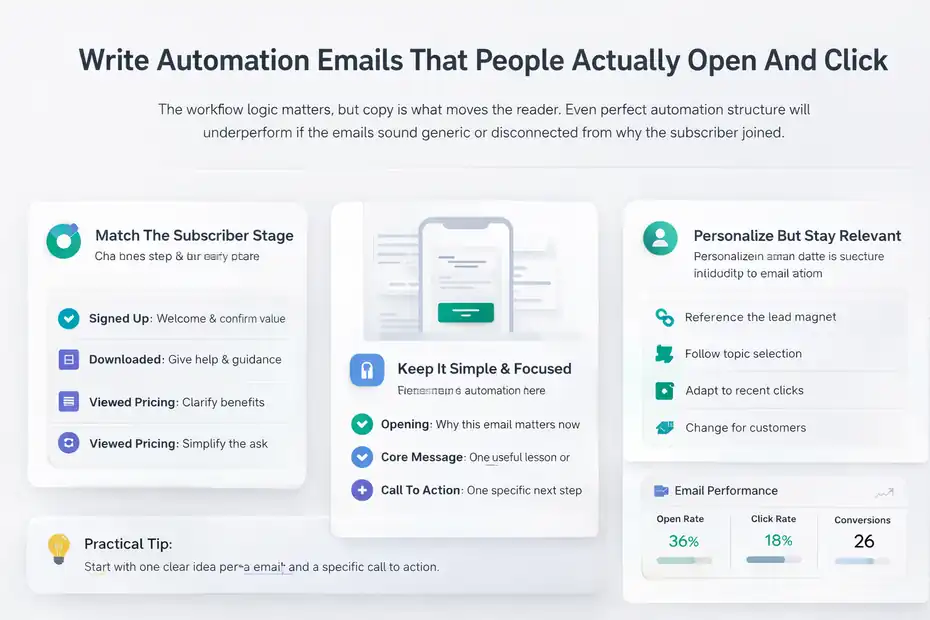
The workflow logic matters, but copy is what moves the reader.
Even perfect automation structure will underperform if the emails sound generic or disconnected from why the subscriber joined.
Match Each Email To The Subscriber’s Current Stage
One of the best things you can do is stop writing automations like newsletters. A newsletter is broad. An automation email should feel specific to the moment.
Ask yourself where the subscriber is right now:
- Just signed up? They need welcome and reassurance.
- Downloaded a resource? They need help using it.
- Visited pricing? They need clarity and confidence.
- Ignored multiple emails? They may need a simpler ask or a reset.
That stage-based thinking changes your tone and call to action.
For example, a welcome email should not sound like a hard close. It should confirm the value exchange. “Here’s the guide you requested, here’s what to expect next, and here’s the best place to start.”
A mid-sequence nurture email can go deeper. Share a common mistake, a useful framework, or a mini case example. Let the reader see progress.
A conversion-focused email should reduce uncertainty. Instead of shouting “buy now,” answer the question the reader is already asking: “Is this worth it for someone like me?”
I believe this is where many automation sequences go wrong. They confuse timing with persuasion. Just because someone entered the workflow does not mean they are ready for the same message.
Better segmentation helps, but better empathy helps more.
Keep The Copy Simple, Specific, And Action Driven
Automation emails usually perform better when they feel direct and personal rather than polished to death.
A few practical rules I use:
- Start with one clear idea per email.
- Keep paragraphs short.
- Focus on one main action.
- Use links with intention.
- Remove anything that sounds like filler.
Imagine the reader is scanning the email on a phone while distracted. That is often the reality. Your job is not to impress them with clever phrasing. Your job is to make the next step obvious.
A useful structure looks like this:
- Opening: Why this email matters now.
- Core message: One useful lesson, reminder, or opportunity.
- Call to action: One specific next step.
Example: if the workflow is about onboarding new software users, your second email might say, “Most people get stuck before they finish setup, so here are the three settings I’d check first.” That feels timely and useful. It also naturally leads to a setup guide, demo, or product tutorial.
Keep your calls to action specific:
- Read the setup guide.
- Watch the 5-minute walkthrough.
- Compare the plan options.
- Reply with your biggest question.
Specificity beats cleverness almost every time.
Use Personalization Without Making It Feel Mechanical
Personalization is helpful when it improves relevance. It is awkward when it becomes gimmicky.
Using a first name field is fine, but it is rarely the thing that drives performance. More meaningful personalization comes from matching the message to source, interest, or behavior.
Examples that actually matter:
- Referencing the lead magnet they requested.
- Sending content based on a selected topic.
- Following up differently after a click versus no click.
- Changing the sequence after someone becomes a customer.
MailerLite supports custom fields and behavior-based conditions, which makes this kind of personalization possible without a huge tech stack.
A realistic scenario: someone joins through your “freelance proposal template” form. Instead of a generic welcome series about your brand, the workflow can send:
- Template delivery email.
- Proposal-writing mistakes to avoid.
- Pricing confidence tips.
- A pitch for your freelancer toolkit.
That feels personal because the sequence matches the reason they signed up.
I suggest aiming for “relevant” more than “personal.” Relevance earns attention. Fake intimacy usually does not.
Optimize Performance After The Workflow Goes Live
Launching is only the beginning. The real gains come from measuring what happens and improving one weak point at a time.
Track The Metrics That Actually Matter
Once the workflow is live, check performance regularly. MailerLite includes tracking and reporting features that help monitor how subscribers engage with campaigns and automations.
The most useful metrics depend on the workflow goal:
- Welcome sequence: Open rate, click rate, and first conversion action.
- Sales workflow: Click-to-offer rate, checkout visits, purchase rate.
- Onboarding workflow: Activation rate, setup completion, feature usage.
- Re-engagement workflow: Opens, clicks, reactivation rate, unsubscribes.
Do not get trapped by vanity metrics. A 60% open rate can still be weak if nobody clicks or converts. Likewise, a lower open rate may be acceptable if the workflow produces qualified leads or sales.
I like to work backward from the actual business result. Ask:
- Did the workflow move people toward the intended action?
- Where are people dropping off?
- Which email creates the biggest lift?
- Which step causes friction?
Even a simple audit can reveal a lot. If Email 1 opens well but Email 2 gets ignored, the issue might be timing, subject line alignment, or a weak bridge from the first message.
Measurement becomes useful when it leads to one clear next experiment.
Improve Weak Spots With Small Controlled Changes
Do not rebuild the whole workflow every time results dip. That usually creates more confusion than improvement.
Instead, isolate one variable:
- Subject line.
- Delay timing.
- Email angle.
- Call to action.
- Branch logic.
- Landing page match.
For example, if your welcome email gets opens but few clicks, the problem may not be the subject line at all. It might be that the email tries to do too much. Tightening the copy to one call to action can raise click rate more effectively than rewriting everything.
MailerLite has also highlighted workflow variation testing in some of its own product comparisons and marketing materials, including support for multiple workflow variations in automation. Even if you are not running elaborate experiments, the idea is the same: test one meaningful difference at a time.
I recommend keeping a basic optimization log:
- Date changed.
- What changed.
- Why you changed it.
- Metric affected.
This sounds simple, but it prevents the classic “we changed five things and have no idea what worked” problem.
Small, consistent improvements usually outperform dramatic redesigns.
Know When To Split One Workflow Into Two
As your business grows, some workflows become overloaded. You keep adding emails, conditions, and actions until the sequence becomes hard to manage.
That is usually the moment to split it.
Signs a workflow should become two separate systems:
- It serves more than one audience intent.
- It contains too many branches to troubleshoot easily.
- New customers and cold leads are mixed together.
- The reporting is muddy because goals are inconsistent.
A common example is the welcome series that slowly turns into a welcome-plus-sales-plus-reengagement monster. At that point, create:
- One workflow for new subscriber onboarding.
- One workflow for product interest.
- One workflow for inactive subscribers.
This makes optimization much easier because each automation has a single purpose again.
I believe modular workflows scale better than giant all-in-one sequences. They are easier to audit, easier to edit, and less likely to break when you change an offer or audience path.
Simple systems also help teams collaborate. If someone joins your business later, they can understand three focused workflows faster than one sprawling maze.
Avoid Common MailerLite Automation Mistakes
Most automation problems are not technical failures. They come from unclear strategy, messy audience setup, or overcomplicated logic.
The Mistakes That Hurt Results Fastest
Some mistakes are small annoyances. Others quietly crush performance.
The big ones I see most often are:
- Wrong trigger: People enter the workflow for the wrong reason.
- Weak first email: The sequence starts without delivering clear value.
- Too many branches too early: The logic becomes fragile and confusing.
- No audience cleanup: Subscribers stay in outdated groups.
- No exit logic: People continue receiving emails after the goal is complete.
That last point matters a lot. If someone buys and still gets beginner pre-sale emails, the experience feels sloppy. Actions should move them out of that path and into a more relevant post-purchase or onboarding workflow.
Another mistake is building based on what the business wants to say instead of what the subscriber needs to hear. Automation is not an excuse to dump your entire brand story into six emails. It is a way to send the next helpful message at the right time.
If your workflow feels noisy, it probably is.
Troubleshoot Broken Logic Without Starting Over
When a workflow misbehaves, resist the urge to scrap everything immediately. Most issues come from a few fixable points:
- The trigger is too broad or too narrow.
- A condition checks the wrong field or group.
- A delay is mistimed.
- A link-based action is pointing to the wrong goal.
- Subscribers are entering multiple overlapping automations.
The best way to troubleshoot is step-based. Check the workflow from entry to exit and ask whether each step has a clear purpose and a working rule behind it.
I suggest reviewing:
- Entry conditions.
- Group assignments.
- Condition logic.
- Email links and destinations.
- Exit points and handoffs to other workflows.
Sometimes the workflow itself is fine, but the form or group setup feeding it is inconsistent. That is why foundations matter so much.
A calm audit usually reveals the issue faster than a full rebuild.
Scale Your Automation Strategy As Your List Grows
Once your first workflows are working, the goal shifts from “make automation function” to “make automation compound.”
Build A Connected Workflow Ecosystem
The smartest long-term automation strategy is not one perfect workflow. It is a set of connected workflows with clear handoffs.
A practical structure could include:
- Welcome workflow.
- Lead magnet nurture workflow.
- Product interest workflow.
- Post-purchase onboarding workflow.
- Re-engagement workflow.
Each one handles a different stage of the customer journey. MailerLite itself emphasizes lifecycle marketing as a major automation benefit, which aligns with this stage-based approach.
For example, a new subscriber might move through this path:
- Join newsletter.
- Enter welcome sequence.
- Click offer link.
- Get tagged or grouped as interested.
- Enter product nurture sequence.
- Purchase.
- Exit pre-sale path and enter customer onboarding.
That is how automation starts creating momentum instead of just saving time.
I recommend reviewing your workflows every quarter and asking whether they reflect the actual customer journey today. Businesses change. Offers change. Traffic sources change. Your automation map should evolve too.
Use Integrations And Webhooks Only When They Solve A Real Problem
MailerLite supports 130+ integrations and also offers webhooks for real-time event handling. That is useful, but I would not rush into external complexity unless it solves a specific bottleneck.
Use integrations when you truly need to connect data across systems, such as:
- Ecommerce purchase data.
- Webinar attendance data.
- CRM status updates.
- Lead source syncing.
- Custom event tracking from your site or app.
Use webhooks when you need real-time notifications or actions triggered by account or subscriber events. MailerLite’s webhook documentation outlines generating a webhook, selecting endpoint URLs, and choosing event subscriptions.
But here is my honest take: Many small businesses do not need advanced integrations to get strong results. A well-structured set of forms, groups, conditions, and emails inside MailerLite can go a long way on its own.
Add complexity only when the missing connection is clearly costing you leads, sales, or visibility.
Final Thoughts On How To Create Automation Workflows MailerLite
Learning how to create automation workflows MailerLite users trust is less about mastering every feature and more about building clear, useful paths for real people. Start with one goal, one trigger, one audience, and one simple sequence. Then improve it with better timing, stronger copy, cleaner segmentation, and smarter follow-up actions.
If I were starting today, I would build in this order: a welcome workflow, a lead magnet delivery sequence, a product-interest follow-up, and a re-engagement automation. That alone can cover a huge part of your email marketing engine.
Keep it simple at first. Make it relevant. Measure what matters. Then let your workflows grow with your business instead of racing ahead of it.
FAQ
What is MailerLite automation workflow?
A MailerLite automation workflow is a sequence of emails and actions triggered by subscriber behavior, such as joining a list or clicking a link. It allows you to send timely, personalized messages automatically, improving engagement and conversions without needing to manually manage every email interaction.
How do you create automation workflows in MailerLite?
To create automation workflows MailerLite users start by choosing a trigger, then add emails, delays, and conditions using the visual builder. You connect actions like tagging or moving subscribers, test the flow, and activate it once everything aligns with your marketing goal and audience journey.
What is the best trigger for MailerLite automation?
The best trigger depends on your goal, but most workflows start with a subscriber joining a specific group. This ensures the automation matches the user’s intent, making your emails more relevant and increasing the chances of engagement, clicks, and conversions throughout the sequence.
How many emails should an automation workflow have?
Most effective automation workflows include three to five emails. This gives you enough space to build trust, deliver value, and guide the subscriber toward a clear action without overwhelming them. The exact number depends on your goal and how complex your customer journey is.
Why is my MailerLite automation not working?
If your MailerLite automation is not working, the issue is usually an incorrect trigger, broken condition, or misaligned group setup. Double-check entry rules, delays, and subscriber paths to ensure people are entering the workflow correctly and progressing through each step as intended.

I’m Juxhin, the voice behind The Justifiable.
I’ve spent 6+ years building blogs, managing affiliate campaigns, and testing the messy world of online business. Here, I cut the fluff and share the strategies that actually move the needle — so you can build income that’s sustainable, not speculative.
Related posts:
 The Ultimate Guide to Using Templates for Email Marketing
 Boost Sales with Automated Email Marketing: 10 Proven Strategies
 How to Use MailerLite (Step-by-Step Beginner’s Guide 2025)
 What is Getresponse: A Brief Introduction
 How Do I Create An Email Newsletter And What Should It Include?
 How to Advertise Your Business: Utilizing Email Marketing Strategies