
Table of Contents
Some links on The Justifiable are affiliate links, meaning we may earn a small commission at no extra cost to you. Read full disclaimer.
If you are searching for how to fix WP Rocket not improving speed, the good news is that the plugin usually is not the real problem.
In most cases, the issue is testing the wrong thing, enabling the wrong features, or expecting caching alone to fix heavy images, bloated scripts, and slow hosting.
I have seen this happen a lot with WordPress sites that look “optimized” inside the plugin but still score badly in PageSpeed Insights.
Let me walk you through the fastest way to diagnose it, fix it, and get measurable speed gains without guessing.
Understand Why WP Rocket Might Seem To Do Nothing
Before you start changing settings, you need to know why WP Rocket can appear useless even when it is working correctly.
This is usually a measurement problem, a server problem, or a page-weight problem.
Why A Better Score And A Faster Site Are Not Always The Same Thing
One of the biggest mistakes I see is treating WP Rocket like a magic PageSpeed score booster. WP Rocket can improve caching, optimize CSS delivery, defer or delay JavaScript, and reduce some rendering bottlenecks, but it does not automatically fix every performance issue on your site.
Its own documentation is very direct about this: when the Google PageSpeed grade does not improve, the remaining issues are often outside page caching alone, including render-blocking assets, JavaScript execution time, or oversized page resources.
Google also separates performance into different kinds of data. PageSpeed Insights includes lab data, which is a controlled Lighthouse test, and real-world Core Web Vitals data, which comes from field usage.
That means you can enable WP Rocket today and still not see an immediate jump in field data because Google looks at the 75th percentile of real user visits over time. In other words, your site can genuinely improve before your public Core Web Vitals report catches up.
I think this is where a lot of frustration starts. You install a premium plugin, clear cache, rerun one test, and expect a dramatic green score. But if your homepage still loads a massive hero image, five third-party scripts, a slider, and a heavy page builder layout, WP Rocket is helping around the edges while the biggest bottlenecks remain.
A more useful way to judge success is this: Check whether your fully loaded time, Largest Contentful Paint, and total transferred page size improve after each change. That tells you whether the plugin is helping the actual experience, not just one vanity metric.
The Three Most Common Reasons WP Rocket Does Not Improve Speed
In my experience, these are the three reasons that explain most “WP Rocket is not improving speed” complaints:
- Reason 1: You are testing uncached or inconsistent pages. If cache was not preloaded yet, if you tested while logged in, or if your host/CDN cache is serving something different, your results can look random. WP Rocket notes that page cache and preload need to function correctly before other gains are visible.
- Reason 2: Your slowest problem is not cache-related. Large images, slow hosting response, database overhead, or external scripts like chat widgets and ad tags can dominate the waterfall even after caching is enabled. WP Rocket specifically points out that JavaScript-heavy pages may still need defer or delay settings, and sometimes the scripts themselves are the real issue.
- Reason 3: A feature is enabled, but not effective on your page. Remove Unused CSS and Delay JavaScript Execution can help a lot, but only when they generate properly and do not need exclusions. WP Rocket has separate troubleshooting guides for both because these features sometimes need page-specific adjustments.
Imagine you run a WooCommerce store and your homepage still loads review widgets, payment badges, tracking tags, and huge mobile banners. Caching may reduce server work, but your browser still has to download and execute all of that front-end weight. That is why “plugin installed” and “site faster” are not automatically the same thing.
Test The Right Pages The Right Way
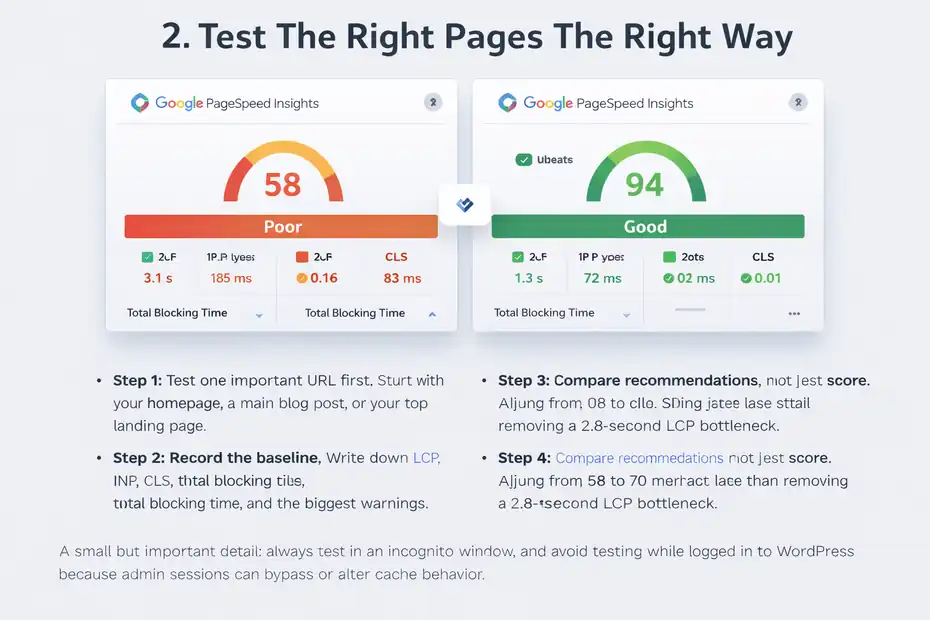
You do not need fifty tools here. You need a clean before-and-after process so you know whether you are fixing the right thing.
Use PageSpeed Insights Without Misreading The Report
Google’s PageSpeed Insights evaluates a page using Lighthouse lab data and, when available, field data tied to Core Web Vitals. The metrics that matter most now are LCP for loading, INP for interactivity, and CLS for layout stability.
Google’s documentation also explains that passing Core Web Vitals depends on the 75th percentile being “Good” across those metrics, which means one fast test alone is not the full story.
Here is how I suggest you test:
- Step 1: Test one important URL first. Start with your homepage, a main blog post, or your top landing page.
- Step 2: Record the baseline. Write down LCP, INP, CLS, total blocking time, and the biggest warnings.
- Step 3: Repeat after each meaningful change. Do not turn on six options at once and hope for the best.
- Step 4: Compare recommendations, not just score. A jump from 58 to 70 matters less than removing a 2.8-second LCP bottleneck.
A small but important detail: Always test in an incognito window, and avoid testing while logged in to WordPress because admin sessions can bypass or alter cache behavior. Also give cache preload time to finish before retesting. If preload is slow or incomplete, you may be testing pages that have not been fully warmed yet. WP Rocket’s preload troubleshooting guide confirms that preload problems can keep performance gains from showing up consistently.
I also recommend testing the exact same URL variation every time. Do not compare the homepage with and without parameters, language folders, or mobile-specific redirects mixed together.
Check Whether The Cache Is Actually Working
A surprising number of site owners never confirm whether WP Rocket’s cache is being served. They assume the plugin is “on,” so the cache must be working. That is not always true.
Start with the basics:
- Check 1: Clear WP Rocket cache manually. Then reload the page once or twice.
- Check 2: Wait for preload. If preloading is still processing or failing, your first public visitors may be rebuilding pages on demand.
- Check 3: Compare logged-out behavior. Cache usually matters most for anonymous visitors, not logged-in admins.
- Check 4: Look for conflicting cache layers. Your host, server, CDN, or another plugin may already be handling cache differently.
WP Rocket’s own documentation emphasizes that page cache is one of the foundations of the plugin, because it reduces the need to repeatedly process PHP and MySQL for each page load. That helps a lot, but only when the cached pages are being served cleanly.
Here is a realistic scenario. Let’s say your host has aggressive server cache, Cloudflare is adding another cache layer, and WP Rocket is also active. If those layers are not aligned, you can clear WP Rocket and still keep seeing stale results from somewhere else.
That makes it look like none of your changes matter. In practice, the fix is often just clearing all layers in the right order and retesting from a clean browser session.
Turn On The WP Rocket Features That Usually Move The Needle Fastest
Once you know your test method is clean, focus on the settings most likely to produce measurable speed improvements. Not every feature matters equally.
Start With Page Cache, Mobile Cache, And Preload
If your goal is to fix WP Rocket not improving speed quickly, this is the fastest starting point. WP Rocket’s guidance on poor PageSpeed improvement specifically points to page cache, including mobile cache, as a major performance lever because it removes repeated backend processing.
Your priority order should look like this:
- First: Enable page caching. This is the base layer.
- Second: Make sure mobile cache is covered. Many sites are judged primarily on mobile performance.
- Third: Confirm cache preload works. Preload warms cached pages before visitors request them, which prevents the first-hit slowdown.
This matters more than many people think. A blog with 60,000 monthly visits may feel fast to repeat desktop visitors but still fail mobile tests if uncached mobile pages are being generated too often. I have seen sites gain more from simply fixing preload than from fiddling with CSS settings for an hour.
If preload is not working, WP Rocket says common causes include blocked cron events, hosting limits, or resource constraints. That means the problem is no longer just “plugin settings”; it may be an environment issue.
So before you touch more advanced options, verify these three are solid. If they are not, every other optimization becomes less reliable.
Use Delay JavaScript Execution Carefully, Not Blindly
Delay JavaScript Execution is one of WP Rocket’s most powerful settings because it postpones loading JavaScript files and inline scripts until user interaction. According to WP Rocket, this can improve performance recommendations tied to rendering and JavaScript costs.
This is often the setting that creates the “wow” effect in Lighthouse. But it also causes confusion because it can break interactive elements if a needed script is delayed too aggressively. WP Rocket has a dedicated troubleshooting guide and a list of automatic exclusions because compatibility matters here.
I suggest using it like this:
- Enable it after caching is stable.
- Test menus, sliders, search, popups, and forms immediately.
- Exclude only the scripts that break something important.
- Retest the same URL after each exclusion.
Think of it like putting non-essential JavaScript to sleep until the visitor actually interacts. That is great for performance, but only if the sleeping script is not responsible for something visible above the fold.
On a brochure site, this can be a huge win. On a complex WooCommerce store or membership site, it may need a few careful exceptions.
From what I have seen, this is where a lot of site owners either give up too early or overdo exclusions until the feature stops helping. The sweet spot is small, intentional exclusions.
Fix CSS Delivery Problems That Make A Site Feel Heavy
A lot of WordPress pages are not slow because the server is slow. They are slow because the browser has too much CSS and JavaScript to process before showing the content.
Enable Remove Unused CSS When Your Theme Loads Too Much Stylesheet Weight
WP Rocket’s Remove Unused CSS feature keeps the CSS actually needed for the page and removes the rest from delivery. The official documentation describes it as keeping only the used CSS for each page, which can reduce overall page weight and improve rendering.
This is especially useful on sites built with flexible themes and page builders that load global styles everywhere. For example, a simple blog post may inherit CSS for sliders, pricing tables, tabs, galleries, and product widgets even when none of those elements appear on the page.
That extra styling creates two problems. First, the browser has more code to download. Second, it has more code to parse before painting content. Remove Unused CSS can reduce both.
A practical workflow looks like this:
- Turn it on for a key page first.
- Wait for used CSS generation to complete.
- Check the page visually on desktop and mobile.
- Compare LCP and render-blocking warnings before and after.
WP Rocket also documents that the generation process runs in batches, with default parameters including a batch size of 100 URLs and a 60-second cron interval. That matters on larger sites because used CSS is not always generated instantly across the whole site.
If your site has 1,000 pages, do not expect every URL to be fully optimized the minute you enable the feature. Start with your highest-value pages first and test those.
What To Do If Remove Unused CSS Breaks The Layout
Let’s be honest: CSS optimization is where many people panic. The page speed improves, but the design looks off. Buttons shift. Mobile menus misbehave. A testimonial block loses spacing.
WP Rocket has a dedicated troubleshooting guide for display issues caused by Remove Unused CSS, and it even allows page-level disabling when specific URLs need a different treatment.
The cleanest approach is:
- First: Identify whether the issue is global or page-specific.
- Second: Disable Remove Unused CSS on the affected page only if the break is isolated.
- Third: Keep the optimization active elsewhere so you do not lose sitewide gains.
That page-level control is underrated. Too many users disable the feature everywhere because two URLs look wrong. In practice, it is often smarter to protect the revenue pages that benefit most and selectively turn it off only where needed.
I believe this is the difference between a rushed setup and a professional one. A rushed setup treats every page the same. A professional setup accepts that a sales page with custom animations and a standard blog article may need different rules.
Fix The Problems WP Rocket Cannot Solve Alone
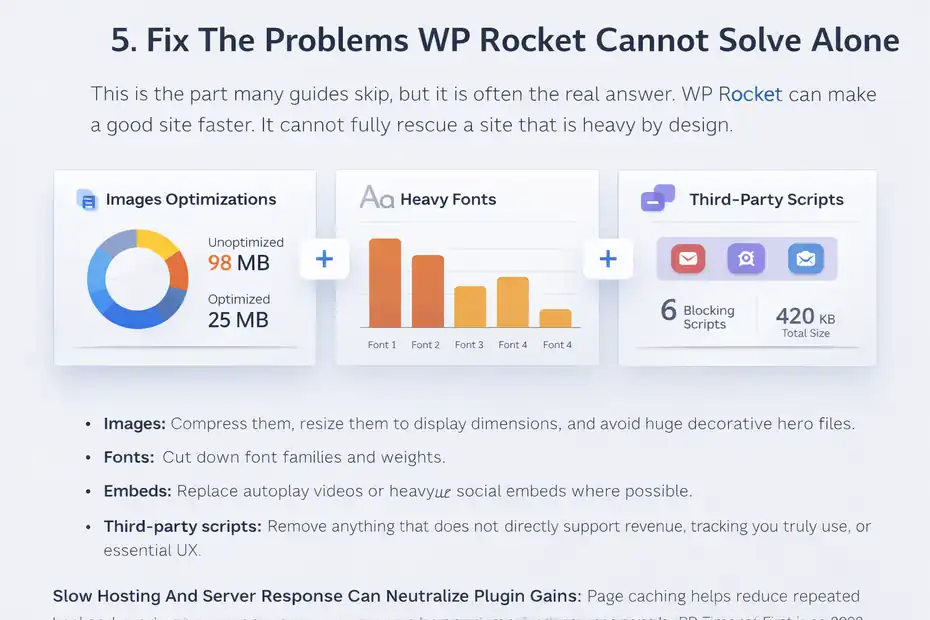
This is the part many guides skip, but it is often the real answer. WP Rocket can make a good site faster. It cannot fully rescue a site that is heavy by design.
Optimize Images, Fonts, And Third-Party Scripts First
If your page is still slow after caching and front-end optimization, look at the heaviest assets on the page. In most cases, the biggest offenders are not mysterious. They are large images, multiple font files, video embeds, and third-party scripts.
WP Rocket’s documentation on poor PageSpeed improvement and high JavaScript execution time makes this clear: some bottlenecks come from what your page loads, not just how it is cached. Delay and defer can help, but they do not erase the cost of loading too many heavy resources.
A simple example makes this obvious. Imagine your homepage hero image is a 1.8 MB JPG, your testimonial slider loads extra JavaScript, your newsletter popup injects another script, and your analytics stack includes several tags. WP Rocket may reduce server work, but the browser still has to download and process all of that.
Here is where to focus:
- Images: Compress them, resize them to display dimensions, and avoid huge decorative hero files.
- Fonts: Cut down font families and weights.
- Embeds: Replace autoplay videos or heavy social embeds where possible.
- Third-party scripts: Remove anything that does not directly support revenue, tracking you truly use, or essential UX.
I recommend being ruthless here. If a script has not influenced a decision, conversion, or report in the last 90 days, it may not deserve to stay on your site.
Slow Hosting And Server Response Can Neutralize Plugin Gains
Page caching helps reduce repeated backend work, but it does not eliminate weak hosting. If your Time to First Byte is poor, PHP workers are constrained, or the server struggles under load, WP Rocket can only do so much.
WP Rocket describes page cache as removing repeated PHP and MySQL processing, which is valuable, but that benefit is smaller when the environment is already overloaded or misconfigured.
This is the uncomfortable truth many people do not want to hear: some sites are trying to “plugin” their way out of a server problem. That usually fails.
You may be dealing with hosting limitations if:
- Your site is fast when barely visited but slows during traffic spikes.
- Preload is slow, incomplete, or inconsistent.
- Back-end actions in WordPress also feel sluggish.
- Your cache helps repeat loads, but uncached or first loads are still bad.
In that case, the fastest 10-minute fix may be diagnosis, not a toggle. Check your host dashboard, PHP version, resource usage, and whether there is built-in page caching already active.
A decent hosting stack plus WP Rocket usually works well together. Cheap hosting with crowded resources often makes every optimization feel weaker than it should.
Troubleshoot Plugin Conflicts And Feature Conflicts
Sometimes WP Rocket is helping, but another plugin, theme, or service is cancelling the benefit or creating unstable results.
Look For Double Optimization And Cache Conflicts
A classic mistake is stacking too many optimization layers. You might have host cache, a CDN optimizer, another cache plugin, image lazy loading from the theme, and WP Rocket all trying to modify the same assets.
That can create duplicated minification, inconsistent caching, or asset rewriting that makes debugging almost impossible. Even when nothing fully breaks, the setup becomes noisy enough that you cannot tell which change helped and which one hurt.
The easiest way to clean this up is to reduce overlap:
- Keep one primary page cache system.
- Avoid duplicate JavaScript and CSS optimization features across plugins.
- Let one layer handle lazy loading consistently.
- Clear all caches whenever you change optimization settings.
WP Rocket’s docs around Delay JavaScript and Remove Unused CSS troubleshooting make it clear that exclusions and compatibility handling are part of real-world setups. That should tell you something important: optimization is not just “enable everything.” It is controlled simplification.
When I audit slow WordPress sites, I often find that the best speed improvement comes from removing redundant optimization features, not adding more.
Test High-Risk Plugins And Scripts One By One
Some plugins are just heavier than others. Visual builders, sliders, popup systems, live chat, event calendars, advanced filtering, and review widgets are frequent offenders. This does not mean they are bad. It means they cost something.
If WP Rocket is not improving speed enough, try a structured isolation test:
- Step 1: Clone or stage the site if possible.
- Step 2: Disable one heavy front-end plugin at a time.
- Step 3: Re-run the same speed test.
- Step 4: Note which plugin materially changes LCP or JavaScript execution time.
This is the closest thing to a mini case study you can run on your own site. Suppose disabling one reviews widget cuts 400 KB of assets and shaves 0.6 seconds off LCP. That tells you far more than another hour of tweaking cache settings.
WP Rocket can improve delivery, but it cannot make a fundamentally heavy plugin light. Once you identify the worst offenders, you can decide whether to replace, restrict, defer, or conditionally load them.
Use A 10-Minute Fix Workflow You Can Repeat
If you want the shortest path to improvement, do not chase every warning. Follow a repeatable order.
The Fastest Practical Workflow For Most WordPress Sites
Here is the workflow I would use if someone handed me a slow WordPress site and asked me to fix WP Rocket not improving speed in 10 minutes:
- Minute 1: Test one key URL in PageSpeed Insights and note LCP, INP, CLS, and the biggest warnings.
- Minute 2: Clear WP Rocket cache, confirm you are testing logged out, and let preload run.
- Minute 3: Verify page cache and mobile cache are active.
- Minute 4: Enable Delay JavaScript Execution and retest the same URL.
- Minute 5: Check the page visually for broken menus, forms, or sliders. Add exclusions only if needed.
- Minute 6: Enable Remove Unused CSS and wait for generation on the page you are testing.
- Minute 7: Recheck mobile layout and any key landing page sections. If one page breaks, disable the feature there only.
- Minute 8: Identify the heaviest image or script still hurting LCP.
- Minute 9: Compress or replace the oversized asset, or remove the least valuable third-party script.
- Minute 10: Retest and compare the same URL against your baseline.
This workflow works because it moves from infrastructure to front-end rendering to page-level cleanup. It does not waste time tuning edge cases before the foundations are stable.
What Results You Should Realistically Expect
Not every site will gain the same amount. A lean blog on decent hosting may see obvious improvements quickly. A bloated store with many apps and scripts may improve more modestly until the heavy assets are addressed.
A realistic expectation is not “100/100 instantly.” It is more like this:
- Server-side gains: Faster repeat loads and better initial HTML delivery from cache.
- Rendering gains: Better handling of JavaScript and CSS when delay and Remove Unused CSS are configured well.
- User experience gains: Lower LCP and less main-thread work on pages that were previously overloaded.
If you improve LCP by even 0.8 to 1.5 seconds on your key pages, that is meaningful. For many sites, that is a much more honest win than chasing a cosmetic score increase.
Keep The Gains And Avoid Slipping Back
The last piece is maintenance. A lot of sites get faster once, then quietly become slow again because no one protects the performance budget.
Build A Simple Performance Routine
You do not need enterprise monitoring to keep a WordPress site fast. You just need a repeatable habit.
I suggest this routine:
- Weekly: Test your homepage and one revenue page in PageSpeed Insights.
- Monthly: Review recently added plugins, scripts, and media.
- Before publishing major pages: Check image sizes and third-party embeds.
- After theme or plugin updates: Reconfirm that WP Rocket optimization features still behave correctly.
Google’s performance guidance centers on user experience signals like LCP, INP, and CLS, so your routine should stay anchored to those.
This is also where team discipline matters. If multiple people publish content, create a simple checklist for image compression, embed usage, and script approvals. The site usually does not get slow because one setting failed. It gets slow because dozens of small decisions add up.
Know When To Stop Tweaking WP Rocket And Fix The Bigger System
I will leave you with one opinionated point: sometimes WP Rocket is not the thing that needs fixing. Sometimes it is doing its job, and the real issue is the site stack around it.
If you have already confirmed cache is working, preload is healthy, Delay JavaScript is tuned, Remove Unused CSS is stable, and the page is still slow, then the answer is usually one of these:
- The page is too heavy.
- The hosting is too weak.
- Too many scripts are competing for the first paint.
- Your theme or builder is shipping more code than the page needs.
That is actually good news, because it gives you a clear next move. Stop endlessly toggling settings and fix the bottleneck with the biggest measurable cost.
When you approach it that way, WP Rocket becomes what it should be: a strong optimization layer inside a clean performance strategy, not a magic button that has to save every site on its own.
FAQ
Why is WP Rocket not improving my site speed?
WP Rocket may not improve speed if the main issue is large images, heavy scripts, or slow hosting. The plugin handles caching and optimization, but it cannot fix oversized assets or poorly optimized themes. You need to address front-end weight and server performance for noticeable improvements.
Does WP Rocket improve PageSpeed Insights scores instantly?
WP Rocket does not always improve PageSpeed scores immediately because Google uses both lab and real user data. While caching and optimization can speed up your site, Core Web Vitals data takes time to update. You may see real performance gains before the score reflects them.
Which WP Rocket settings improve speed the most?
The most impactful WP Rocket settings include page caching, cache preload, delay JavaScript execution, and remove unused CSS. These features reduce server load and improve rendering speed. However, they must be configured correctly and tested to avoid breaking site functionality.
Can WP Rocket fix slow hosting issues?
WP Rocket cannot fully fix slow hosting because it mainly optimizes how content is delivered, not how fast the server responds. If your server is underpowered or overloaded, you may still experience slow load times even with caching enabled.
How long does it take to see results from WP Rocket?
You can see improvements within minutes after enabling key features like caching and JavaScript delay. However, full performance gains depend on cache preload completion and optimization of assets. Real user data improvements in Google metrics may take several weeks to update.

I’m Juxhin, the voice behind The Justifiable.
I’ve spent 6+ years building blogs, managing affiliate campaigns, and testing the messy world of online business. Here, I cut the fluff and share the strategies that actually move the needle — so you can build income that’s sustainable, not speculative.
Related posts:
 How To Use WP Rocket For Faster WordPress Site In 15 Minutes Flat
 Maximize Web Performance: 10 Tips for Optimizing Speed
 10 Best WordPress Caching Plugins for Faster Websites
 5 Powerful Tricks to Ace PageSpeed Insights: Boost Your Site!
 LiteSpeed Cache Review For WordPress: Is It The Fastest Plugin?
 Does WP Rocket Improve SEO Rankings For Blogs Or Just Speed?