
Table of Contents
Some links on The Justifiable are affiliate links, meaning we may earn a small commission at no extra cost to you. Read full disclaimer.
If you’re searching for a Bluehost website slow loading fix, you’re probably dealing with one of the most frustrating problems in site ownership: a website that looks fine, but feels painfully slow when real people try to use it.
I’ve seen this happen with blogs, small business sites, and WooCommerce stores alike. The good news is that Bluehost itself is not always the real problem.
In many cases, slow loading comes from a mix of bloated themes, heavy plugins, oversized images, weak caching, and poor server setup. Let’s fix that step by step.
Identify What Is Actually Making Your Bluehost Site Slow
Before you change anything, you need to know what is slowing the site down. This is the step many people skip, and it usually leads to random fixes that waste time.
Check The Difference Between Server Slowness And Page Bloat
A slow site on Bluehost is not always a hosting issue. In my experience, people often blame the host first, even when the real cause is a huge homepage, too many plugins, or uncompressed images.
Here’s the easiest way to think about it:
- Server slowness means the hosting environment takes too long to respond.
- Page bloat means your website sends too much heavy content to the visitor’s browser.
- Front-end inefficiency means scripts, stylesheets, or third-party tools are delaying rendering.
A simple test helps you separate these. Open your site in a speed testing tool and look at metrics like Time to First Byte, Largest Contentful Paint, and total page size. If the server responds slowly before the page even starts loading, hosting or configuration may be involved. If the response is decent but the page still drags, the problem is usually on the site itself.
Imagine you run a local bakery website. If the homepage loads a full-screen video, six slider images, Instagram embeds, Google Maps, and three font families, Bluehost is not your first issue. Your page is just asking the browser to do too much.
I suggest treating this like diagnosis, not guesswork. Once you know whether the bottleneck is server response, page weight, or third-party scripts, every later fix becomes much more effective.
Benchmark Your Current Speed Before Making Changes
You need a baseline before you optimize. Otherwise, you will not know which changes worked and which ones did nothing.
Test these pages first:
- Homepage
- One blog post
- One core service or sales page
- Cart or product page if you run WooCommerce
Write down a few key numbers:
- Load time
- Page size
- Number of requests
- Time to First Byte
- Largest Contentful Paint
You do not need to obsess over perfect scores. I care more about practical gains. For example, reducing a homepage from 5.8 MB to 1.9 MB often matters more than chasing a vanity score from 89 to 95.
A realistic scenario: Let’s say your Bluehost WordPress site takes 6.2 seconds to load, uses 112 requests, and has a 4.7 MB homepage. That tells us right away the issue is probably not just hosting. It suggests too many scripts, large images, and a layout that is heavier than it needs to be.
When you finish each optimization step in this guide, retest the same pages. That way, you build a simple before-and-after record. It also helps you avoid the classic mistake of changing ten things at once and having no idea which one improved performance.
Choose A Lightweight Theme And Remove Design Bloat
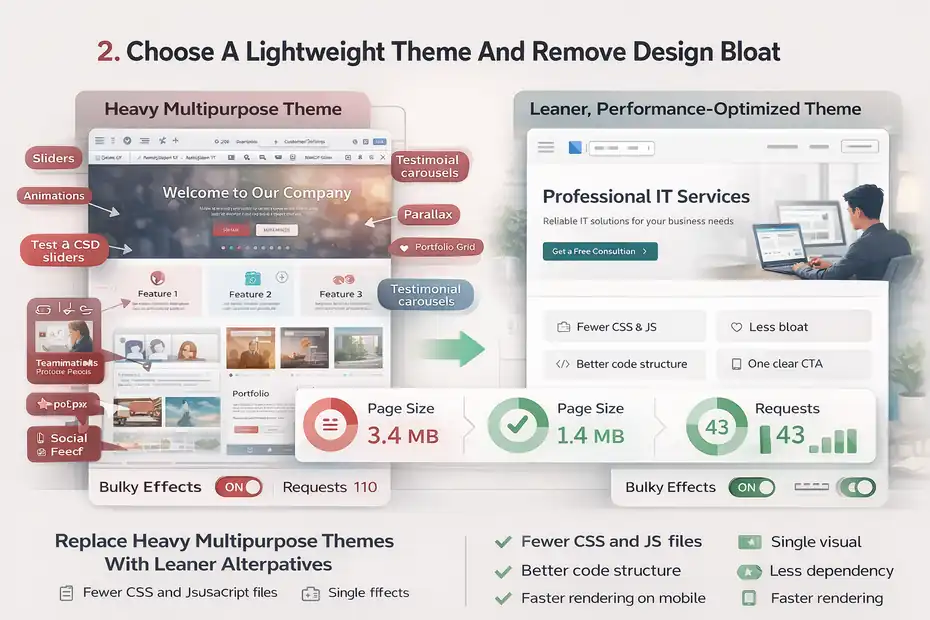
Your theme has a huge impact on performance. Some WordPress themes look polished in demos but are overloaded with sliders, animation libraries, font packs, and page builder extras.
Replace Heavy Multipurpose Themes With Leaner Alternatives
Many Bluehost users slow their sites down with bulky themes that try to do everything. These “all-in-one” themes often come with dozens of templates, design modules, and scripts that load whether you need them or not.
A lightweight theme usually gives you:
- Fewer CSS and JavaScript files
- Better code structure
- Less dependency on visual effects
- Faster rendering on mobile
This matters because even a good server cannot fully rescue a bloated theme. If your theme loads unnecessary assets on every page, your visitors pay the price every time.
I recommend being honest with yourself here. If your site uses fancy transitions, animated counters, parallax effects, and a giant homepage slider, ask whether any of those actually help conversions. Most of the time, they do not. They just add delay.
Let me break it down simply: A fast website feels professional. A flashy but slow website feels stressful. If a cleaner design helps people reach your contact form, checkout page, or article content faster, that is usually the smarter tradeoff.
For many of us, this is the point where speed starts improving noticeably. Even switching from a bloated multipurpose theme to a leaner one can reduce requests and front-end processing in a way that makes the whole site feel more responsive.
Remove Sliders, Animations, And Unnecessary Homepage Sections
Homepage clutter is one of the most common reasons a Bluehost site feels slow. It is especially common on small business websites built with the mindset of “let’s show everything at once.”
The problem is simple: Every slider, animated icon set, testimonial carousel, popup trigger, and embedded feed adds extra scripts or images. On paper, each one seems minor. Together, they create a heavy experience.
A better approach is to simplify the page structure. Keep these elements lean:
- One clear headline
- One main image or visual
- One call to action
- A few essential sections only
For example, a service business homepage does not need a hero slider with five slides. Most people will not wait to see all five anyway. One strong headline and one optimized image often work better.
I have also noticed that many site owners keep sections they no longer need. Old portfolio galleries, outdated promotions, duplicate testimonials, and embedded social feeds can sit on a page for years adding weight without adding value.
This is one of those rare speed fixes that helps both SEO and conversions. A simpler page is easier for users to scan, easier for search engines to understand, and faster for browsers to load. That is a rare win across the board.
Fix Image Problems That Quietly Kill Performance
Oversized images are one of the biggest causes of slow WordPress sites, including those hosted on Bluehost.
This is especially true when site owners upload photos straight from a phone or camera.
Compress, Resize, And Serve Images At The Correct Dimensions
A lot of websites use images that are far larger than the space they appear in. A homepage banner might display at 1400 pixels wide, yet the uploaded file is 4000 pixels wide and several megabytes in size.
That is wasted weight.
Here is the smarter workflow:
- Resize images before upload to roughly the maximum display size needed
- Compress them to reduce file size without obvious quality loss
- Use modern formats like WebP when possible
- Avoid uploading massive PNG files unless transparency is truly necessary
A common example: If your blog featured image displays at 1200 x 675 pixels, do not upload a 5000-pixel original. That oversized file adds load time but gives the visitor no visual benefit.
This matters even more on Bluehost shared hosting, where efficient resource use helps overall performance. Smaller files mean faster delivery, less bandwidth strain, and quicker rendering.
I believe this is one of the easiest wins in a bluehost website slow loading fix plan because the results are usually immediate. I have seen pages drop by more than half in total size just by cleaning up image handling alone.
The goal is not to make your visuals look cheap. It is to stop forcing the browser to process files that are far larger than necessary.
Audit Background Images, Thumbnails, And Hidden Media
Most people optimize the obvious images and forget the hidden ones. That is where speed problems often linger.
Check these trouble spots:
- Background images in hero sections
- Old thumbnails generated by previous themes
- Builder templates that still load unused media
- Images inside popups, sliders, or tabs
- Decorative images below the fold
Sometimes a page looks simple, but the code still loads media that visitors barely see. For example, a homepage may show one hero image while quietly loading several slider backgrounds from an old design system.
You should also be careful with background images because they often escape normal image optimization habits. Since they are added in theme or builder settings, they can be forgotten more easily than standard media library uploads.
A practical scenario: Imagine your homepage seems fine at first glance, but a speed test reveals 3 MB of image data. You investigate and find one large hero background, four hidden mobile/desktop variations, and two testimonial section images loading below the fold. That is the kind of silent waste that drags performance down.
This is why I advise doing a page-by-page visual audit, not just a media library cleanup. Speed issues often live inside templates and design settings, not only in obvious blog images.
Clean Up Plugins And Stop Loading What You Do Not Need
Too many plugins do not automatically make a site slow, but too many poorly chosen plugins absolutely can.
On Bluehost, this becomes more noticeable when limited shared resources are already being stretched.
Remove Redundant Plugins And Consolidate Features
A lot of WordPress sites have plugin overlap. One plugin handles redirects, another manages headers, another adds schema, another optimizes images, and another injects scripts. Individually, each seems useful. Collectively, they create overhead.
Start by asking these questions:
- Does this plugin solve a real problem?
- Is the feature already built into another plugin or theme?
- Am I actively using it right now?
- Is it loading scripts on every page?
For example, I often see sites with separate plugins for caching, image compression, table of contents, code snippets, analytics insertion, security hardening, and database cleanup, when two or three carefully chosen tools could do the same job more efficiently.
This is not just about quantity. It is about quality and overlap. A site with 18 lean, well-coded plugins can outperform one with 8 messy ones.
In my experience, the worst offenders are visual add-ons for page builders, popup plugins, chat widgets, related post plugins, and anything that loads lots of JavaScript across the whole site.
When you remove unnecessary plugins, retest speed immediately. You may notice fewer requests, lower memory use, and a smoother admin experience too. That last part matters more than people think, because a sluggish dashboard often signals a bloated front end as well.
Disable Page-Level Assets That Should Not Load Everywhere
Some plugins are necessary, but their assets should not load sitewide. This is where smarter optimization comes in.
A contact form plugin does not need to load on every blog post. A slider script should not load on pages with no slider. WooCommerce assets do not always need to appear on non-store pages. When these files load everywhere, they add unnecessary CSS and JavaScript requests.
The principle is simple: only load what a page truly needs.
Here are common examples of wasted asset loading:
- Form scripts on pages without forms
- Popup scripts on legal pages
- WooCommerce styles on blog posts
- Social share scripts across the whole site
- Review widgets loading on every template
This is one of the more advanced but high-impact performance improvements. It requires some care, but the payoff is strong because you reduce front-end clutter without removing useful functionality.
Imagine your site has a booking form on just two pages, but its plugin loads scripts on 150 pages. That means the majority of your visitors are carrying unnecessary code on every visit. Once you stop that behavior, page rendering becomes cleaner and faster.
I recommend thinking of plugins as workers. If a worker is only needed in one room, do not make them follow every visitor through the whole building.
Set Up Caching Correctly Instead Of Hoping Bluehost Handles It All
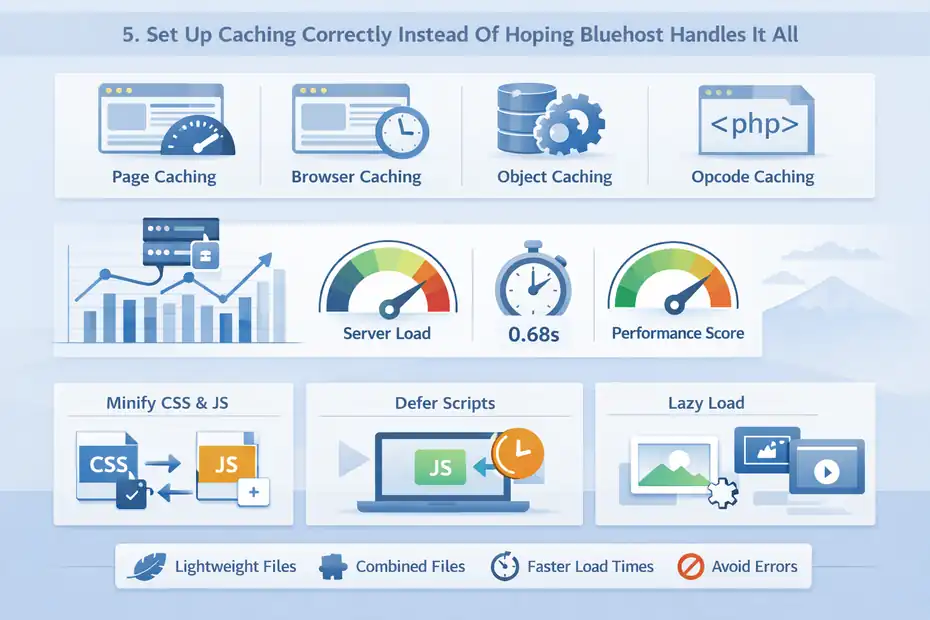
Caching is one of the most important parts of a bluehost website slow loading fix strategy. Many people assume hosting alone will handle it.
Sometimes parts are covered, but rarely in the most complete or optimized way for your specific site.
Understand The Core Types Of Caching That Matter
Caching stores prebuilt versions of content so your website does not have to generate everything from scratch on every visit. That reduces server work and speeds up delivery.
The main types you should understand are:
- Page caching: Stores complete page output for faster delivery
- Browser caching: Lets returning visitors reuse stored files
- Object caching: Reduces repeated database processing
- Opcode caching: Helps PHP run more efficiently on the server side
You do not need to master every technical layer, but you should know that “caching” is not just one switch. It is a stack of efficiencies working together.
For a standard blog or business website, page caching and browser caching usually make the biggest practical difference first. For WooCommerce or dynamic membership sites, caching has to be handled more carefully so important pages like cart and account areas remain dynamic.
I suggest not assuming your setup is fine just because some caching feature is enabled somewhere. A partially configured cache often leaves major gains on the table. Worse, misconfigured caching can cause broken layouts or stale pages.
When caching is working properly, you usually notice three improvements: lower server load, faster repeat visits, and stronger speed test metrics on static pages.
Combine Caching With Minification And Smart File Delivery
Caching helps a lot, but it works best when paired with front-end cleanup. That means reducing unnecessary file weight and delivering CSS and JavaScript in a more efficient way.
This usually includes:
- Minifying CSS and JavaScript
- Combining files when appropriate
- Deferring non-critical scripts
- Delaying third-party JavaScript until interaction
- Removing unused CSS where possible
The goal is to make the browser do less work before the page becomes usable. A fast server response is great, but if the browser then has to process huge render-blocking files, the visitor still experiences delay.
A realistic example: Your Bluehost site responds in under one second, but the homepage still feels slow because seven scripts block rendering before the main content appears. In that case, server speed is not the whole answer. Front-end file handling is the next lever.
Be careful, though. Aggressive optimization settings can break layouts, menus, or dynamic functions. This is why I always recommend testing changes incrementally rather than turning on every performance option at once.
Done well, caching plus minification can make a modest hosting plan perform far better than most people expect.
Reduce Database Overhead And Backend Clutter
A slow Bluehost site is not always heavy because of the front end. Sometimes the backend is bloated too. WordPress databases can quietly collect junk over time, especially on older sites.
Clean Revisions, Transients, Spam, And Expired Data
As WordPress runs, it stores revisions, temporary data, spam comments, orphaned metadata, and other leftovers. Some of this is useful short term. Too much of it becomes clutter.
Common database waste includes:
- Post revisions from years of editing
- Spam and trashed comments
- Expired transients
- Old plugin tables after uninstalling tools
- Orphaned metadata with no active parent content
This backend clutter can affect admin speed, query performance, and overall site responsiveness. On shared hosting, every little inefficiency becomes more noticeable.
Let’s say you run a content-heavy blog with 300 articles. Each article may have dozens of saved revisions. Add years of plugin activity and old transients, and your database becomes much heavier than it needs to be.
This does not mean you should manually delete random tables unless you know what you are doing. But regular cleanup absolutely helps. A leaner database means faster queries, smoother admin actions, and less wasted processing.
In my experience, this is one of the most overlooked performance tasks because visitors never “see” it directly. But when combined with caching and image optimization, it contributes to a healthier site that performs better overall.
Limit Heartbeat Activity And Heavy Admin-Side Processes
The front end gets most of the attention, but WordPress admin activity matters too. If your dashboard feels slow, autosaves lag, or editing posts feels clunky, background processes may be using more server resources than necessary.
One example is the WordPress Heartbeat API. It handles useful tasks like autosaving and session management, but on some setups it can create more frequent server calls than needed.
Other backend drains include:
- Overactive backup schedules
- Constant uptime checks from multiple services
- Live analytics dashboards refreshing too often
- Broken cron jobs
- Plugins scanning the site excessively
This is especially important on Bluehost shared plans because resources are more limited than on high-end VPS or dedicated setups. If several admin-side processes are firing repeatedly, they can contribute to overall sluggishness.
Imagine you have automated backups every hour, two security scanners, a broken scheduled task retrying constantly, and a real-time analytics plugin refreshing in the dashboard. Even if your front end is somewhat optimized, the environment is still doing too much.
I recommend simplifying background activity where possible. Schedule heavier jobs during off-peak hours, reduce duplicate monitoring, and make sure automation serves a real purpose. A calm backend often supports a faster frontend.
Use A CDN And External Delivery For Global Speed Gains
If your visitors are spread across different states or countries, distance matters. Even a decently optimized Bluehost server will feel slower to users who are far from the origin location.
Understand Why A CDN Helps Even On A Small Site
A CDN, or content delivery network, stores copies of static assets like images, CSS, and JavaScript on servers in multiple regions. Visitors then receive those files from a closer location.
That reduces latency, which is just a simple way of saying delay caused by physical distance and network travel.
A CDN is especially helpful for:
- Blogs with readers in multiple countries
- Ecommerce stores serving national traffic
- Media-rich websites with lots of images
- Sites that want better resilience during traffic spikes
I have seen site owners assume a CDN is only for giant brands. That is not true. Even a modest business site can benefit if it serves visitors beyond one local area.
Picture a Chicago-based Bluehost site being visited by someone in London or Sydney. Without a CDN, that person waits for every static file to travel from farther away. With a CDN, many of those files come from a closer edge location, which can make the site feel much snappier.
This does not replace good on-site optimization. It strengthens it. Think of a CDN as support, not a magic trick.
Offload Heavy Assets And Protect Performance Under Load
A CDN also helps reduce pressure on your main hosting account by offloading static asset delivery. That matters when traffic increases or when pages contain many images and scripts.
During a traffic spike, a CDN can help by:
- Serving cached files from edge locations
- Reducing direct requests to your origin server
- Improving consistency for users in different regions
- Helping absorb bursts more gracefully
This is useful not only for big viral moments. Even a modest spike from an email campaign, social media post, or local press mention can stress a smaller hosting plan.
Let’s say you publish a blog post that starts attracting traffic from Pinterest or Google Discover. Without a CDN and proper caching, Bluehost may have to work harder for every request. With a CDN in place, a large portion of static delivery is handled elsewhere, easing the load.
I recommend this step strongly for image-heavy sites, WooCommerce stores with product galleries, and blogs with national or global audiences. It is one of those upgrades that improves both user experience and operational stability at the same time.
Upgrade PHP, Improve Hosting Fit, And Know When Bluehost Is The Bottleneck
Sometimes the website itself is the issue. Sometimes the plan is.
A good bluehost website slow loading fix strategy includes knowing when optimization has reached the point of diminishing returns.
Update PHP And Use Supported Performance Settings
PHP is the programming language WordPress runs on, and older PHP versions are usually slower and less secure than newer supported versions. If your site is on an outdated version, performance can suffer.
This matters because every page request depends on PHP processing. A newer version can improve efficiency without changing your design at all.
You should also check:
- Memory limits
- Max execution time
- Compression support
- Database version compatibility
- Whether unused modules are creating conflicts
I have seen sites gain noticeable speed simply by moving from an outdated PHP environment to a modern one and clearing compatibility issues afterward.
That said, do not upgrade recklessly on a fragile site with old plugins. Always check compatibility first. The right approach is controlled improvement, not chaos.
If your site has been running for years without technical maintenance, this step is often a hidden goldmine. The front end might look fine, but the underlying stack could be overdue for a refresh.
Know When Shared Hosting No Longer Matches Your Site
This is the honest conversation many site owners avoid. Shared hosting can be enough for a lot of websites, but not all of them.
If your site has any of these traits, your plan may be the limiting factor:
- High traffic volume
- WooCommerce with many products
- Membership or learning platform features
- Heavy dynamic content
- Multiple admin users working daily
- Large import, search, or filtering behavior
A shared hosting environment works best when a site is fairly lean and predictable. Once your site becomes more dynamic or resource-hungry, even good optimization may not fully solve the performance ceiling.
Imagine an online store with 800 products, layered filters, customer accounts, and frequent promotions. That site may simply need more dedicated resources than an entry-level shared plan can reliably provide.
I am not saying you must leave Bluehost immediately. I am saying you should know when the hosting fit becomes the issue rather than the website build. That is an important distinction. Optimization should support the plan, not endlessly compensate for a mismatch.
Build A Long-Term Speed Maintenance System So The Problem Does Not Return
Speed is not a one-time fix. It is a maintenance habit. Many websites get faster for a month, then slowly become bloated again because there is no process in place.
Create A Monthly Performance Checklist
A simple monthly checklist prevents small issues from turning into a full slowdown again. You do not need an enterprise workflow. You just need consistency.
A useful monthly routine includes:
- Test key pages for speed
- Check plugin updates and remove unused ones
- Review new image uploads for size issues
- Clean spam, revisions, and expired data
- Confirm caching is still functioning correctly
- Scan for broken scripts or third-party embeds
This kind of maintenance is especially useful if multiple people touch the site. Designers, editors, marketers, and developers can each add things that affect performance without realizing it.
For example, a content editor may upload uncompressed images, while a marketer adds a new popup script and a tracking pixel. Neither change seems dramatic alone, but together they can slow the site noticeably over time.
I recommend assigning website speed ownership to someone, even if that someone is just you. Sites tend to slow down when performance is “everyone’s responsibility” and therefore nobody’s job.
Track Real User Experience, Not Just Lab Scores
Lab tests are helpful, but they are not the whole story. A page can score well in a tool and still feel frustrating to real users because of layout shifts, mobile delays, or third-party behavior.
That is why I suggest looking beyond a single score. Pay attention to:
- Mobile experience on actual devices
- Checkout or lead form completion flow
- Bounce patterns on key landing pages
- Time spent on important content
- User complaints about slowness
A practical example: Your homepage scores well in a test, but real users abandon the booking page because the calendar widget loads late on mobile. That is a speed problem that matters more than a pretty report.
In my experience, the best performance strategy is part technical and part practical. Yes, we want clean code, efficient delivery, and good metrics. But we also want a site that feels smooth when a real person visits, scrolls, taps, and tries to take action.
That is the standard that actually matters.
Quick Troubleshooting Table For Common Bluehost Speed Issues
| Problem | Likely Cause | Best Fix |
|---|---|---|
| Slow homepage only | Heavy images, sliders, too many sections | Compress images, remove sliders, simplify layout |
| Slow entire site | Weak caching, plugin bloat, hosting limits | Configure caching, clean plugins, assess plan fit |
| Fast desktop but slow mobile | Large media, render-blocking scripts, too many fonts | Optimize mobile assets, defer scripts, reduce font weight |
| Slow WooCommerce pages | Dynamic content, too many extensions, uncached requests | Audit extensions, optimize cart/checkout exclusions, consider stronger hosting |
| Slow admin dashboard | Database clutter, heavy plugins, excessive background tasks | Clean database, reduce heartbeat activity, remove bloated plugins |
| Good host response but page still slow | Front-end bloat | Minify files, cut requests, optimize theme and assets |
| Site slows during traffic spikes | No CDN, weak cache, shared plan strain | Add CDN, improve caching, evaluate upgrade path |
Final Thoughts
A real bluehost website slow loading fix usually does not come from one magic setting. It comes from stacking the right improvements in the right order.
Start with diagnosis, clean up the theme and images, reduce plugin overhead, configure caching properly, optimize the database, use a CDN, and then honestly assess whether your hosting plan still fits your site.
If I had to prioritize the fastest wins, I would start with image optimization, theme cleanup, plugin reduction, and caching. Those four changes solve a surprising number of slow Bluehost sites.
After that, you can move into database cleanup, CDN support, and hosting-level decisions with much more clarity.
The good news is that most slow sites are fixable. You do not need to panic. You just need a smarter system than “install another speed plugin and hope.”
FAQ
Why is my Bluehost website loading slowly?
Your Bluehost website may be slow due to large images, too many plugins, poor caching setup, or a heavy theme. In most cases, the issue is not Bluehost itself but how the website is built and optimized for performance.
How do I fix a slow Bluehost WordPress site?
To fix a slow Bluehost WordPress site, optimize images, reduce plugin usage, enable proper caching, and clean your database. You should also remove unnecessary scripts and consider using a CDN to improve loading speed for global visitors.
Does Bluehost hosting affect website speed?
Bluehost hosting can affect speed, especially on shared plans with limited resources. However, most slow-loading issues come from unoptimized websites. Upgrading your plan or improving site efficiency usually delivers better performance results.
What is the fastest way to speed up a Bluehost site?
The fastest way to speed up a Bluehost site is to compress images, enable caching, and remove unnecessary plugins. These changes quickly reduce page size and server load, often improving load time within minutes after implementation.
Do plugins slow down Bluehost websites?
Yes, poorly coded or excessive plugins can slow down Bluehost websites by adding extra scripts and database queries. Removing unused plugins and limiting active ones to essential tools helps improve speed and overall site performance.

I’m Juxhin, the voice behind The Justifiable.
I’ve spent 6+ years building blogs, managing affiliate campaigns, and testing the messy world of online business. Here, I cut the fluff and share the strategies that actually move the needle — so you can build income that’s sustainable, not speculative.
Related posts:
 InMotion WordPress Hosting: Fast, Secure, Reliable
 Bluehost Hosting: Features, Pricing, & Perks
 WP Engine WordPress Review: Pros, Cons, Real Benchmarks
 WP Engine Server Performance: What Makes It Faster?
 Hosting WP Engine: Why Users Choose Premium Speed
 WPengine Startup Plan Review for New WordPress Sites