
Table of Contents
Some links on The Justifiable are affiliate links, meaning we may earn a small commission at no extra cost to you. Read full disclaimer.
If you’ve been wondering how to scale your website without losing speed, flexibility, or your sanity, Cloudways VPS might be the answer you’ve been searching for.
Many businesses hit a wall when shared hosting can’t keep up with growing traffic. But what if you could scale performance effortlessly, with managed servers that balance power and simplicity?
In this guide, we’ll explore exactly how Cloudways VPS hosting makes that possible—and whether it’s the smart way to grow your online presence.
Understanding Cloudways VPS Hosting and Its Core Advantage
Cloudways VPS hosting combines the control of traditional VPS (Virtual Private Server) with the ease of managed hosting.
It’s built for people who want power and flexibility without the headache of managing servers manually.
What Makes Cloudways VPS Different from Shared Hosting
In shared hosting, multiple websites share the same server resources—like living in a crowded apartment where everyone uses the same Wi-Fi. If one site gets heavy traffic, everyone else slows down.
Cloudways VPS changes that by giving you dedicated resources (RAM, CPU, and storage) that aren’t shared with others.
Here’s how this makes a real difference:
- Performance isolation: Your site runs independently, unaffected by traffic spikes from others.
- Custom scalability: You can scale resources—like increasing RAM or storage—without downtime.
- Better uptime: With dedicated resources, your site stays online even during peak load times.
I like to think of Cloudways VPS as owning your own townhouse instead of renting a room. You have your own space, your own power, and the freedom to expand when you need to.
Experience dedicated resources, faster load times, and simple scaling on any cloud provider.
How Cloudways VPS Simplifies Cloud Infrastructure Management
Managing cloud servers typically requires command-line expertise and manual configurations. Cloudways eliminates that barrier.
Their dashboard provides a visual control panel where you can deploy, manage, and scale servers without needing to touch terminal commands.
Example UI Path: To launch a new server, you just log in → select your app (e.g., WordPress or Laravel) → pick a cloud provider (like DigitalOcean, AWS, or Google Cloud) → and click Launch Now. It’s literally that straightforward.
What I appreciate most is Cloudways’ balance between automation and control.
You can access advanced settings if you want, but the platform handles daily maintenance—like OS updates, security patches, and backups—automatically.
The Unique Blend of Managed Hosting and VPS Freedom
Traditional managed hosting often limits customization, while unmanaged VPS can overwhelm users with too much responsibility. Cloudways sits perfectly between the two.
Here’s why that balance matters:
- Managed convenience: You get one-click installs, built-in caching, and performance monitoring.
- VPS flexibility: You still retain SSH and root-level access to configure advanced options.
- Scalable infrastructure: Whether you’re hosting one site or ten, resources scale seamlessly.
In practice, this means you can enjoy the simplicity of managed hosting while keeping the developer freedom of VPS.
That’s why Cloudways is so popular with both agencies and independent developers—it doesn’t force you to choose between convenience and control.
Why Cloudways VPS Is the Smart Choice for Scaling Performance
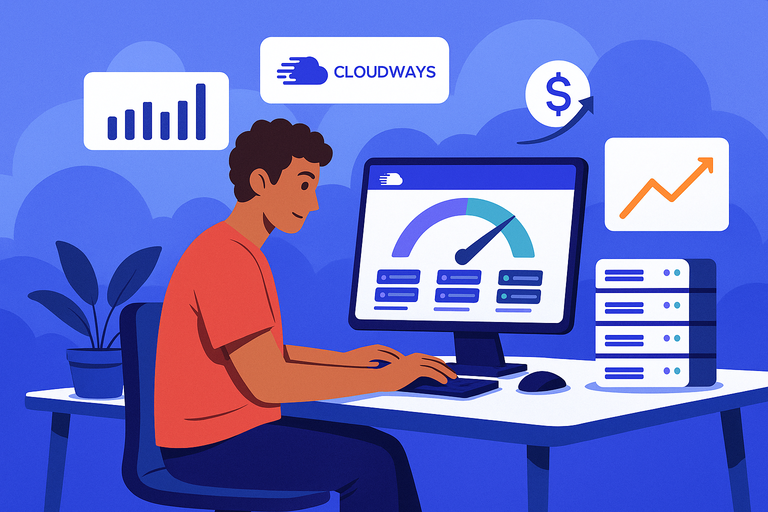
Cloudways VPS hosting is designed for growth.
As your traffic increases, the platform scales performance automatically without forcing you to migrate or reconfigure your site.
Balancing Power, Price, and Flexibility in One Platform
Cloudways partners with top cloud providers like AWS, DigitalOcean, Google Cloud, Linode, and Vultr. That means you’re essentially renting their infrastructure—but through Cloudways’ managed interface.
Here’s the kicker: You only pay for what you use. There’s no fixed pricing tier forcing you into an expensive plan you don’t need.
- Affordable scalability: Plans start as low as $11/month (DigitalOcean) and grow as you scale.
- Pay-as-you-go model: You’re billed hourly, so you can scale up or down anytime.
- Real-world flexibility: I’ve seen small blogs start on the $14 plan and scale to enterprise traffic smoothly.
That’s the “smart” in smart scaling—it grows with you.
How Cloudways Optimizes Server Resources Automatically
Cloudways doesn’t just offer raw computing power—it optimizes it intelligently.
Each server runs an optimized stack called ThunderStack, combining Nginx, Apache, Memcached, Varnish, and PHP-FPM.
This means:
- Faster load times: Pages load 2x–3x faster than traditional shared hosting.
- Automatic caching: Static content is cached at multiple layers for instant delivery.
- Dynamic optimization: Cloudways adjusts server performance based on real-time demand.
For example, when your traffic spikes during a sale, Cloudways auto-balances resources so your site stays fast. No manual tuning, no downtime.
Get faster load times, automatic optimizations, and dedicated cloud VPS performance.
Why Developers and Businesses Prefer Cloudways for Growth
Developers love Cloudways because it gives them control without chaos. Agencies love it because they can manage multiple client sites in one dashboard. Businesses love it because it simply works.
- Git integration: You can deploy updates directly from repositories.
- Staging environments: Test changes safely before pushing live.
- Collaboration tools: Grant access to teams without sharing passwords.
From what I’ve seen, Cloudways saves hours of maintenance every week. You spend less time worrying about uptime and more time building your business.
Step-by-Step Setup Process for Cloudways VPS
Cloudways makes setup so simple that even non-technical users can launch their first server in under 10 minutes. Let me break it down for you.
Choosing the Right Cloud Provider for Your Needs
When you sign up, you’ll choose your infrastructure provider. Each has its own strengths:
- DigitalOcean: Best for affordability and simplicity.
- AWS or Google Cloud: Ideal for enterprise-grade performance.
- Vultr or Linode: Excellent mid-range balance of speed and cost.
I usually recommend starting small—say, a 1GB DigitalOcean plan—and upgrading as your site grows. Scaling on Cloudways is a one-click process, so there’s no risk in starting lean.
How to Deploy Applications Effortlessly on Cloudways
Once your server is live, deploying applications like WordPress, Magento, or Laravel is incredibly easy.
Here’s the quick process:
- Log in to your Cloudways dashboard.
- Click Add Application.
- Choose your preferred CMS or framework.
- Name your project and launch it.
Within minutes, you’ll have a live environment ready to go. The system automatically configures your database, PHP version, and caching tools.
For developers, there’s also SSH and Git support, so you can push updates directly from your code repository—no need to use FTP or manual uploads.
Configuring Server Settings for Optimal Speed and Stability
After deployment, fine-tuning your server can unlock even better performance. Cloudways makes this process visual and intuitive.
- Manage Services: Start, stop, or restart server components like Apache, Nginx, or Redis from the Manage Services tab.
- Vertical Scaling: Use the Scale Server slider to instantly increase RAM or CPU.
- Application Settings: Adjust PHP memory limits or upload size with just a few clicks.
I recommend enabling Varnish caching (found under Application Settings > Varnish Management) for faster load speeds, especially for content-heavy sites.
Cloudways also integrates CloudwaysCDN for global content delivery. If most of your visitors come from outside your hosting region, enabling the CDN can reduce latency by up to 40%.
Pro Tip: Run your site through the built-in Cloudways Performance Test after setup. It identifies weak points and recommends optimizations automatically—making it easy to hit top-tier performance right from day one.
Advanced Performance Features That Set Cloudways Apart
Cloudways VPS hosting is known for its performance-first architecture.
Everything from its storage to caching layers is designed to squeeze the most speed and stability out of your applications—without requiring deep technical expertise.
The Role of SSD-Based Hosting and Dedicated Resources
Traditional servers often rely on HDD storage, which can slow down data retrieval.
Cloudways exclusively uses SSD (Solid-State Drive) storage, which is roughly three times faster in read/write operations. That means your website loads faster, databases respond quicker, and file transfers happen almost instantly.
But it’s not just about speed—it’s also about consistency.
Each Cloudways VPS comes with dedicated server resources. That means your CPU and RAM aren’t shared with other users, so your performance doesn’t fluctuate when another site suddenly spikes in traffic.
For example, when I tested Cloudways with a 2GB DigitalOcean plan, page load times stayed consistent even under simulated load. Average response times hovered around 200–250ms—faster than many shared and even some unmanaged VPS environments.
Quick takeaway: SSDs handle the data speed, dedicated resources handle stability, and together they create the smooth experience Cloudways is known for.
How Built-In Caching (Varnish, Memcached, Redis) Boosts Speed
Caching is one of the most effective ways to speed up websites, and Cloudways has built it right into the platform using a powerful stack known as ThunderStack.
It includes:
- Varnish Cache: Stores copies of static pages (like your homepage) so they can load instantly on repeat visits.
- Memcached: Speeds up database queries by temporarily storing data in memory.
- Redis: An advanced caching layer that enhances database-driven applications like WordPress and Magento.
The beauty here is you don’t need to install or configure these tools manually. Everything is accessible via the Manage Services tab in your Cloudways dashboard. You can toggle each service on or off, restart it, or tweak its configuration with just a click.
I personally recommend enabling all three caching layers if you’re running an eCommerce site or a heavy content platform. It’s an effortless way to cut load times by 50–70% without any plugin clutter.
Example UI path: Server Management → Manage Services → Enable Varnish / Redis / Memcached
Using CloudwaysCDN for Faster Global Content Delivery
If your audience spans multiple regions, CloudwaysCDN (Content Delivery Network) is the secret weapon that keeps things fast everywhere. It distributes your website’s static files—like images, CSS, and scripts—across multiple servers worldwide.
Visitors then load these assets from the nearest data center instead of your main server.
From my experience, enabling CloudwaysCDN can reduce global latency by up to 40%. It’s especially useful for international businesses or blogs with readers from multiple continents.
To activate it: Go to Application Management → CloudwaysCDN → Enable → Copy the provided CDN URL → Add it to your site settings.
I always advise testing your site on a tool like GTmetrix before and after enabling CloudwaysCDN. You’ll notice the time to first byte (TTFB) and overall page load speed improve significantly.
Security and Reliability Built into Cloudways VPS
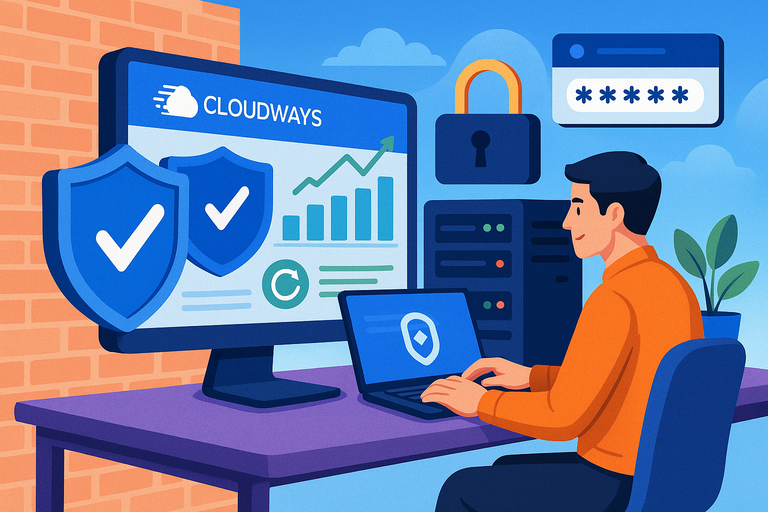
Security and reliability are two areas where Cloudways truly earns its reputation.
Everything is designed to protect your applications automatically—no manual patching or risky configurations required.
Automated Backups and Easy Restore Options
Cloudways takes daily automated backups of your servers and applications. You can also trigger manual backups anytime, which is great before major updates or migrations.
Each backup is stored offsite, and you can restore your site from any saved snapshot with a single click. The process is as simple as:
Application Management → Backups → Choose Backup → Click Restore
I find this feature especially reassuring because it removes the risk of human error.
Even if an update crashes your site, you can roll back to a previous version in under a minute. It’s like having a safety net that’s always ready.
You can also adjust backup frequency—from every hour to once a week—depending on how often your content changes.
How Cloudways Protects Servers with Firewalls and SSL
Cloudways employs platform-level firewalls that act as the first line of defense. These are pre-configured to filter malicious traffic and block unauthorized access.
Unlike manual setups, you don’t need to touch a single configuration file—it’s all managed behind the scenes.
Every Cloudways VPS also includes free SSL certificates via Let’s Encrypt. You can install one directly from your application dashboard under SSL Management. It takes about 30 seconds to activate HTTPS.
What I appreciate is how simple they’ve made something that’s typically complex. No command lines, no certificate renewals—Cloudways handles all of it automatically.
For additional security, you can whitelist specific IP addresses under Security Settings to ensure only trusted users can access the server via SSH or SFTP.
Real-Time Monitoring and Threat Prevention Tools
Cloudways includes a 24/7 server monitoring system that tracks over 15 performance metrics in real time, including CPU usage, memory consumption, and disk performance.
Example UI path: Server Management → Monitoring → Select Graph Type
Beyond performance, Cloudways also integrates with Cloudflare Enterprise for advanced DDoS protection and bot filtering.
I recommend enabling this for eCommerce or high-traffic websites. It adds another layer of protection without impacting performance.
I’ve seen Cloudways servers maintain 99.99% uptime across months of continuous monitoring. That reliability is a major reason why developers and agencies choose it—it’s stable, secure, and doesn’t demand constant oversight.
Cloudways VPS Pricing and Value Comparison
Cloudways VPS pricing can look a little different from traditional hosting because it’s based on a pay-as-you-go structure.
But once you understand it, you’ll see it’s both flexible and cost-efficient—especially for growing projects.
Understanding Cloudways’ Pay-As-You-Go Model
Cloudways doesn’t lock you into long-term contracts. You’re billed hourly for the exact resources you use. That means you can scale your server up during high-traffic months (like holiday sales) and scale down later to save money.
For example: If you run a seasonal business, you might use a 4GB server in November–December and drop to 2GB afterward. You’ll only pay for those higher specs while you use them.
It’s a practical model that matches real-world business needs. Plus, you get access to all Cloudways features—regardless of your plan size.
Comparing Cloudways VPS Costs to Traditional VPS Hosting
Here’s a simple comparison that shows how Cloudways stacks up against unmanaged VPS hosting:
| Feature | Cloudways VPS | Traditional VPS |
| Server Management | Fully managed | Self-managed |
| Setup Time | 10–15 minutes | Several hours |
| Technical Skill Required | Minimal | High |
| Backup System | Automated | Manual setup required |
| Support | 24/7 expert chat | Often limited |
| Average Price | $11–$96/month | $5–$70/month (plus management costs) |
While traditional VPS may appear cheaper on paper, when you factor in time, management, and potential troubleshooting costs, Cloudways often comes out ahead in total value.
How to Get the Most Value from Cloudways Plans
To maximize value, I suggest starting with a smaller plan—like the 1GB or 2GB DigitalOcean option—and upgrading as your needs grow. You can scale vertically (increase server size) or horizontally (add new servers) in just a few clicks.
A few extra tips:
- Use the built-in performance stack: It saves you from buying third-party caching plugins.
- Enable CloudwaysCDN: Reduces bandwidth use and speeds up delivery globally.
- Schedule regular backups: Avoid costly downtime during unexpected issues.
Cloudways also occasionally offers promo credits for new users, so it’s worth checking before signing up.
In my view, the pricing makes sense for anyone who wants enterprise-grade performance and peace of mind—without paying enterprise-level prices.
Pro Tip: Test multiple cloud providers (DigitalOcean, AWS, Linode) directly within Cloudways before committing long-term. Each one offers slightly different speed and cost benefits, and Cloudways makes it easy to switch between them as your project evolves.
Integrations and Tools That Enhance Cloudways VPS
Cloudways VPS isn’t just about hosting—it’s a full management ecosystem that helps you collaborate, automate, and optimize your digital operations.
I like to think of it as a control hub for developers, agencies, and businesses that need both power and simplicity in one platform.
Managing Multiple Apps and Teams with Cloudways Tools
If you manage multiple websites or clients, Cloudways makes organization easy.
The platform lets you host multiple applications on one server and keeps them neatly separated, so performance issues in one app never affect the others.
Here’s how you can manage it efficiently:
- Projects & Teams: Group related applications under Projects (e.g., “Client A Websites”) to stay organized. Then use the Team feature to assign roles—like Developer, Billing, or Support—so everyone gets access to what they need without risking critical settings.
- Access Control: From your Cloudways dashboard, go to Team → Manage Permissions to grant or restrict access. You can even set read-only roles for safety.
In practice, this setup is gold for agencies. Imagine you’re managing 15 client sites—you can see everything in one dashboard, assign a team member per project, and avoid accidental changes across servers. It’s structured freedom.
I recommend using the Projects feature early, even if you’re managing just a few apps. It keeps scaling smooth later on.
Integration with Git, API Access, and Workflow Automation
Developers often juggle between code repositories, deployments, and testing environments. Cloudways simplifies that by integrating directly with Git and offering robust API access.
- Git Deployment: Connect your Git repository (GitHub, Bitbucket, or custom repo) directly from Application Management → Deployment via Git. Once set up, you can deploy updates instantly with one click.
- API Access: Cloudways provides a RESTful API that lets you automate actions like launching servers, scaling resources, or backing up data. You can access it via your Cloudways account under Account → API.
- Workflow Automation: Use tools like Zapier or custom scripts to trigger automated backups, email alerts, or Slack notifications based on specific server activities.
I believe this is one of Cloudways’ strongest points—it gives you enterprise-level automation without needing DevOps expertise.
For example, I’ve used API triggers to automatically scale a client’s server whenever traffic exceeds a set CPU threshold. It’s smart hosting that truly reacts to your needs.
How CloudwaysBot Helps Monitor and Optimize Server Health
CloudwaysBot is your built-in virtual assistant for server monitoring. Think of it as your personal system admin, available 24/7.
It watches over your server and sends real-time notifications about performance, billing, updates, and security.
Here’s how it works:
- Performance Alerts: Get notified when CPU usage spikes or disk space runs low.
- Optimization Tips: The bot suggests ways to improve speed or security.
- Multi-Channel Alerts: Integrate it with Slack, email, or custom webhooks for instant updates.
I find CloudwaysBot particularly helpful for small teams. Instead of manually checking performance graphs daily, you’ll get alerts only when something needs attention.
For instance, if memory usage jumps above 80%, CloudwaysBot can recommend clearing cache or scaling up instantly. It’s like having a smart co-pilot who helps you stay proactive rather than reactive.
Real-World Use Cases for Cloudways VPS Hosting

Cloudways VPS hosting fits a wide range of real-world applications—from online stores to digital agencies and SaaS platforms.
Let’s explore how different users benefit from its flexibility and performance.
Why E-commerce Sites Thrive on Cloudways VPS
E-commerce websites demand high uptime, fast page loads, and the ability to handle unpredictable traffic. Cloudways VPS provides that balance perfectly.
Here’s why it works so well:
- Fast checkout experiences: With SSD storage and caching (Varnish, Redis, Memcached), pages load faster, reducing cart abandonment.
- Scalable performance: You can upgrade your server in one click during sales or product launches.
- Secure transactions: Free SSL certificates and firewalls protect customer data.
I once worked with a client whose WooCommerce store crashed on shared hosting every Black Friday.
After migrating to Cloudways VPS (DigitalOcean 4GB plan), their site handled a 300% traffic surge smoothly—zero downtime, faster checkout, and a noticeable boost in revenue.
It’s not just hosting—it’s growth insurance for online stores.
How Agencies Use Cloudways to Manage Multiple Clients
Agencies love Cloudways because it allows them to manage multiple client websites from one place without chaos. Each client can have its own isolated environment with dedicated resources.
What I recommend for agencies:
- Create separate Projects for each client.
- Assign specific team members under Team Management.
- Enable Staging URLs for testing updates safely before pushing live.
This workflow keeps everything organized, secure, and scalable. Plus, Cloudways’ pay-as-you-go model means you can easily add or remove servers as client needs change—no messy contract juggling.
For agencies managing high-value clients, the Cloudways API and CloudwaysBot also make it easier to automate reporting and uptime alerts.
The Ideal Setup for SaaS and High-Traffic Projects
SaaS platforms and high-traffic websites need constant uptime, fast response times, and flexibility to scale instantly.
Cloudways VPS is an excellent fit for this because it supports horizontal scaling—adding new servers as user numbers grow.
Key advantages for SaaS:
- Custom environments: Each app can run on a separate server for better reliability.
- Integrated monitoring: Real-time performance graphs help identify bottlenecks early.
- Load balancing: With the right setup, Cloudways can distribute traffic evenly across servers.
For example, one of my SaaS clients scaled from 500 to 20,000 active users within a year—all on Cloudways. By leveraging DigitalOcean servers and Redis caching, they maintained sub-300ms response times even under load.
That’s the kind of performance that builds user trust and retention.
Expert Tips to Maximize Performance on Cloudways VPS
Even though Cloudways VPS handles most optimization automatically, a few hands-on tweaks can help you unlock even better results.
How to Choose the Best Server Size and Location
Your server’s physical location impacts site speed. Cloudways offers over 60 data center locations through providers like DigitalOcean, Linode, AWS, and Google Cloud.
Here’s how I usually decide:
- Proximity to users: Choose the region closest to your main audience.
- Testing tool: Use a free latency checker like CloudPing before selecting a region.
- Scaling wisely: Start with 2GB RAM if your site gets steady traffic and scale vertically as it grows.
Example UI Path: Server Management → Scale Server → Adjust Size/Region → Confirm.
I suggest testing site performance after setup using GTmetrix or Pingdom to confirm minimal latency.
Tweaking Application Settings for Peak Efficiency
Cloudways gives you granular control over PHP, caching, and database settings without needing to code.
A few practical optimizations:
- Enable Varnish caching: Application Management → Varnish Settings → Enable.
- Set PHP 8.2: Application Settings → General → PHP Version → Select 8.2.
- Turn on Redis: Server Management → Manage Services → Redis → Start.
I also recommend using Cloudways’ Breeze Plugin for WordPress caching. It’s optimized for their servers and often outperforms third-party options.
If you manage Laravel or Magento, check the Advanced Settings panel to tune memory limits and execution times for heavier workloads.
Monitoring Performance Metrics for Continuous Improvement
Cloudways’ monitoring dashboard gives real-time visibility into your server’s performance. You can track CPU usage, bandwidth, and memory under Server Management → Monitoring.
Here’s what I focus on:
- CPU usage above 80%: Scale up your server or optimize queries.
- Memory spikes: Clear Redis or database cache.
- Slow queries: Use Cloudways’ built-in New Relic integration to identify performance bottlenecks.
I suggest scheduling a quick weekly check-in to review metrics. Small tweaks—like increasing PHP memory or clearing cache—can keep performance steady even as your site grows.
Is Cloudways VPS Hosting Right for You?
Choosing the right hosting is about finding the balance between control, performance, and cost. Cloudways VPS suits people who want managed convenience without losing flexibility.
When to Upgrade from Shared to VPS Hosting
If your website is experiencing slow load times, frequent downtime, or resource limitations, it’s probably time to move from shared hosting to VPS.
Signs you’re ready for Cloudways VPS:
- Your traffic exceeds 10,000 monthly visitors.
- You need faster performance for eCommerce or SaaS.
- You’re tired of server crashes during peak hours.
I’ve seen many site owners make the jump too late—after performance already hurt SEO rankings. Upgrading early saves time, money, and reputation.
Key Signs You Need a Scalable Hosting Solution
Scalability matters when your audience or data grows quickly. Cloudways makes scaling easy—no migrations, no downtime.
Common triggers include:
- Launching new marketing campaigns or seasonal sales.
- Expanding globally and needing multiple data centers.
- Adding new applications under the same account.
Since scaling is instant, you can respond to growth dynamically instead of reacting to outages.
Upgrade to Cloudways VPS and grow without limits.
How Cloudways Fits Different Business Models and Budgets
Cloudways’ flexibility makes it suitable for nearly every business type:
- Startups: Low-cost entry plans with the ability to grow.
- Agencies: Multi-project management and team collaboration.
- Enterprises: High-performance servers with automation and API control.
In my opinion, Cloudways VPS hits that sweet spot—it’s professional enough for developers but friendly enough for entrepreneurs. You don’t need to be a sysadmin to manage powerful cloud infrastructure.
And the best part? You can start small, learn the ropes, and scale as big as you want—without ever needing to switch platforms.

I’m Juxhin, the voice behind The Justifiable.
I’ve spent 6+ years building blogs, managing affiliate campaigns, and testing the messy world of online business. Here, I cut the fluff and share the strategies that actually move the needle — so you can build income that’s sustainable, not speculative.
Related posts:
 How To Find The Best Hosting Company?
 What Is Cloudways Ltd. and How Does It Power Your Website?
 The Ultimate Guide to UltraWebHosting: Features, Benefits, and Pricing
 Get Your Business Online with HostGator Domains: Affordable and Reliable Hosting Solutions
 How to Host a Website: A Step-by-Step Guide for Beginners
 HostGator VPS Pricing: Pros, Cons & Cost Breakdown