
Table of Contents
Some links on The Justifiable are affiliate links, meaning we may earn a small commission at no extra cost to you. Read full disclaimer.
Envato Elements download issues fix usually comes down to a small set of problems: your subscription status, browser cache, a blocked ZIP download, or confusion between a file download problem and an import problem.
I’ve seen people waste an hour troubleshooting the wrong thing because the asset actually downloaded fine, but their app or WordPress site could not open it. This guide walks you through the full process, from the fastest checks to deeper fixes, so you can get your file downloaded and usable without guessing.
Official Envato guidance also confirms a few common causes, including inactive subscriptions, browser cache problems, and download-manager conflicts.
Understand What “Download Issues” Actually Means
Before you try random fixes, it helps to define the problem correctly.
With Envato Elements, “download issues” can mean at least three different things, and each one has a different fix.
What Counts As A True Download Problem
A true download problem means the file never reaches your device, the download button does nothing, the ZIP fails midway, or Envato throws an error before the asset is saved locally. Envato’s own support page points first to account status, browser cache, and browser behavior when troubleshooting download failures.
In practice, I suggest separating issues into these buckets:
- Account issue: Your subscription is inactive, expired, or blocked.
- Browser issue: Cached files, cookies, extensions, or security settings interfere with the download.
- Transfer issue: The ZIP starts but stalls, fails, or arrives corrupted.
- Availability issue: The item is no longer available to download.
- Post-download issue: The file downloads, but you cannot open, import, or use it.
This distinction matters more than most people realize. If your ZIP file is already on your computer, you do not have a download issue anymore. You have an opening, extracting, compatibility, or import issue.
A lot of frustration comes from using the wrong search terms. Someone might search “envato elements download issues fix” when the actual problem is “Elementor kit invalid ZIP” or “missing style.css stylesheet.” Those are different troubleshooting paths entirely.
Envato has separate support guidance for download failures and for WordPress or Elementor import errors.
The Fastest Way To Identify Your Issue
Here is the simplest diagnostic flow I recommend:
- Click download once and watch what happens.
- Check whether a file appears in your browser’s download list.
- Open your Downloads folder and confirm whether a ZIP exists.
- Compare the ZIP file size to what you would expect for the asset.
- Try extracting the file locally before blaming Envato.
If nothing downloads at all, focus on browser and account checks first. If the file downloads but will not open, test the ZIP on another extractor or device. If it opens but will not import into WordPress, Adobe apps, or Elementor, the issue has moved beyond the download itself.
I believe this single step saves the most time because it stops you from troubleshooting five systems at once. The goal is to isolate the failure point. Once you know whether the block happens before download, during download, or after download, the fix gets much easier.
Confirm Your Subscription And Access First
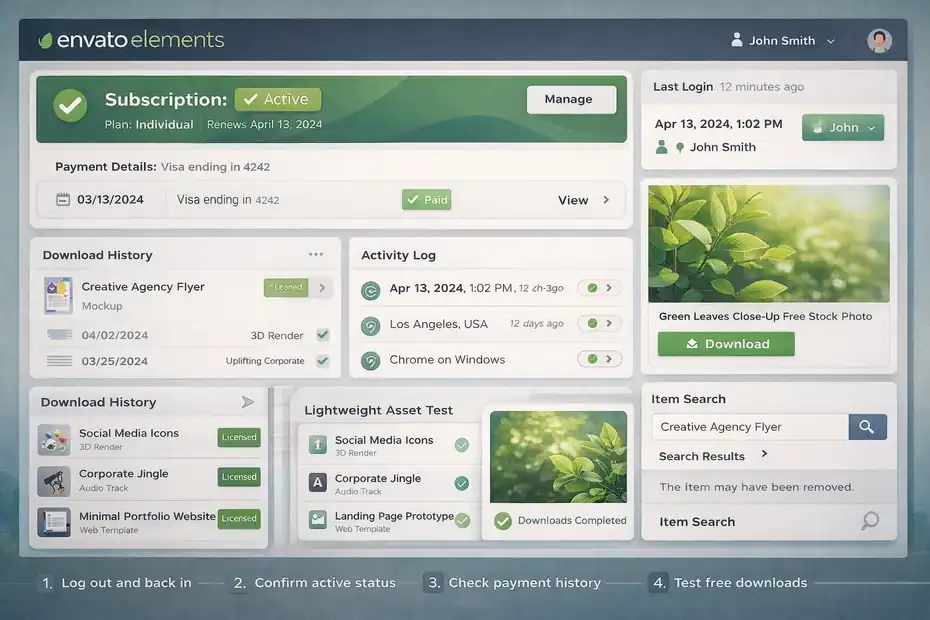
This is the least glamorous step, but it is the one people skip most often.
Envato specifically tells users to confirm that the subscription is active before anything else when downloads fail.
Check Whether Your Envato Subscription Is Active
If your subscription is inactive, downloads may not complete the way you expect. That does not always produce a dramatic error message. Sometimes the button simply fails, refreshes, or redirects you.
Here is how I would check it:
- Step 1: Log out of Envato Elements and sign back in.
- Step 2: Open your account or subscription page and confirm the plan is active.
- Step 3: Check whether there was a recent billing failure or renewal issue.
- Step 4: Try downloading a completely different free or lightweight asset to compare behavior.
Envato’s help center also has a separate failed-payments article that recommends clearing cache and cookies, trying a different device, and ensuring your billing information matches your payment method details if there is a payment-related problem.
From what I’ve seen, this matters a lot after card changes, expired payment methods, or team account changes. A user might think, “My login still works, so my downloads should too,” but login access and active download entitlement are not always the same thing.
If you are on a team setup, Envato says team accounts can have shared access under one account structure, with up to five members on a Teams subscription. That means permissions or workspace context can also affect what you see and how licenses are assigned.
Check Whether The Item Is Still Available
Sometimes the issue is not your account at all. The item may be unavailable, unpublished, or temporarily removed. Envato’s support page says that if an item cannot be found, you may need to check back later, but there is no guarantee it will be republished.
This creates a confusing situation. You may have bookmarked an asset, opened an old project note, or returned to something you planned to download later, only to find it no longer exists in the catalog.
I suggest doing three quick checks:
- Search the exact item title again inside Envato Elements.
- Check your download history to see whether you already downloaded it before.
- Look for a similar replacement if the original item has been removed.
That last point matters for deadlines. If you are building a landing page or client deck and the original asset disappeared, the fastest fix is often replacement, not recovery.
Clear Browser Problems Before You Touch Anything Else
Envato officially recommends clearing your web browser cache when you experience download problems, and I agree with that advice because browser issues are one of the most common causes of failed downloads on asset marketplaces.
Clear Cache, Cookies, And Session Data
Browsers can hold onto stale session data, broken cookies, or partially cached file responses. That can cause a broken download button, repeated redirects, incomplete ZIP transfers, or authentication loops.
Use this order:
- Step 1: Hard refresh the page.
- Step 2: Log out and back in.
- Step 3: Clear browser cache and cookies.
- Step 4: Close and reopen the browser.
- Step 5: Retry the same asset once.
I recommend testing in a private browsing window right after that. Incognito or private mode strips away many extension conflicts and old session leftovers. If the file downloads there, your issue is probably local to the browser profile rather than Envato itself.
A practical example: imagine you downloaded ten mockups yesterday, then today the download button hangs on every click. That often points to a session or cookie problem, not a platform outage. Clearing cache is boring, but it works more often than people want to admit.
Disable Extensions And Avoid Download Managers
Envato explicitly recommends against using download managers for item downloads.
That is important because many advanced users run browser extensions that intercept downloads automatically. Common troublemakers include:
- Download accelerators
- Ad blockers with aggressive privacy filters
- Security extensions that block ZIP files
- Corporate antivirus browser plug-ins
- VPN or proxy extensions
Here is the pattern I see a lot: the user clicks download, the browser briefly starts the transfer, then an extension rewrites the request, blocks the file, or forces it through a manager that Envato does not handle well.
My advice is simple. Disable extensions temporarily, especially anything that touches downloads, privacy, or scripts. Then try again in a clean browser like Chrome, Edge, Firefox, or Safari with no add-ons enabled.
This is one of the highest-return tests because it takes only a couple of minutes and often reveals the real blocker right away.
Test The Download Path Like A Technician
Once the obvious account and browser checks are done, it is time to test the file transfer more methodically. This is where you stop guessing and start isolating the environment.
Try Another Browser, Device, And Network
When Envato or any asset site behaves strangely, I like to test three variables one by one:
- Browser
- Device
- Network
If the download fails in Chrome on your laptop but works in Safari on your phone, that tells you the issue is probably not your Envato account. It is likely a browser or desktop environment problem.
If it fails on home Wi-Fi but works on mobile data, your network, firewall, router, or DNS layer may be interfering. That is more common in workplaces, schools, managed hosting dashboards, and shared office networks than many people realize.
A simple troubleshooting matrix helps:
| Test | Result | What It Suggests |
|---|---|---|
| Same file fails in one browser only | Browser-specific issue | Cache, cookies, extension, browser policy |
| Same file fails on one device only | Local device issue | Security software, disk permissions, OS behavior |
| Same file fails on one network only | Network issue | Firewall, proxy, filtering, unstable connection |
| Multiple files fail everywhere | Account or platform issue | Subscription, session, support escalation |
I suggest changing one variable at a time. If you change five things at once, you will never know what solved it.
Check Local Storage, File Permissions, And ZIP Behavior
Not every failed download is an internet problem. Sometimes the file does download, but your operating system blocks it, saves it to a strange folder, or cannot write it properly.
Check these basics:
- Available disk space: Large video templates, audio packs, and design bundles can be sizable.
- Download folder permissions: Some managed systems restrict access.
- Antivirus quarantine: ZIP archives can be flagged or delayed.
- Filename oddities: Rarely, long filenames or special characters can cause issues on local systems.
I’ve seen this happen with creative professionals working on older machines with overloaded Downloads folders. The ZIP arrives, but extraction fails because the local disk is nearly full or the security software holds the archive for scanning.
A good test is to download the file to a different folder, then extract it with your system’s built-in unzip tool. If that fails, try a second extraction tool. If both fail, redownload the file from a clean browser session.
Separate File Download Problems From License Confusion
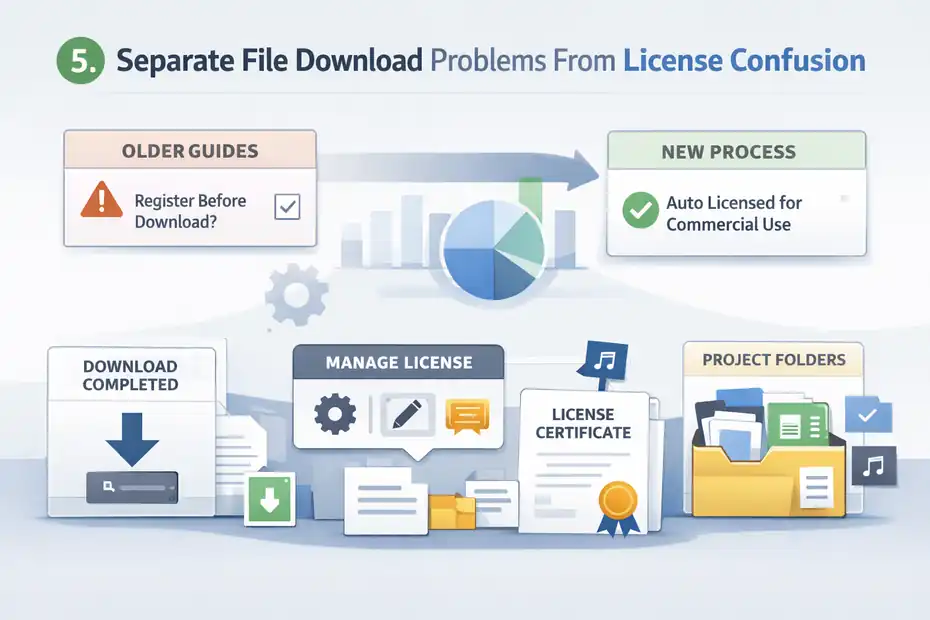
Envato’s licensing flow changed in 2026. Their help center says downloads are now automatically licensed for commercial use, with no extra project registration required at the moment of download.
Understand The Current Licensing Flow
Older tutorials and forum answers may still mention project registration as part of the download process. That outdated advice confuses people because they expect a licensing step to appear before a file can be downloaded.
According to Envato’s current license guidance, stock items use a simple commercial license and downloads are automatically licensed. Envato also says you can create a new license later through the Manage flow, from your downloads page, from the item page, or within a workspace context.
That means if you are waiting for a “register before download” prompt, you may think the system is broken when it is actually working as designed.
I recommend updating your mental model:
- Download first
- Manage or adjust license naming if needed
- Keep records for your project files
This matters especially for agencies and freelancers who are used to older Envato workflows. The platform is simpler now, but old habits still create confusion.
When Licensing Still Matters To Troubleshooting
Licensing itself usually does not block the file transfer, but it does affect what happens after the download. For example, you may need the license certificate for client documentation, music claims, or internal compliance.
Envato says audio items can require license certificates to help resolve YouTube Content ID notices, and they now offer Claim Clear support for that process.
So while licensing is not the direct cause of most download issues, it still matters if your real problem is “I downloaded it, but now I cannot prove usage rights” or “I need the right certificate attached to this project.”
This is one reason I suggest organizing downloads immediately. Put the asset, proof of download, and license information in the same project folder. It prevents a second wave of headaches later.
Fix The Most Common Post-Download Problems
This is where a lot of users get tripped up. They search for an Envato download fix, but the file already downloaded successfully.
The real problem is that they are opening the wrong ZIP, importing the wrong file type, or using the asset in unsupported software.
The ZIP Downloaded, But It Will Not Open
If the ZIP is corrupted or incomplete, start with the basics:
- Step 1: Delete the ZIP and redownload it.
- Step 2: Use a different browser.
- Step 3: Save to a different folder.
- Step 4: Try another unzip utility.
- Step 5: Test the file on a second device if possible.
An incomplete transfer often looks like a “bad ZIP” problem. The archive may exist, but it is missing pieces. This can happen with flaky networks, interrupted downloads, or background software interference.
I suggest comparing the behavior across two different assets. If only one asset is broken, the issue may be isolated to that file or the original download session. If every ZIP fails to open, the issue is more likely local to your device or browser.
This is why methodical testing matters. A single successful extraction tells you a lot about where the problem is not.
The File Opens, But You Cannot Use It In Your App
This is usually a compatibility issue, not a download issue. Envato hosts assets for different platforms, file formats, and workflows. A template may be built for Premiere Pro, DaVinci Resolve, Figma, Photoshop, Canva, WordPress, or Elementor, and those are not interchangeable.
I recommend checking:
- The software listed on the item page
- Required version compatibility
- Whether fonts, plugins, or linked assets are needed
- Whether the file is a source file, template kit, or installable package
This is a classic scenario: someone downloads a WordPress theme-related file and expects it to install like a plugin, or they grab a motion graphics pack and expect it to open in a different editor. The download worked. The format match did not.
That distinction saves you from chasing browser fixes when the real answer is software compatibility.
Troubleshoot WordPress And Elementor Imports Properly
Envato has dedicated troubleshooting for Elementor template kits, and that tells us something important: import failures are common enough that they deserve their own support path.
Invalid ZIP, Missing style.css, Or “Not A Valid Template Kit”
These errors are easy to misunderstand. They often happen when you try to upload the wrong ZIP file to the wrong place.
For example, Envato documents errors like “Please upload a valid Template Kit zip file,” “Failed to process ZIP file,” and “Theme is missing the style.css stylesheet.” Their guidance explains that these errors typically mean the file is not the specific kind of Elementor Template Kit expected by the plugin, or the wrong archive is being uploaded for the intended import flow.
Here is the practical fix path:
- Step 1: Confirm the item is actually an Elementor Template Kit.
- Step 2: Do not unzip and rezip the file unless the instructions require it.
- Step 3: Upload it through the correct plugin or import route.
- Step 4: Check the item description for software requirements.
- Step 5: Make sure the server supports ZIP handling if the import relies on it.
I’ve seen users upload a template kit in the WordPress theme installer, then assume the Envato download is broken. It is not broken. It is simply the wrong upload destination.
Imported Layout Is Blank, Unstyled, Or Missing Images
Envato also documents cases where imported layouts appear blank, lose formatting, or miss styles and images.
That usually points to import dependencies rather than download corruption. Common causes include:
- Required plugins are not installed
- Global fonts or colors did not transfer
- Images are external and need re-linking
- Server limitations interrupt full import
- The template kit is inserted into the wrong context
My advice here is to think in layers. The ZIP may be fine. The import process may also be fine. The failure can still happen at the rendering layer, where fonts, icons, or linked media do not load as expected.
For many of us, the fastest way to test this is to import the same kit on a clean staging site. If it works there, your live site configuration is the real issue.
Use A Practical Fix Workflow That Saves Time
At this point, you know the common failure points. Now let me give you a compact workflow you can reuse every time.
The 10-Minute Troubleshooting Sequence
This is the sequence I personally recommend for most Envato Elements download issues fix scenarios:
- Confirm your subscription is active.
- Make sure the item is still available.
- Log out and back in.
- Clear cache and cookies.
- Disable extensions and avoid download managers.
- Retry in a private window.
- Retry in a second browser.
- Retry on a second device or network.
- Redownload and test extraction locally.
- If it is a WordPress or Elementor asset, follow import-specific troubleshooting.
This process works because it starts with the highest-probability causes and moves toward edge cases. It also keeps you from overcomplicating the problem.
I believe most users can identify the source of the issue by step 6 or 7. The biggest mistake is skipping straight to support without doing controlled testing first.
A Realistic Example Of How This Plays Out
Imagine you are building a client homepage and need a hero video template from Envato Elements. You click download, and nothing happens.
You sign out, sign in, and still nothing. Then you open a private window and it works immediately. That tells you the problem was probably cached session data or an extension conflict.
Another example: You download an Elementor pack, but WordPress says the ZIP is invalid. You assume the file is corrupted. Then you check the item type and realize you uploaded it into the theme installer instead of the template kit importer. Again, the download was never the real problem.
Small distinctions like these are what turn a 90-minute mess into a 10-minute fix.
Know When To Contact Envato Support
Sometimes you do everything right and still hit a wall.
Envato’s support article says that if you are still experiencing download difficulties, it could be related to your subscription account, and they ask users to contact support with relevant information.
What To Prepare Before Contacting Support
Do not send a vague message like “downloads broken please help.” That slows everything down.
Instead, prepare:
- The exact item URL or title
- The time the failure happened
- Your browser and operating system
- Whether the issue happens on multiple devices
- Whether you cleared cache and disabled extensions
- Whether the item downloads partially, not at all, or downloads but fails to open
- Screenshots of the error message
This makes your support request far more actionable. It also shows that you ruled out the common local causes first.
In my experience, support gets much faster when you hand them a clean reproduction path. Think like a technician: what would another person need to see the same issue?
When You Should Stop Troubleshooting And Switch Assets
There is also a practical business decision here. If a deadline matters more than the original asset, replacing the file may be smarter than spending another hour debugging it.
Envato’s item support guidance even notes that if you cannot successfully solve the problem, you may need to find a different item for your project.
That may not be the emotionally satisfying answer, but it is often the correct one. If you are on a deadline for a client proposal, ad creative, or website launch, the fastest solution is sometimes substitution.
Prevent Future Download Problems Altogether
Once you solve the immediate issue, the smart move is to reduce the chance of it happening again.
Build A Cleaner Asset Workflow
Here is the workflow I recommend for anyone who downloads from Envato regularly:
- Use one primary browser for asset downloading.
- Keep extensions minimal in that browser profile.
- Avoid download managers for Envato files.
- Create project folders immediately after download.
- Store license info with the asset so you do not have to hunt later.
- Test imports on staging sites before using files on production builds.
- Check software compatibility before downloading to avoid post-download disappointment.
This reduces friction more than any one trick. A stable process beats reactive troubleshooting every time.
I suggest keeping a simple naming system too, especially if you work with many files each week. Something like client-project-assettype-date can save you from duplicate downloads and license confusion later.
The Bigger Lesson Most People Miss
The bigger lesson is that “download issue” is often shorthand for “something in my workflow broke.” Envato’s official help pages show that the problem can live in the subscription layer, browser layer, file layer, licensing layer, or import layer.
Once you start troubleshooting in that order, the platform becomes much easier to work with.
If I were giving you one final piece of advice, it would be this: slow down for two minutes and identify exactly where the process fails. That single habit solves more Envato Elements download problems than any browser trick or plugin tweak.
Conclusion
An effective envato elements download issues fix usually starts with simple checks, not advanced hacks.
Confirm your subscription, clear your browser cache, disable extensions, avoid download managers, and then separate true download failures from import or compatibility problems.
If the asset downloaded but will not install or open, the solution is almost always in the file type, platform requirements, or import method rather than the download itself.
Follow the workflow in this guide once, and the next time this happens, you will know exactly where to look first.
FAQ
Why is my Envato Elements download not working?
Your Envato Elements download may not work due to an inactive subscription, browser cache issues, or blocked downloads from extensions. In many cases, clearing cookies, disabling extensions, or switching browsers resolves the problem quickly without needing advanced troubleshooting.
How do I fix a failed Envato Elements download?
To fix a failed download, log out and back into your account, clear your browser cache, and retry using a private window. If the issue continues, try a different browser or device to identify whether the problem is local or account-related.
Are Envato Elements downloads automatically licensed?
Yes, Envato Elements downloads are automatically licensed for commercial use under your active subscription. You do not need to register each item before downloading, but you can manage and assign licenses later from your account dashboard.
What should I do if Envato downloads fail on all devices?
If downloads fail across all devices and browsers, the issue is likely tied to your account or subscription. In this case, you should contact Envato support with details like the item URL, error message, and your troubleshooting steps for faster resolution.

I’m Juxhin, the voice behind The Justifiable.
I’ve spent 6+ years building blogs, managing affiliate campaigns, and testing the messy world of online business. Here, I cut the fluff and share the strategies that actually move the needle — so you can build income that’s sustainable, not speculative.
Related posts:
 AI-Powered Ad Creative: Smarter Ads, Better ROI!
 Voluum Pricing: Which Plan Saves You the Most Money?
 Constant Contact Pricing: Which Plan Is Right for You?
 CartFlows Pricing & Alternatives: Which One Wins?
 Top 10 Leadpages Competitors You Need to Know!
 Astra Schema Pro Warning: What You Must Know Before Buying