
Table of Contents
Some links on The Justifiable are affiliate links, meaning we may earn a small commission at no extra cost to you. Read full disclaimer.
If you’ve been searching for how to set up monday for beginners step by step, you’re probably feeling a mix of curiosity and confusion right now—and that’s completely normal.
When I first opened Monday, it looked powerful but also a bit overwhelming, like there were too many buttons and not enough clarity.
The good news is this: once you understand the structure and take it one step at a time, everything starts to click.
In this guide, I’ll walk you through a simple, practical setup so you can go from “where do I even start?” to actually running your first workflow with confidence.
Understand How Monday Is Organized Before You Build Anything
Before you click into templates, columns, or automations, it helps to understand how monday.com is structured.
This one step saves beginners a lot of cleanup later because the platform is built around a simple hierarchy.
Workspaces, Boards, Items, Groups, And Columns
The easiest way to understand monday.com is to picture a digital operations room. At the top, you have a workspace. That is where related assets live together, including boards, dashboards, docs, and forms. Inside that workspace, the main place where work gets managed is the board.
Monday’s own support documentation describes boards as the central place where work is tracked, built from items, groups, and columns.
Here is the part beginners usually miss: boards are not just task lists. A board can track almost anything. You can use it for projects, content calendars, hiring pipelines, client onboarding, bug requests, or simple weekly to-do planning.
Each item is one thing you are tracking, like a task, client, lead, or ticket. Groups help you separate those items into stages or categories. Columns hold the details, such as owner, due date, priority, status, budget, or notes.
I suggest thinking in plain English before you touch the platform. Ask yourself, “What exactly am I tracking?” Then define:
- Workspace: Your broader team or function
- Board: The workflow itself
- Item: One unit of work
- Group: A stage or category
- Column: A detail you want to track
That mental model makes the rest of this guide much easier, especially if you are learning how to set up monday for beginners step by step and want to avoid rebuilding everything a week later.
What Most Beginners Should Set Up First
In my experience, the fastest way to get confused in monday is to start with a huge template full of features you do not yet need. The better move is to set up one clean, practical board first.
For most beginners, your first board should solve one obvious problem. Good starting examples include:
- A weekly task board for yourself
- A team project tracker
- A client work board
- A content production board
- An internal request board
Pick just one. That matters because monday grows well when you build from one repeatable workflow instead of trying to map your entire business on day one.
A simple beginner setup usually needs only five core columns: item name, status, owner, due date, and priority. Once that works, you can add timeline, dependencies, files, formulas, or automations later.
This matters because monday supports templates, dashboards, forms, docs, views, and AI-powered workflow features, but those become useful only after your basic board structure makes sense.
My advice is simple: Build boring first. A clear board beats a clever board every single time.
Choose The Right Monday Plan And Starting Point
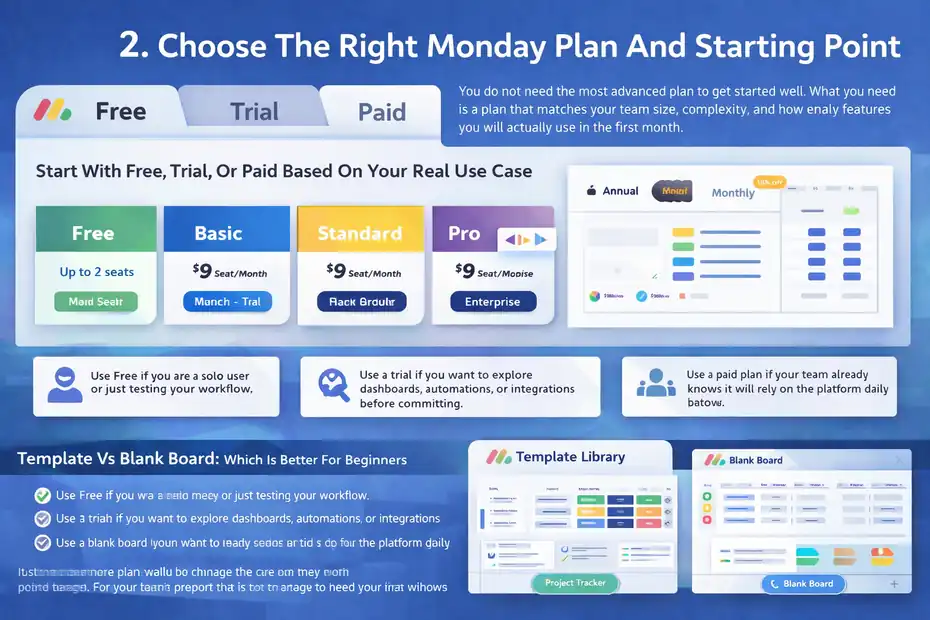
You do not need the most advanced plan to get started well.
What you need is a plan that matches your team size, complexity, and how many features you will actually use in the first month.
Start With Free, Trial, Or Paid Based On Your Real Use Case
Monday Work Management offers a Free plan, while its paid Work Management tiers are Basic, Standard, Pro, and Enterprise. Monday’s pricing pages currently show the Free plan for up to 2 seats, with paid Work Management pricing starting at $9 per seat per month billed annually on Basic.
Monday’s support center also notes that the Free plan is only available on monday Work Management, and annual billing includes an 18% discount compared with monthly billing.
That sounds simple, but the real decision is this:
- Use Free if you are a solo user or just testing your workflow.
- Use a trial if you want to explore dashboards, automations, or integrations before committing.
- Use a paid plan if your team already knows it will rely on the platform daily.
I believe beginners often overbuy because they assume they need every feature from day one. Usually, you do not. If your goal is to learn how to set up monday for beginners step by step, the Free plan or a product trial is often enough to build your first real workflow and understand what matters.
One important detail: monday also uses seat-based pricing and support explains that pricing works in seat buckets rather than true one-by-one scaling, so small teams should check how the account total changes as users increase.
The practical takeaway is to pick the cheapest path that still lets you test your real process, not just click around.
Template Vs Blank Board: Which Is Better For Beginners
Monday provides templates as a faster starting option, and its getting started documentation specifically recommends beginning with a template and then customizing it as your workflow evolves.
That said, templates can be both helpful and overwhelming.
Use a template when:
- You already recognize the workflow, like project tracking or content planning
- You want a faster starting structure
- You can tell which parts of the template you actually need
Use a blank board when:
- You are easily overwhelmed by too many columns and automations
- Your workflow is simple and unique
- You want to understand each part as you build it
Personally, I recommend this rule: if you are new to monday and not sure what every column does, start with a blank board or the simplest available template. Many beginners open a robust template, see ten views, twelve columns, mirrored data, and automations firing everywhere, then assume the platform is too complicated. It is not. The board is just doing too much too early.
A beginner-friendly compromise is to pick a template, remove half of what is there, and keep only the essentials. That gives you structure without confusion.
Create Your First Workspace And Board The Right Way
This is where setup becomes real. Your first board should be practical enough to use today, but simple enough that you can still understand it next week.
Build One Board Around One Repeatable Workflow
Monday’s support docs explain that work is organized in workspaces, and that related boards, dashboards, docs, and more can live together there. That is useful because it lets you organize by team, department, or process instead of throwing everything into one place.
Here is a beginner approach that works well:
- Create one workspace for a broad function, such as Marketing, Operations, Client Work, or Personal Planning.
- Create one board inside it for a single workflow.
- Name that board based on the process, not the department.
For example, “Content Production Pipeline” is better than “Marketing Board.” “Client Onboarding Tracker” is better than “Client Team.”
That naming choice matters more than it seems. Process-based names make boards easier to understand later, especially once you add more workflows. It also reduces the common beginner habit of turning one board into a messy everything-board.
Imagine you run a small agency. Instead of one giant board called “Agency Tasks,” create separate boards like “Leads,” “Client Delivery,” and “Internal Admin.” That setup stays clean longer and makes reporting easier later.
I recommend starting with a board you will update at least three times a week. If the workflow is not used regularly, you will not learn the platform properly.
Choose The Best Board Type And Permission Setup
Beginners also need to decide who should see the board. While monday has different board visibility options, your real question is whether this workflow should be open to the whole team, limited to specific people, or shared outside the team.
A practical rule looks like this:
- Use a main shared team board for day-to-day collaboration
- Use a private board for sensitive planning, finances, or internal drafts
- Use a shareable board when external stakeholders need limited access
Even if you are working alone today, set this up with future collaboration in mind. I have seen people build perfectly usable boards, then have to rebuild them because the visibility was wrong once a manager, freelancer, or client joined.
Your board name, audience, and workflow scope should all line up. If a board is too broad, permissions become messy. If it is too private, collaboration breaks. If it is too public, people stop trusting the setup.
So before you move on, make sure your first board answers three things clearly: what it tracks, who uses it, and what success looks like. That is the real foundation of a clean monday setup.
Add The Essential Columns Without Overcomplicating The Board
Columns are where monday starts feeling powerful. They are also where beginners often create chaos.
The trick is to add only the fields that help you make decisions or move work forward.
The Five Columns Almost Every Beginner Needs
If you are setting up your first board, you usually do not need ten custom fields. You need the fields that answer basic operational questions.
I suggest starting with these:
- Item Name: What is the task or record?
- Status: What stage is it in?
- Owner: Who is responsible?
- Due Date: When does it need to happen?
- Priority: How urgent is it?
That simple structure works for most workflows because it gives visibility without clutter. In practice, it answers the questions teams ask every day: what is being worked on, who owns it, when is it due, and is it blocked or important?
Let’s use a content team example. One item might be “Write Homepage Copy.” Status could be “Working On It.” Owner is Sarah. Due date is Thursday. Priority is High. That is already enough to manage real work.
A lot of beginners add columns because they might need them later. Budget, file links, estimated effort, notes, client type, campaign type, custom tags, sub-status, risk level. Before long, nobody updates half the board. That is worse than having fewer columns.
In my experience, a board becomes useful when every visible column earns its place. If a field does not affect action, reporting, or accountability, leave it out for now.
Columns You Can Add After The Basics Work
Once your board is active and people are using it consistently, then you can expand it. Monday supports a wide range of column types, and paid plan feature lists mention increasing column capabilities by plan. But more options do not automatically mean a better setup.
Good “second-wave” columns include:
- Timeline: For tasks spanning more than one day
- Files: For assets or supporting documents
- Tags: For filtering by project type or category
- Dependency: When one task must wait for another
- Numbers or Formula: For light calculations or scoring
- Connect Boards: When data truly needs to relate across workflows
My advice is to add one new column only when you have a clear reason.
For example, if your team keeps asking “What file goes with this?” then add a Files column. If you need to track simple handoffs, add dependency logic. If you never use a field for filtering, sorting, automation, or decision-making, it is probably unnecessary.
The board should feel easier to use as it grows, not heavier.
Organize Groups, Statuses, And Naming Conventions So Everything Stays Clear
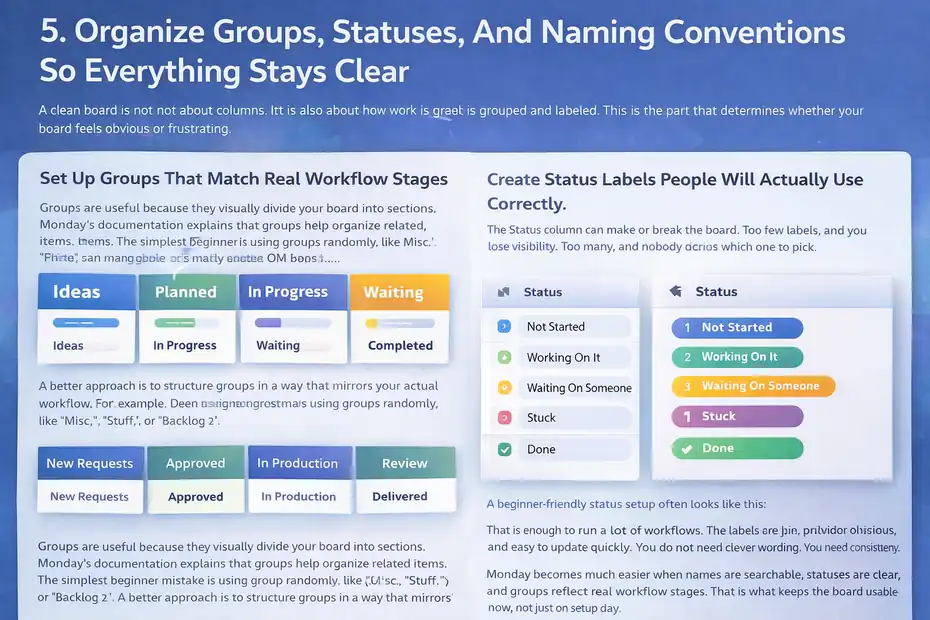
A clean board is not just about columns. It is also about how work is grouped and labeled. This is the part that determines whether your board feels obvious or frustrating.
Set Up Groups That Match Real Workflow Stages
Groups are useful because they visually divide your board into sections. Monday’s documentation explains that groups help organize related items. The simplest beginner mistake is using groups randomly, like “Misc,” “Stuff,” or “Backlog 2.”
A better approach is to structure groups in a way that mirrors your actual workflow. For example:
- Ideas
- Planned
- In Progress
- Waiting
- Completed
Or for client work:
- New Requests
- Approved
- In Production
- Review
- Delivered
This works because groups create immediate context. When someone opens the board, they can understand where work sits without reading every status cell.
I usually recommend no more than four to six groups on a beginner board. More than that, and the board starts feeling fragmented. If you need more detailed progress stages, use the Status column instead of creating endless groups.
A good test is this: if you moved all items into one giant list, would your groups still make sense as major sections? If yes, you are probably doing it right.
Create Status Labels People Will Actually Use Correctly
The Status column can make or break the board. Too few labels, and you lose visibility. Too many, and nobody knows which one to pick.
A beginner-friendly status setup often looks like this:
- Not Started
- Working On It
- Waiting On Someone
- Stuck
- Done
That is enough to run a lot of workflows. The labels are plain, obvious, and easy to update quickly. You do not need clever wording. You need consistency.
I recommend avoiding overlapping options like “In Review,” “Needs Review,” “Pending Approval,” and “Awaiting Feedback” unless your team truly uses those as separate operational stages. Otherwise, status updates become inconsistent and your reporting becomes unreliable.
Naming also matters for items. Use action-based names wherever possible. “Draft Q2 Sales Email” is better than “Email.” “Fix Checkout Bug On Mobile” is better than “Bug 14.”
Monday becomes much easier when names are searchable, statuses are clear, and groups reflect real workflow stages. That is what keeps the board usable six months from now, not just on setup day.
Add Views, Dashboards, And Docs Only When They Solve A Specific Problem
Monday can do much more than a table view. It supports different board views, dashboards for multi-board reporting, and workdocs for longer planning. But beginners should add these only when there is a clear use case.
Which Views To Add First And Why
Monday’s support materials explain that views help you look at a single board from different angles. That sounds simple, but this is where the platform starts becoming genuinely practical.
The first views most beginners benefit from are:
- Main Table View: Your primary editing and management area
- Calendar View: Helpful for deadline-based work
- Kanban View: Useful for visual stage movement
- Workload or Timeline View: Helpful when assignments or schedules become complex
Do not add all of them immediately. Add the one that solves a friction point. If you keep asking, “What is due this week?” add Calendar. If your team thinks in stages, add Kanban. If you need to spot overloaded teammates, then a workload-style view becomes useful.
A common mistake is treating views like separate systems. They are not. They are just different ways of seeing the same underlying board data. That means the board structure still matters most.
In practice, a clean board with one or two helpful views beats a bloated board with six views nobody opens.
When To Use Workdocs And Dashboards
Monday’s support center says teams often use workdocs for longer planning and documentation, while dashboards report across multiple boards using widgets and apps.
Here is my simple rule:
- Use a workdoc when information is too long or too messy for board columns
- Use a dashboard when you need a summary across boards
- Do not use either one just because they exist
A workdoc is useful for meeting notes, campaign briefs, SOPs, launch plans, or brainstorming. It gives your workflow narrative context. That matters when the board tracks execution but the thinking behind the work needs more room.
A dashboard becomes useful once you have multiple boards and need visibility at a higher level. For example, if you have separate boards for design, content, and development, a dashboard can pull them together into one reporting layer.
Beginners often try dashboards too early. I suggest waiting until you have at least two active boards with clean data. Otherwise, the dashboard just visualizes confusion.
Use Automations And Integrations Without Breaking The Workflow
This is where monday starts saving real time. It is also where beginners can create accidental mess if they automate before they understand the process manually.
Start With Two Or Three Safe Automations
Monday’s support explains that automations and integrations are managed from the board Automations page, accessible through the Integrate or Automate buttons, and that users can create automations from scratch, with AI help, or by using templates.
That flexibility is great, but I strongly recommend starting with only low-risk automation rules. The best beginner automations are the ones that remove repetitive admin work without changing your workflow logic too much.
Good first automations include:
- When status changes to Done, notify the owner or team
- When a due date arrives, notify the assignee
- When a new item is created, assign the owner automatically
- When status changes to Stuck, notify a manager
These automations are useful because they improve consistency and visibility without moving records all over the place. You can see what they do, verify the outcome, and trust the board more over time.
What I would avoid at first is chain automation. That is when one change triggers multiple actions across statuses, dates, owners, and connected boards. It sounds efficient, but beginners often end up with items changing unexpectedly and nobody knows why.
The best automation test is this: if the rule fails, will the board still be understandable? If yes, it is probably safe to launch.
Add Integrations Only After Your Board Logic Is Stable
Monday’s integration support documentation says you can connect external tools like Slack, Gmail, Outlook, and many others, and set them up through the board’s Automations page by selecting the app and mapping the needed parameters.
That is powerful, but it is not step one.
Before you connect external tools, make sure your internal board is already working. Your item names, statuses, owners, and dates should be reliable. Otherwise, you are just syncing messy data faster.
A good beginner use case might be sending notifications into Slack when tasks become blocked, or creating calendar events when date-based tasks are assigned. Those integrations support the workflow rather than replacing it.
I have seen teams connect email, calendar, chat, and forms all at once, only to realize their statuses were inconsistent and their naming made no sense. The result was more noise, not more automation.
My advice is to treat integrations as amplifiers. If the board is clean, integrations make it stronger. If the board is messy, integrations make the mess travel.
Set Up Forms, Intake, And Collaboration So Work Flows In Smoothly
Once your first board works internally, the next step is controlling how new work enters the system.
This is one of the most overlooked parts of a beginner setup.
Use WorkForms To Capture Requests In A Structured Way
Monday’s support documentation explains that WorkForms lets you create custom forms for requests, feedback, or information capture, and that responses flow directly into boards as items. Users can create a form from the left-side plus menu, either from scratch or from a template.
This matters because manual intake is where many workflows break. Someone sends a Slack message, someone else emails a request, someone drops a note in a meeting, and suddenly work is scattered everywhere.
A form fixes that. Instead of chasing information, you define the exact fields needed from the start.
For example, a marketing request form could ask for campaign name, due date, requested asset type, objective, and approver. Every submission becomes a structured item in the board, ready to be sorted and assigned.
That is much better than copying details from random messages all day.
I recommend forms when:
- Work comes in from multiple people
- Requests need standard information
- You want fewer follow-up questions
- You need cleaner board data
The best part is that forms make beginners look more organized very quickly, even with a simple setup.
Make Collaboration Easy Without Turning The Board Into A Chat App
Collaboration inside monday works best when the board remains the source of truth and comments support the work rather than replace it. Monday also highlights workdocs for collaborative planning alongside boards.
A simple collaboration model looks like this:
- Board for task tracking
- Updates or comments for task-specific context
- Workdoc for planning, briefs, or meeting notes
- Notifications and automations for visibility
That division keeps information in the right place. A beginner mistake is stuffing long planning notes into item names or columns, or trying to manage every decision in scattered updates. It becomes hard to find anything later.
Imagine a client onboarding board. The board tracks each onboarding task. A workdoc holds the process checklist and kickoff notes. Comments on items hold quick updates tied to each step. That setup is tidy, searchable, and easy to hand off.
Good collaboration in monday is less about constant activity and more about putting the right information in the right layer.
Avoid Common Beginner Mistakes And Clean Up The Board Early
A lot of monday frustration is not caused by the platform. It is caused by beginner setup habits that feel smart in the moment but create friction later.
The Mistakes That Make Monday Feel Harder Than It Is
Here are the mistakes I see most often:
- Building one giant board for everything
- Adding too many columns too soon
- Using unclear item names
- Creating too many status options
- Turning on advanced automations before the manual process works
- Copying a template without removing irrelevant parts
- Adding dashboards before the underlying data is clean
None of these mistakes are fatal, but they do make monday feel heavier than it needs to be.
For example, if one board tracks marketing, hiring, sales admin, and design requests all at once, the filters and views become confusing. If you have ten status labels but only use three consistently, your reporting becomes misleading. If automations are changing values across the board before the team understands the board, people stop trusting it.
My honest opinion is that monday works best when you respect the boring operational basics first. Clear names. Clear owners. Clear due dates. Clear statuses. Everything else should support that foundation, not distract from it.
How To Audit And Improve Your Board After Week One
After one week of real usage, review your board with fresh eyes. This is one of the best habits you can build early.
Ask these questions:
- Which columns are never updated?
- Which status labels cause confusion?
- Which tasks keep missing deadlines?
- Are people using the board without needing extra explanation?
- Are there duplicate items or vague names?
- Are notifications helpful or annoying?
Then make small edits, not a complete rebuild.
A practical cleanup process is:
- Remove unused columns
- Merge duplicate statuses
- Rename vague groups
- Fix item naming patterns
- Pause noisy automations
- Add one missing view only if it solves a repeated problem
This kind of audit matters because monday improves fast when you refine the workflow based on actual usage. You do not need perfection on day one. You need a board that gets slightly clearer every week.
Optimize And Scale Your Setup Once The Basics Are Working
Once your first workflow runs consistently, you can start improving speed, reporting, and cross-team visibility.
This is where monday begins moving from “task board” to “operating system.”
Build A Repeatable Operating System, Not Just A Board
By this stage, you should know which parts of your process repeat. That is your signal to scale. Monday’s ecosystem supports boards, forms, docs, dashboards, automations, integrations, templates, and AI-assisted workflow creation.
But scaling well means copying patterns, not adding random complexity.
A good next step is to create a repeatable board framework:
- Standard naming rules
- Consistent status labels
- Shared priority logic
- Clear owner assignment rules
- A common intake form structure
- A small set of approved automations
Once you have that, new boards become easier to launch and easier for others to understand. This is especially useful for small businesses, agencies, and operations teams that repeat similar workflows across clients or departments.
For example, if every new client onboarding board uses the same status flow, same request form, and same deadline reminders, your team learns one system instead of five different versions of monday.
That is how the platform starts saving serious time.
Advanced Improvements That Actually Matter
When beginners think “advanced,” they often imagine highly technical setups. In practice, advanced optimization is usually operational clarity at scale.
The most valuable upgrades are often:
- Multi-board dashboards for leadership visibility
- Connected workflows only where handoffs truly matter
- Smarter automations based on real bottlenecks
- Better form intake to reduce bad submissions
- AI-assisted setup for faster rule creation where appropriate
Monday’s current support materials note AI capabilities across work management, including monday AI, sidekick, AI workflows, and AI blocks, while the Automations page also references AI help for creating rules.
That said, I would still keep a human-first mindset. Use AI and automation to reduce repetitive work, not to hide a broken process. If a workflow is confusing without AI, it will usually stay confusing with AI.
The strongest advanced monday setups are not flashy. They are clean, predictable, and easy for a new teammate to understand in minutes.
Your Simple Beginner Setup Checklist
If you want one practical recap, this is the sequence I recommend.
It keeps the process focused and helps you learn how to set up monday for beginners step by step without getting lost.
Follow This Order And You Will Avoid Most Early Confusion
- Choose one real workflow to build first.
- Create one workspace for the broader function.
- Create one board for that workflow only.
- Add five essential columns: item name, status, owner, due date, priority.
- Create four to six groups that reflect actual workflow stages.
- Keep status labels simple and obvious.
- Add one useful view, such as Calendar or Kanban, only if needed.
- Add one or two safe automations.
- Use a form if requests come in repeatedly.
- Review the board after one week and simplify anything unused.
That is it. You do not need to master every part of monday in your first setup. You need one board that people understand, trust, and actually use.
If I were helping a beginner in real life, this is exactly where I would start. Not with advanced dashboards. Not with a maze of connected boards. Just one clean workflow, built with enough structure to support real work and enough simplicity to stay usable.
That is what turns monday from “another tool” into something your team genuinely relies on.
FAQ
What is monday.com and why should beginners use it?
monday.com is a work management platform that helps you organize tasks, projects, and workflows in one place. Beginners should use it because it simplifies tracking work, assigning responsibilities, and managing deadlines without needing technical skills or complex setup.
How long does it take to set up monday for beginners?
Most beginners can set up their first monday board in 20 to 30 minutes. The key is starting with a simple workflow, adding only essential columns, and avoiding complex automations until the basic structure is working smoothly.
Should beginners use a template or start from scratch in monday?
Beginners can use a simple template if they recognize the workflow, but starting from scratch is often easier for learning. A clean, minimal board helps you understand how monday works without feeling overwhelmed by extra features.
What are the essential columns to add in monday for beginners?
The most important columns are item name, status, owner, due date, and priority. These fields give you enough structure to manage tasks effectively while keeping the board simple and easy to update consistently.
What is the biggest mistake beginners make when setting up monday?
The biggest mistake is overcomplicating the board too early. Adding too many columns, automations, or templates can create confusion. A simple, clear workflow is easier to manage and can be improved gradually over time.

I’m Juxhin, the voice behind The Justifiable.
I’ve spent 6+ years building blogs, managing affiliate campaigns, and testing the messy world of online business. Here, I cut the fluff and share the strategies that actually move the needle — so you can build income that’s sustainable, not speculative.
Related posts:
 Project Management Tools Monday: Complete Beginner’s Guide
 Is Monday Project Management Software Worth It?
 Monday App Download: Quick Setup Guide for New Users
 Monday Program Review: Features That Actually Work
 Why Teams Prefer Monday PM Software Over Traditional Tools
 7 Monday Alternatives For Small Teams On A Budget That Save Money