
Table of Contents
Some links on The Justifiable are affiliate links, meaning we may earn a small commission at no extra cost to you. Read full disclaimer.
The learnworlds platform walkthrough guide you need is not just a list of buttons and menus. It should help you understand what the dashboard is actually trying to help you do: build, sell, manage, and improve an online school without getting lost in the interface.
If you are opening LearnWorlds for the first time, or even if you have already clicked around and still feel unsure, this guide will walk you through the dashboard in a practical way.
I’ll show you what matters, what you can ignore at first, and how to move from setup to confident daily use.
Understand What LearnWorlds Is Built To Do
Before you tour the dashboard, it helps to know how LearnWorlds is structured. At its core, LearnWorlds is a platform for creating and selling online courses, digital products, memberships, and training experiences.
That sounds broad, but the dashboard makes more sense once you realize every section supports one of four jobs: building content, managing learners, selling access, or tracking performance.
What The Platform Is Really Organizing For You
When many people first log in, the interface feels bigger than expected. That usually happens because LearnWorlds is not just a course builder. It also includes website management, checkout flows, analytics, student communication, and automations. In other words, it is trying to replace a stack of separate tools.
Think of it this way: your dashboard is less like a single app and more like a control room for an online education business.
That matters because it changes how you should approach it. Instead of clicking every setting randomly, I suggest mapping the platform into a few practical zones:
- Build: courses, learning activities, media, certificates
- Present: site pages, branding, navigation, school appearance
- Sell: products, pricing, coupons, checkout, subscriptions
- Manage: users, enrollments, reports, integrations, support
Once you frame it this way, the dashboard stops feeling chaotic. It becomes easier to ask a better question, like: “Am I building content right now, or am I configuring sales?”
From what I’ve seen, most beginner confusion comes from trying to do both at once. LearnWorlds works better when you move in stages.
Why The Dashboard Feels Different From Simpler Course Platforms
Some course platforms are intentionally stripped down. LearnWorlds is not. It gives you more control over how the school looks and how the learning experience works. That extra flexibility is useful, but it also creates a steeper learning curve during the first few sessions.
What makes it different: you are not only creating lessons, you are shaping a branded learning environment.
For example, you may find settings for page design, learner profiles, bundles, funnels, video experiences, or affiliate options alongside standard course settings. That can feel like a lot when all you wanted to do was upload a few modules. Still, that depth is one of the reasons people choose LearnWorlds in the first place.
I believe the smartest way to learn the platform is to ignore “advanced” temptation at first and focus on the path a real customer follows:
- They land on your site.
- They browse an offer.
- They buy or enroll.
- They enter your course.
- They consume lessons.
- You track progress and improve.
If a dashboard area does not directly support one of those steps yet, it can wait.
Get Comfortable With The Main Dashboard Layout
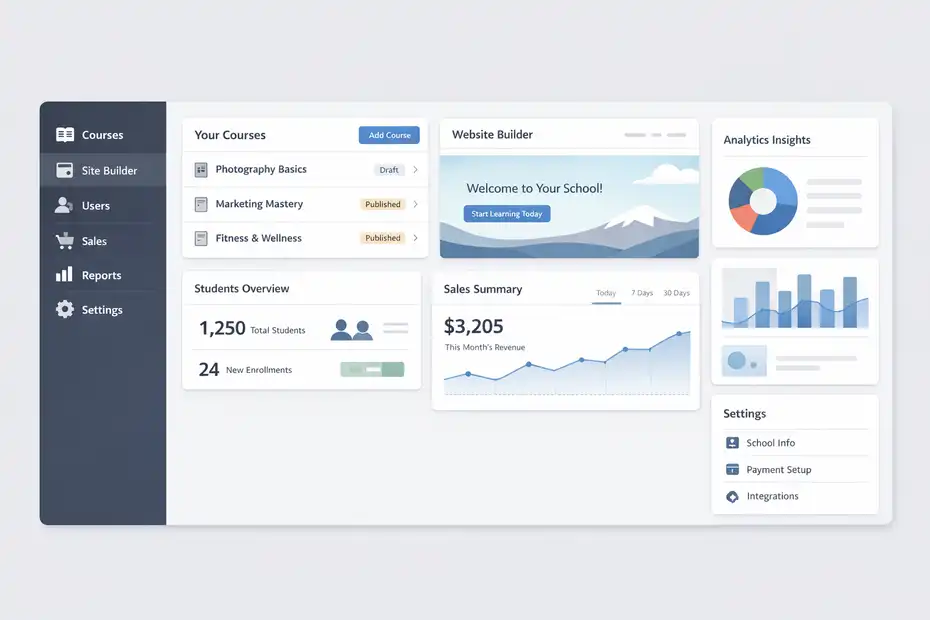
Once you know what LearnWorlds is trying to help you do, the next step is learning how the main dashboard is arranged.
This is where the learnworlds platform walkthrough guide becomes practical, because the layout tells you where daily work actually happens.
The Core Navigation Areas You Will Use Most
Most of your work in LearnWorlds happens through the left-hand navigation and the main content area. The exact labels can vary a bit as platforms update menus, but the structure usually stays familiar: school/site management, courses/products, users, marketing or sales tools, reports, and settings.
The key idea: LearnWorlds groups actions by business function, not by user mood.
Here is a simple way to read the dashboard:
| Dashboard Area | What It Controls | When You Use It Most |
|---|---|---|
| Courses / Products | Course creation, curriculum, access | Building and editing offers |
| Site Builder / Pages | Homepage, sales pages, school design | Branding and conversion setup |
| Users / Learners | Student accounts, enrollments, permissions | Managing access and support |
| Sales / Marketing | Offers, coupons, affiliates, checkout-related actions | Monetization and promotions |
| Reports / Analytics | Revenue, engagement, course progress | Optimization decisions |
| Settings | School details, integrations, payments, technical setup | Initial configuration and maintenance |
If you only remember one thing, remember this: content and sales live close together, but they are not the same job. A great course can still sell badly if your offer setup is weak.
What To Click First On A New Account
When people ask for a dashboard tour, they often want to know where to start without wasting an hour. My recommendation is simple: do not begin with design tweaks. Start with the operational essentials.
Start here first: school settings, payments, product structure, and one sample course.
A practical first session usually looks like this:
- Set your school name, domain, logo, and basic brand colors.
- Connect payment options so the school can actually sell.
- Create one product or course skeleton.
- Upload a small amount of sample content.
- Preview the student experience.
- Return to improve the site design later.
This order matters because it helps you see the platform end to end. If you jump straight into visual customization, it is easy to spend a long time polishing pages before the core delivery system works.
In my experience, platforms become much easier once you create one “test learner path” from landing page to lesson completion. That teaches you more than reading every help article in advance.
Explore The Course Creation Area Properly
This is where many users spend most of their time. The course area is the heart of the platform, and if you understand it well, the rest of LearnWorlds starts to feel much more logical.
How Courses, Sections, And Learning Activities Fit Together
Inside LearnWorlds, a course is not just a folder of videos. It is a structured learning experience made up of sections and activities. Sections organize content into modules or chapters, while activities are the actual lessons, videos, PDFs, quizzes, forms, live sessions, or other learning items a student interacts with.
A simple mental model: course = container, section = category, activity = lesson asset.
That distinction matters because new creators often upload content without designing flow. A better setup is to think like a teacher first and a file uploader second. Ask yourself what the learner should do in order.
A solid beginner course structure might look like this:
- Section 1: welcome, orientation, expectations
- Section 2: core lesson videos
- Section 3: worksheet or downloadable resource
- Section 4: quiz or reflection activity
- Section 5: next steps or implementation assignment
That kind of structure improves completion because it guides the learner through a path instead of leaving them in a pile of materials.
I suggest building one full module before building all modules. That helps you confirm the learning rhythm feels right. It is much easier to fix structure early than after twenty lessons are already uploaded.
What The Course Builder Helps You Control
The course builder is where LearnWorlds starts to show its depth. You can usually control visibility, access type, course card details, lesson order, completion behavior, drip timing, and learner-facing elements from this area.
Look closely at these settings: access, navigation flow, completion logic, and preview experience.
For example, you may choose whether content is free, paid, private, or bundled. You may also control whether learners can move freely between lessons or need to complete items in sequence. Those settings affect not only learning outcomes but also support requests. If navigation is unclear, students get frustrated fast.
Here is a realistic scenario. Imagine you sell a short paid course to freelancers. If the most important worksheet is buried near the end without context, learners may miss it. But if you place it right after the lesson where they need it, usage rises and satisfaction improves. Small structural choices change perceived course quality.
I also recommend previewing every course as a student before publishing. This sounds obvious, but it catches common mistakes like locked lessons, broken downloads, missing thumbnails, or awkward progression rules.
Review The Learning Activity Types And When To Use Them
LearnWorlds offers more than simple video uploads, and that is one reason many creators pick it.
The platform supports a more varied learning experience, which can improve engagement when used intentionally.
Choose The Right Activity Instead Of Repeating One Format
A common beginner mistake is turning every lesson into a video. Video works well, but not every teaching moment needs it. Sometimes a short text summary, checklist, assessment, or download is more effective and easier for the learner to act on.
Use activity variety to support the learning goal, not to show off features.
A practical breakdown looks like this:
| Activity Type | Best Use Case | Watch-Out |
|---|---|---|
| Video Lesson | Demonstrations, teaching, walkthroughs | Too many long videos can reduce completion |
| Ebook / Text Lesson | Summaries, step-by-step instructions | Keep formatting clean and scannable |
| Quiz / Exam | Knowledge checks and retention | Avoid making easy content feel over-tested |
| Download / PDF | Templates, worksheets, guides | Make sure files are updated and branded |
| Live Session | Coaching, Q&A, cohort teaching | Needs clear scheduling and communication |
| Form / Reflection | Feedback, onboarding, learner input | Only ask for information you will use |
This is one of those places where hands-on judgment matters. If a lesson teaches a process, I often prefer a short video plus a written summary plus a worksheet. That mix supports both watchers and skimmers.
Not everyone learns in the same way. A better content mix usually means fewer refund requests and better student progress.
How To Build A Better Lesson Flow With Mixed Content
LearnWorlds gives you room to build real instructional flow, not just upload content blocks. The trick is to sequence activities so each one has a job.
One useful pattern: teach, reinforce, apply, reflect.
For example, a lesson sequence could be:
- A short video explaining the concept
- A text recap with key takeaways
- A worksheet or template
- A quiz or quick check
- A next-action prompt
That sequence feels more complete than dropping a single 18-minute video into a course and calling it done.
Imagine you are teaching email marketing basics. A video can explain segmentation, but a fill-in template helps the student draft their first segment plan. Then a short quiz confirms they understood the difference between audience types. That is where LearnWorlds becomes more than a content host.
I believe this is one of the platform’s biggest strengths. Used well, it lets you create a course that feels guided and intentional rather than static.
Learn The Site Builder And School Design Area
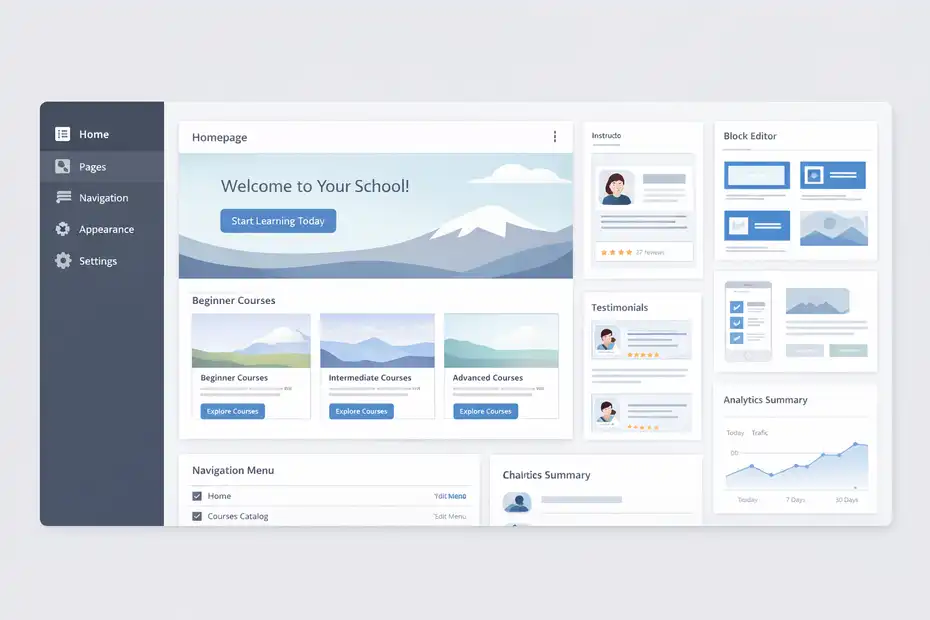
After your course framework is working, the next part of the dashboard to learn is the front-end school experience.
This is where visitors decide whether your brand feels trustworthy enough to buy from.
What The Site Builder Controls
The site builder usually manages your homepage, sales pages, checkout-adjacent content, library pages, navigation menus, banners, and branding elements. Depending on your setup, this is also where you shape how your school looks on desktop and mobile.
This area affects first impressions more than most creators realize.
A simple dashboard tour should make one thing clear: your course quality and your site presentation are connected. If your site feels messy or generic, potential students may never reach your curriculum. A polished design does not need to be flashy. It just needs to feel clear, consistent, and easy to trust.
Focus on these first:
- homepage headline and value proposition
- navigation simplicity
- product page clarity
- instructor credibility section
- testimonials or proof
- mobile responsiveness
I suggest resisting the urge to endlessly customize colors and blocks until your messaging is strong. Design helps conversion, but only when the offer is clear. A clean page with a specific promise usually beats a pretty page with vague copy.
How To Make The Dashboard Work For Conversion, Not Just Appearance
This is where strategy matters more than decoration. LearnWorlds gives you layout control, but layout alone does not sell. Your dashboard decisions should support a visitor journey from curiosity to confidence.
Ask one question on every page: what should the visitor do next?
A homepage should point toward a course, lead magnet, membership, or school library. A sales page should explain the problem, show the transformation, handle objections, and reduce friction. A course catalog page should help users compare options without overwhelm.
Here is a mini example. Let’s say you run a language school. Instead of listing ten courses in a flat grid, group them by beginner, intermediate, and advanced. That one structural change makes the dashboard work harder for the buyer and reduces confusion.
In my experience, this is where many schools quietly lose revenue. Not because the content is weak, but because the front-end experience asks the visitor to do too much thinking. Good dashboard use removes that friction.
Set Up Products, Pricing, And Access Rules
A full dashboard tour is incomplete without the monetization side. This is the part that determines how LearnWorlds turns your content into an actual business model.
How Products And Access Models Usually Work
LearnWorlds typically lets you sell standalone courses, bundles, memberships, or other digital learning offers. The important thing is not just creating a product, but matching the access model to the buyer’s expectation.
The product setup question is really this: what is the customer paying for, and for how long?
Common models include:
- one-time purchase for permanent access
- subscription-based access to a library
- bundled access to several related courses
- free course used for lead generation
- private or invite-only training
Each model sends a different signal. A one-time purchase feels straightforward. A subscription needs ongoing value. A free course works best when it leads naturally into a paid offer.
Here is where many creators make it harder than necessary. They build the course first and only later wonder how to package it. I think the better approach is to decide the business model early. That shapes course length, support expectations, and your sales pages.
Pricing Decisions Inside The Dashboard
Pricing is never just a number in a field. Inside the dashboard, price connects to discount rules, coupons, payment processors, upsells, and course positioning. Small setup decisions can affect perceived value a lot.
A practical pricing rule: match price to transformation, support level, and buyer urgency.
Here is a simple comparison table:
| Offer Type | Typical Buyer Expectation | Best Pricing Logic |
|---|---|---|
| Mini Course | Quick win, low friction | Lower one-time price |
| Flagship Course | Full transformation | Mid to premium one-time price |
| Membership | Ongoing value and updates | Monthly or annual subscription |
| Bundle | Savings across multiple topics | Discounted combined pricing |
| Lead Course | Trial experience | Free or very low entry price |
Imagine you sell a detailed coaching-based program but price it like a tiny self-serve course. Buyers may feel confused, not impressed. On the other hand, if you overprice a thin offer, refunds and churn can rise.
From what I’ve seen, the dashboard setup becomes easier when you define three things first: who it is for, what result it promises, and what level of support comes with it.
Manage Users, Enrollments, And Learner Experience
Once people start joining your school, the dashboard becomes less about setup and more about operations. This is the point where good structure starts saving you real time.
What To Watch In The User Management Area
The users area usually helps you see who signed up, what they bought, what they can access, and how they are progressing. You may also manage roles, manual enrollments, access changes, or student data from here.
This is the part of the dashboard that protects the customer experience.
When someone says, “I paid but can’t access the course,” the fix usually lives here. The same goes for learner permissions, admin roles, or checking whether a person is enrolled in the correct product.
I recommend checking these details regularly:
- course access status
- enrollment date
- user role and permissions
- progress or completion status
- payment-related access issues
- inactive learners who may need support
A small school can manage this manually. A growing school should treat this area as part of its retention system. If you notice learners stalling at the same point, that is not only a teaching issue. It can also be a support and product design issue.
How To Improve The Learner Journey From Inside The Dashboard
A dashboard tour should not stop at admin features. What really matters is the learner experience they create. LearnWorlds gives you room to shape that through progression rules, communication, content structure, and user-facing design.
Think beyond access: ask how supported the learner feels after they log in.
A good learner journey often includes:
- a clear welcome experience
- an obvious first action
- visible course progress
- simple lesson navigation
- milestone encouragement
- logical next-offer pathways
Imagine a student buys your course and sees a blank-looking library with no orientation. Even if the material is excellent, the experience feels cold. But a short welcome lesson, a progress indicator, and a next-step prompt can instantly make the product feel more premium.
I believe this is one of the biggest hidden growth levers in digital education. Better learner experience does not just improve completion. It often improves testimonials, referrals, and repeat purchases too.
Use Analytics And Reports To Make Smarter Decisions
This is where a lot of creators say they want to improve, but then avoid the data. I get it. Reports can feel dry.
Still, the analytics area is where the platform starts telling you what is actually happening instead of what you hope is happening.
Which Metrics Matter Most In A Real School Dashboard
Not every metric deserves your attention. A practical learnworlds platform walkthrough guide should focus on the numbers that affect revenue, completion, and customer satisfaction.
Watch these first: sales, conversion, engagement, lesson completion, and dropout points.
Useful dashboard metrics often include:
- revenue by product
- enrollments over time
- refund patterns
- course progress rates
- lesson completion drop-off
- login activity
- coupon performance
- subscription retention, if applicable
The number that matters most depends on your stage. A new creator may care most about first sales and landing page conversion. A mature school may care more about completion rate and lifetime value.
Here is a realistic example. Let’s say your sales page converts fine, but only 28% of students finish the course. That tells you the offer is attractive, but delivery may need work. Maybe videos are too long. Maybe lesson flow is weak. Maybe learners need more quick wins earlier.
Data does not replace judgment, but it sharpens it.
How To Turn Reports Into Action Instead Of Noise
The trap with analytics is collecting too much and changing nothing. I recommend tying each report to a decision.
Use this rule: every metric should answer a business question.
For example:
- Low conversions? Improve page clarity or offer structure.
- High drop-off in module two? Review lesson length and sequence.
- Strong free-course signups but weak paid upgrades? Rework your transition offer.
- High churn in memberships? Add ongoing value and better onboarding.
This is where mini case-study thinking helps. Suppose you notice that students who complete the first worksheet are twice as likely to finish the course. That suggests the worksheet is not a side asset. It is a retention lever. Now you can move it earlier, mention it more clearly, or reinforce it in onboarding.
In my experience, the best dashboard users do not obsess over every chart. They pick one problem, find the relevant data, make one improvement, and then measure again.
Connect Payments, Integrations, And Operational Settings
Once your products and learner flow are in place, the technical settings matter more. These are not always exciting, but they are what keep the business running smoothly.
The Essential Settings To Review Early
The settings area often controls school identity, language, email behavior, payment gateways, custom domains, legal pages, user permissions, and integrations with external tools. This is the behind-the-scenes engine room.
Set these up early because broken operations create expensive problems later.
A practical checklist includes:
- school name and branding
- custom domain
- payment processor connection
- tax or billing-related settings where relevant
- email sender details
- legal pages and policy visibility
- admin access permissions
- core integrations only
I say “core integrations only” on purpose. New users often connect too many tools too soon. That creates complexity before the business model is stable. I suggest starting lean. Connect only what you need to sell, deliver, and support.
A simple setup usually beats an impressive but fragile one.
Which Integrations Are Worth Considering
Integrations matter when they reduce manual work or improve tracking. They are not automatically useful just because they exist.
A good integration should do one of three things: save time, improve accuracy, or increase revenue visibility.
Here is a simple reference table:
| Integration Category | Why It Matters | Use It When |
|---|---|---|
| Payments | Enables selling and recurring billing | Always, before launch |
| Email Marketing | Follow-up, onboarding, promotions | When you want lifecycle communication |
| Analytics / Tracking | Better attribution and reporting | When running campaigns or testing pages |
| CRM / Automation | Lead and customer workflow management | When manual admin becomes messy |
| Webinar / Live Tools | Cohort teaching or live support | When your offer includes live elements |
I would avoid adding fancy automations until your offer is selling consistently. Otherwise, you may automate a weak funnel and make debugging harder.
Avoid The Most Common LearnWorlds Dashboard Mistakes
By this point, you know where things live. Now let’s talk about what usually goes wrong. This section often helps more than another menu tour because mistakes are where time disappears.
Mistakes Beginners Make In The First Week
Most early mistakes are not technical. They are sequencing mistakes. People work on the wrong thing at the wrong time.
- Common mistake 1: designing pages before the product structure is clear.
- Common mistake 2: uploading content without a learner path.
- Common mistake 3: setting pricing before defining the transformation.
- Common mistake 4: ignoring the student preview experience.
- Common mistake 5: turning on too many features at once.
These mistakes create a school that looks busy but feels unfinished.
Imagine you spend hours designing a homepage, then realize the checkout flow feels confusing and the course has no onboarding lesson. That is a very common first build problem. The dashboard did not fail you. The build order did.
I recommend using a simple priority ladder:
- working product
- clear access
- smooth learner experience
- clean sales page
- tracking and optimization
- advanced design
That sequence keeps you from polishing the wrong layer too early.
Mistakes Growing Schools Make Later
As schools grow, the mistakes change. The issue is no longer “Where is this setting?” It becomes “Why is the system harder to manage now?”
Later-stage mistakes usually involve complexity.
A few examples:
- too many overlapping products
- inconsistent naming conventions
- weak reporting habits
- unclear admin permissions
- outdated downloads or lessons
- scattered offers with no upsell path
For example, if you have five similar courses with slightly different names and overlapping content, your dashboard gets harder to manage and your customers get harder to guide. Simplifying your product ecosystem can improve both operations and conversion.
From what I’ve seen, dashboard clarity scales better than dashboard cleverness.
Optimize Your Workflow Once The Basics Are Working
After you stop feeling lost in the dashboard, the next goal is speed. A good walkthrough should help you not only understand LearnWorlds, but also use it efficiently week after week.
Build A Repeatable Admin Routine
The best way to stay in control of the platform is to create a repeatable operating rhythm. You do not need to be in every dashboard area every day.
A simple weekly routine works better than reactive clicking.
A practical routine might look like this:
- Monday: check sales, new enrollments, support issues
- Tuesday: review lesson completion and learner progress
- Wednesday: update one page, lesson, or resource
- Thursday: review email or promotional performance
- Friday: preview user experience and fix friction points
This kind of cadence prevents small issues from piling up. It also turns the dashboard into a business tool instead of a source of random anxiety.
I believe many creators would enjoy their platform more if they treated it like a system with recurring checks, not a maze to re-explore each time.
Know When To Customize And When To Leave It Alone
Not every feature needs to be used. That may be the most valuable advice in this whole article.
A mature workflow means choosing features intentionally.
LearnWorlds gives you a lot of knobs to turn. But extra complexity only helps if it improves one of these:
- learner clarity
- sales conversion
- content quality
- administrative efficiency
- retention or upsells
If a setting does not improve one of those, it may be optional for now.
A realistic example: Adding advanced page sections, custom paths, and multiple offer variations may sound smart. But if you only have one flagship course and limited traffic, that complexity might not produce any real gain. A cleaner setup often converts better because it is easier to understand.
My advice is simple: Master the core dashboard flow before chasing edge-case features.
Use This Practical Dashboard Path To Get Started Faster
A full dashboard tour is useful, but action matters more than familiarity. The best way to learn LearnWorlds is to build one complete working path from visitor to student to completion.
Your First Practical Build Sequence
If you want to move fast without getting overwhelmed, follow this order:
- Step 1: Set school basics like brand name, domain, logo, and payment setup.
- Step 2: Create one core course or product with a clear promise.
- Step 3: Add sections and a few mixed lesson types.
- Step 4: Build a simple sales page or homepage path to the offer.
- Step 5: Test enrollment and preview the student experience.
- Step 6: Review analytics after real users begin interacting.
That sequence teaches you the platform through real use, not theory.
Imagine launching with one strong offer instead of trying to build an entire academy in week one. That smaller approach usually gives better feedback, cleaner operations, and less setup fatigue.
Final Thoughts On Navigating LearnWorlds With Confidence
The point of this learnworlds platform walkthrough guide is not to memorize every dashboard tab. It is to help you understand what matters, in what order, and why.
Once you see the dashboard as a system for building, selling, delivering, and improving learning experiences, it becomes much less intimidating.
I suggest focusing on one complete learner journey first. Make it work. Then improve it. Then expand.
That is how most successful schools grow anyway: not by using every feature immediately, but by using the right features at the right stage.
FAQ
What is the LearnWorlds platform used for?
LearnWorlds is used to create, manage, and sell online courses, memberships, and digital learning products. It combines course creation, website building, and sales tools into one platform, allowing users to build a complete online school without needing multiple separate tools.
How do I start using the LearnWorlds dashboard?
To start using the LearnWorlds dashboard, first set up your school details, connect payments, and create a basic course structure. Then preview the learner experience to ensure everything works smoothly before focusing on design or advanced features.
Is LearnWorlds beginner-friendly?
LearnWorlds can feel complex at first because it offers many features, but it becomes easier once you understand its structure. By focusing on building one course and following the learner journey, beginners can quickly learn how to use the platform effectively.
What are the main sections in the LearnWorlds dashboard?
The LearnWorlds dashboard includes key sections such as courses, site builder, users, sales tools, reports, and settings. Each section supports a specific function like content creation, student management, or performance tracking.
How do I optimize my LearnWorlds course for better results?
To optimize your course, improve lesson structure, use different learning activities, and monitor analytics like completion rates. Small changes in content flow and user experience can increase engagement, reduce drop-offs, and improve overall student satisfaction.

I’m Juxhin, the voice behind The Justifiable.
I’ve spent 6+ years building blogs, managing affiliate campaigns, and testing the messy world of online business. Here, I cut the fluff and share the strategies that actually move the needle — so you can build income that’s sustainable, not speculative.
Related posts:
 How to Get LearnWorlds Free Trial and Start Fast
 Create Online Courses LearnWorlds and Start Earning
 AI-Powered Ad Creative: Smarter Ads, Better ROI!
 Voluum Pricing: Which Plan Saves You the Most Money?
 Constant Contact Pricing: Which Plan Is Right for You?
 CartFlows Pricing & Alternatives: Which One Wins?