Table of Contents
Some links on The Justifiable are affiliate links, meaning we may earn a small commission at no extra cost to you. Read full disclaimer.
ManyChat integrations can completely transform the way you automate communication, manage leads, and connect your business tools.
Imagine if your chatbot could not only talk to customers but also update your CRM, send personalized emails, or even notify your team on Slack—all without you lifting a finger.
That’s the power of the right integrations. But which ManyChat integrations actually make a real difference in your workflow?
Let’s explore the ones that can truly supercharge your productivity and results.
Connect ManyChat With Shopify To Boost E-Commerce Sales
When you integrate ManyChat with Shopify, you unlock an entirely new layer of automation for your online store.
The integration connects your chatbot directly to your product catalog and customer events—so you can turn conversations into sales without manually managing every detail.
Automate Abandoned Cart Recovery With Personalized Messages
We’ve all abandoned a cart before. Maybe the shipping cost surprised us, or we just got distracted. With this integration, you can automatically remind customers of what they left behind.
Here’s how it works: From your ManyChat dashboard, go to Automation > Rules > Add Trigger > Shopify and select “Cart Abandoned.” You can then build a personalized message flow—something like:
“Hey Jamie! You left your AirPods case behind. Want to grab it before it’s gone?”
You can even sweeten the message with a discount code (Shopify → Discounts → Create Discount) automatically included in the flow. ManyChat can dynamically pull the product image and price right into Messenger or SMS, which feels personal rather than pushy.
Pro Tip: Use a 1-hour delay before sending the first reminder, then a follow-up 12 hours later. Two gentle nudges outperform aggressive sequences.
Send Order Updates And Shipping Notifications Automatically
Customers love transparency. Instead of generic email updates, you can have real-time Messenger notifications triggered from Shopify order events.
Once you’ve connected Shopify (Integrations > Shopify > Connect Store), set triggers for events like:
- Order confirmed
- Order shipped
- Order delivered
Each trigger can launch a ManyChat flow that automatically sends a quick update. For example:
“Your order #1526 is on its way! You can track it here: [link].”
This keeps communication fast and conversational—exactly how customers expect it in 2025.
Upsell And Cross-Sell Products Through Smart Chat Sequences
Shopify data is the secret sauce here. ManyChat can detect what a customer bought and recommend complementary products automatically.
Example: Someone buys a yoga mat. A week later, ManyChat sends:
“Enjoying your new mat? Our eco-foam yoga blocks are 20% off this week—want me to show you?”
You can set these flows up under Automation > Rules > Shopify Trigger > Product Purchased, and then segment follow-ups using Tags (like “Yoga Customer”).
Why it works: Post-purchase messages have an open rate above 80% when sent within 7 days of delivery (based on ManyChat internal benchmarks).
Collect Customer Feedback And Reviews In Messenger Or SMS
Feedback helps you improve—and future customers trust reviews more than ads. You can automatically request a review 5–7 days after delivery.
Flow example:
“Hey Sarah, did your hoodie fit as expected? Tap below to rate your experience!”
You can direct positive responses to your Shopify review app page (like Judge.me or Loox), and route negative feedback to your support inbox via email or Slack.
Quick setup path: Automation > Rules > Shopify > Order Delivered → Trigger Flow “Request Review.”
Insight: Review request flows typically raise review volume by 25–40% compared to email-only requests.
Use ManyChat And Zapier To Automate Everything Seamlessly
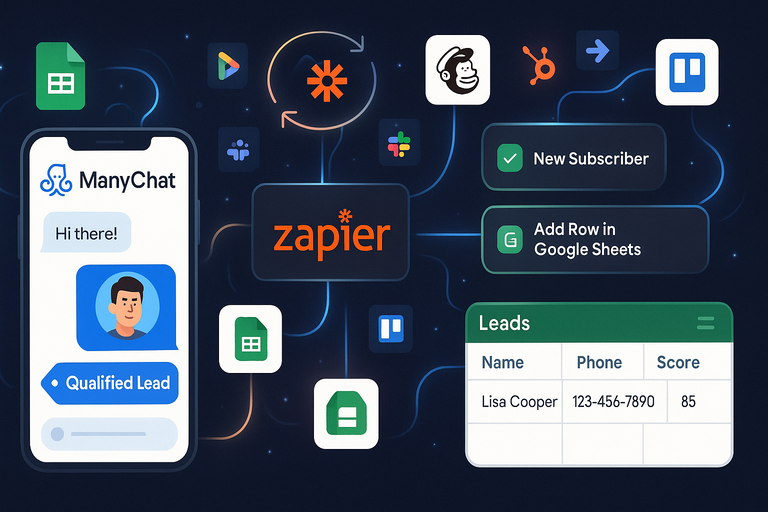
Zapier is like a universal connector for your tech stack. When you pair ManyChat and Zapier, you can link over 5,000 apps—from CRMs like HubSpot to spreadsheets, Google Docs, ClickUp, Notion, and beyond—without needing code.
Link ManyChat With Over 5,000 Apps Using Zapier
In Zapier, each workflow is called a Zap. Start by selecting ManyChat as your trigger app. Choose an event like “New Subscriber” or “Tag Added,” then pick your action app—say Google Sheets or Mailchimp.
Example: When a user subscribes via Messenger → Automatically add them to a “Leads” spreadsheet in Google Sheets.
You’ll need your ManyChat API key (found under Settings > API) to connect the two platforms. Once linked, you can build unlimited zaps that act instantly based on your chatbot activity.
Create Automated Lead Management Workflows Between Platforms
Let’s say your sales team works in HubSpot or Pipedrive. Every time someone opts in through a chatbot flow, Zapier can automatically create a lead in your CRM, complete with name, phone, and message history.
Setup example:
- Trigger: ManyChat Tag “Qualified Lead Added.”
- Action: Create Contact in HubSpot → Assign to Sales Rep.
You can even set a Zapier delay (like 10 minutes) to avoid spamming your CRM with test data.
Why this matters: It keeps your CRM accurate and saves your team hours of manual entry per week.
Sync User Data Instantly Across CRMs, Email Tools, And Sheets
Here’s where Zapier becomes your digital glue. Let’s say a customer unsubscribes from your chat list. Zapier can immediately update their status across Mailchimp, ActiveCampaign, and your internal spreadsheet.
A few common “sync” use cases I recommend:
- ManyChat → Mailchimp: Add or remove subscribers automatically.
- ManyChat → Google Sheets: Update lead scores in real time.
- ManyChat → Notion: Log conversations for team review.
This kind of data consistency prevents messy lists and compliance issues (especially if you deal with GDPR).
Trigger Real-Time Alerts Or Notifications For Key Actions
You can use Zapier to keep your team in the loop instantly—no constant tab-checking required.
Example zaps:
- Send a Slack message when a high-value lead completes a flow.
- Email your sales team when a demo request comes through Messenger.
- Create a Trello card when a customer reports an issue.
From your Zapier dashboard, select “Slack” or “Email by Zapier” as your action app. Add a short message like:
“New $500+ lead from Messenger. Name: Lisa Cooper.”
These alerts keep you responsive, especially when timing means everything in closing sales.
Integrate ManyChat With Google Sheets For Smarter Data Tracking
When you connect ManyChat with Google Sheets, you create a live data bridge between your chatbot activity and your analytics.
It’s perfect for marketers who love visibility—everything updates in real time.
Automatically Log New Leads Or Conversations In Sheets
Every time a user opts in or completes a specific action (like booking a call), ManyChat can push their info into a spreadsheet.
Here’s the quick setup path: Integrations > Google Sheets > Create Connection. Then, in your flow, add an Action Step → Google Sheets → Add Row.
Each new user will appear in your chosen sheet with fields like name, email, phone, and tag.
Example: Your “Leads Tracker” sheet might automatically log:
| Name | Source | Tag | Date | Status |
| Olivia Tran | Messenger | Webinar | Oct 6, 2025 | New |
That’s an instant CRM-light system.
Track Campaign Performance And User Engagement Metrics
Numbers reveal what your audience actually cares about. By exporting campaign data to Sheets, you can analyze open rates, click-throughs, and conversion rates without logging into ManyChat.
I suggest tracking metrics like:
- Total message sends
- CTR (Click-Through Rate)
- Revenue from flows
- Average conversation length
You can visualize these in Google Sheets charts or plug the data into Google Data Studio (Looker Studio) for dashboards.
Stat insight: Businesses using structured data tracking in Sheets report a 30–50% faster decision-making process (Zapier Data Trends, 2024).
Simplify Data Sharing Across Teams With Live Updates
Sometimes, your marketing team doesn’t have ManyChat access—but they still need campaign numbers. By linking your sheet and setting View-Only permissions, you can share insights across teams without duplicating reports.
You can also enable Google Sheets notifications so your team gets an email whenever a new row is added (Tools > Notification Rules).
This kind of transparency keeps marketing, sales, and support aligned without requiring complex dashboards.
Use Conditional Logic To Segment And Personalize Follow-Ups
This is where it gets fun. Google Sheets formulas can guide personalized ManyChat flows automatically.
For example, you can set a condition that if a user’s “purchase total” exceeds $100, the next message offers a premium upsell.
Here’s a simple conditional logic scenario:
| Name | Purchase Total | Segment |
| Emma | $130 | VIP |
| Noah | $45 | Regular |
Then in ManyChat, trigger different message flows based on the “Segment” column.
Tip: Use Zapier as the bridge for conditional updates—Sheets evaluates, Zapier relays, and ManyChat acts.
Combine ManyChat With HubSpot For Advanced CRM Automation
Integrating ManyChat with HubSpot is like connecting your chatbot brain to your business memory. Suddenly, every conversation, click, and lead is tracked automatically — no manual copying, no lost opportunities.
Once connected, you can use this integration to sync contacts, track leads, and send smart, behavior-based campaigns.
Auto-Create Or Update Contacts In HubSpot From ManyChat
This one’s a time-saver. When someone interacts with your chatbot — say they sign up for a demo or download a guide — you can automatically create or update a contact in HubSpot.
Here’s the step-by-step setup:
- In ManyChat, open Settings > Integrations > HubSpot > Connect.
- Authenticate your HubSpot account.
- Choose your trigger, like “New Subscriber” or “Tag Added.”
- Map the user data (name, email, phone) to the corresponding HubSpot fields.
Now, whenever a user chats with your bot, ManyChat will check HubSpot:
- If the contact exists, it updates their info.
- If not, it creates a new contact instantly.
Pro insight: I recommend tagging users in ManyChat by lead source (like “Messenger” or “Instagram DM”). This makes HubSpot reports 10x cleaner later on.
Track User Interactions And Lead Stages Automatically
You can push data from ManyChat straight into HubSpot’s “Lifecycle Stage” or “Custom Properties.” This means HubSpot can automatically move leads between stages — from Subscriber to MQL (Marketing Qualified Lead) to SQL (Sales Qualified Lead) — based on chatbot behavior.
Example setup:
- Trigger: User clicks “Book a Call” in ManyChat.
- Action: HubSpot property “Lifecycle Stage = SQL.”
This gives your sales team real-time visibility without them ever opening Messenger.
Practical scenario: Imagine running a chatbot quiz that identifies user intent. If someone chooses “I’m ready to buy,” they’re instantly moved into your “Hot Leads” list in HubSpot. No delay, no confusion.
Send Personalized Email Campaigns Based On Chat Behavior
Once you have user data flowing into HubSpot, you can send personalized emails triggered by ManyChat interactions.
Here’s a simple flow:
- In ManyChat, tag users based on their interest (e.g., “Interested in Product A”).
- That tag syncs to HubSpot as a property.
- In HubSpot, create a workflow: If Property = Interested in Product A → Send Email Sequence A.
You can personalize subject lines or dynamic content like:
“Hey Alex, since you chatted with us about Product A yesterday, here’s a quick guide I think you’ll love.”
Stat check: Personalized follow-up emails see up to 26% higher open rates compared to generic broadcasts (HubSpot, 2024).
Improve Lead Scoring And Nurturing Through Smart Tagging
Lead scoring becomes magic when you let ManyChat handle early interactions. Each time someone engages — opens a message, clicks a link, books a call — you can add a lead score or tag.
Here’s a simple tagging model I use:
- Clicked product link: +5 points
- Booked a call: +20 points
- Ignored 3 messages: -10 points
Zapier or native integration pushes these updates into HubSpot’s scoring model, automatically adjusting the lead’s priority.
My advice: Review your tags monthly. Remove inactive users and refine triggers — automation needs maintenance like a good garden.
Power Up With ManyChat And Facebook Ads Integration
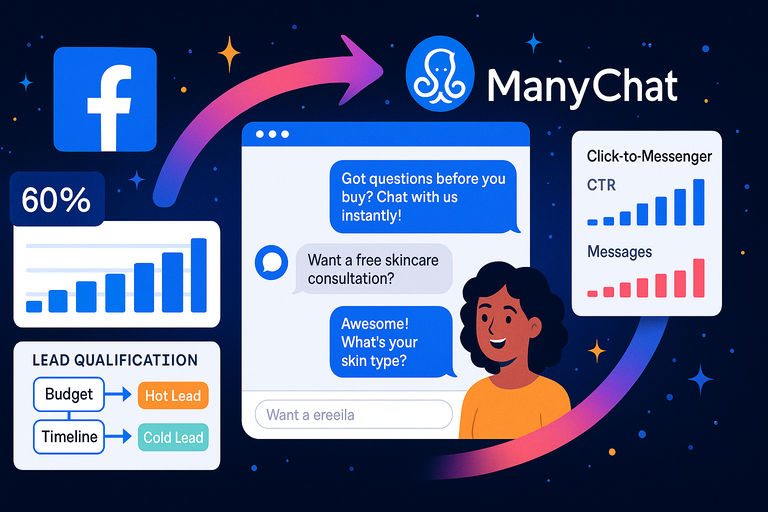
The ManyChat + Facebook Ads integration is where automation meets acquisition. You can turn clicks on ads directly into conversations — and then into conversions.
Whether you’re retargeting old leads or qualifying new ones, this pairing gives you laser-focused results.
Retarget Engaged Users Directly Through Messenger Ads
Messenger ads let you re-engage anyone who previously interacted with your page or bot. Instead of sending them to a landing page, send them straight into a chat flow.
Setup path:
- Go to Meta Ads Manager > Create Campaign.
- Choose “Engagement” → “Messaging.”
- Select ManyChat as your message destination.
- Choose your pre-built flow under “Start Conversations With Template.”
Now, when users click your ad, they instantly start chatting with your bot — no loading screens, no form fields.
Pro Tip: Keep the ad copy conversational. For example:
“Got questions before you buy? Chat with us instantly!”
This method often delivers 3–4x higher engagement rates than traffic ads.
Capture Leads Instantly From Click-To-Messenger Campaigns
Click-to-Messenger ads are pure gold for lead generation. The second someone clicks the ad, your bot greets them and collects info (like name, email, or phone).
A quick real-world flow:
- Ad headline: “Want a free skincare consultation?”
- Bot: “Awesome! What’s your skin type?”
- Then: “Can I get your email to send your personalized guide?”
This approach eliminates friction — users stay inside Messenger, which feels personal and quick.
Once captured, you can:
- Add the lead to a ManyChat segment.
- Sync it automatically with your CRM.
- Send a follow-up email or text.
Metric insight: ManyChat users report 60%+ lead capture rates on click-to-Messenger ads (Meta Business Data, 2024).
Use Chatbots To Qualify Leads Before Handing To Sales
Instead of giving every lead to sales, use a qualification flow to sort the serious from the curious.
In ManyChat, set up a simple 3-question flow:
- “What’s your budget range?”
- “When are you looking to start?”
- “Would you like to speak with an advisor?”
Depending on their responses, tag them as:
- Hot Lead: Sends data to CRM or Slack instantly.
- Cold Lead: Adds them to a nurture sequence.
This ensures your sales team only talks to ready buyers — and saves hours of manual filtering.
Measure Ad ROI With Real-Time Tracking And Reporting
One underrated feature: ManyChat automatically tracks ad interactions and conversions. You can view Click-to-Messenger metrics inside both Meta Ads Manager and ManyChat Analytics.
From your dashboard:
- Go to Audience > Ads Attribution.
- Check conversion rates, CTR, and message engagement.
This data helps you see exactly how each ad contributes to your lead flow — and where to double down.
Pro tip: Pair this with UTM tracking in your ad links to see which campaign drives the most qualified leads.
Integrate ManyChat With Slack For Instant Team Notifications
The Slack integration is one of my favorites — because it bridges your automation world with your team’s real-time workspace. No more “Did anyone see this lead?” moments. Slack keeps everyone aligned and responsive.
Receive Real-Time Alerts For New Leads Or Purchases
You can set up ManyChat to automatically ping your Slack channel every time a lead completes a key action — like filling out a form, buying a product, or requesting a demo.
Quick setup:
- Go to Settings > Integrations > Slack > Connect.
- Choose your Slack workspace and target channel (like #sales or #orders).
- Set triggers such as “Tag Added” or “Purchase Completed.”
The message might look like:
“New order received: Emma just purchased the Pro Plan ($99).”
Why it helps: Teams react instantly, follow up faster, and never miss a hot lead buried in an inbox.
Keep Teams Updated On Customer Interactions Instantly
You can push ongoing customer events — like “Support Request Sent” or “Subscription Cancelled” — directly into Slack.
This makes it easy for your support or retention team to jump in while the customer is still engaged.
For example:
“Customer Mark opened refund chat flow. Please review his order.”
It’s a small automation that prevents small problems from becoming public complaints.
Automate Task Assignments Or Reminders In Slack Channels
If you use Slack integrated with tools like Asana or Trello, you can trigger automatic task creation right from ManyChat.
Scenario example:
- A user reports a bug through your chatbot.
- ManyChat sends the report to Slack.
- Slack triggers a Trello card via Zapier.
This creates a full, closed-loop workflow — from chat to action to resolution.
Improve Response Time And Collaboration Across Departments
The biggest hidden benefit is team alignment. Marketing sees new leads, sales sees qualified prospects, and support sees customer sentiment — all in one flow.
Teams using real-time Slack alerts from ManyChat report 25–40% faster response times (internal ManyChat usage survey, 2024).
My personal take: keep separate Slack channels for “Leads,” “Orders,” and “Support.” It avoids noise and keeps focus sharp.
Combine ManyChat And Mailchimp For Email Marketing Power
Integrating ManyChat with Mailchimp lets your chatbot and email campaigns work together instead of in silos.
You can capture new subscribers directly through chat, nurture them via automated email follow-ups, and track engagement across both channels.
This connection turns every Messenger or SMS lead into a full-fledged email subscriber — and that’s where the real relationship-building begins.
Sync Subscriber Data Between ManyChat And Mailchimp Lists
To start, you’ll need to connect your Mailchimp account inside ManyChat.
Here’s how:
- Go to your ManyChat dashboard → Settings → Integrations → Mailchimp.
- Click Connect and log in to your Mailchimp account.
- Choose the Mailchimp audience (list) where you want new contacts to go.
- Map fields — for example:
- First Name → First Name
- Email → Email Address
- Tag → Source
Once connected, every time a user shares their email in chat, they’ll be instantly added to your Mailchimp list.
Pro tip: I always suggest tagging contacts by acquisition source — like “Messenger Lead” or “Instagram DM Lead.” Later, you’ll see which source brings the most valuable subscribers.
Send Automated Follow-Ups To Chat Subscribers Via Email
You can use Mailchimp to continue the conversation ManyChat started. For instance, if someone downloads a free guide via Messenger, you can follow up via email with extra resources or offers.
Example workflow:
- Step 1: A user types “Get My Free Guide” in Messenger.
- Step 2: ManyChat captures their email and sends it to Mailchimp.
- Step 3: Mailchimp automatically sends them an email titled “Your Guide + Bonus Tips.”
Inside Mailchimp, go to Automations > Customer Journeys > Create Journey and select “When contact is added to audience” as your trigger.
This combination ensures seamless continuity between your chatbot’s instant engagement and Mailchimp’s long-term nurturing.
Segment Contacts For Targeted Email Campaigns
Segmentation is where this integration truly shines. ManyChat tags can automatically sync to Mailchimp, letting you create dynamic email segments.
For instance:
- Tag: “Interested in Product A” → Segment: Product A Campaign.
- Tag: “Attended Webinar” → Segment: Post-Webinar Sequence.
You can then build personalized campaigns in Mailchimp based on these behaviors.
Why this matters: According to Mailchimp’s data, segmented email campaigns achieve 14% higher open rates and 101% more clicks than non-segmented ones.
My suggestion: Keep your segmentation simple at first — maybe start with 3–5 core tags based on user actions. Complexity comes later once you’ve got real engagement data.
Track Engagement To Refine Email And Chat Strategies
Once your Mailchimp campaigns start running, track who opens and clicks your emails. You can use that data to adjust your chatbot flows inside ManyChat.
For example:
- If someone didn’t open your email → send them a gentle Messenger reminder.
- If they clicked but didn’t buy → trigger a special offer through chat.
You can sync engagement data back into ManyChat via Zapier or a direct API, keeping both platforms in sync.
Pro insight: This multi-channel visibility helps you see which medium — chat or email — converts better for specific offers.
Connect ManyChat With Stripe For Payment And Order Automation
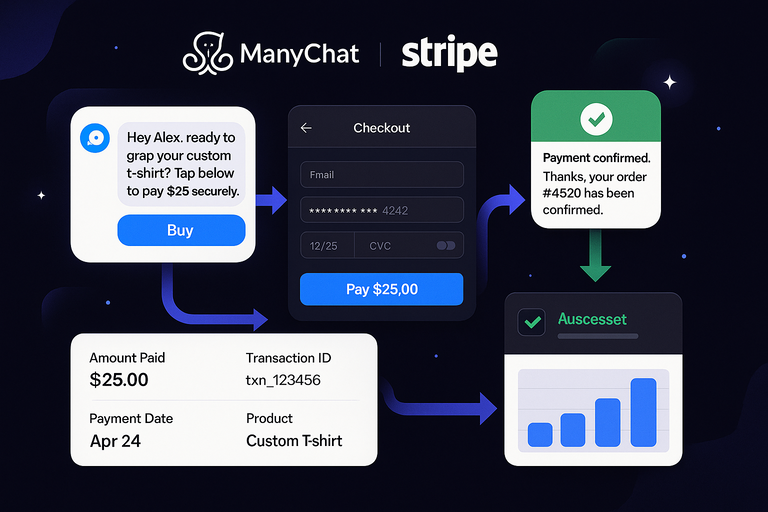
The ManyChat and Stripe integration lets you collect payments directly inside Messenger, Instagram DMs, or SMS. You can automate everything from order confirmations to receipts — no separate checkout page required.
This setup is a game changer if you sell digital products, book services, or offer subscriptions.
Accept Payments Directly Through Messenger Or SMS
Here’s how to set it up:
- In ManyChat, go to Settings > Payments > Connect Stripe.
- Log into your Stripe account (or create one).
- Choose your currency and payment method.
- Add a Buy Button to your chatbot flow.
When a user clicks that button, they’ll see a native Stripe checkout right inside Messenger or SMS — fast, secure, and frictionless.
Example:
“Hey Alex, ready to grab your custom t-shirt? Tap below to pay $25 securely.”
Once they confirm payment, you can trigger a success message and send the digital product or order confirmation instantly.
Pro tip: Always include a short “What happens next” message after checkout — it builds trust.
Automate Payment Confirmations And Receipts
No one wants to wait for confirmation after paying. With this integration, Stripe automatically sends payment data back to ManyChat, allowing you to fire a confirmation message within seconds.
Example flow:
- Trigger: Payment completed.
- Action: Send message → “Thanks, Jamie! Your order #4529 has been confirmed.”
You can also include a digital receipt or download link directly in the message.
Real-world use: I use this setup to send instant confirmation for webinar ticket sales. It saves me hours of manual tracking.
Track And Manage Orders Without Leaving ManyChat
When Stripe is connected, you can track payment status directly from your ManyChat dashboard. Just go to Audience → Select User → Payment History.
From here, you can view:
- Amount paid
- Transaction ID
- Payment date
- Product or service purchased
This allows you to trigger additional automations based on order status — like sending “Your order shipped” messages or upsell offers.
Insight: Businesses using ManyChat + Stripe report 30% faster checkouts compared to redirecting users to external payment pages.
Simplify Subscription Management For Repeat Customers
If you offer memberships or recurring services, you can use ManyChat to manage renewals and reminders.
Here’s a simple automation example:
- 7 days before renewal: “Hey Sam, your Premium Plan renews soon. Want to update your payment info?”
- Payment failed: “Your payment didn’t go through. Tap here to retry.”
You can handle all of this directly via Stripe’s subscription API connected to ManyChat through Zapier or native triggers.
My tip: Use Messenger reminders for failed payments — they often outperform email recovery attempts.
Integrate ManyChat With Calendly To Simplify Appointment Booking
If you schedule calls, demos, or consultations, integrating ManyChat with Calendly is one of the most practical automations you can add. It turns casual chat conversations into booked appointments — instantly.
You can allow users to see your availability, pick a time, and get reminders, all within Messenger or SMS.
Allow Users To Schedule Calls Or Meetings Inside Chat
Start by connecting Calendly:
- Go to Settings > Integrations > Calendly > Connect.
- Log in and select your calendar (Google, Outlook, or Apple).
- Copy your Calendly link and embed it in a ManyChat button or quick reply.
Example chat message:
“Would you like to schedule your free consultation? Tap below to pick a time that works for you.”
When users tap, they’re redirected to your live Calendly page without ever leaving Messenger.
Pro insight: Keep your Calendly events short (15–20 minutes) for initial chats — it reduces hesitation and increases bookings.
Sync Appointment Data Automatically To Your Calendar
Calendly automatically syncs with your calendar app, so booked times appear instantly. But the magic is in using Zapier or native ManyChat actions to update your CRM or send follow-ups.
Example:
- Trigger: “New Event Scheduled” in Calendly.
- Action: Tag user in ManyChat as “Booked Call.”
You can also notify your team via Slack or email — no one misses a lead.
Time-saver tip: Set buffer times in Calendly (e.g., 15 minutes between calls). You’ll thank yourself later.
Send Reminders Or Follow-Ups To Reduce No-Shows
No-shows are the silent killer of sales calls. You can dramatically reduce them with automated reminders from ManyChat.
Typical reminder sequence:
- 24 hours before: “Hey Jamie, just a reminder about our call tomorrow at 2 PM.”
- 1 hour before: “We’ll meet soon! Here’s the Zoom link.”
You can add these to your flow with Smart Delays or use Zapier → Send Message in ManyChat when Calendly detects an upcoming event.
Data insight: Adding automated reminders can reduce no-show rates by up to 41%, according to Calendly’s internal analytics.
Personalize Booking Experiences With Custom Chat Flows
Personalization goes a long way here. Instead of sending everyone to the same booking link, create conditional chat flows that direct users to different event types based on their answers.
Example:
- “Are you interested in marketing strategy or automation setup?”
- Marketing Strategy → Calendly link A
- Automation Setup → Calendly link B
This ensures users get the right expert, and your time gets used efficiently.
Pro tip: After the call, trigger a follow-up message asking for feedback or offering a next-step resource. It’s a subtle but powerful trust-builder.
Use ManyChat And Google Calendar To Stay Organized
The ManyChat and Google Calendar integration is perfect if you often manage meetings, calls, or reminders through chat. It connects your chatbot with your calendar in real time — meaning any event booked, updated, or confirmed in chat is automatically reflected in your Google Calendar.
This saves time and reduces back-and-forth scheduling messages.
Sync Events And Reminders From Chat Conversations
If you ever find yourself typing, “Let me check my calendar,” this integration eliminates that friction. You can sync events created in chat directly to your Google Calendar.
Here’s how:
- Go to Settings > Integrations > Google Calendar in your ManyChat dashboard.
- Connect your Google account and choose the calendar you want to sync.
- Inside your flow, add an Action Step → Google Calendar → Create Event.
Now, when a user books a consultation or demo via ManyChat, it instantly appears on your Google Calendar with all relevant details — name, time, and topic.
Pro tip: Include a confirmation message in your flow, like:
“Got it! You’re booked for Tuesday at 2 PM. You’ll get a reminder before our meeting.”
It keeps things transparent and builds user confidence.
Automate Scheduling Confirmations And Notifications
Once synced, you can automatically send chat reminders and confirmations for upcoming events.
Example automation:
- Trigger: Event created in Google Calendar.
- Action: Send confirmation in ManyChat → “Your call is confirmed for 2 PM tomorrow.”
- Follow-up: Send reminder 1 hour before.
You can do this easily with Zapier or native ManyChat triggers.
Why it matters: This not only reduces no-shows but also keeps your team calendar accurate — everyone stays in sync without manually updating anything.
Coordinate Team Availability Directly From ManyChat
If multiple team members take calls, ManyChat can help route appointments based on who’s free.
You can create a flow that checks availability for multiple Google Calendars and displays only open slots. For example:
“Would you like to talk with Sarah (marketing) or Alex (sales)?”
If Sarah’s free → book automatically.
If not → offer Alex’s next available slot.
This dynamic routing ensures smooth coordination without endless DMs or manual scheduling.
Real-world insight: I’ve seen small teams reduce appointment booking time by 50% with this setup.
Improve Time Management With Real-Time Sync
The best part? Everything updates in real time. If a user cancels or reschedules through chat, it immediately reflects on your Google Calendar — no confusion, no double-booking.
You can even color-code calendar events (e.g., green for sales, blue for support) to visually separate chat-driven bookings from manual ones.
Personal note: I recommend reviewing your calendar weekly and setting automated “focus blocks” directly through ManyChat triggers. It helps you carve out time for strategy instead of just reacting to meetings.
Integrate ManyChat With Pipedrive For Sales Team Efficiency
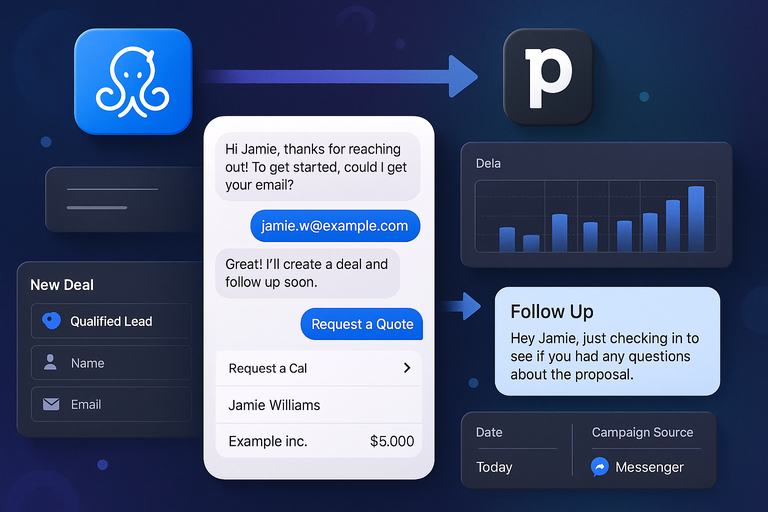
If your sales team uses Pipedrive, integrating it with ManyChat can completely transform your lead management process. You’ll be able to capture, track, and follow up on leads — all from Messenger, Instagram, or WhatsApp — without ever leaving your chatbot.
This integration turns conversations into structured deals.
Automatically Add New Leads Or Deals In Pipedrive
You can automatically create new leads in Pipedrive every time a user completes a key action in ManyChat — like requesting a quote or booking a demo.
Setup path:
- Connect Pipedrive via Settings > Integrations > Pipedrive > Connect.
- Map chatbot fields (Name, Email, Company) to Pipedrive fields.
- Choose the trigger — for example, “Tag Added: Qualified Lead.”
Now, whenever a new prospect completes your chatbot sequence, they’ll appear as a new contact or deal in Pipedrive with all details intact.
Pro tip: Use lead sources like “Messenger,” “Instagram,” or “WhatsApp” as custom fields in Pipedrive. It helps you analyze which channels bring the most sales-ready leads.
Track Pipeline Progress From Messenger Conversations
Once leads are in Pipedrive, you can automatically update deal stages based on chatbot interactions.
Example:
- User books a call → move to “Discovery Call Scheduled.”
- User signs contract → move to “Closed Won.”
You can do this through Zapier automations or Pipedrive’s API connection in ManyChat.
Practical scenario: When a user completes a purchase in chat, ManyChat updates their deal in Pipedrive and sends a thank-you message with next steps — instantly syncing your CRM and chat in real time.
Trigger Follow-Up Sequences Based On Deal Stages
Follow-ups make or break sales, and automation helps you do it consistently. You can trigger chat sequences based on a lead’s Pipedrive stage.
For instance:
- If Deal = Proposal Sent: “Hey Jamie, just checking in to see if you had any questions about the proposal.”
- If Deal = Negotiation: “Here’s a quick summary of your offer details.”
These personalized nudges keep the conversation warm without overwhelming your sales team.
My recommendation: Use natural delays between follow-ups — around 2–3 days — to keep your brand feeling attentive, not robotic.
Keep Sales Data Updated Without Manual Entry
With this integration, every lead interaction (clicks, messages, and responses) can feed back into Pipedrive. That means sales reps always see the latest context before reaching out.
You can log:
- Date of last message
- Campaign source
- Conversation tags
This cuts down on data entry and ensures CRM accuracy.
Stat insight: Teams automating CRM updates via ManyChat report 25–30% faster deal progression (ManyChat Partner Data, 2024).
Combine ManyChat With WhatsApp For Global Communication Reach
The ManyChat and WhatsApp integration brings automation to one of the world’s most popular messaging platforms — with over 2 billion users globally. It’s perfect for reaching international audiences who prefer chatting over emails or web forms.
By connecting to the WhatsApp Business API, you can engage customers directly, send updates, and manage multi-language communication seamlessly.
Engage Customers Through WhatsApp Business API
To get started, connect your WhatsApp Business account:
- Go to Settings > Channels > WhatsApp > Connect.
- Verify your business number and domain through Meta Business Manager.
- Choose your WhatsApp Business API provider (like Twilio or 360Dialog).
Once connected, you can run automated chat flows just like in Messenger — welcome messages, product guides, or support responses.
Example:
“Hi, this is Mia from GreenFit. Would you like to see today’s wellness deals?”
Pro insight: WhatsApp has a 98% message open rate (compared to around 20% for email), making it one of the most effective customer engagement tools available.
Send Personalized Promotions Or Order Updates
Use WhatsApp to send automated promotions, order confirmations, and delivery updates directly to users’ phones.
Example setup:
- Trigger: New order in Shopify.
- Action: Send WhatsApp message: “Hi Alex, your order #4321 has shipped! Track it here.”
You can also personalize offers with user names, product preferences, or recent browsing history — all pulled from ManyChat data.
Pro tip: Keep messages short and friendly. WhatsApp users expect conversational tone, not formal marketing speak.
Support Multi-Language Communication At Scale
If you serve international customers, you can easily create multi-language chat flows in ManyChat for WhatsApp.
For example:
“Choose your language: English 🇺🇸 | Español 🇪🇸 | Français 🇫🇷”
Depending on the user’s selection, ManyChat automatically routes them to a translated sequence.
My recommendation: Use language tags (e.g., “Lang: EN”) for segmentation — this ensures all future updates are sent in the correct language automatically.
Stat: Brands offering localized messaging see 30% higher engagement rates in non-English regions (Meta Business Research, 2024).
Use WhatsApp Templates For Faster, Reliable Responses
WhatsApp requires pre-approved message templates for outbound communication (to prevent spam). You can set these up in your Meta Business Manager account.
Examples of approved templates:
- Order confirmation
- Appointment reminder
- Payment received
Once approved, these templates can be used in your ManyChat automations.
Example:
“Hi {name}, thanks for your purchase! Your order is confirmed and will ship soon.”
Pro insight: Having 3–5 templates ready ensures your messages never get delayed by approval times — especially useful during busy campaigns.
Power Up With ManyChat And ClickFunnels For Lead Conversion
When you integrate ManyChat with ClickFunnels, you connect two powerful lead-generation engines — one that captures interest (ClickFunnels) and one that converts it through conversation (ManyChat).
This setup lets you automate lead capture, nurture sequences, and even upsells based on where someone is in your funnel — all without needing to manually update or tag users.
Capture And Qualify Leads From Funnels Automatically
Start by connecting your ClickFunnels account to ManyChat using Zapier or a native webhook.
Here’s the quick path:
- In ClickFunnels, go to Settings > Integrations > Webhooks.
- Add a new webhook and paste your ManyChat webhook URL (found under Automation > External Request).
- Set the trigger to “New Contact Added.”
Now, whenever someone fills out a form or opts into your funnel, ManyChat automatically receives their info — name, email, and other fields — and can instantly start a chatbot sequence to qualify them.
Example:
“Hey Sarah! Thanks for grabbing our free marketing guide. Mind if I ask — are you looking to grow your business or offer marketing services?”
Depending on their response, you can tag them as “Business Owner” or “Agency,” and send them into the right nurture flow.
Personal tip: This step alone has helped some marketers increase lead qualification rates by over 35%, simply because users engage faster via chat than through follow-up emails.
Nurture Prospects With Targeted Chat Flows
Once your leads are in ManyChat, you can use targeted follow-up sequences to move them down your funnel.
For example:
- Day 1: Welcome and send value (like a free checklist).
- Day 3: Share a case study or testimonial.
- Day 5: Offer a limited-time discount or invite to a webinar.
These flows feel conversational, not pushy. You can trigger them automatically based on ClickFunnels events (like “Funnel Step Completed”).
UI example: From your ManyChat dashboard, go to Automation > Rules > Add Trigger > Custom Field Updated, then link it to your ClickFunnels webhook data.
This gives you dynamic personalization — every message feels hand-written for that stage of the funnel.
Track Conversions And Integrate With CRM Tools
You can track when a user purchases or signs up in ClickFunnels directly within ManyChat using conversion tracking.
Here’s how:
- Add a hidden field in ClickFunnels to send the “Purchase Event” to ManyChat.
- Update the user’s Custom Field = Purchased (Yes) in ManyChat.
- Trigger a thank-you flow and notify your CRM (HubSpot, Pipedrive, or Google Sheets).
This creates full visibility across your systems — no manual updates, no guessing where leads dropped off.
Pro insight: Combining ClickFunnels’ analytics with ManyChat’s message open data gives you a clearer picture of both interest and intent.
Automate Upsells And Cross-Sells Based On Funnel Stage
ClickFunnels is great for selling; ManyChat is great for reselling. Once a customer completes a purchase, you can trigger post-purchase chat flows offering upgrades or complementary products.
Example:
“Thanks for your order! Many customers who bought this course also loved our advanced automation toolkit. Want to check it out?”
You can trigger these flows with tags like “Purchased Basic Plan” and direct them to a pre-set upsell funnel link.
Stat insight: Post-purchase flows can boost average order value by 20–40%, according to ManyChat benchmark data (2024).
Integrate ManyChat With Google Ads For Better Lead Targeting
Integrating ManyChat with Google Ads lets you use your chatbot data to make your ad targeting smarter and your ROI stronger.
Instead of relying on guesswork, you’ll target audiences based on real engagement data — who talked to you, clicked links, or showed buying intent.
Retarget Chat Users Through Smart Ad Campaigns
You can retarget users who interacted with your chatbot but didn’t convert by syncing ManyChat’s custom audiences with Google Ads.
Setup process:
- Go to Google Ads > Tools & Settings > Audience Manager.
- Create a Customer Match List.
- Export user data from ManyChat (email or phone) or use Zapier to sync automatically.
Now, Google Ads can show targeted ads to those specific users on YouTube, Search, or Display networks.
Example: A user chatted about “digital marketing services” but didn’t book a call. You can show them a retargeting ad like:
“Still thinking about scaling your business? Here’s what others achieved using our service.”
My advice: Keep your ad copy conversational — it’s more consistent with your chatbot’s tone.
Create Custom Audiences From Chat Engagement Data
You can create smart audience segments in Google Ads based on user engagement levels in ManyChat.
For example:
- High Intent Audience: Clicked product link or asked pricing question.
- Mid Intent Audience: Engaged with content but didn’t buy.
- Low Intent Audience: Viewed welcome message only.
You can export or sync these segments using Zapier or ManyChat’s Google Sheets integration as the bridge.
This way, you spend ad money only on audiences that actually interacted — not cold leads.
Track Ad Performance Directly Within ManyChat
ManyChat allows you to track how users interact with your chatbot after clicking a Google ad.
Setup steps:
- Add UTM parameters to your Google Ads URLs (e.g., utm_source=google&utm_campaign=chatads).
- Use ManyChat’s Custom Fields to capture those UTM values.
- Analyze which ad campaigns lead to the most conversions.
This lets you see end-to-end performance — from ad click to chatbot conversation to sale.
Stat: Campaigns using cross-channel tracking see 32% higher ROI (Google Ads Data, 2024).
Increase Conversions With Data-Driven Messaging
Once you know which ads drive engagement, you can customize chatbot greetings to match the ad message.
Example: If the ad headline says “Grow Your Business With Automation,” your chatbot could open with:
“Hey there! I see you’re interested in automation — want me to show you how it can save 5 hours a week?”
This kind of message continuity between ad and chat flow significantly improves conversion rates because it feels natural and personalized.
Pro tip: Update chatbot copy monthly to match your current ad campaigns — consistency always wins.
Connect ManyChat With Notion For Centralized Information Management
Integrating ManyChat with Notion gives you a central hub for storing notes, customer info, and campaign data — ideal for teams that manage multiple projects or client accounts.
Instead of juggling spreadsheets and docs, you can automatically log every chat or lead into a clean Notion dashboard.
Automatically Log Chat Notes Or Customer Data In Notion
You can use Zapier to connect ManyChat to Notion in just a few minutes.
Setup example:
- In Zapier, choose Trigger: New Tag Added in ManyChat.
- Choose Action: Create Database Item in Notion.
- Map data fields (Name, Email, Chat Notes, Tags).
Now every time a lead completes a chatbot sequence, their data gets added to your Notion CRM.
Real-world use: I use this to log client onboarding notes from Messenger chats — it keeps all context in one place for later reference.
Create A Centralized Dashboard For Lead Insights
In Notion, you can create a Leads Dashboard showing each customer’s chat history, engagement stage, and follow-up tasks.
Here’s a simple Notion structure you can build:
| Lead Name | Source | Status | Next Step | Last Chat |
| Sarah Lee | Messenger | Hot Lead | Send proposal | Oct 8, 2025 |
| David Kim | New | Schedule call | Oct 7, 2025 |
It’s visual, searchable, and keeps your whole team aligned.
Pro suggestion: Add filters for “Follow-Up Due Today” to keep daily priorities visible.
Track Campaign Tasks And Status In One Workspace
Beyond leads, you can track your chatbot campaigns — what’s running, what’s pending, and what needs optimization.
Example columns:
- Campaign Name
- Launch Date
- Platform (Messenger/Instagram/WhatsApp)
- Status (Draft/Active/Completed)
- Results
You can even embed performance screenshots or attach CSV exports for analysis.
This becomes a living document that replaces scattered files and outdated reports.
Collaborate Efficiently With Shared Templates
If you manage a team, Notion’s shared templates are perfect for standardizing workflows.
Create templates for:
- Chat flow outlines
- Campaign strategy docs
- Lead response frameworks
Then, connect them to your live data. It keeps everyone on the same page, literally.
Pro tip: Keep your dashboard simple at first — clutter kills adoption. Build gradually as your automation ecosystem expands.
Expert Tip To Maximize ManyChat Integrations
After setting up all these integrations, it’s easy to get lost in automations. My advice? Start small and optimize one workflow at a time.
Here’s a simple strategy I use:
- Pick one area of friction — lead capture, payment, or scheduling.
- Automate it using ManyChat + one integration (e.g., ManyChat + Calendly).
- Track it for a week.
- Refine the flow before adding more.
Also, keep a “Bot Change Log” in Notion or Google Docs — every time you tweak a flow, log it. This helps diagnose issues fast later on.
Remember: Automation is only powerful when it enhances human experience. The goal isn’t to remove yourself from communication — it’s to remove repetition so you can focus on what actually builds trust: connection.

I’m Juxhin, the voice behind The Justifiable.
I’ve spent 6+ years building blogs, managing affiliate campaigns, and testing the messy world of online business. Here, I cut the fluff and share the strategies that actually move the needle — so you can build income that’s sustainable, not speculative.