
Table of Contents
Some links on The Justifiable are affiliate links, meaning we may earn a small commission at no extra cost to you. Read full disclaimer.
Getting started with your ManyChat sign up takes just a few minutes—but doing it right from the start sets the stage for smooth automation and effortless customer engagement.
Whether you’re building your first chatbot or connecting your social media for automated messaging, understanding how to sign up for ManyChat the right way matters.
So, how do you create your free ManyChat account fast and avoid the common setup mistakes beginners make? Let’s walk through it step by step.
Understanding What ManyChat Is and Why You Need It
If you’ve ever wished you could reply to your social media messages automatically—without sounding robotic—then your ManyChat sign up is going to feel like discovering a secret productivity weapon.
ManyChat is a chatbot and automation platform designed for businesses that use Facebook Messenger, Instagram Direct, or WhatsApp to connect with customers. But here’s the key: it’s not about replacing human connection; it’s about scaling it.
What Makes ManyChat a Must-Have Automation Tool
ManyChat stands out because it lets you automate customer conversations in a natural, personalized way. Instead of manually replying to every “Is this still available?” or “How do I book?” message, you can build flows that reply automatically—based on keywords or triggers.
For instance, you can create an automation where if someone messages “pricing,” ManyChat instantly sends your latest offer or a link to your shop.
From the dashboard, you’ll find this under Automation > Flows > New Flow. It’s intuitive, drag-and-drop, and beginner-friendly—no coding required.
Here’s why it’s essential:
- It saves hours of repetitive messaging time.
- It helps capture leads instantly before they bounce.
- It boosts conversion rates by answering customers immediately.
ManyChat isn’t just a chatbot; it’s a 24/7 customer assistant that handles engagement while you focus on strategy. I believe that’s what makes it indispensable for creators, marketers, and small business owners alike.
How ManyChat Simplifies Social Media Conversations
Let’s be honest—managing DMs across multiple platforms can be a nightmare. ManyChat fixes that by bringing all your conversations into one simple interface.
From your dashboard, click Inbox and you’ll see your connected channels—Facebook Messenger, Instagram, and WhatsApp—right there in one place.
With smart automations, you can do things like:
- Send a thank-you message when someone follows you.
- Share promo codes after a purchase.
- Automatically tag and segment customers (e.g., “VIP,” “New Lead”).
What’s impressive is that you can still jump in manually anytime. I often tell people: use automation to enhance your human touch, not erase it. ManyChat lets you pause a bot mid-conversation to personally reply, keeping authenticity intact while still automating most of the grunt work.
Why ManyChat’s Free Plan Is Perfect for Beginners
If you’re new to automation, start with the free plan—it’s genuinely generous. You can connect one Facebook or Instagram account, create chat flows, and send up to 1,000 messages monthly without paying a cent.
Here’s what you get for free:
- Basic automation tools (Flows, Keywords, Welcome Messages).
- Access to Growth Tools (popups, links, widgets).
- Integration with Facebook and Instagram DM automation.
In my experience, the free plan gives you enough room to experiment and see results before investing. Once your subscriber list grows or you need advanced analytics, upgrading makes sense.
But at the beginning, you’ll be surprised how much you can accomplish for zero cost.
Step-By-Step ManyChat Sign Up Process Explained
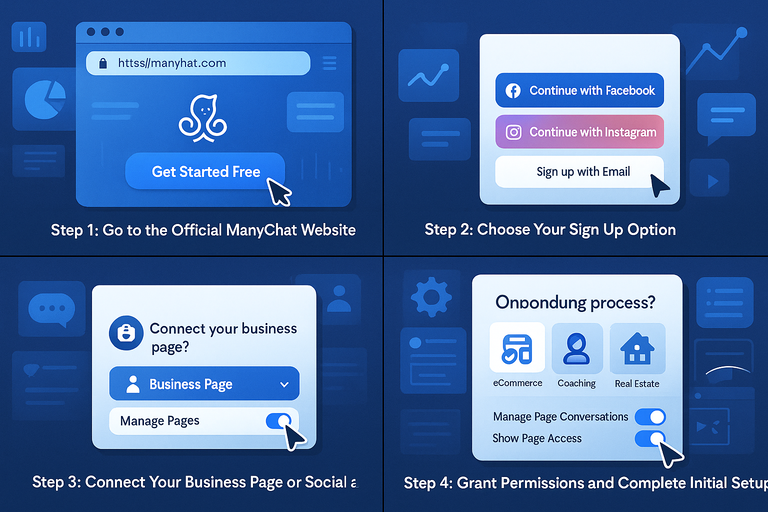
Creating your ManyChat account is quick—just a few clicks and you’re in. Still, each step matters because how you sign up affects your future integrations and automations.
Let’s go through the full process so you can do it right the first time.
Step 1: Go to the Official ManyChat Website
Head to manychat.com. On the homepage, you’ll see a blue “Get Started Free” button. Click it, and you’ll be prompted to choose a sign-up method.
Always make sure you’re on the official site—look for the HTTPS lock symbol in your browser—to avoid phishing pages pretending to be ManyChat.
Pro tip: Bookmark the site once you’re logged in so you can access your dashboard faster later.
Step 2: Choose Your Sign Up Option (Facebook, Instagram, or Email)
ManyChat offers multiple ways to sign up. The easiest is through Facebook, since that’s where the platform was originally built. When you select “Continue with Facebook,” it will automatically connect to your Business Page.
If you prefer, you can also use Instagram or email sign up, but note that you’ll later need to connect a Facebook account to access full automation features.
I recommend using your business Facebook login to avoid connection issues later.
Step 3: Connect Your Business Page or Social Account
Once you’re logged in, ManyChat will ask which Facebook Page or Instagram account you want to connect. Choose your business profile, not your personal one—this ensures automations apply to the right audience.
Here’s how to connect:
- From the pop-up, select your page.
- Grant permissions to “Manage Pages” and “Access Messages.”
- Wait for the confirmation screen before moving forward.
If you manage multiple pages, start with one. You can always add more inside your Settings > Connected Pages later.
Step 4: Grant Permissions and Complete Initial Setup
This part may seem tedious, but it’s crucial. ManyChat needs permission to send and receive messages on your behalf. You’ll see toggles for permissions like “Manage Page Conversations” or “Show Page Access.” Make sure all are turned on—otherwise, your automations won’t work properly.
After granting access, you’ll enter the onboarding wizard, which asks a few quick setup questions like:
- What kind of business you run (e.g., eCommerce, Coaching, Real Estate).
- What goal you want to achieve (e.g., collect leads, answer FAQs).
I suggest choosing your main goal thoughtfully. ManyChat tailors your dashboard suggestions based on it.
Step 5: Confirm Your Email and Verify Your Account
Finally, ManyChat will send a verification link to your registered email. Open your inbox, click “Confirm Email”, and your account is ready. Once verified, you’ll be redirected to the ManyChat Dashboard, where you can start building your first automation.
Pro tip: Before diving in, go to Settings > Profile and double-check your time zone and business name. These small details ensure your automations trigger correctly (especially for scheduled messages).
Setting Up Your Free ManyChat Account the Right Way
Once you’ve completed your ManyChat sign up, the real magic begins.
Think of this step as setting the foundation for all your future automations—getting your profile right, linking your pages correctly, and tuning the settings to make your account work smoothly from day one.
How to Personalize Your ManyChat Profile for Better Engagement
Personalization is what makes your chatbot feel human and trustworthy. When people message your brand, they shouldn’t feel like they’re talking to a robot—they should feel they’re chatting with you.
Here’s how to personalize your ManyChat profile the right way:
- Update your business info: From your dashboard, click Settings > General. Fill in your business name, upload your logo, and double-check your time zone. These seem small but they’re essential—your automation schedules and timestamps depend on them.
- Add your profile picture and greeting: Go to Settings > Messenger. Add a friendly greeting like, “Hey there! 👋 Thanks for reaching out. How can I help you today?” This sets a conversational tone from the very first message.
- Use your brand voice: Whether your brand is playful or professional, keep it consistent. I suggest using your real name or your brand’s name as the chatbot identity. For example, “I’m Alex from GlowSkin—your skincare buddy!” feels warmer than “GlowSkin Bot.”
Small touches like emojis, humor, or short sign-offs (“Talk soon!”) make your chatbot sound like part of your team.
Linking ManyChat to Facebook and Instagram for Automation
This is where ManyChat really shines—it lets you automate your messages across Facebook and Instagram seamlessly.
To link your accounts:
- In your dashboard, go to Settings > Channels.
- Click Connect Facebook or Connect Instagram.
- Log in to your account and grant permissions to manage messages, pages, and ads.
Pro tip: Make sure your Instagram account is a business profile linked to a Facebook Page, or the connection won’t work.
Once connected, you’ll be able to:
- Automatically reply to comments on Instagram posts.
- Send follow-up messages to new followers.
- Respond instantly to Facebook messages with your custom flows.
I’ve found that linking both platforms early helps keep your automations organized—you’ll be able to track engagement metrics from a single dashboard instead of juggling multiple inboxes.
Adjusting Default Settings for Maximum Efficiency
Before you start creating automations, take five minutes to tweak the default settings—it’ll save you headaches later.
- Message Frequency: Go to Settings > Messenger > Preferences and adjust how often ManyChat can message users. Keep it friendly, not spammy—one or two follow-ups per interaction is usually ideal.
- Notification Settings: Under Notifications, choose how you get alerts—email, desktop, or both. I recommend keeping email notifications on at first to stay on top of new interactions.
- Growth Tools and Integrations: Check Settings > Integrations. Here you can connect tools like Shopify, Google Sheets, or Zapier. These integrations automate repetitive tasks—like adding new leads to a spreadsheet automatically.
These quick tweaks ensure your ManyChat system runs efficiently without manual babysitting.
Navigating the ManyChat Dashboard for the First Time
The dashboard might look intimidating at first, but it’s actually laid out logically once you know where things are.
Here’s a quick tour of what you’ll see:
- Home Tab: Displays analytics, active subscribers, and engagement data.
- Audience Tab: Lists every person who has interacted with your bot.
- Automation Tab: Where you create Flows, Sequences, and Rules.
- Growth Tools Tab: Used for lead generation forms, popups, and widgets.
- Broadcast Tab: Where you send bulk messages or updates.
If you’re ever unsure what a feature does, hover over the “?” icon—it shows tooltips explaining each section. I often tell beginners to explore the Automation > Flows section first, since that’s where your chatbot’s conversations live.
Once you’re familiar with these, you’ll move through your dashboard like a pro.
Exploring Key Features After Signing Up
After setting up your account, it’s time to see what ManyChat can actually do.
The platform’s features help you grow your audience, build relationships, and automate meaningful interactions—all from one place.
How to Use Growth Tools to Capture Leads Fast
Growth Tools are built-in widgets that help you turn website visitors and social followers into subscribers.
Here’s how to get started:
- Go to Growth Tools > New Growth Tool.
- Choose a format—like a Popup, Landing Page, or Messenger Ref URL.
- Customize your message and call-to-action.
- Connect it to a specific flow that continues the conversation.
Example: Let’s say you run a bakery. You can create a popup that says, “Want 10% off your first order? Chat with us on Messenger!” When users click, they’re automatically subscribed to your chatbot and receive a discount code.
It’s simple but powerful—and it can boost your lead capture rate dramatically.
Setting Up Automated Welcome Messages and Replies
Your welcome message is your first impression. It should feel warm, personal, and helpful.
Here’s how to create one:
- Go to Automation > Welcome Message.
- Write a short, friendly message like, “Hi there! Thanks for stopping by. Can I help you find something today?”
- Add quick reply buttons such as “Shop Now,” “Book a Call,” or “Learn More.”
For replies, go to Automation > Default Reply—this message triggers when your bot doesn’t understand something. A good fallback could be, “Hmm, I didn’t catch that! Would you like to chat with a real person?”
Adding this human touch keeps users engaged even when automation hits a limit.
Understanding the Flow Builder for Simple Chatbot Creation
The Flow Builder is where you design your actual chatbot conversations using a drag-and-drop interface.
Here’s how to explore it:
- Go to Automation > Flows > New Flow.
- Use “+ Add Message” to create text, images, or button-based replies.
- Link steps together using arrows to control the conversation path.
Example scenario:
A user types “Pricing.”
→ ManyChat sends a message: “Our plans start at $29/month. Would you like to see all options?”
→ Buttons: “Yes, show me” or “Not now.”
Each click triggers another flow, making your chatbot feel alive and responsive. Once you build a few, you’ll start to see how the Flow Builder gives you endless creative flexibility.
Integrating Email and SMS Marketing Features
ManyChat isn’t just for Messenger—it also handles email and SMS campaigns, letting you manage all your communication in one place.
To connect these channels:
- Go to Settings > Channels and enable Email or SMS.
- Verify your sender information (e.g., business name, phone number).
- Create new messages under Broadcast > New Broadcast, then choose your channel.
I suggest starting with a short sequence that welcomes new subscribers across all platforms:
- Day 1 (Messenger): Thank them for joining.
- Day 2 (Email): Send a useful resource or discount.
- Day 3 (SMS): Remind them about your offer.
When used strategically, these multi-channel automations can increase your conversion rate by up to 40%, according to ManyChat’s internal data.
Common ManyChat Sign Up Issues and How to Fix Them
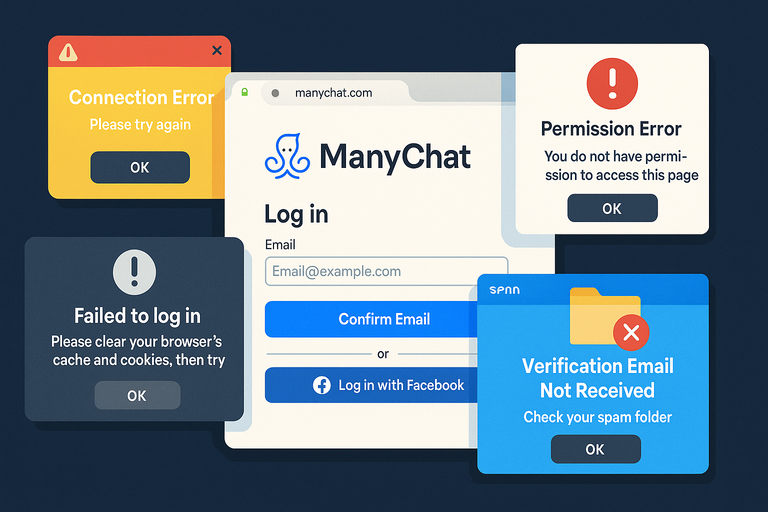
Even though the ManyChat sign up process is quick and intuitive, sometimes you’ll run into a few small hiccups—login loops, connection errors, or missing pages.
Don’t worry, these are usually easy to fix once you know where to look. Let’s go through the most common problems and the practical fixes that actually work.
Troubleshooting Login and Verification Errors
If you’re stuck on the login screen or didn’t receive your verification email, it’s likely a browser or permission issue—not a problem with ManyChat itself.
Here’s what usually helps:
- Clear your browser cache and cookies. Old session data often causes login loops.
- Use Chrome or Firefox. ManyChat works best on these browsers.
- Check your spam folder. The verification email sometimes hides there under “Promotions” or “Updates.”
- Try logging in with Facebook instead of email. If you used the same email for your Facebook account, this often bypasses verification issues.
If the email still doesn’t arrive after 10 minutes, go to manychat.com/support and request a resend link through chat support.
Quick tip: Once you’re logged in, enable two-factor authentication under Settings > Security. It keeps your bot safe and prevents future login headaches.
Fixing Connection Problems with Facebook or Instagram
This is one of the most common stumbling blocks during ManyChat setup. It usually happens because of expired permissions or missing business integrations.
To fix this:
- Go to Facebook > Settings > Business Integrations.
- Find ManyChat and click Remove. Don’t worry, this won’t delete your bots.
- Return to ManyChat and reconnect your account under Settings > Channels > Facebook/Instagram.
- When Facebook asks for permissions, select “Yes” for all—especially message management and page access.
If your Instagram account isn’t showing up, make sure it’s:
- A business or creator profile (not personal).
- Linked to a Facebook Page under Instagram > Settings > Linked Accounts.
After reconnecting, test by sending your page a message—if your flow responds, you’re good to go.
Handling Account Access and Permission Errors
Sometimes you might see messages like “Permission Denied” or “Access Restricted.” These usually mean your Facebook profile doesn’t have admin rights to the connected page.
Here’s how to fix it step by step:
- Go to your Facebook Page > Settings > Page Access.
- Check if your personal profile has Admin access. Editor or Moderator won’t work for automations.
- If you’re missing permissions, ask the page owner to upgrade your role or re-invite you as Admin.
Pro insight: I suggest verifying that your Business Manager roles match your Page roles. If they’re mismatched, Facebook can block API access temporarily—which stops your bot from responding.
Once permissions are corrected, refresh your ManyChat dashboard and the error should disappear.
What to Do If ManyChat Doesn’t Recognize Your Page
If your page isn’t appearing in ManyChat’s connection list, don’t panic—it’s often a visibility issue, not a lost page.
Try this:
- In Facebook, check if your Page is published (Settings > General > Page Visibility).
- Confirm you’re logged into the correct Facebook account that manages that Page.
- Disable browser extensions like ad blockers; they can block ManyChat’s pop-up permissions.
- Reconnect by going to ManyChat > Settings > Channels > Facebook > Refresh Pages.
If you still can’t see your page, it might be temporarily restricted by Facebook’s API. Wait a few hours, then try again. In rare cases, creating a new ManyChat workspace and reconnecting from scratch solves the issue.
Tips to Get the Most Out of Your Free ManyChat Account
Once your account is set up, it’s time to make the most of your free plan. ManyChat’s free tier is surprisingly powerful—you can automate, grow, and test almost everything before upgrading.
Let’s break down how to use it like a pro.
How to Test Your Chatbot Before Going Live
Testing your chatbot helps catch errors before your audience sees them. It’s like rehearsing before the real show.
Here’s how to test your bot properly:
- From your dashboard, click Automation > Flows.
- Open your flow and hit Preview.
- This sends the flow to your Messenger, so you can see exactly what your audience will experience.
Pay attention to message delays, broken links, and missing buttons. I usually run through the flow twice—once on desktop and once on mobile—to catch any formatting differences.
Pro tip: Add yourself as a test user under Audience > Add User so you can simulate real interactions without affecting analytics.
Optimizing Your Chat Flow for Better Conversions
Think of your chatbot as a digital salesperson—it should guide, not overwhelm.
Here’s what I recommend for high-performing flows:
- Keep messages short and clear. Aim for 2–3 sentences max per message bubble.
- Use quick replies instead of long menus. People prefer tapping over reading.
- Personalize with variables. Add a name tag like “Hi {{first_name}}!” to feel more human.
- Include clear calls-to-action. End every conversation path with something like “Tap below to book” or “Learn more.”
If you’re serious about optimization, use Analytics > Flow Metrics to see which steps users drop off at. Adjust those sections first.
When and Why to Upgrade from the Free Plan
You can do a lot with the free version, but eventually, you’ll hit limits like message caps or advanced integrations.
Upgrade when you:
- Need to message more than 1,000 subscribers.
- Want to use SMS or email automations.
- Need custom audience syncing for Facebook Ads.
The Pro Plan starts affordably and scales with your subscriber count. I suggest upgrading once you’re getting consistent engagement or leads—you’ll see the return almost immediately through better automation depth.
Best Practices for Growing Your Audience with Automation
Your bot is only as effective as the audience it reaches. Thankfully, ManyChat gives you smart ways to grow your list without paid ads.
Try these methods:
- Add “Message Us” buttons to your website or landing pages (Growth Tools > Button).
- Offer a giveaway or lead magnet via Messenger, such as “Get our free guide—just message us below!”
- Run Facebook comment-to-message campaigns. When someone comments on your post, ManyChat automatically sends them a private message.
Consistency matters more than scale at the start. Even if you gain 5–10 new subscribers daily, that’s hundreds of engaged leads by month’s end—without extra ad spend.
Final Thoughts and Pro Tip
By now, your ManyChat sign up journey should feel complete—you’ve set up your account, fixed common issues, and started building a chatbot that actually connects with people.
The key to success is keeping it personal and purposeful. Automation doesn’t mean losing authenticity; it means amplifying it at scale.
Pro Tip: Use Templates to Speed Up Your Chatbot Creation
ManyChat offers ready-made templates for nearly every use case—welcome messages, abandoned cart reminders, booking confirmations, and more.
To use them:
- Go to Automation > Templates.
- Browse categories like “eCommerce,” “Local Business,” or “Service Providers.”
- Click Install Template and customize it for your brand.
Templates save hours of setup time and help you learn how professional chat flows are structured. I recommend picking one or two, studying their logic, and then adapting them to your voice.
Once you’ve mastered that, you’ll not only have a chatbot—you’ll have a marketing assistant working for you 24/7, engaging, converting, and building trust while you sleep.
That’s the beauty of doing your ManyChat setup right from the start.

I’m Juxhin, the voice behind The Justifiable.
I’ve spent 6+ years building blogs, managing affiliate campaigns, and testing the messy world of online business. Here, I cut the fluff and share the strategies that actually move the needle — so you can build income that’s sustainable, not speculative.
Related posts:
 Best ManyChat Integrations to Supercharge Your Work
 How to Increase Social Media Followers
 Fail-Proof Online Marketing Strategy to Dominate Your Niche
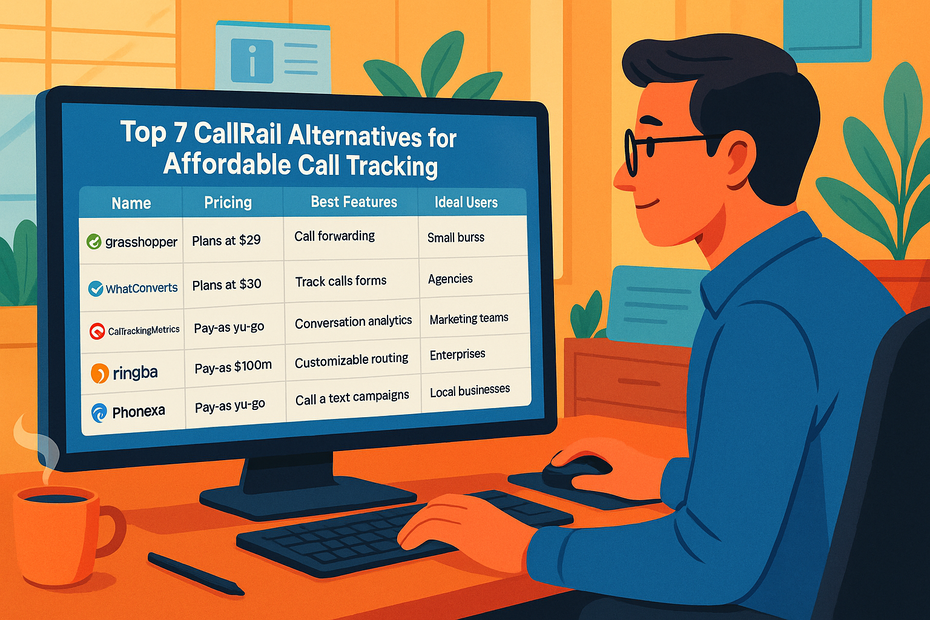 Top 7 CallRail Alternatives for Affordable Call Tracking
 Sprout Social Competitors You Didn’t Know Existed
 ManyChat Facebook Ads Guide: Automate Leads Fast